
Settings
Configure the key settings in your Compyl environment
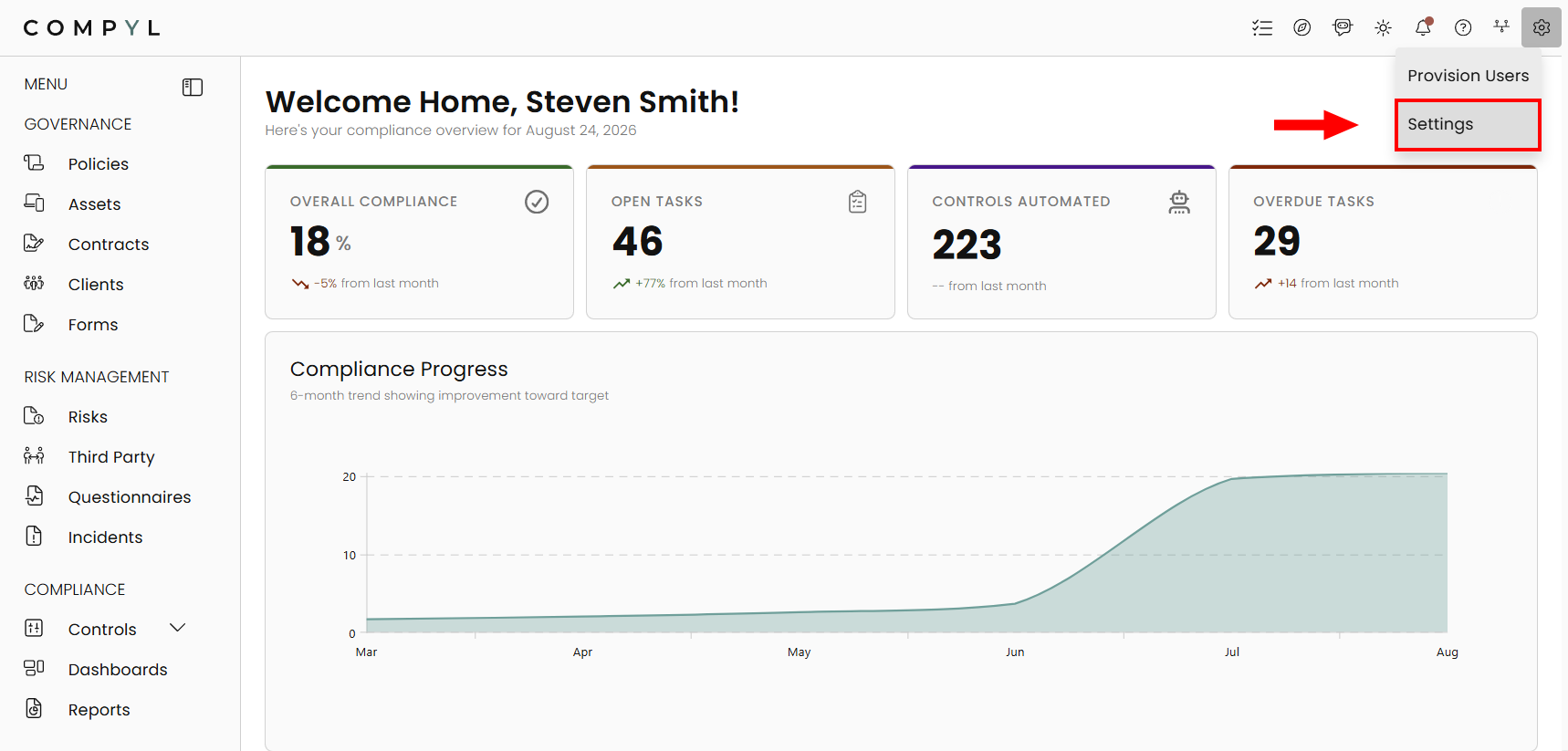
The Settings page is where site admins can configure the general settings about their environment. This can be found by clicking the gear icon in the upper right hand corner of the Compyl home page.
Company Information
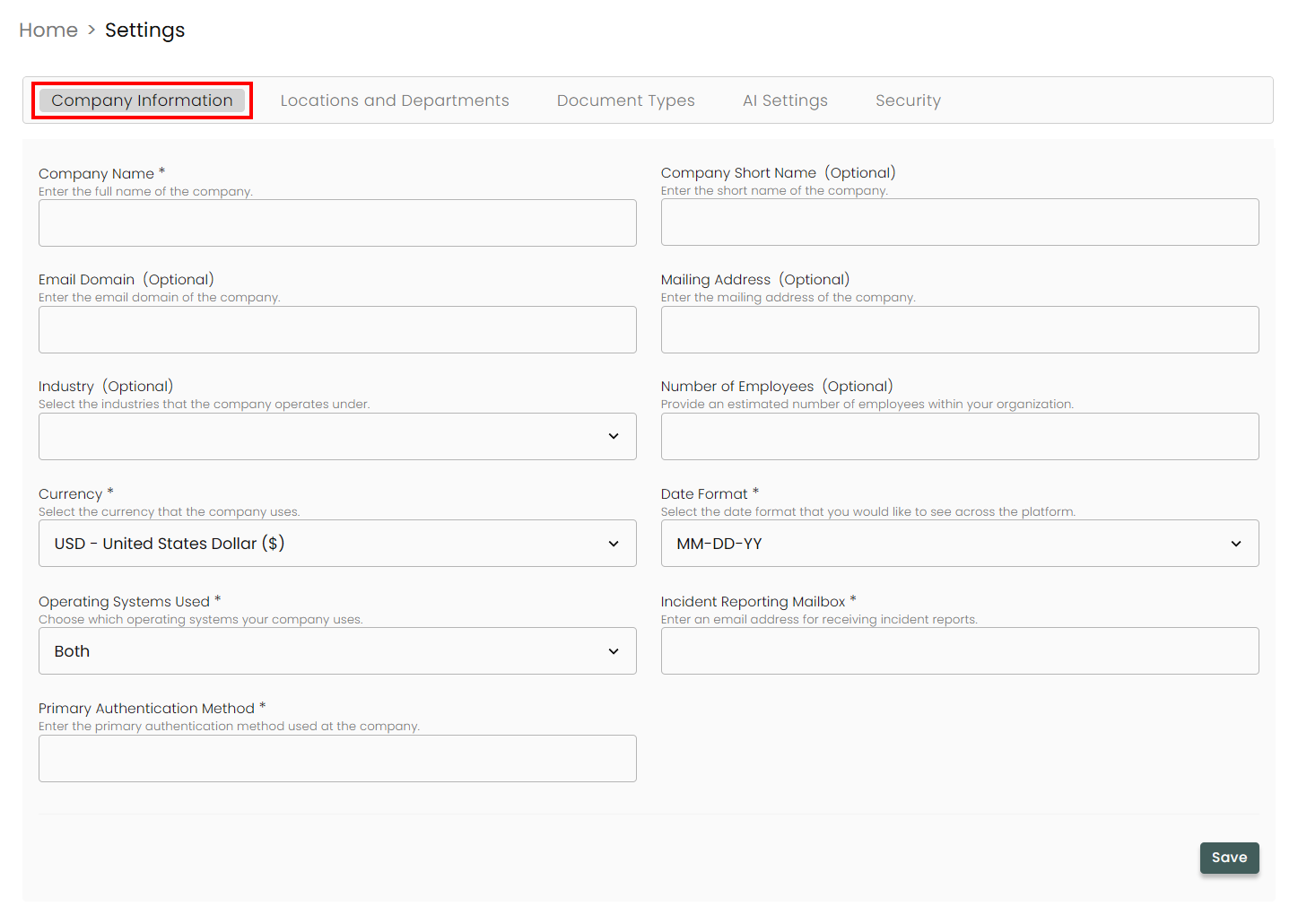
Set your organization general and system information in the fields provided.
Locations and Departments
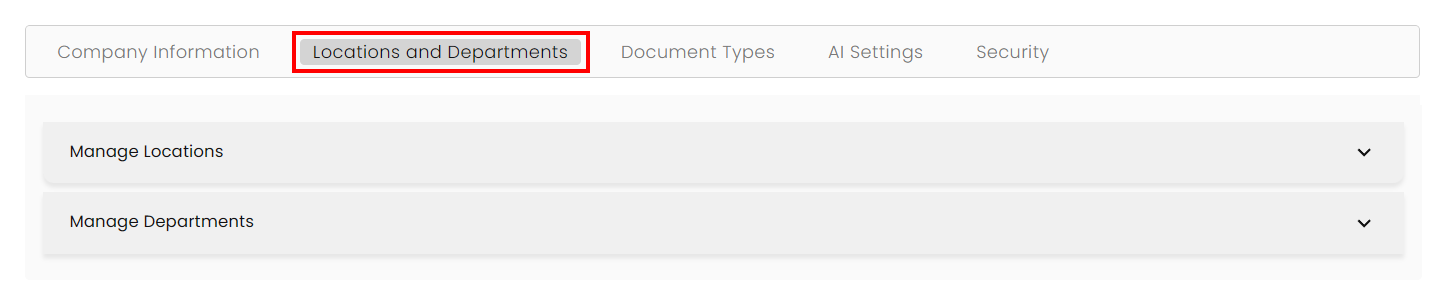
A list of operating locations for your business. You can log all of the locations here. You also have the ability for them to be linked to various entities in Compyl and track them across the platform.
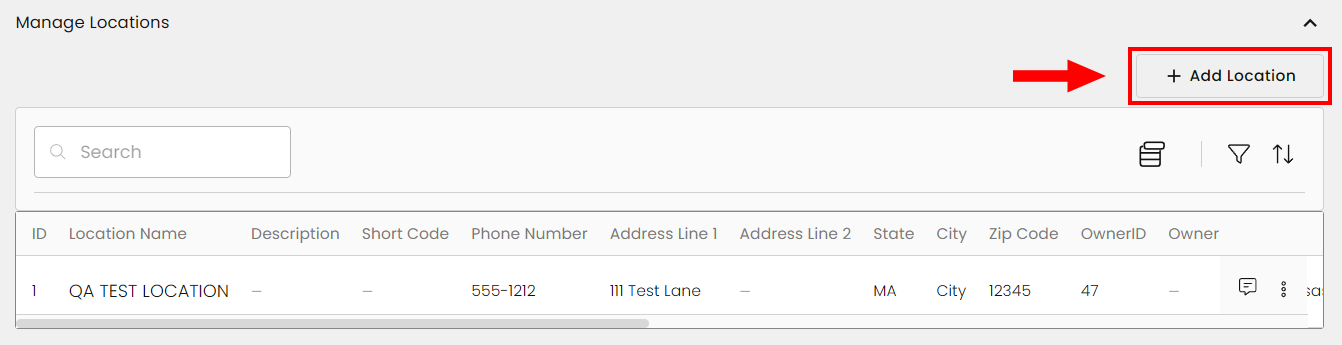
To add a new location, expand Manage Locations and then click + Add Location.
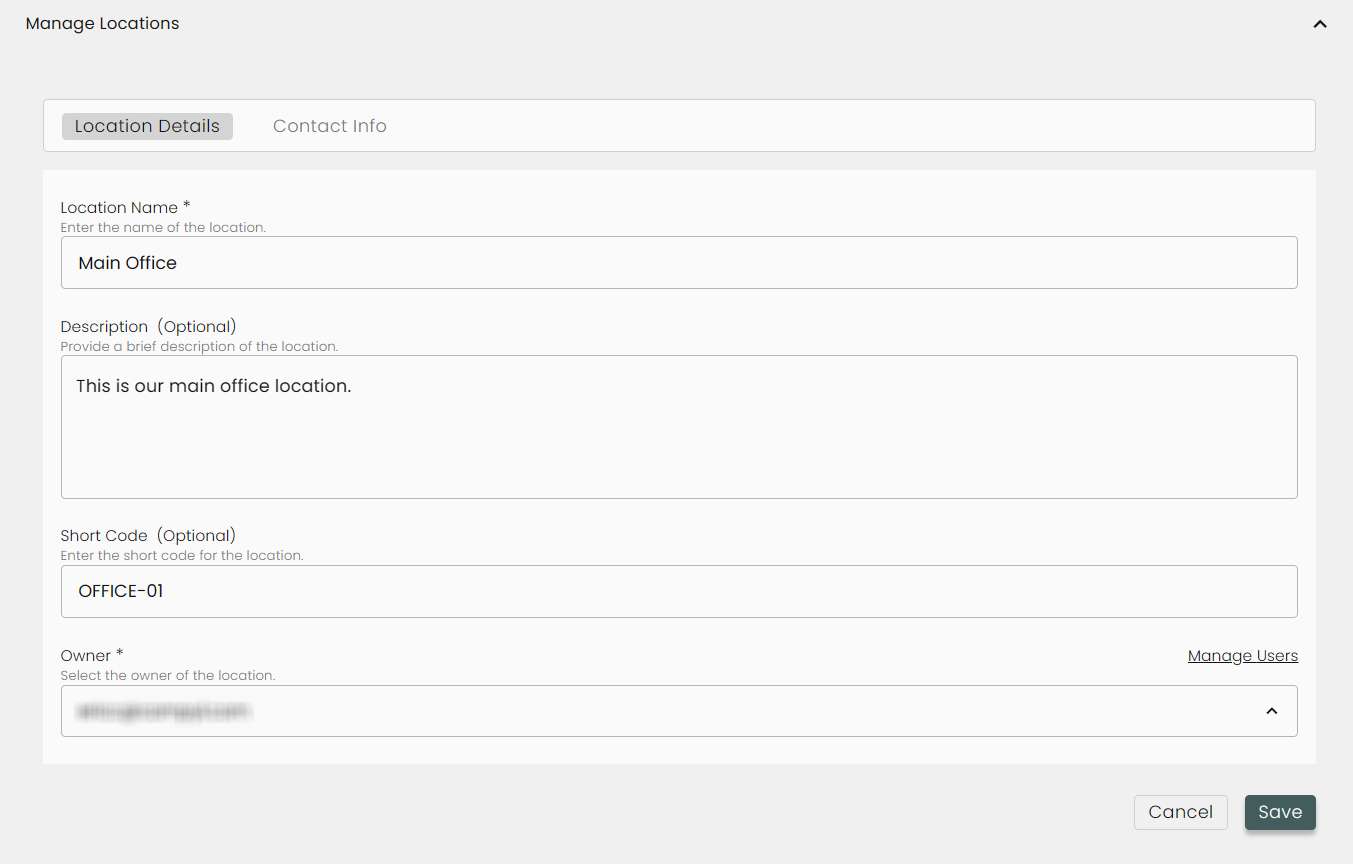
Supply general information about the location and an Owner in the Location Details tab.
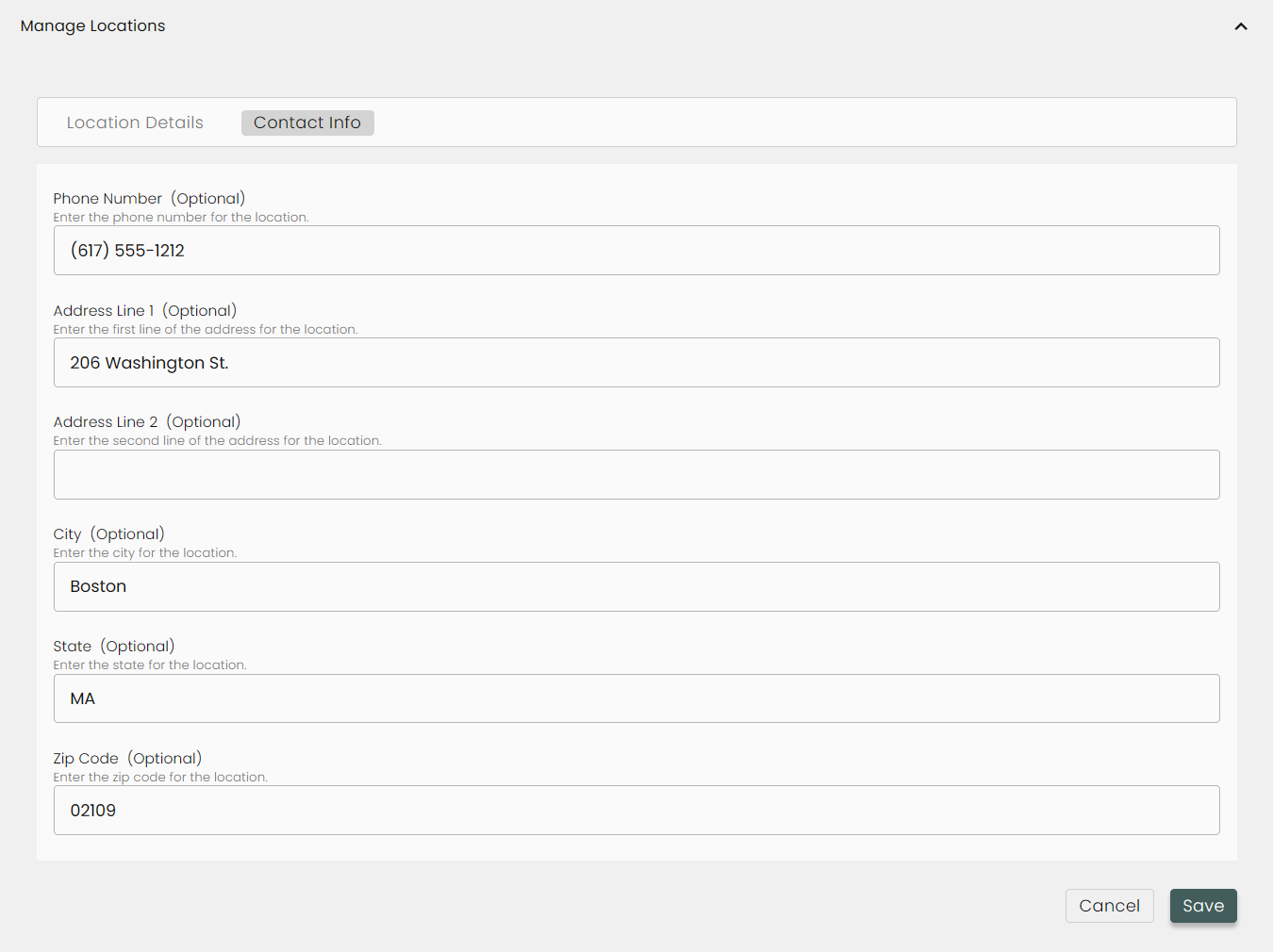
In the Contact Info tab complete the fields based on the owner provided in the pervious tab. Save your entries when complete.
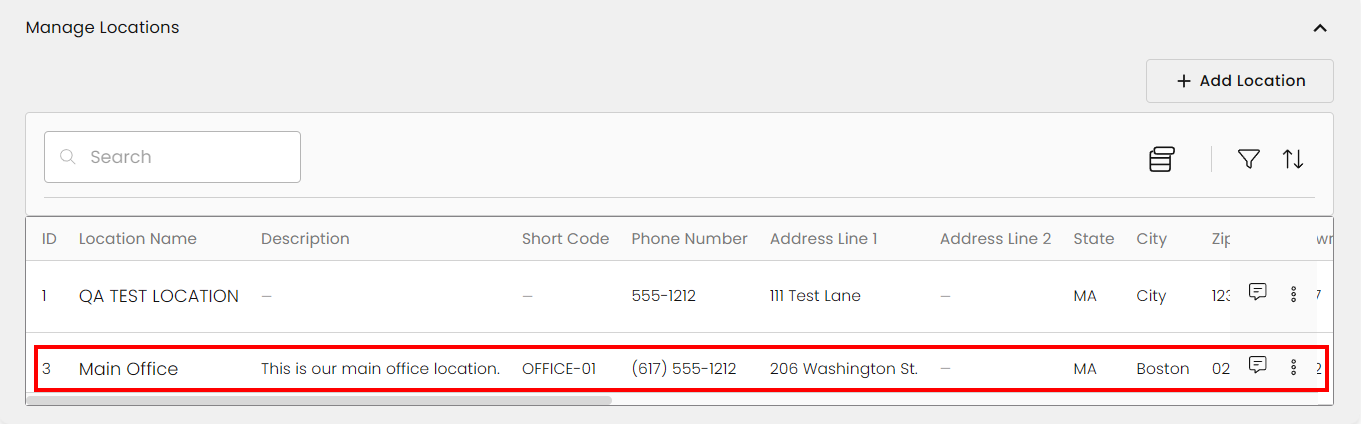
Your new location will now show up in the list.
Document Types
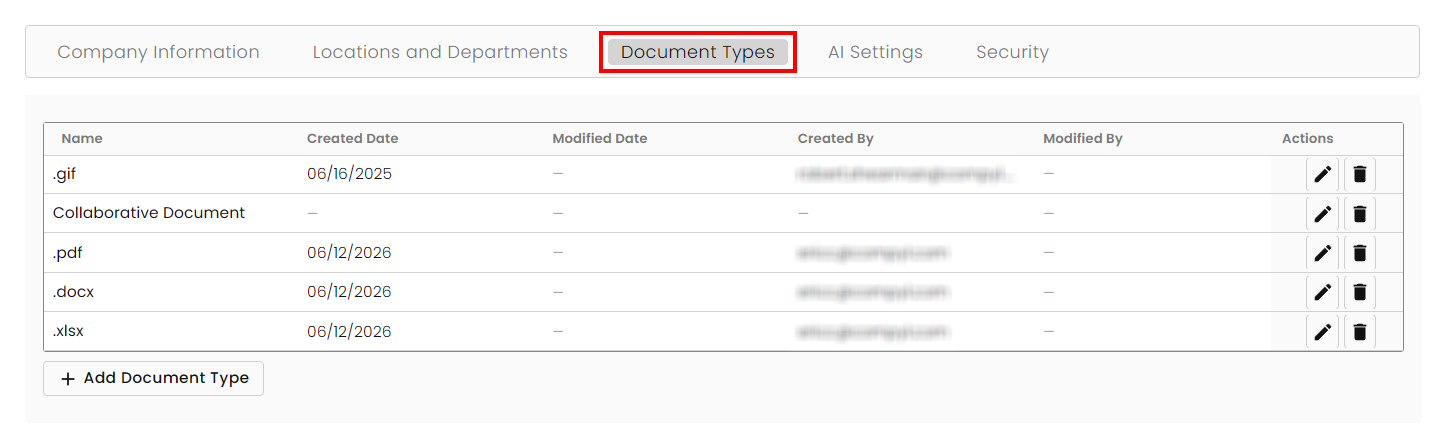
You can manage all of the doc types Compyl recognizes here, removing, editing, and adding more.
Adding a Document Type
Click on + Add Document Type at the bottom. A blank row will appear at the top, allowing you to enter in that document's file-extension (in this example, a PowerPoint File or .ppt).
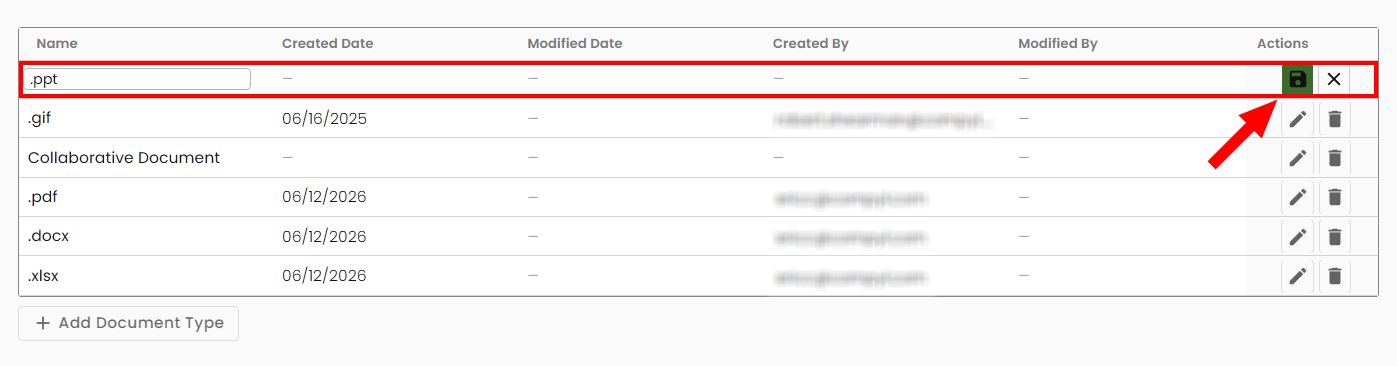
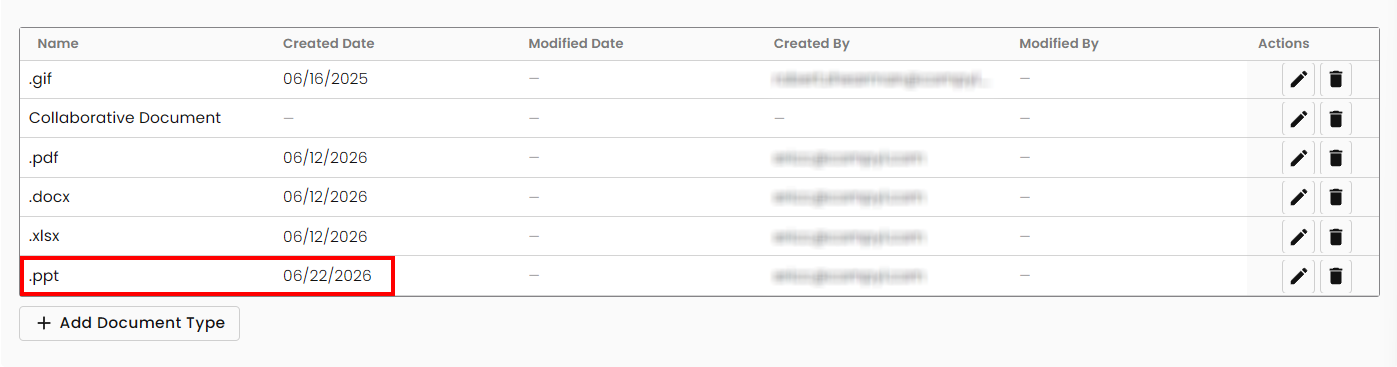
Click on the green save icon and the new file type will appear at the bottom of the list.
AI Settings
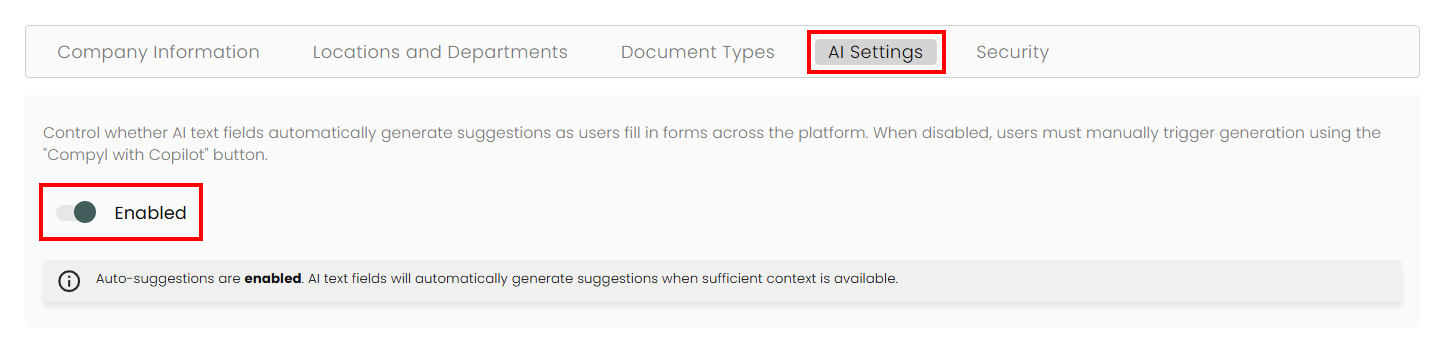
Here you can enable or disable the Compyl Copilot suggestions across all text fields platform-wide. This is defaulted to Enabled.
Security
This is where you will manage your SSO configuration and your API keys.
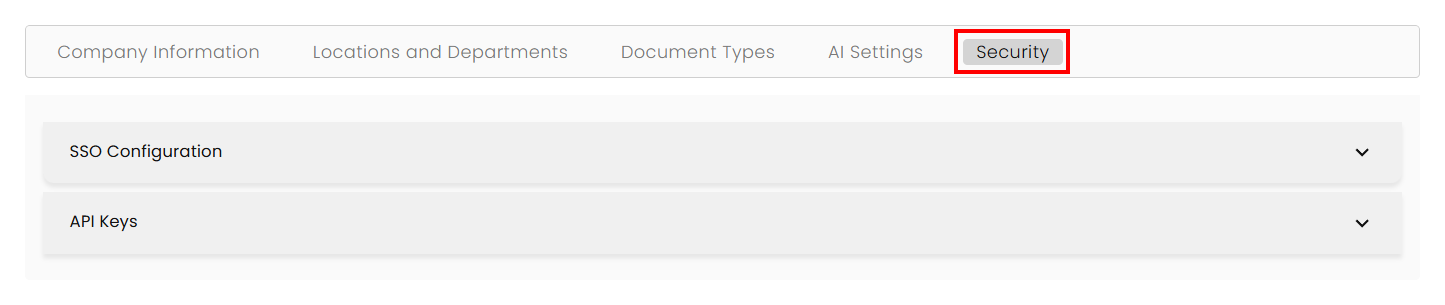
SSO Configuration
Check out our separate article for specific SSO Configuration instructions.
API Keys
The Compyl API allows developers to interact with the data stored within Compyl. Popular use cases include ingesting data into Compyl for further analysis, and retrieving data feeds from various Compyl benchmarks.
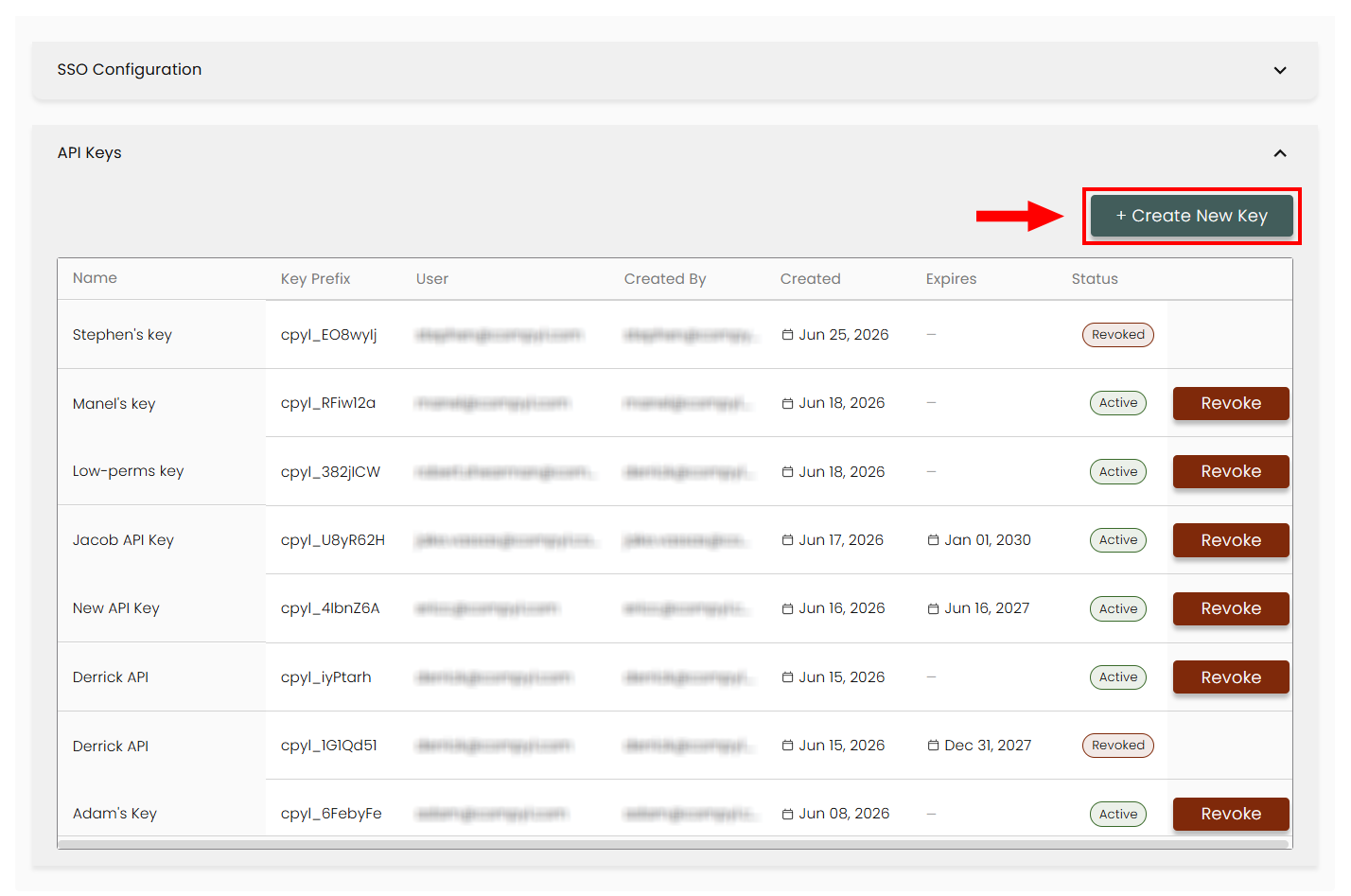
When you expand API Keys, you will see a list of generated API keys, their name, who they belong to, and more. You'll also be able to see their status and the ability to revoke a key if you have admin-level access.
Create an API Key
To create a new API key, click on +Create New Key at the top-right of the screen.
Fill in the details and assign the key to an existing user. This key will inherit all permissions that the assigned user will have. Any actions using the key will also be attributed to that user as well. Then click Create.
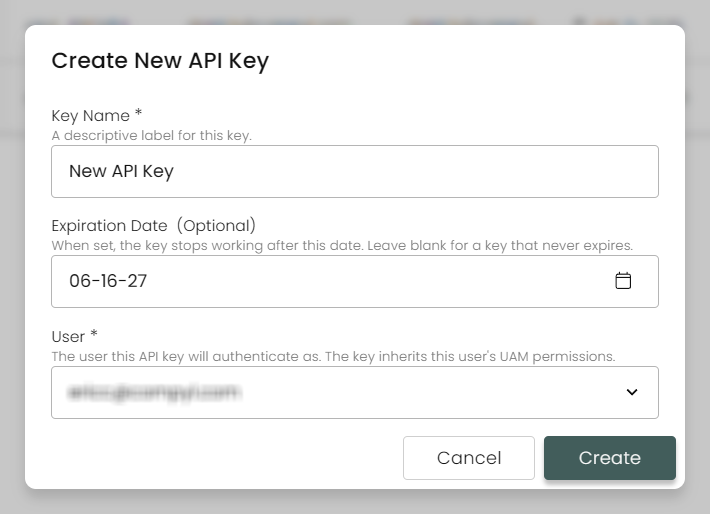
NoteThe API Key's permissions will always reflect the user assigned to the key. Any permissions added or removed will also be changed with the key. If the user is removed, then key will be revoked automatically.
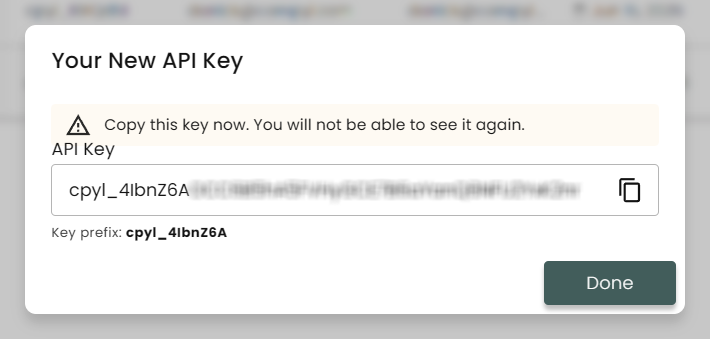
Make sure to copy your key to a secure location. We do not store the key in our system and it will not be shown again. The Key Prefix is there to help identify the key individually and will be the only indicator shown afterwards.
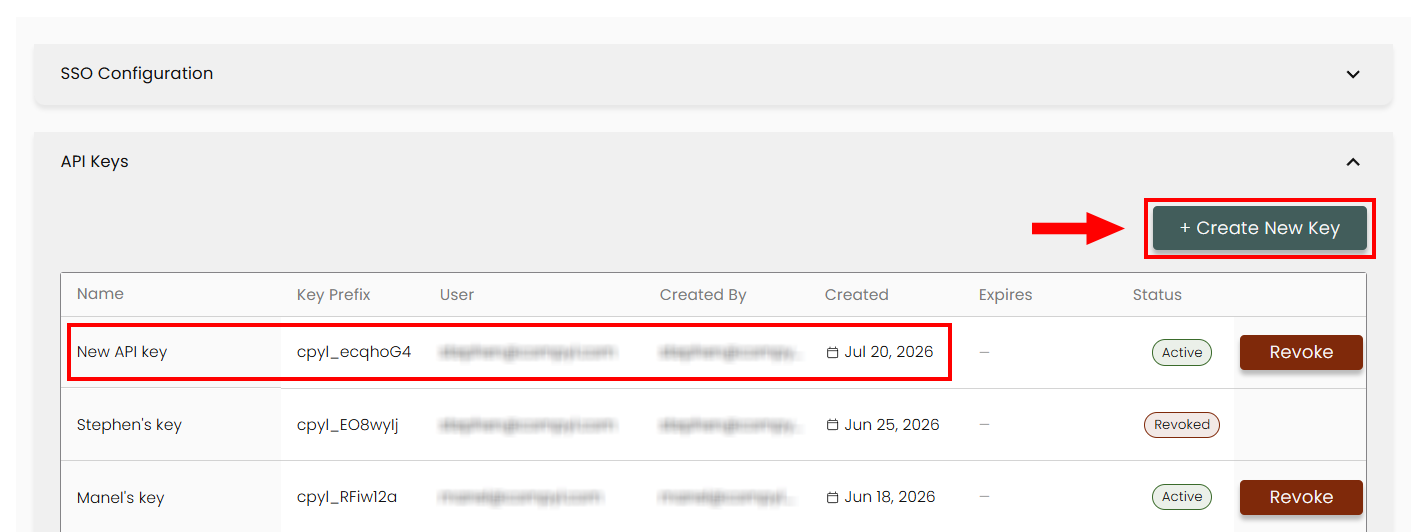
Once Done, your new key will show up in the list.
Access our Compyl API Reference Guide here.
Updated 8 days ago