
Policy Approvals
A Guide to the Policy Approval Process and Policy Acknowledgements
All policy approvals are logged and tracked in Compyl, and expressed in the version control at the top of each policy document. Old versions of policies are also archived in Compyl. As a Policy Approver, it is your role to review and approve policies as they are submitted.
Submit a Policy for Approval
-
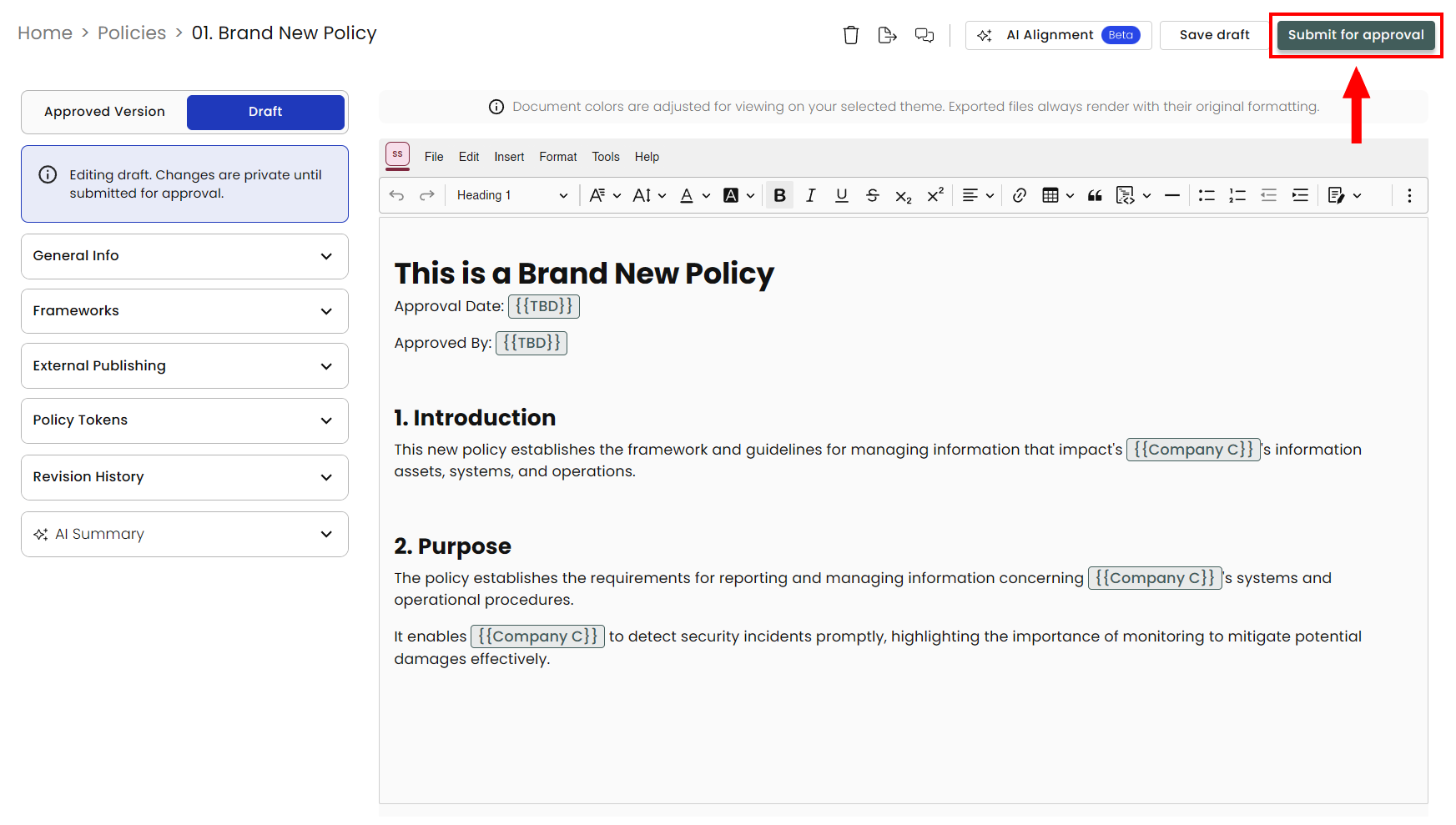
Once the Policy Owner is happy with the policy, click the Submit for approval button.
-
There will be a pop-up to add comments on the changes made as well as choosing if you would like to submit the policy as an Annual Review or Adhoc Review.
- Annual Reviews refers to the annual approval process for policies.
- Adhoc Review notes a change that has been made to the policy between outside of the annual review cycle.
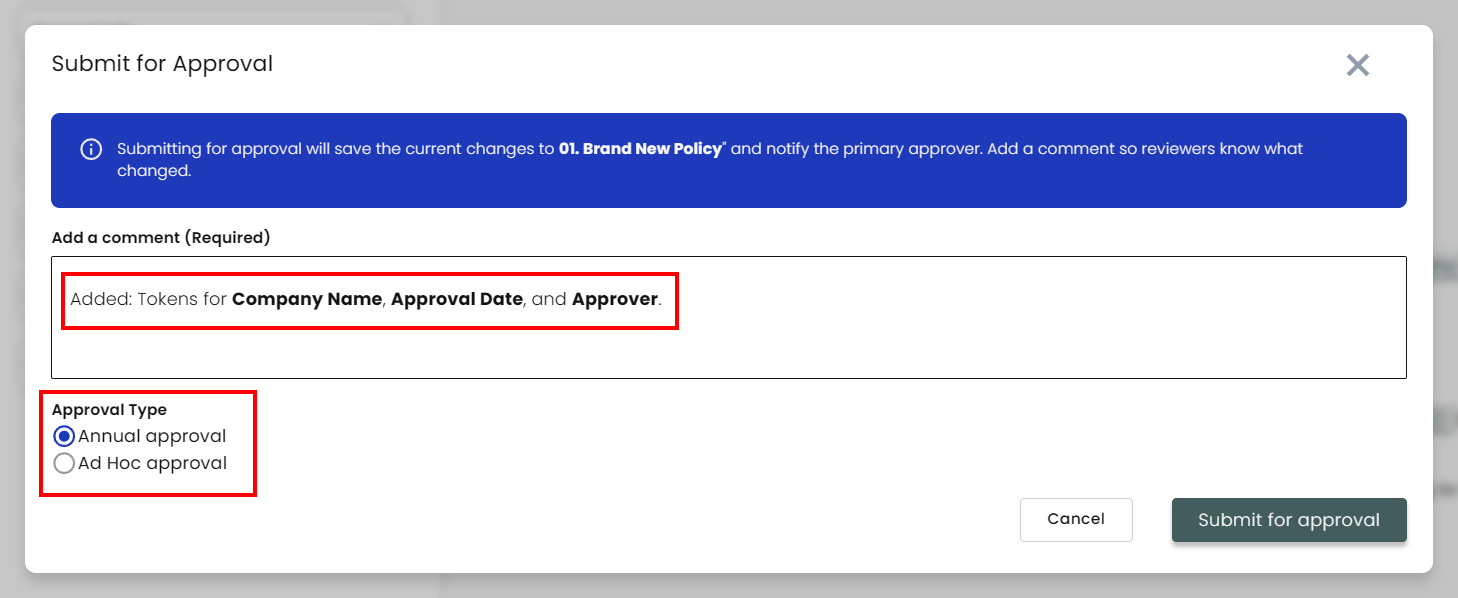
For Annual Reviews, the version number will go up by an entire number, and for Adhoc Reviews, it will go up by a decimal point.ExampleYearly Review:
Version 1will becomeVersion 2
Adhoc Review:Version 1will becomeVersion 1.1Subsequent submissions for approval will show the comment history for tracking and informational purposes.
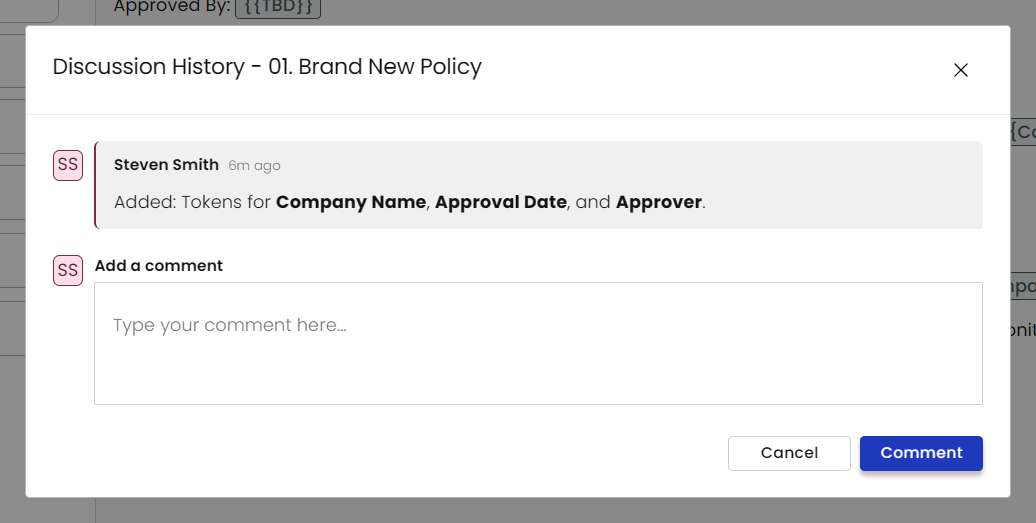
-
The Policy Approver will be notified to review and approve/decline the policy. If the policy is declined, the Policy Owner will be notified to make changes before resubmitting.
Reviewing Changes and Approving a Policy
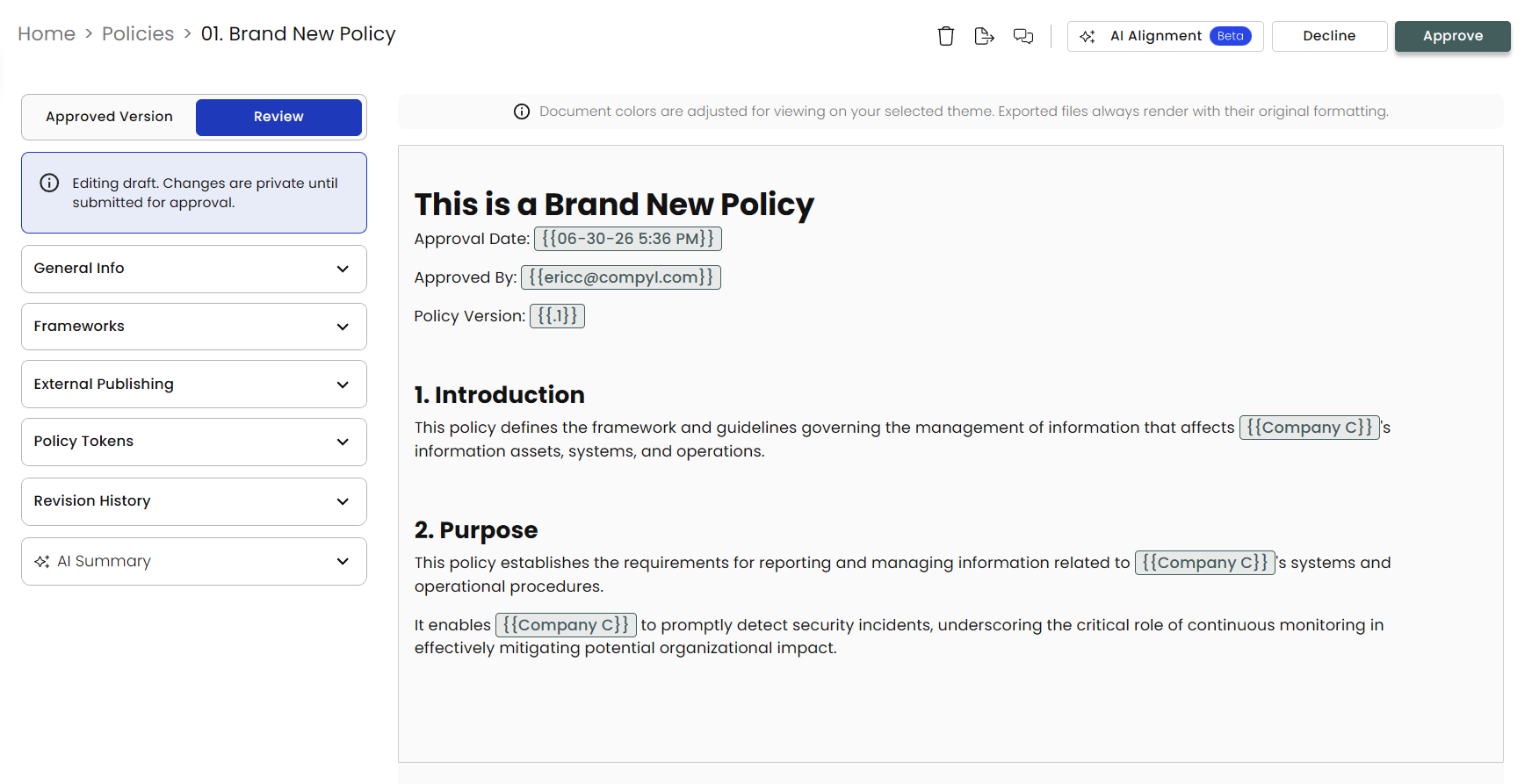
After a policy as been submitted for approval, the approver will receive an email notification that the policy you are assigned to is ready for approval.
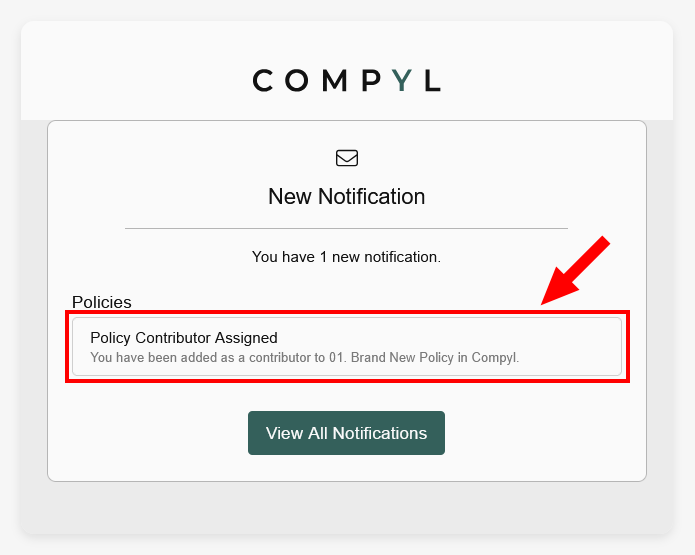
Click the link into the email, and you will be directed to the approval page for the policy to begin review.
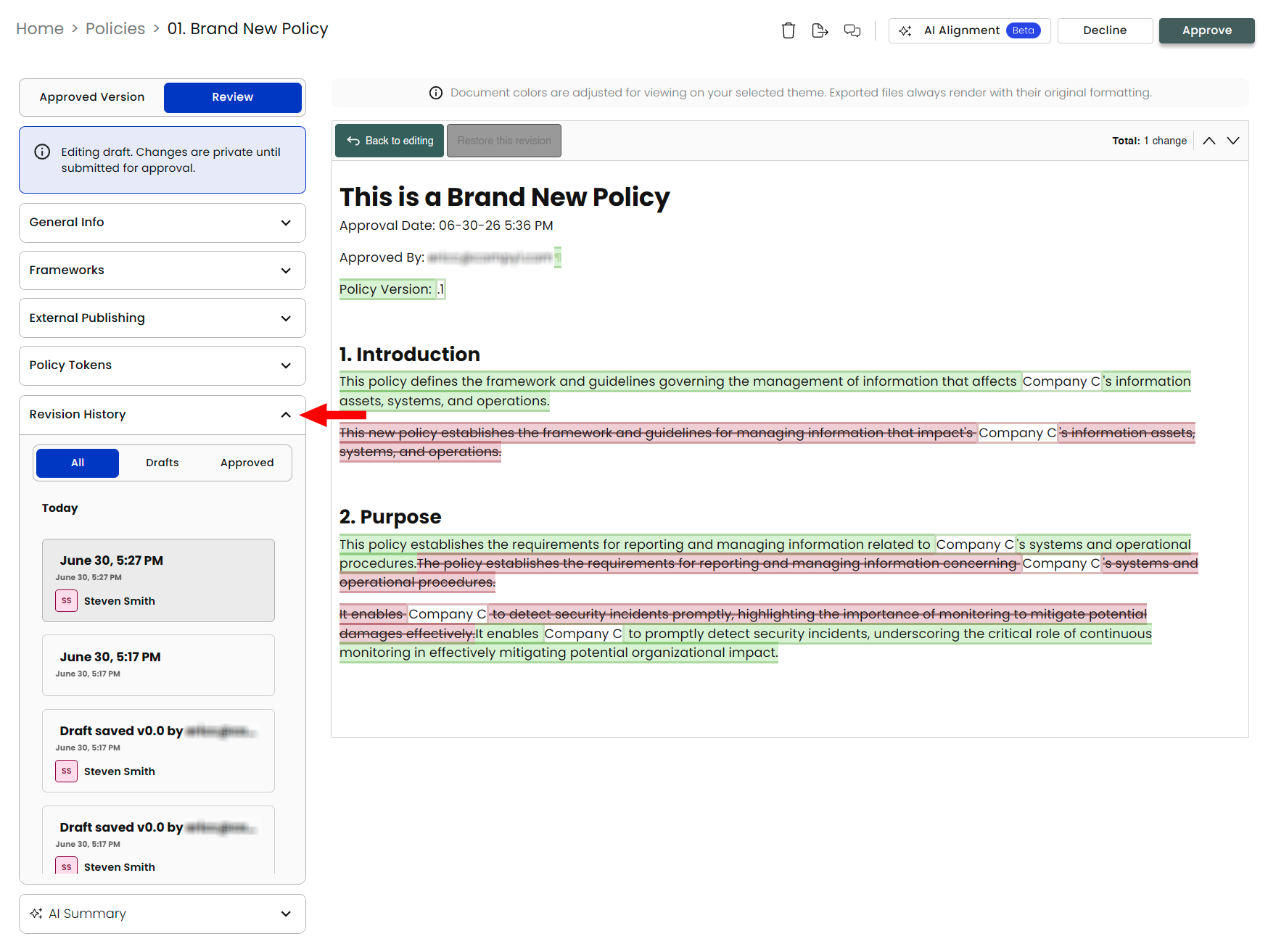
To see what changes have been made since the last approval, click Revision history. A window will appear comparing the last approved version of the policy to the current version, point out any changes that have been made.
To approve the policy, click Approve at the top of the screen. The Owner of the policy will receive a notification that the policy was approved.
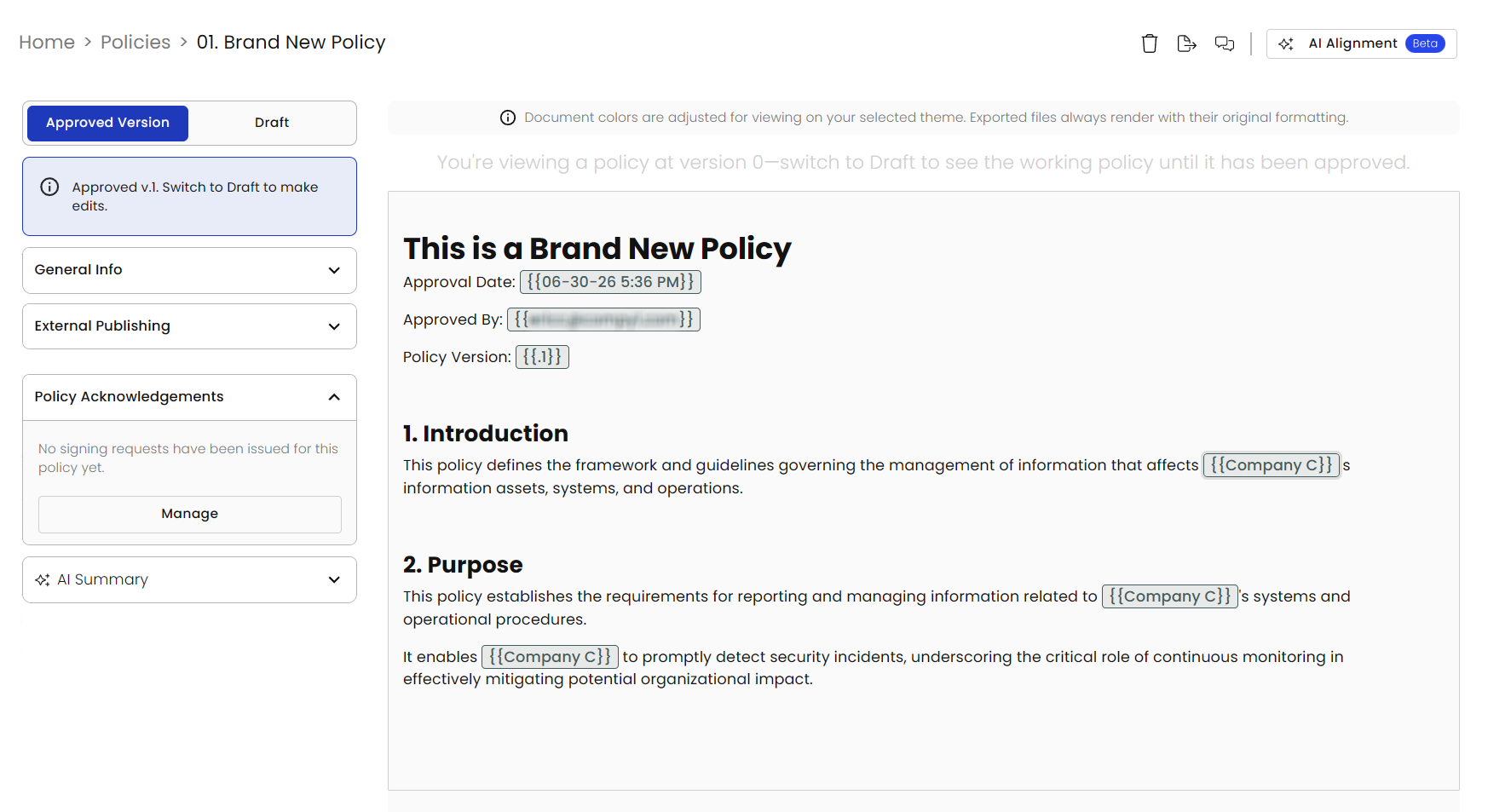
Once the policy is approved, the Renewal Date of the policy will adjust according to the Annual and Biannual renewal frequency configured in Policy Settings.
Policy Acknowledgements
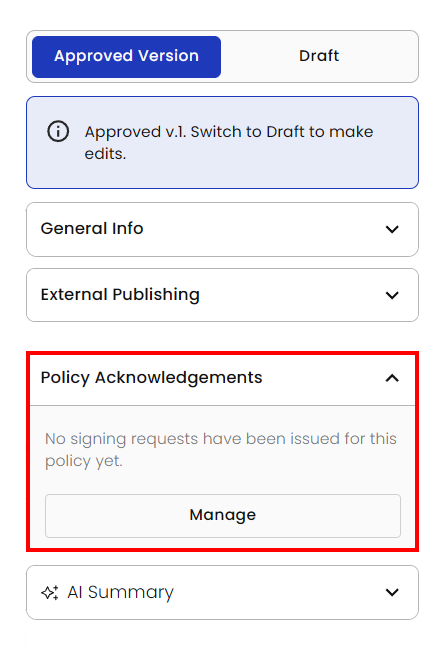
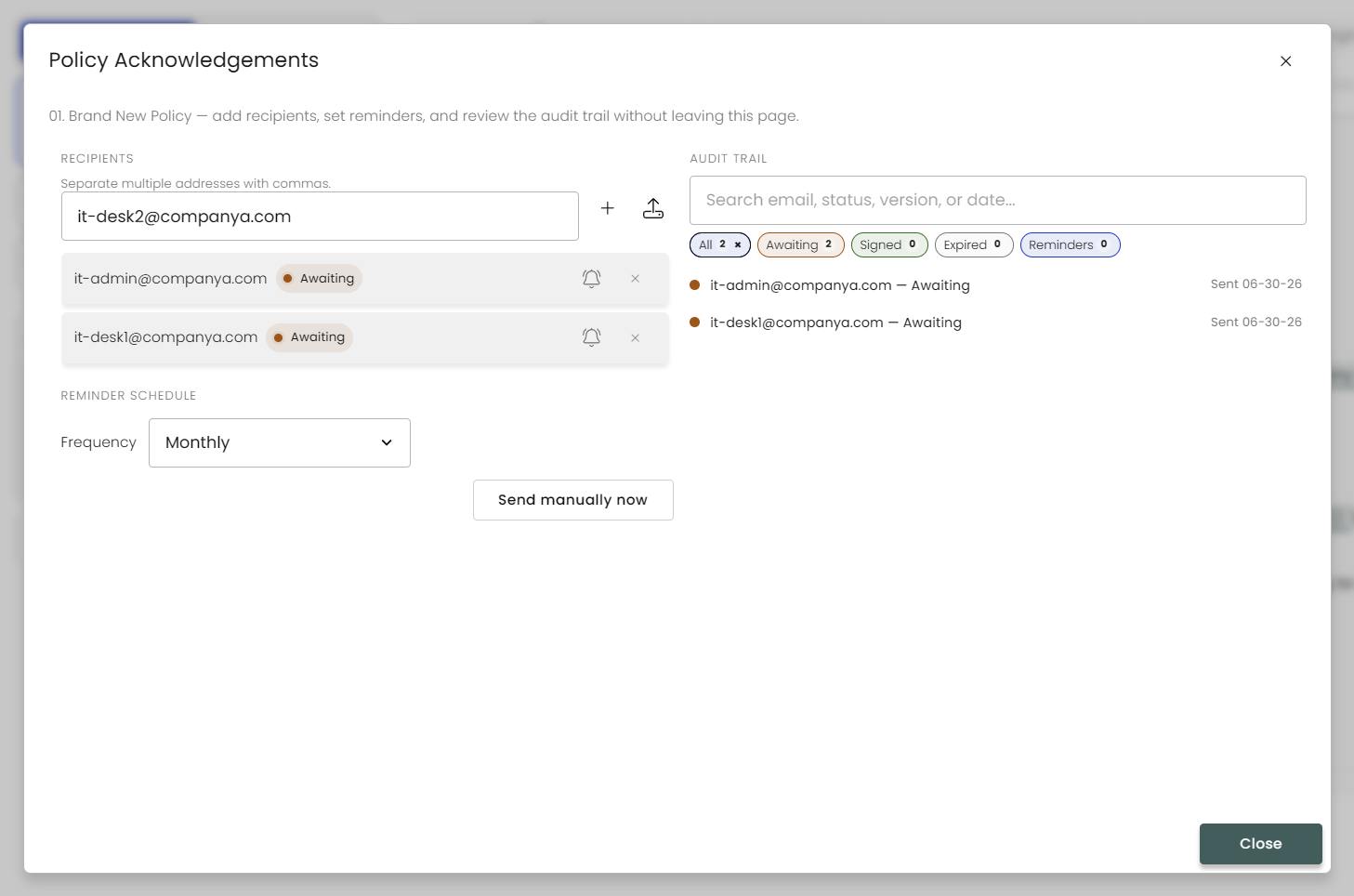
You can send a request for acknowledgement of this now approved policy (perhaps letting everyone on a certain team know of it) by opening the Policy Acknowledgements menu and clicking on Manage.
Enter in all the email addresses you wish to send for acknowledgement. You will see their status as well as enabling the frequency of reminders (off, weekly, biweekly, monthly) as well as the ability to manually send the reminder. Click Close when finished.
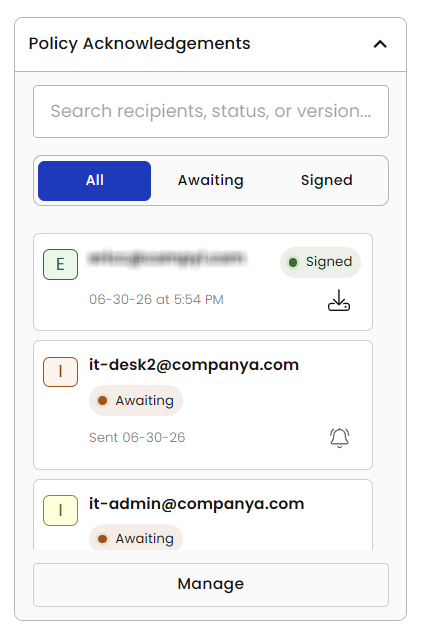
You can go back to this policy and expand the Policy Acknowledgements menu to see the statuses or click on Manage for the expanded view.
In the expanded view, you can see your entire audit trail on the left-hand side while having additional actions next to each recipient.
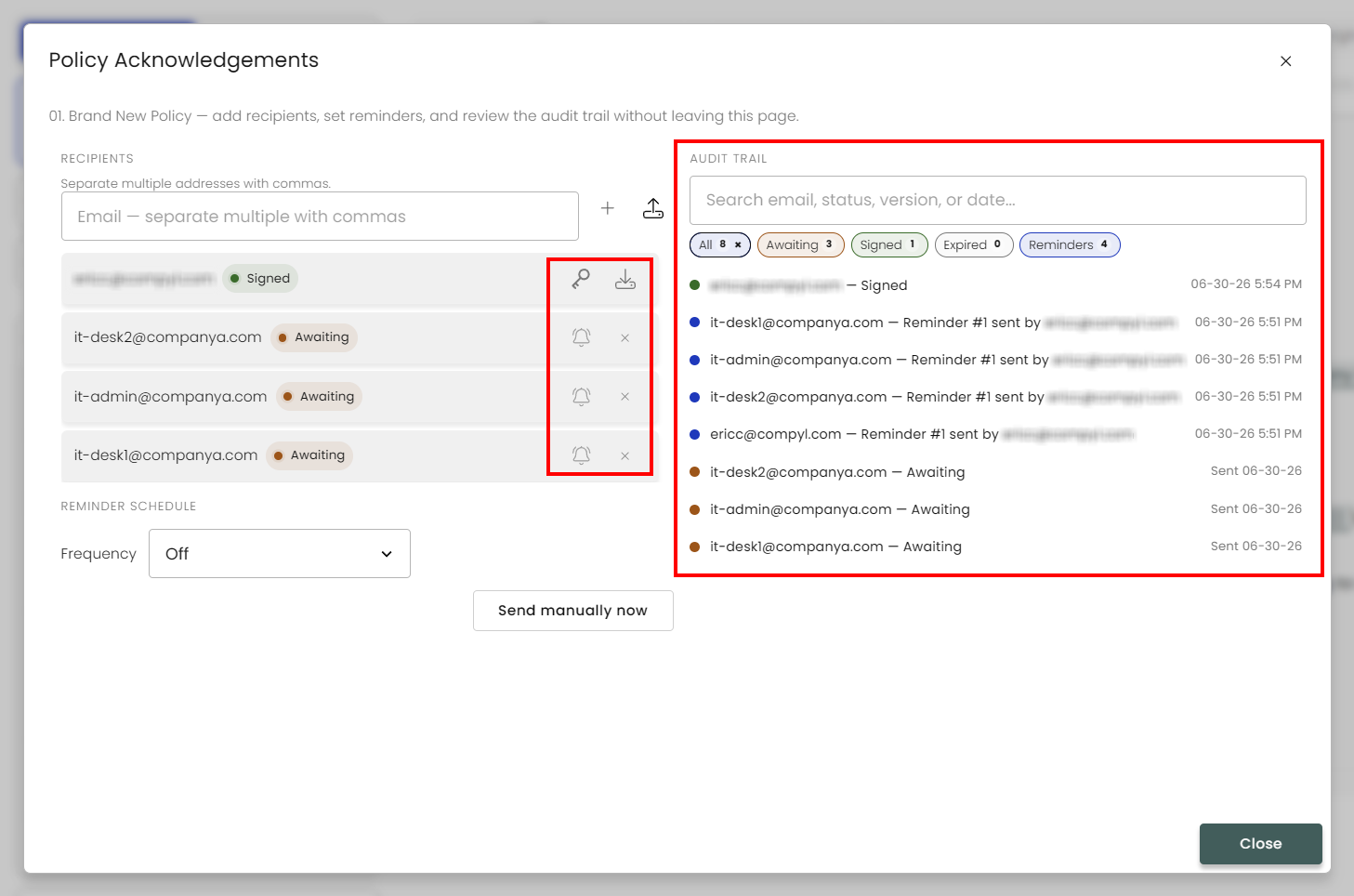
- Key - View signature details.
- Hard drive - Download the acknowledgement.
- Bell - Send a reminder.
- X - Remove this recipient.
Declining a Policy
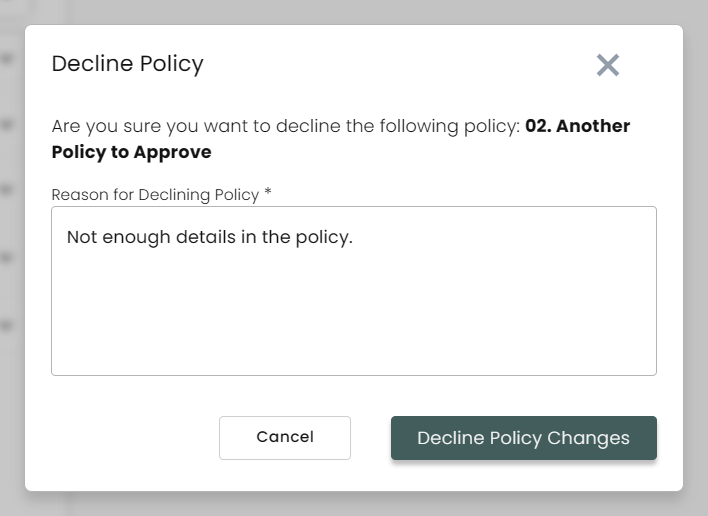
When declining a policy, a window will pop up asking you the provide a reason for decline. Please include any notes you have for the Policy Owner on how this policy should be revised. Once declined, the Policy Owner will receive this message to apply the specified changes.
Review RemindersYearly and semi-annual policy reviewers will be notified of a Policy Review on 2, 7, 15, 30, 60, and 90 days before its renewal date.
Policy Status
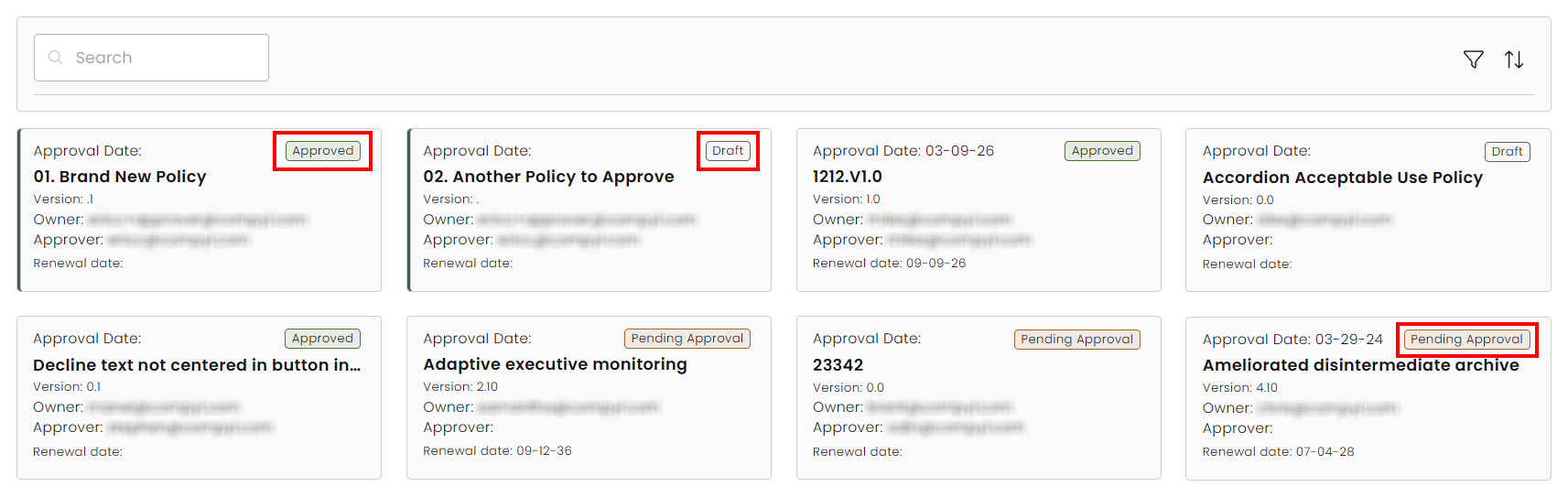
The status of all policies is on the Policies homepage. The policy tiles will show up with either Approved, Pending Approval, or Draft.
Updated 3 months ago