
Data Source Wizard (Popup)
NoteThe default Report Designer implementation uses the Data Source Wizard (Fullscreen) version. To use the popup version instead, disable the
ReportDesignerWizardSettings.UseFullscreenWizardoption.
Two different wizard versions are available depending on whether you run the SQL Data Source Wizard to create a new data source or edit an existing one.
| The wizard contains the following pages to create a new SQL data source: | To run the SQL Data Source Wizard to create a new data source, do one of the following: |
|---|---|
| Choose a Data Connection | Click the Add Data Source command in the . |
| Create a Query or Select a Stored Procedure | 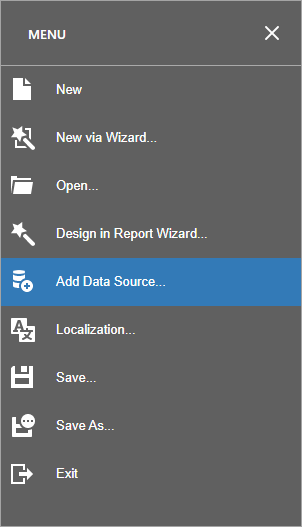 |
| Configure Query Parameters | Select the option to create a new data source on the page of the Report Wizard. |
| Configure Master-Detail Relationships | |
This wizard version is only available if you provided the Web Report Designer with |
| The wizard contains the following pages to edit an existing SQL data source: | To run the SQL Data Source Wizard to edit an existing data source, do one of the following: |
|---|---|
| Create a Query or Select a Stored Procedure | Select the data source and click the Add Query button in the to add a new query. |
| Configure Query Parameters | 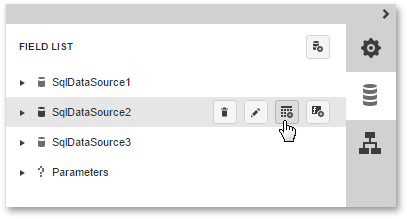 |
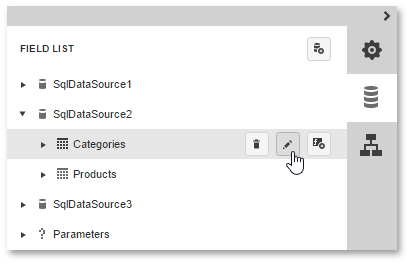
Select the query and click the Edit Query button in the to edit it. | |
 |
SEE ALSO
Register SQL Data Connections
Register Predefined Data Sources (ASP.NET Web Forms)
Updated 7 months ago