
Bitbucket Integration
Compyl's integration with Bitbucket gives Compyl the ability to automate checks that will run as part of your compliance program.
Optional StepCreate an Administrator Account in Bitbucket. This account can be used for authentication and API token creation. This is suggested, but is not required.
Creating your Bitbucket App Password
-
Log in to the Bitbucket account that will be used for the integration. Make sure that this account has admin access.
-
Navigate to https://bitbucket.org/account/settings/app-passwords/
-
Click Create app password
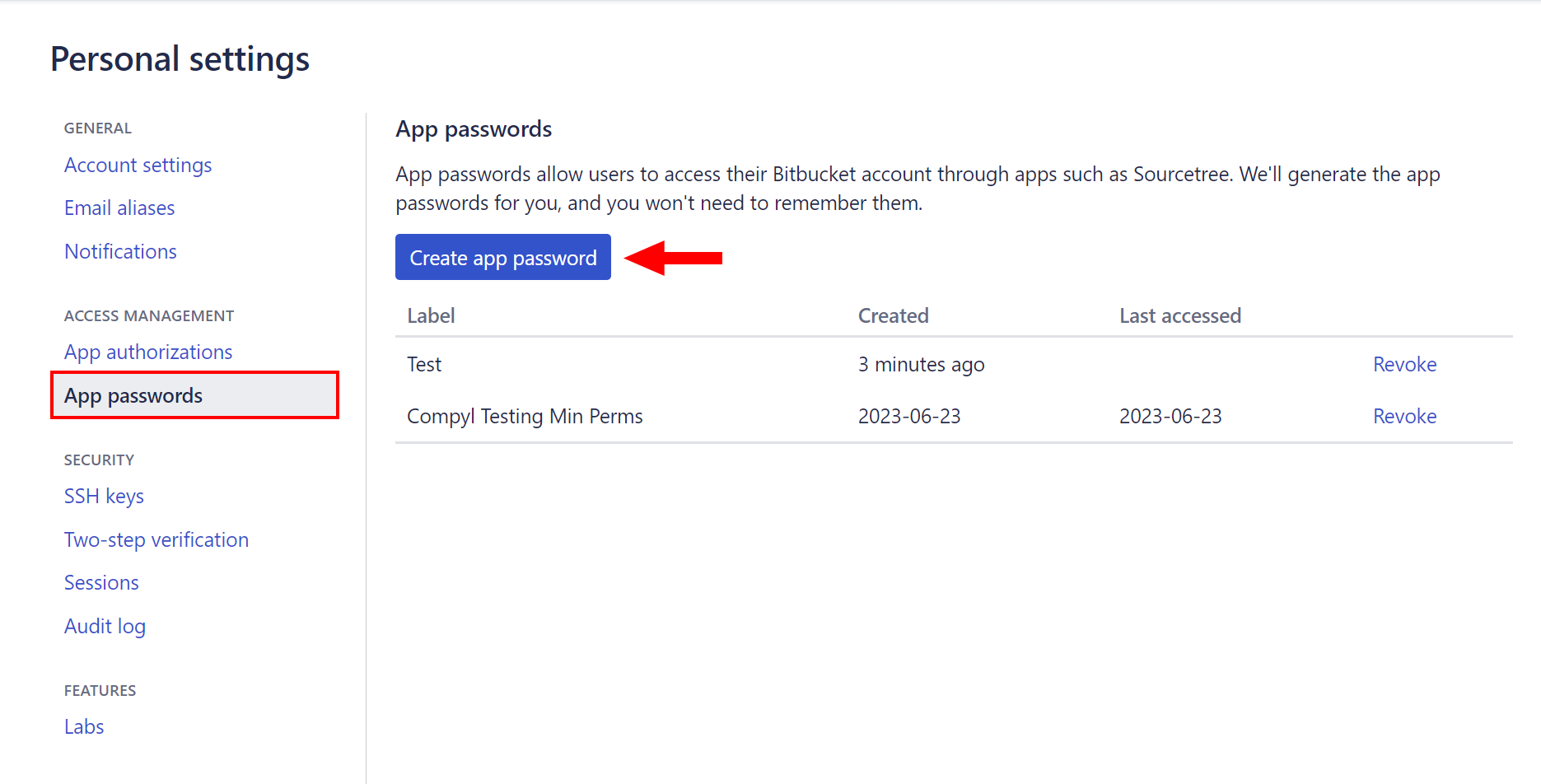
-
Provide a “Label” for the integration. We suggest something like Compyl - Integration.
-
Select the necessary permissions outlined below and click Create
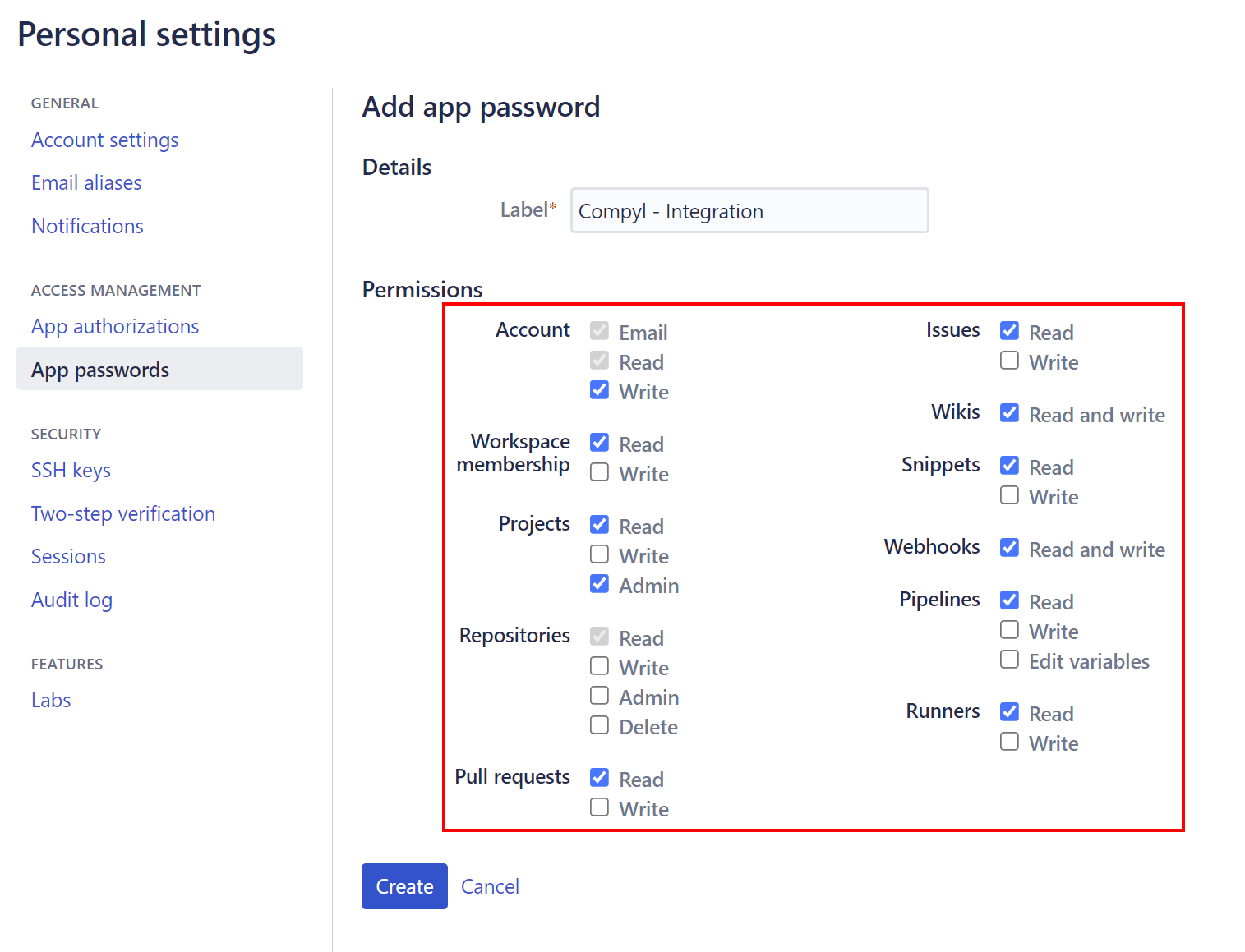
-
Copy the App Password created
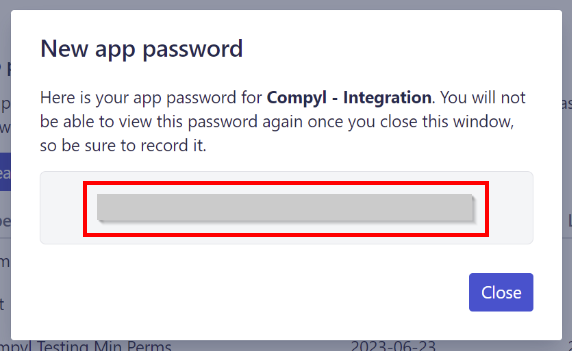
WarningYou will not be able to see or copy this password again after you hit Close.
Add Configuration
-
Navigate to the Integrations tab using the left-hand menu, and select Bitbucket

-
Click the Add Configuration button and fill in the details below:

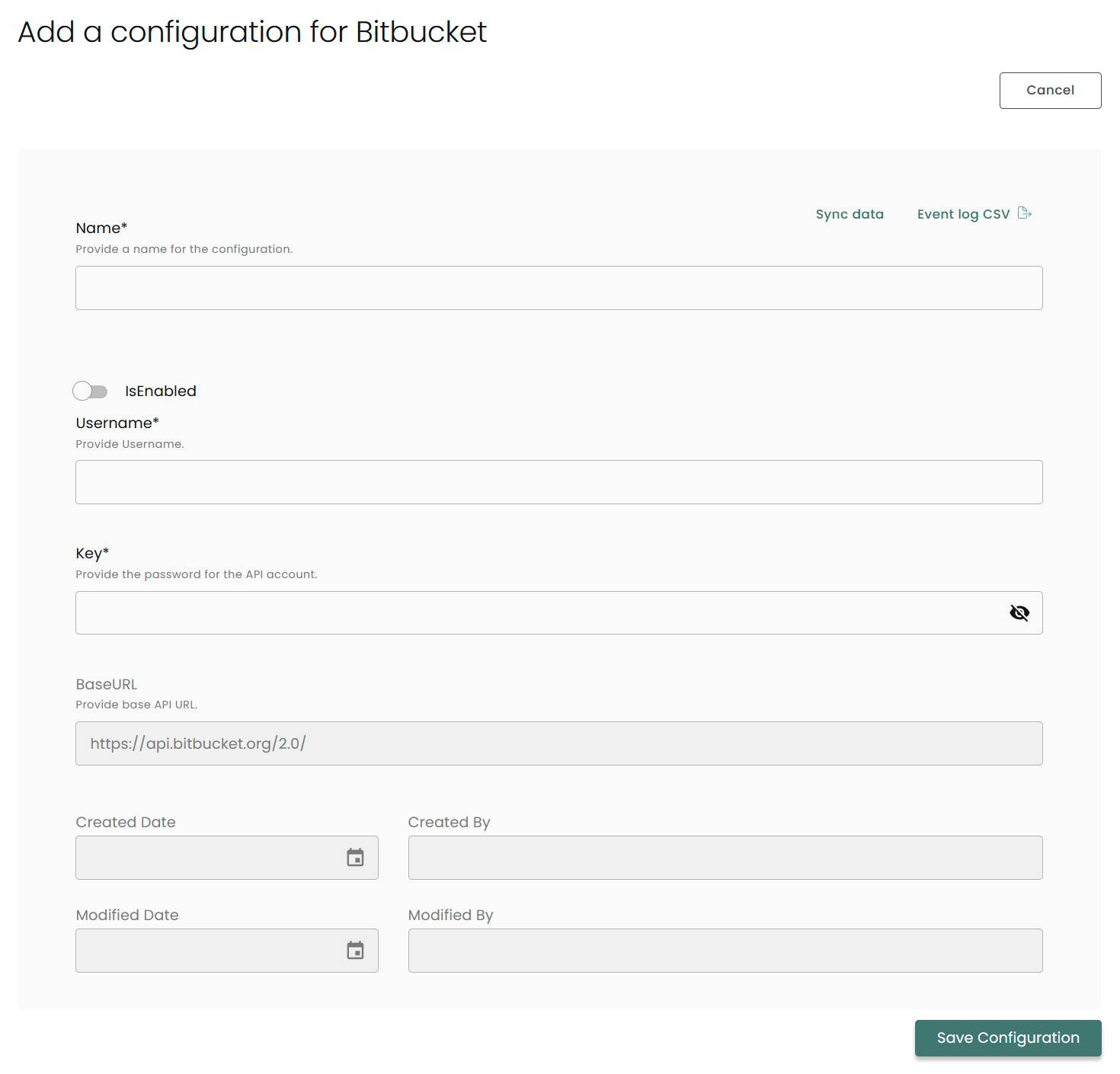
Name: Enter the name of the integration.
is Enabled: Toggle button to ensure data is populated into Compyl.
Username: Located under Account settings in the left-hand menu:
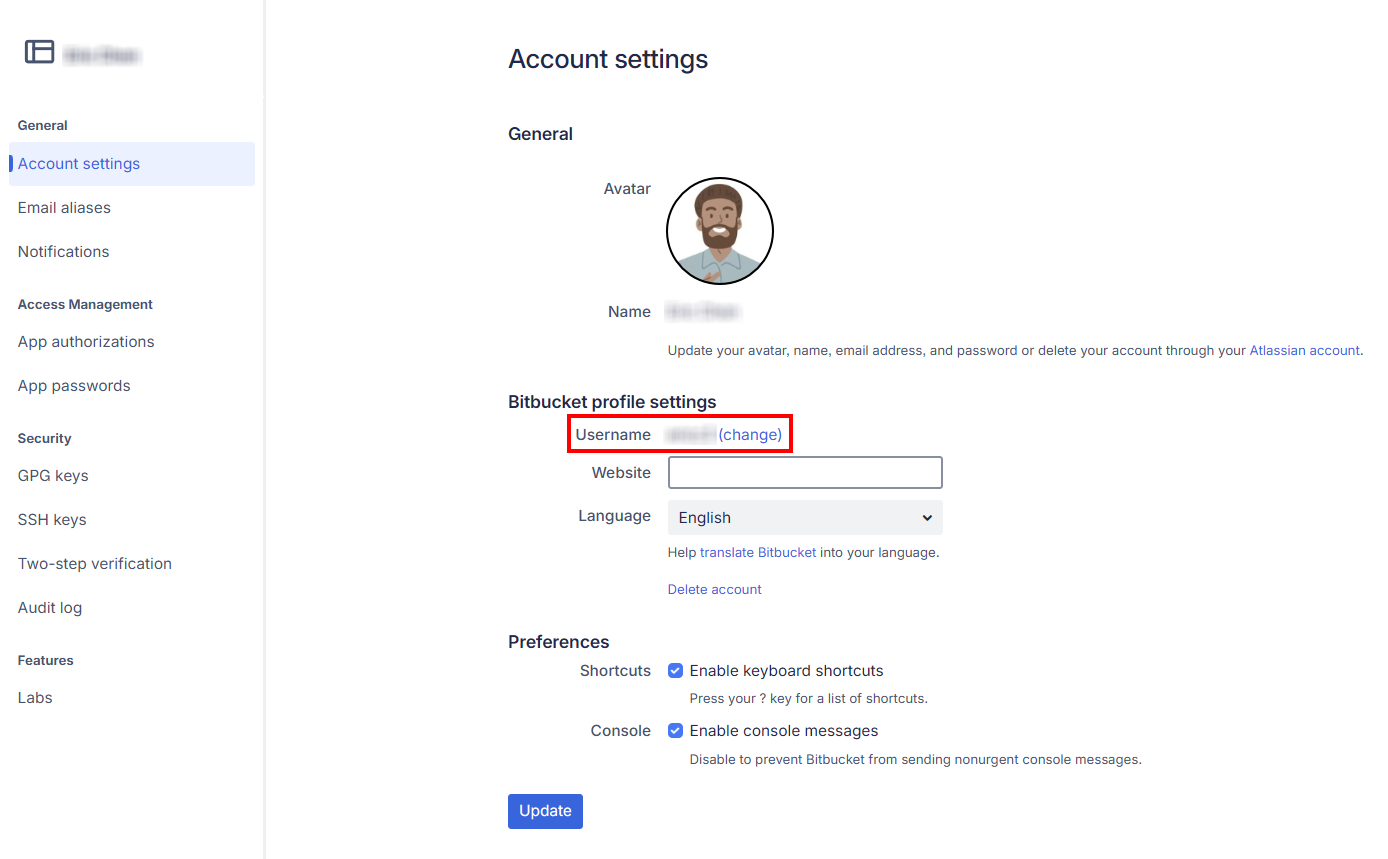
Key: The app password entered while creating a new app above.
Once you have completed filling out the form click Save Configuration.
NoteTo check if the integration is connected, navigate to the Integrations page in Compyl. If the Status icon shows an unbroken link in the right-hand corner, your integration is properly connected.

This integration syncs daily.
To query the data from the integration, refer to the Query Builder article.
Updated 2 months ago