
Zscaler Integration
Creating Zscaler Credentials
Prerequisites for OAuth 2.0 AuthenticationYour organization must meet the following requirements to be able to use OAuth 2.0 authentication.
- You must have an API subscription.
- You must have the API Roles configured in the ZIA Admin Portal.
- You must have your client applications registered on your authorization server (i.e., PingFederate, Okta, or Azure AD) with the required scope and configured appropriately. To learn how to set up client applications on your OAuth 2.0 service provider, refer to the respective help documentation.
- You must have your OAuth 2.0 authorization server added to the ZIA Admin Portal.
Retrieve your base URL
-
Log in to the ZIA Admin Portal using your admin credentials
NoteYou must be assigned an admin role that includes the Authentication Configuration functional scope.
-
Go to Administration → Cloud Service API Security.
-
On the OAuth 2.0 Authorization Servers tab, the base URL is displayed within the table.
Authenticate the client and retrieve an access token
You need to configure the client application registered with the authorization server to send a POST request to the token endpoint with the following parameters and retrieve an access token:
- Client_id: A unique, public identifier issued to the client application during registration with the authorization server. This identifier is used with
client_secretfor authentication. This information is obtained from the OAuth 2.0 service console. - Client_secret: A secret string used by the client application for authenticating with the authorization server. This information is obtained from the OAuth 2.0 service console. This is your Key.
- Scope: Scope defines the permissions required by the client application to access the API. You must configure the scope value in the
Zscaler Cloud Name::Org ID::API Roleformat, where:Zscaler Cloud Namerepresents the cloud on which your organization is provisioned.Org IDrepresents your organization ID obtained from the ZIA Admin Portal (under Administration > Settings > Company Profile).API Rolerepresents an API role configured in the ZIA Admin Portal (under Administration > Authentication > Role Management).For example, `zscalerbeta.net::8956412::sampleRole
Add Configuration
-
Navigate to the Integrations tab using the left-hand menu, and select ZScaler.

-
Click the Add Configuration button and fill in the details below:

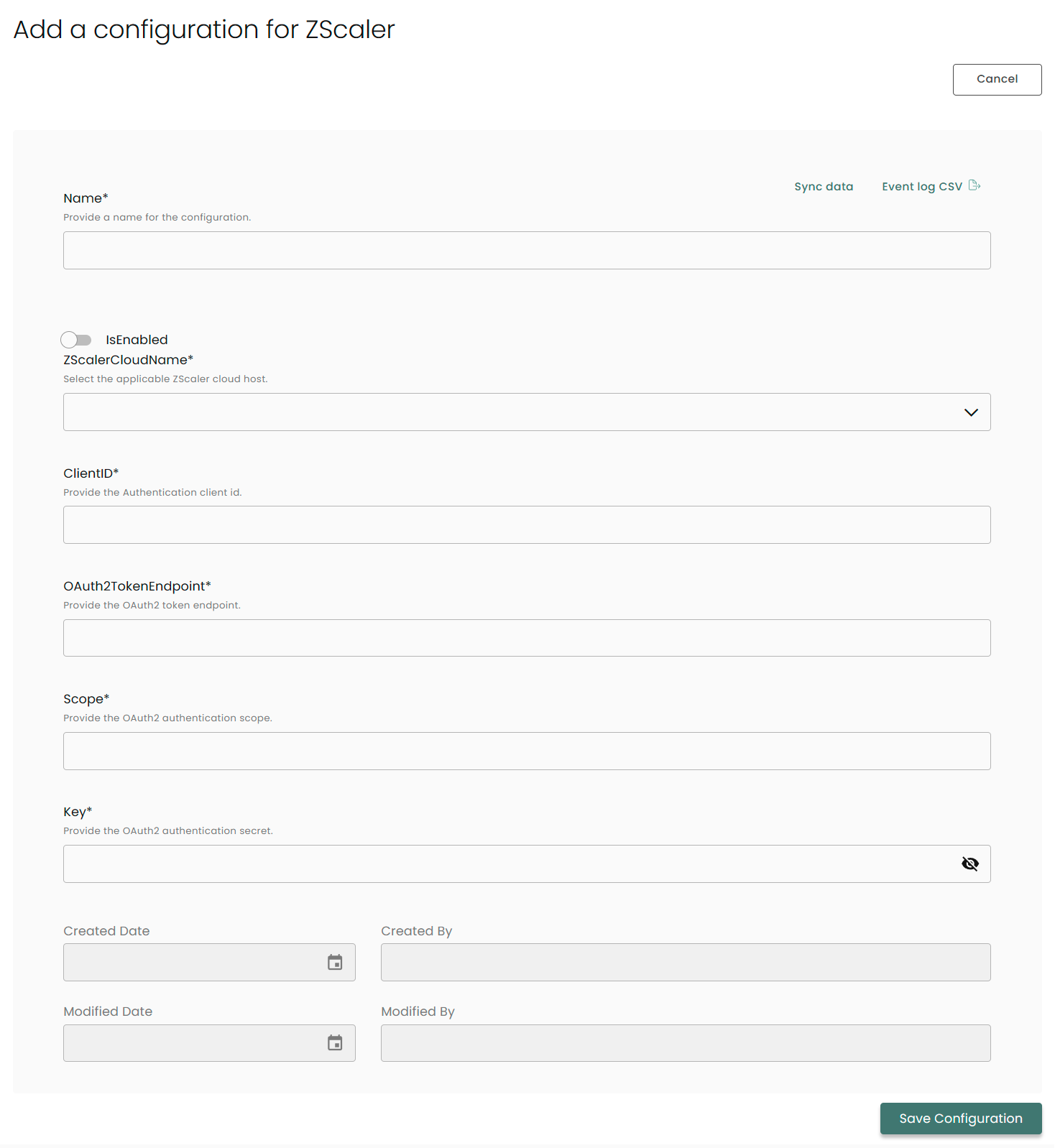
Name: Enter the name of the integration
is Enabled: Toggle button to ensure data is populated into Compyl
ZScaler Cloud Name: This is the base URL
Client ID: A unique, public identifier issued to the client application during registration with the authorization server.
OAuth2 Token Endpoint: Provide the OAuth 2.0 Token Endpoint. Refer to the Getting Started | Zscaler documentation for more information.
Scope: Scope defines the permissions required by the client application to access the API.
Key: The Client_Secret generated from the OAuth 2.0 Service console.
Once you have completed filling out the form click Save Configuration.
NoteTo check if the integration is connected, navigate to the Integrations page in Compyl. If the Status icon shows an unbroken link in the right-hand corner, your integration is properly connected.

This integration syncs daily.
To query the data from the integration, refer to the Query Builder article.
Updated 2 months ago