
MongoDB Integration
Create Your Programmatic API Key (Digest)
-
Log in to MongoDB Atlas at the Organization that owns the project you want to sync.
-
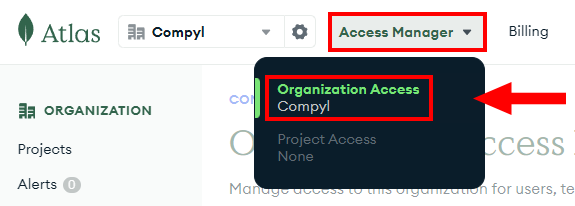
Click on Access Manager at the top and choose Organization Access.
-
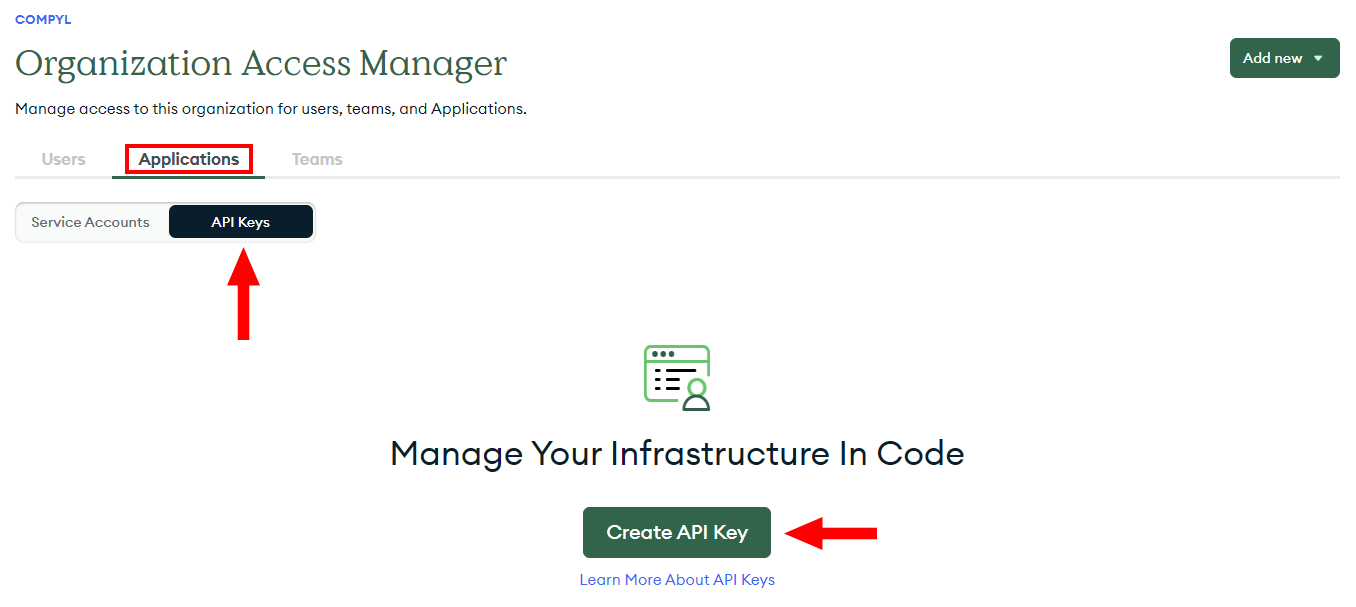
In the Organization Access Manager, select Applications and then API Keys. Then click Create API Key.
-
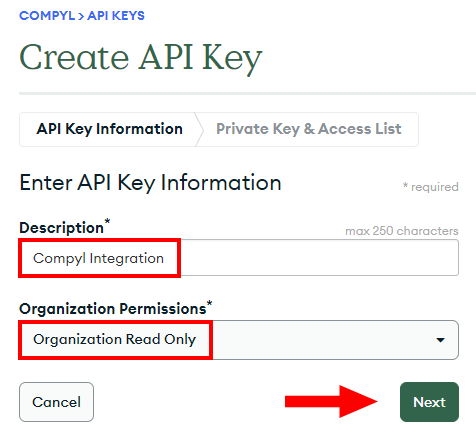
Enter in a Description (e.g., Compyl Integration) and then expand the Organization Permissions dropdown and select Organization Read Only or higher (e.g. Organization Member/Owner) This lets us read org-level resources like teams, events, and more. Then click Next.
-
Copy the generated keys and store them securely.
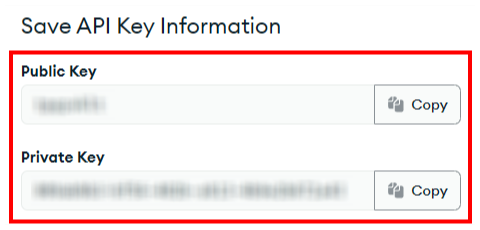
Copy your private key and store it in a secure location. When you leave the page, the full private ke350350 will no longer be available and must be generated again.
-
Restrict by IP (recommended):
-
In the API Key details, add your company/Compyl egress IP(s) to the key’s Access List by clicking on Add Access List Entry.
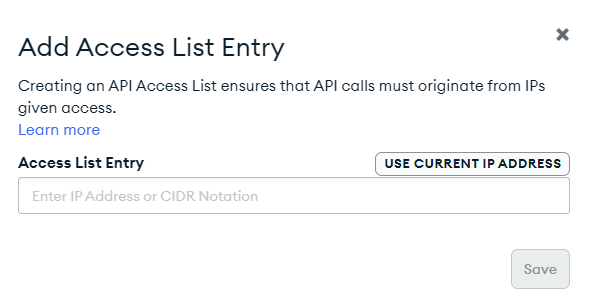
If your org enforces Require Access List for API Access, this is required. Otherwise it’s still a best practice.
Click Done.
-
-
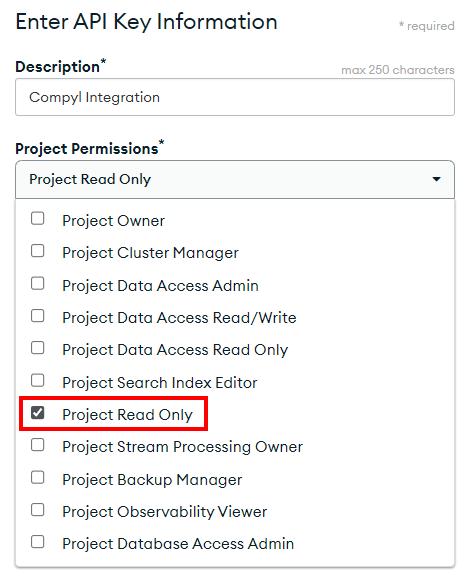
On the Project Access Manager screen, click the 3-dot menu on your newly generated API Key and select Edit Permissions.

In the dropdown, choose Project Read Only (or higher) for each project you want Compyl to read (at minimum, the project whose Group ID you’ll enter).
NoteWe use these keys with HTTP Digest. You do not need OAuth, App Services keys, or user logins for this integration.
Finding Your Organization and Project IDs
You need both an Organization ID and a Project (Group) ID. You can obtain them either via the Atlas UI or through API verification.
-
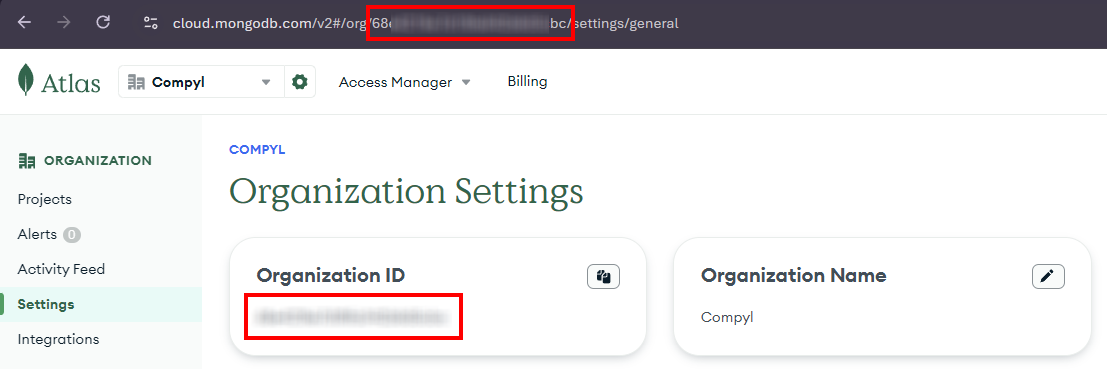
Organization ID: By clicking on the gear icon, you can see your Organization ID both within the UI as well as in your browser URL.
-
Project (Group) ID: Navigate to your Project and then click the 3-dot menu. Select Project Settings.
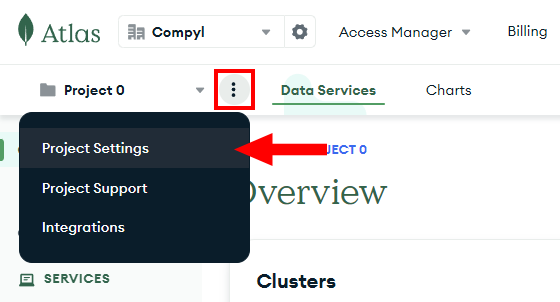
Then copy your Project ID much like the Organization ID above. It is also visible within the URL.
Add Configuration
-
Navigate to the Integrations tab using the left-hand menu, and select MongoDB Atlas.

-
Click the Add Configuration button and fill in the details below:
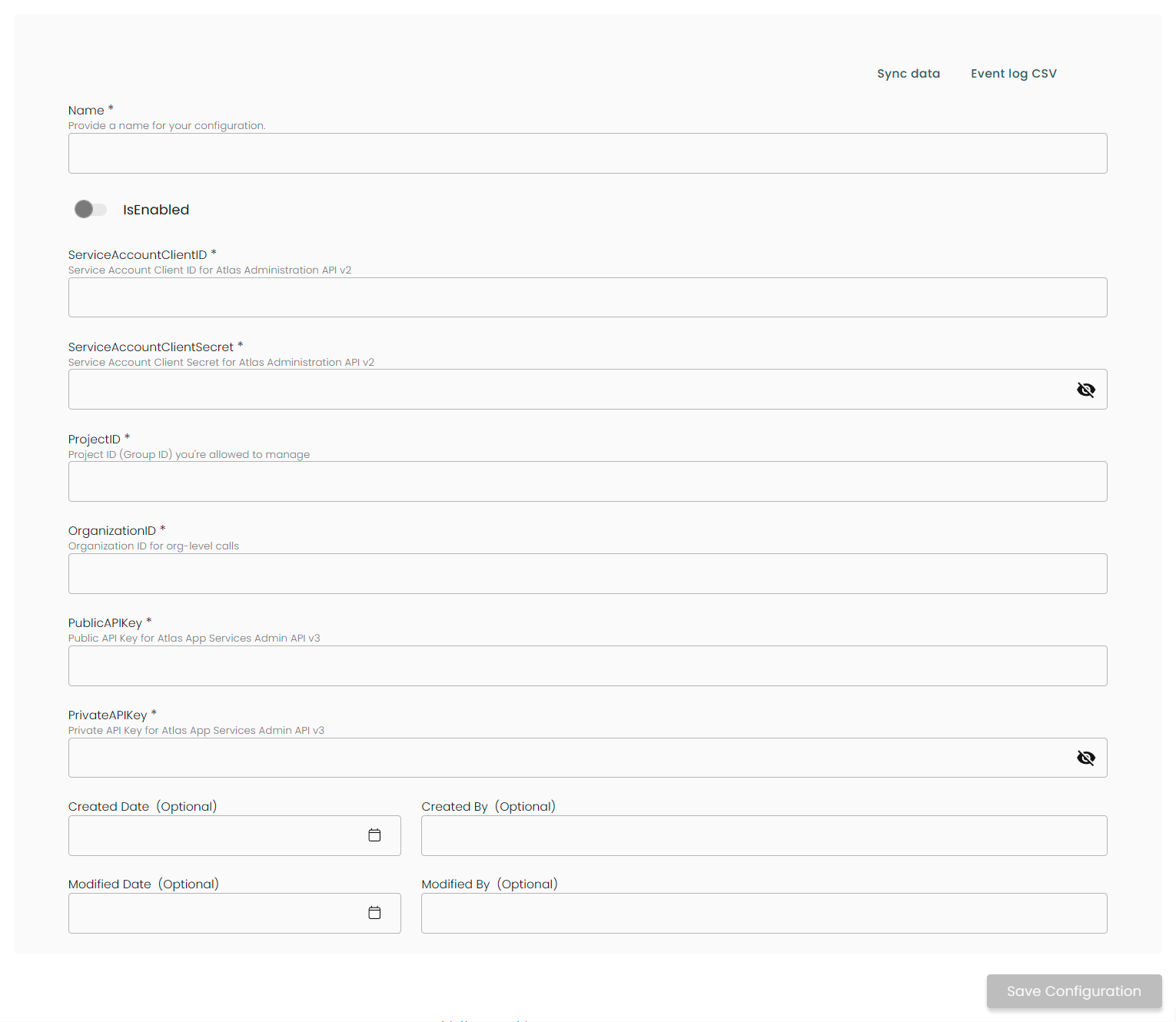
Name: Enter the name of the integration.
is Enabled: Toggle button to ensure data is populated into Compyl.
Service Account Client ID: Leave blank (not used for Digest).
Service Account Client Secret: Leave blank (not used for Digest).
ProjectID: Paste your Project (Group) ID .
OrganizationID: Paste your Organization ID .
PublicAPIKey: Paste the Public Key from the Atlas API key you created.
PrivateAPIKey: Paste the Private Key created before.
ImportantOnly the Public/Private API Key pair is used for authentication (HTTP Digest). The service-account fields are reserved for future OAuth support—ignore them for now.
Once you have completed filling out the form click Save Configuration.
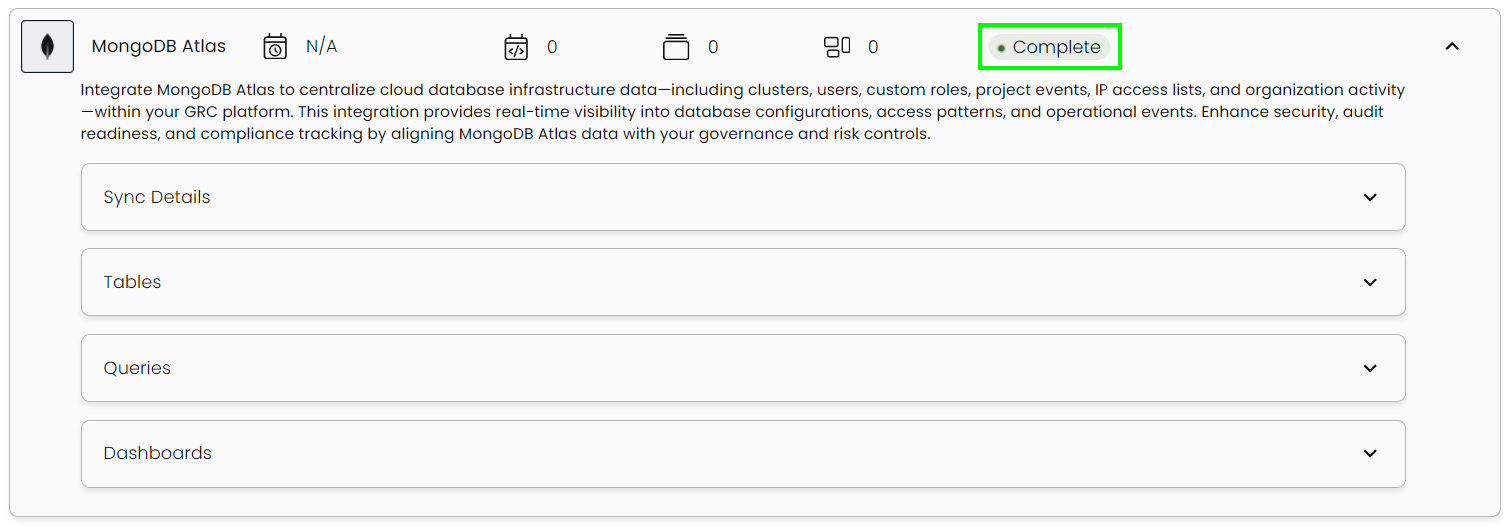
This integration syncs daily.
To query the data from the integration, refer to the Query Builder article.
Updated 2 months ago