
Workspace ONE Integration
Creating Workspace One Credentials
-
Log into your Workspace ONE UEM Console.
-
Go to Groups & Settings → All Settings → System → Advanced → API → REST API
-
Copy your
aw-tenant-codefrom this screen. You will use this in Compyl. -
Copy the REST API URL’s hostname part (e.g.
as2060).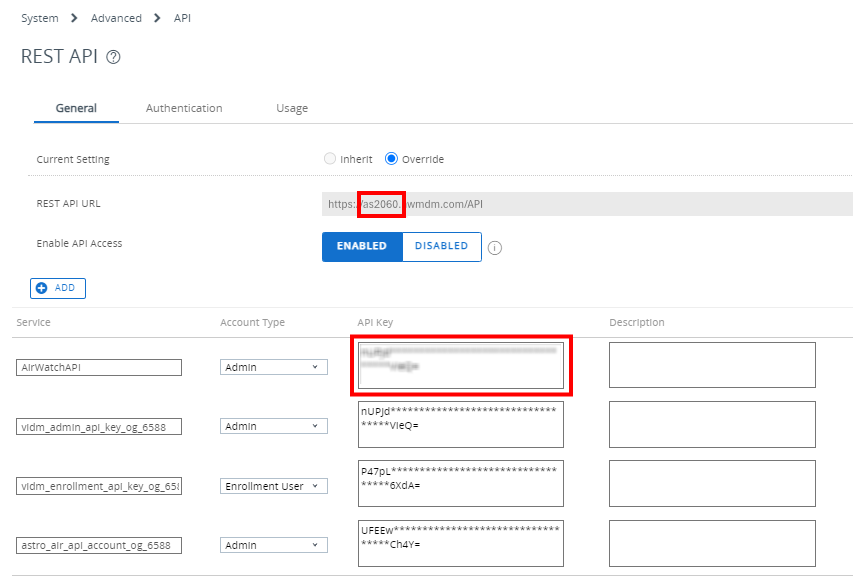
-
Determine your OAuth Token URL:
-
Refer to the below options:
City Country OAuth Token URL Virginia (USA) United States https://na.uemauth.vmwservices.com/connect/tokenVirginia (USA) Canada https://na.uemauth.vmwservices.com/connect/tokenFrankfurt (Germany) United Kingdom https://emea.uemauth.vmwservices.com/connect/tokenFrankfurt (Germany) Germany https://emea.uemauth.vmwservices.com/connect/tokenTokyo (Japan) India https://apac.uemauth.vmwservices.com/connect/tokenTokyo (Japan) Japan https://apac.uemauth.vmwservices.com/connect/tokenTokyo (Japan) Singapore https://apac.uemauth.vmwservices.com/connect/tokenTokyo (Japan) Australia https://apac.uemauth.vmwservices.com/connect/tokenTokyo (Japan) Hong Kong https://apac.uemauth.vmwservices.com/connect/token
- Copy the Token URL (e.g.
https://na.uemauth.vmwservices.com/connect/token).
-
-
Click on OAuth Credentials or navigate to:
- Groups & Settings → All Settings → System → Enterprise Integration → OAuth Client Management
-
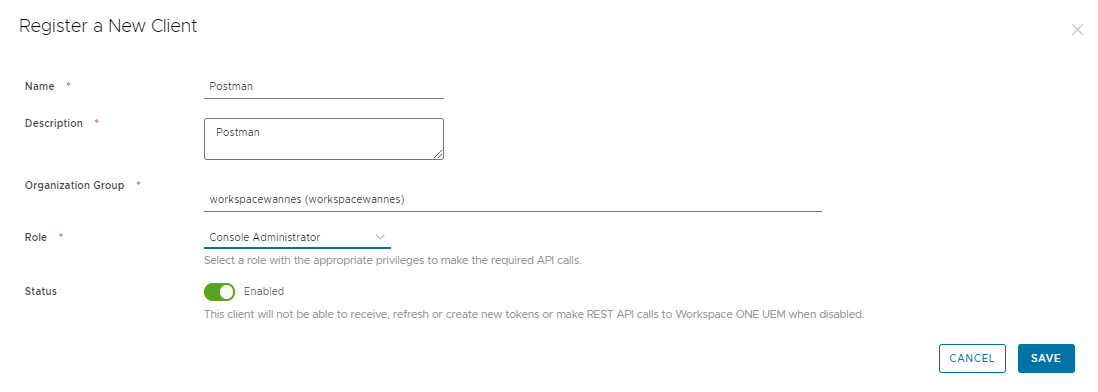
Click Add to create a new OAuth client.
-
Enter a Client Name and select Service Client as the type.
-
Configure the following:
- Grant Type: Client Credentials
- Scopes: Select the appropriate scopes (typically
Allor per API group) - Redirect URI: Not required for service clients
- Assign a role that can read the following APIs:
API Used for MDM devices MDM device inventory MDM compliance policies Compliance policy catalog and per-device results MDM profiles Device profiles and smart group assignment System organization groups, including child groups Organization groups and each group's parent System users Enrollment users System admins Console admins and roles MEM devices Email (MEM) devices
-
Click Save, then copy the Client ID and Client Secret.
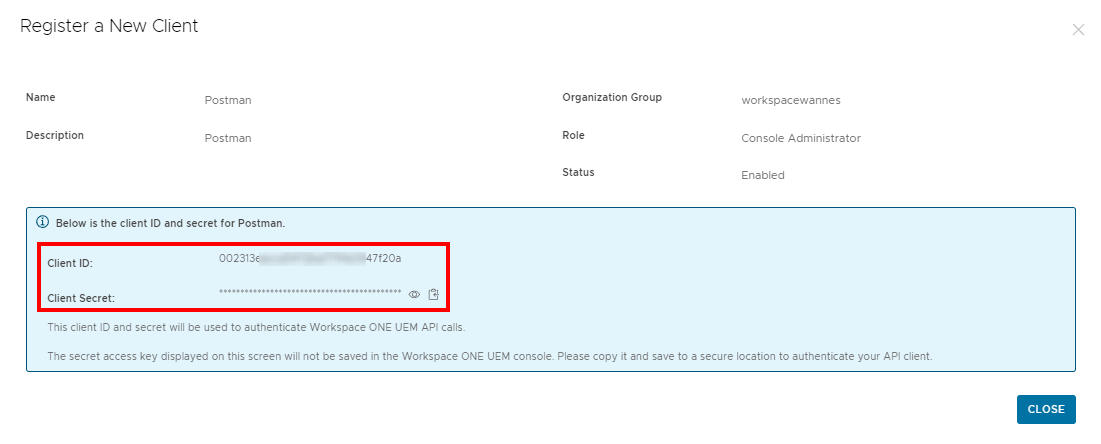
WarningYou will only see the Client Secret once when generating it. Be sure to copy this and keep it in a secure location. Otherwise you will need to generate it again.
Add Configuration
-
Navigate to the Integrations tab using the left-hand menu, find WorkspaceOne, and select +Add Configuration.

-
Next, fill in the details below and select Continue.
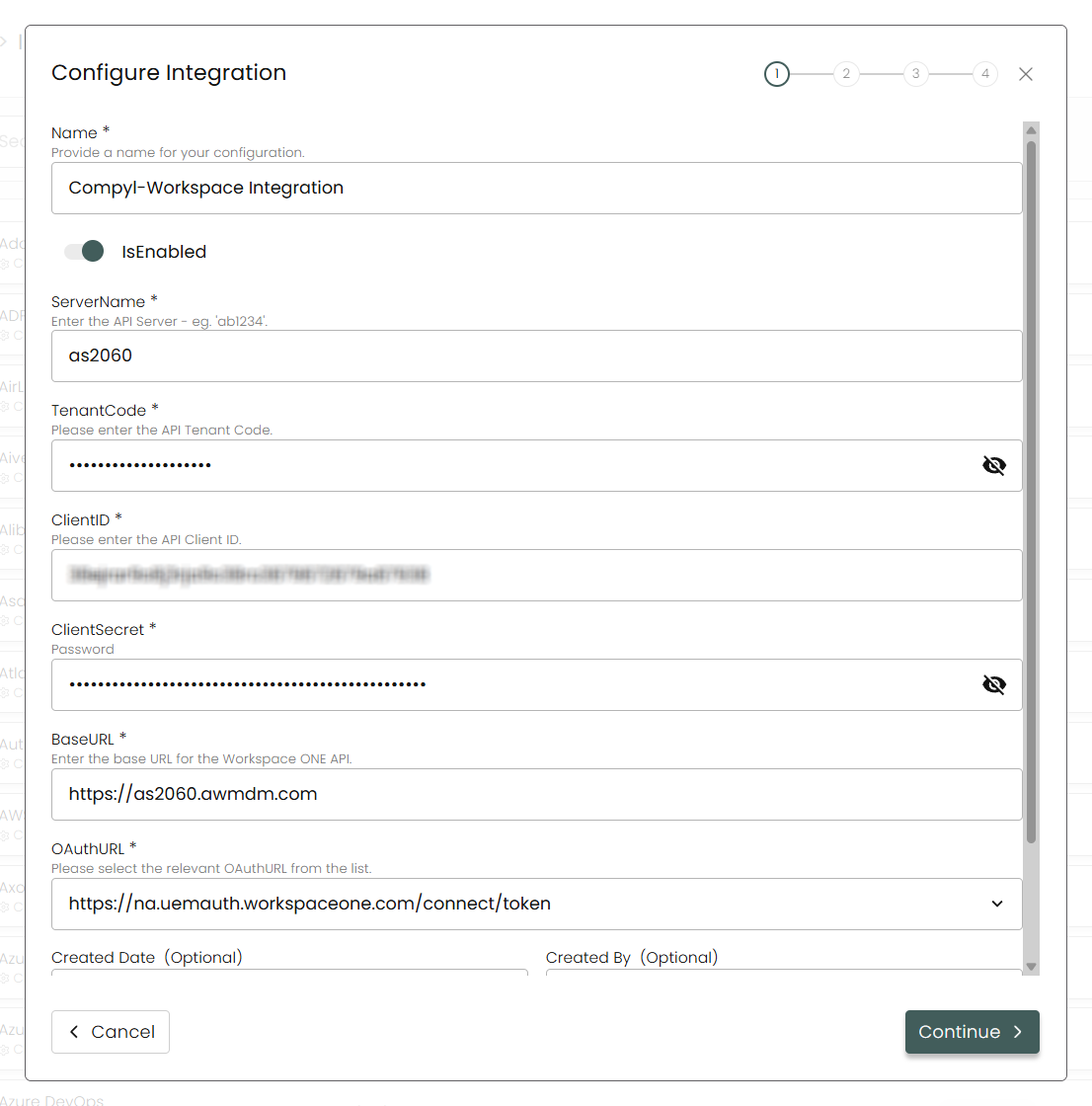
Name: A descriptive name for this Workspace ONE configuration.
is Enabled: Toggle on to begin syncing data from Workspace ONE.
Server Name: The name of the server.
Tenant Code: Please use the tenant code your obtained prior (e.g.,
aw-tenant-code)Client ID: Paste the Client ID from the OAuth Client
Client Secret: Paste the Client Secret you copied earlier
Base URL: Your Workspace ONE API Server (e.g.,
https://as1831.awmdm.com). Use the REST API URL and include/APIif that is shown.OAuthURL: The Endpoint we are to validate credentials against.
-
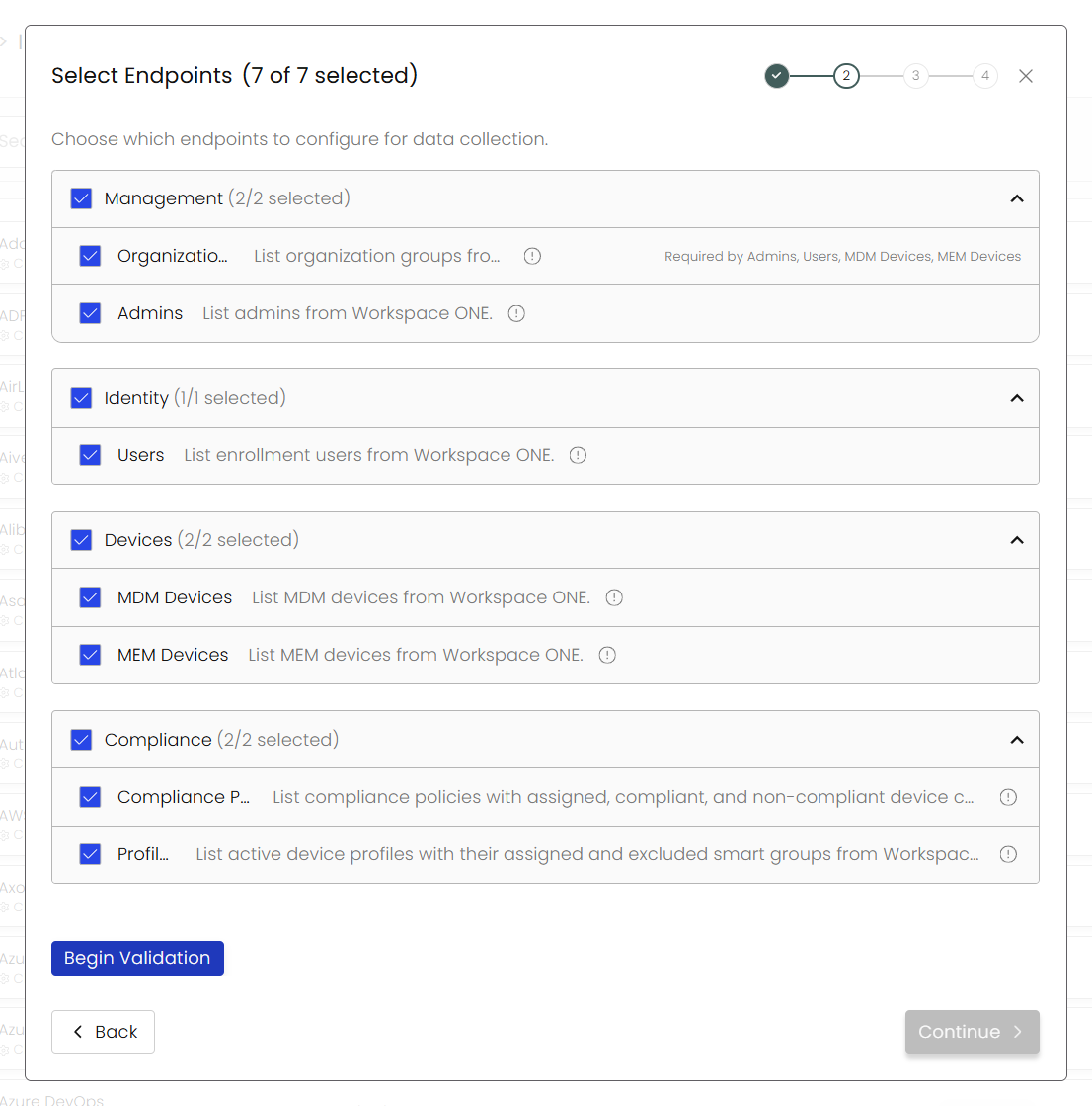
Choose your Endpoints and Begin Validation to validate your connection.
-
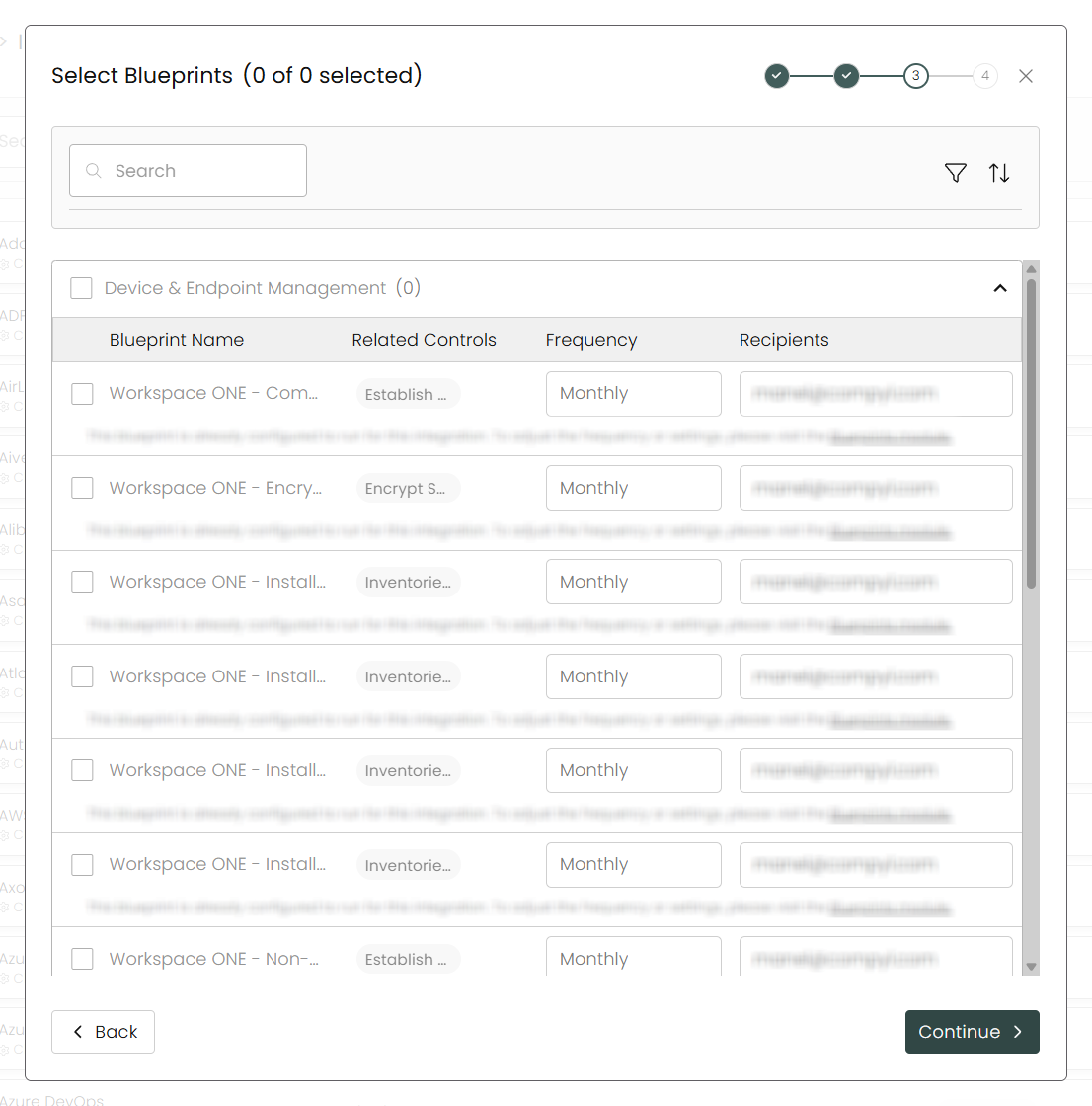
Select any Blueprints you wish to associate with this integration.
-
After you hit Continue, you'll see a summary screen. Click Return to Integrations to complete the configuration.
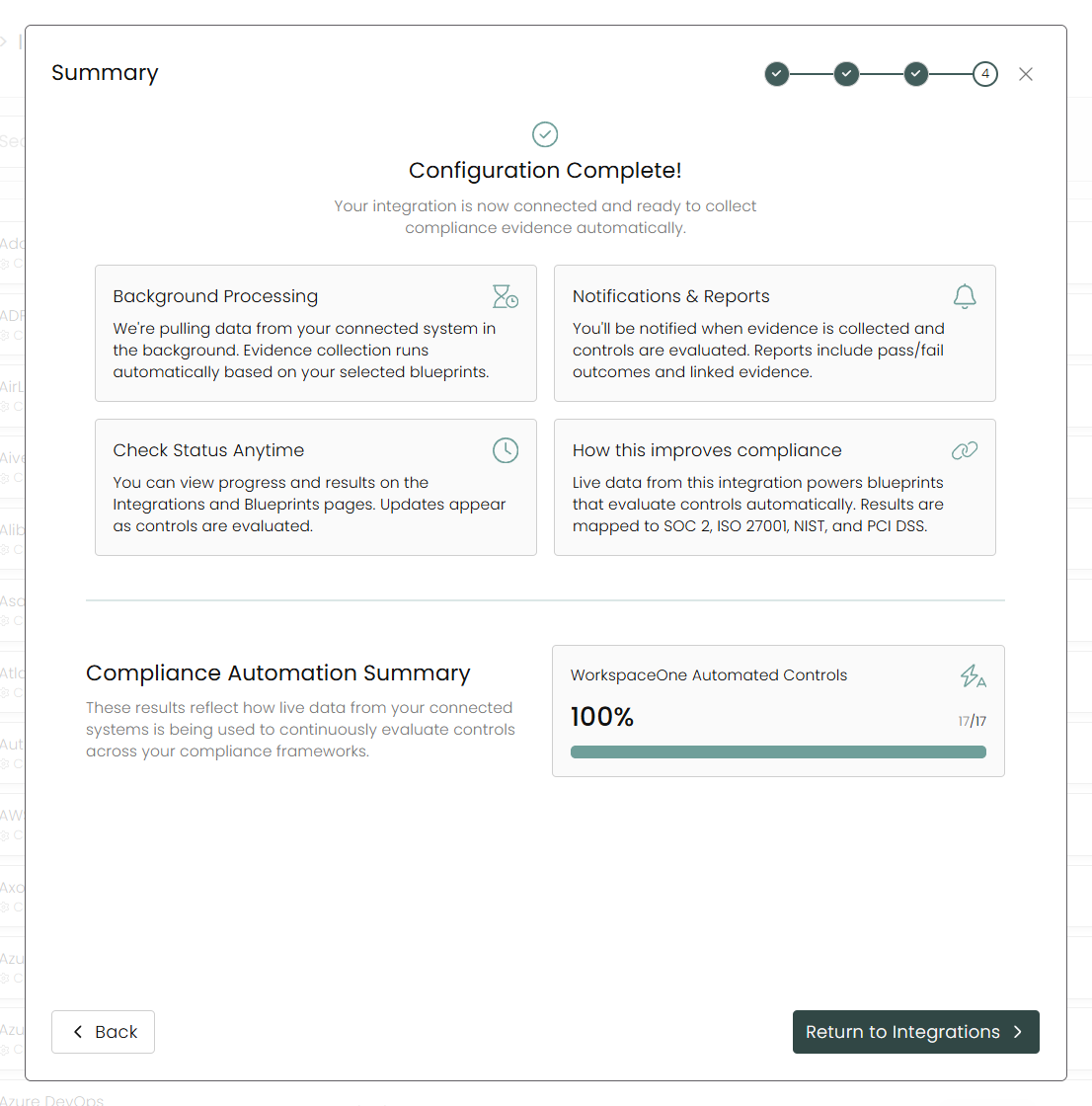
Once you have completed filling out the form click Return to Integrations.
You'll know the integration is successfully added when the status updates to Complete.

Data is synced on a recurring schedule configured by your Compyl administrator. Each sync pulls the latest data from all enabled endpoints.
To query the data from the integration, refer to the Blueprints article.
Updated 1 day ago