
Tasks
Through this dynamic Task Board, users can easily manage all tasks that need to be completed for a compliance program or other security activities
Tasks are used in Compyl as a means to provide a record and evidence of the task being completed within the central location of the compliance program in Compyl. They track compliance and security activities such as evidence collection, configuration checks, user access reviews, as well as risk and more. All of which are grouped by status to help teams know what needs attention now, what is actively underway, and what is complete.
The Task Board
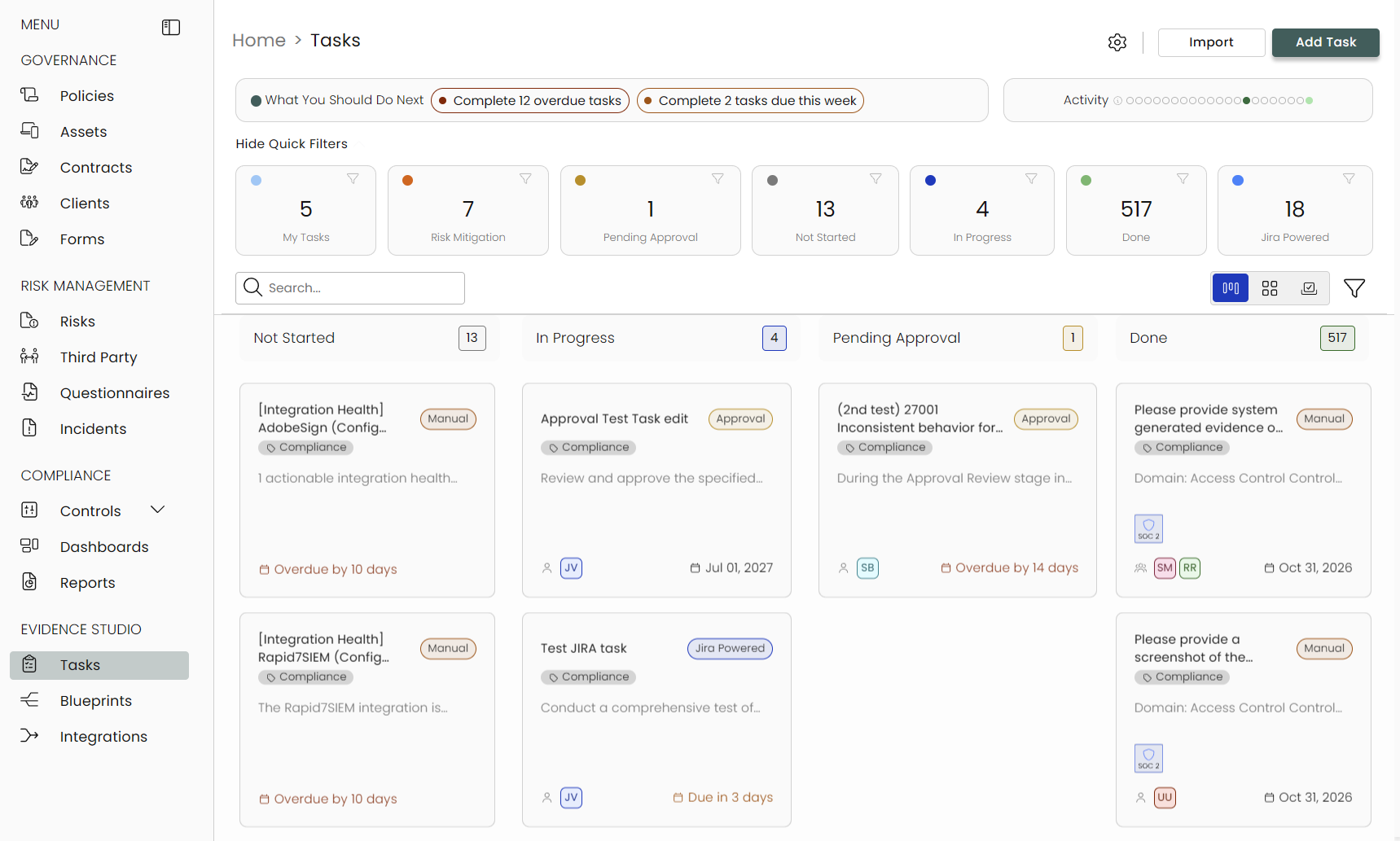
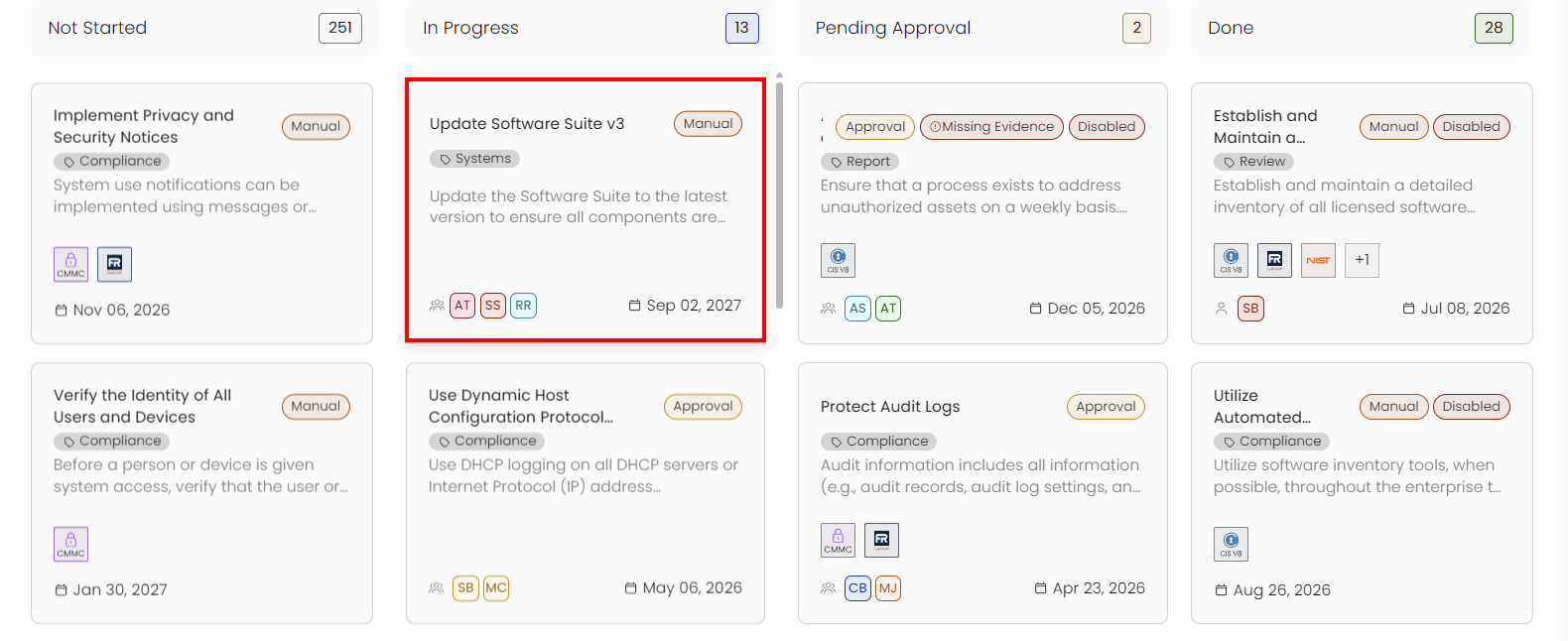
Compyl's task board provides a centralized view of all security tasks as well as their status and owner. It also helps organize and refine your workflow by identifying and prioritizing tasks.
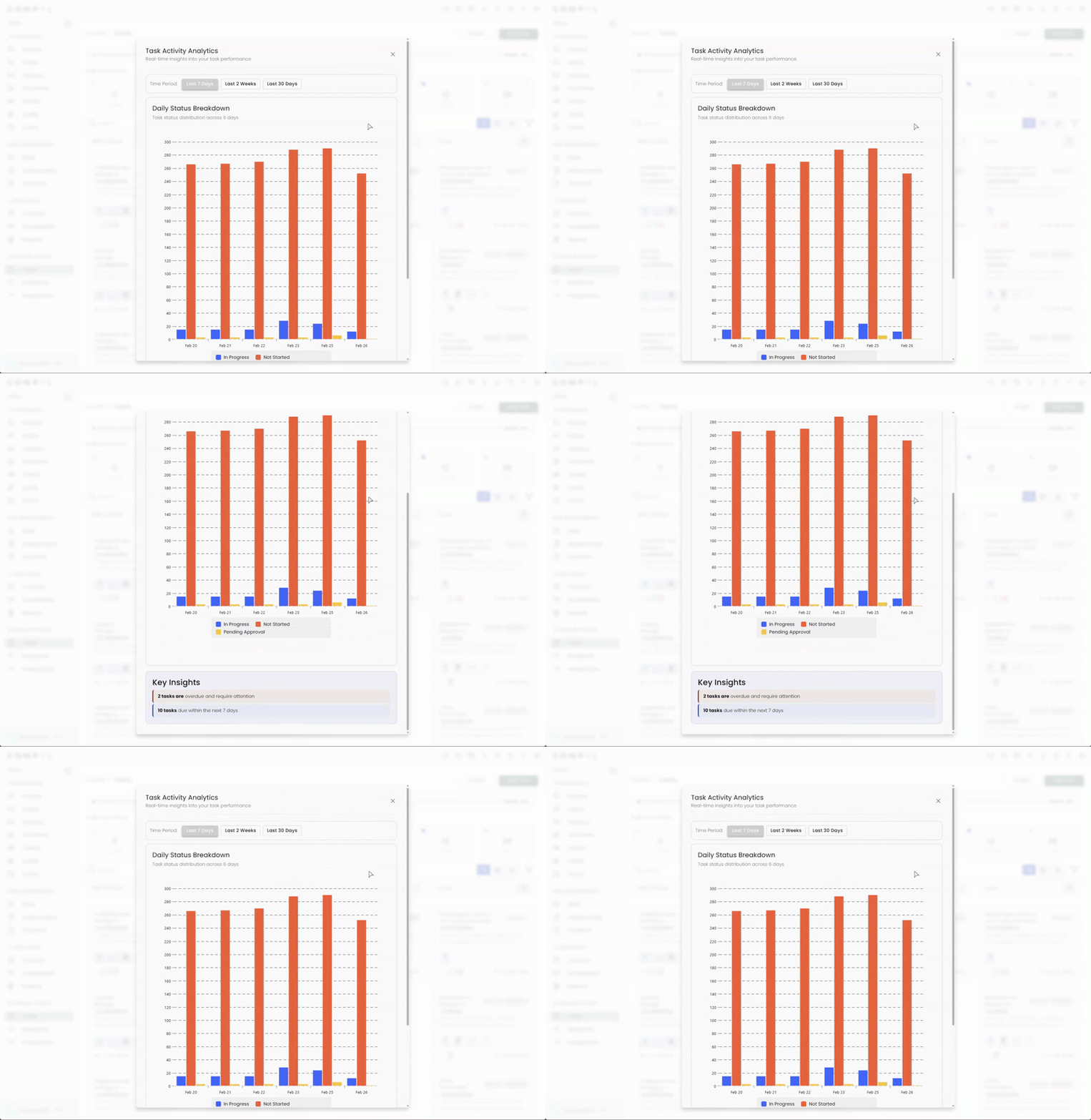
Activity Report
This is a quick overview of how many tasks are in progress over the last 30 days.

Clicking on this opens the Activity Report which gives you more details, allowing you to change your timeline between the last 7, 14, and 30 days.
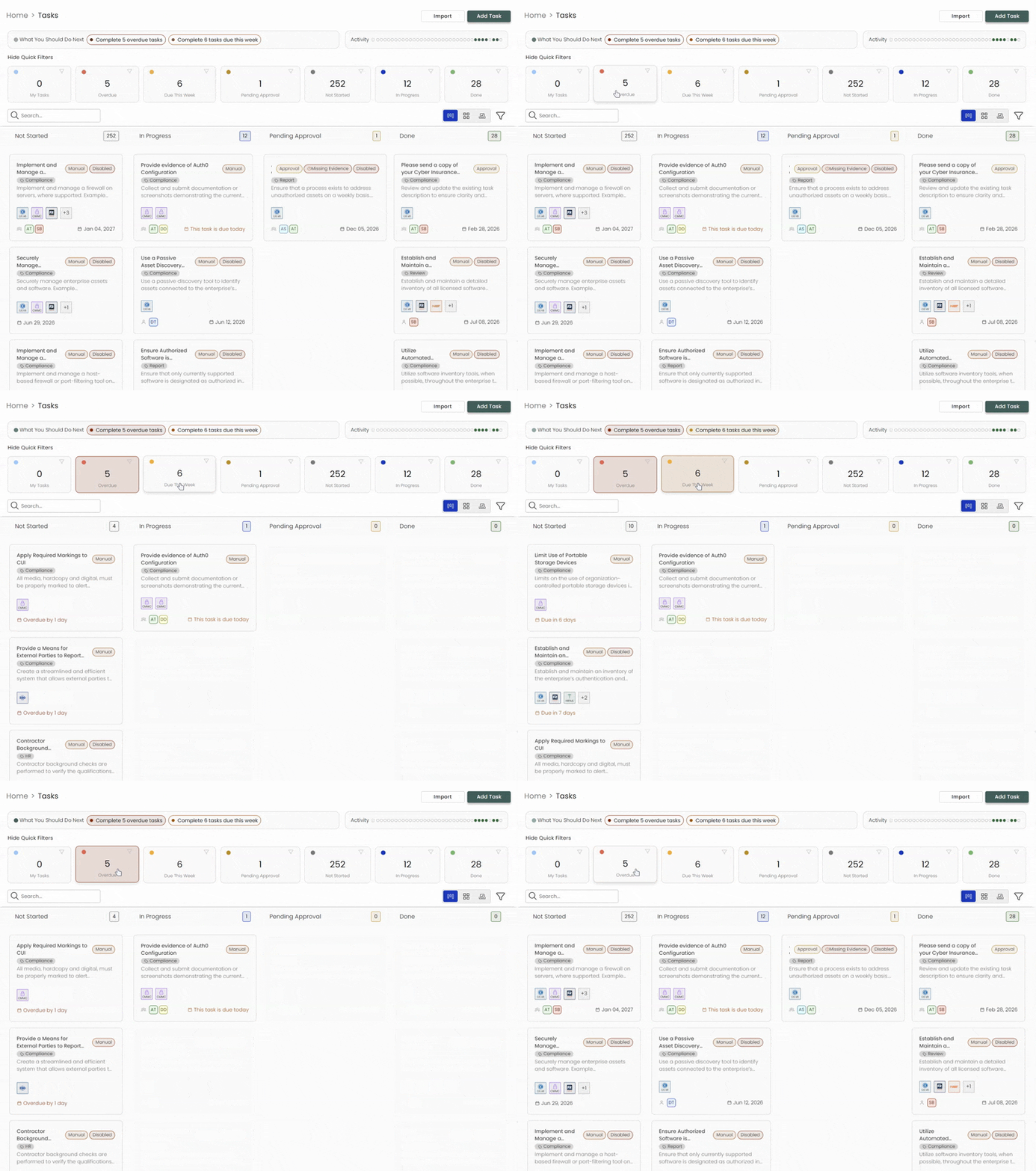
Quick Filters
These filters give you a quick overview of all remaining tasks across your instance. Clicking on one will automatically filter the Task Board.
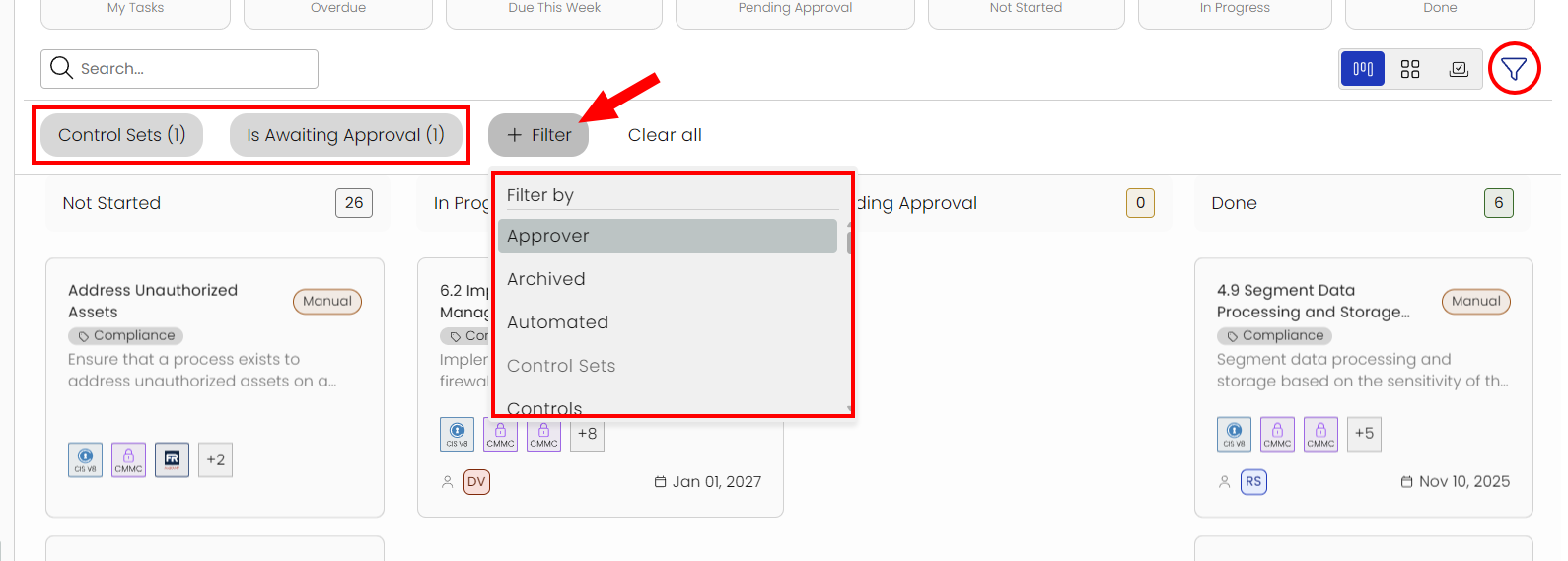
Additional Filtering
You can further refine your filters by clicking the funnel icon on the right, which allows you add multiple and customize your filtering.
Task Views
While the default view is in a traditional Board style, you can also select List View and Approval View. Each view presents the same tasks but organized to support planning, execution, or review.
List View allows you to sort all of your tasks based on the column headers (Name, Status, Due Date, etc...) to quickly group and organize them.
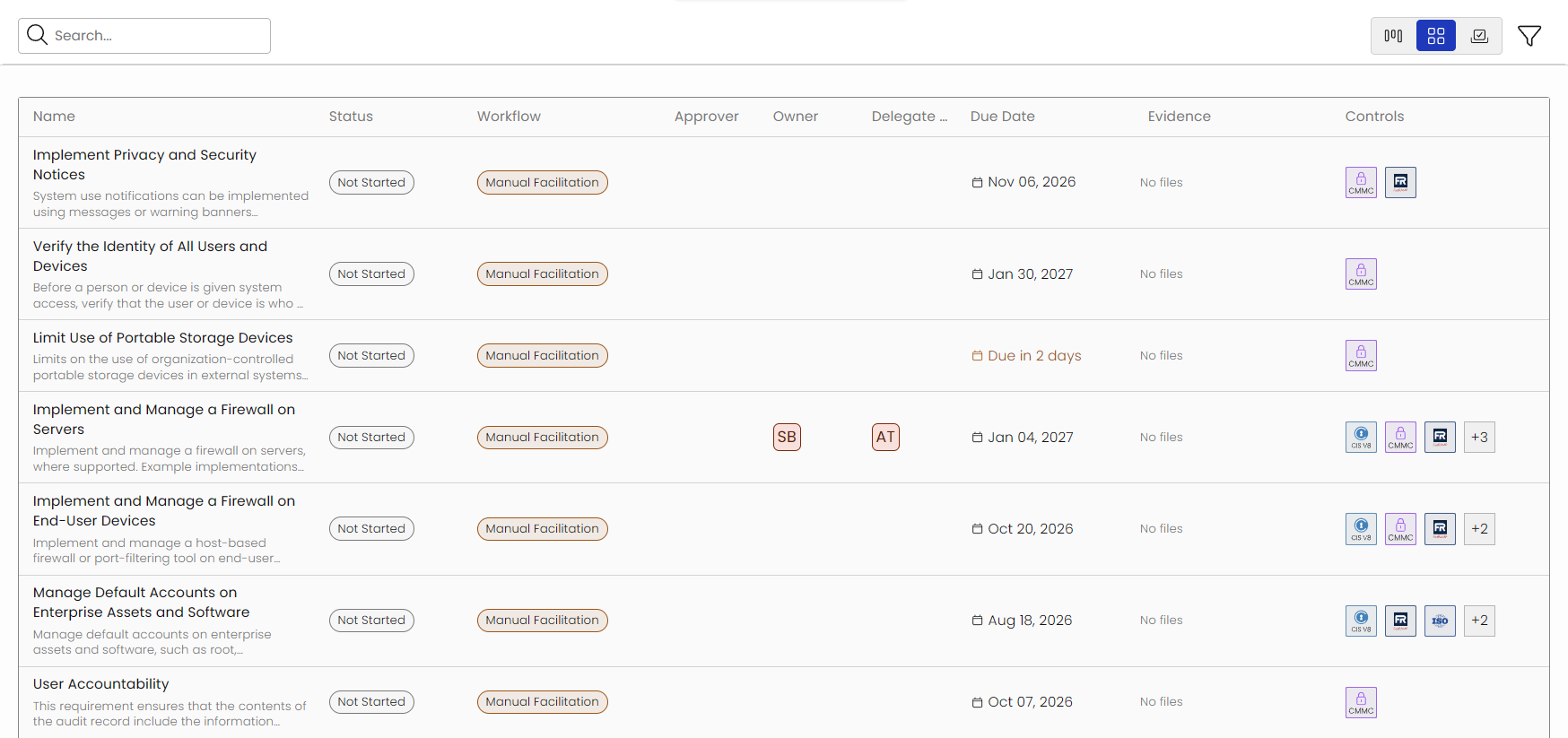
Approval View let's you see all of the tasks that require approval are assigned to you, whether it needs your approval or is awaiting approval.

Task Actions
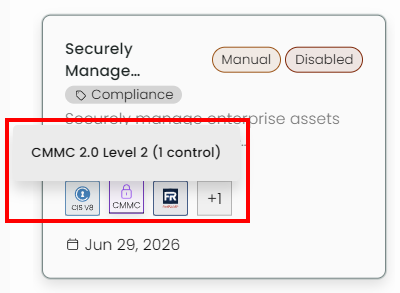
Hovering over the icons within a Task shows you what Controls, Assessments, Risks, etc... are linked.
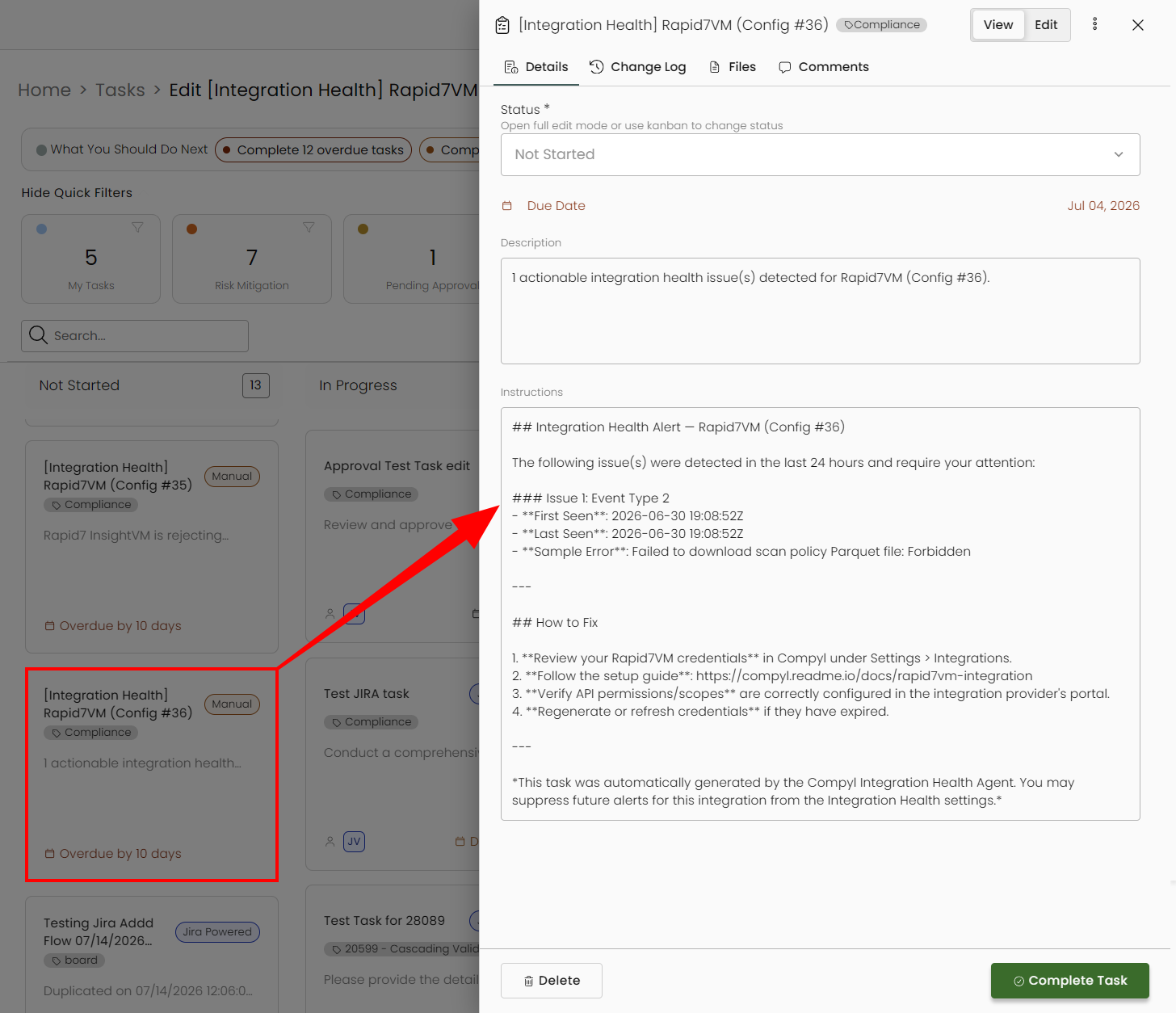
Clicking on a Task's title will open it in a slide-out, allowing you to:
- Attach relevant evidence
- View and Add to any Comments regarding the Task
- Duplicate it
- Edit the Task itself
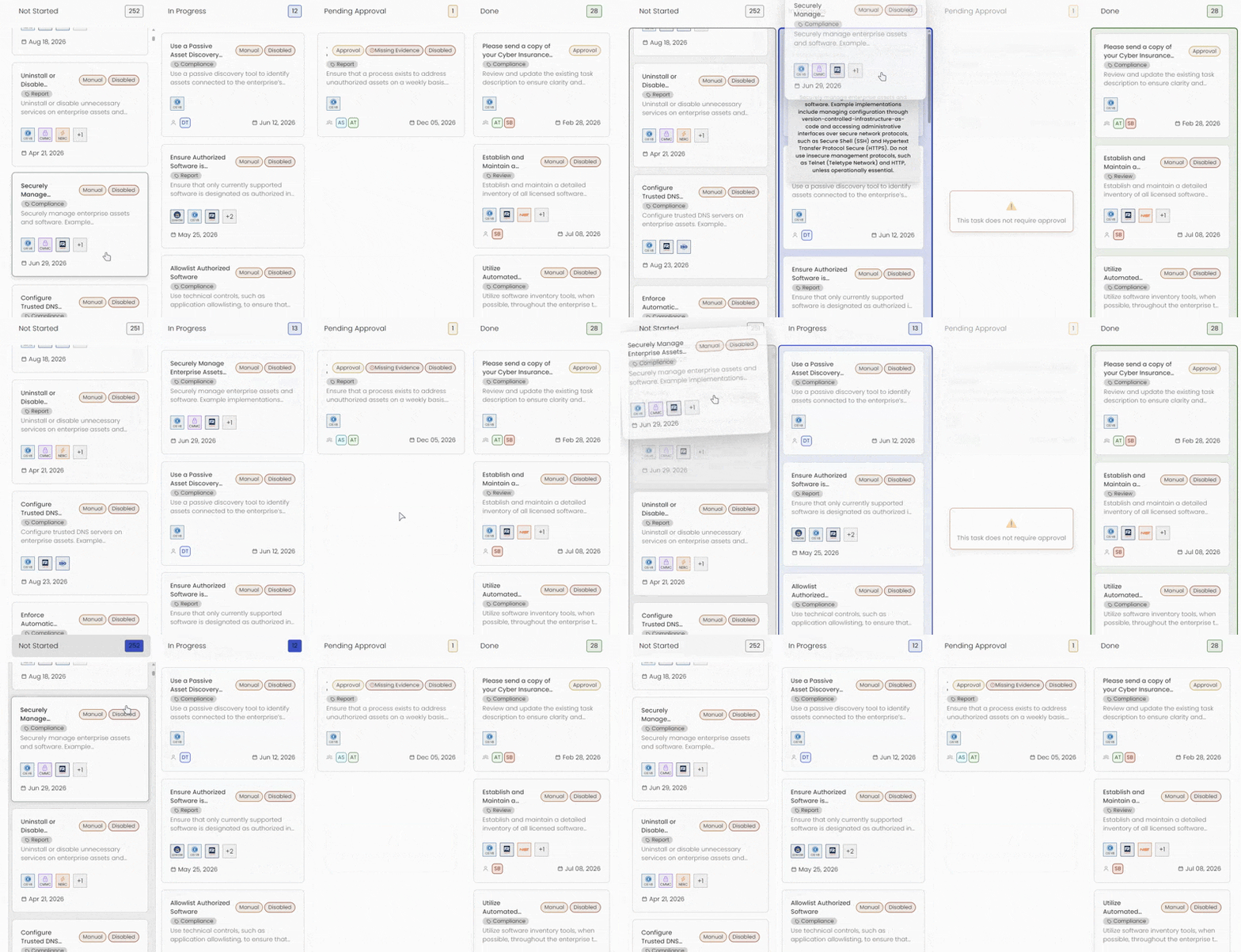
The Task Board also acts as a Kanban board. You can drag any non-automated task into any of the statuses (such as from Not Started to In Progress).
Adding a Task
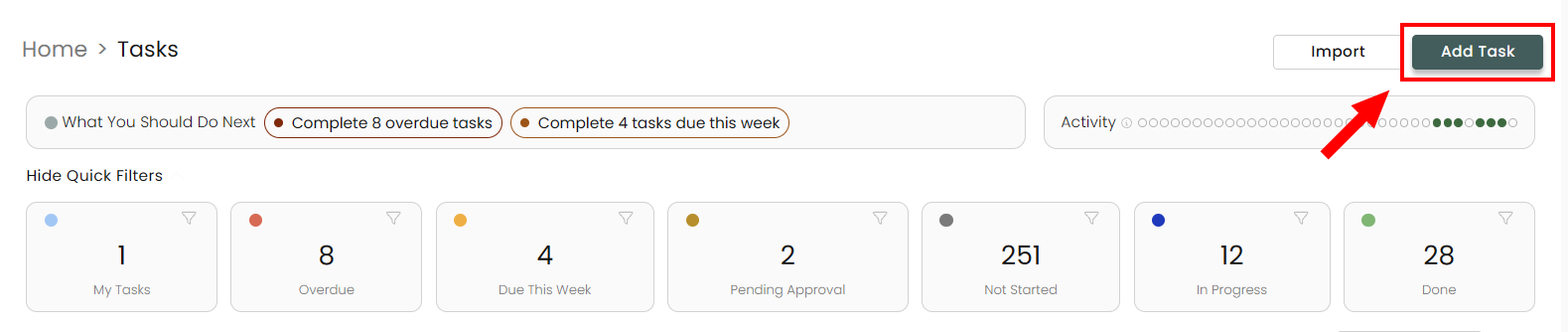
To add a new task, click Add Task in the upper right corner.
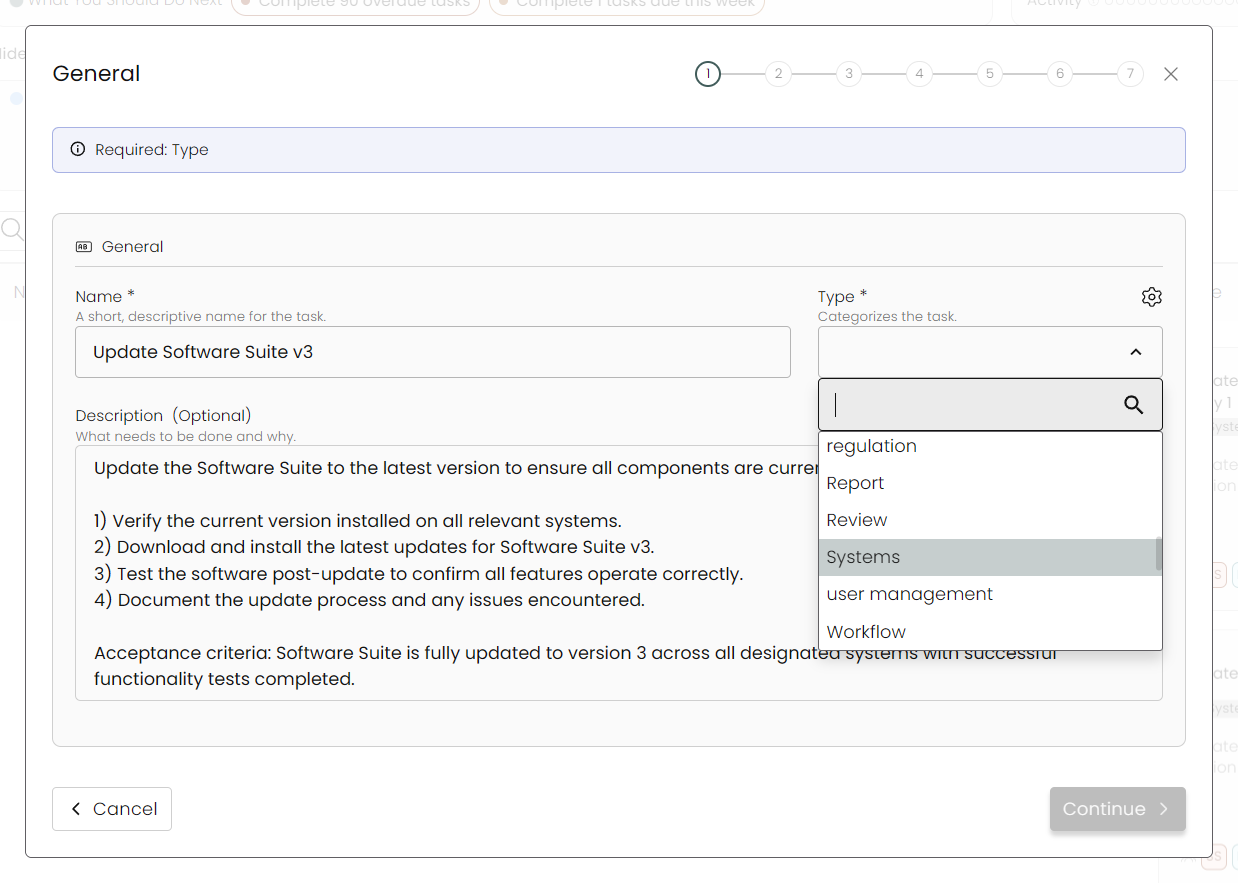
General
The first section requires you to add a Name, Description, and to pick a Task Type. Task Types are defined and created in Settings . Compyl Copilot will generate a description based on the name. You can always modify this by clicking on it and deleting it or typing over it.
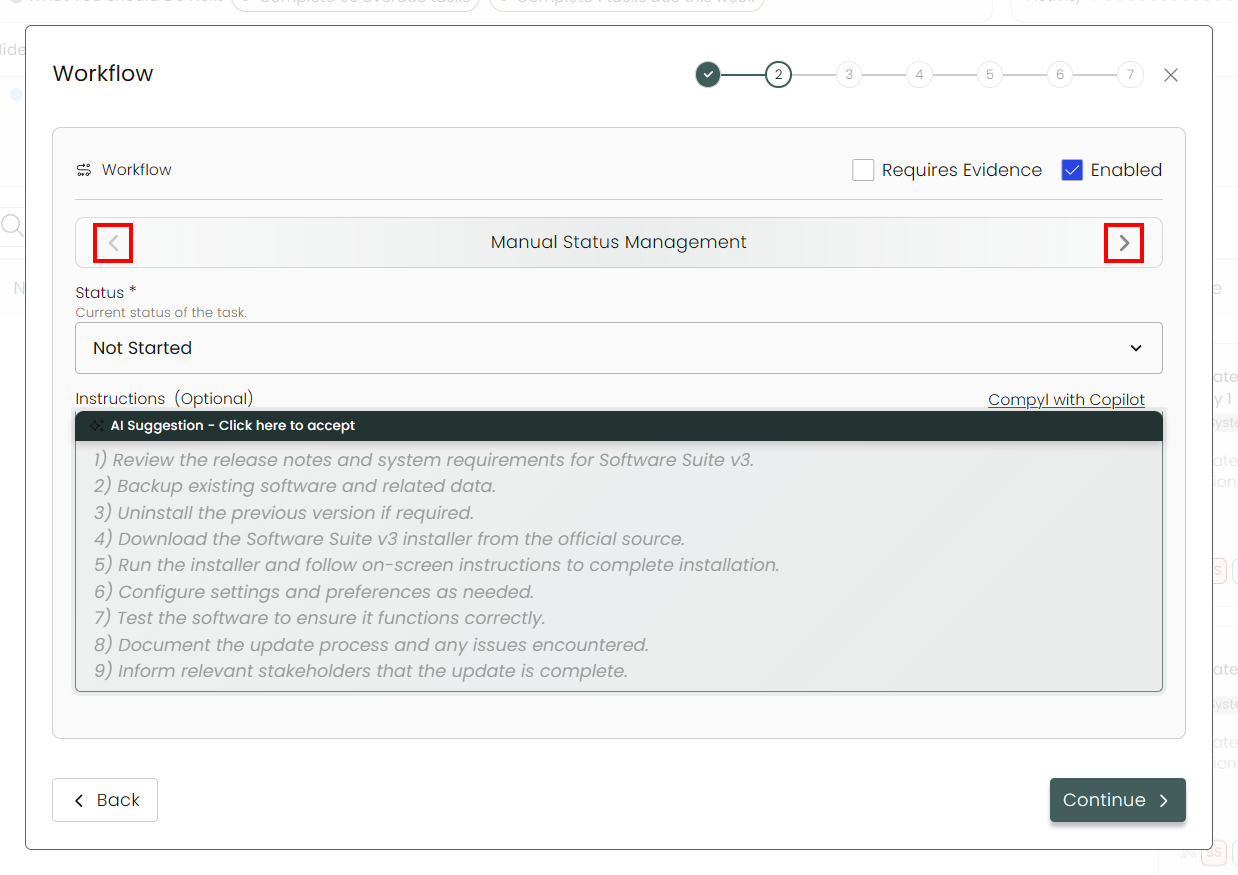
Workflow
This section determines how the task is to be completed and changes status. You can modify the workflow by clicking on the left/right carets on either side.
-
Requires Evidence: When checked, this task requires documents (evidence) to be uploaded before it can be marked as complete.
-
Enabled: Whether or not the task is enabled and live.
-
Manual Status Management: The status of the task (Not Started, In Progress, Completed) is handled manually by the user assigned.
-
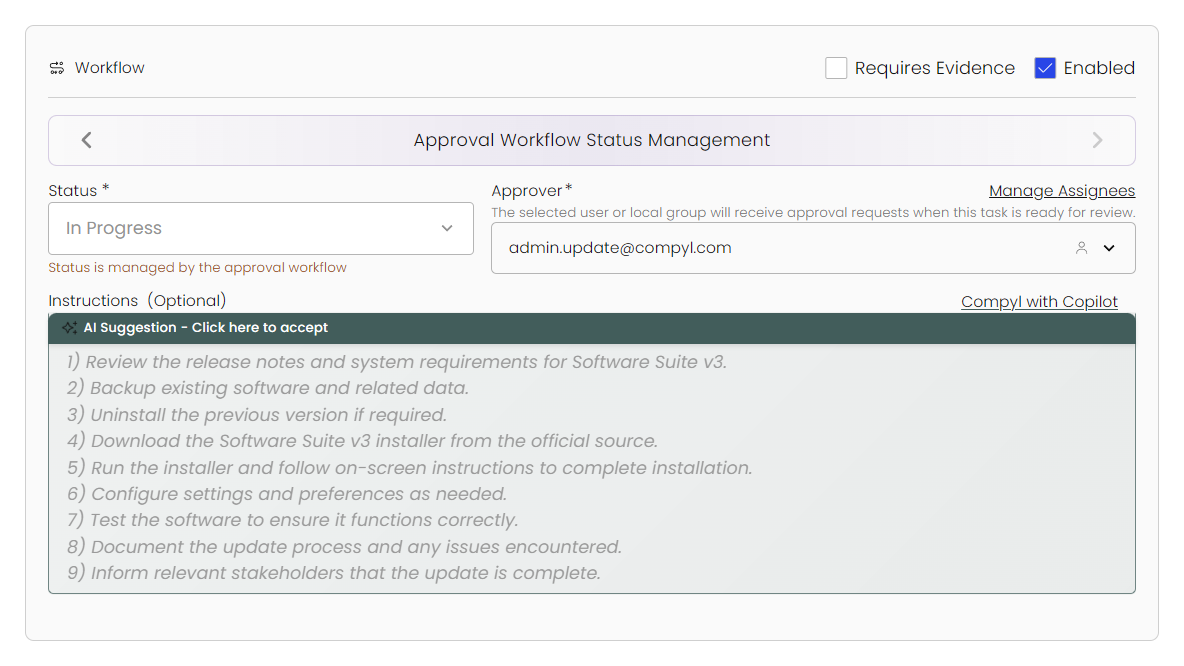
Approval Workflow Status Management: Selecting this allows you assign an approver, instead.
-
-
Instructions: Let Compyl Copilot create instructions on how this task is to be complete or add your own, if necessary.
Team Assignment
Here you add the Owner of the task and the Delegate Owner. You also need to assign a Responsibility for each that controls what they can do on the task itself:
- Configure: Can edit task details, move the task between statuses on the board, and manage settings.
- Facilitate: Can submit for approval, complete the task, add comments, and upload documents.
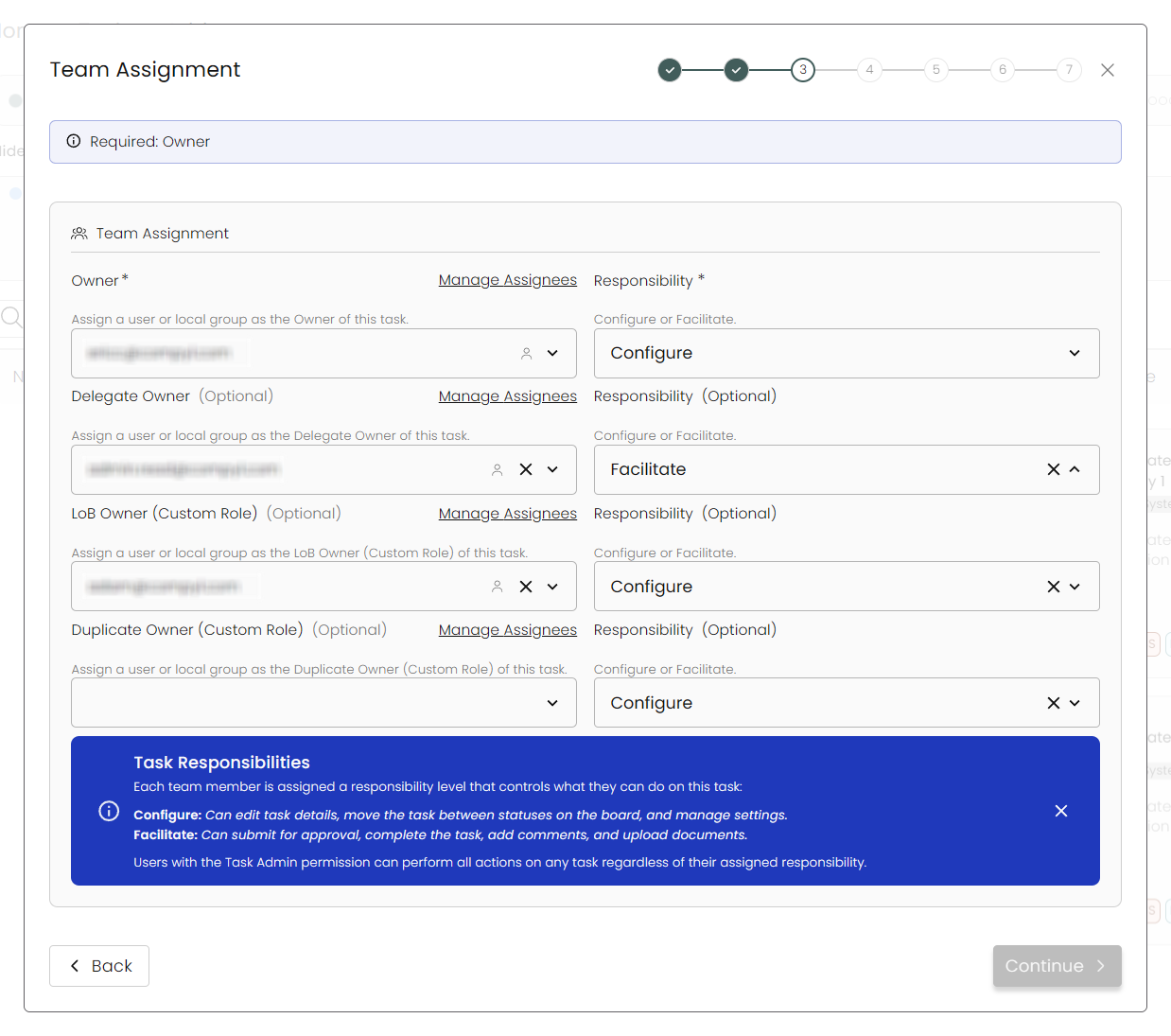
NoteUsers with the Task Admin permission can perform all actions regardless of their assigned responsibility.
Scheduling
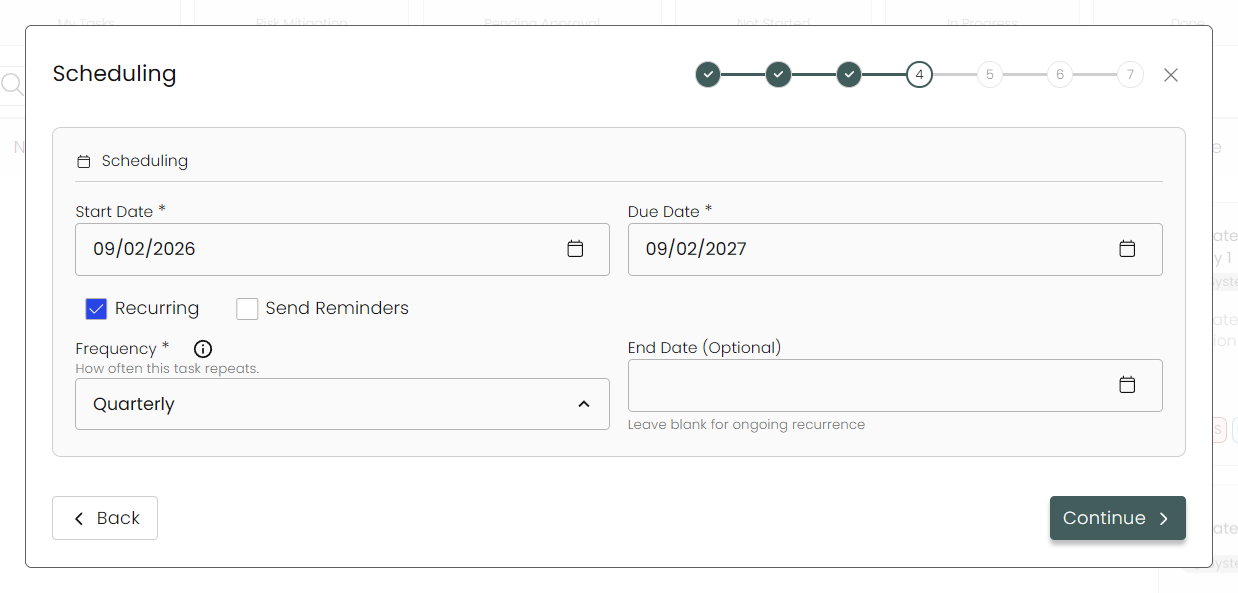
Add in the Start and Due Date for your task and determine whether it repeats and at what frequency. You can also set this to send reminders to those assigned (24 hours, 2 days, 7 days, 15 days, and 30 days before it's due).
Associations
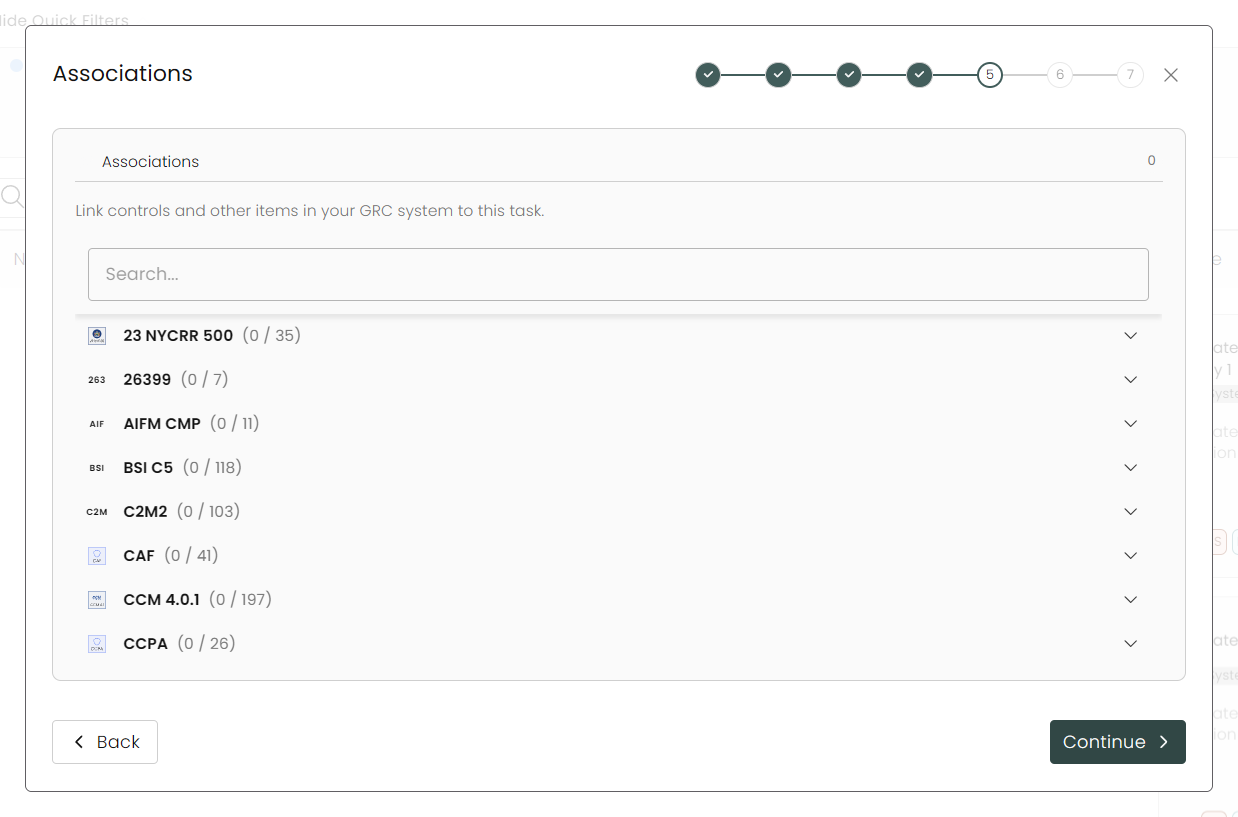
Here you can link controls and other items (questionnaires, clients, etc...) to this task.
Custom Fields
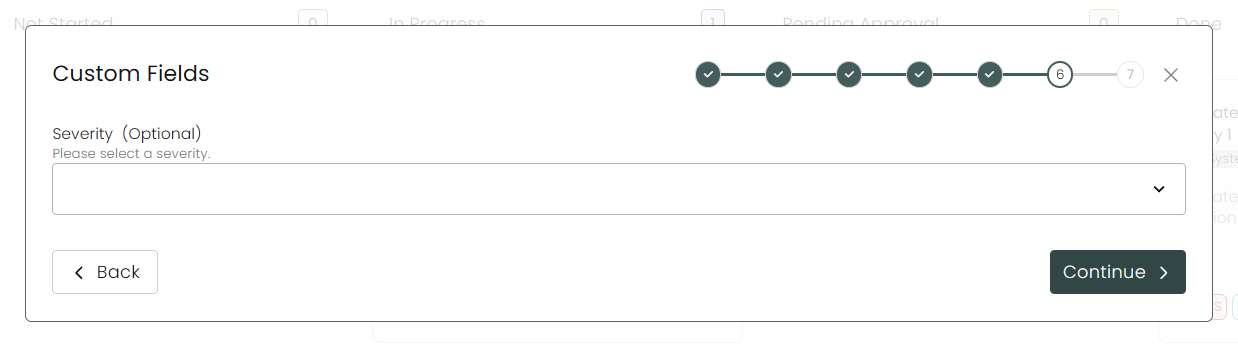
These are fields added via Task Extensions created with a Custom Form . They will differ depending on what additional fields you've created specifically for Tasks.
Review
Finally, you'll get to review all of the choices and options selected for this task to make sure it is properly created before you finish.
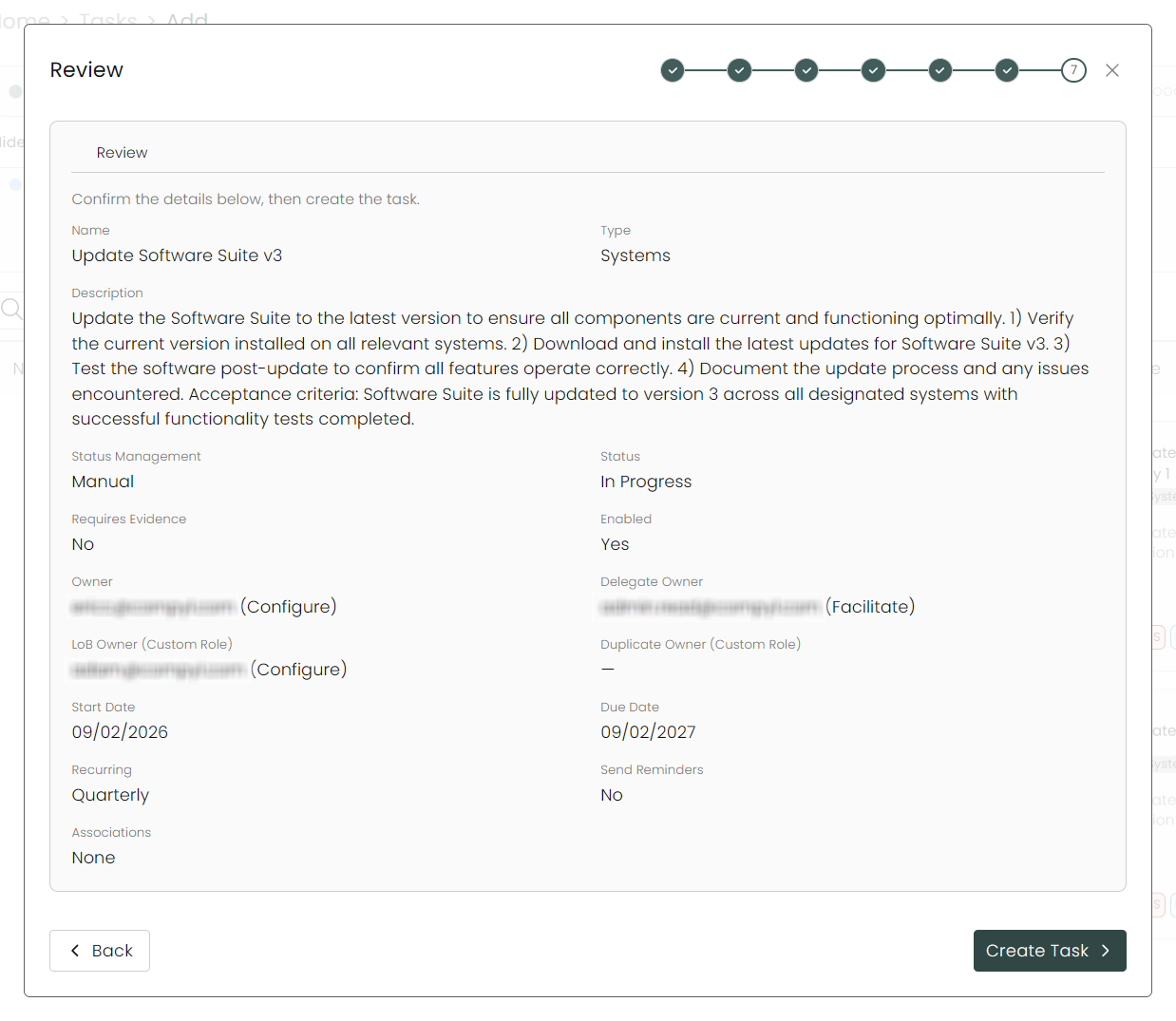
Create Task
Click on Create Task to complete creation of this task (uploading evidence is generally used when completing the task) and it should now appear on the Task Board.
Editing a Task
You can go back and edit any aspect of a task as the owner by opening it and change the toggle from View to Edit.
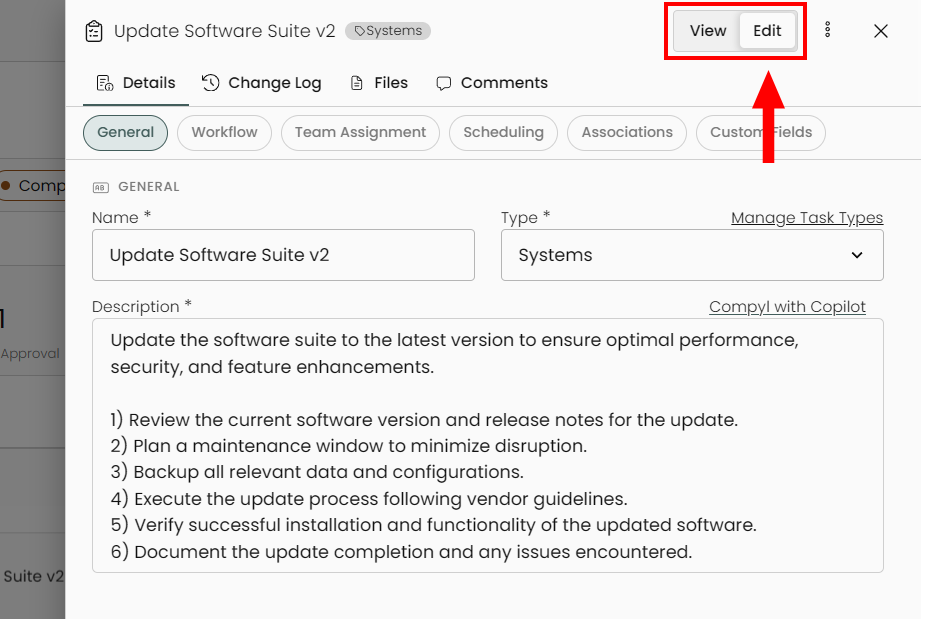
When you're done with your edits, click on Save Changes at the bottom. You can also Cancel and changes or just Delete the task entirely.

Duplicate a Task
When viewing or editing a task, click on the 3-dot menu to bring up the option to Duplicate the task.
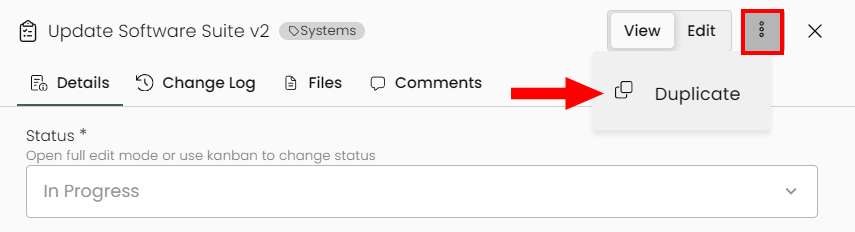
This copies every aspect of the original task into a new modal to the left, except that it prepends the word DUPLICATE at the front. You can then go and make any and all changes as necessary for this, including renaming it, assigning it to different users, or changing its workflow.
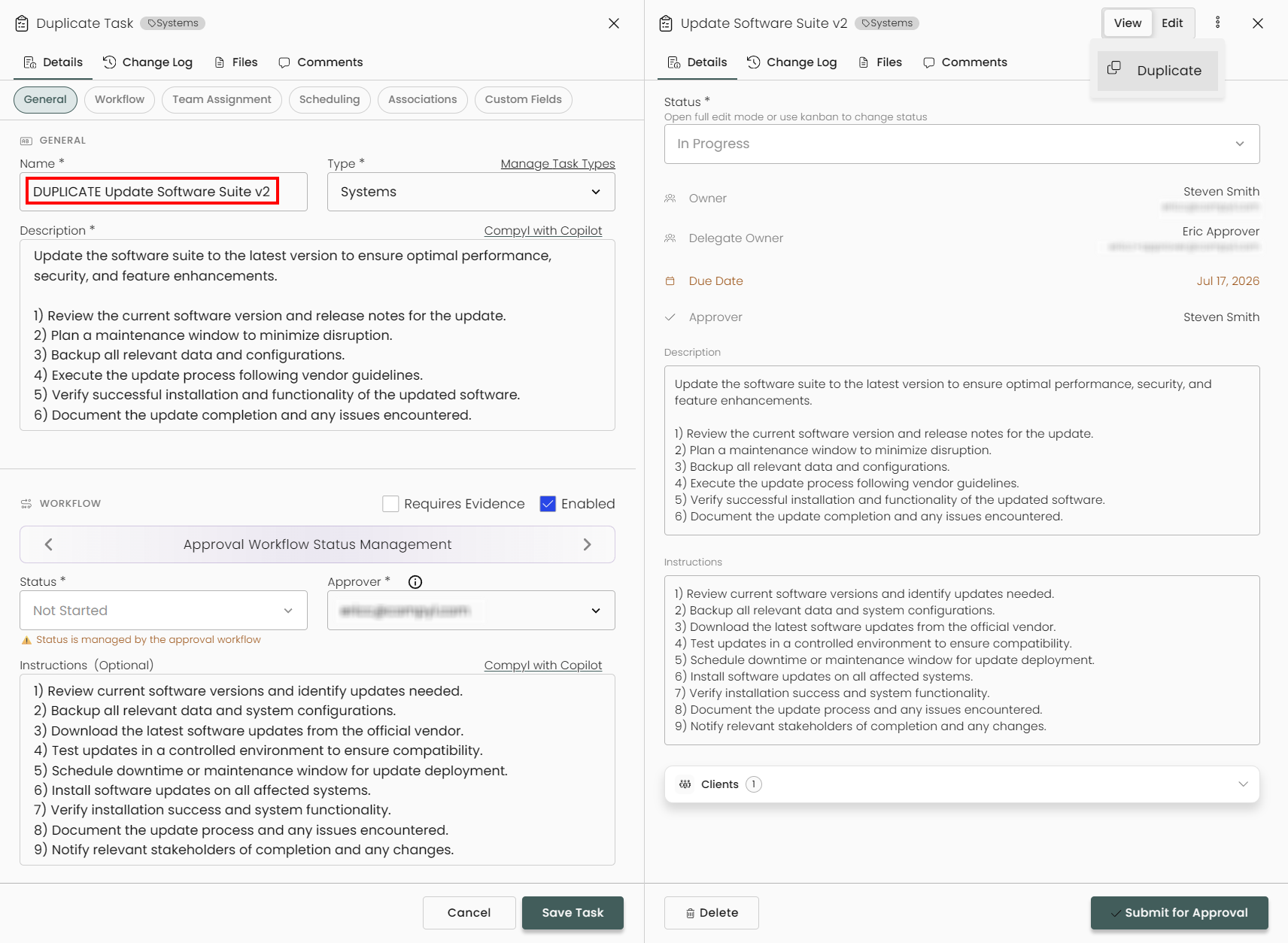
When done, click Save Task.
Completing a Task
-
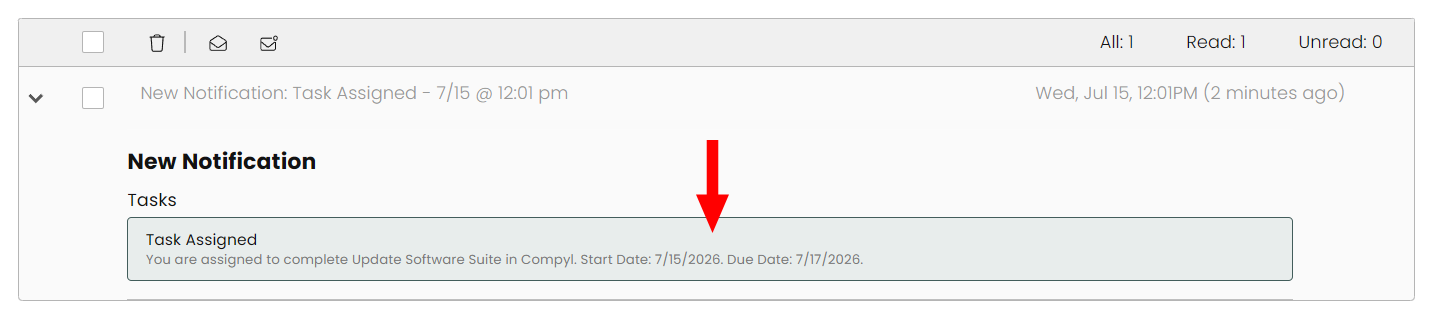
Navigate to a task you are assigned to via the link provided in the task notification or via the Task Board.
-
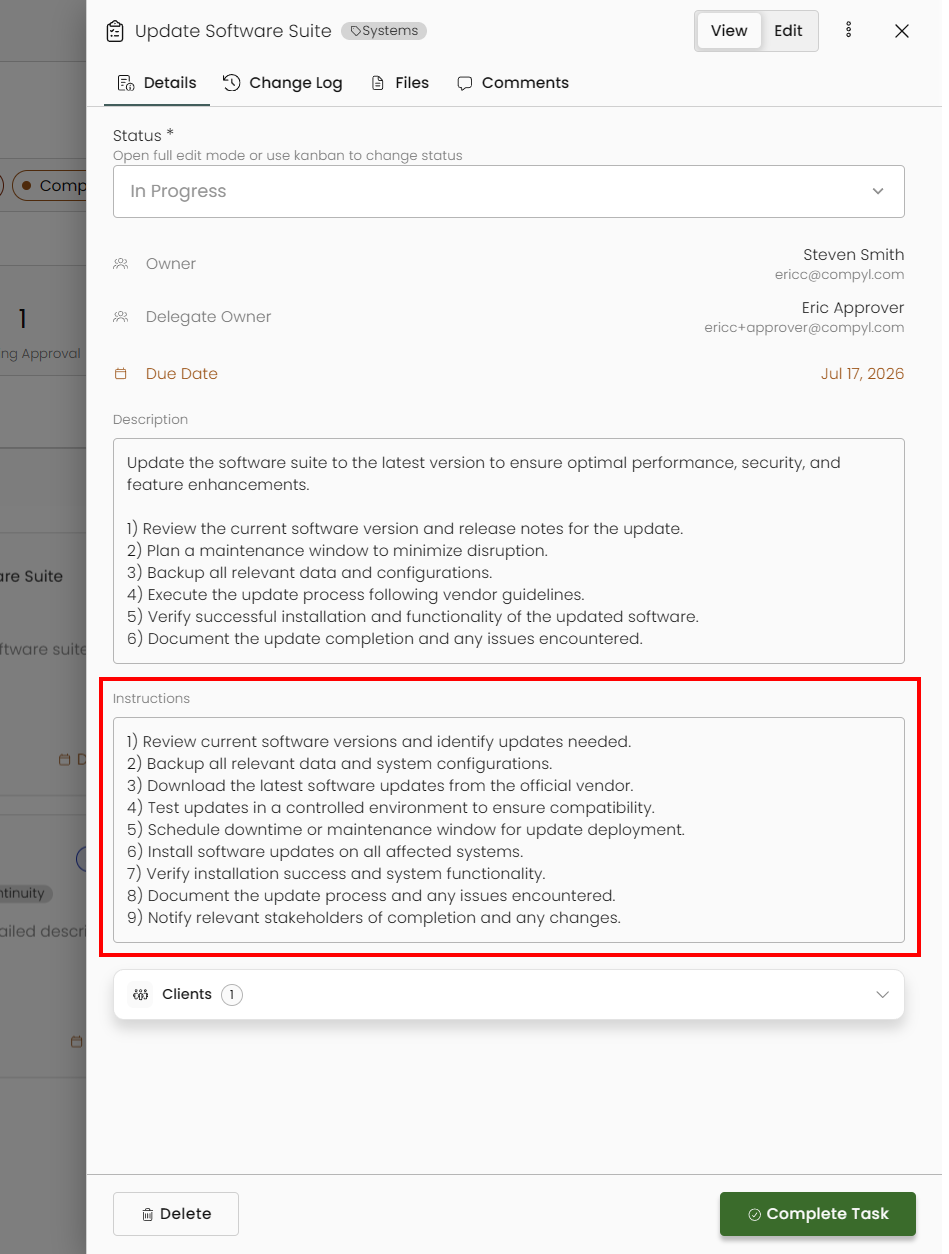
Review the Instructions field (if populated) for information about steps and the type of evidence needed to complete the task.
-
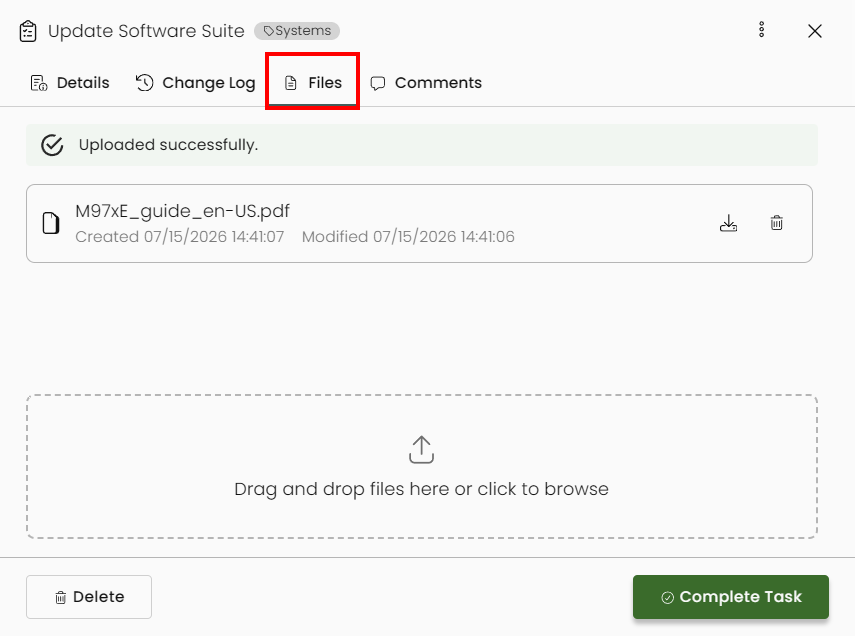
Upload any files or evidence of completion of this task by selecting the Files tab at the top.
-
Hit Complete Task when finished and the task will automatically move to the Done column.
For tasks that fall under Approval Workflow Status Management, facilitators will instead click Submit for Approval, and the Owner will review the uploaded evidence and adjust the status accordingly.

Updated 8 days ago