
Datadog Integration
In order to integrate with Datadog, you will need to create an API key.
Create API Key
-
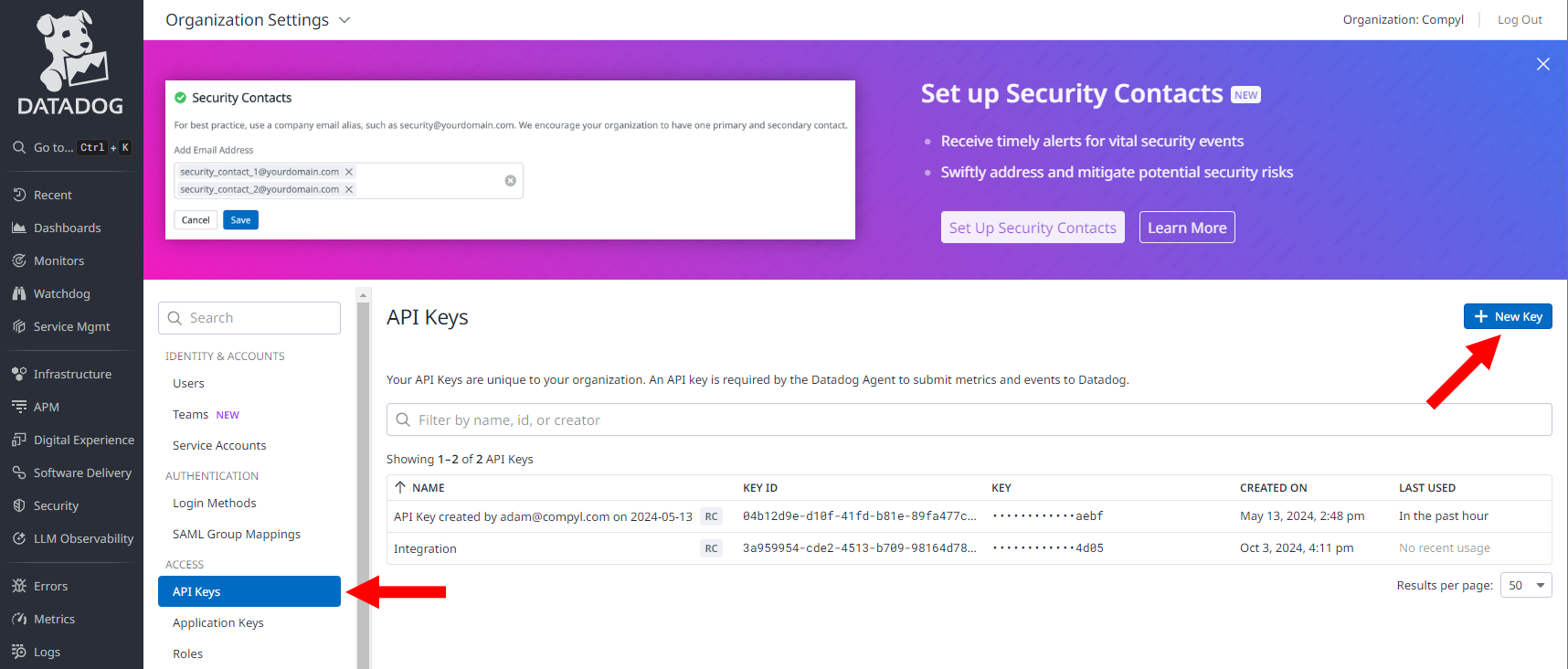
Log into Datadog, click on API Keys and then + New Key
-
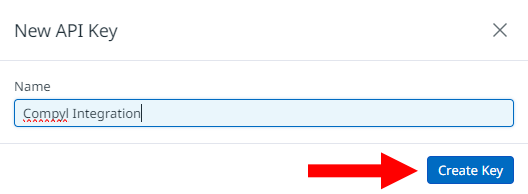
Assign a name for the Key and click Create Key
-
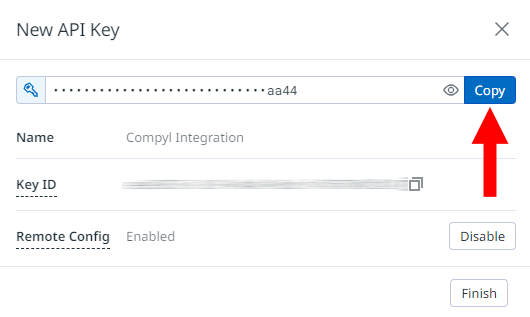
Copy the key and save it for a later step in the integration process
Create Application Key and Add Scopes
-
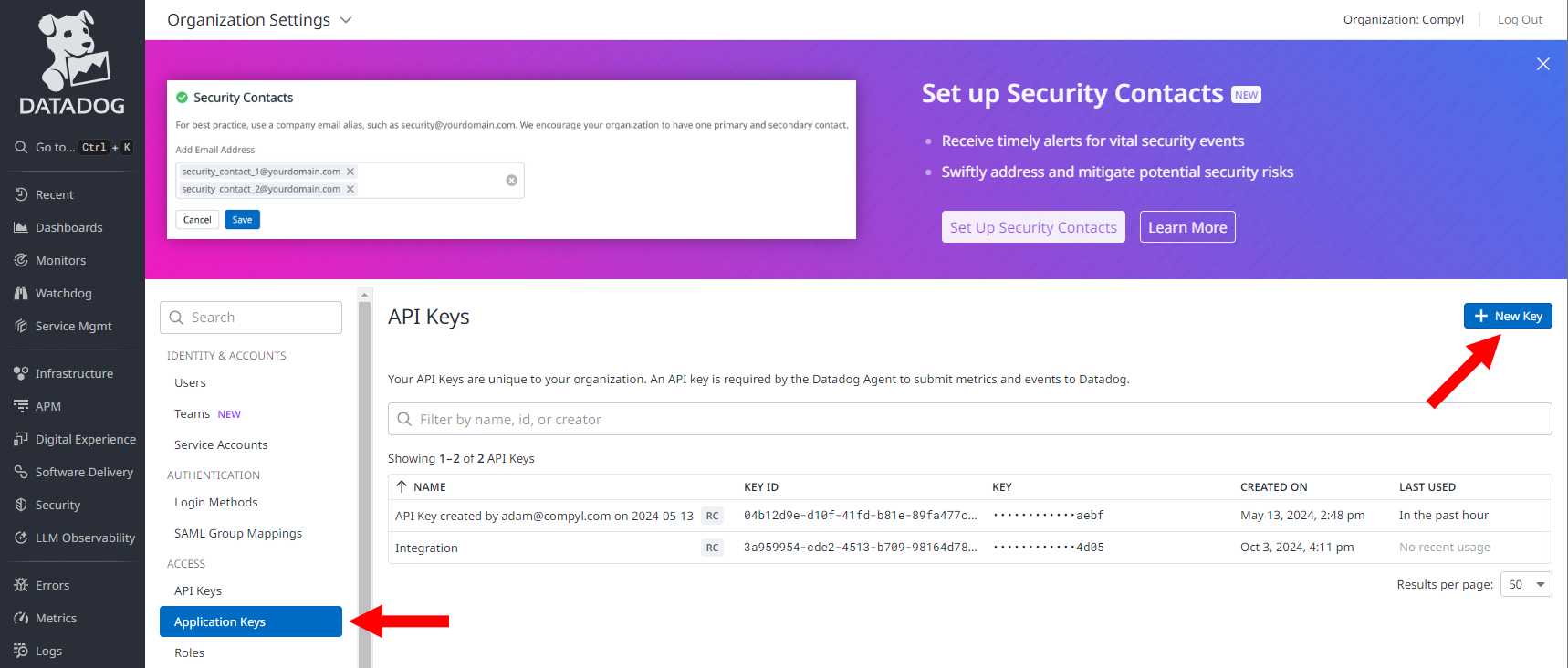
Navigate to Application Keys and click + New Key
-
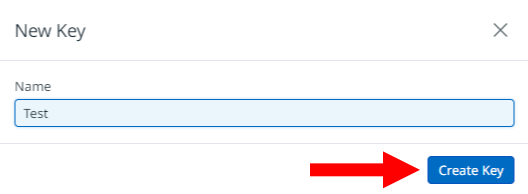
Assign a name as before and click Create Key
-
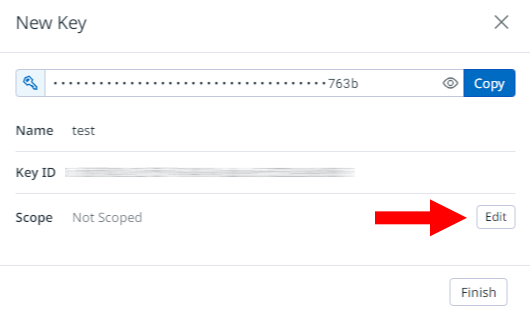
On the next screen, click Edit next to Scope
-
Go through the Scopes and assign everything in this list below:
Scope dashboards_read hosts_read slos_read monitors_read security_monitoring_rules_read security_monitoring_signals_read user_access_read teams_read audit_logs_read logs_read_archives logs_read_config logs_read_config OR logs_read_data org_management OR monitors_write OR generate_dashboard_reports OR generate_log_reports OR manage_log_reports
-
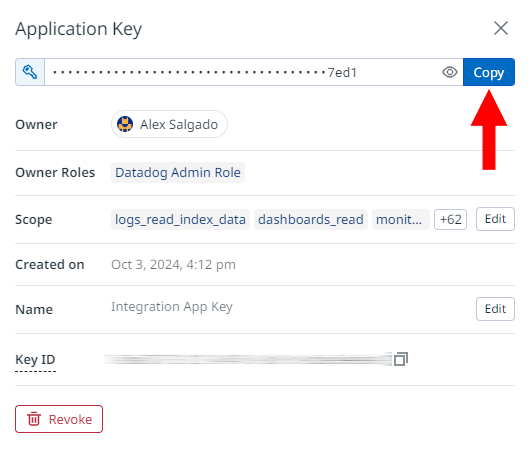
Copy and save the Application Key for a later step in the integration process
Add Configuration
-
Navigate to the Integrations tab using the left-hand menu, and select Datadog

-
Click the Add Configuration button and fill in the details below:

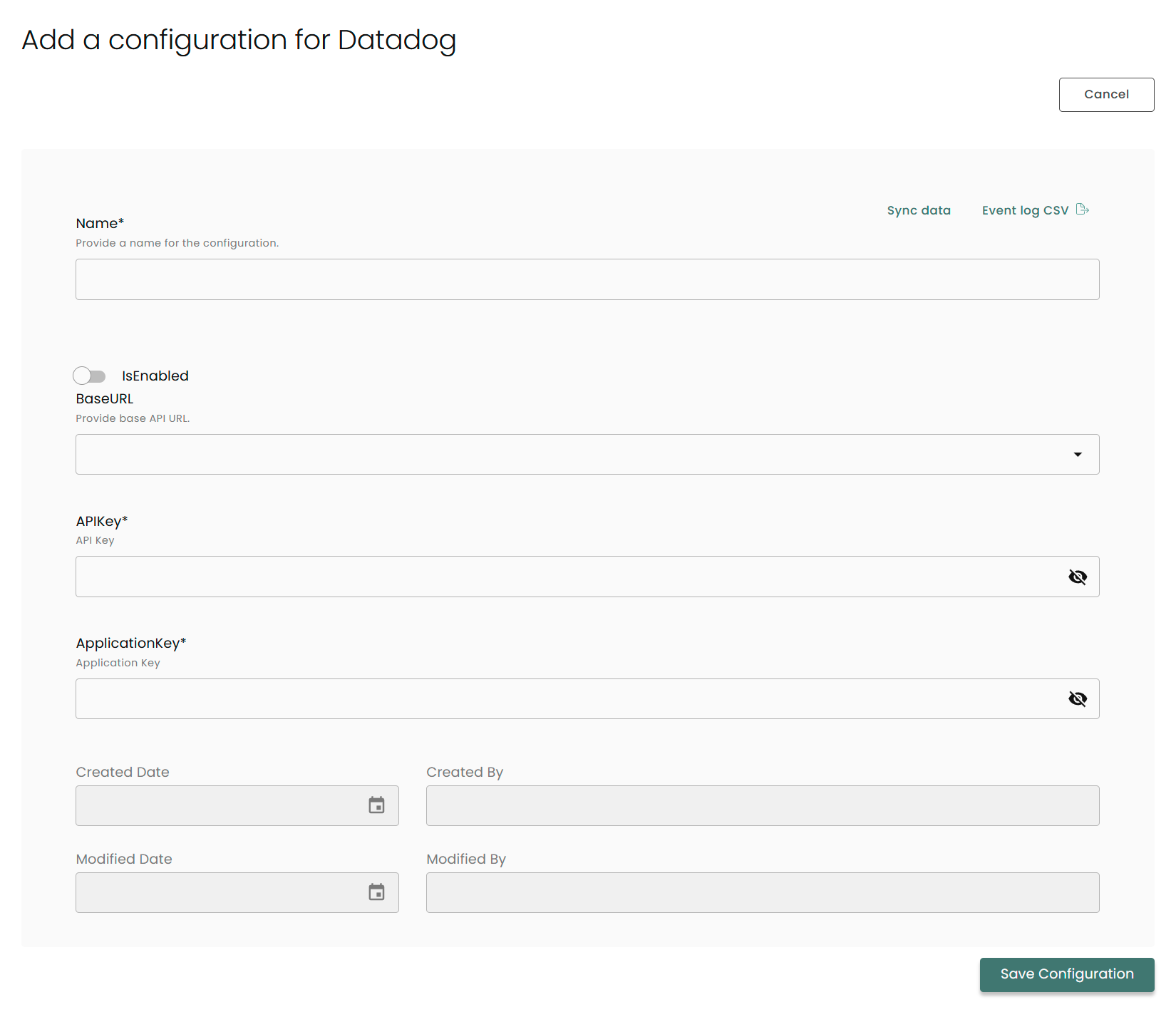
Name: Enter the name of the integration.
is Enabled: Toggle button to ensure data is populated into Compyl
Base URL: The URL from your Datadog instance. Example: If your URL is https://us3.datadoghq.com, then the BaseURL would be https://api.us3.datadoghq.com/api
API Key: The API Key is the same key you generated here
Application Key: The Application Key is the same key you generated here
Once you have completed filling out the form click Save Configuration.
NoteTo check if the integration is connected, navigate to the Integrations page in Compyl. If the Status icon shows an unbroken link in the right-hand corner, your integration is properly connected.

This integration syncs daily. Optionally, you can open the configuration again and click Sync data to initial a data sync on demand.
To query the data from the integration, refer to the Query Builder article.
Updated 2 months ago