
Auth0 Integration
Query your Auth0 data using SQL in Compyl
Our Auth0 integration helps teams manage authentication and authorization data efficiently by integrating Auth0 data into SQL queries.
Generate your Auth0 API Tokens
First you'll need to generate your Client ID, your Auth0 URL (Tenant and Region), and your API Key. We'll go through this process stop by step.
-
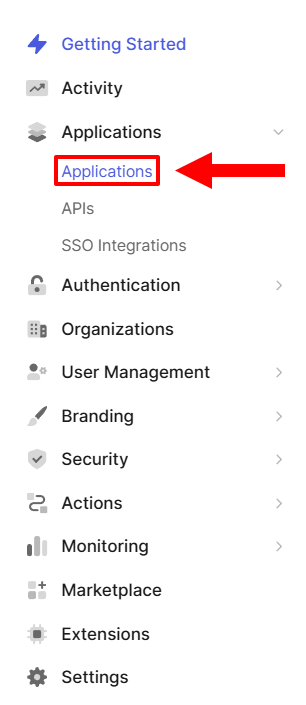
Log into Auth0 and click on Applications → Applications.
-
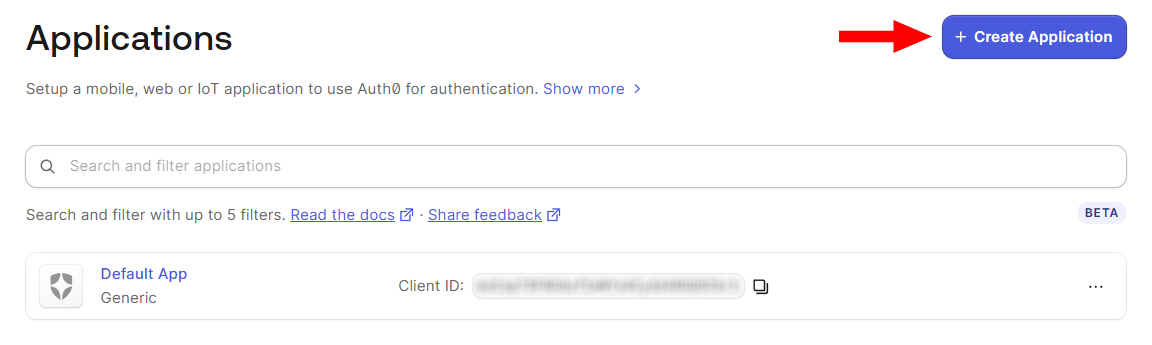
On the next screen, click + Create Application.
-
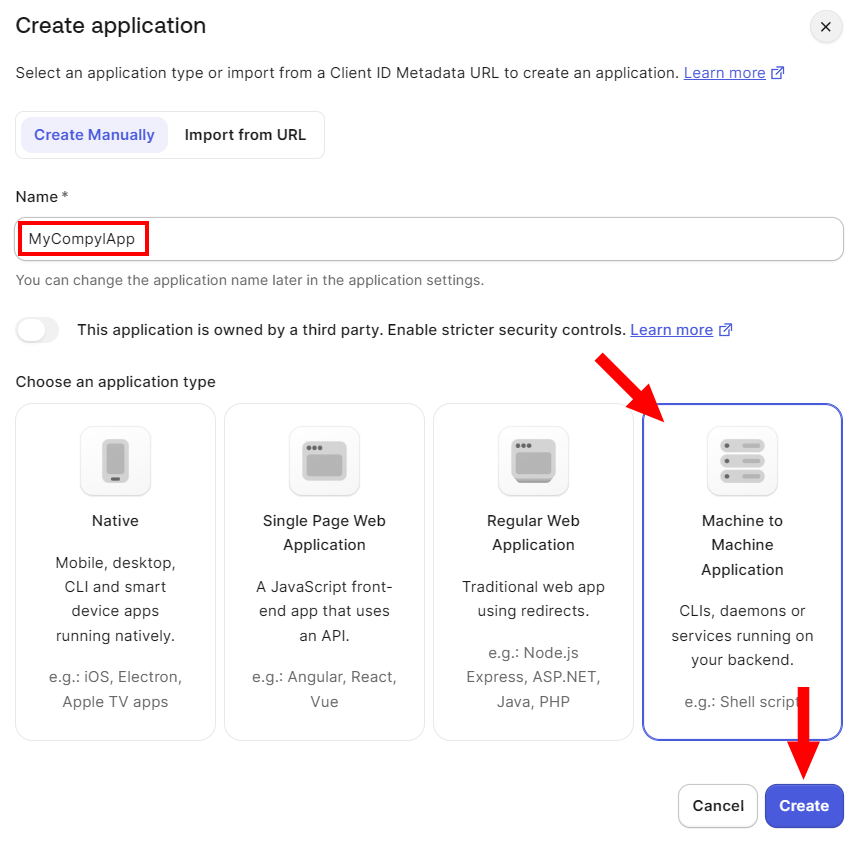
Then name your application and choose Machine to Machine Applications before clicking on the Create button.
-
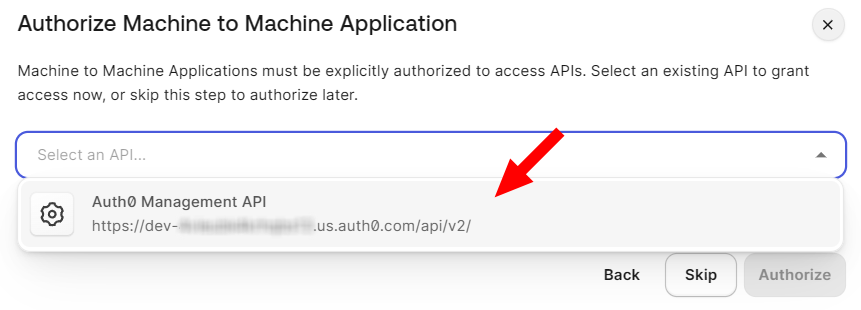
On the next screen, click the drop-down and pick your Auth0 Management API and then click Authorize.
-
Now it's time to pick your Scopes/Permissions.
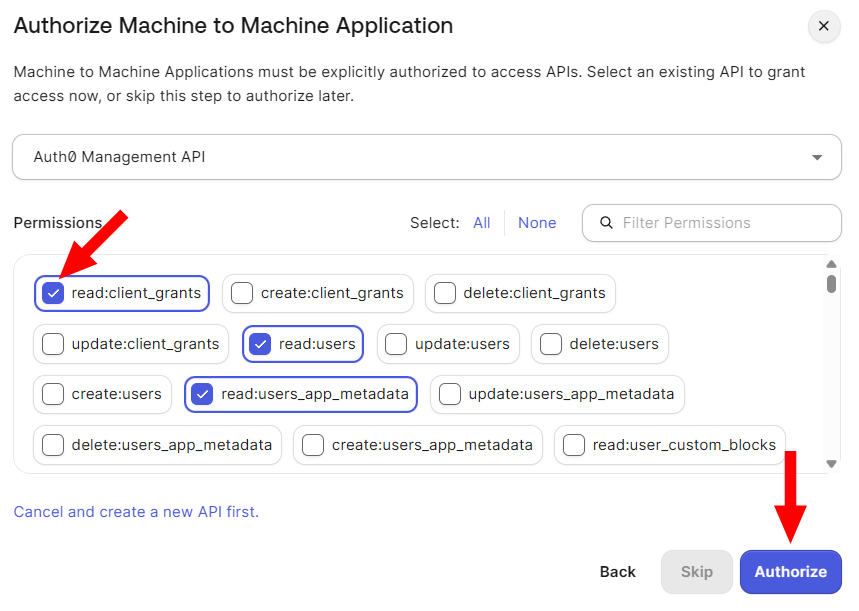
Choose everything in the following table:Permissions read:actionsread:client_credentialsread:client_keysread:client_summaryread:clientsread:connectionsread:device_credentialsread:logsread:logs_usersread:organizationsread:organizations_summaryread:rolesread:rules
-
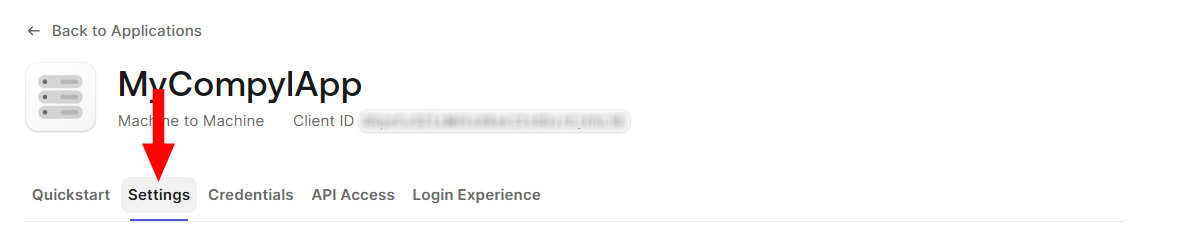
You'll be brought to your Application's main page. Click on the Settings tab.
-
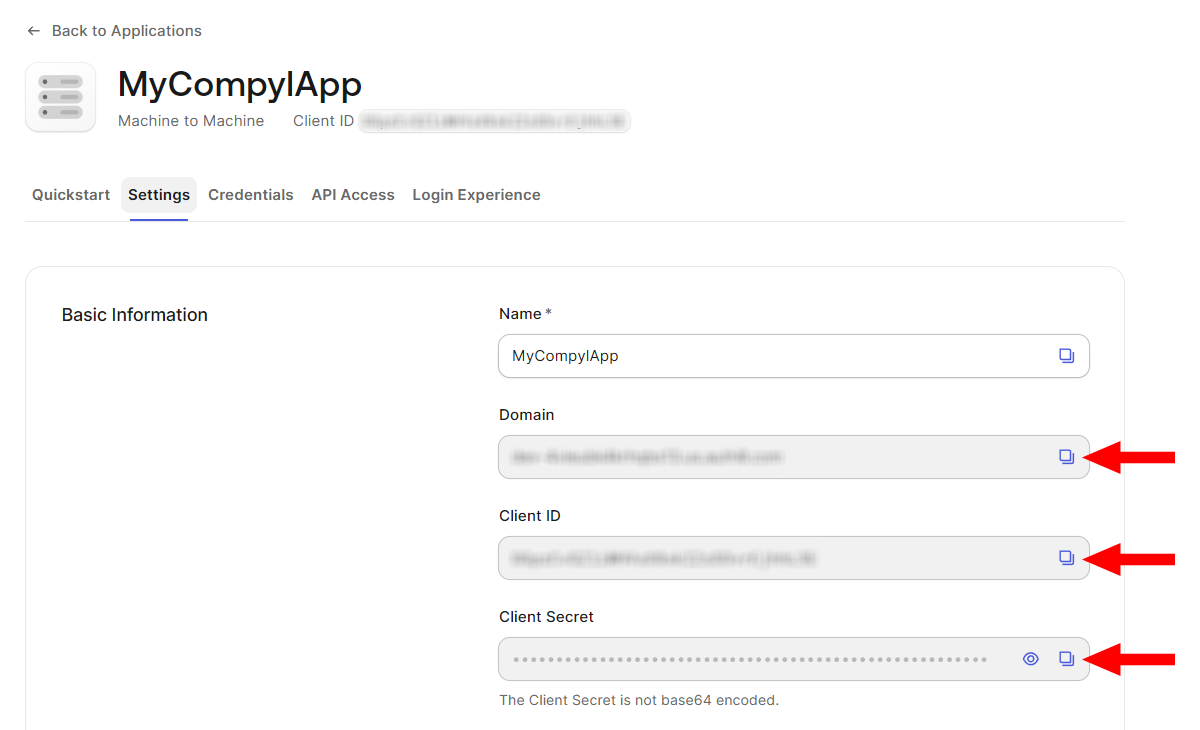
Here you'll have all your necessary Tokens. Copy and paste them into the fields outlined in the next section.
Add Configuration
-
Navigate to the Integrations tab using the left-hand menu, find Auth0, and select +Add Configuration.

-
Next, fill in the details below and select Continue.
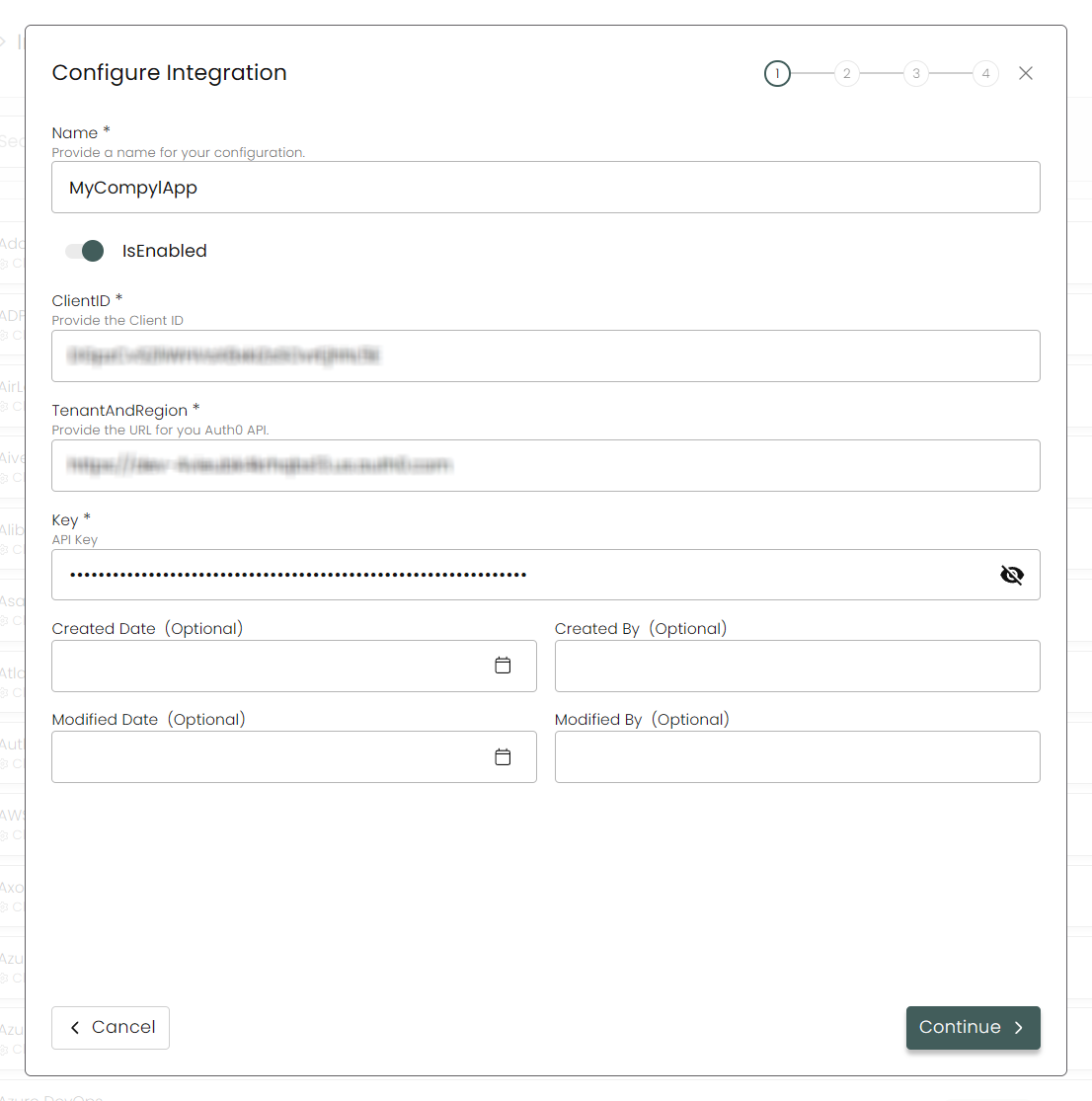
Name: Enter the name of the integration.is Enabled: Toggle button to ensure data is populated into Compyl.
ClientID: Copy the ClientID token from Step 7 above.
Tenant and Region: Copy the Domain token from Step 7 above, adding
https://in front to make it a complete URL. For example, if the Domain wasdev-3abcdefghijklm43.us.auth0.comthen you should pastehttps://dev-3abcdefghijklm43.us.auth0.com.Key: Copy the Client Secret token from Step 7 above.
-
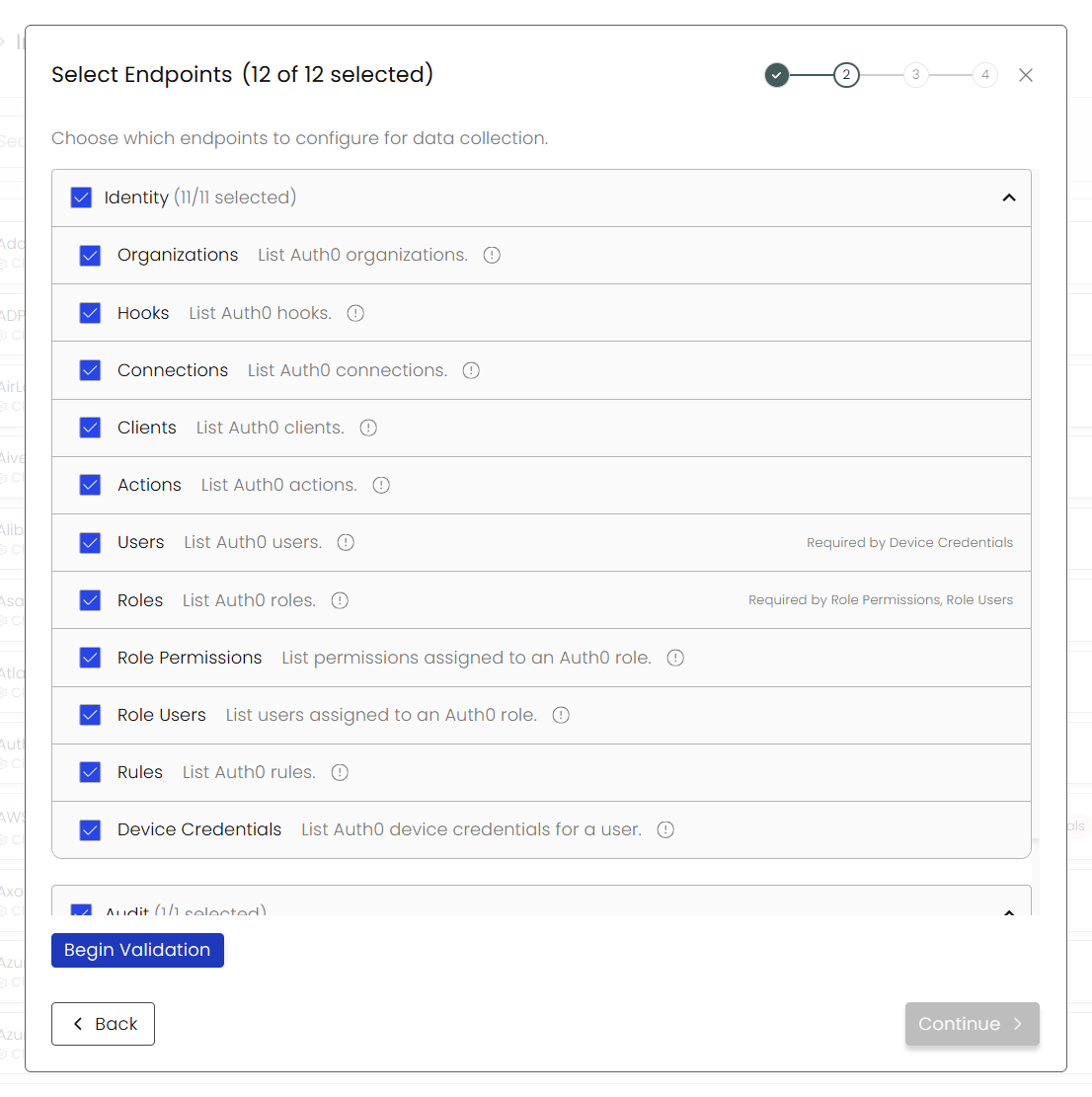
Choose your Endpoints and Begin Validation to validate your connection.
-
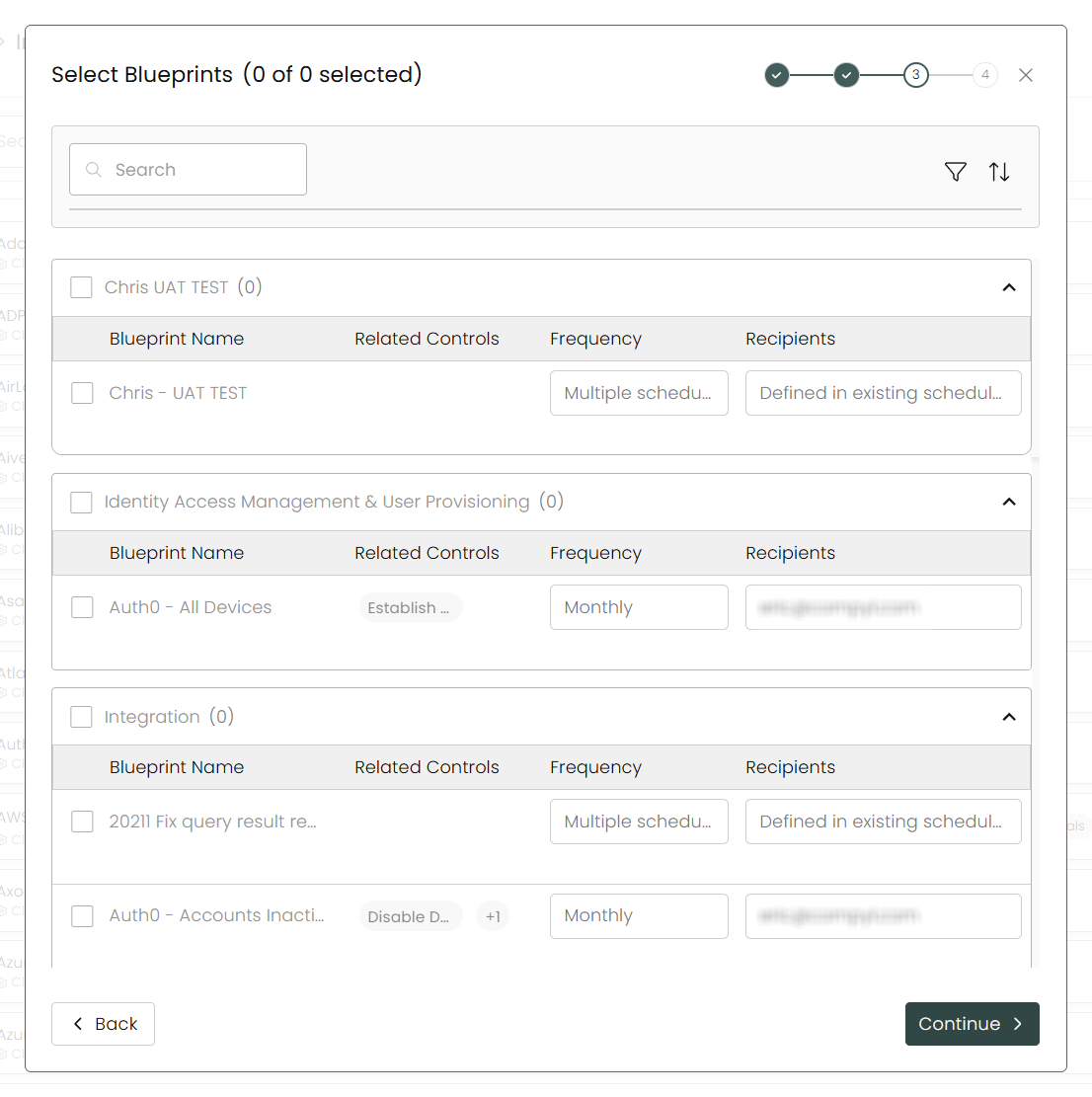
Select any Blueprints you wish to associate with this integration.
-
After you hit Continue, you'll see a summary screen. Click Return to Integrations to complete the configuration.
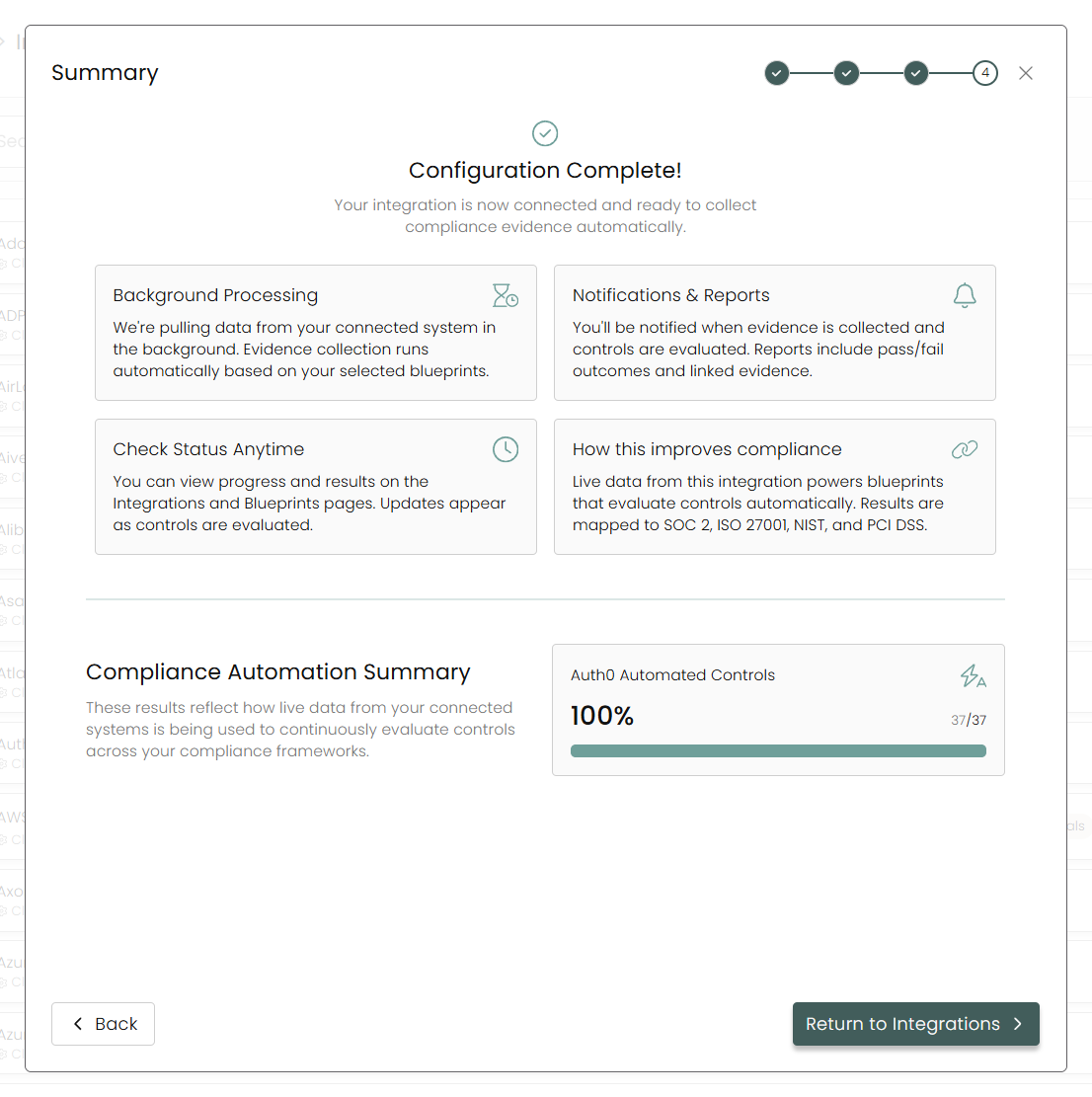
Once you have completed filling out the form click Return to Integrations.
You'll know the integration is successfully added when the status updates to Complete.

Data is synced on a recurring schedule configured by your Compyl administrator. Each sync pulls the latest data from all enabled endpoints.
To query the data from the integration, refer to the Blueprints article.
.
Updated about 2 months ago