
OnePassword Integration
The OnePassword integration with Compyl collects key information about password controls
Our OnePassword integration gives Compyl access to your User roster (via the OnePassword Users API for Partners) and audit activity (via the OnePassword Events Reporting API), which can be mapped to controls in Compyl and used as evidence for your compliance program, including User Access Reviews.
NoteBefore integrating OnePassword with Compyl, we recommend creating credentials that are dedicated to this integration rather than reusing a personal account or key. You must meet the environment requirements listed below for each API you plan to enable.
What Compyl Syncs
The 1Password integration is built around two independent APIs. You can enable either just the Events Reporting API or both at configuration time.
Events Reporting API: This pulls audit activity for administrative actions, item access, and sign-in attempts. This also identifies the account, which is why it's required.
Users API for Partners (Public Preview): This pulls the current user roster for the account (ID, display name, email, state, create time, path) and is optional but recommended.
NoteLegacy 1Password data types (Templates, User Groups, Vaults) are no longer synced. See the Changes from the Previous Version section at the bottom of this article for details.
Events Reporting API
Prerequisites
A 1Password Business account
An Events API bearer token (from 1Password Business → Integrations → Events Reporting)
Optional - A Users API OAuth application (from 1Password Admin → Integrations → Directory → SCIM bridge → OAuth Applications)
Generating Credentials
-
Sign in to OnePassword as an Owner or Administrator of your Business account.
-
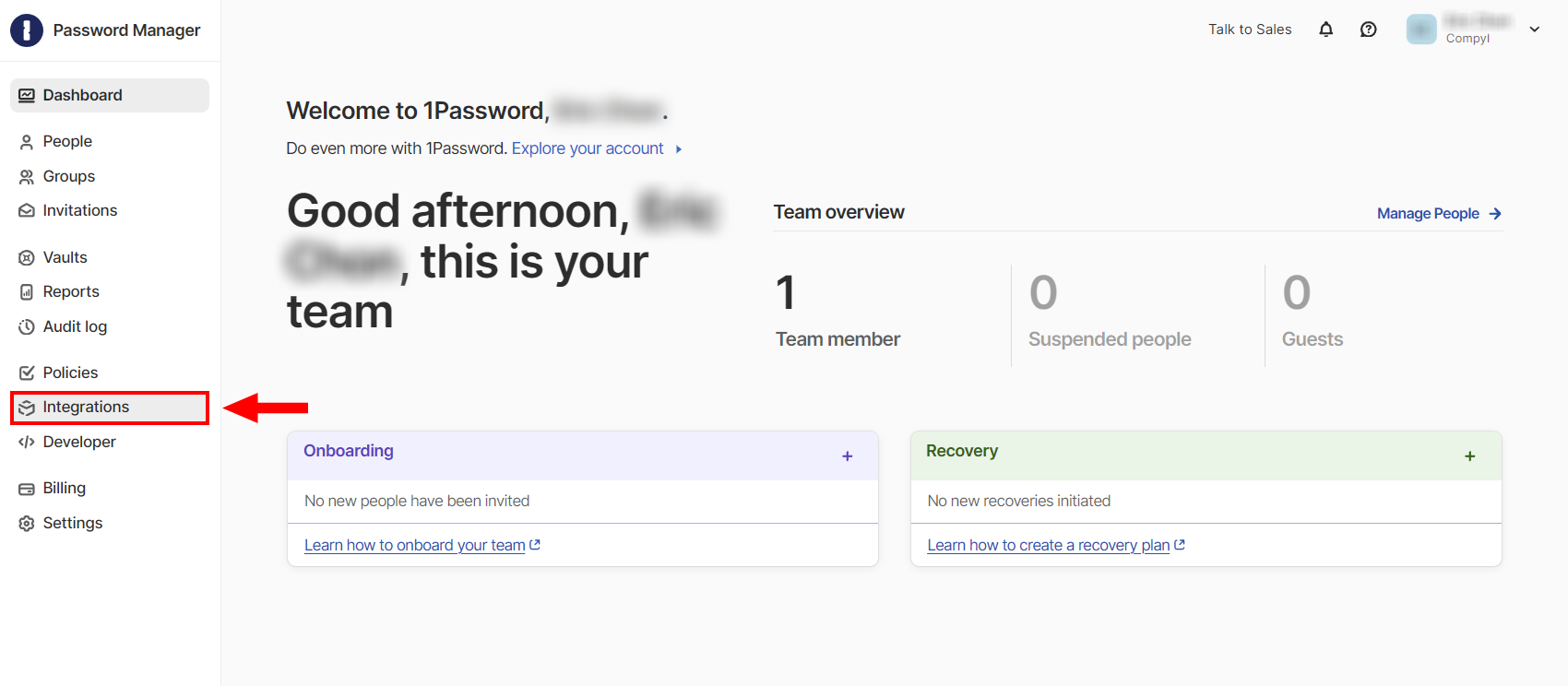
Select Integrations in the sidebar. If you already have integrations set up, select Directory on the Integrations page.
-
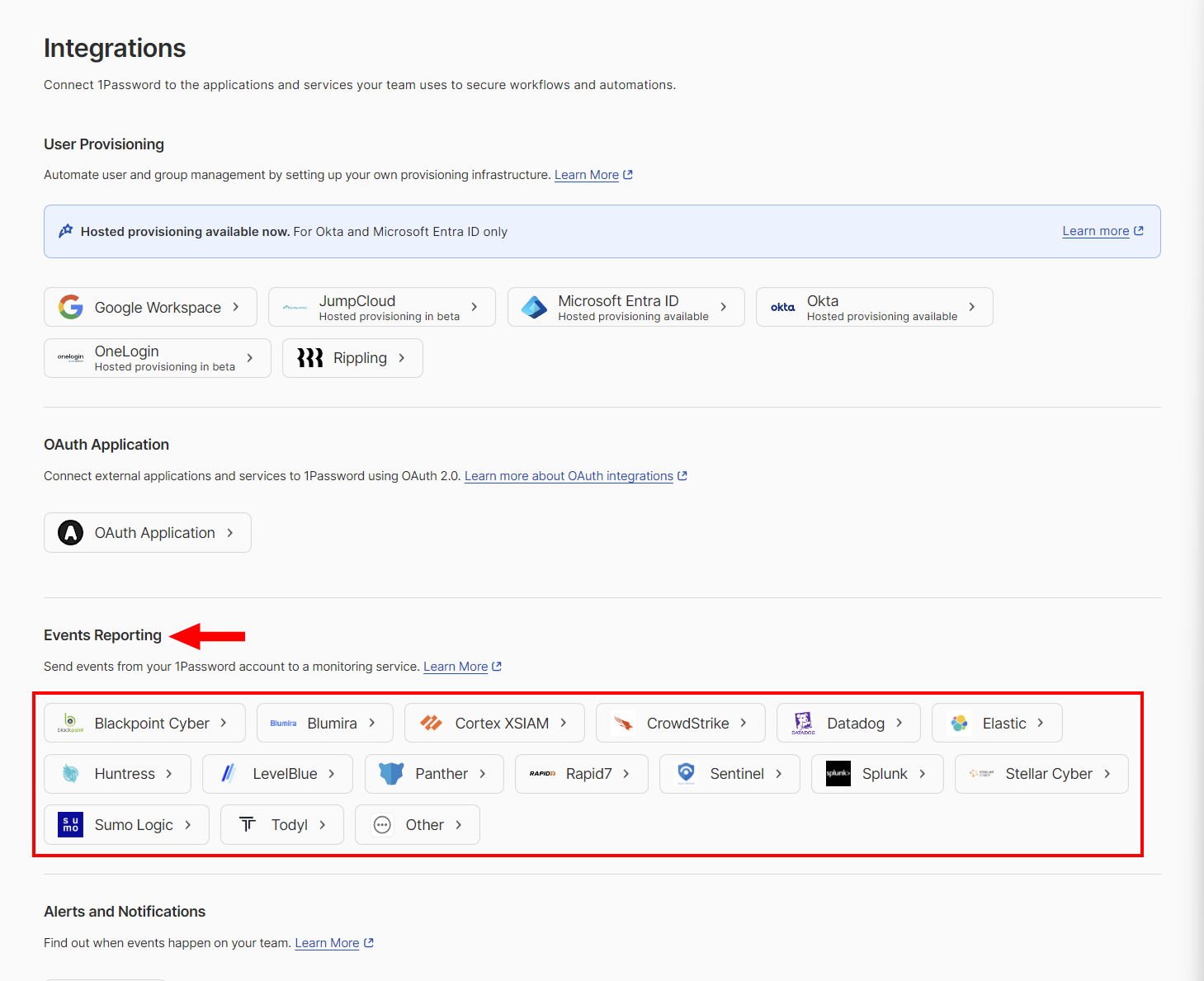
In the Events Reporting section, choose your integration. If your SIEM or platform isn't listed, select Other.
-
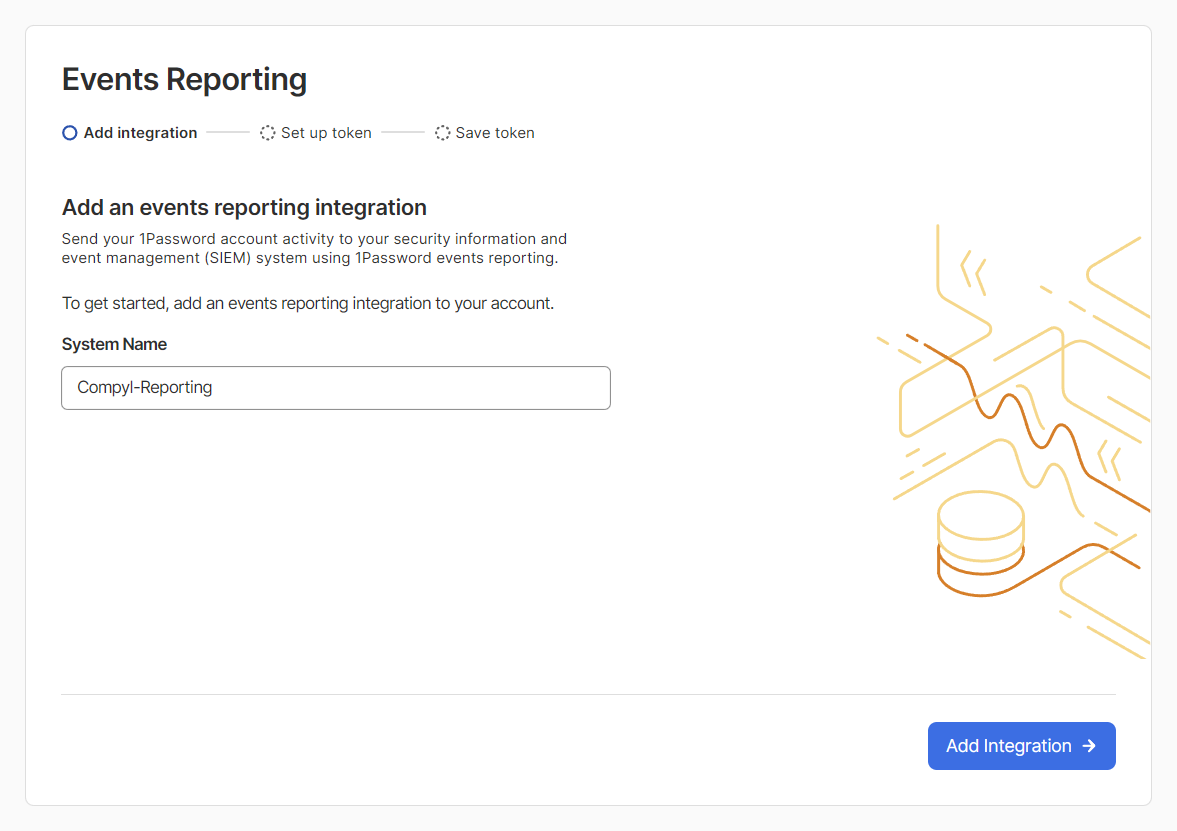
Enter a name for the integration (for example, Compyl - Reporting) and click Add Integration.
-
Configure the bearer token:
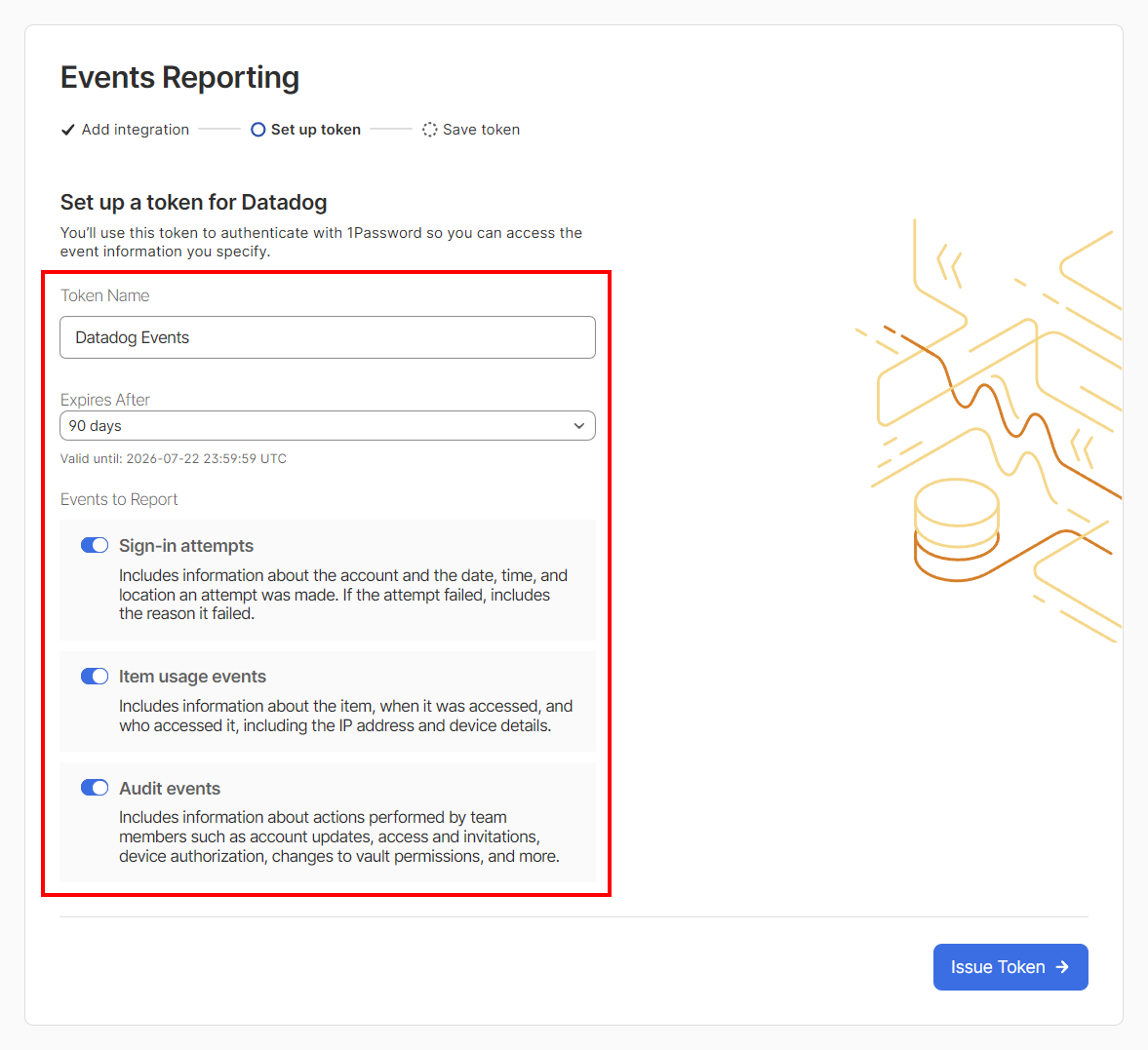
- Token Name - any descriptive label.
- Expires After - 30 days, 90 days, 180 days, or Never. Pick based on your rotation policy.
- Events to Report - make sure Sign-in attempts, Item usages, and Audit events are all selected so Compyl can populate every dataset.
-
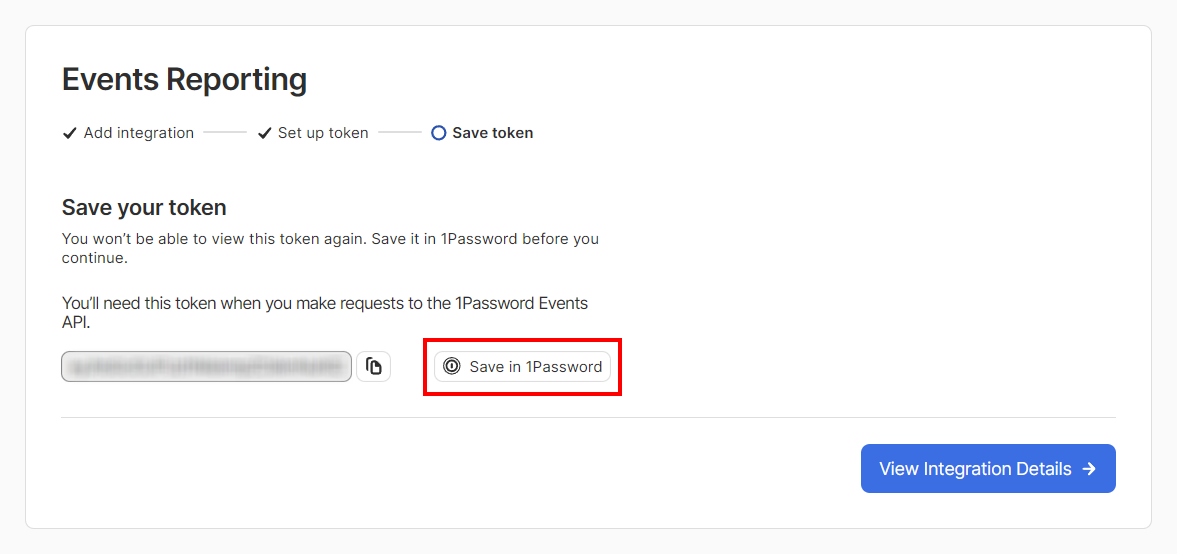
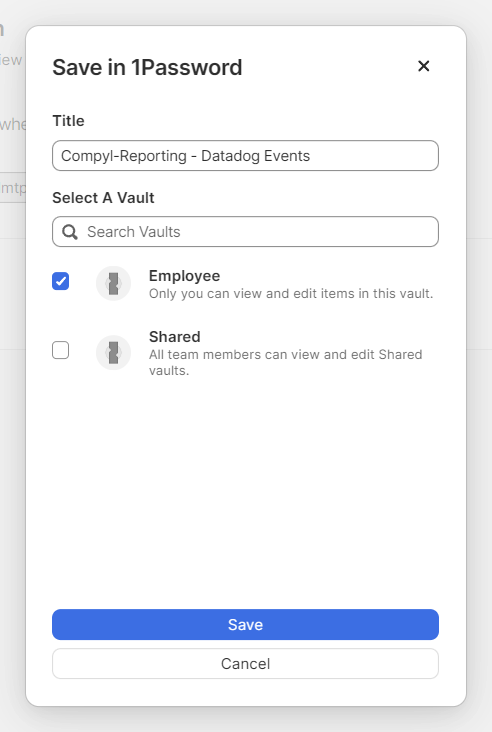
Click Issue Token, then Save in 1Password. The token is stored as an API Credential item in the vault you select.
-
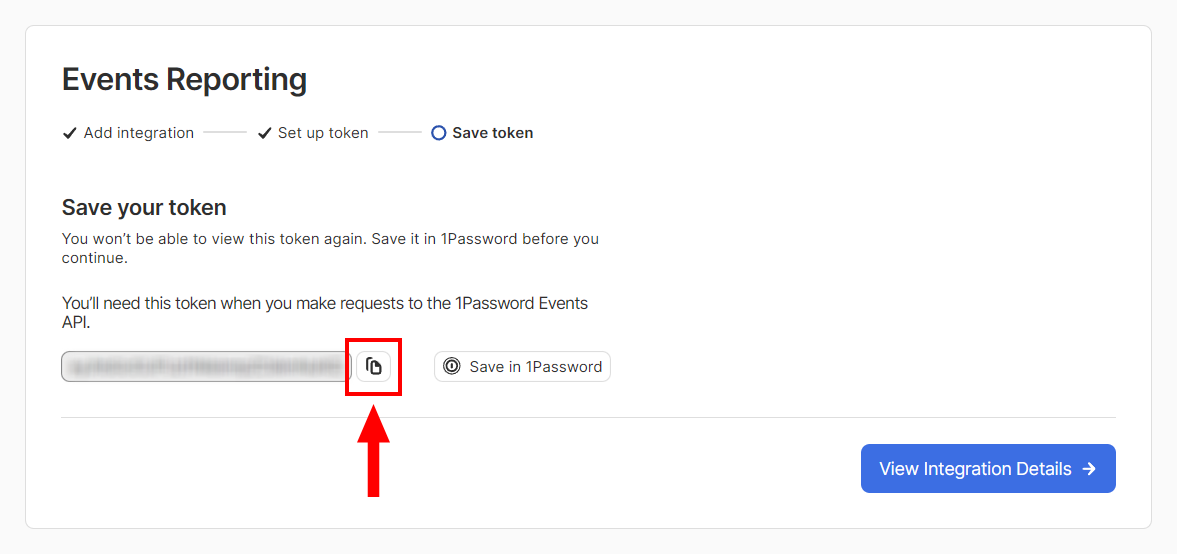
Copy the Bearer Token value to a secure location — you'll paste it into Compyl as Events Bearer Token.
- Note the Server for your region (for example,
events.1password.com,events.1password.ca,events.1password.eu, orevents.ent.1password.com). You'll paste this into Compyl as Server.
NoteEven though 1Password also keeps the token in the API Credential vault item, Compyl still requires the raw token value to be pasted into the configuration form. Compyl stores that value in Azure Key Vault on save.
Users API for Partners (Public Preview) - Optional
Generating Credentials
Confirm your account meets the requirements above (Business tier + Owner/Administrator/Security role).
-
Sign in to OnePassword as an Owner or Administrator of your Business account.
-
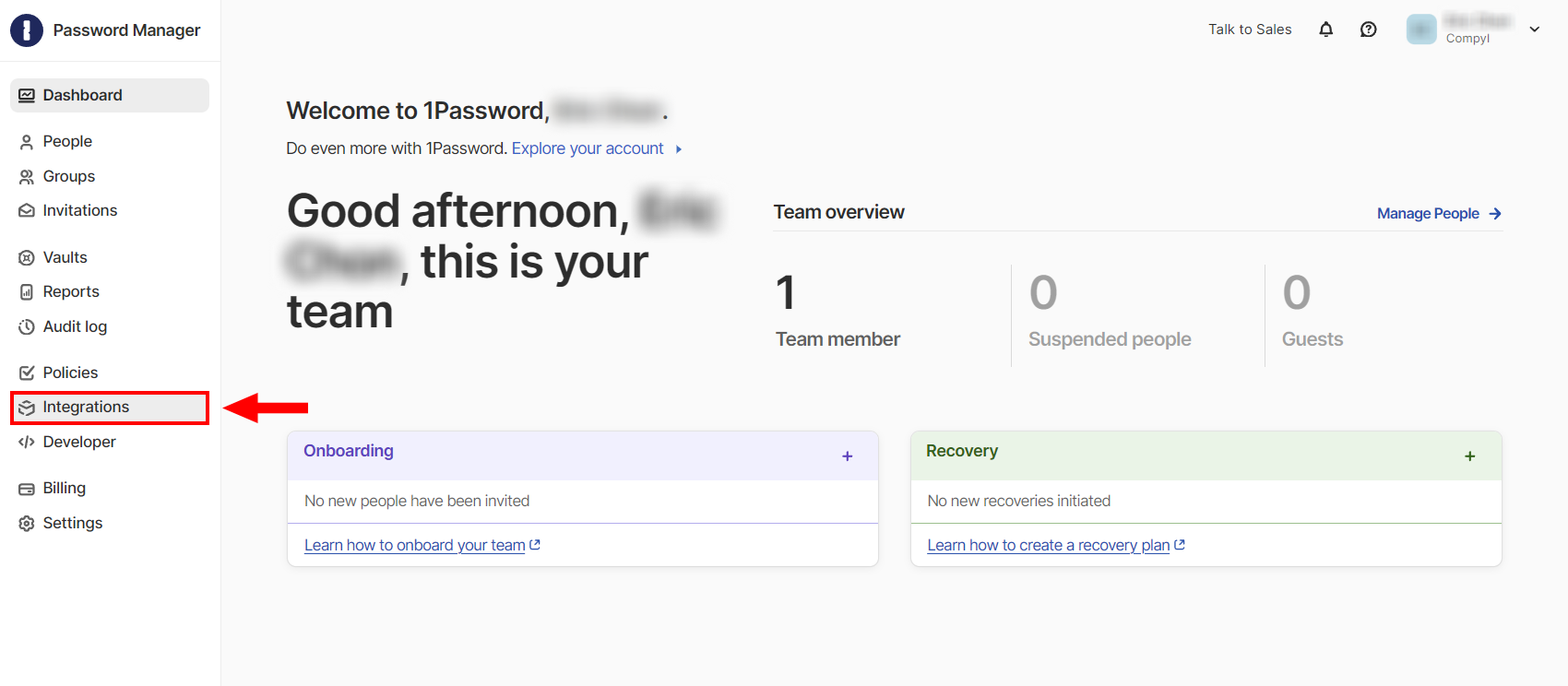
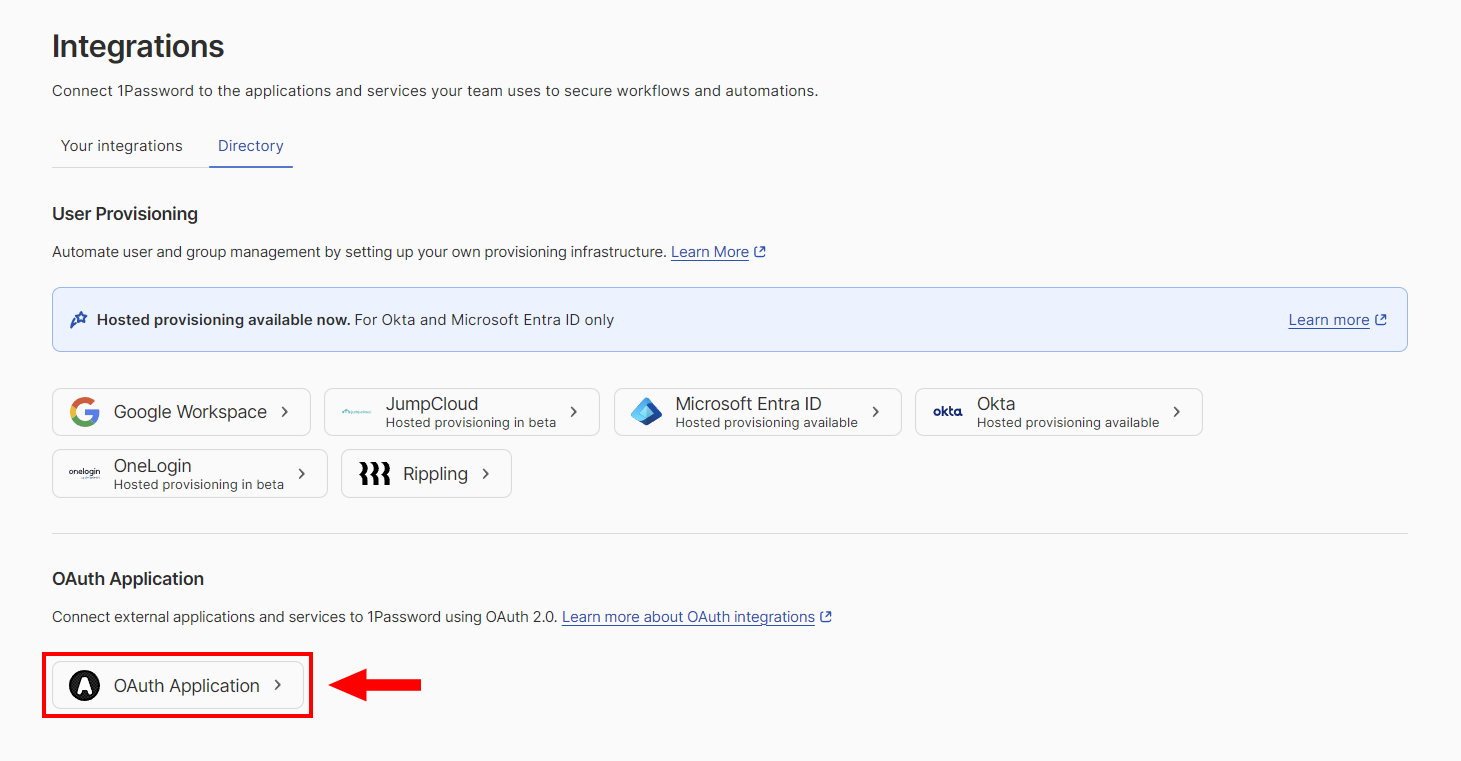
Select Integrations in the sidebar. If you already have integrations set up, select Directory on the Integrations page.
-
Select OAuth Application.
-
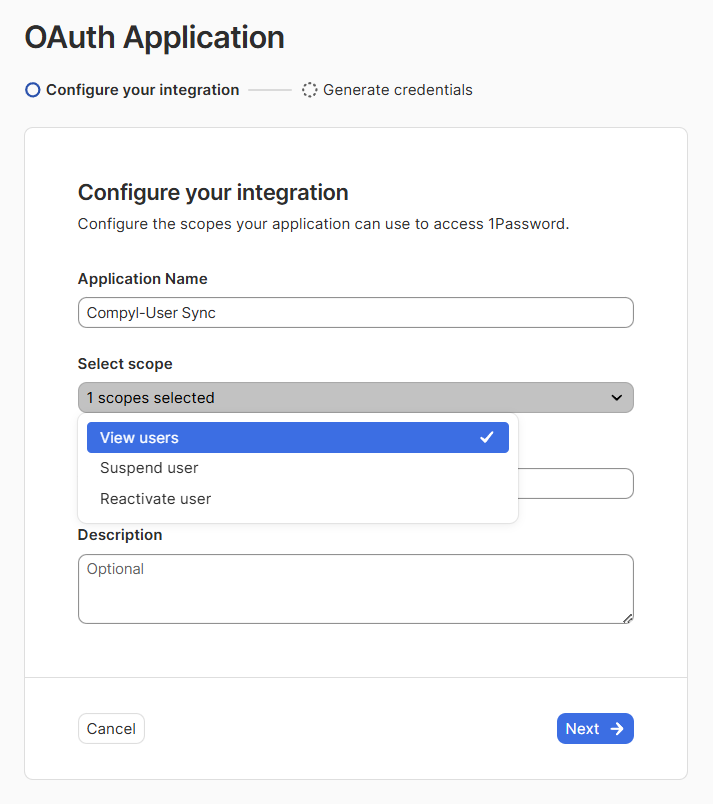
Configure the application:
-
Application name - for example, Compyl-User Sync.
-
Description - (Optional) Add a description of this integration.
-
Scopes - Select View users.
-
Redirect URL - any HTTPS URL you control (not invoked during client-credentials flow, but required by the form).
-
-
Click Generate credentials, then copy the Client ID and Client secret into a secure location. Then click Save in 1Password. Choose the vault where the credentials should live.
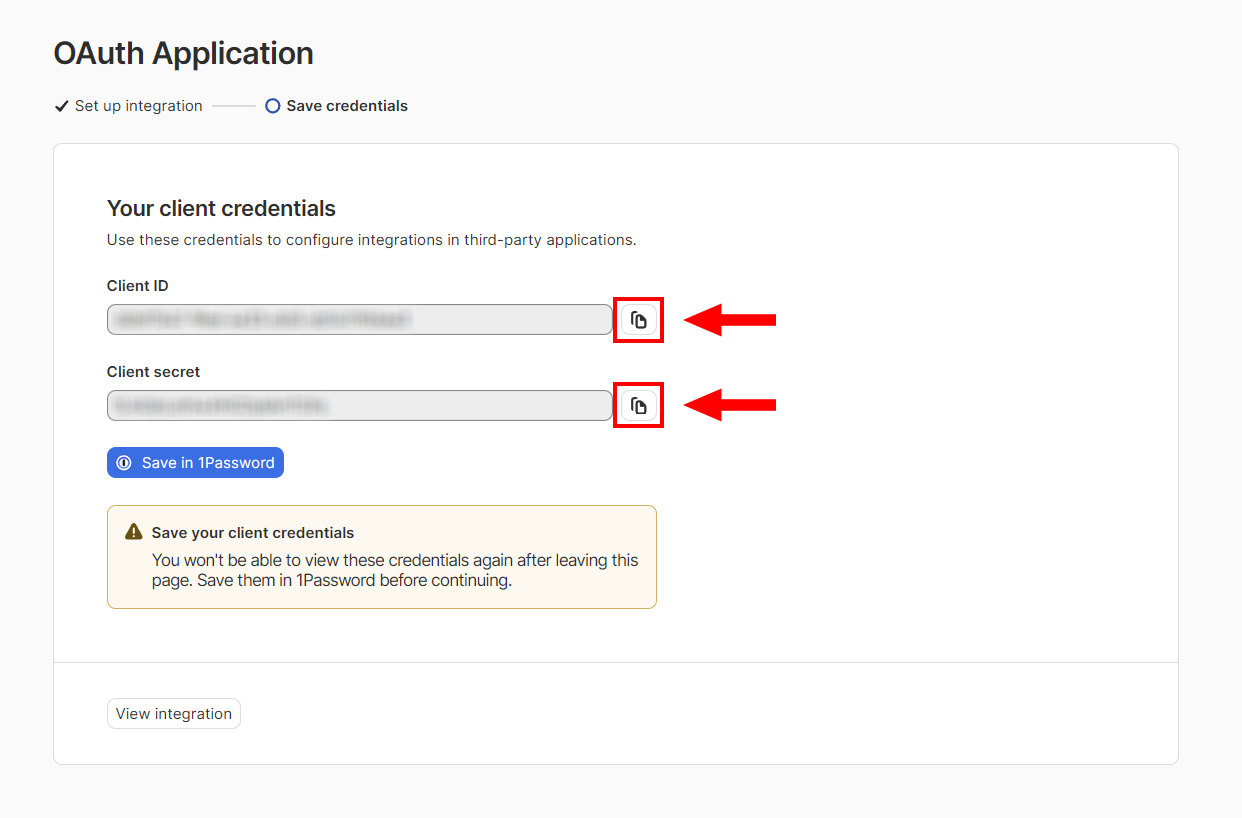
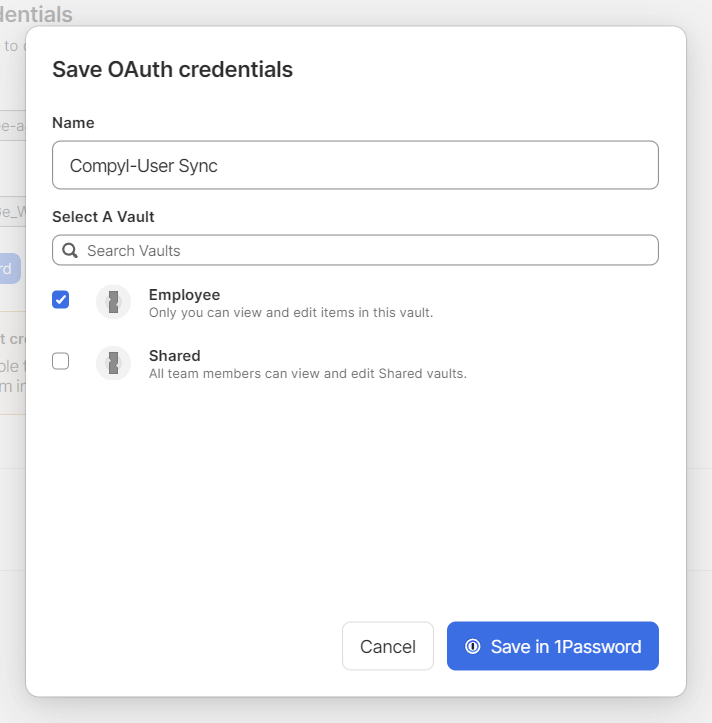
WarningThis is the only time you can see/copy your Client secret. If you lose it you will need to generate a new one.
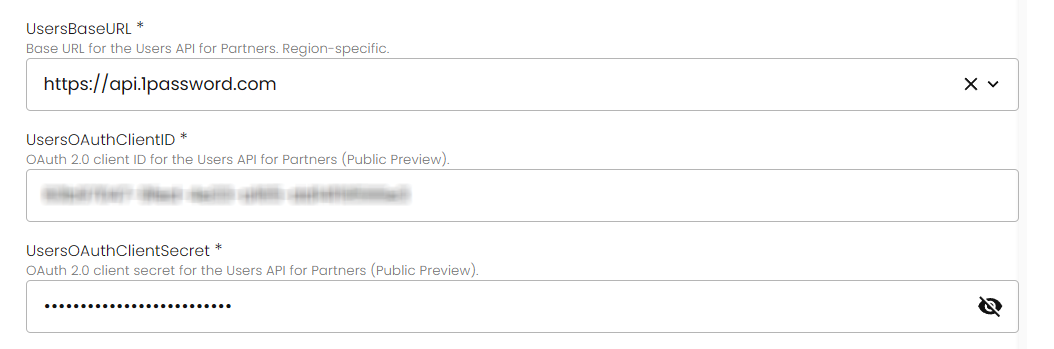
- Determine the Users Base URL for your region:
https://api.1password.com,https://api.1password.ca, orhttps://api.1password.eu.
NoteOAuth applications are immutable. If you need to change scopes, the redirect URL, or the name later, create a new OAuth application in 1Password and swap the new credentials into Compyl.
Add Configuration
-
Navigate to the Integrations tab using the left-hand menu, find OnePassword, and select +Add Configuration.

-
Next, fill in the details below and select Continue.
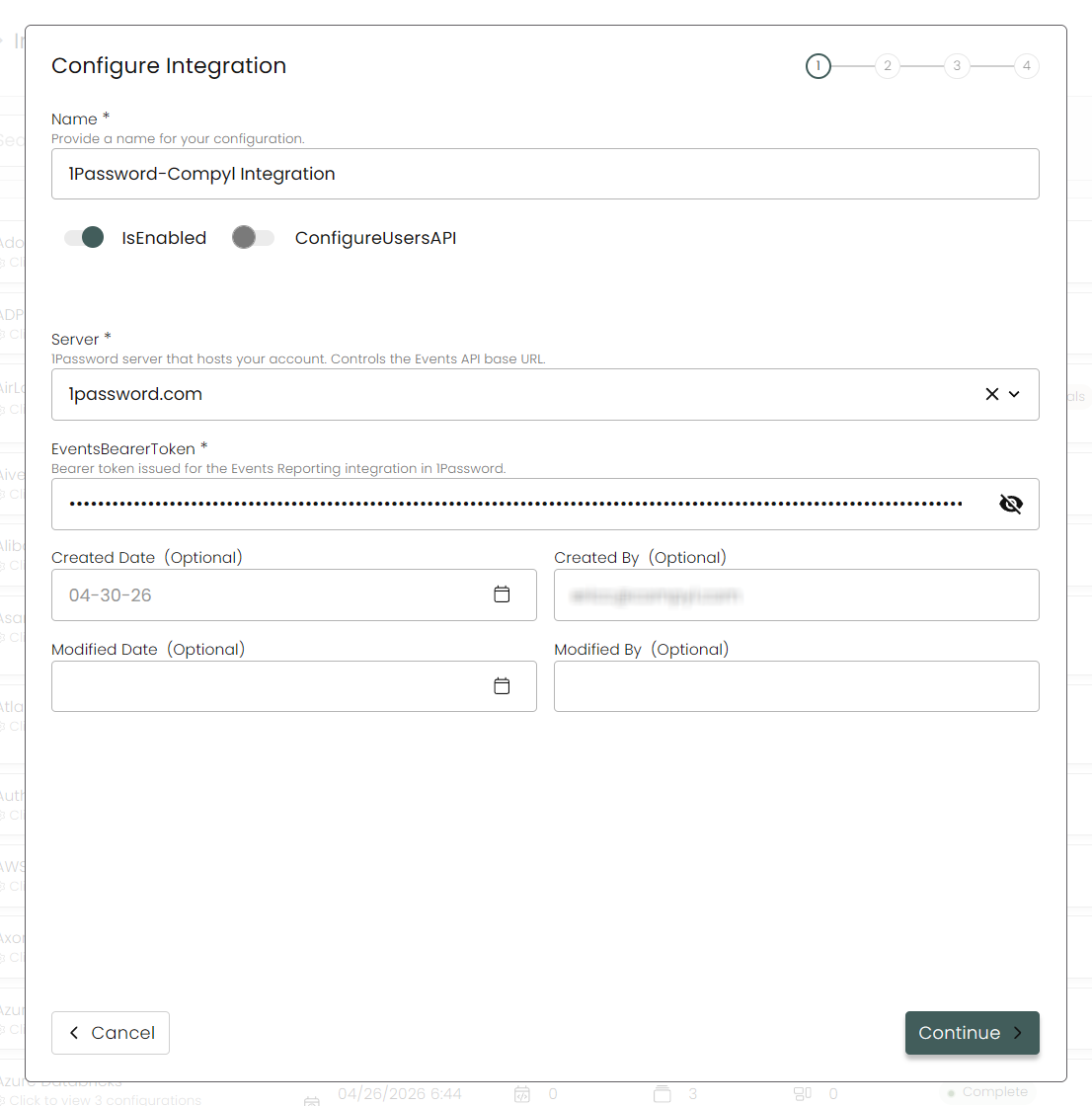
Name: Enter the name of the integration.
is Enabled: Toggle button to ensure data is populated into Compyl.
Configure Users API: Toggle this on if you've created the keys above .
-
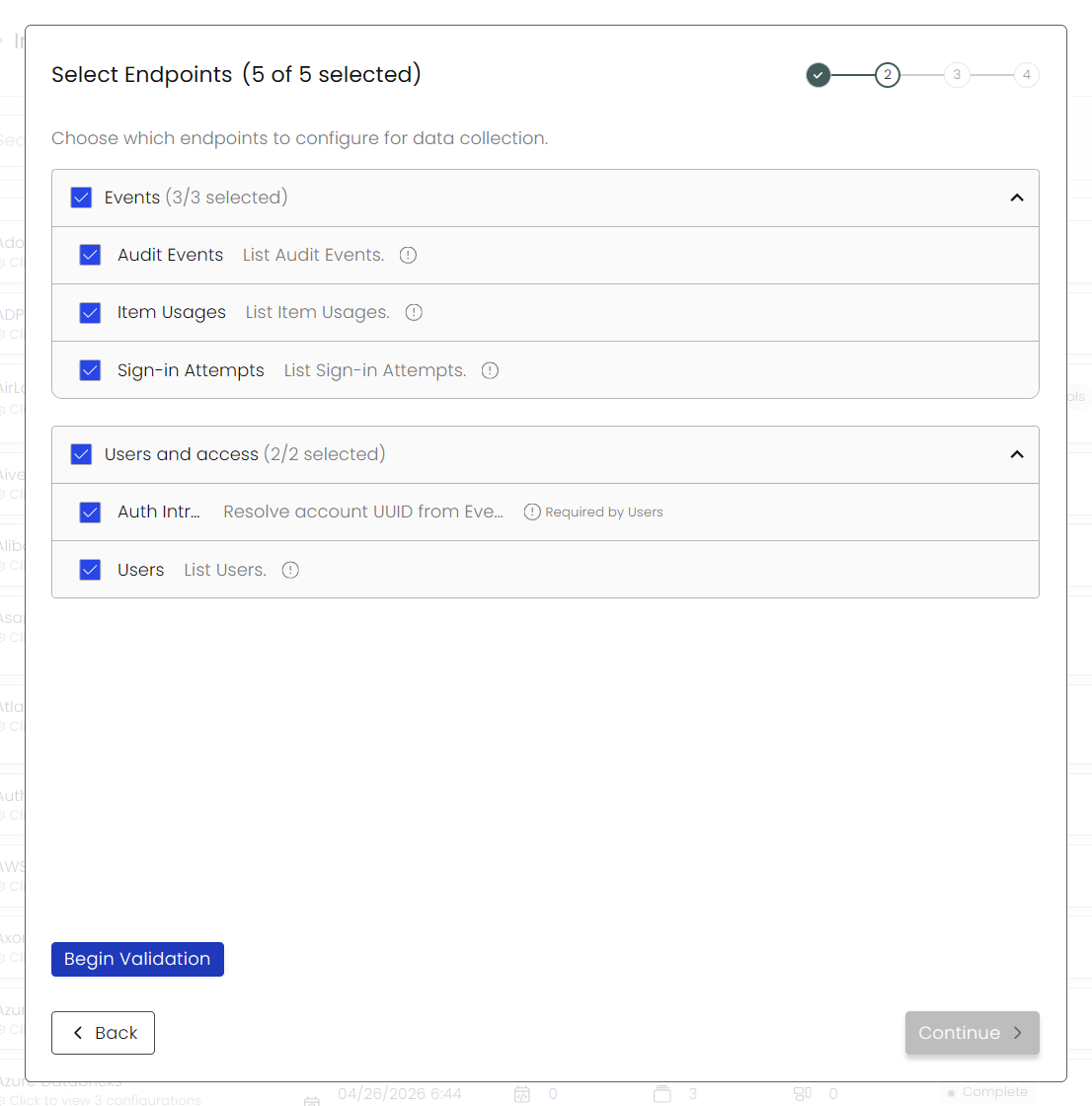
Choose your Endpoints and Begin Validation to validate your connection.
-
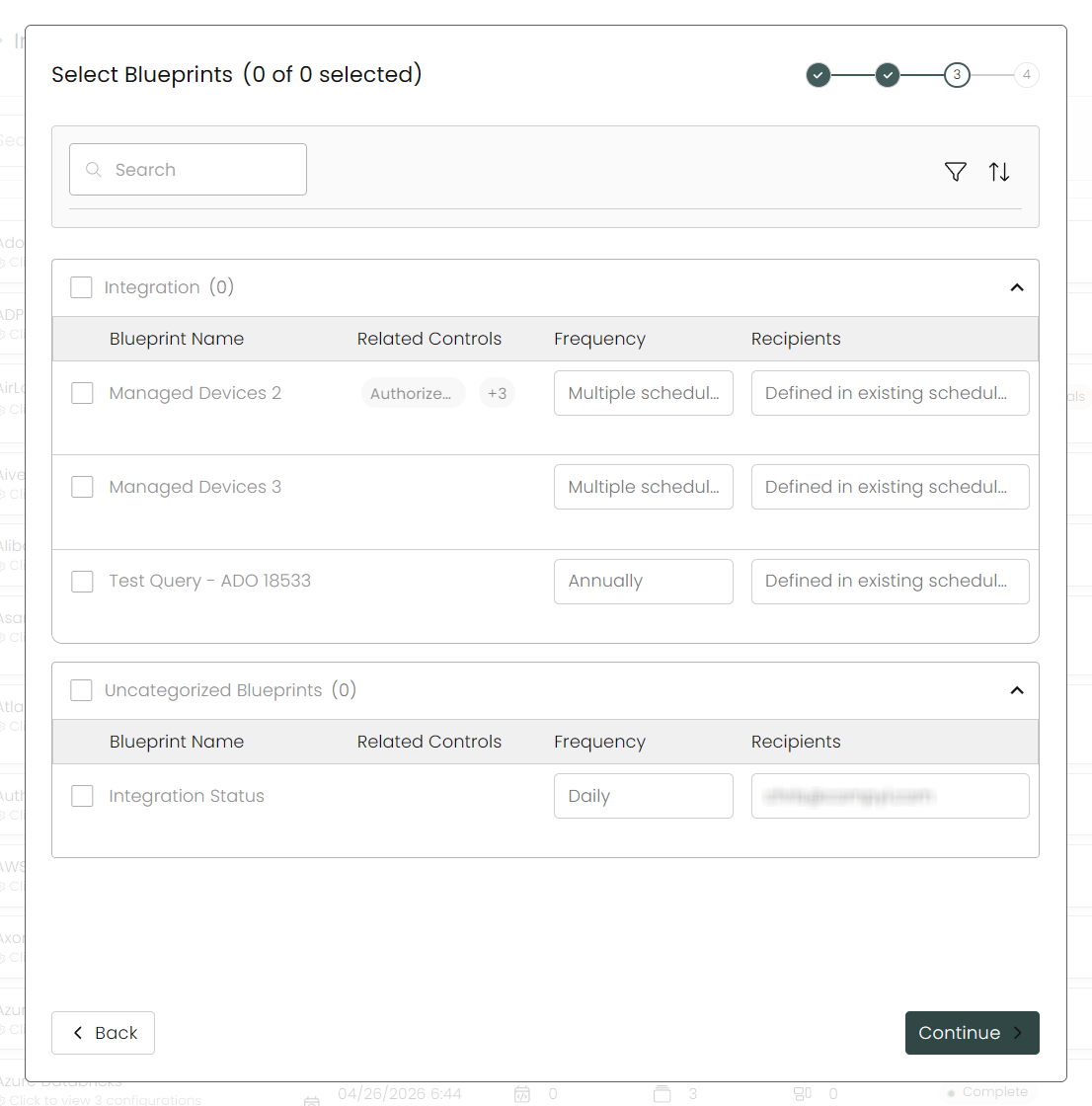
Select any Blueprints you wish to associate with this integration.
-
After you hit Continue, you'll see a summary screen. Click Return to Integrations to complete the configuration.
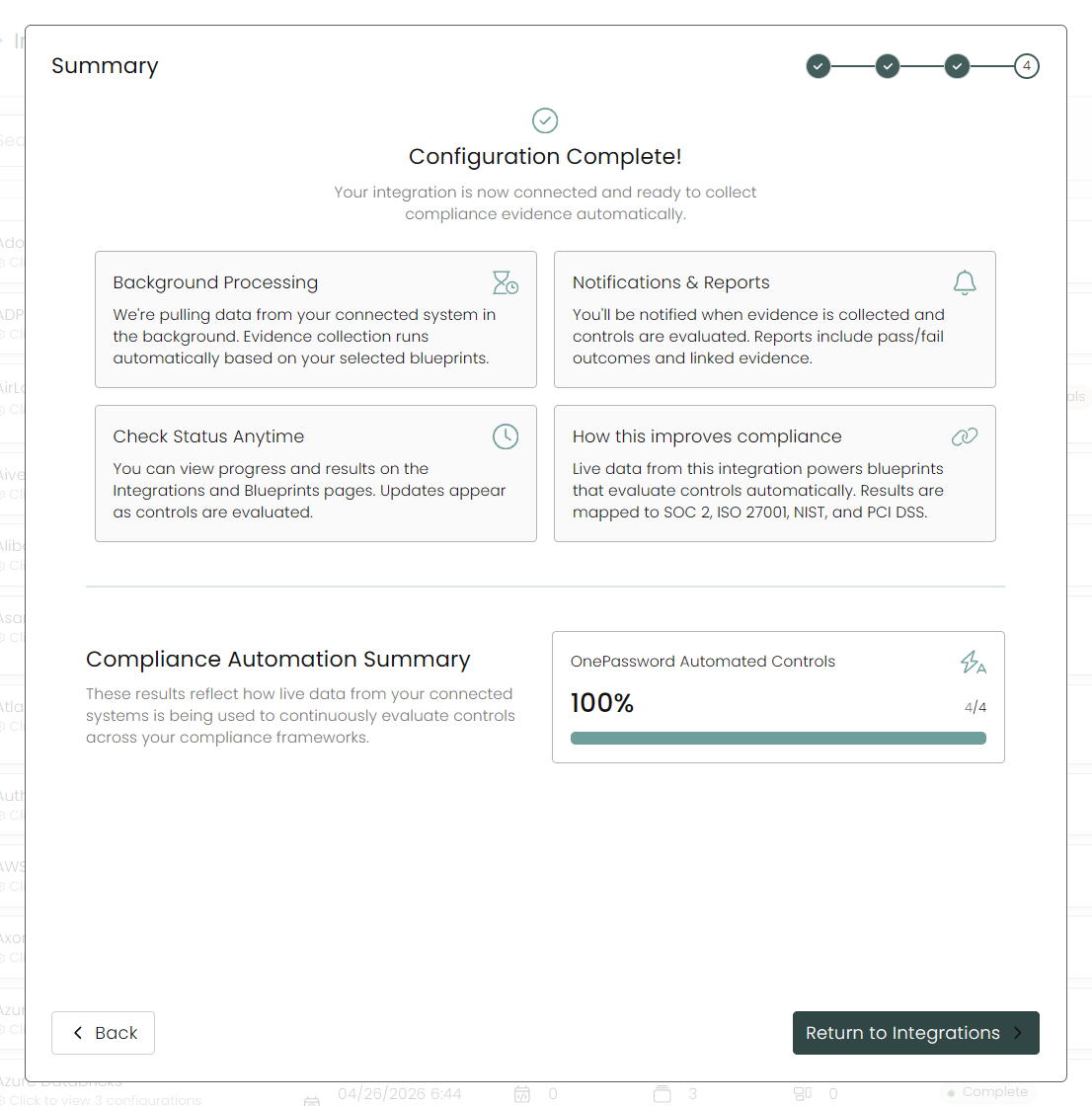
Once you have completed filling out the form click Return to Integrations.
You'll know the integration is successfully added when the status updates to Complete.

Data is synced on a recurring schedule configured by your Compyl administrator. Each sync pulls the latest data from all enabled endpoints.
To query the data from the integration, refer to the Blueprints article.
Updated 1 day ago