
Workday Integration
Finding the Workday Host Name (Domain)
-
Log into the Workday console.
-
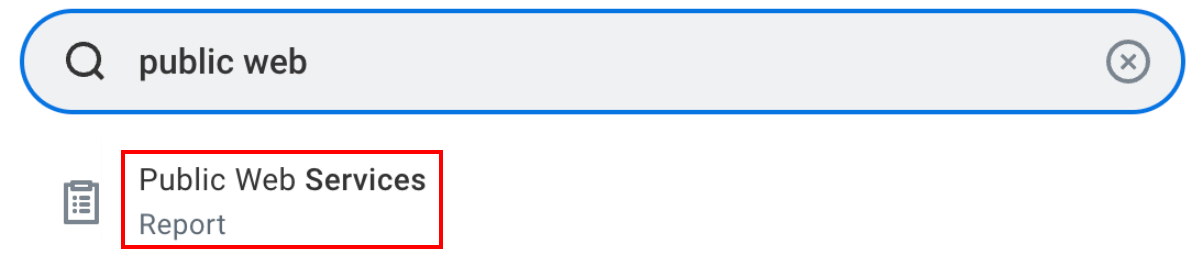
Search for the Public Web Services report and open it.
-
Hover over Human Resources and click the three dots to access the menu.
-
Navigate to Web Services → View WSDL.
-
On the bottom of the page, find the
locationparameter in thesoapbind:addresstag and copy the parameter until/service:
Setting up the Workday OAuth Client
-
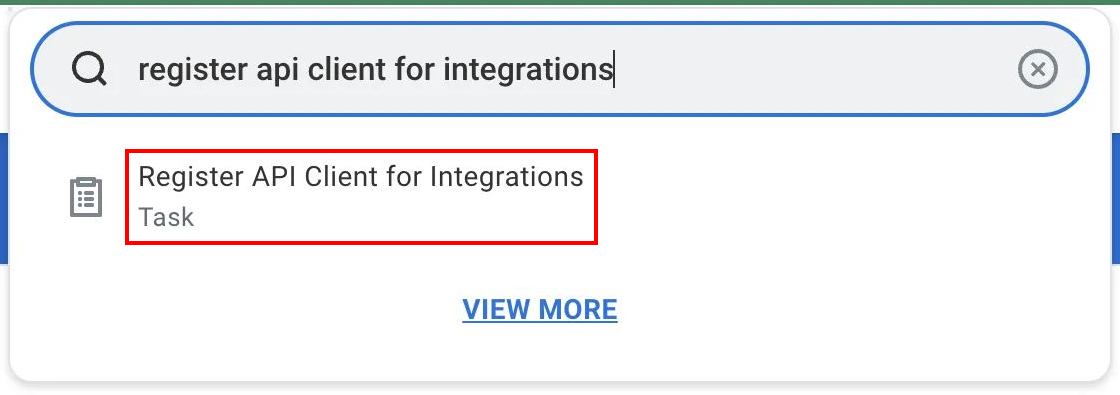
Login to your Workday tenant and register a new API Client for Integrations.
-
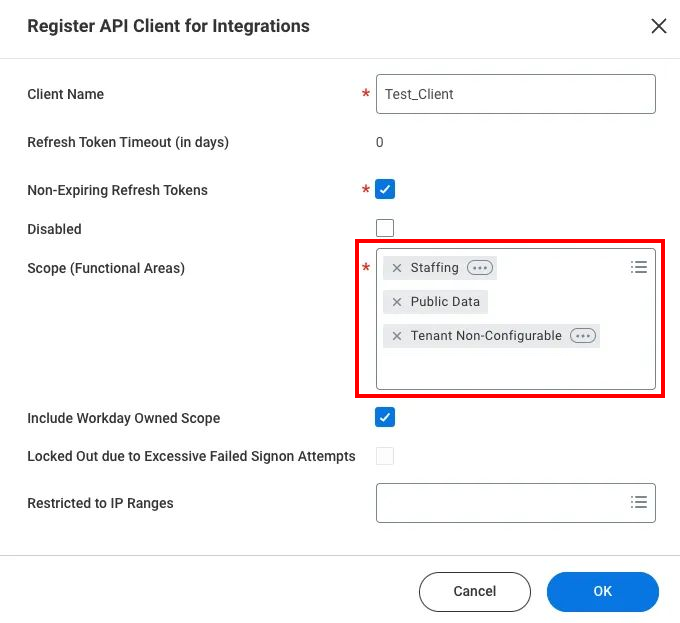
Name your Client and add in the following Scopes:
-
Public Data
-
Staffing (HRIS)
-
Recruiting (ATS)
-
Tenant Non-Configurable
-
-
Ensure there’s a Non-Expiring Refresh Token, and then save your Client ID and Client Secret. You will need this for the Add Configuration step.
-
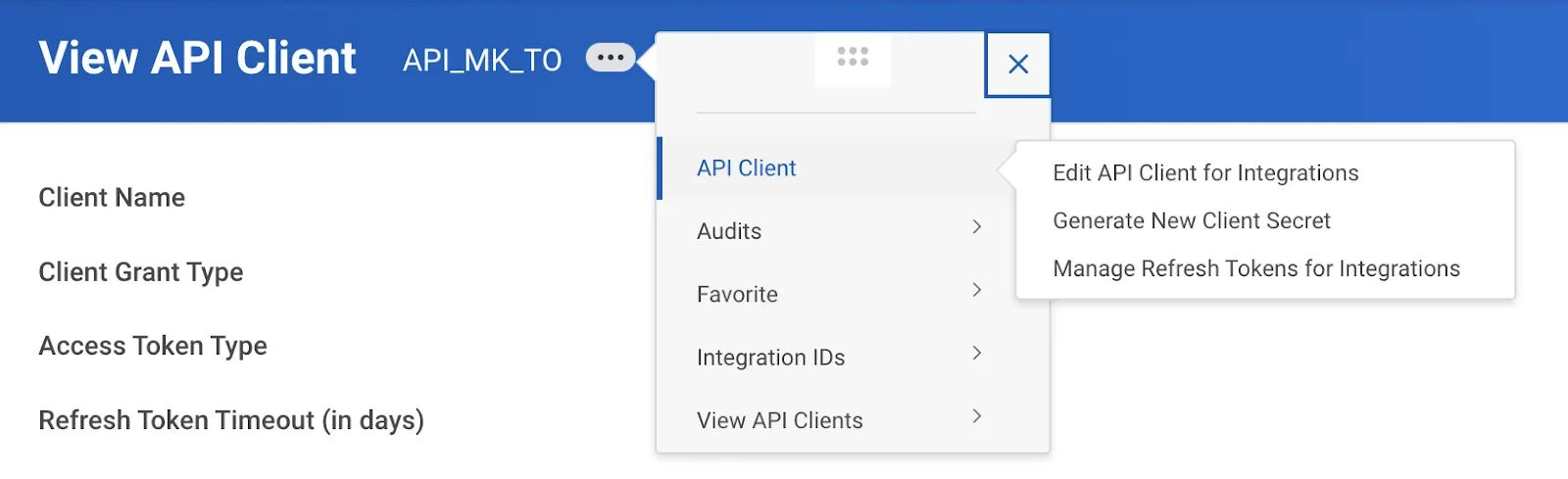
Navigate to View API Clients → API Clients for Integrations, and click the Client created above.
-
Generate a non-expiring Refresh Token.
-
Now you that successfully retrieved your Client ID, Client Secret, and Refresh token, you can add a new Workday Integration configuration in Compyl.
Optional: Finding the Custom Report URL to Retrieve Workday Device DataTo get the SOAP URL from the custom report, on your Workday console, navigate to Related Actions > Webservices > URLs to access a list of links. Click on the CSV link to generate the required URL, copy the URL path from your browser and save it to copy over into Compyl.
Do not include the main Workday domain base or the
?wsdlportion of the URL. For example, if the custom report URL ishttps://wd5-services1.myworkday.com/ccx/service/customreport1/example/custom_report?wdsl, the value you should enter here should just beccx/service/customreport1/example/custom_report.The Custom Report must also contain the
Device_IDfield to match the corresponding device.
Add Configuration
-
Navigate to the Integrations tab using the left-hand menu, and select Workday.

-
Click the Add Configuration button and fill in the details below:

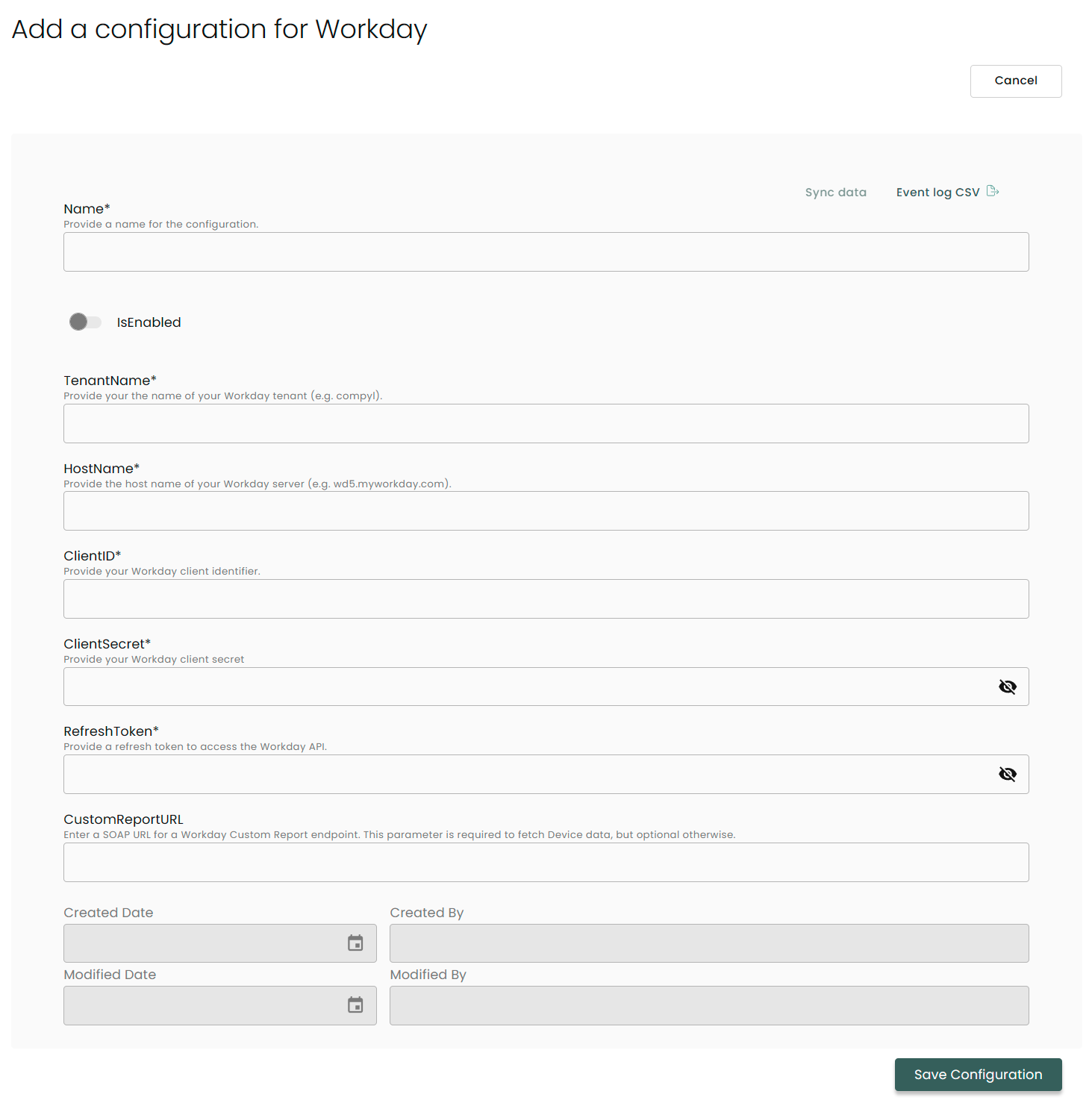
Name: Enter the name of the integration
is Enabled: Toggle button to ensure data is populated into Compyl
Tenant Name: The name of your Workday tenant (e.g. compyl)
Host Name: The host name of your Workday server (e.g. wd5.myworkday.com). See Finding the Workday Host Name section above.
Client ID: Created in the Setting up the Workday OAuth Client section above.
Client Secret: Created in the Setting up the Workday OAuth Client section above.
Refresh Token: Must be non-expiring. Created in the Setting up the Workday OAuth Client section above.
Custom Report URL: Required to fetch Device information, but optional otherwise. See the Finding the Custom Report URL to Retrieve Workday Device Data section above.
Once you have completed filling out the form click Save Configuration.
NoteTo check if the integration is connected, navigate to the Integrations page in Compyl. If the Status icon shows an unbroken link in the right-hand corner, your integration is properly connected.

This integration syncs daily.
To query the data from the integration, refer to the Query Builder article.
Updated 2 months ago