
Data Source Wizard - Add a New Data Source
NOTEThe default Report Designer implementation uses the Data Source Wizard (Fullscreen) version. To use the popup version instead, disable the
ReportDesignerWizardSettings.UseFullscreenWizardoption.
The following is a complete list of wizard that may be required to create a new SQL data source.
- Choose a Data Connection
- Create a Query or Select a Stored Procedure
- Configure Query Parameters
- Configure Master-Detail Relationships
SEE ALSO
Choose a Data Connection
NOTEThe default Report Designer implementation uses the Data Source Wizard (Fullscreen) version. To use the popup version instead, disable the ReportDesignerWizardSettings.UseFullscreenWizard option.
On this wizard page, you are required to select a data connection that provides necessary information to connect to a database.
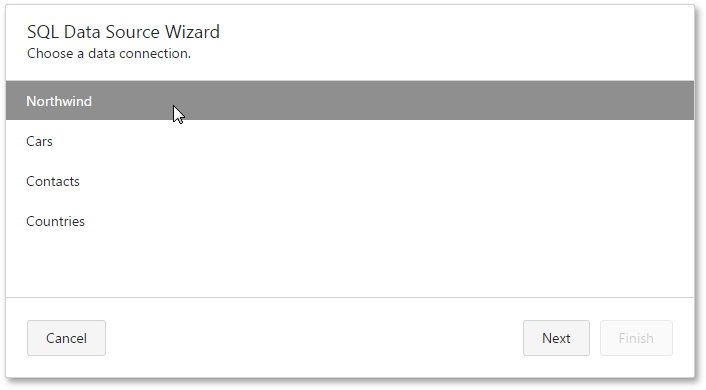
Select a data connection.
SEE ALSO
Create a Query or Select a Stored Procedure
NOTEThe default Report Designer implementation uses the Data Source Wizard (Fullscreen) version. To use the popup version instead, disable the
ReportDesignerWizardSettings.UseFullscreenWizardoption.
On this wizard page, you can choose which tables, views and/or stored procedures from your data source to display in the report.
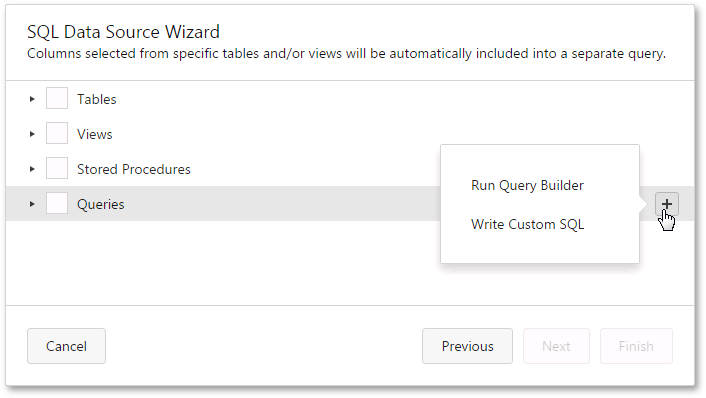
When you are required to shape the query data at the level of a data source, you can create custom queries by expanding the Queries category and clicking the  button.
- By default, custom SQL editing is disabled, and clicking this button will invoke the Query Builder where you can create complex queries by joining multiple tables, filtering, sorting, and grouping their data, as well as calculating various aggregate functions.
- If custom SQL editing is enabled, this will invoke a context menu where you can choose whether to run the Query Builder or Custom SQL Editor.
IMPORTANTEnabling custom SQL in your web application exposes your databases to a risk of possible SQL injections. Before enabling this option, please make sure to apply a secure SQL validation that prevents execution of harmful requests. To learn more, see General Security Considerations.
To customize an existing query using the Query Builder, click  button on this wizard page.
To delete a query, click the  button.
You can stop the wizard at this step by clicking Finish.
To continue report customization, select at least one item and click Next to proceed to the next wizard page.
- If any custom queries and/or parameterized stored procedures are selected on this wizard page, you will be asked to customize parameters on this wizard page: Configure Query Parameters
- If two or more tables and/or views are selected on this wizard page (and no custom queries), you will be asked to specify the data relationships on this wizard page: Configure Master-Detail Relationships
NOTEWhen invoking the SQL Data Source Wizard to edit an existing data source, another version of this page is displayed.
Configure Query Parameters
NOTEThe default Report Designer implementation uses the Data Source Wizard (Fullscreen) version. To use the popup version instead, disable the
ReportDesignerWizardSettings.UseFullscreenWizardoption.
This page is displayed if any custom queries and/or parameterized stored procedures were selected in the previous section.
On this page, you can manage parameters that are used in queries and/or stored procedures and specify parameter values.
To add a new parameter, select a query and click the button.
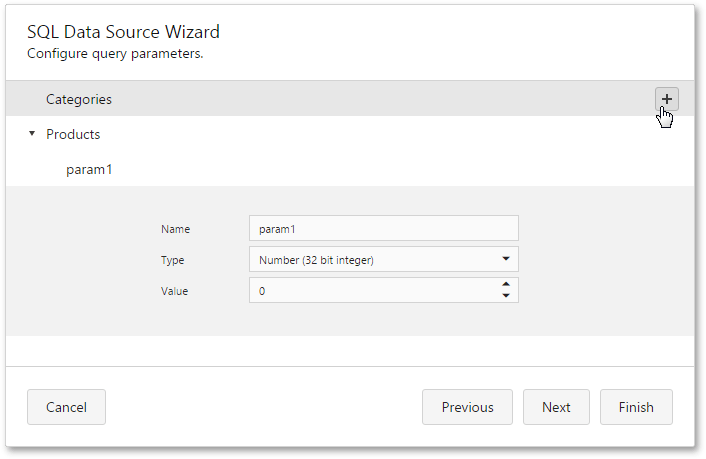
To delete a parameter, click the  button.
To customize an existing parameter, click the  button.
Next, you can specify the parameter name, type and value.
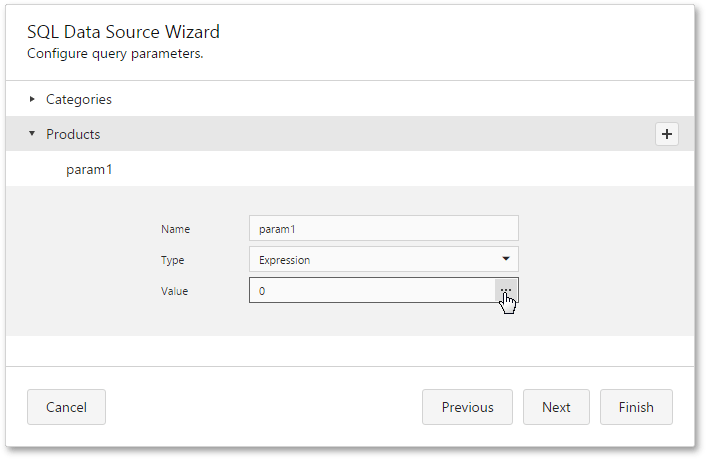
When the parameter type is set to Expression, the value editor displays the ellipsis button, and clicking on it invokes the Expression Editor.
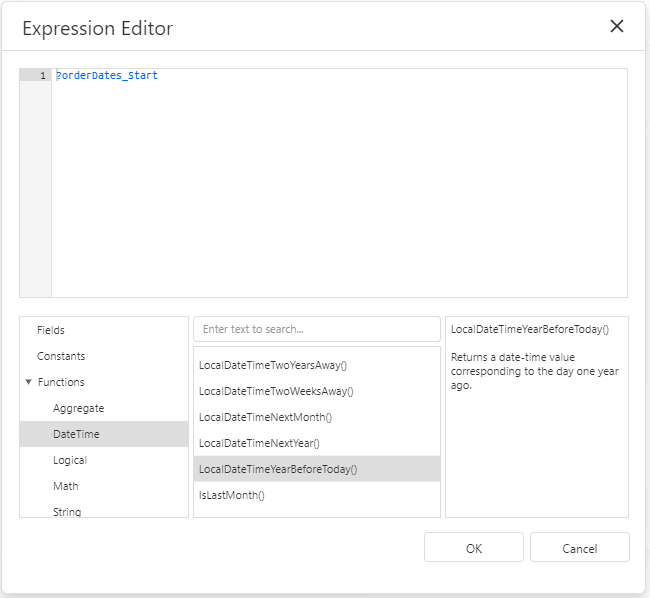
To link a query parameter to an existing report parameter, type the report parameter name using the following syntax: ?parameter1.
Stay on this wizard page for: Configure Master-Detail Relationships.
NOTEWhen invoking the SQL Data Source Wizard to edit an existing data source, another version of this page is displayed.
Configure Master-Detail Relationships
NOTEThe default Report Designer implementation uses the Data Source Wizard (Fullscreen) version. To use the popup version instead, disable the
ReportDesignerWizardSettings.UseFullscreenWizardoption.
This page is displayed if two or more tables and/or views are selected on a previous wizard section: Create a Query or Select a Stored Procedure.
On this page, you can define master-detail relationships between two or more queries by specifying their corresponding key fields.
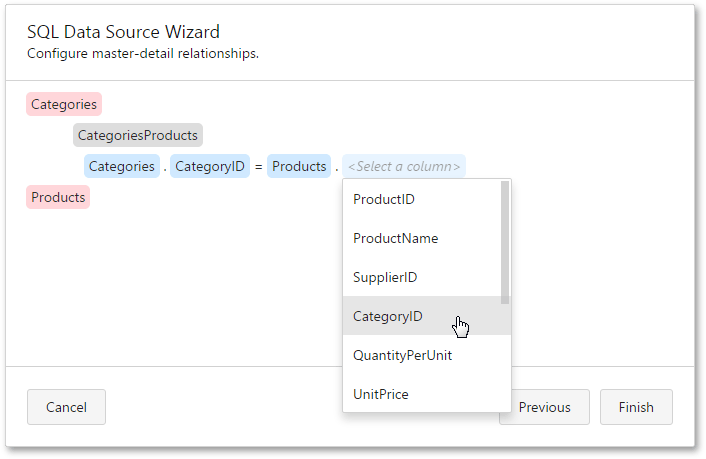
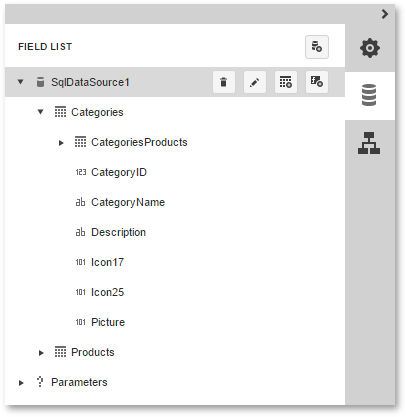
On clicking Finish, the new data source will be added to the report and displayed in the Field List.
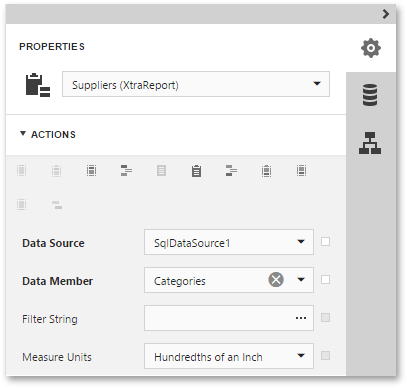
To use the created data source in a report, assign this data source to the report’s XtraReportBase.DataSource property and set the XtraReportBase.DataMember property to a required query name.
Updated 7 months ago