
Data Source Wizard - Edit an Existing Data Source
The following is a complete list of wizards that may be required to customize an existing SQL data source.
- Create a Query or Select a Stored Procedure
- Configure Query Parameters
SEE ALSO
Create a Query or Select a Stored Procedure
On this page, you can run the Query Builder to create a new query, specify custom SQL (if this option is enabled) or select a stored procedure.
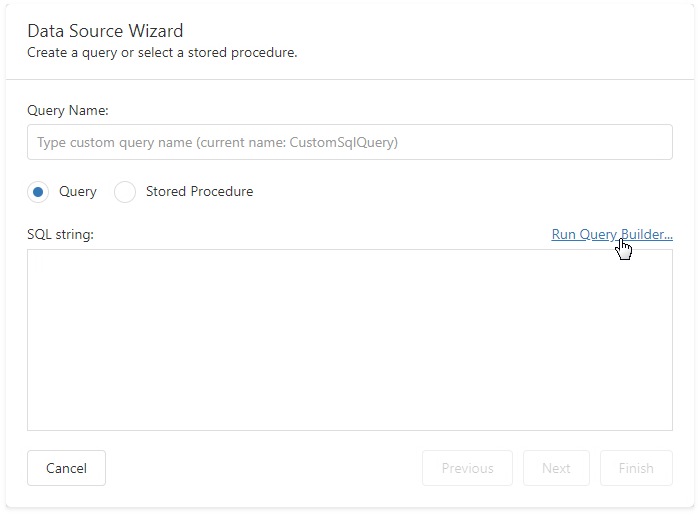
IMPORTANTFor security reasons, manual editing of an SQL query is not allowed by default. To learn more, see General Security Considerations.
If a custom query or stored procedure selected on this wizard page does not contain any parameters, you can stop the wizard at this step by clicking Finish.
Otherwise, you will be asked to specify parameter values in this wizard page: Configure Query Parameters.
Configure Query Parameters
This page is displayed if any query parameters were created on the previous sections
On this page, you can manage query or stored procedure parameters and specify their values.
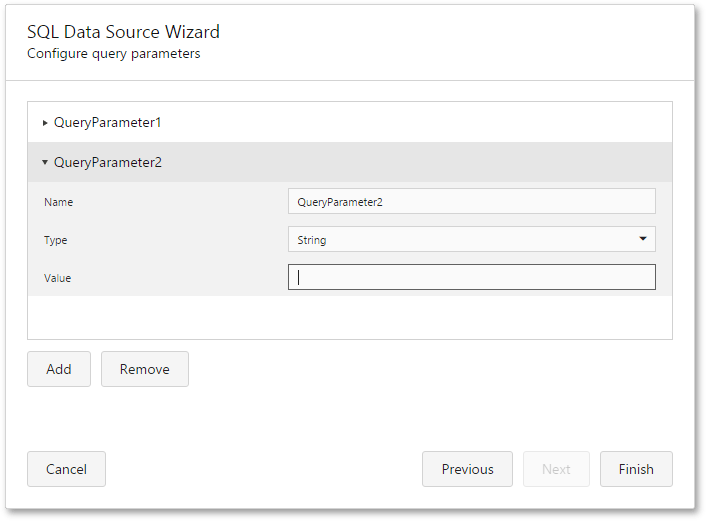
To add a new query parameter or remove an existing one, use the Add and Remove buttons.
You can customize the name, type and value of an existing parameter.
When the parameter type is set to Expression, the value editor displays the ellipsis button, and clicking on it invokes the Expression Editor.
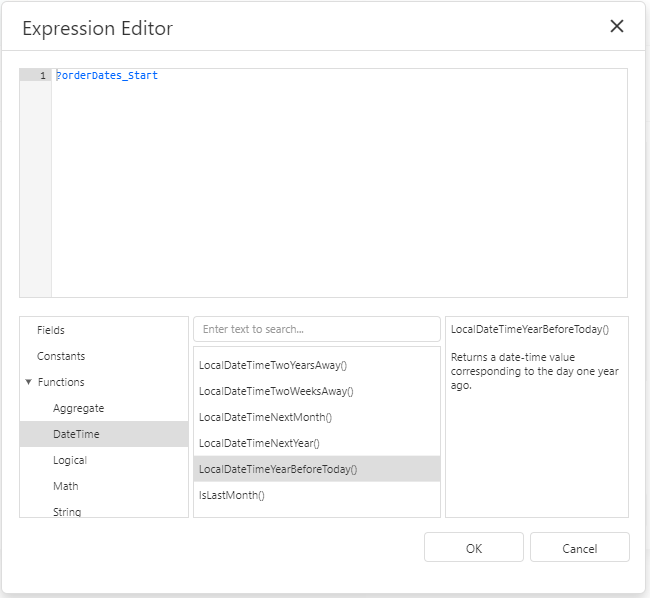
To link a query parameter to an existing report parameter, type the report parameter name using the following syntax: ?parameter1.
Clicking Finish will close the wizard and apply the changes to the data source.
Updated 7 months ago