
BitDefender Integration
Creating a BitDefender API Key
PrerequisiteOur account must have the following rights: Manage Networks, Manage Users, Manage Company, and View and analyze data.
-
Log in to https://gravityzone.bitdefender.com/ using an administrator account.
-
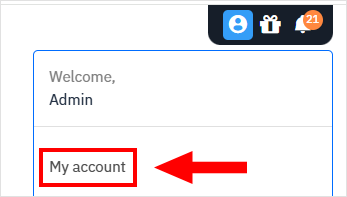
Click your username in the upper right side of the console and select My Account:
-
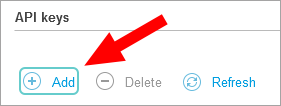
Go to the API keys section and click the Add button:
-
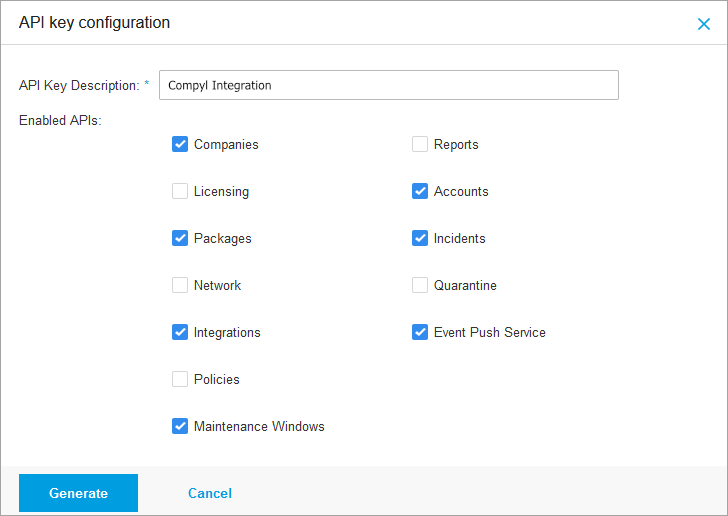
Type in a description for the key and select the APIs you want to enable for use with this key:
-
Click Generate.
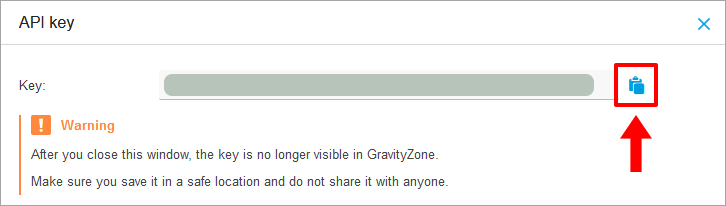
NoteA window will be displayed with the newly generated API key and a warning stating that the key is only available for you to read while the window is open. After closing the window you will no longer be able to view the key anywhere in GravityZone.
-
Click the copy button to copy the key to clipboard and save it in a safe location.
-
Close the API key window.
Add Configuration
-
Navigate to the Integrations tab using the left-hand menu, and select BitDefender

-
Click the Add Configuration button and fill in the details below:

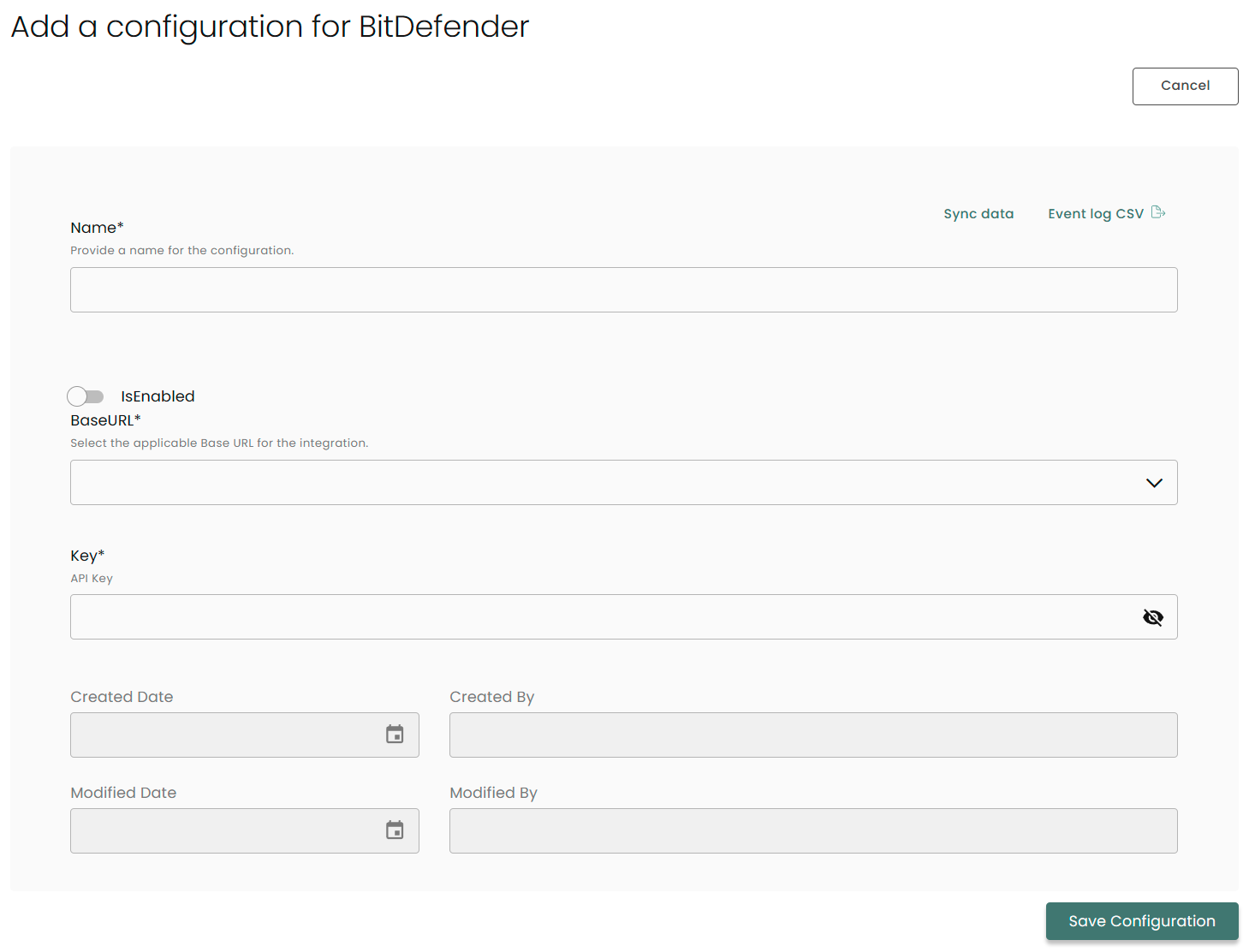
Name: Enter the name of the integration
is Enabled: Toggle button to ensure data is populated into Compyl
Base URL: The base URL for all APIs is: CONTROL_CENTER_APIs_ACCESS_URL/v1.0/jsonrpc/. The full URL of the API is obtained by adding the API name to the base URL. You can use BitDefender's API documentation to find your specific one.
Key: The API Token you generated above
Once you have completed filling out the form click Save Configuration.
NoteTo check if the integration is connected, navigate to the Integrations page in Compyl. If the Status icon shows an unbroken link in the right-hand corner, your integration is properly connected.

This integration syncs daily.
To query the data from the integration, refer to the Query Builder article.
Updated 2 months ago