
Sumo Logic Integration
The Sumo Logic integration requires an Access Key (API Key) in order to function properly.
Create Access Key
Prerequisites
- You'll need the Create Access Keys role capability to create an access key.
- You'll need the Manage Access Keys capability to manage access keys created by other users in your org.
- Access keys use the permissions of the user running the key.
- At minimum, you will need User Management capabilities (
Manage users and roles) to allow Compyl to validate your credentials and start syncing data.- A complete list of required permissions for syncing all data is located in the Sumo Logic Integration article.
- The user utilizing an access key must have the role capabilities needed to execute the tasks the access key is needed for.
-
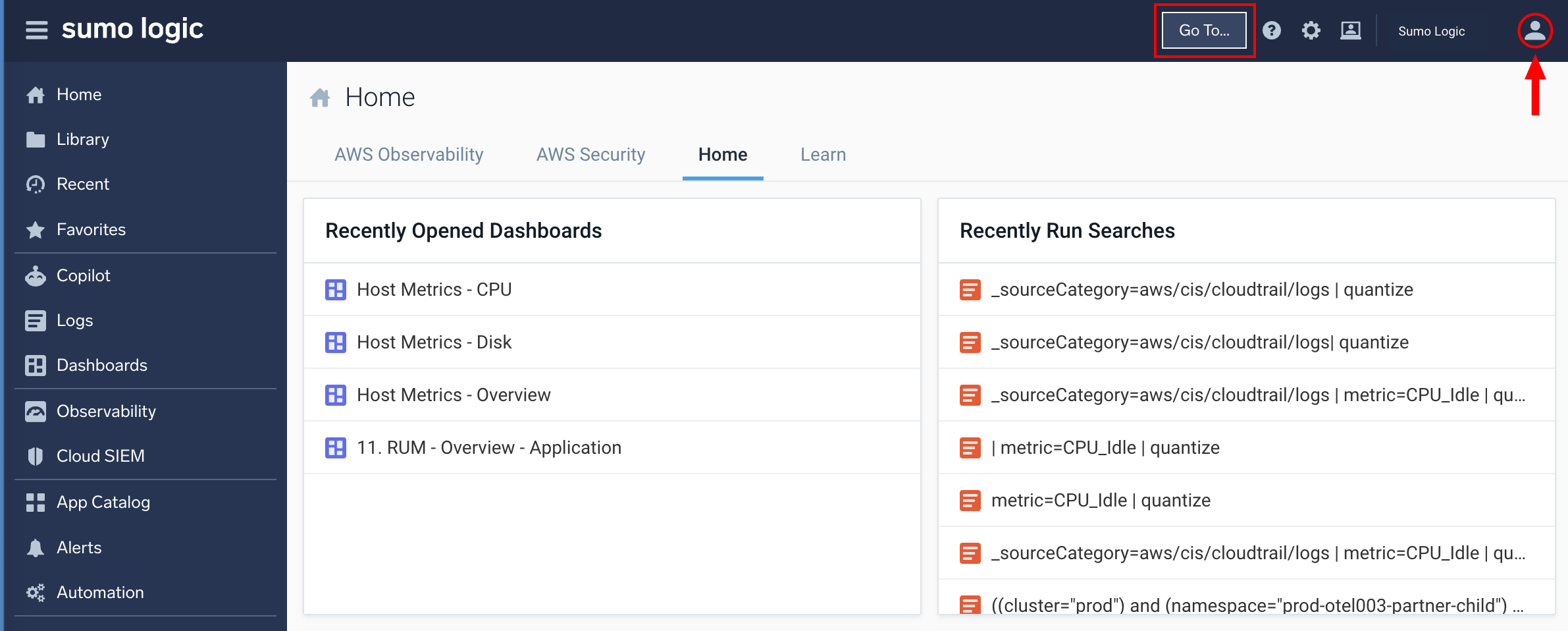
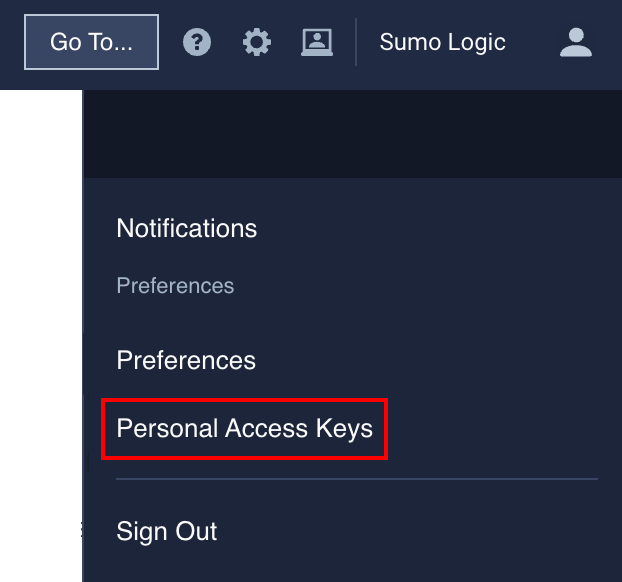
In the top menu select your username, and then under Preferences select Personal Access Keys. You can also click the Go To... menu at the top of the screen and select Personal Access Keys.
-
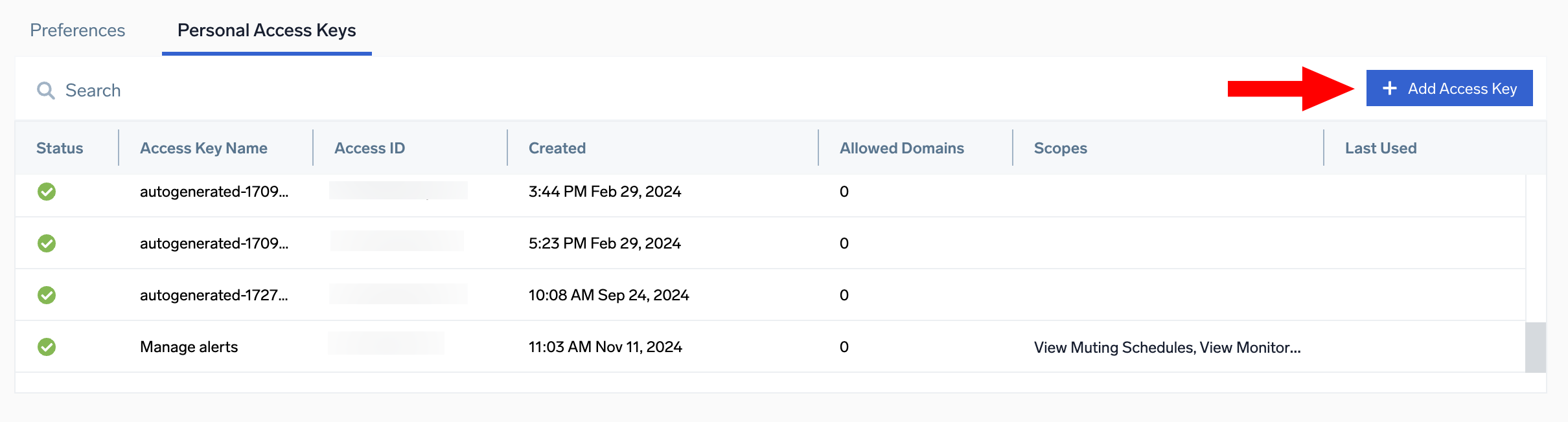
On the Personal Access Keys tab, click + Add Access Key.
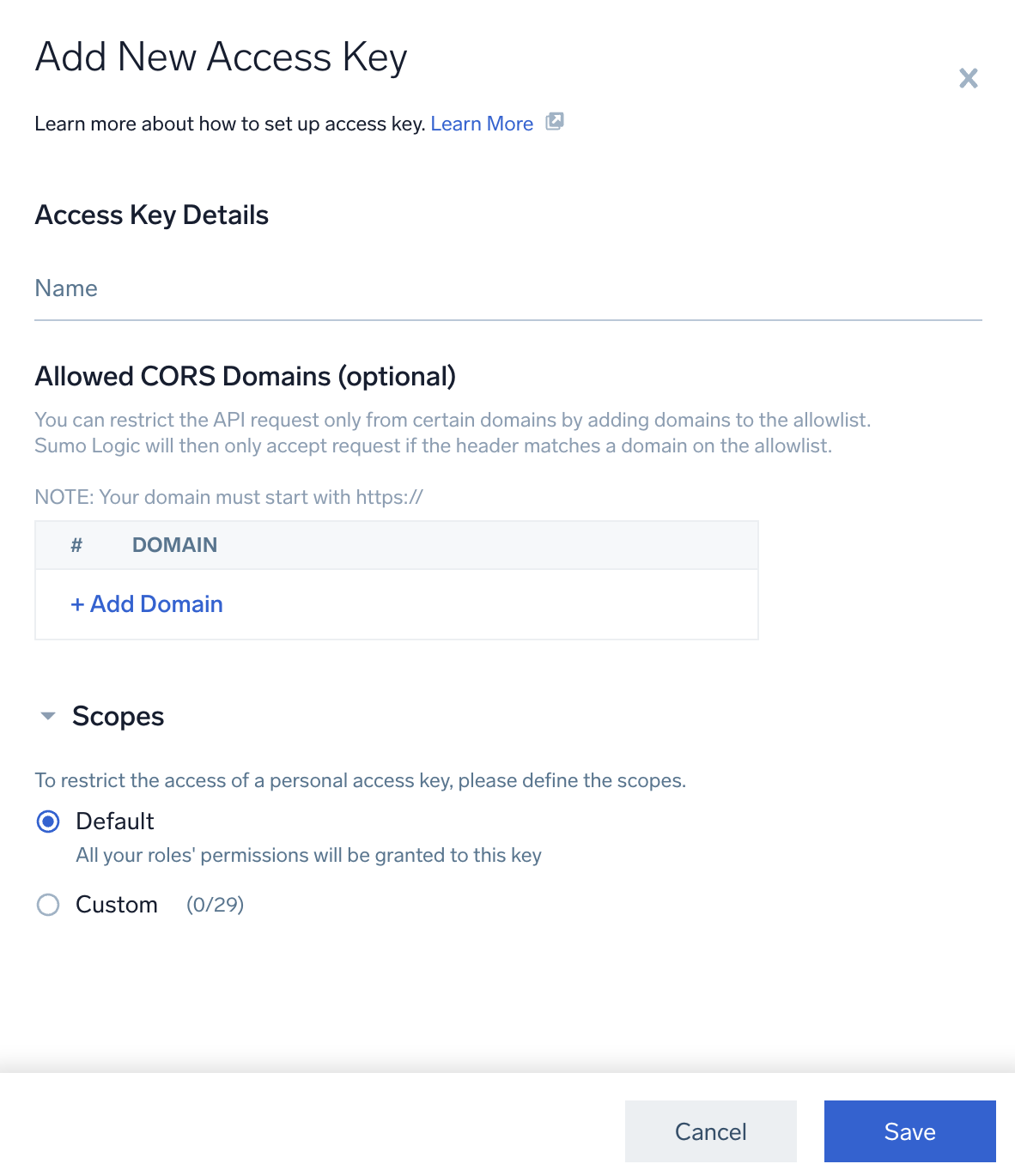
The Add New Access Key window will appear:
-
Enter in the following details:
Name: Enter a name for your access key (ex. Compyl Integration)
Allowed CORS Domains (optional): Create an allowlist of domains from which the access key can be used to access Sumo Logic APIs. For more information, see Sumo Logic's CORS support documentation .
Scopes: For additional security, you can select scopes to give the key only the permissions you specify.
NoteThe user who will be utilizing the access key needs to have all the same role capabilities as the scopes on the access key. Otherwise, once the user views the access key details, the scopes will be displayed as red in the UI red with a message that the user does not have rights for those scopes.
Select the scopes for the key:
-
Default: the key has all permissions
-
Custom: the key has only the specified permissions:
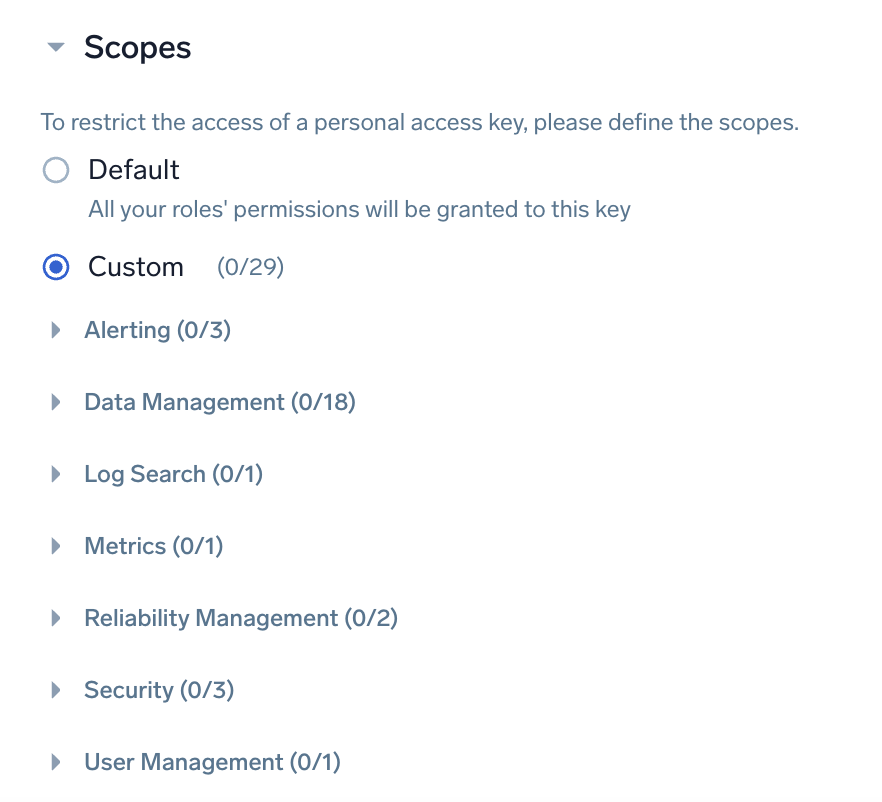
Select the View and Manage permissions that you want the access key to have using the available categories.
-
-
Click Save to generate the Access Key
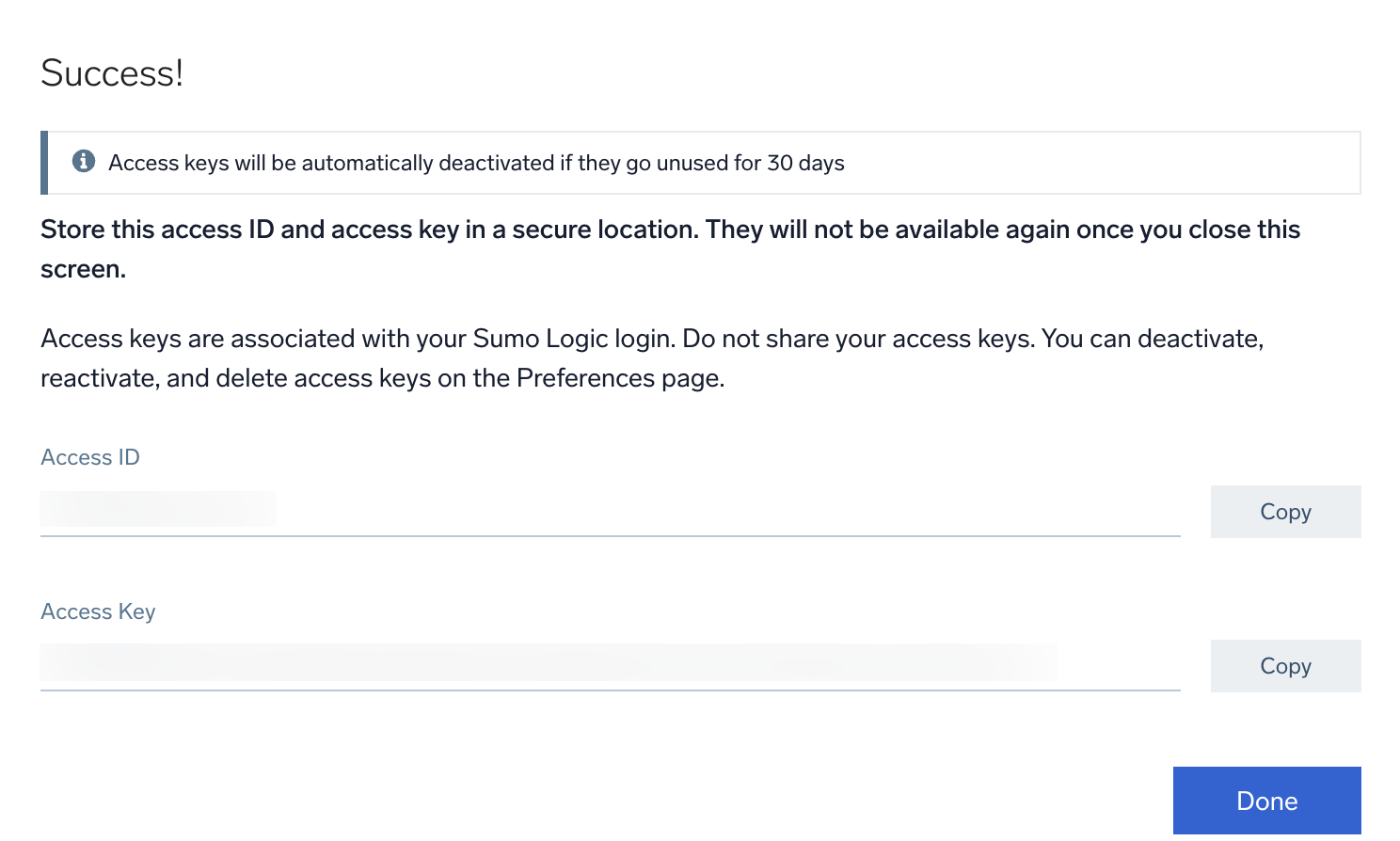
ImportantCopy both the generated Access ID and Access Key before clicking Done. This is the only time you will be able to copy the ID and key.
After you click Done, you will not be able to recover this Access ID and Access Key.
Add Configuration
-
Navigate to the Integrations tab using the left-hand menu, and select Sumo Logic.

-
Click the Add Configuration button and fill in the details below:

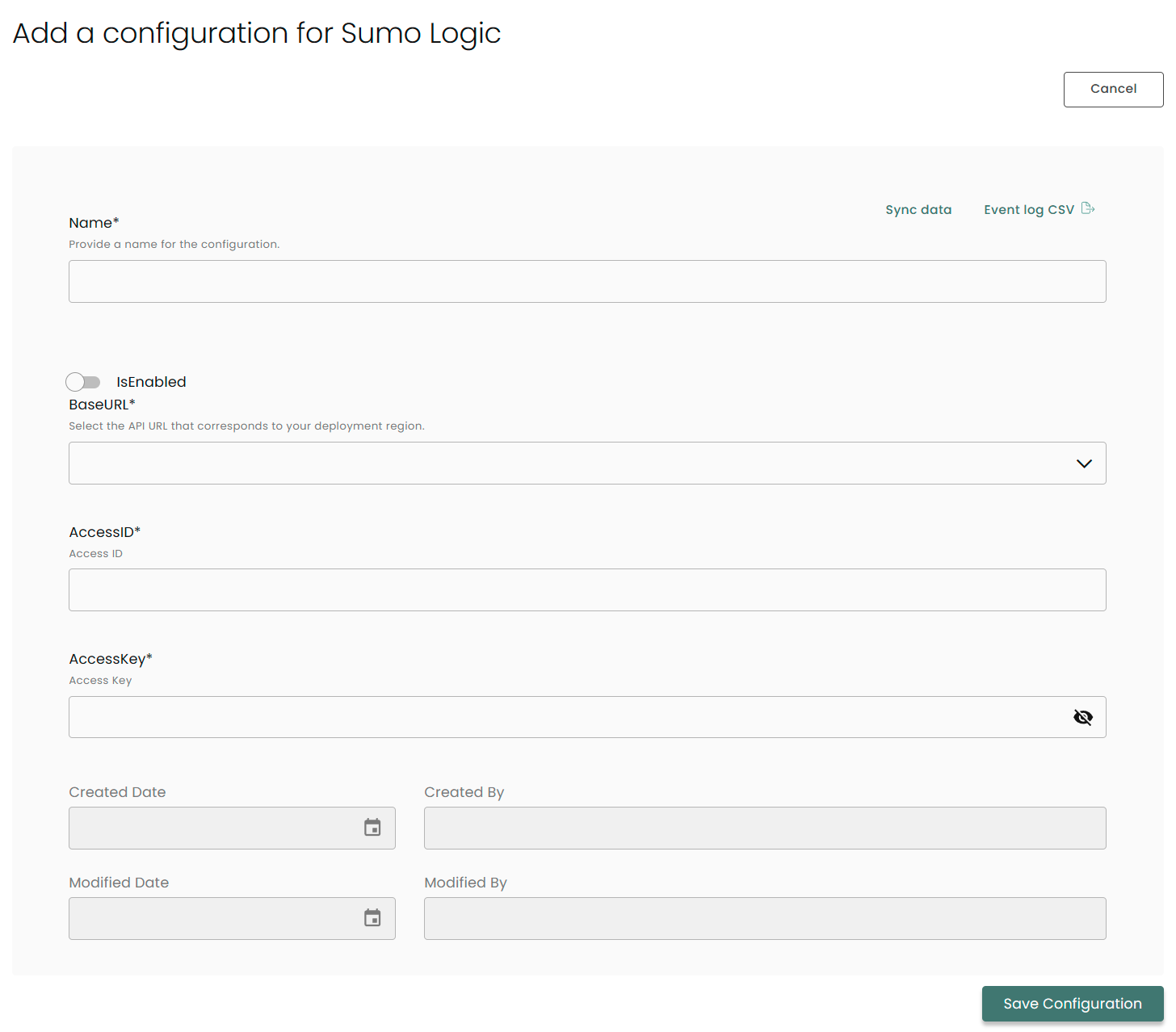
Name: Enter the name of the integration
is Enabled: Toggle button to ensure data is populated into Compyl
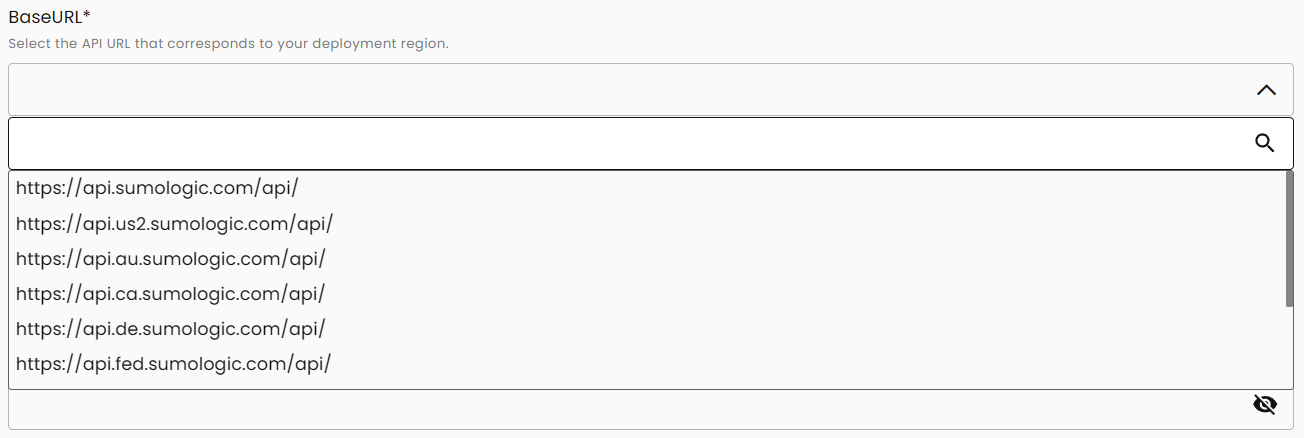
Base URL: Click on the arrow and pick the most appropriate URL from the dropdown:
Access ID: The access ID you generated above
Access Key: The access key you generated above
Once you have completed filling out the form click Save Configuration.
NoteTo check if the integration is connected, navigate to the Integrations page in Compyl. If the Status icon shows an unbroken link in the right-hand corner, your integration is properly connected.

This integration syncs daily.
To query the data from the integration, refer to the Query Builder article.
Updated 2 months ago