
Dropbox Integration
Integrating with Dropbox gives Compyl visibility into your Dropbox Business environment, including team members, groups, device sessions, linked applications, team folders, shared folders, shared links, files, audit events, legal holds, and sharing allowlists. This data supports governance, access reviews, and compliance reporting within Compyl.
SuggestionCreate a dedicated Dropbox Business team admin account for the integration. This account can be used for app registration and OAuth authorization. The advantage of a separate admin account is that you can segregate integration responsibilities from day-to-day user accounts.
Creating a Dropbox App
-
Log into the Dropbox account that will authorize the integration (a team admin account is recommended).
-
Go to https://www.dropbox.com/developers/apps and click Create app.

-
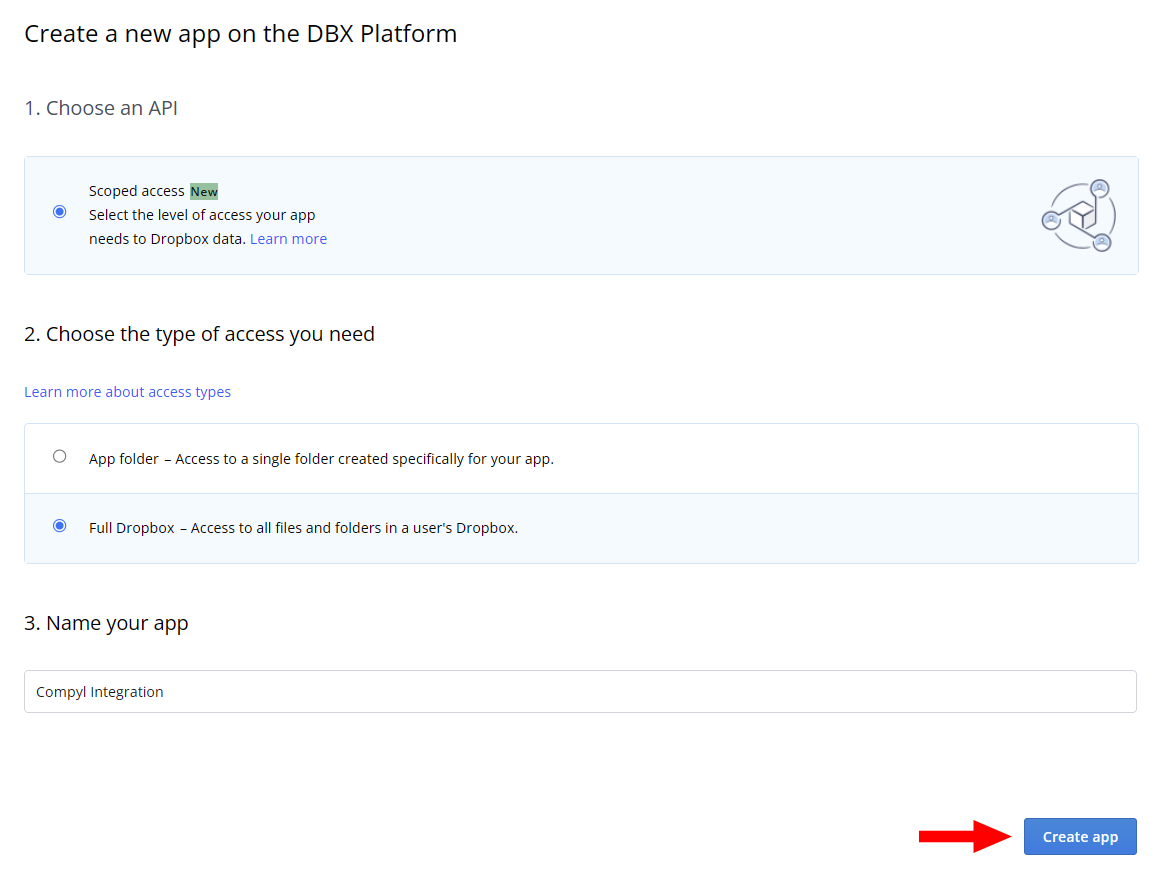
Under Choose an API, select Scoped access. Then select Full Dropbox for type of access. Finally name your app (for example, Compyl Integration). Click Create app.
-
Open the Permissions tab and enable the scopes listed in the table below. Click Submit to save your changes.
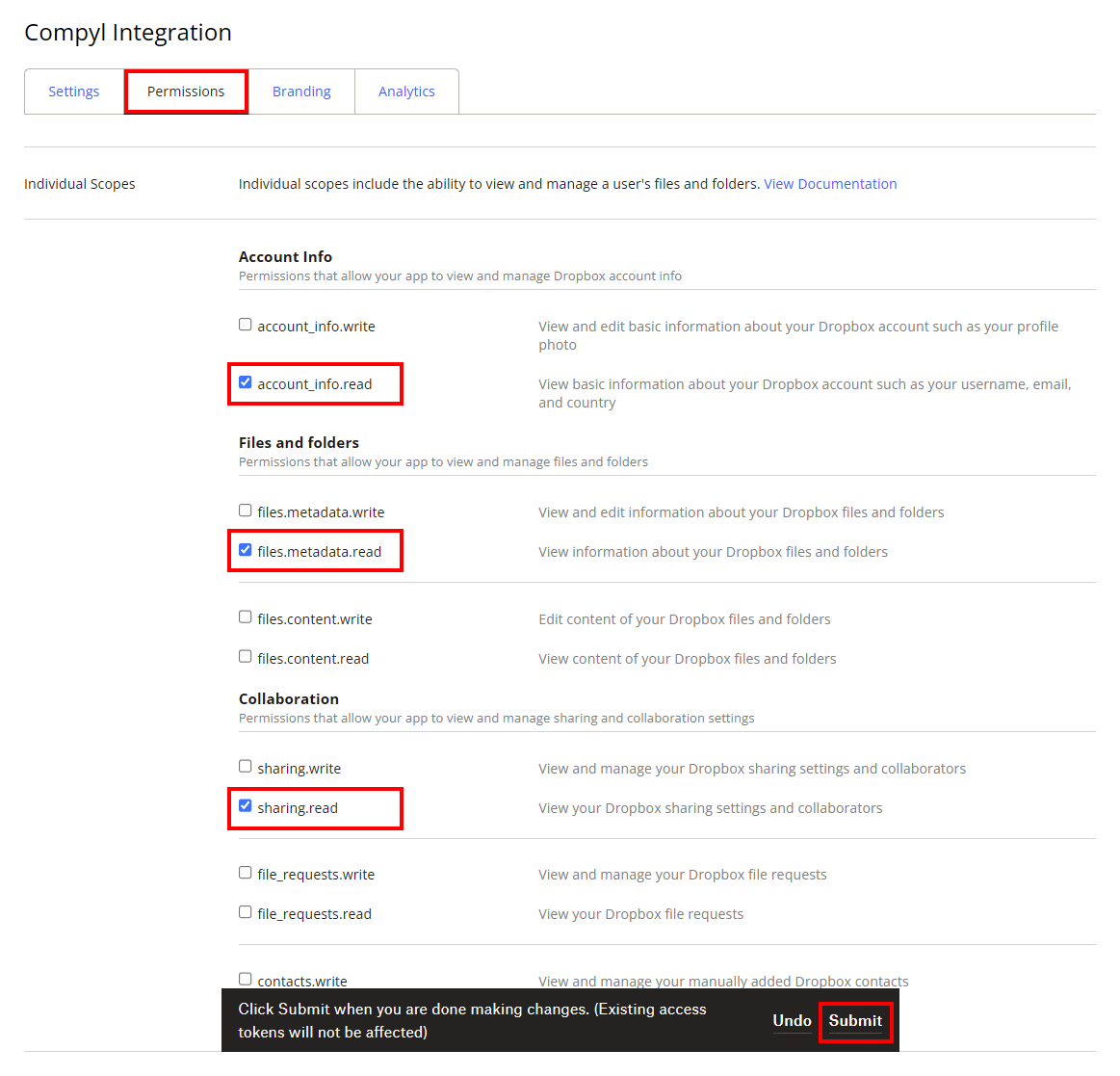
Permission category Scope Purpose Account Info account_info.read Required baseline scope for Dropbox scoped apps. Files and Folders files.metadata.read File and folder metadata. Collaboration sharing.read Shared folders, shared links, and file sharing membership. Team team_info.read Team information, feature flags, and sharing allowlist. Team Data team_data.member Namespaces and admin impersonation for file/sharing endpoints. Files team_data.governance.write Legal hold policies and held file revisions (Advanced/Enterprise plans). Files team_data.content.read Team folder metadata. Members members.read Team member profiles and roles. Members groups.read Groups and group membership. Sessions sessions.list Device sessions and linked third-party applications. Sessions events.read Team audit and activity log events.
-
Open the Settings tab. Under OAuth 2 → Redirect URIs, add your Compyl callback URL.
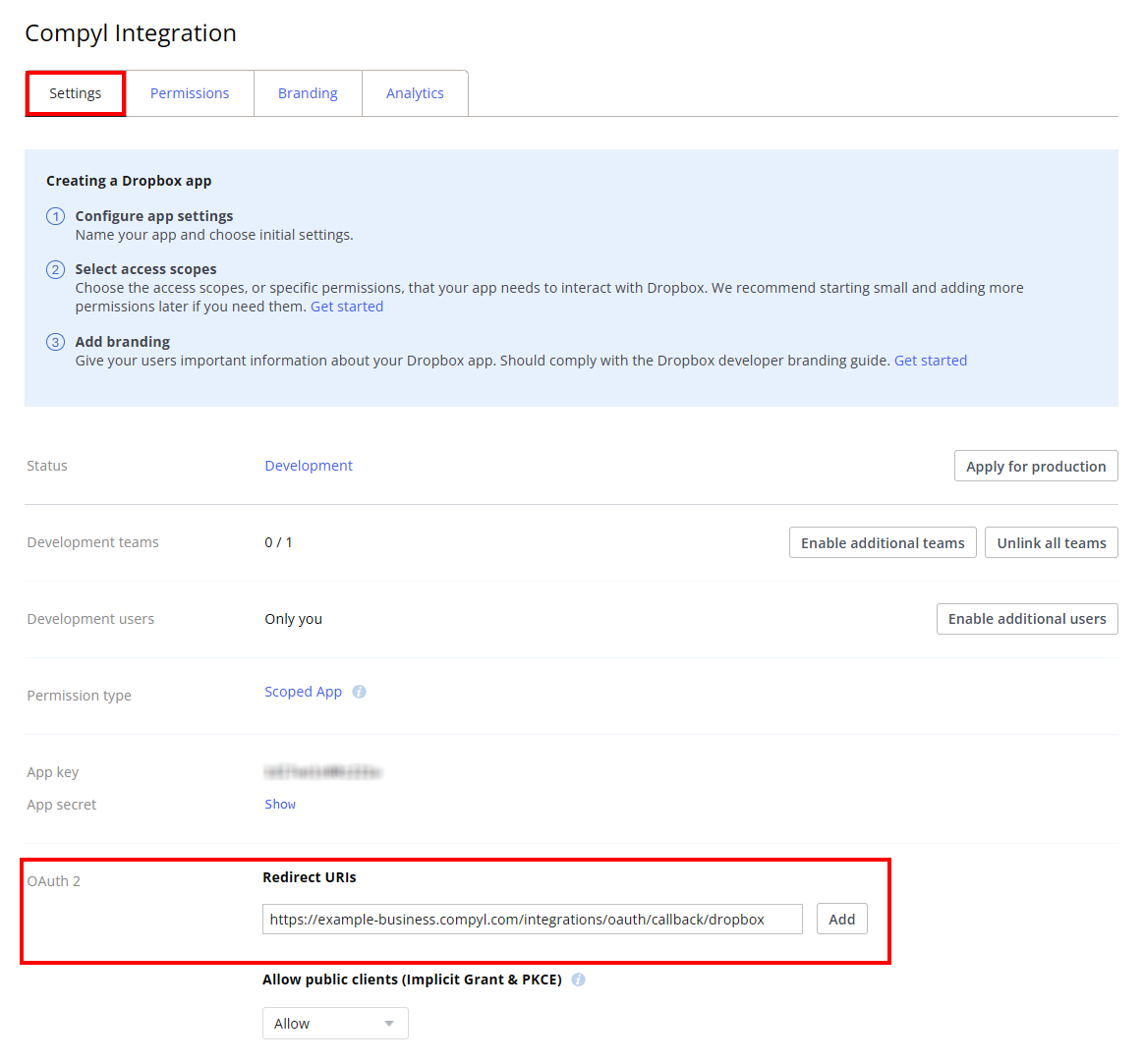
Follow this format:https://{your-compyl-URL}/integrations/oauth/callback/dropbox
Replace{your-compyl-URL}with the URL you use to access Compyl.
For example,https://example-business.compyl.comwill behttps://example-business.compyl.com/integrations/oauth/callback/dropbox.
Then click Add.
-
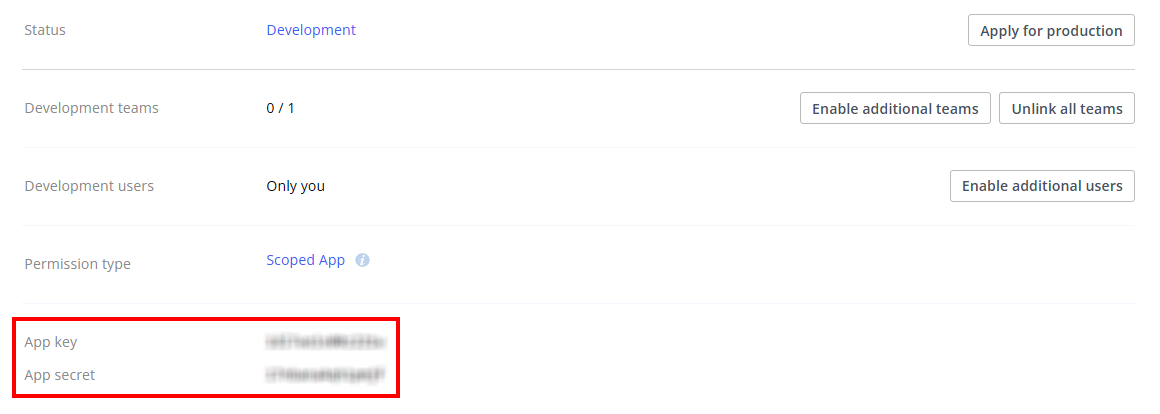
Slightly above, copy the App key and App secret and store them in a secure location. You will enter these when adding the configuration in Compyl.
Add Configuration
-
Navigate to the Integrations tab using the left-hand menu, find Integration Name, and select +Add Configuration.

-
Next, fill in the details below, click on Connect Dropbox, and select Continue.
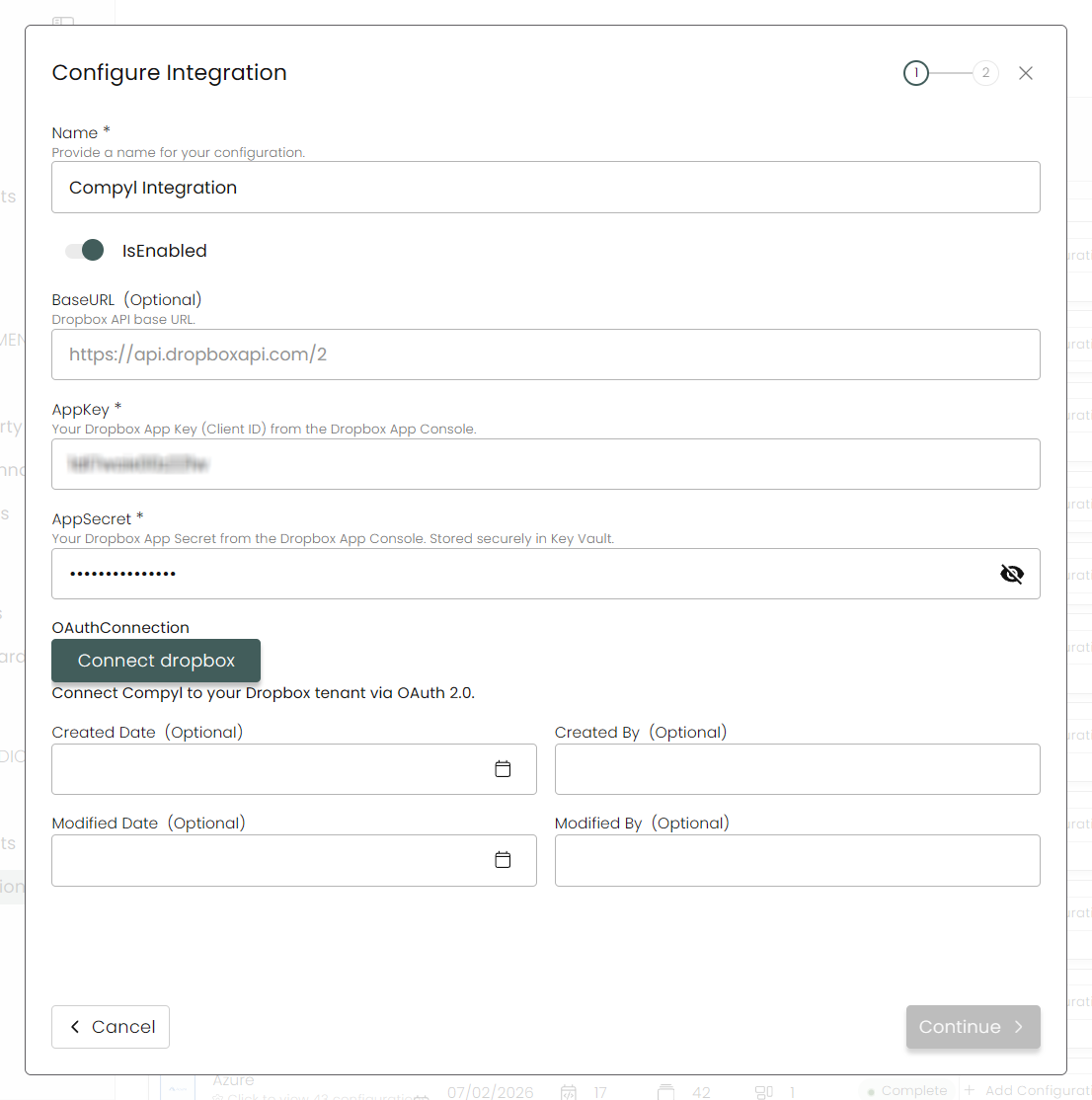
Name: Enter the name of the integration.
is Enabled: Toggle button to ensure data is populated into Compyl.
App Key: The App Key from your Dropbox app's Settings tab.
App Secret: The App Secret from your Dropbox app's Settings tab. This value is stored securely and is not visible after saving.
Dropbox Connection: Click Connect to authorize Compyl with your Dropbox team via OAuth 2.0. A browser window will open — sign in with your Dropbox team admin account and approve the requested permissions.
-
Choose your Endpoints and Begin Validation to validate your connection.
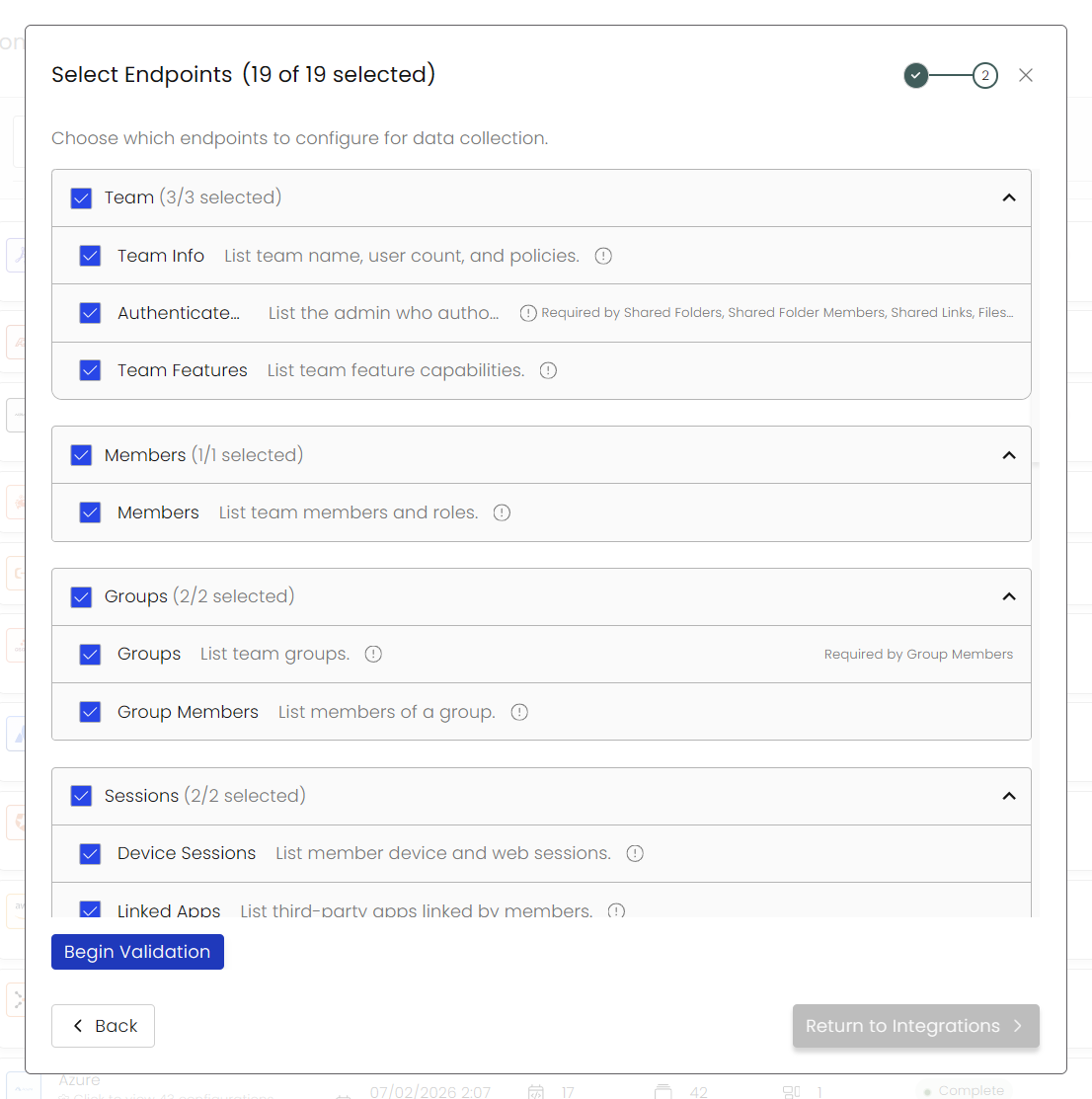
Once you have completed filling out the form click Return to Integrations.
You'll know the integration is successfully added when the status updates to Complete.

Data is synced on a recurring schedule configured by your Compyl administrator. Each sync pulls the latest data from all enabled endpoints.
To query the data from the integration, refer to the Blueprints article.
Updated 2 months ago