
Completing and Reviewing Questionnaires
Completing Questionnaires in Compyl is essential in ensuring the organization is collecting all requested security and compliance information
When as questionnaire is created in Compyl, the assigned Owner/Delegate Owner will be sent an email notification to complete the questionnaire. Whether it is a company employee or external user, it is key to complete any assigned questionnaires in a timely manner to ensure that the information that is being requested is submitted to the organization.
Completing a Questionnaire
When an questionnaire is created and enabled, the Assignees will receive an email to complete the questionnaire. Clicking on View Questionnaire will take you directly to the Questionnaire in your Compyl instance.
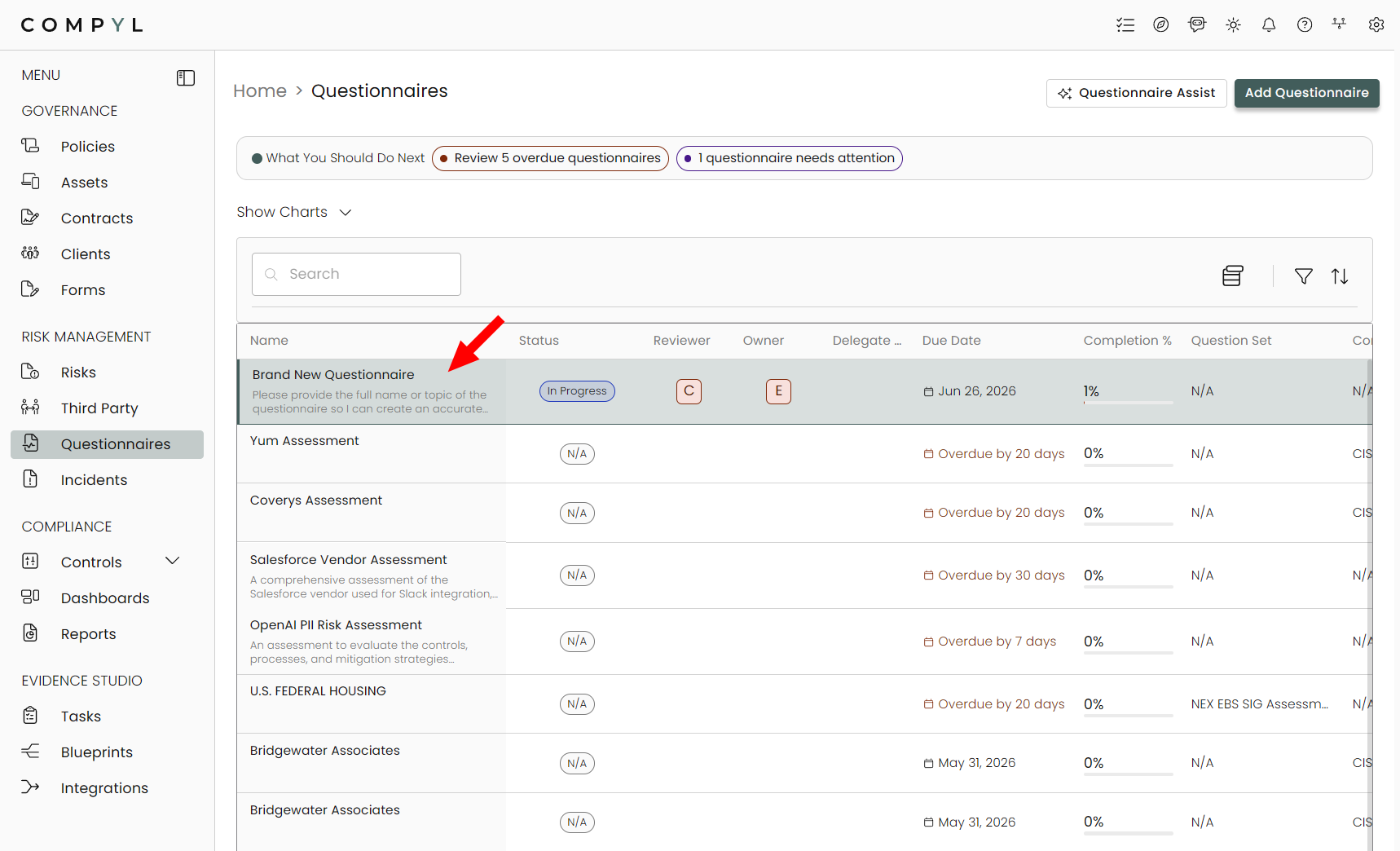
If you would like to start the questionnaire from the grid view within Compyl, you can simply click on the one that needs to be completed.
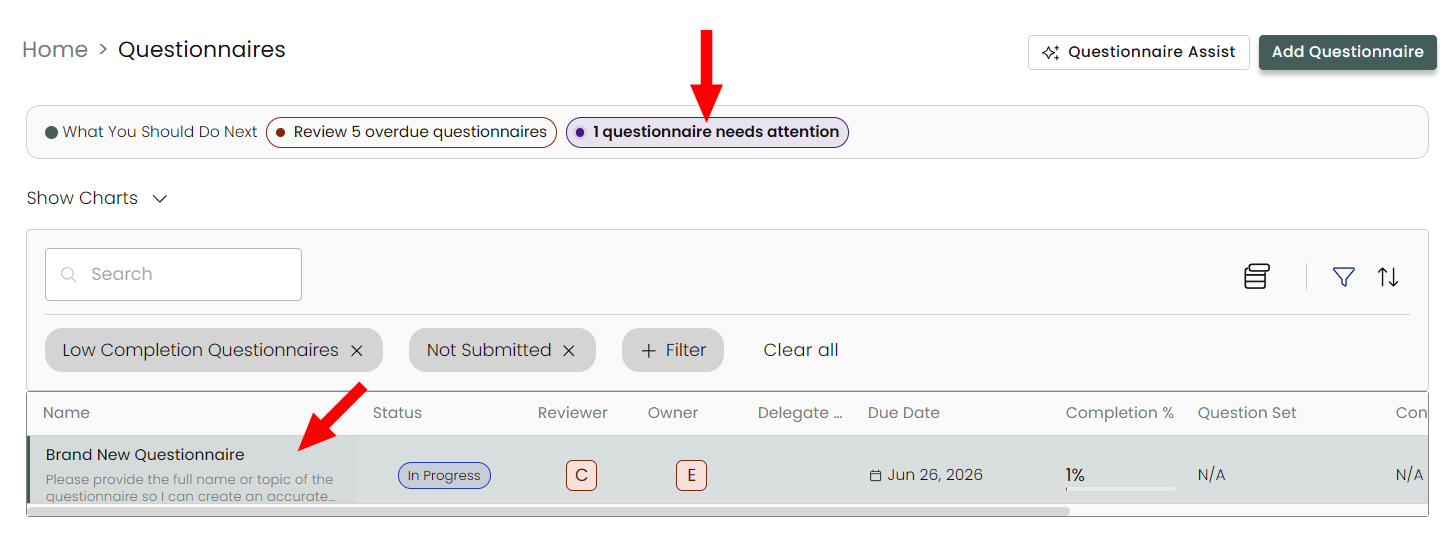
Or narrow it down with one of our pre-built filters if there are a lot of them in the grid.
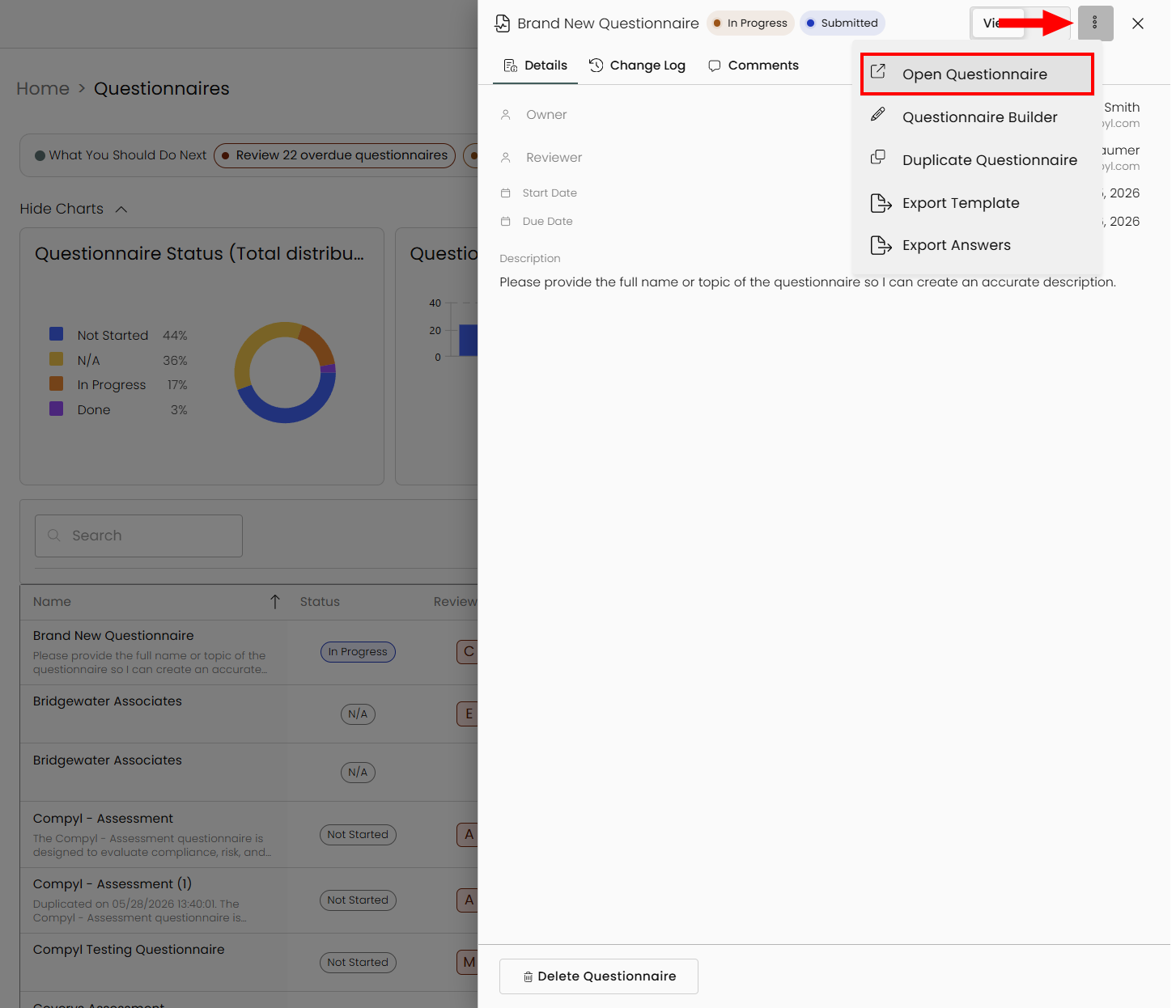
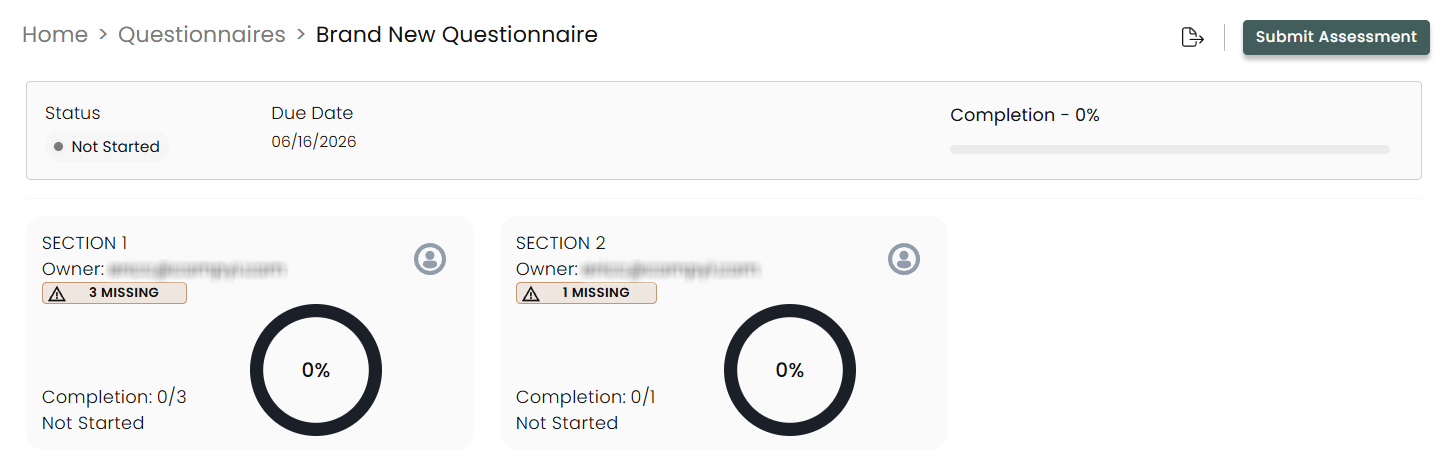
In the slide-out, click on Open Questionnaire. This page reflects the various sections of the questionnaire, where the overall status of can be viewed as you progress through the questions.
Delegating Questions
In this view, you can delegate full section to other owners if needed by clicking the person icon on the upper right corner of the section tile. Click on the + icon and enter in their email address.
They will be notified to complete their section of the assessment.
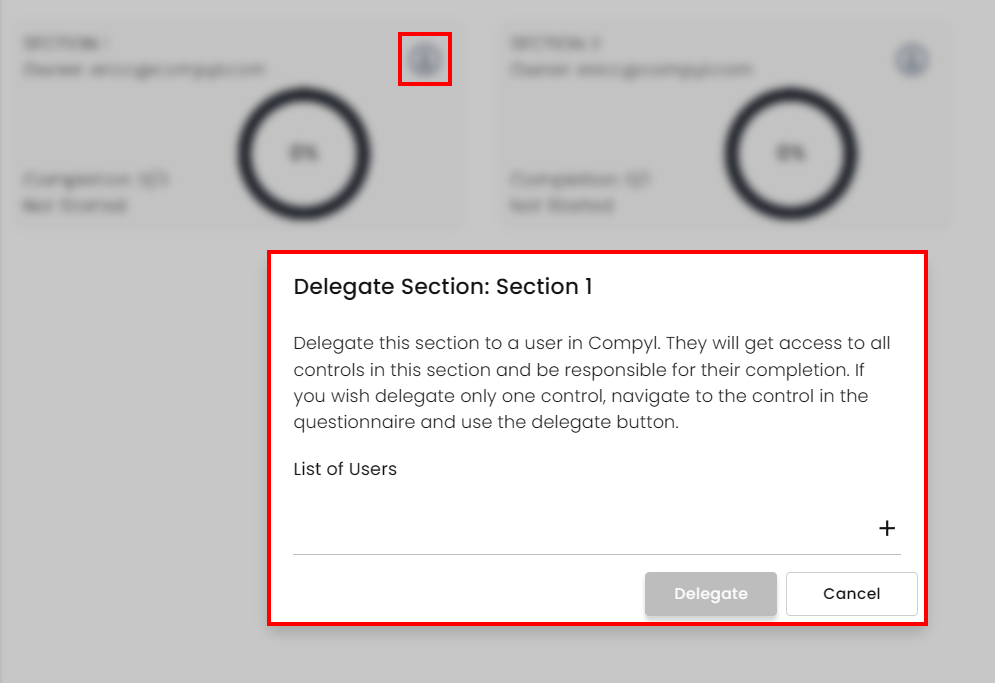
In order to delegate a section, the user must exist in Compyl with Questionnaire permissions. If their account exists, the Delegate button will turn green:
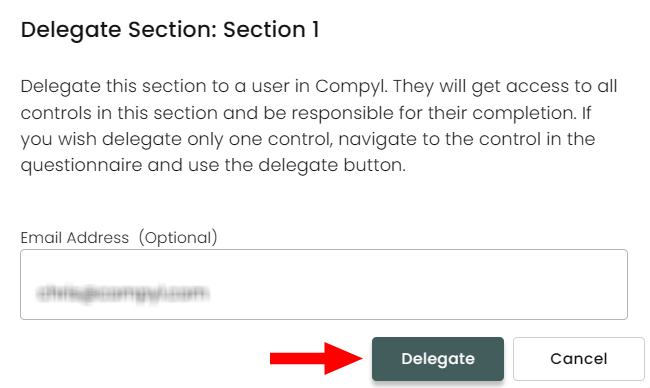
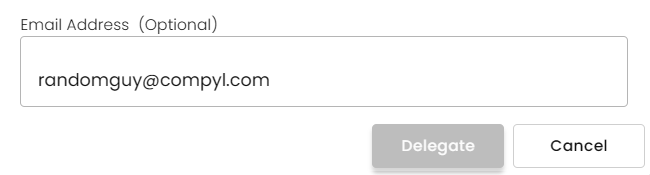
Otherwise you won't be able to click on the button at all as it will stay grey:
NoteTo reassign the entire questionnaire, the reviewer must update this within the Edit view and reassign the owner.
Starting the Questionnaire
To begin, click on the first section on the upper left corner.
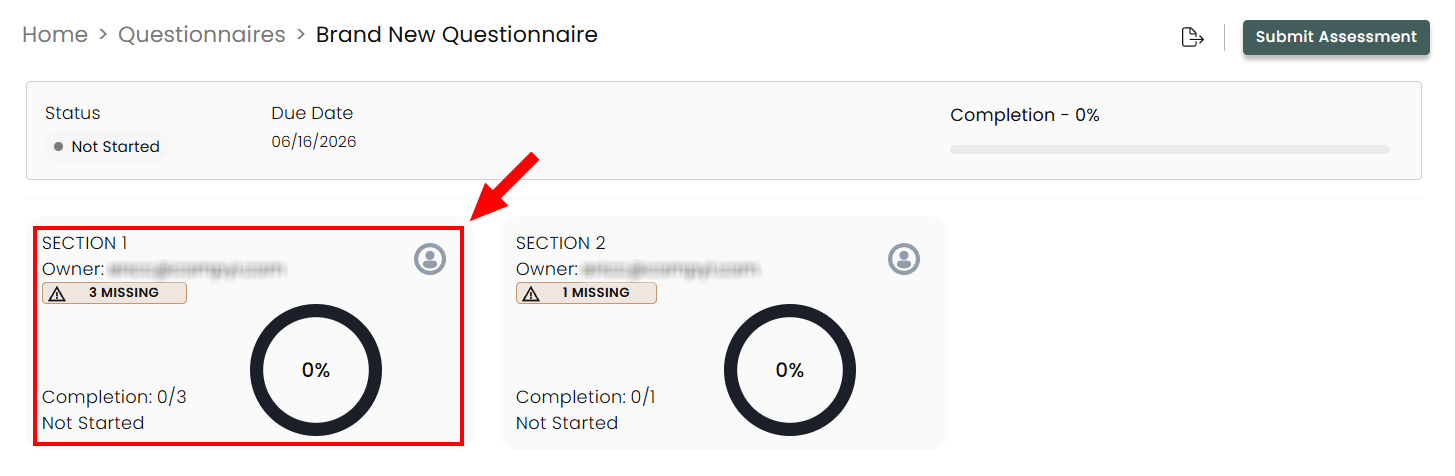
Click on the first question, select your answer and add any comments or files that are relevant. You can expand the question to reveal the entire question and all available options.
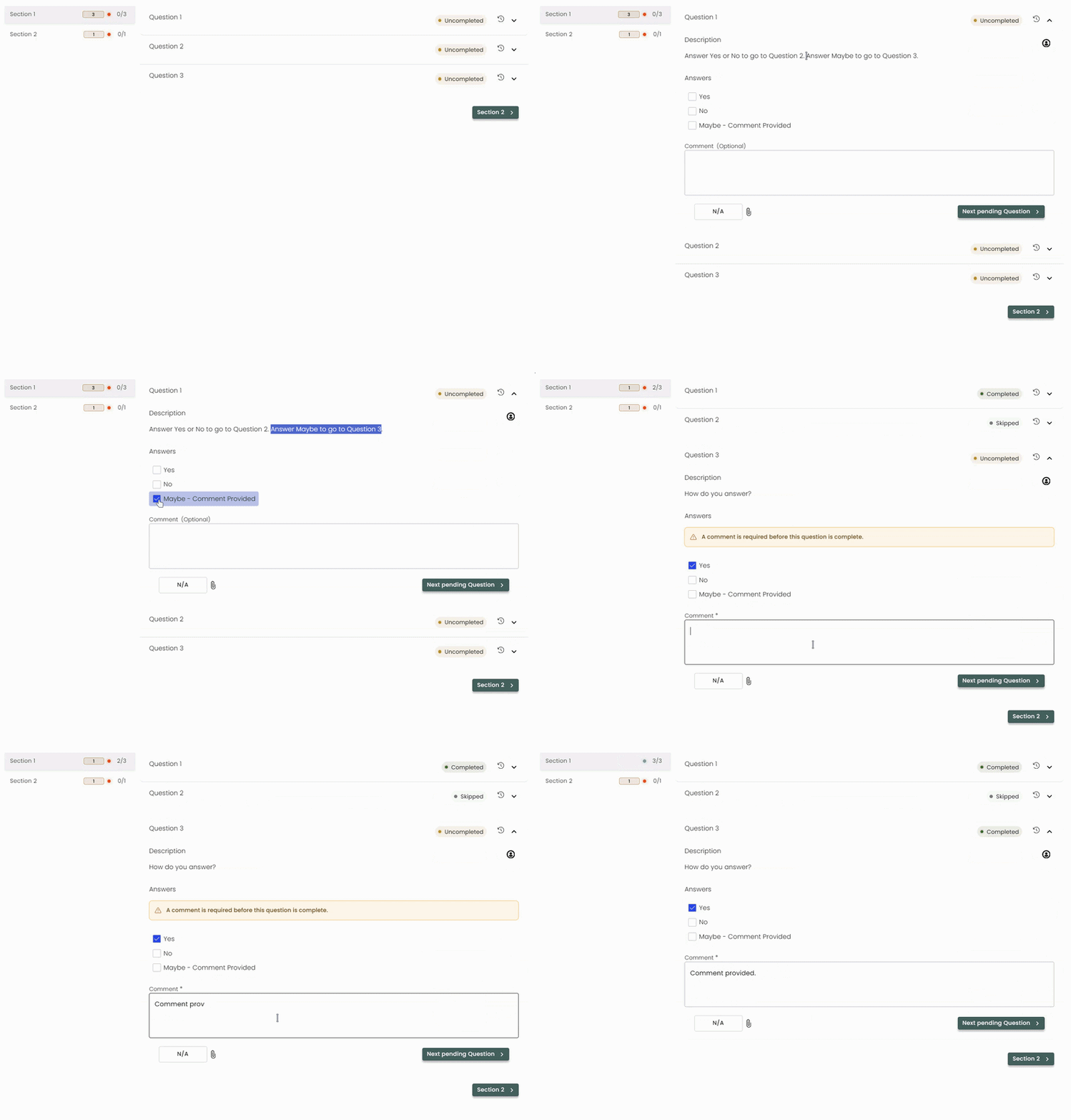
Some questions might require a comment or file upload, which will be identified. If you feel that the question is not applicable, click the N/A button. If you feel that you are not the correct person to answer this question, you can delegate the question to another user by using the person icon on the upper right corner of the question. Once you have answered the question, click Next pending Question.
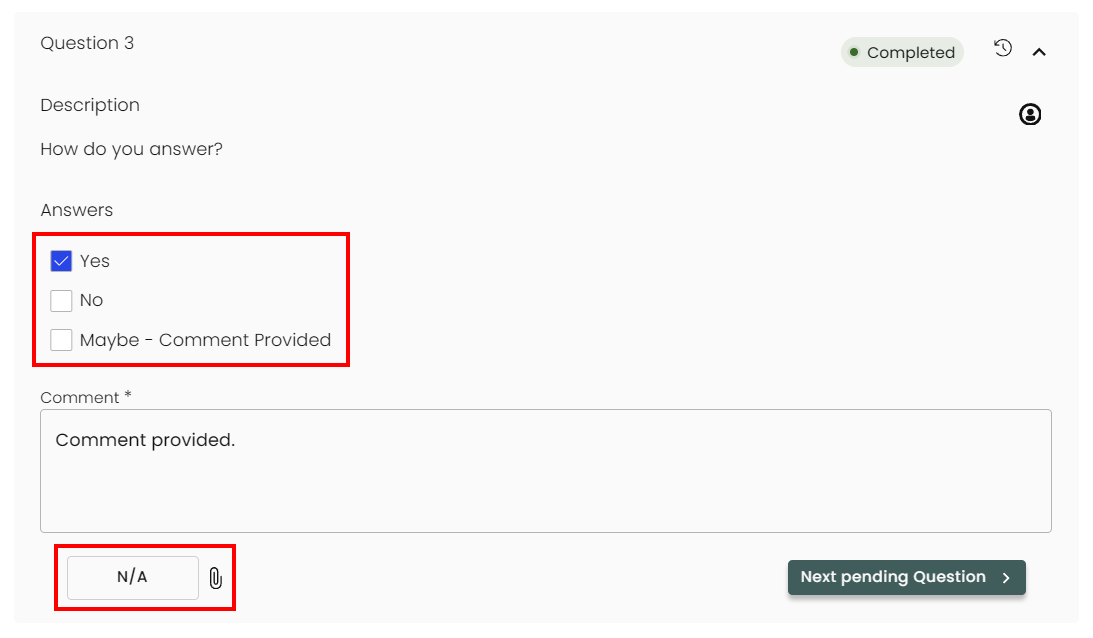
Continue this process until all questions are answered. The questionnaire does not have to be completed at once, all answers are autosaved to keep your place for when you are able to resume the questionnaire.
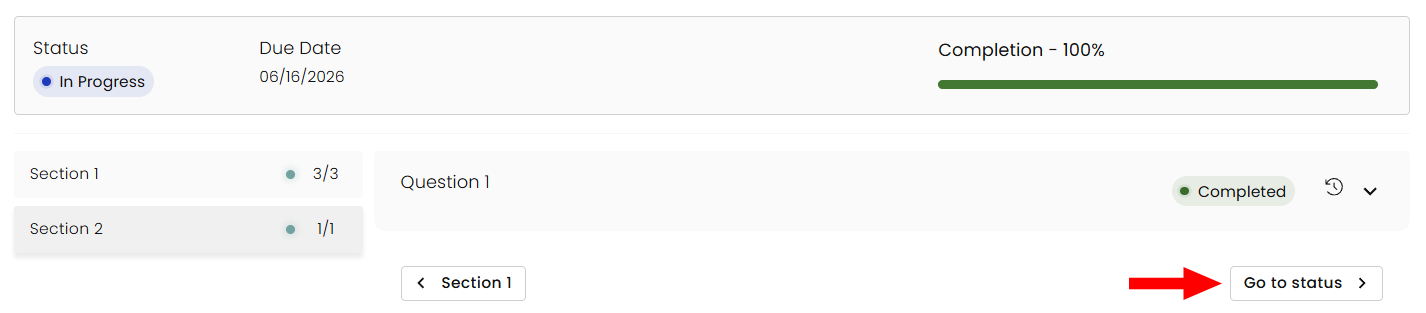
When you get to last question of the questionnaire, click Go to status and you will be direct back to the overall status page of the questionnaire.
Submitting an Questionnaire
Once all questions have been answered, the Submit Assessment button will no longer be disabled, and you can submit the questionnaire.
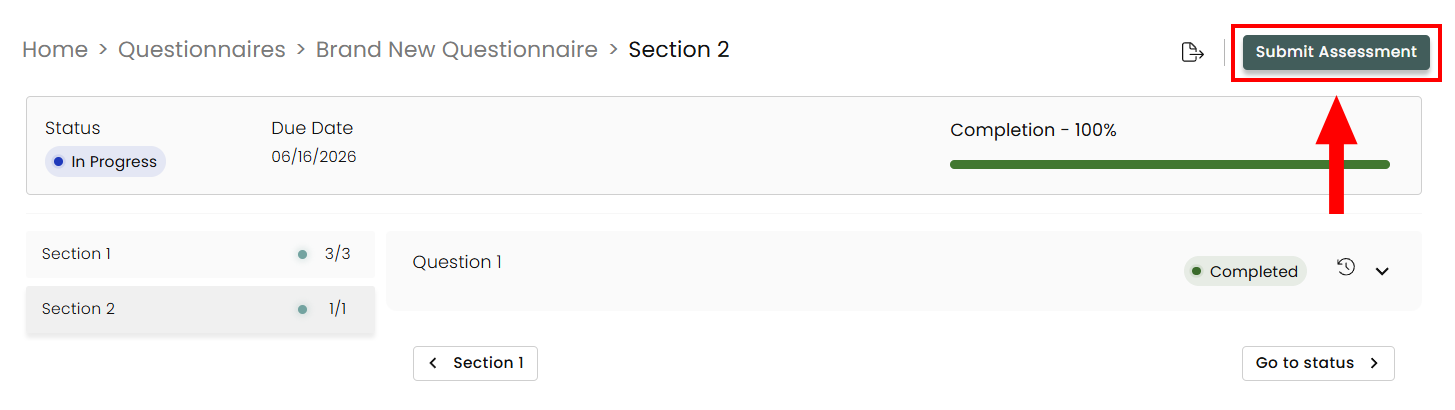
Agree to the warning if you have completed the questionnaire to the best of your ability.
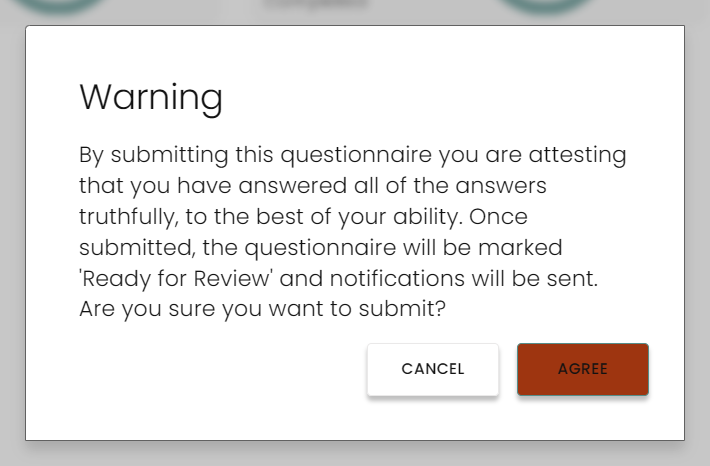
The reviewer of the questionnaire will receive a notification that it is ready for review, and they will be directed to a Results page of the questionnaire.
Reviewing a Questionnaire
The reviewer can see compliance scores of each section and dive deeper to see the specific answers, comments, and files for each question.
To access the assessment as a reviewer, follow the same steps to Open the Questionnaire.
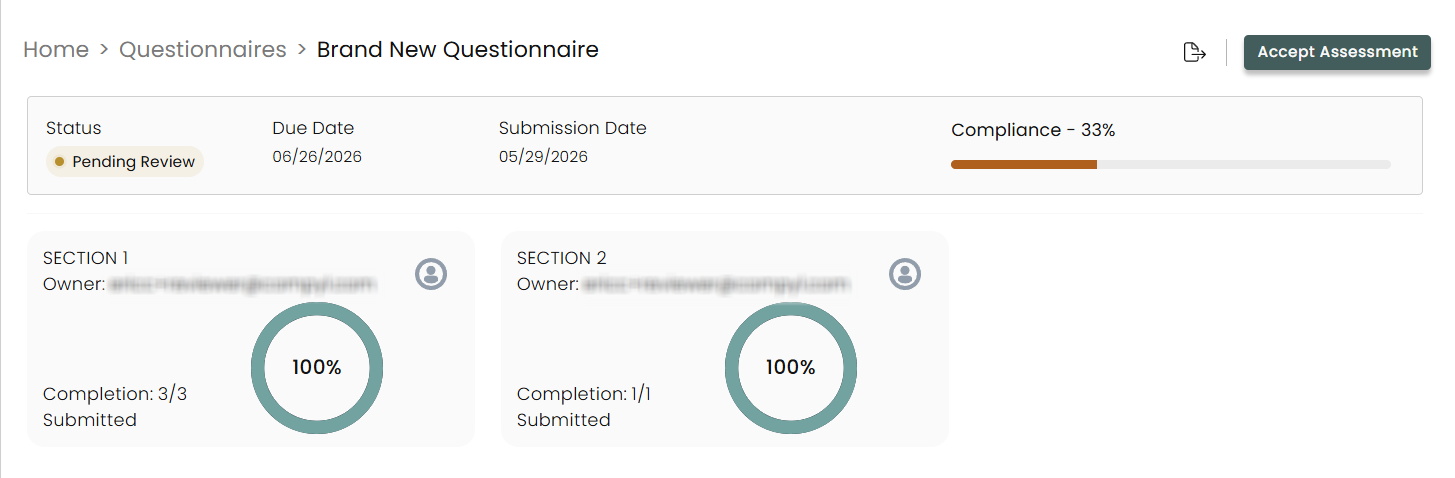
You will be directed to a page that looks similar to the sections view when completing an assessment. At the top you will see the overall compliance score of the assessment. You will also see an Export Assessment button to export a CSV of the assessment questions and answers.
To start reviewing the assessment, click the first section on the upper left side as indicated in the window below.
When reviewing the question, you will see the question and answer, and whether the answer is compliant (based on how this is defined in the answer set).
You have the option to Override the compliance status of the question if the answer provided is actually compliant/non-compliant despite how it is define in the answer set. If you are unsatisfied with the answer given and/or more information is needed, click Reject and the owner of the question will receive a notification that the question was rejected. If you do not want the answer of a question to affect the overall compliance score of the assessment, click Create exception, and the answer will not be counted.
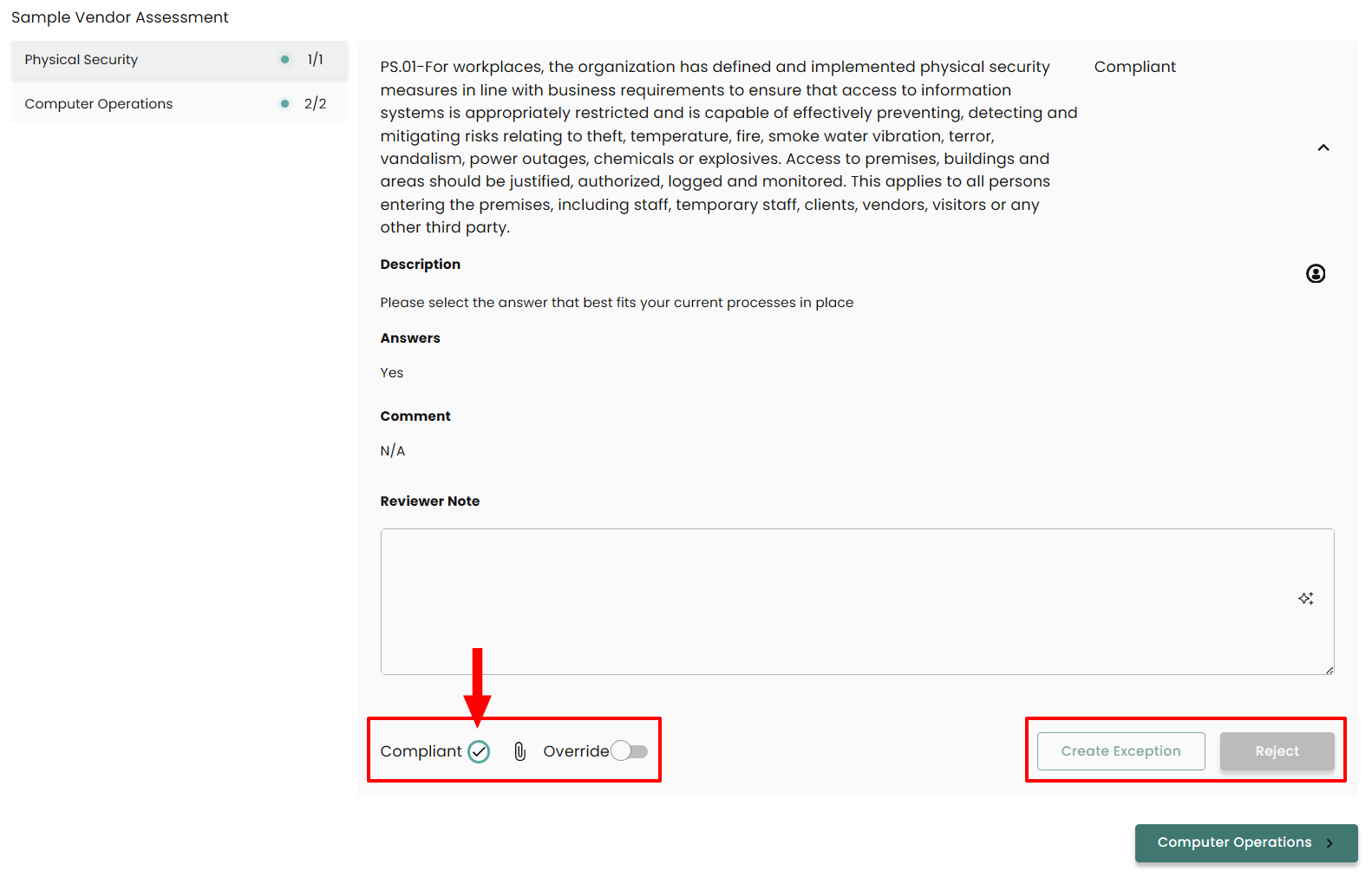
When your review of the question is complete, move to the next question/section by clicking the name at the bottom right of the question. Continue this process until your review is complete. On the last question, click Go to status, which will return you to the status review page.
If you are ready to finalize your review, click Accept Assessment. This will lock all answers of the assessment.
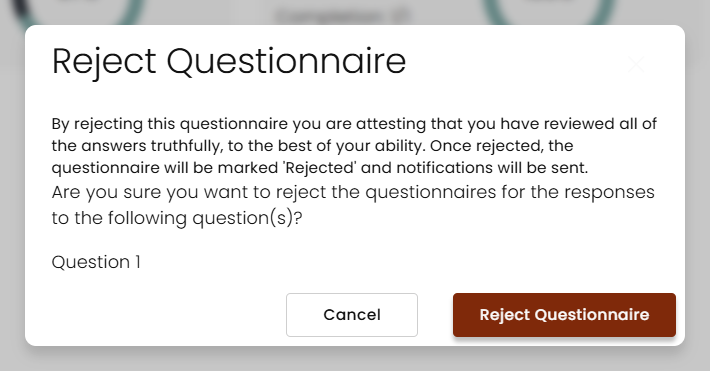
If you rejected any questions, this will instead allow you to send the rejected questions back to the assessor.
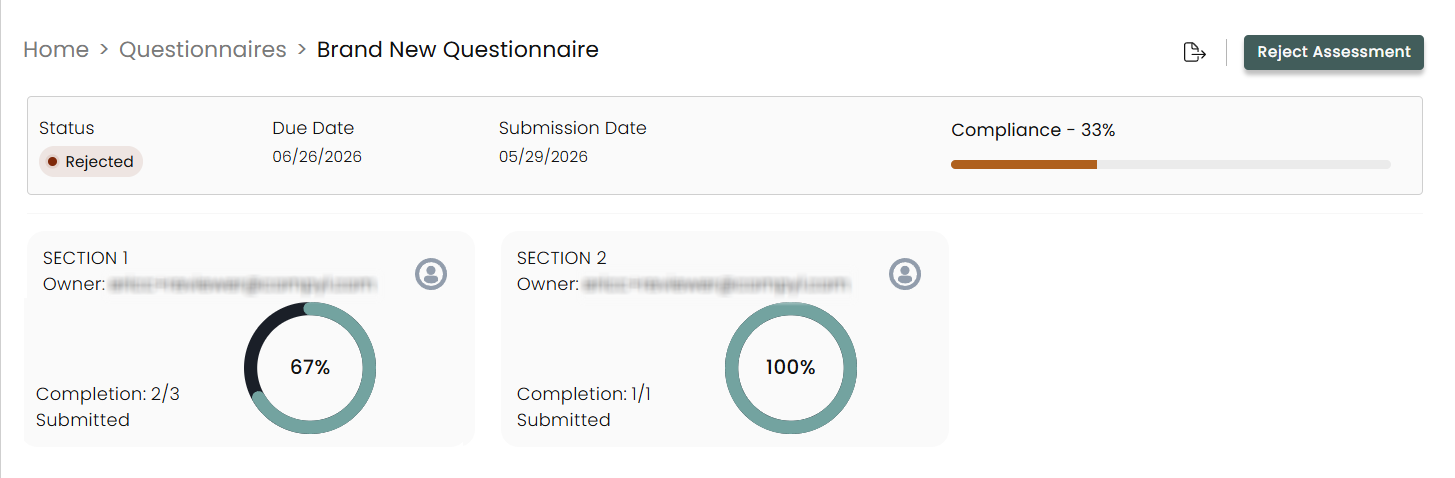
A pop-up will ask to confirm the rejection, which will send an email informing the assessor of the rejected question.
To learn how to create a questionnaire, please visit our Questionnaire Builder article.
Updated 4 months ago