
Provisioning and Managing Users
Compyl allows for the meticulous management of user permission through a flexible provisioning model
Compyl's various Permissions and Groups allow administrators to control what users can do within the system at a granular level. A Permission is a single permission that is specific to a feature or function in Compyl. A collection of Permissions are placed into Groups, which could be based on a job function or a required access level for completing actions in Compyl. Groups are then assigned to Users, giving them the suite of Permissions within the group(s) they are a part of.
Permissions → Groups → Users
On this page, users can Manage Users and Manage Groups, as well as view the full list of available Permissions at the bottom.
NoteOnly users with permissions for adding and updating users and groups can use this section, such as Administrators or user key users with those permissions allocated.
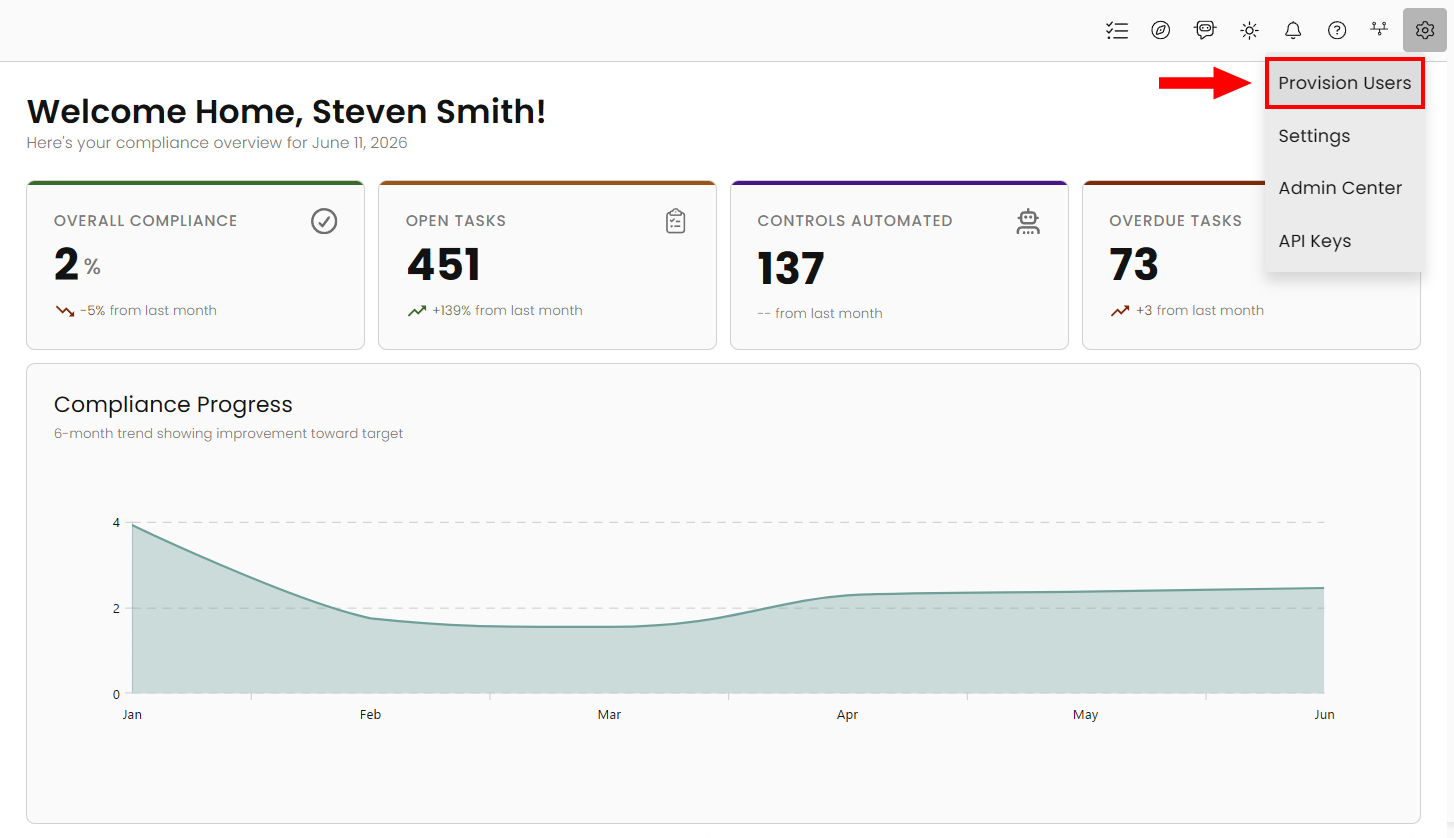
Using the gear icon in the right corner of the home page, select Provision Users.
User Access Management
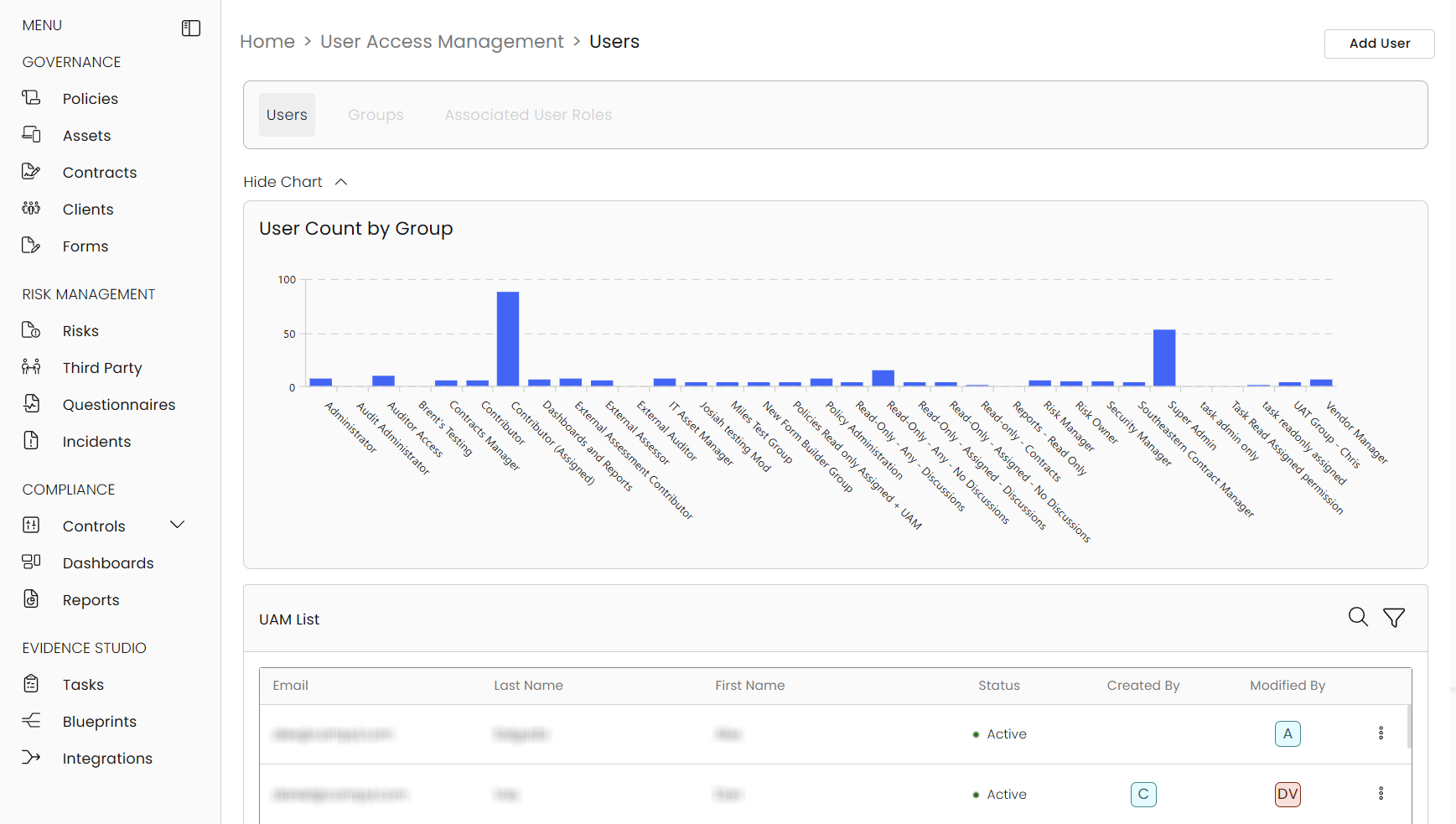
Here is the User Access Management landing page. You'll see three tabs at the top — Users, Groups, and Associated User Roles. Right below you'll see a chart showcasing the number of Users per Group for a handy quick visual reference. You automatically are defaulted to the Users tab.
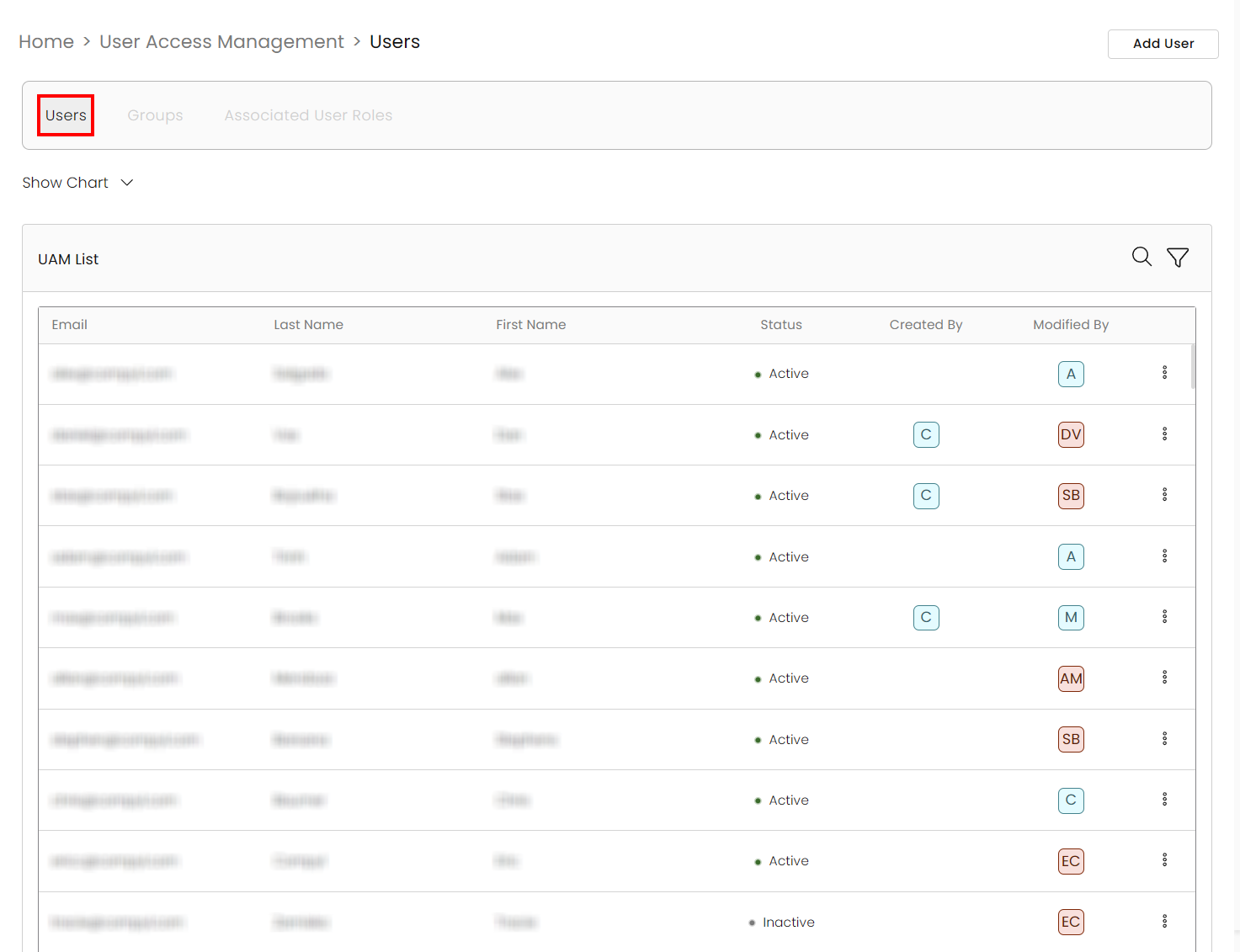
Users Tab
Here you can view and filter through all of your users. Clicking on the column headers will allow you to change the sort order.
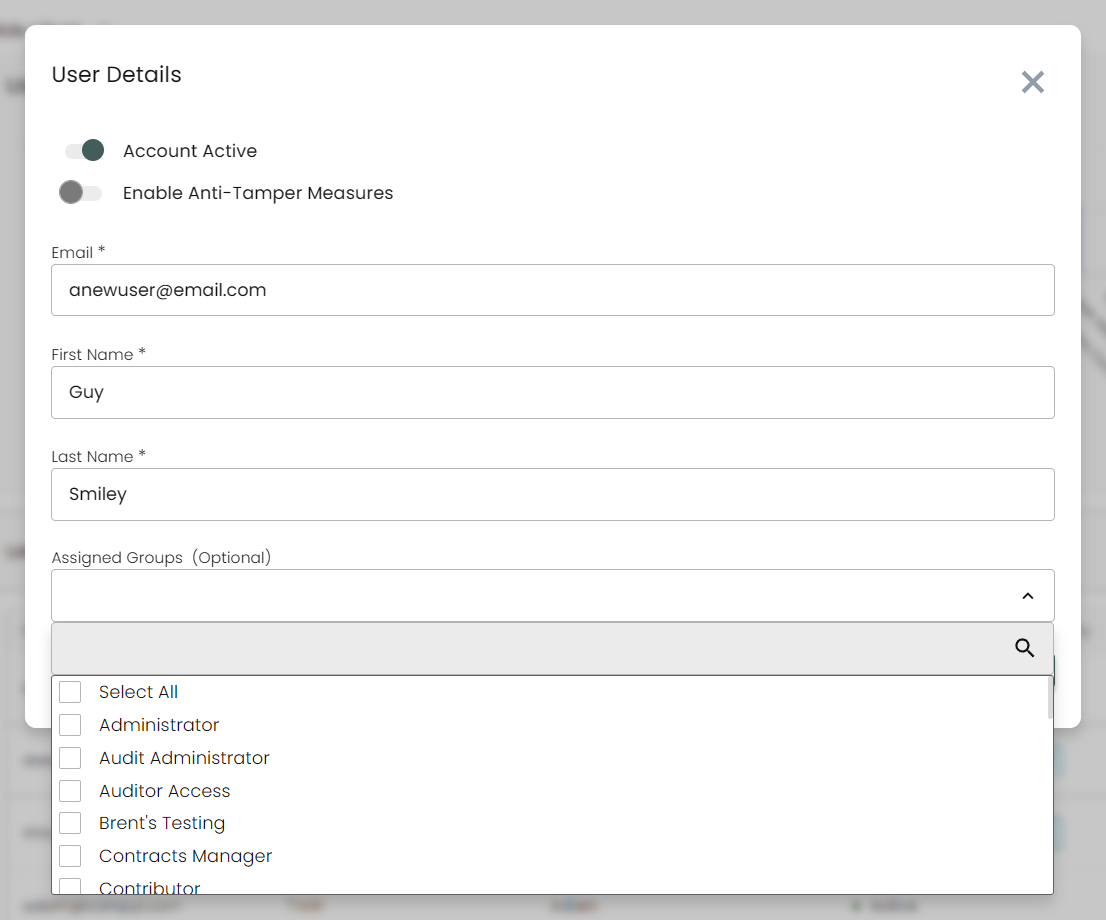
You also have the ability to add new users. Click Add User at the top right of the page to add a new user.

Fill the user details in the popup window and choose the group(s) you want to assign to the user and click Save.
- Enable Anti-Tamper Measures adds a watermark on the screen for the user while using Compyl.
The newly added user will appear in the Users section on the User Access Management page seen above.

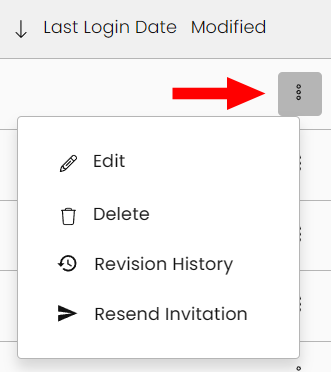
Use the 3-dot menu within the users grid to update the details and groups of an existing user, delete users, or additional actions such as view the revision history or resend an invitation to join Compyl.
ImportantGroup or shared email accounts cannot be added as users properly. Only individual email addresses are supported.
Deleting Users
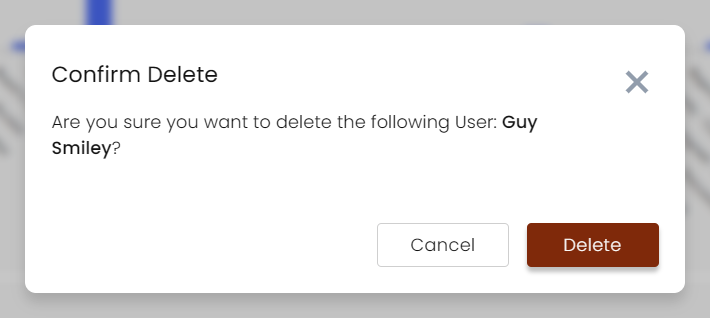
Users that are assigned as an owner of any record(s) within Compyl cannot be made inactive or deleted. If attempted, a validation window will appear listing all records that user is assigned. The user will need to be removed as an owner from the records in order to be made inactive or deleted.
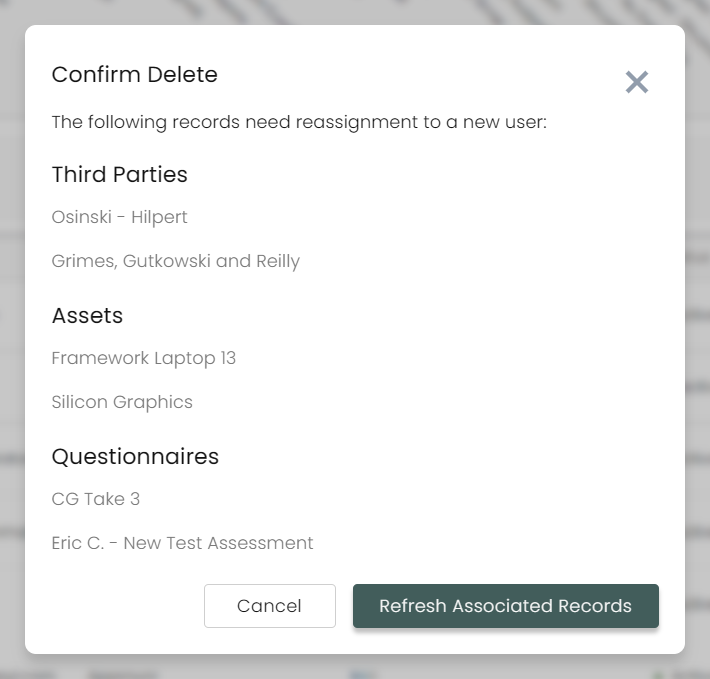
Each of the records is a link. Clicking on one will open that record in a new tab, allowing you to remove or reassign them. Once all of they've been removed from all of them, you can click Refresh Associated Records and it should now allow you to delete the user.
Groups Tab
User Groups contains a collection of role mappings with permissions to perform actions in the context of an organization. A User can belong to one or more groups, depending on what functions they need to carry out in Compyl. Some examples of Groups include: Administrator, Risk Manager, Assessment Reviewer, and Read-Only Access. You can read about these pre-configured groups and permissions extensively in this article here.
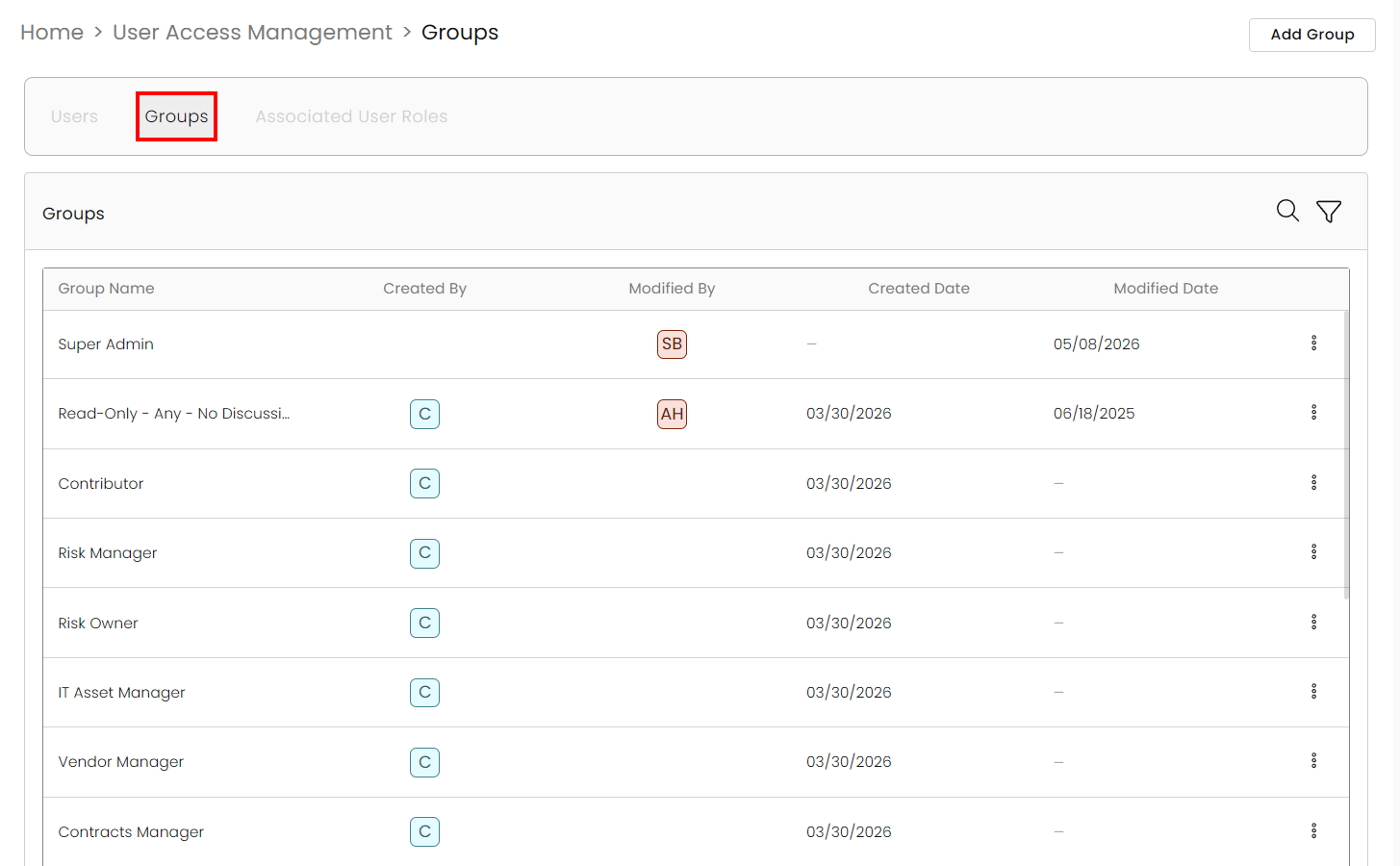
To add a Custom group, click on Add Group.

Create a Group name. If this mirrors or is similar to another group, you can copy those permissions to this newly created one as well, which you can edit later on.
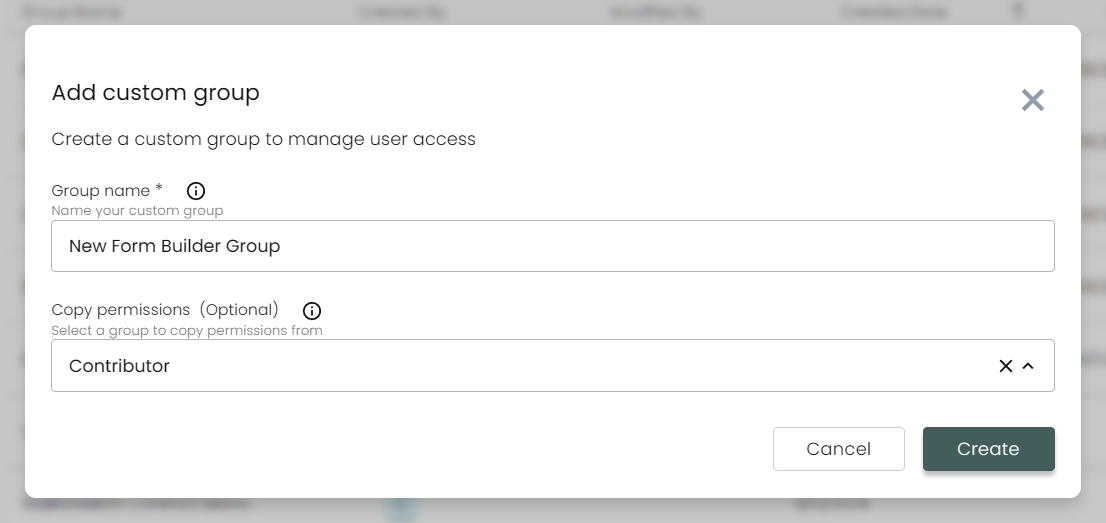
Clicking Create brings you to the Edit Group window. You can see the permissions present from what was selected prior but you can now add and/or remove them to tailor this group to your specific needs.
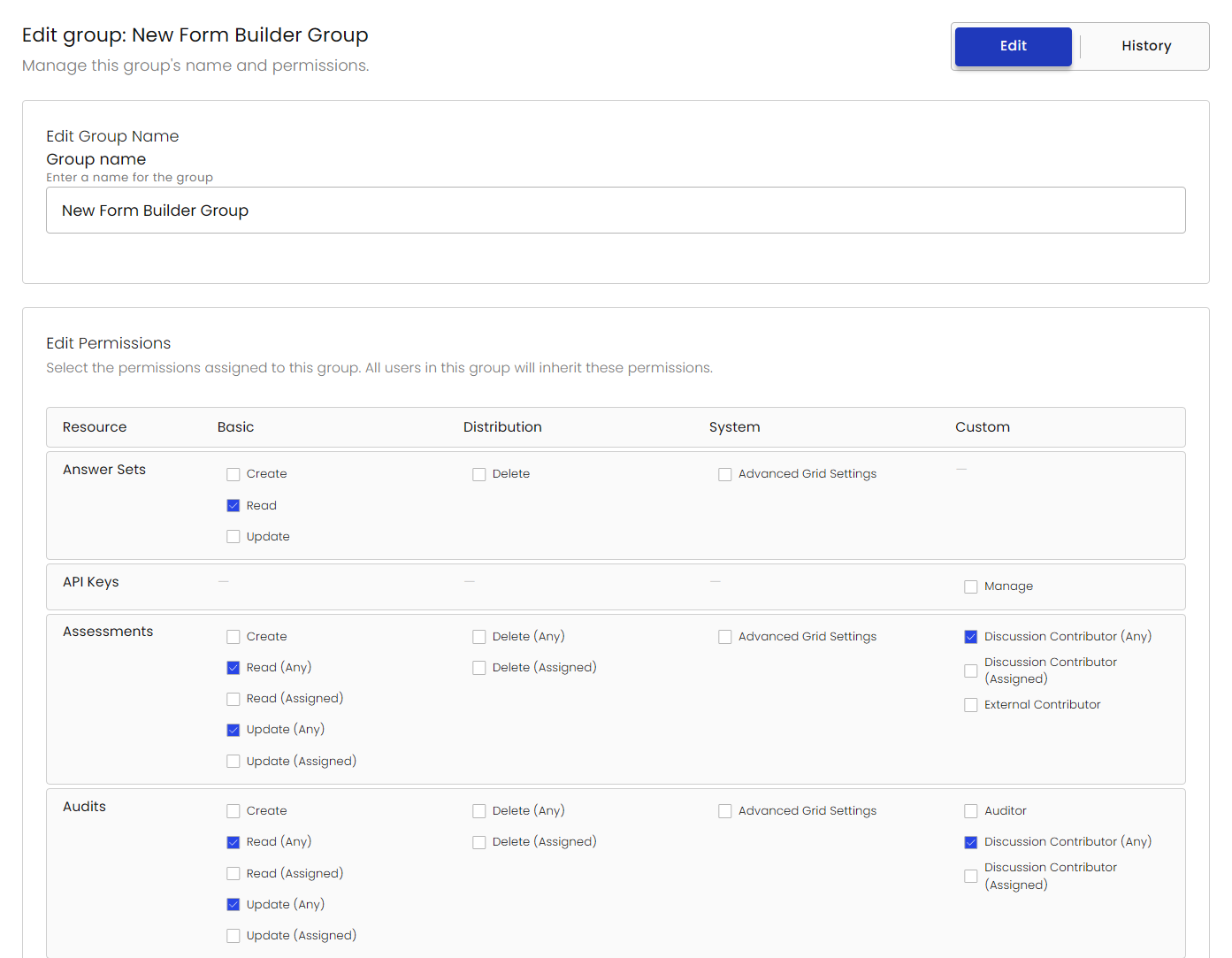
Each module has granular permission for Create, Read, Update, and Delete. Additionally, for any module where records contain owners, there are two types of permissions that can be allocated: Any and Assigned.
Any: Ability to read, update, or delete any of the records within that module
Assigned: Ability to read, update, or delete only the assigned records of that specific user
Click Save when you have finished allocated permission to the group.
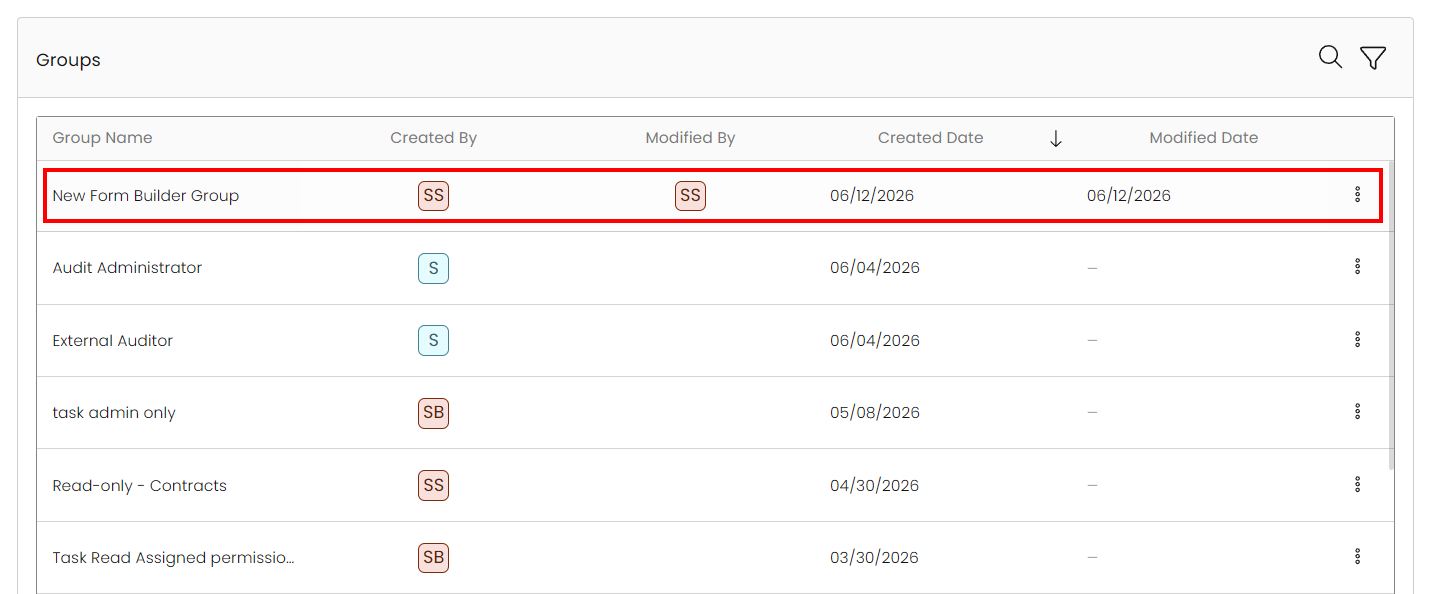
You can view your newly added group in the main Groups page seen above. When adding a new user, you can assign that user to any one of the default groups or new groups you have created.
Group History
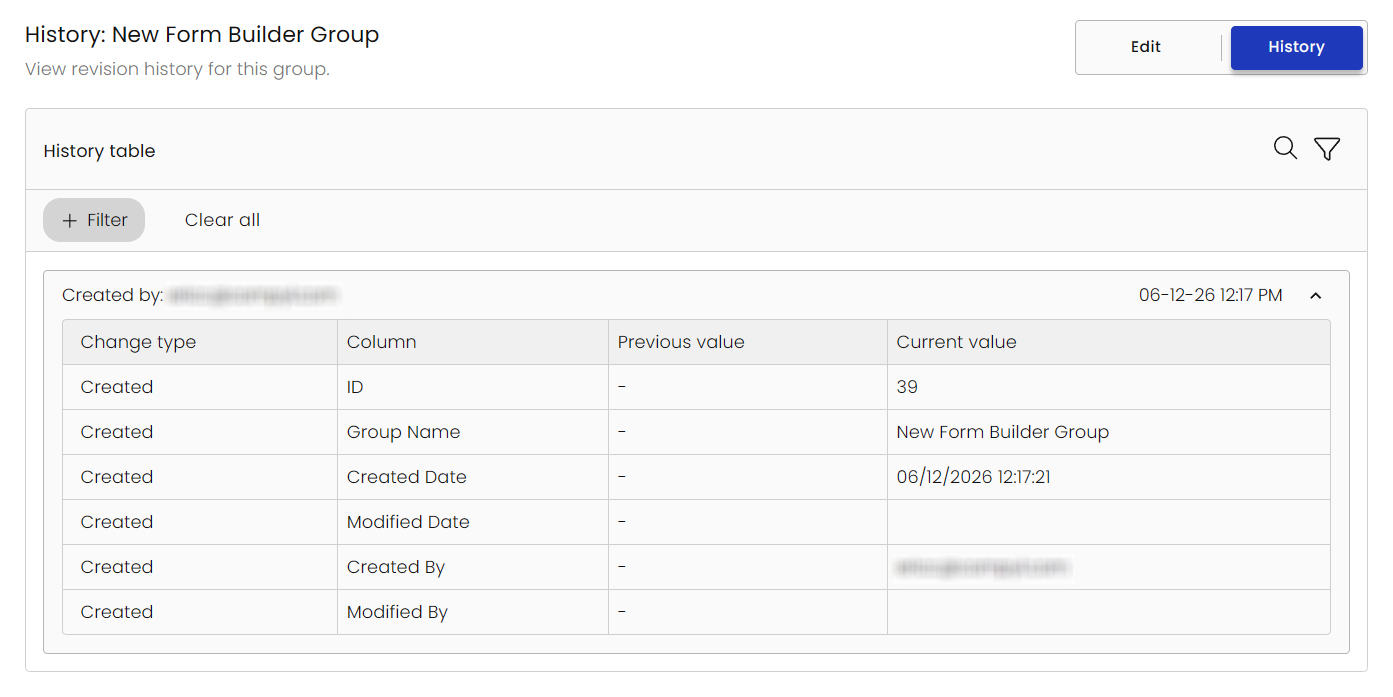
Clicking on History will display a complete audit trail for the group, including the type of change, by whom, and when it occurred.
Associated User Roles
This tab let's you manage the user roles for each of Compyl's modules.
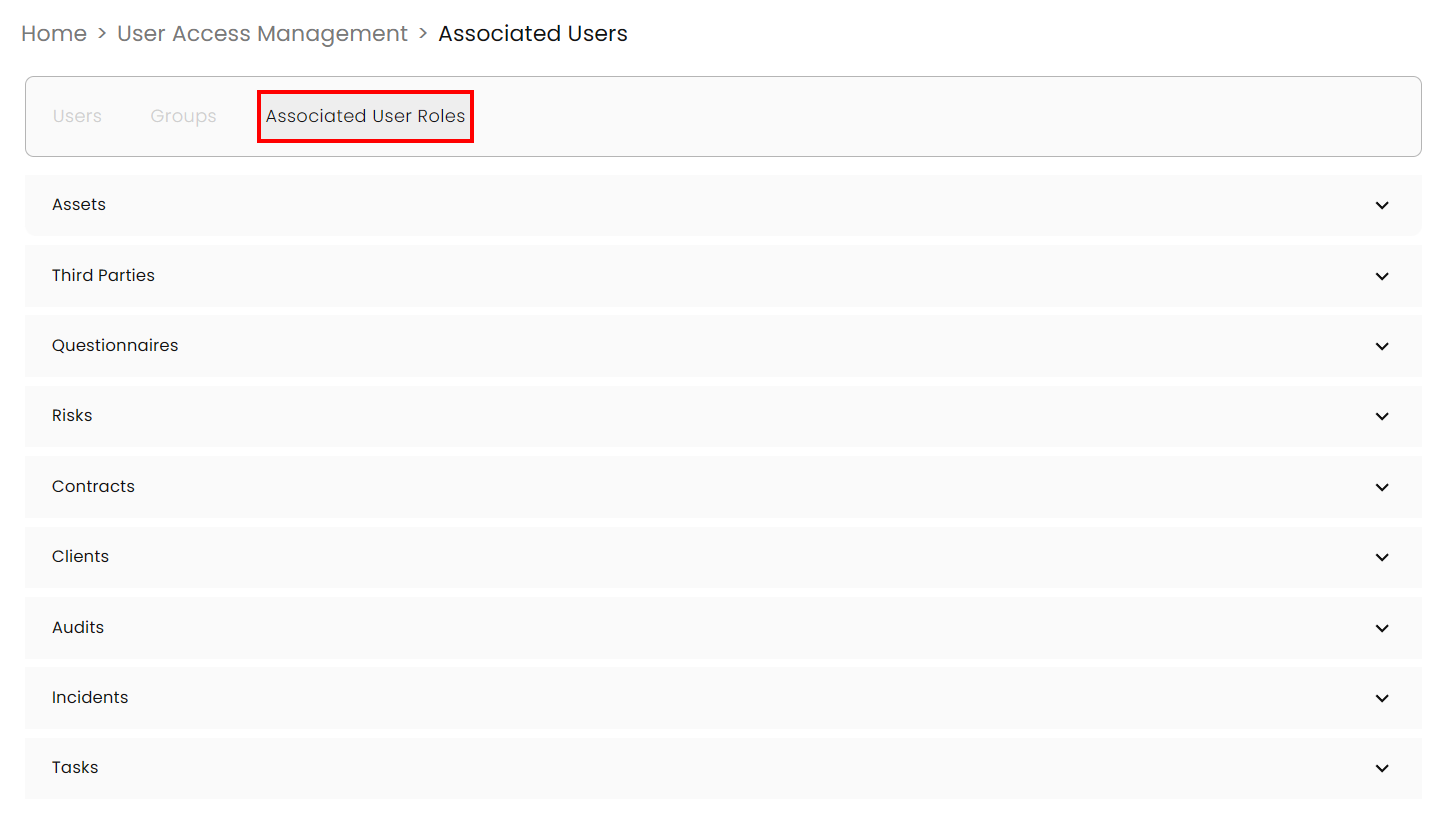
Expand the module you wish to edit by clicking on the carat on the right. You will see all current roles present, the notifications they receive, whether or not they are required, and the ability to delete or add additional ones.
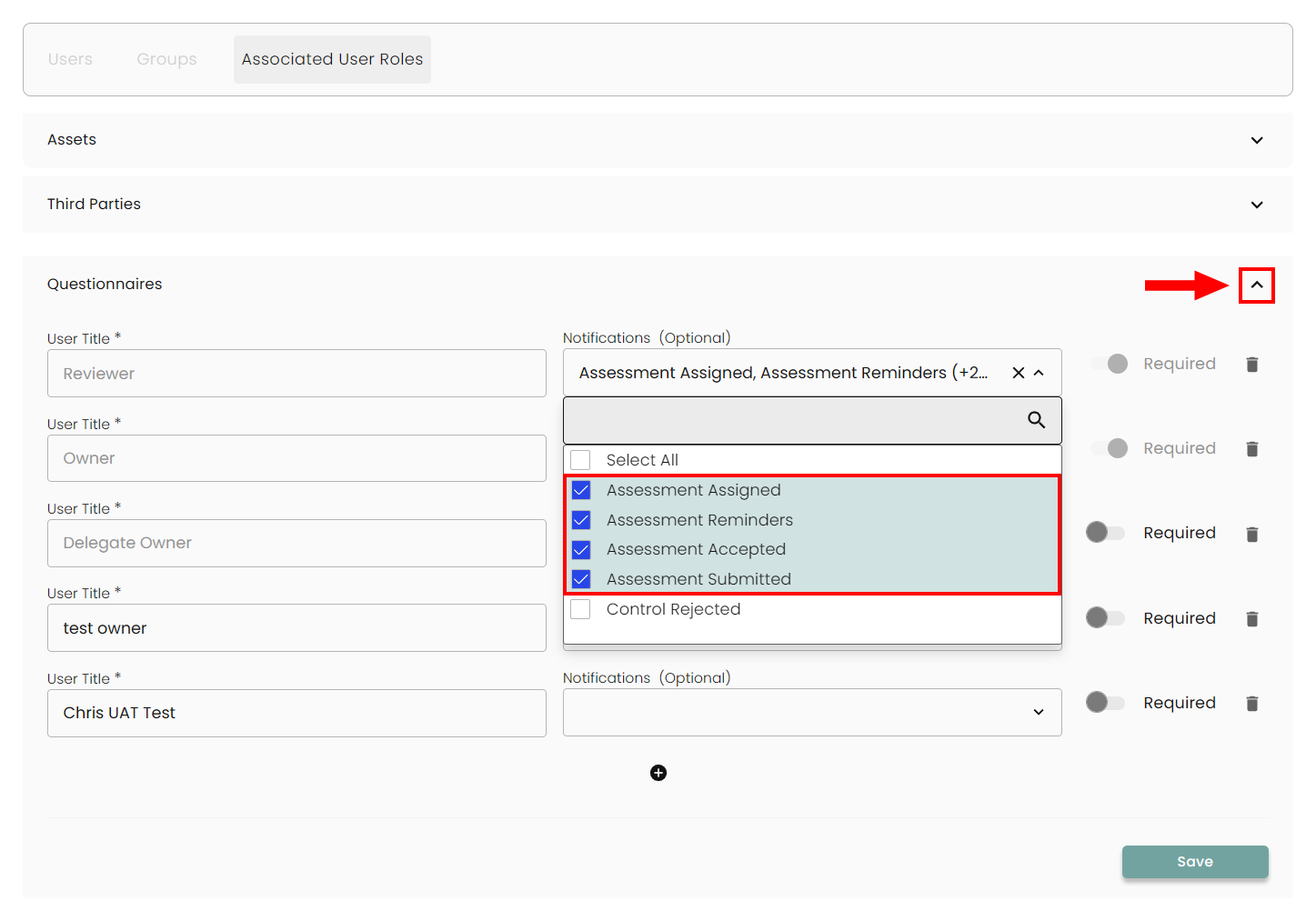
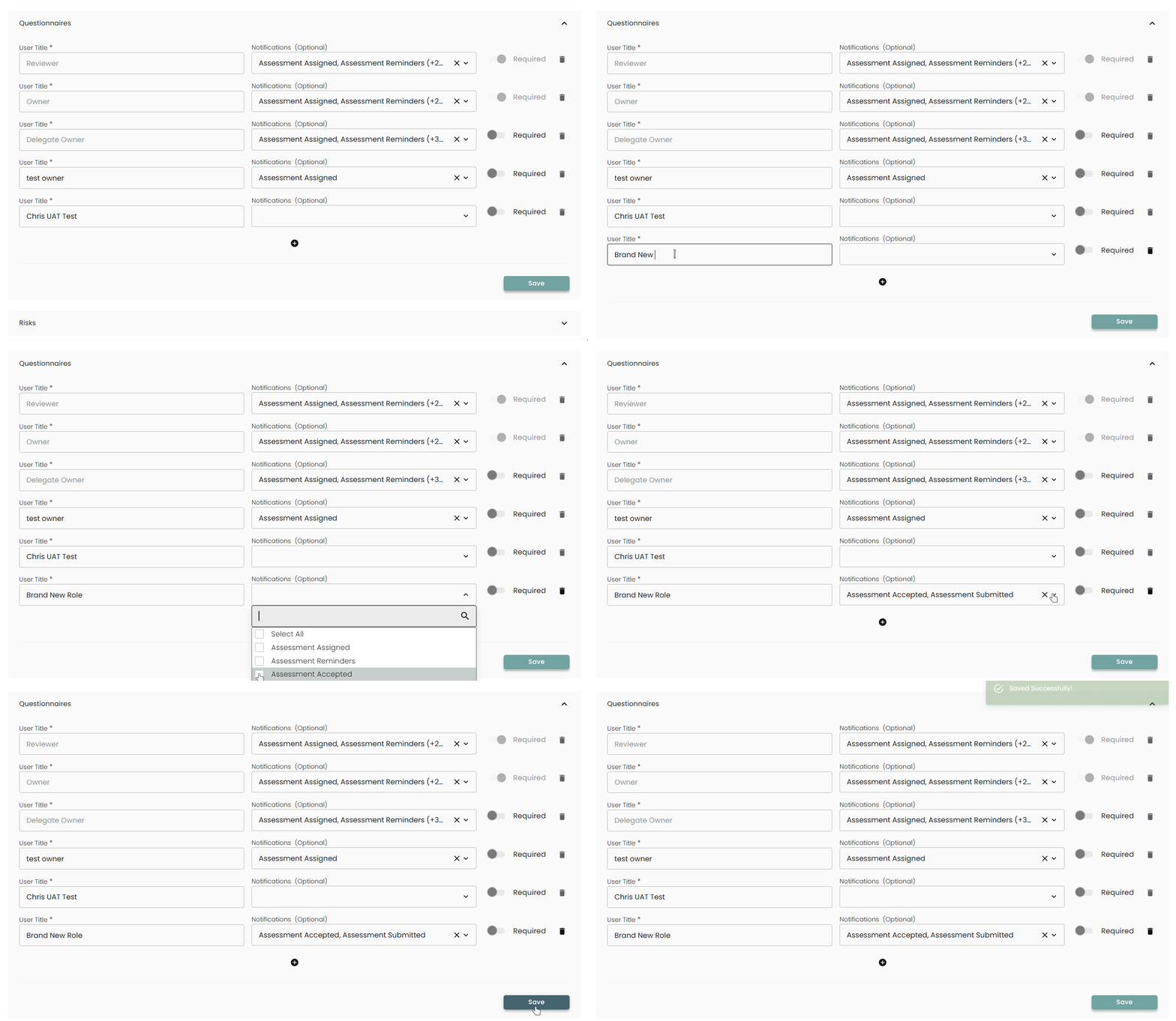
To add a role, click on the + icon at the bottom and fill in the relevant details. Then click on Save.
ImportantIf there are any users associated with a role, they must be removed from it before the role can be deleted.
Manage Notifications
Below are the default notifications for Associated Users. These notifications are sent via email and shown inside the application via the Notifications icon on the upper right corner.

The two most common types of notifications are Assignment and Reminders.
Assignment: These notifications go out when a user is assigned any role within a record in Compyl. This also encompasses notifications sent out when the user is unassigned from that record.
Reminders: These notifications go out when an item's Due Date is coming up in 30 days, 15 days, 7 days, and 2 days. This also encompasses notifications for when the item is overdue, which is sent out every week until the item is complete. These notifications are only applicable to item with a Due Date.
Other notifications are module specific. Below is a list of all of the modules, and what notifications are possible for each.
IT Assets
- IT Asset Assignment
Vendors
- Vendor Assignment
Assessments
- Assessment Assignment
- Assessment Reminders
- Assessment Accepted - Sent out when the Reviewer of the Assessment accepts the final results.
- Control Rejected - Sent out when the Review of the Assessment rejects an answer. This should be assigned to Owner/Delegate Owner, or whichever roles completed the Assessment.
- Assessment Submitted - Sent out when the Assessment is initially submitted for review. This should be assigned to the Reviewer.
Risks
- Risk Assignment
- Risk Reminders
Tasks
-
Task Assignment
-
Task Reminders
-
Request Approval - This notification is linked to the "Require Acknowledgement" functionality withinTasks . If enabled, this notification is sent to the user role that needs to review and approve the Task. For example, the Owner is set to receive "Request Approval" notifications, they will be sent the notification to approve and complete the Task when another user within the Task submits the task for approval.
In the Task, you cannot enable "Require Acknowledgment" until an Associated User has this notification assigned.
Contracts
- Contract Assignment
- Renewal Reminders - This reminder notification starts at 90 days before the contract End Date, then sends again at 60 days before, and then resumes to the normal Reminder structures of 30, 15, 7, and 2 days approaching.
- Expiration Reminders - Sent out when the Contract is expired and is sent out every week until the contract is renewed and the Status is updated to Completed.
- Termination Reminders - This reminder is driven off the the "Termination notice period" field in the Contracts form. Based on the last possible date the contract can be terminated (from the number of days specified in that field), this notification will go out 4 weeks before that date reminding owners of the time frame they have to terminate the contract. This is also sent out 2 weeks and 1 weeks before that date.
Audits
-
Audit Assignment
-
Audit Reminders - This reminder notification starts at 90 days before the audit, then sends again at 60 days before, and then resumes to the normal Reminder structures of 30, 15, 7, and 2 days approaching.
This includes notifications for when the Audit is complete, which is sent one day after the End Date of an Audit.
This also includes Document Reminders, which are sent to remind the owners to upload the audit report to the record in Compyl. If no document is linked in the Documents field 30 days after the audit, a reminder will go out for the owner to upload.
Clients
- Client Assignment
Incidents
- Incident Assignment
- Incident Reminders
Updated 8 days ago