
ChatGPT Integration
Integrating with ChatGPT gives Compyl visibility into your OpenAI organization administration data, including users, projects, API keys, usage, costs, and audit logs. This data supports governance, access reviews, spend visibility, and compliance reporting within Compyl.
Suggested StepCreate a dedicated OpenAI Organization Owner account (or use an existing Owner account) for this integration, and generate a dedicated Admin API key named for Compyl (for example, Compyl GRC). Only Organization Owners can create Admin API keys. A dedicated key makes it easier to rotate credentials without affecting other OpenAI tooling.
Obtaining your Admin API Key
You will create an Admin API key in the OpenAI Admin keys page of the API Platform dashboard. See OpenAI's Admin and Audit Logs API help article for the official steps.
-
Sign in to the OpenAI API Platform as an Organization Owner.
-
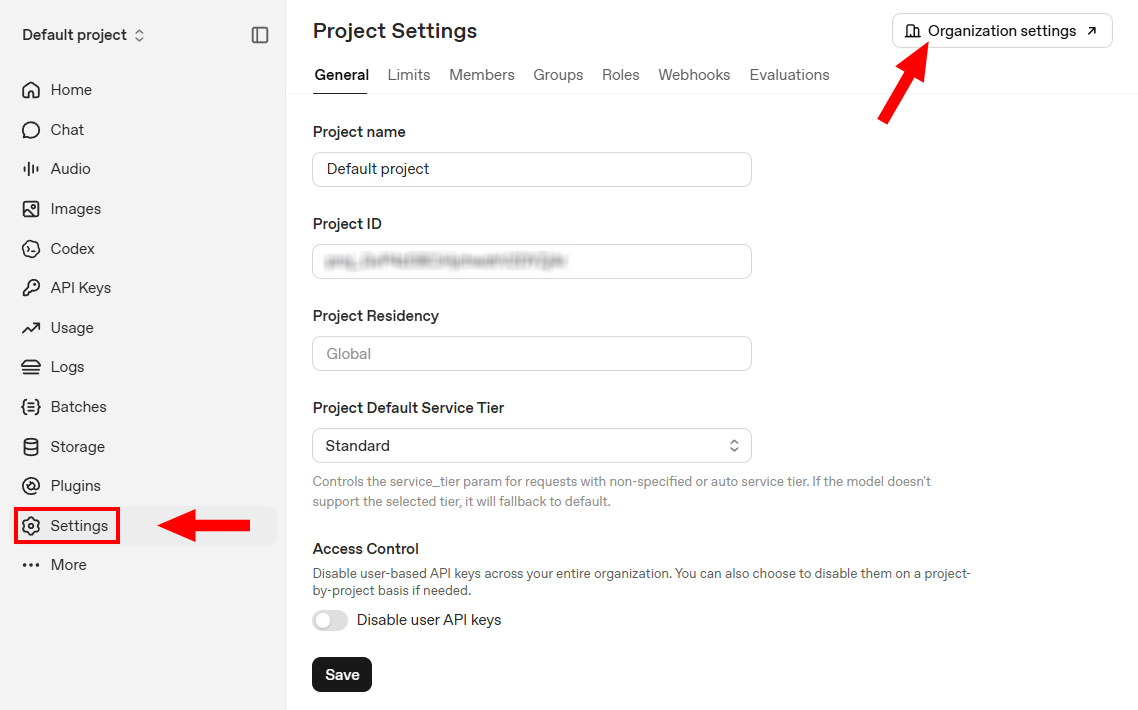
Go to Settings → Organization Settings.
-
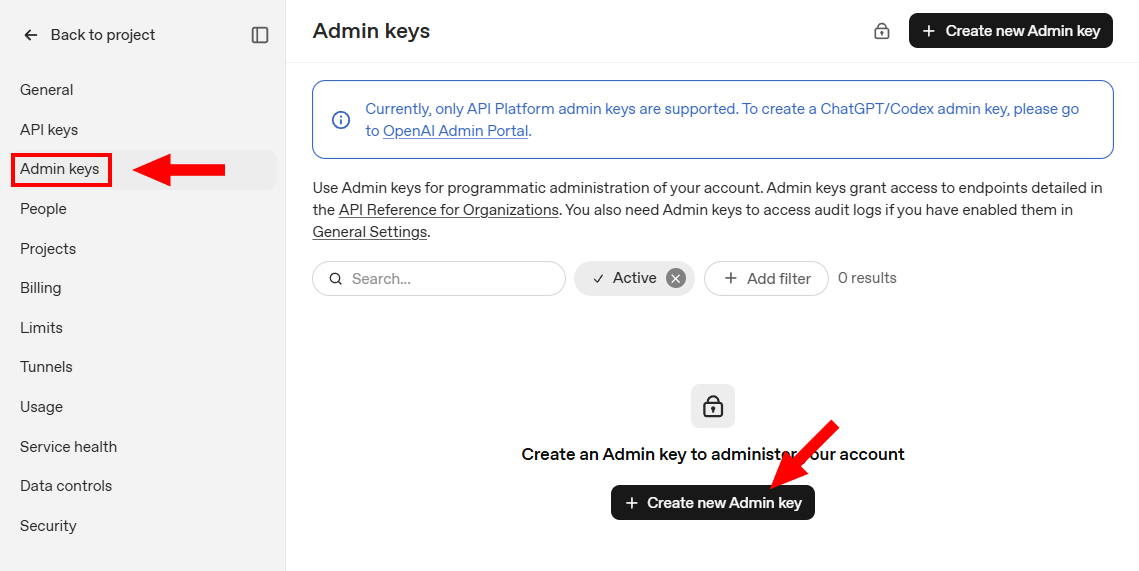
From there, select Admin keys → Create new Admin key.
-
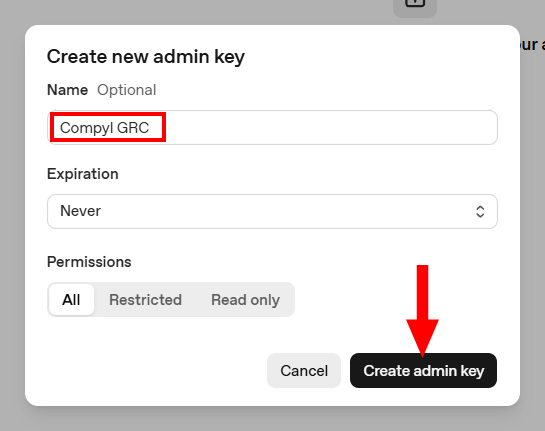
Enter a name for the key (for example, Compyl GRC) and create it.
-
Copy the full key immediately and store it somewhere safe. The value looks like sk-admin-.... OpenAI shows the full key only once.
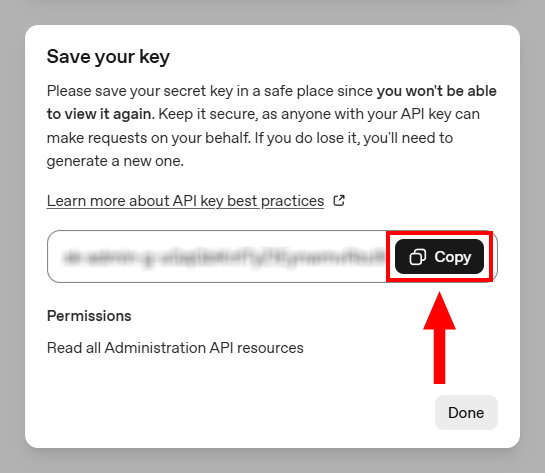
CautionCopy the full key when it is displayed. If you lose it, you cannot recover it. You will need to delete the old key and create a new one. Do not paste a standard or project API key from the API keys page; those keys cannot call OpenAI Administration APIs, and Admin API keys cannot be used for ChatGPT model requests.
If you plan to include OpenAI audit log data in Compyl, enable audit logging for your OpenAI organization first. This is not required to save the ChatGPT configuration.
Add Configuration
-
Navigate to the Integrations tab using the left-hand menu, find ChatGPT, and select +Add Configuration.

-
Next, fill in the details below and select Continue.
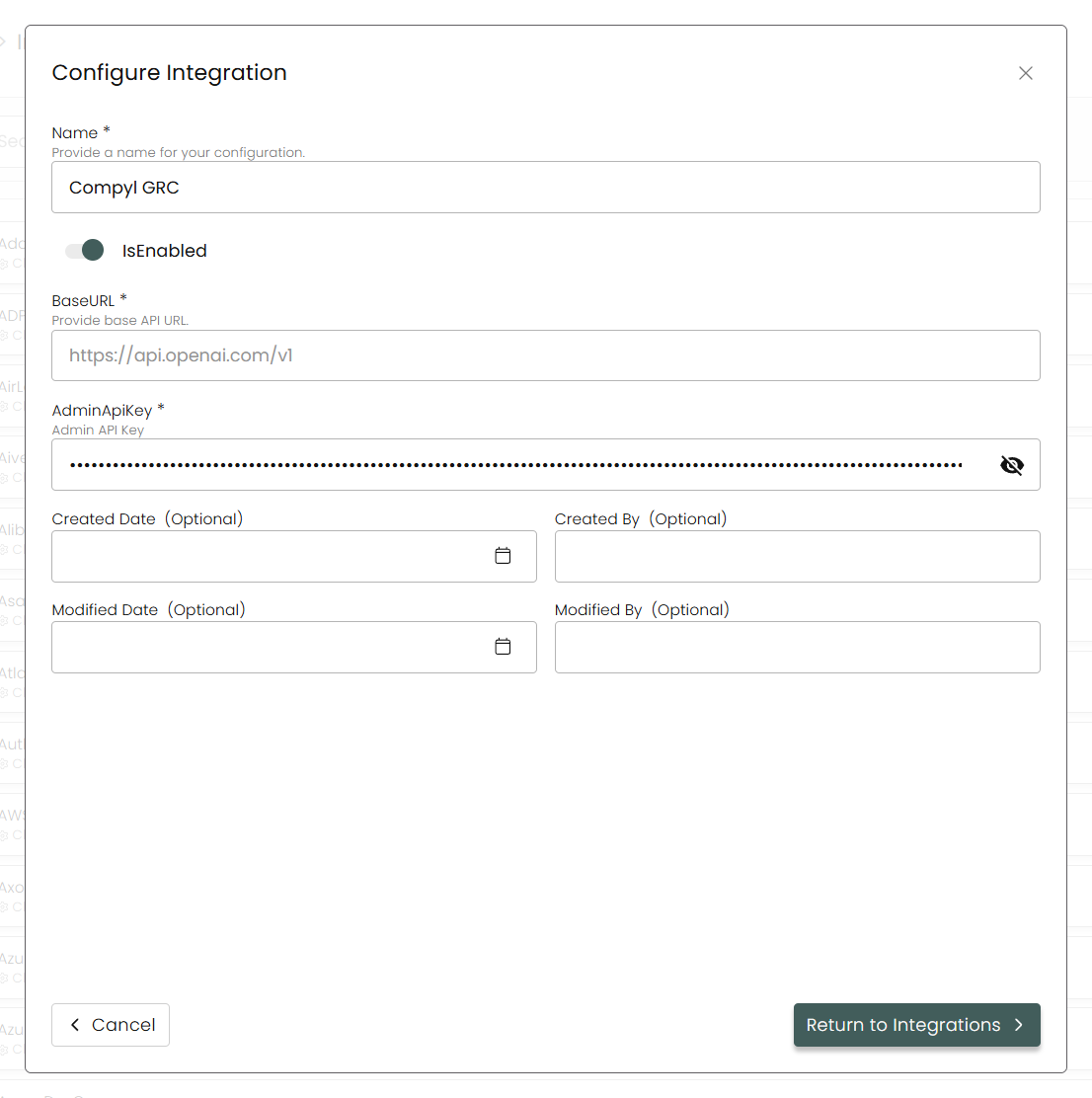
Name: Enter the name of the integration.is Enabled: Toggle button to ensure data is populated into Compyl.
Base URL: Pre-filled with
https://api.openai.com/v1.Key: The Admin API key you generated above.
Once you have completed filling out the form click Return to Integrations.
You'll know the integration is successfully added when the number of configurations increases by one (you may need to refresh the page).

Clicking on that text will bring you list of all your configurations:

Updated about 2 months ago