
Azure Databricks Integration
To integrate with Azure Databricks in Compyl, you’ll need to configure API access using Azure Databricks account/workspace details and/or Microsoft Entra ID service principal. These credentials allow secure access to the Azure Databricks REST APIs and are required to configure the Azure Databricks integration within Compyl.
PrerequisitesTo authenticate with Azure Databricks APIs, you need the following:
- Account ID
- Workspace Instance (e.g.,
dbc-a1b2345c-d6e7.cloud.databricks.com)- Client ID
- Client Secret
- Microsoft Entra Tenant ID (optional)
Generate Your API Credentials
-
Log into the Azure portal.
-
Create a Microsoft Entra application (service principal) by going to Microsoft Entra ID.
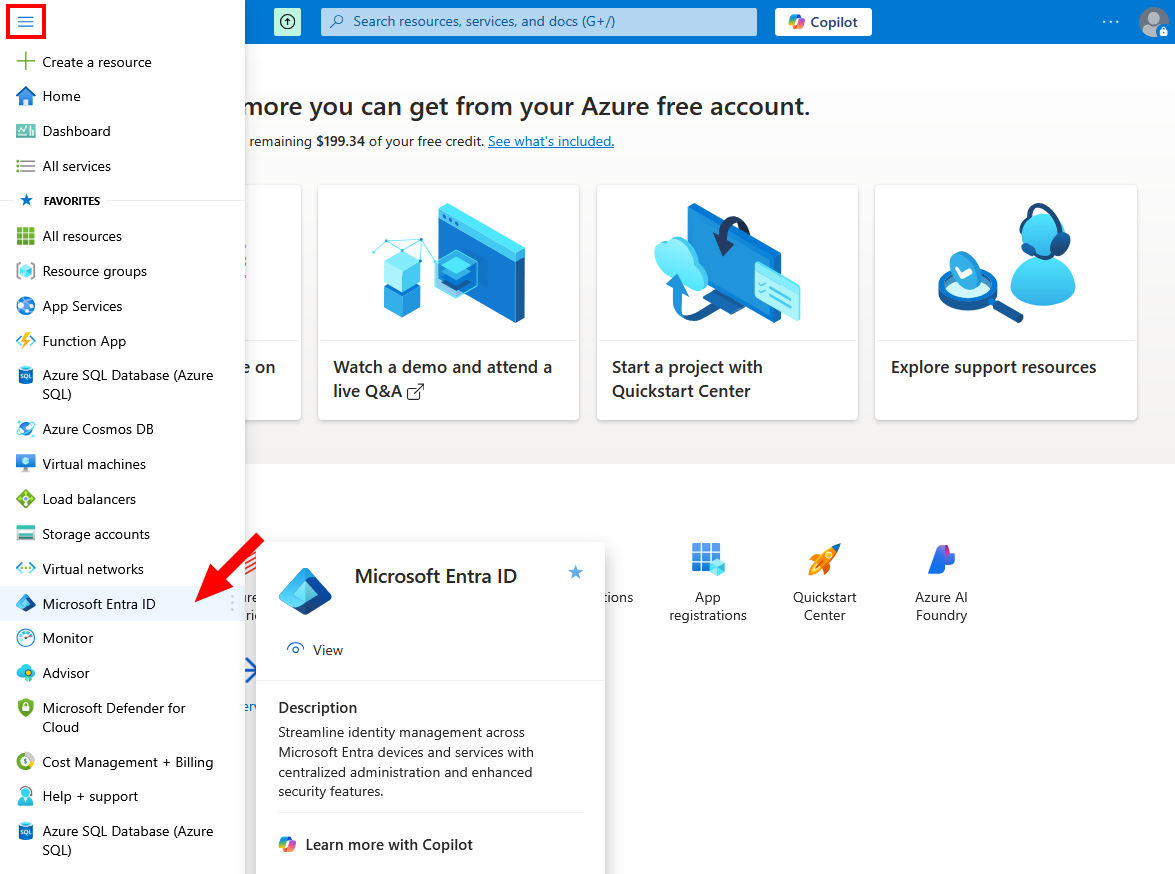
-
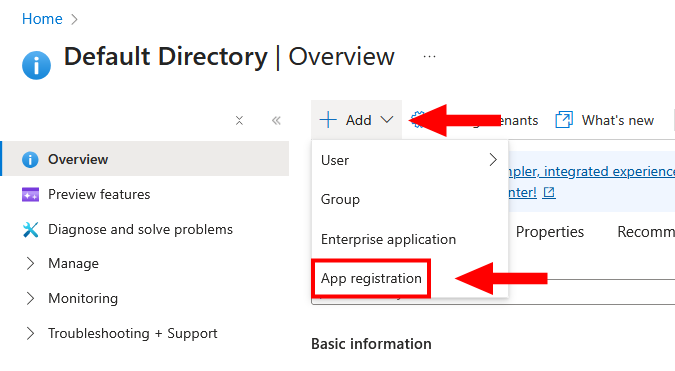
Next, click + Add and choose App registration.
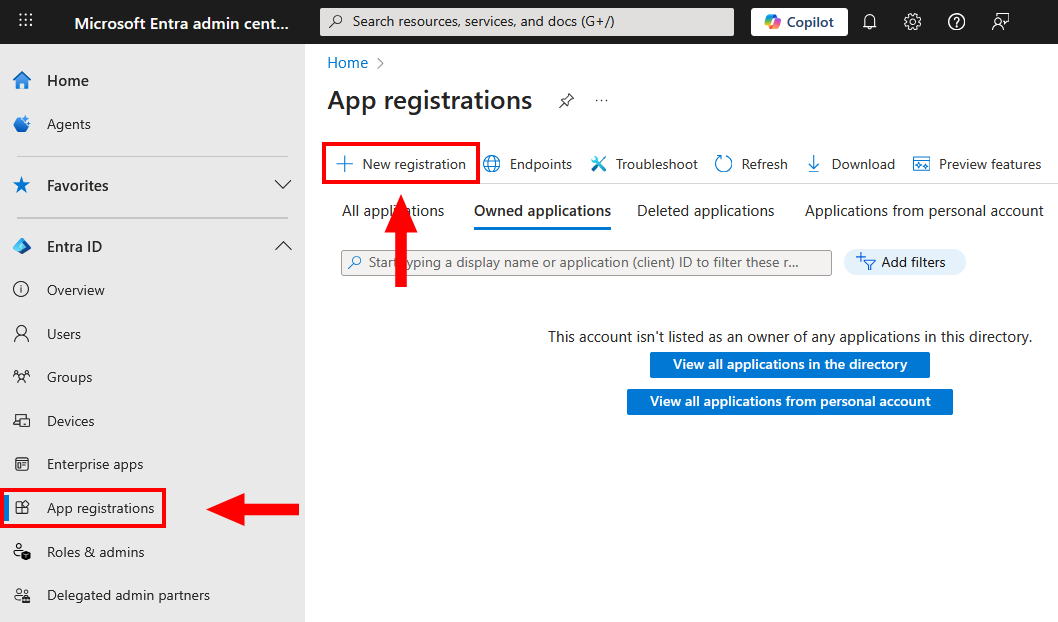
If you're using the newer Entra ID Admin Center, the path is slightly different. Expand below to see the screenshot.
New Entra ID Admin Center
-
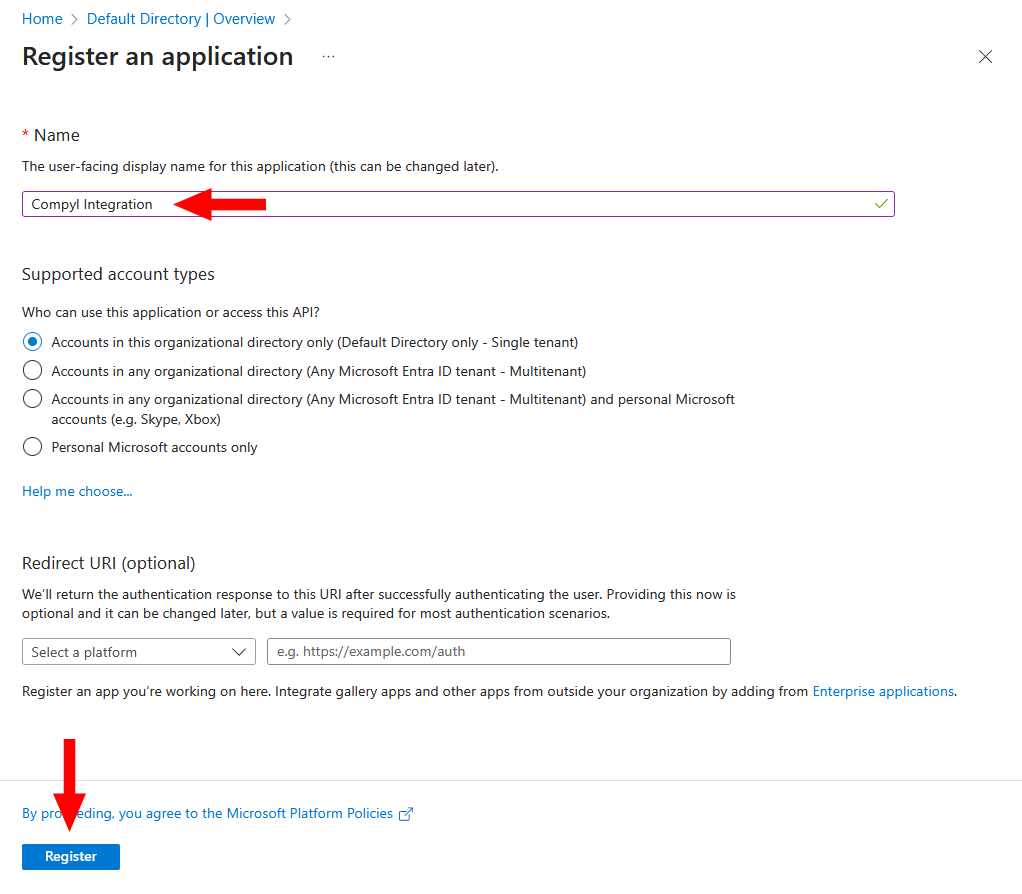
Name the app and click Register.
-
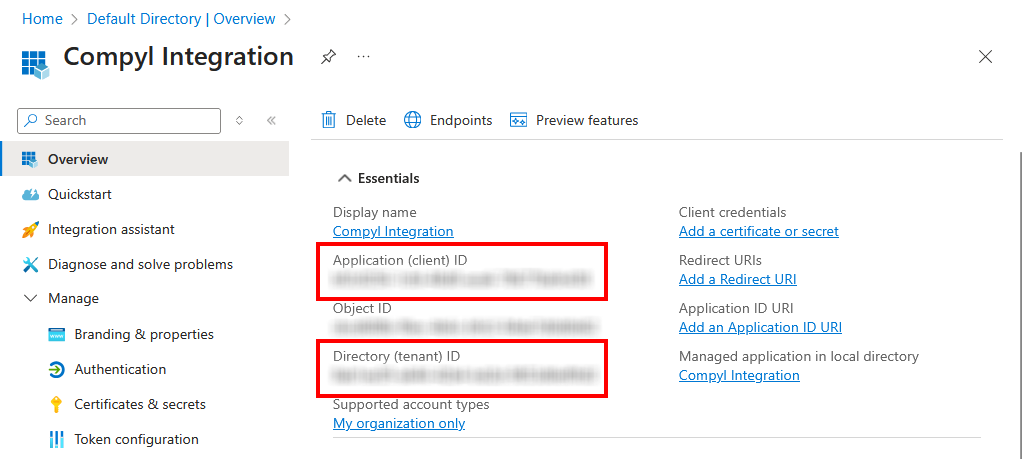
From the Overview page, copy the Application (client) ID and Directory (tenant) ID.
-
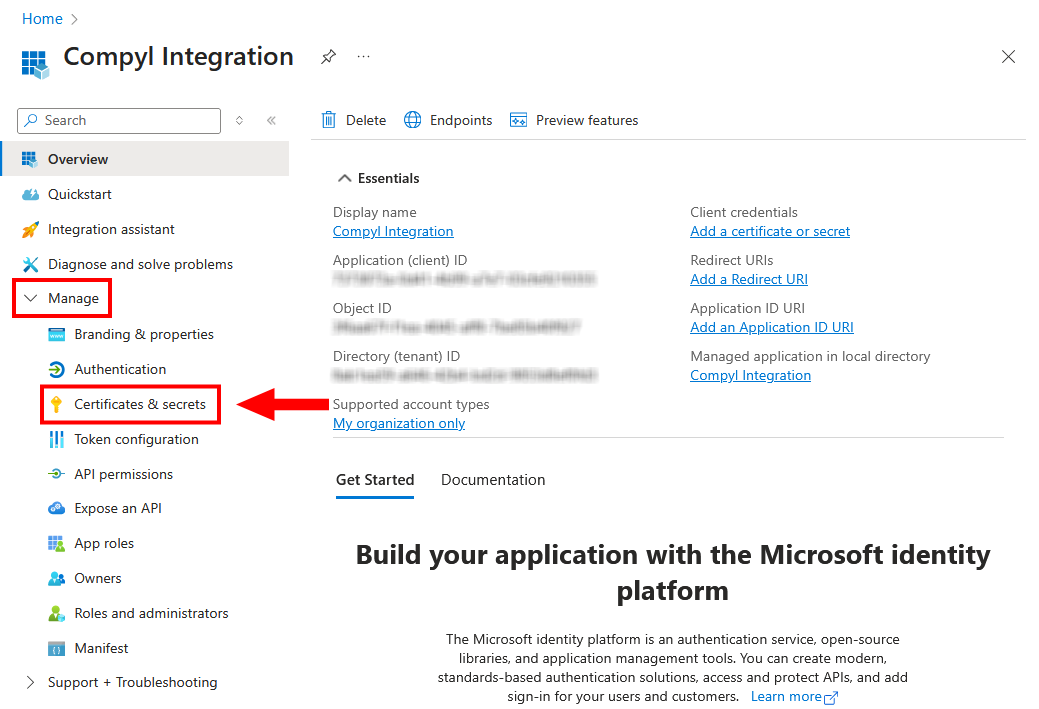
Expand Manage in the sidebar and select Certificates & secrets.
-
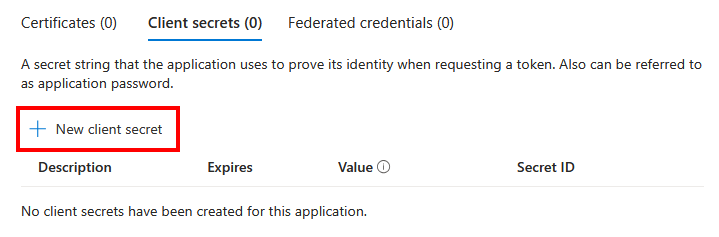
Click on New client secret.
-
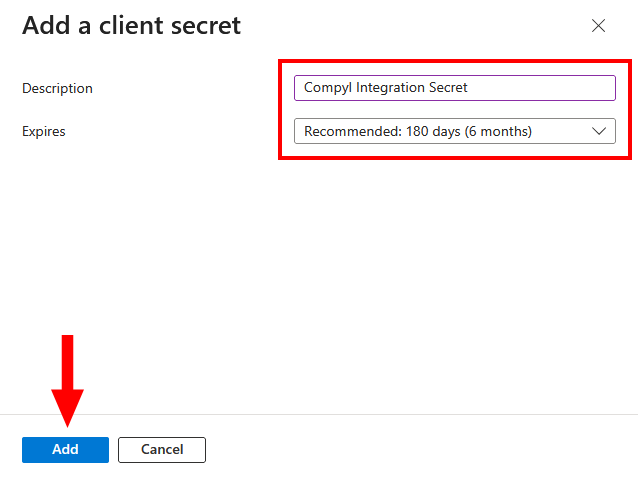
Enter in a description, an expiration, and then click Add.
-
Copy the secret Value.
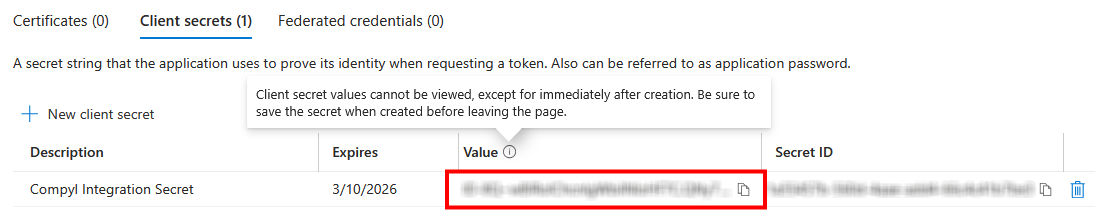
ImportantCopy and store this in a secure location as you will not be able to access this again. If you lose it, you will need to generate a new Client Secret.
Add the service principal to Azure Databricks (account & workspace)
-
Open the Azure Databricks Accounts console.
-
Go to User management > Service principals > Add service principal.
-
Paste the Application (client) ID from Step 5 above and save.
-
Assign appropriate account-level roles for your use case.
-
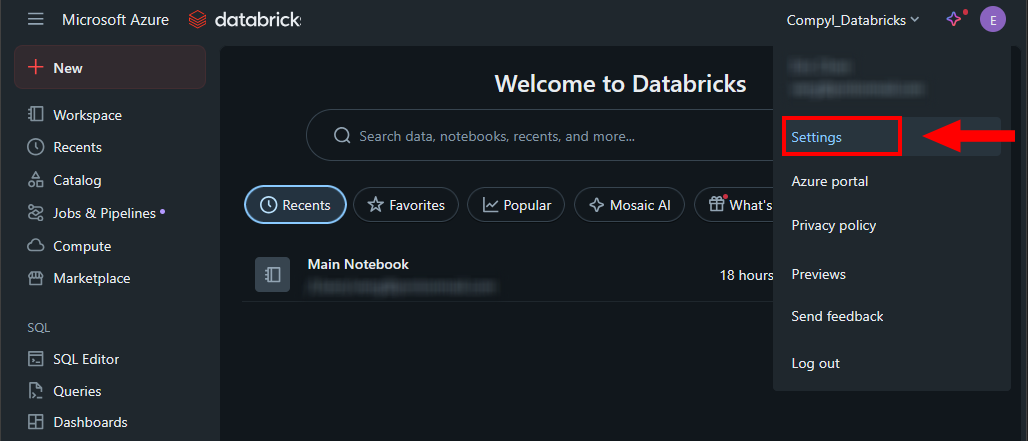
In your Databricks workspace, click on your user icon in the upper right and select Settings.
-
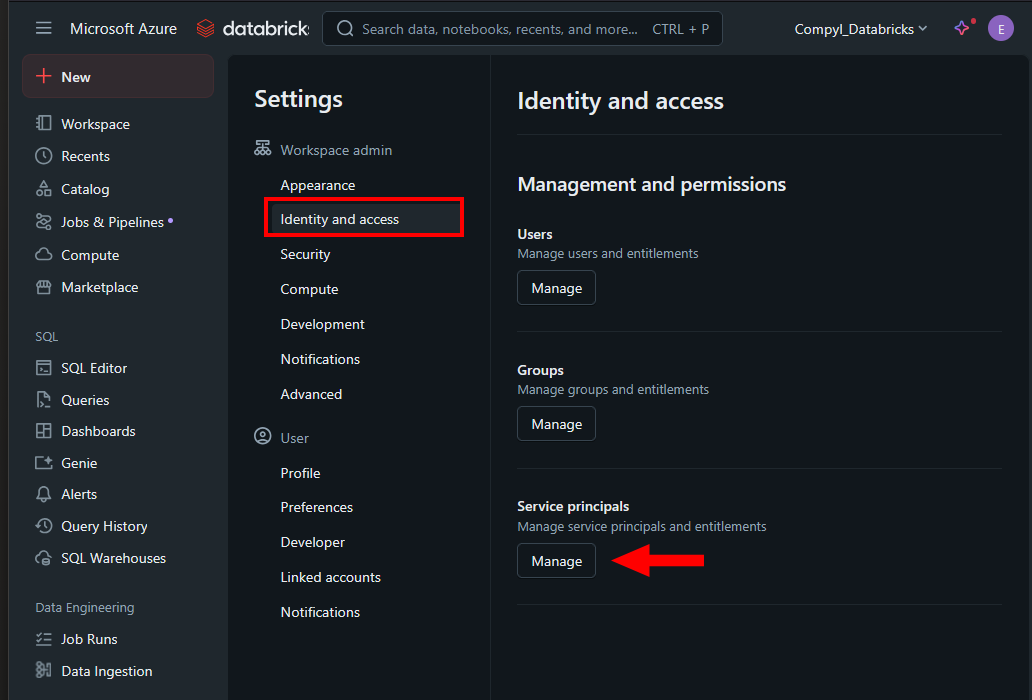
Then click Identity and access and choose Manage under Service principals.
-
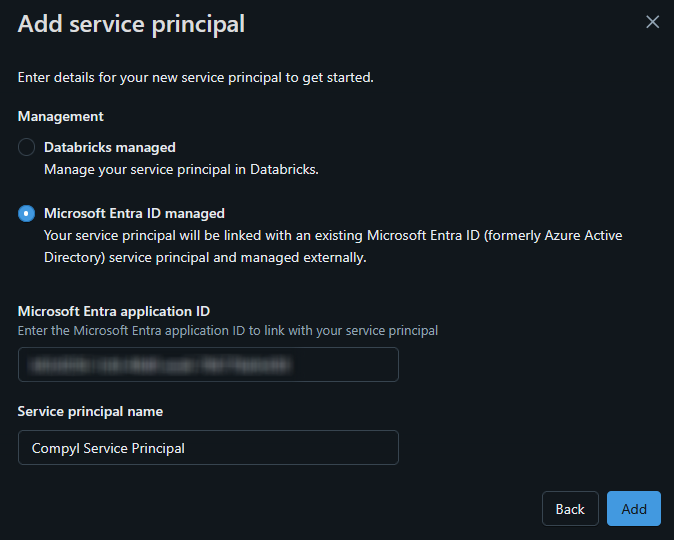
Select Microsoft Entra ID managed and then paste in your Application (client) ID from above and name the principal.
-
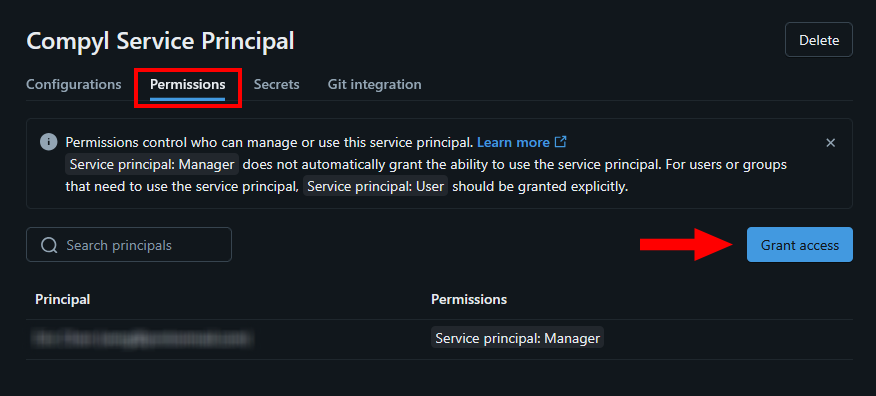
Click on your newly created Service Principal and select Permissions. Then click on Grant access to grant the required workspace permissions.
Find your Azure Databricks Account ID
-
In the Accounts console, open Settings or Account details and copy the Account ID.
-
To find your Workspace Instance URL, launch your Databricks workspace and copy the base URL from the browser address bar (for example,
https://adb-1234567890123456.7.azuredatabricks.net. If your environment shows thedbc-*.cloud.databricks.comformat, use that.
Add Configuration
-
Navigate to the Integrations tab using the left-hand menu, find Azure Databricks, and select +Add Configuration.

-
Next, fill in the details below and select Continue.
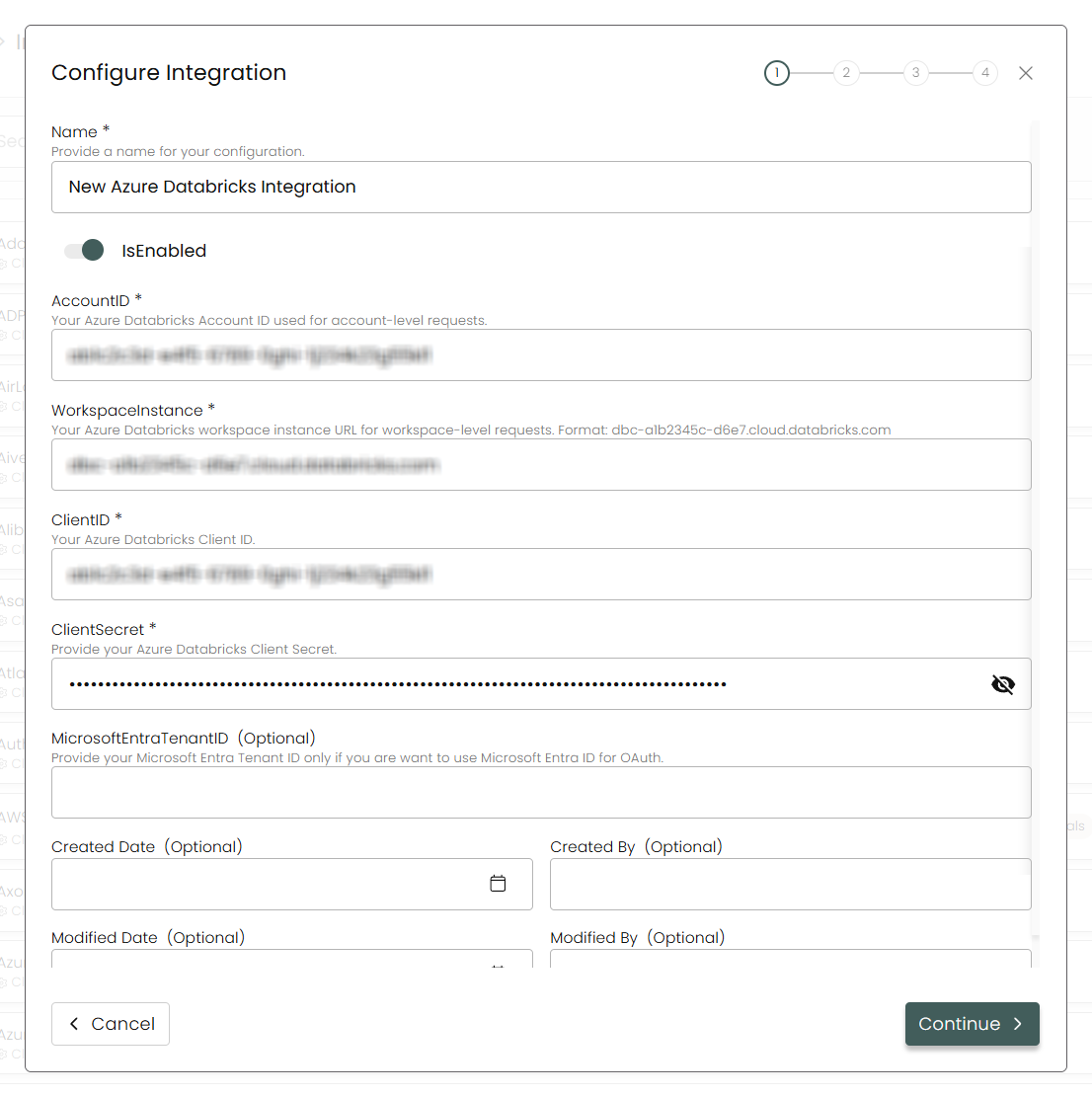
Name: Enter the name of the integration.
is Enabled: Toggle button to ensure data is populated into Compyl.
Account ID: Your Azure Databricks Account ID used for account-level requests.
Workspace Instance: Your Azure Databricks workspace instance URL for workspace-level requests. Format:
dbc-a1b2345c-d6e7.cloud.databricks.comClient ID: Paste the Application (client) ID from Step 5.
Client Secret: Paste the Client Secret from Step 9.
Microsoft Entra Tenant ID: Provide your Microsoft Entra Tenant ID from Step 5.
-
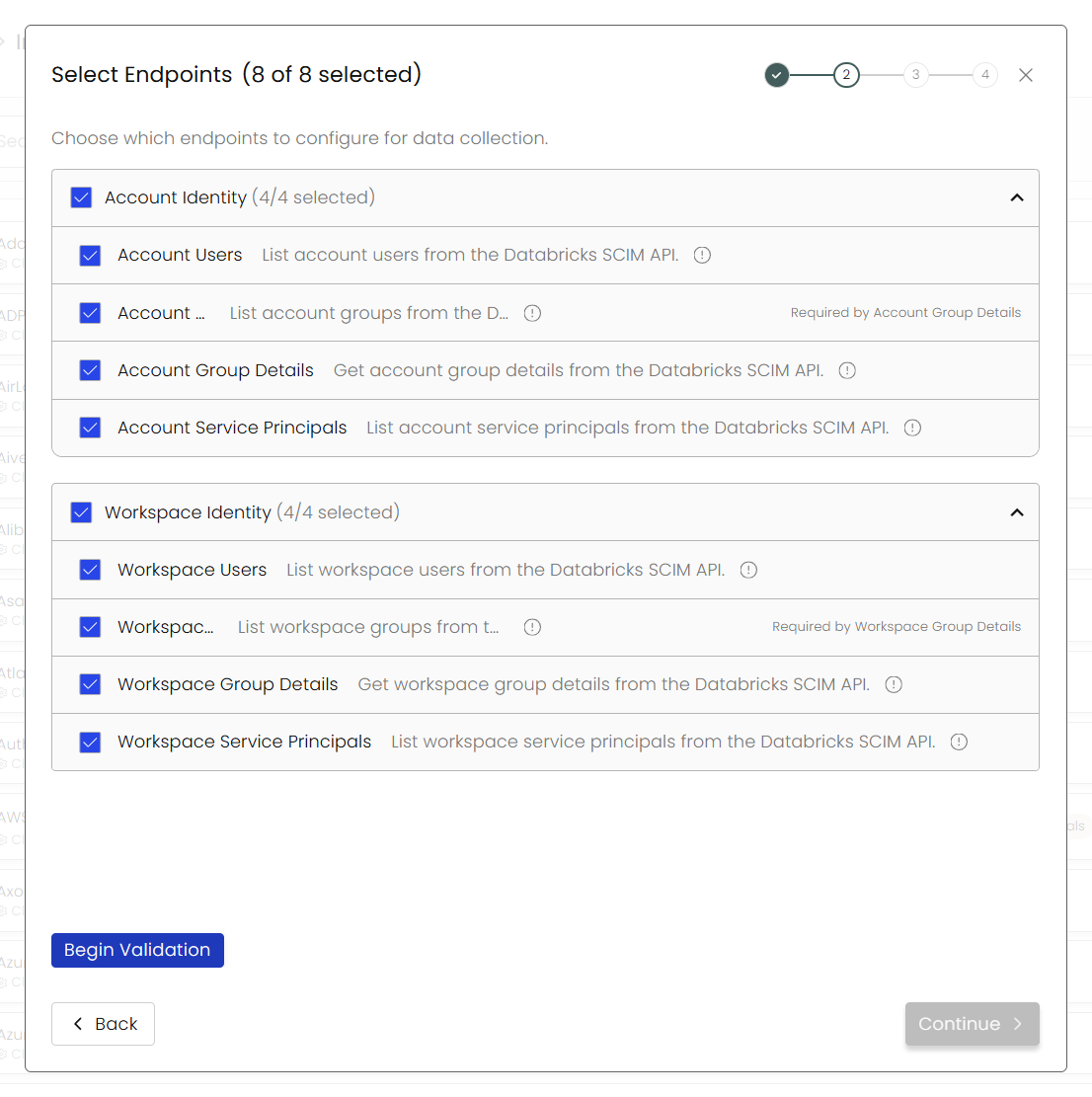
Choose your Endpoints and Begin Validation to validate your connection.
-
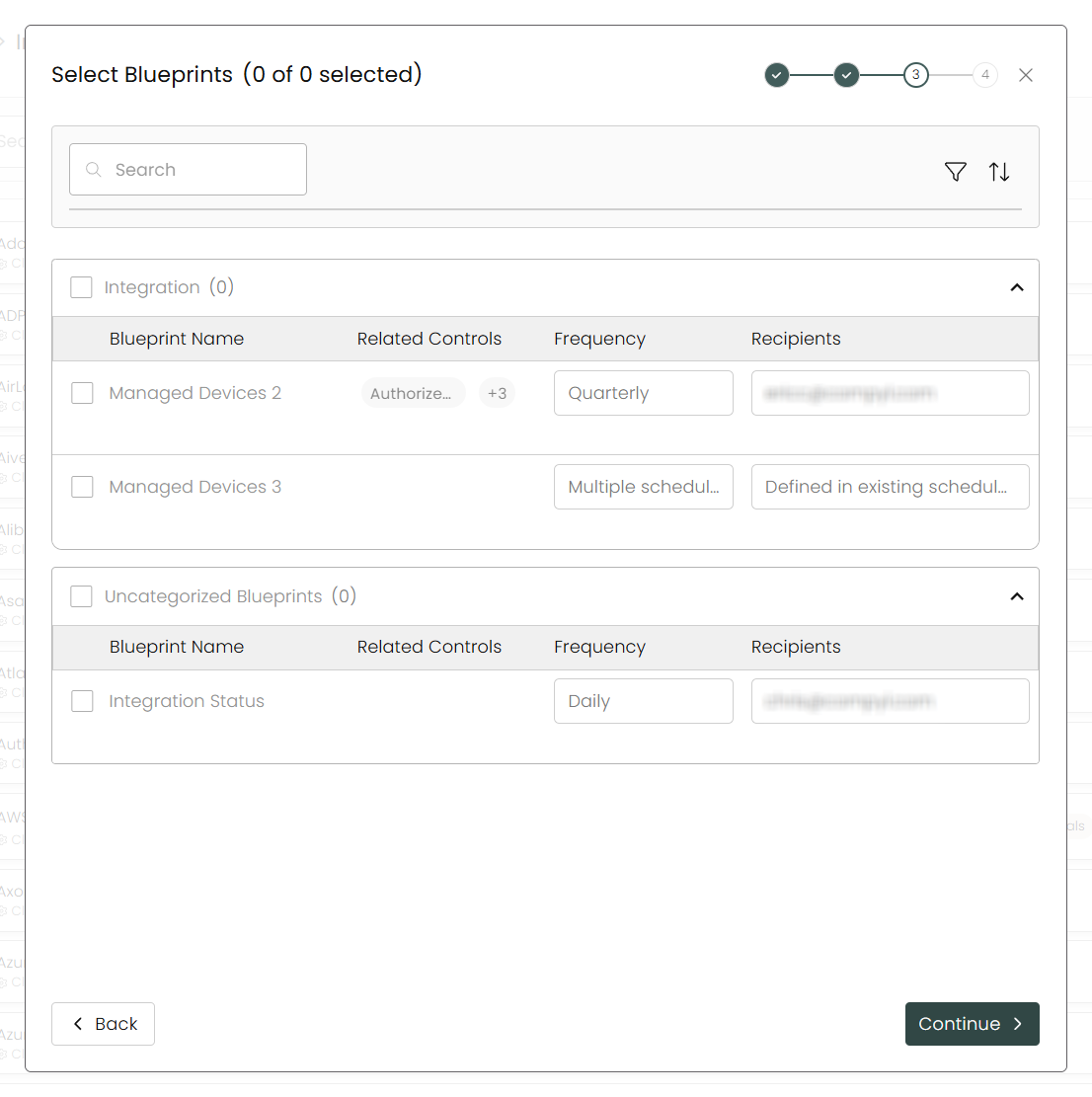
Select any Blueprints you wish to associate with this integration.
-
After you hit Continue, you'll see a summary screen. Click Return to Integrations to complete the configuration.
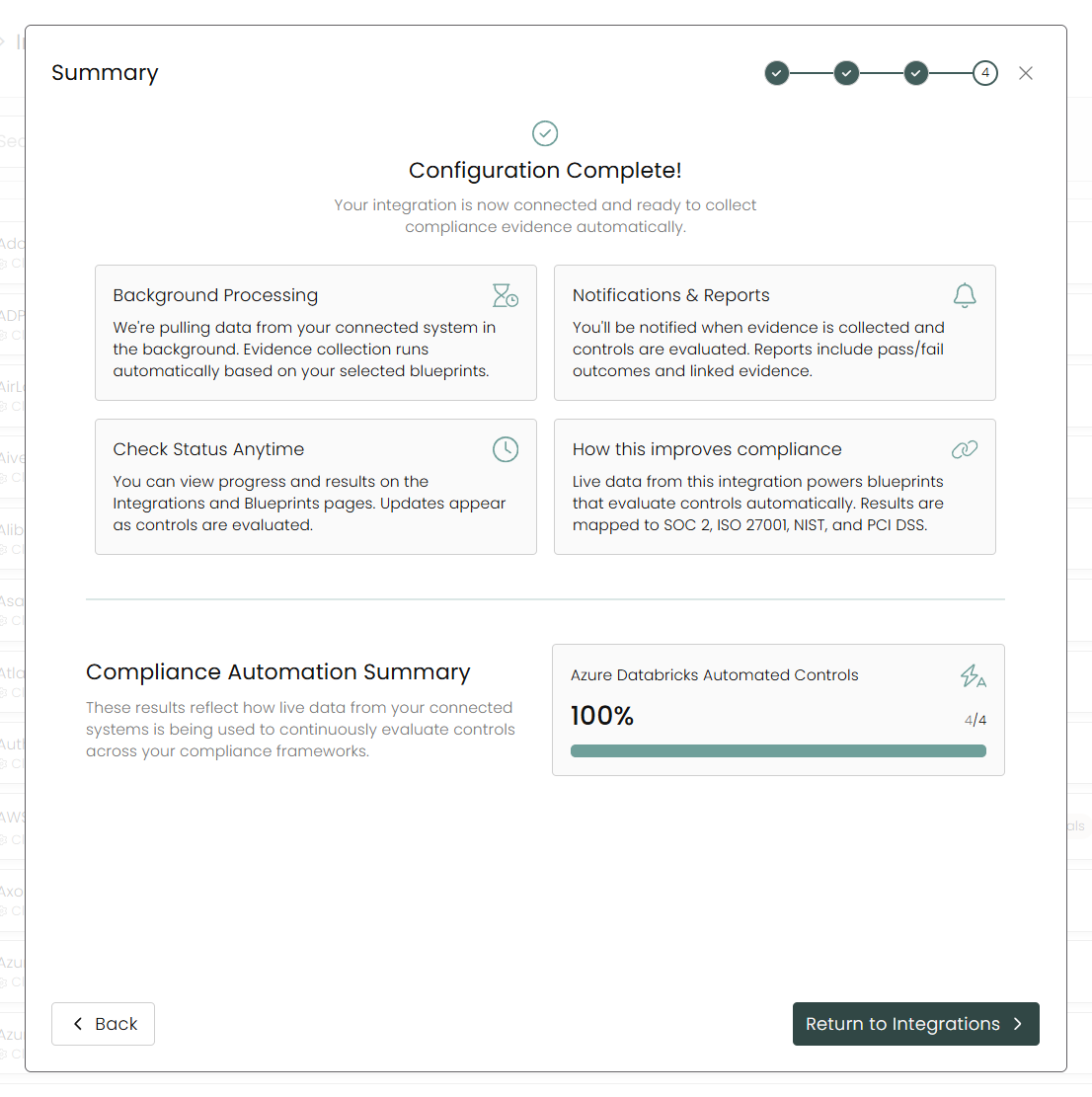
Once you have completed filling out the form click Return to Integrations.
You'll know the integration is successfully added when the status updates to Complete.

Data is synced on a recurring schedule configured by your Compyl administrator. Each sync pulls the latest data from all enabled endpoints.
To query the data from the integration, refer to the Blueprints article.
Updated about 2 months ago