
Cursor Integration
Integrating with Cursor gives Compyl visibility into your Cursor Enterprise organization and team administration data, including members, organization roles, audit logs, spend, model access, and repository indexing. This data supports governance, access reviews, spend visibility, and compliance reporting within Compyl.
The Team Admin API key is always required. The Organization API is optional: turn on Enterprise only if this Cursor account is on an Enterprise plan. When Enterprise is on, both the Organization API Key and Organization ID are required. The two keys are not interchangeable.
Suggested StepUse a dedicated Cursor team admin (or team owner) on the team Compyl should read, and create a dedicated Team API key named for Compyl (for example, Compyl GRC - Team). Dedicated keys make it easier to rotate credentials without affecting other Cursor tooling.
If this Cursor account is on an Enterprise plan and you want organization-level data in Compyl, also use a dedicated Cursor organization admin and create a second dedicated Organization API key (for example, Compyl GRC - Organization). Team admin access does not grant organization admin access. Team-only customers do not need an organization admin or Organization API key.
Obtaining your Cursor credentials
You will create both keys in the Cursor dashboard. See Cursor's API overview, Admin API, and Organization API for the official reference.
Team Admin API Key - Required
Create a Team API key for the Cursor Admin API. This key can only act within one team (members, audit logs, spend, model access, and repository indexing for that team).
-
Sign in to the Cursor dashboard as a team admin or team owner.
-
Open API & SSH Keys and select Team.
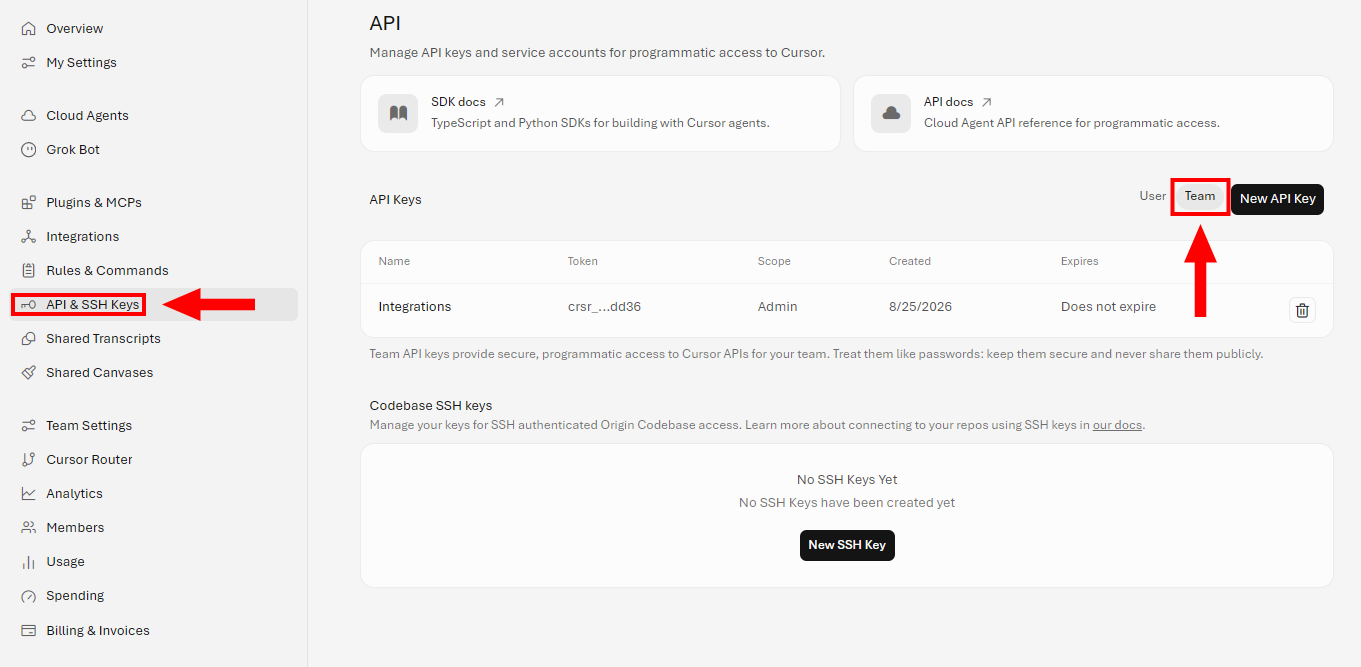
-
Next, click on New API Key and enter a name (for example, Compyl GRC - Team), select the
adminscope. Cursor requires this scope for Admin API access. Then select Save.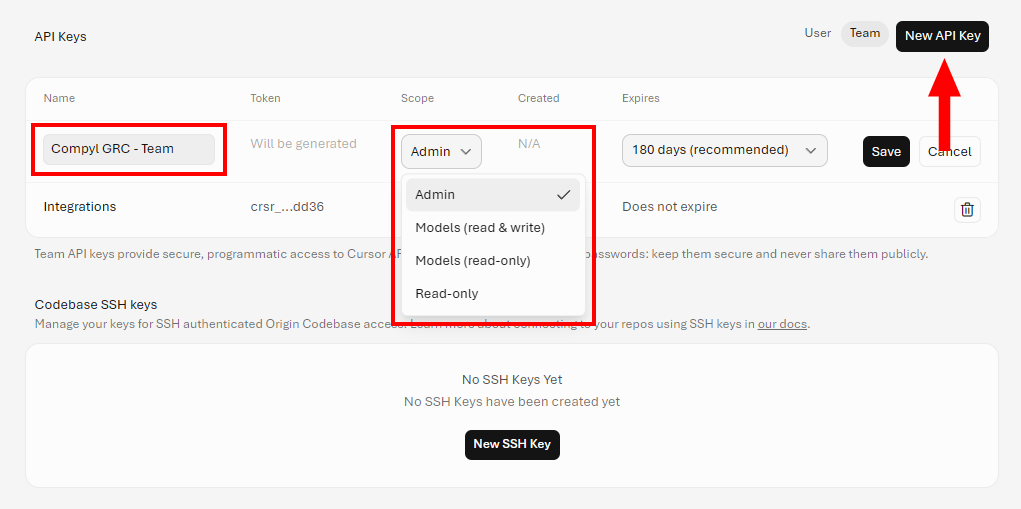
-
Create the key, copy the full value immediately, and store it somewhere safe. The value looks like
crsr_....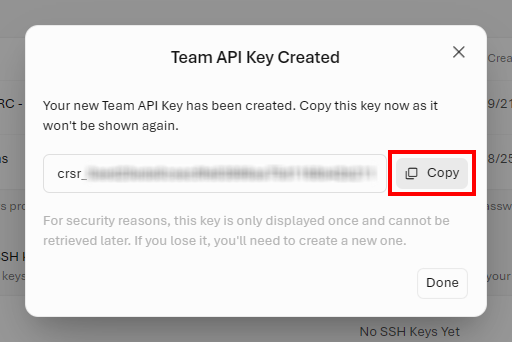
Organization API Key - Enterprise Only
Skip this section unless you will turn on Enterprise in Compyl. Create a separate Organization API key for the Cursor Organization API. This key acts across teams linked to the organization (members and org roles, pooled spend, and org-level model access). Organization API keys are Enterprise-only.
- Sign in to the Cursor dashboard as an organization admin.
- Open API Keys and create a new Organization API key (not a Team API key).
- Enter a name (for example, Compyl GRC - Organization).
- Select the
admin:*scope so Compyl can read organization administration data. Cursor lets you pick a narrower scope;admin:*covers every organization route. - Create the key, copy the full value immediately, and store it somewhere safe. The value looks like
crsr_....
Organization ID (Enterprise only)
When Enterprise is on, Compyl also needs the public Organization ID. Cursor documents this as a value like org_abc123. It must belong to the same organization as the Organization API key. Copy it from your Cursor organization settings in the dashboard.
WarningCopy each key when it is displayed.
If you lose a key, you cannot recover it — delete the old key and create a new one. Do not paste a Team API key into the Organization API Key field, or an Organization API key into the Team Admin API Key field. Do not use a Cloud Agents, Analytics, or personal user API key; those keys cannot call Cursor's administration APIs.
Add Configuration
-
Navigate to the Integrations tab using the left-hand menu, find Cursor, and select +Add Configuration.

-
Next, fill in the details below and select Continue.
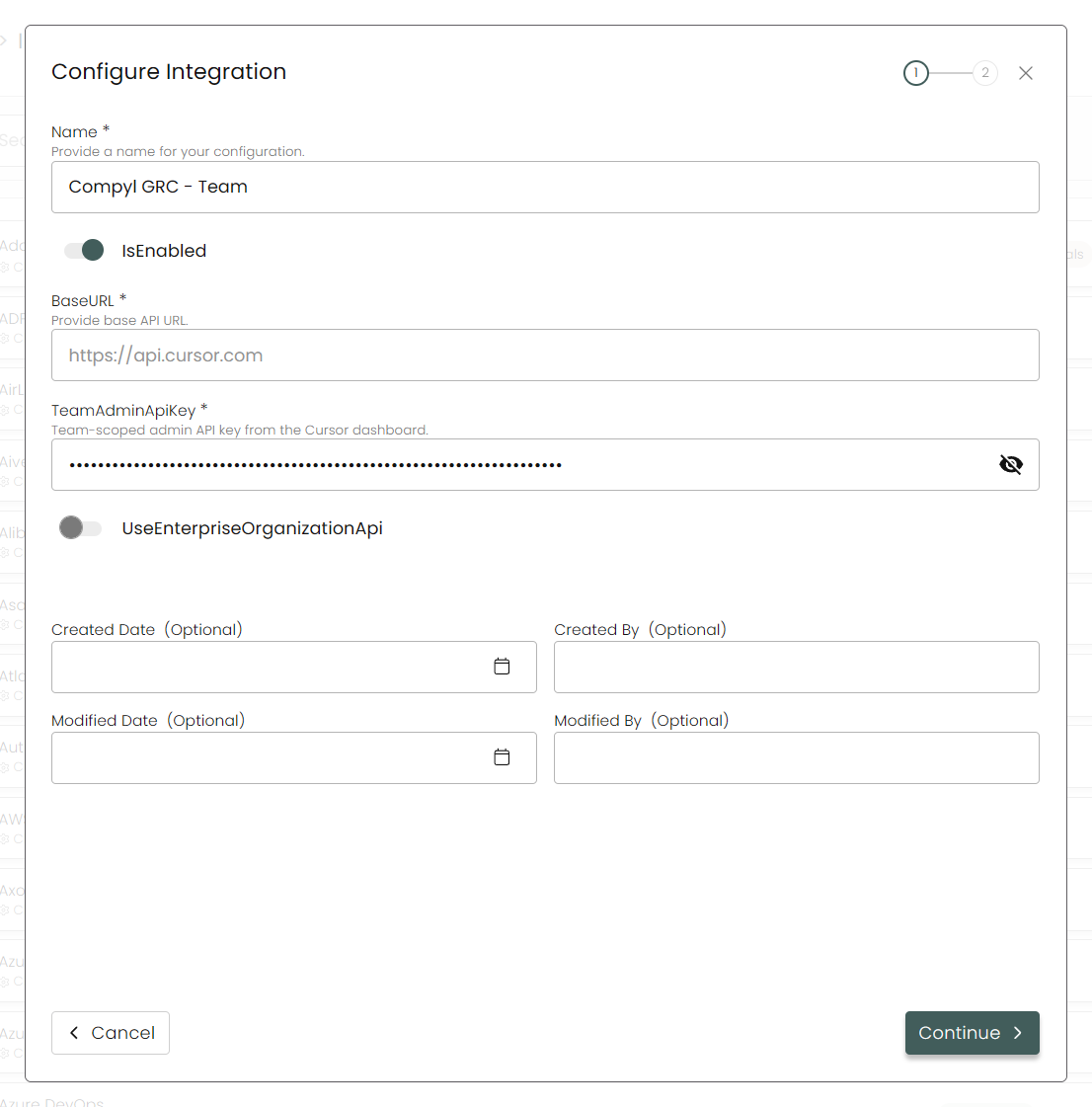
Name: Enter the name of the integration.is Enabled: Toggle button to ensure data is populated into Compyl.
Base URL: This is automatically populated as
https://api.cursor.com.Team Admin API Key: The Team API key you generated above. Required. This value is stored securely and is not visible after saving.
Use Enterprise Organization API: Enable if this Cursor account is on an Enterprise plan. Organization API Key and Organization ID are both required when this is on. Leave this off for team-only configurations; Compyl will skip organization data.
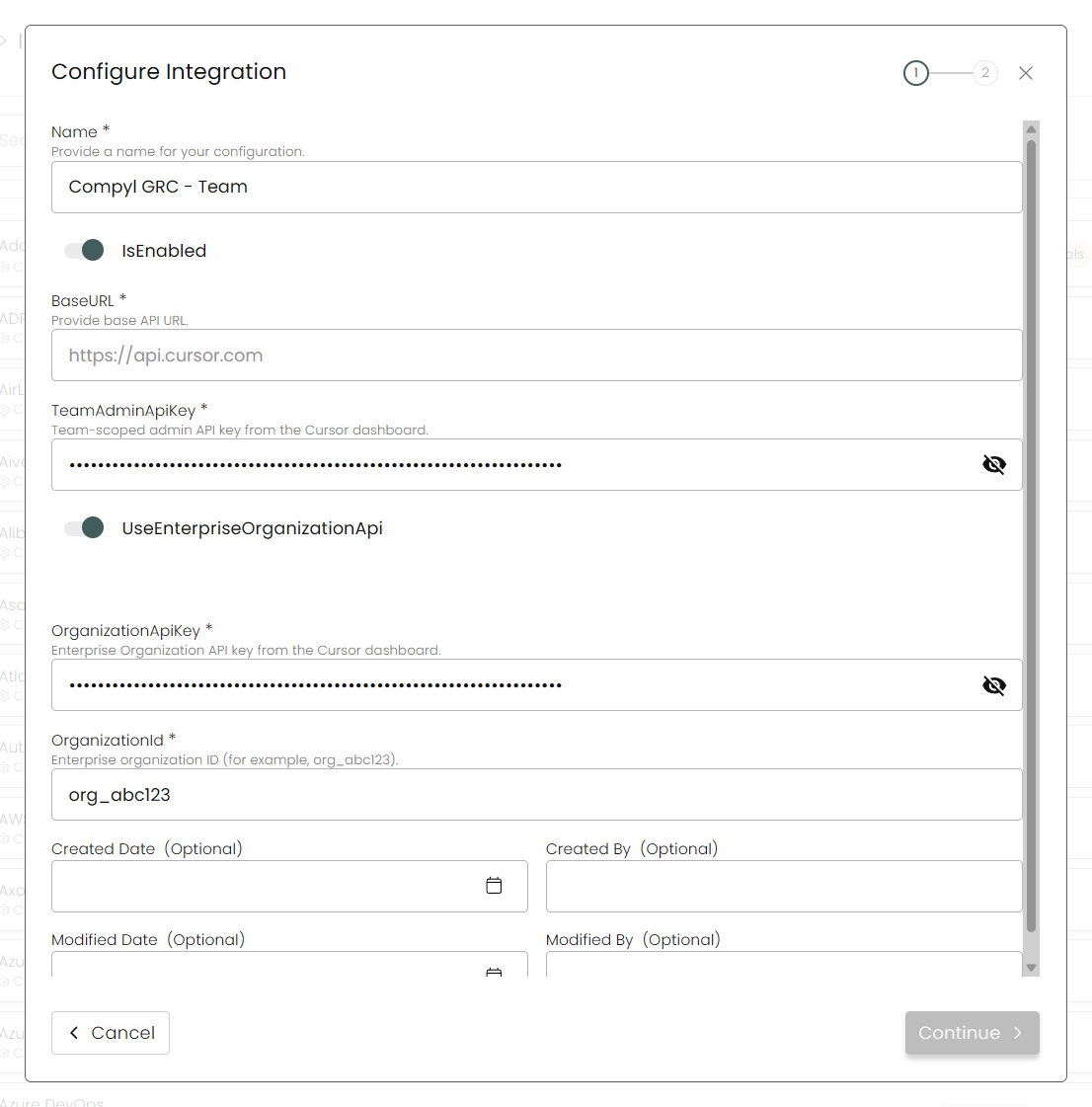
Organization API Key: The Organization API key you generated above. Required when Enterprise is on. This value is stored securely and is not visible after saving.
Organization ID: The public Organization ID (for example,
org_abc123). Required when Enterprise is on. It must match the organization that issued the Organization API key.
-
Choose your Endpoints and Begin Validation to validate your connection.
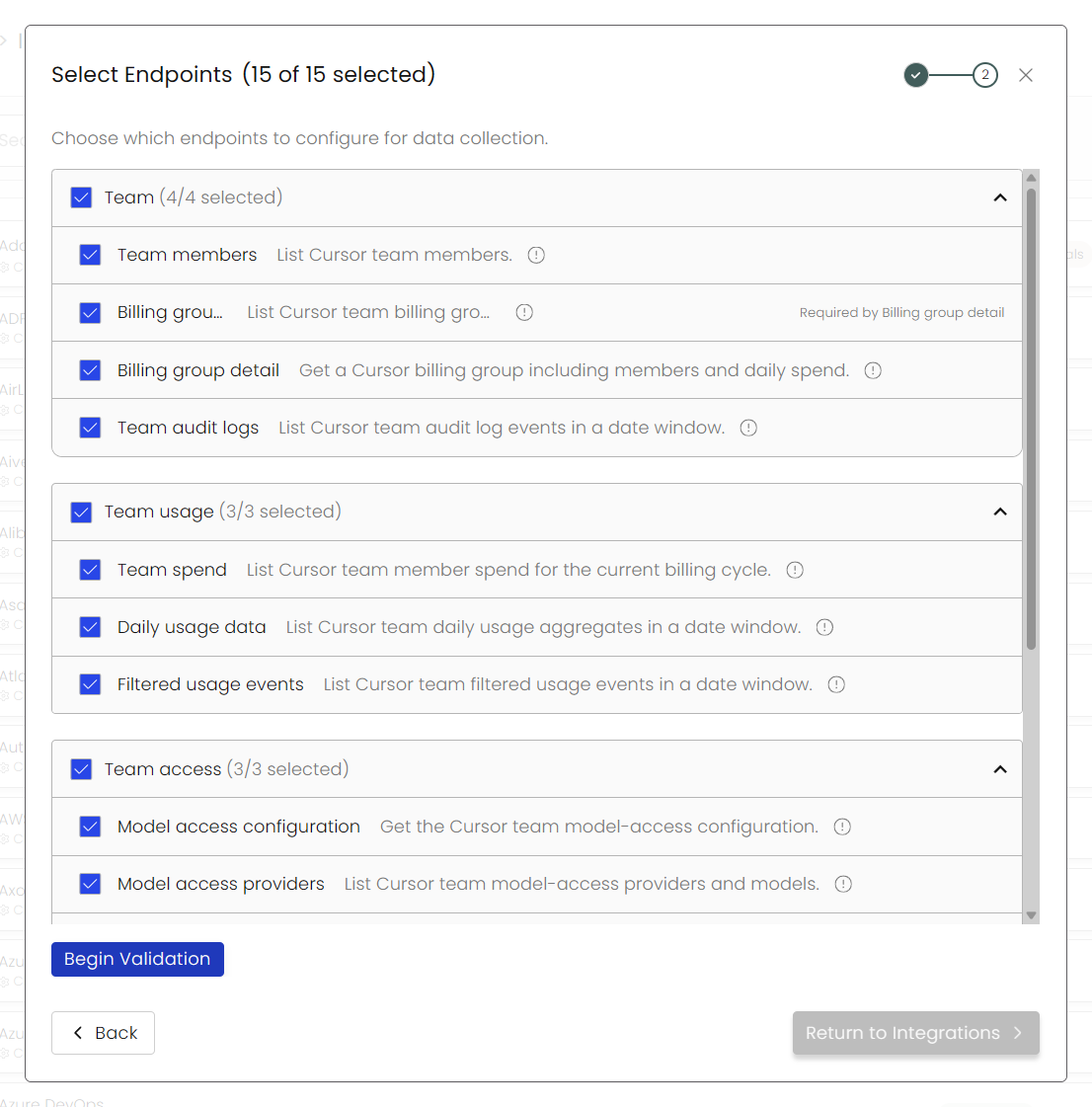
Once you have completed filling out the form click Return to Integrations.
You'll know the integration is successfully added when the status updates to Complete.

Data is synced on a recurring schedule configured by your Compyl administrator. Each sync pulls the latest data from all enabled endpoints.
To query the data from the integration, refer to the Blueprints article.
Updated 24 days ago