
Third Party Register
The Third Party Register securely stores your organization’s Suppliers, and Third Parties
Compyl enables complete lifecycle management of all vendors, suppliers, and third parties, and guides the users through determining the criticality for each third party. Compyl also allows users to conduct third party assessments to understand technical and operational risk and standardizes how an organization evaluates a vendor.
In Compyl, users can also link Third Parties to IT Assets (the systems provided by the vendor) and Contracts you are housing within Compyl, further enabling you to track information and requirements of these relationships.
Add a Third Party
Select Third Party from the sidebar on the left-hand side under Risk and then select Add Third Party.
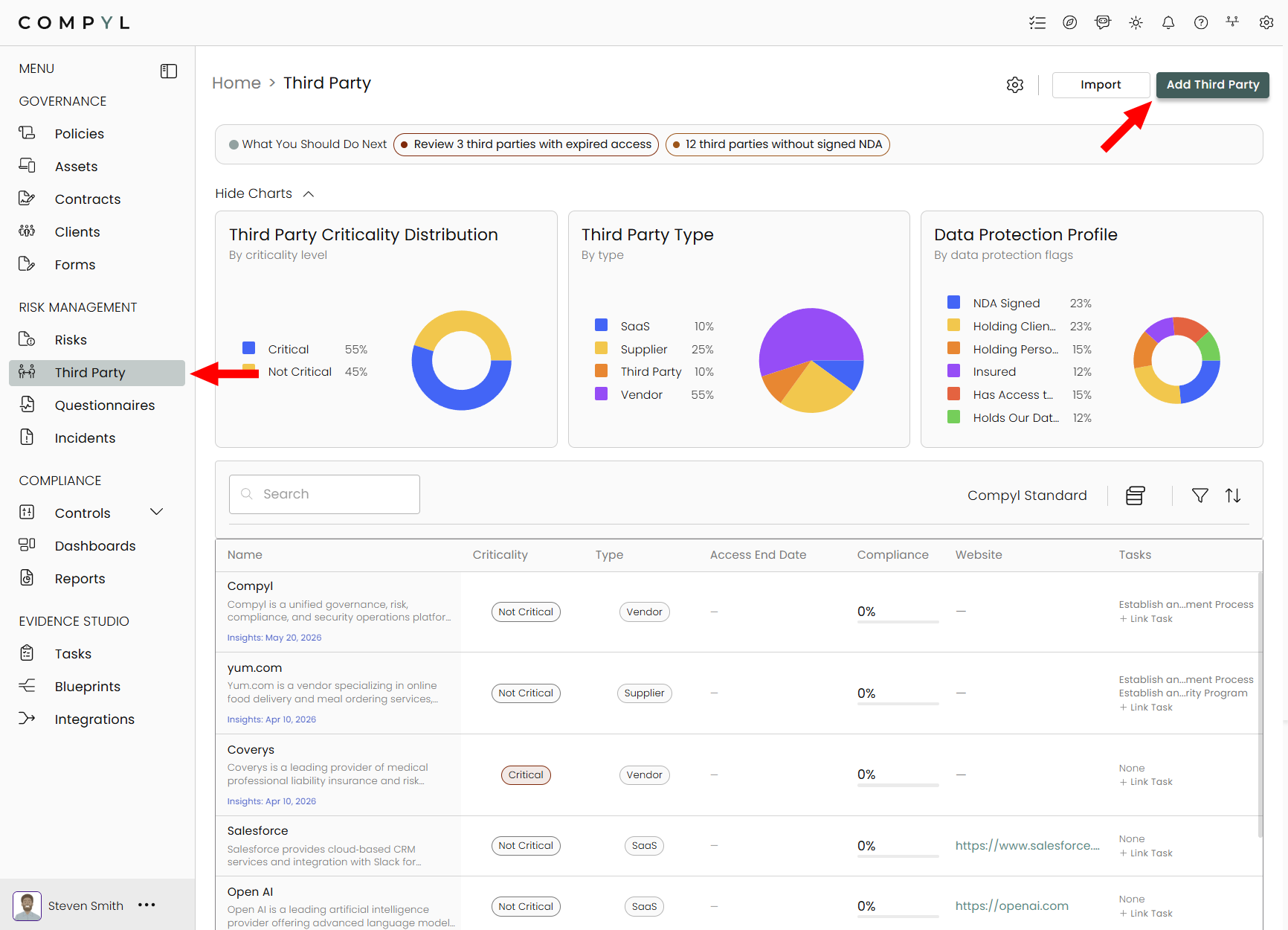
Next, proceed through each section and fill out all required information.
Company Info
This tab contains general information about the third party such as Name, Type, and Description.
Once you enter in the third party's name, Compyl Copilot will auto-populate a description which can accept by clicking the box. If you wish to remove this or edit it, just select it all and begin typing to replace it or delete it.
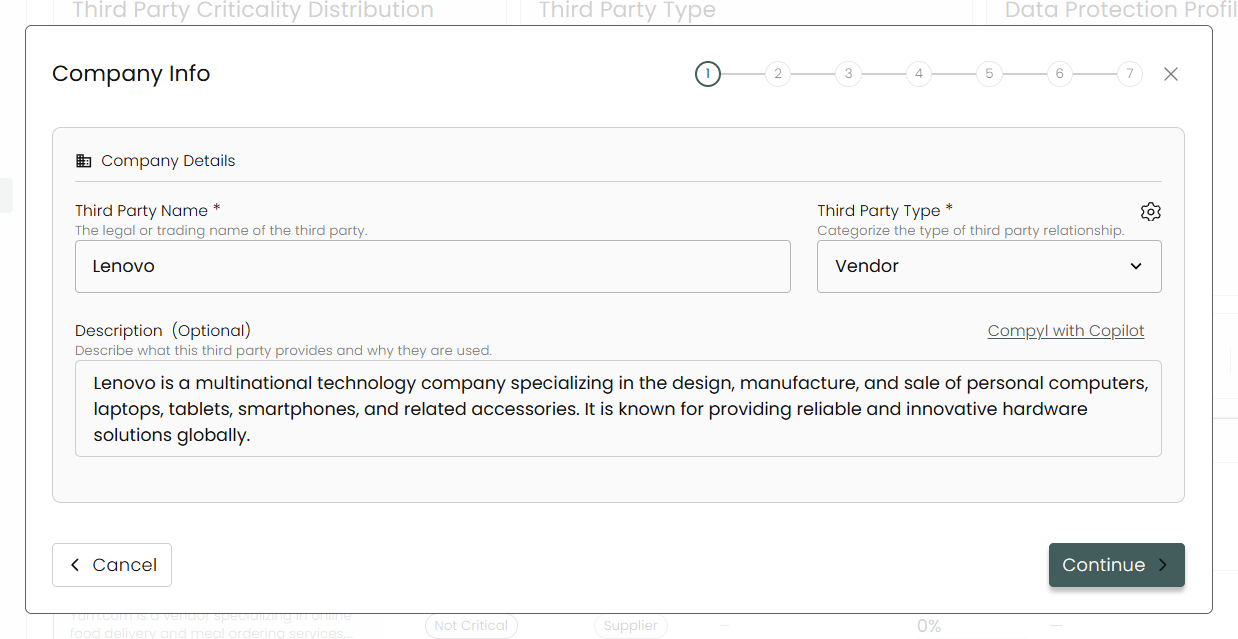
Next be sure to pick your Vendor Type from the drop-down menu.
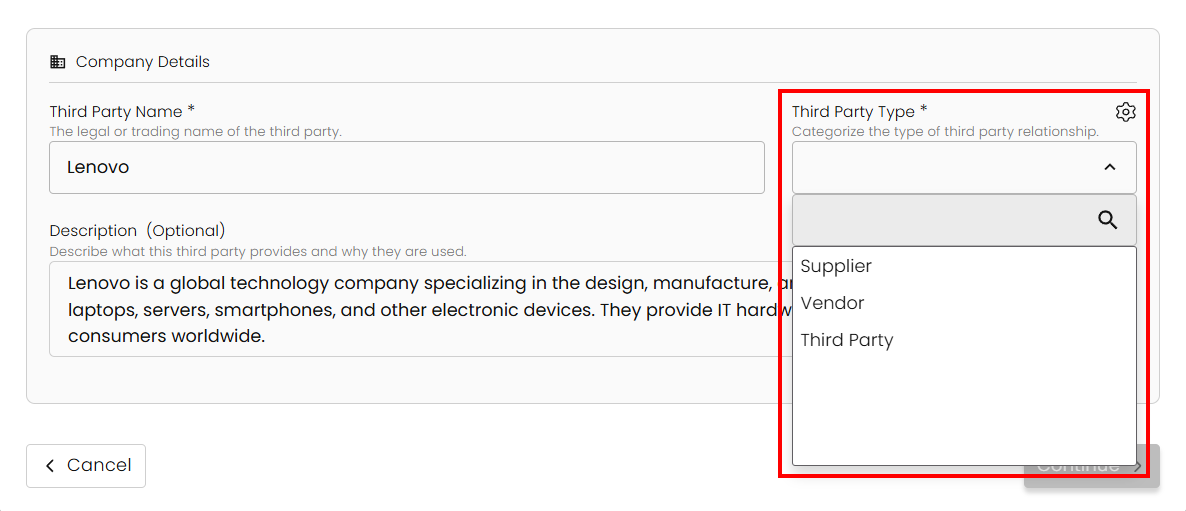
- Vendor: A vendor provides products or services to your organization. This can include software providers, hardware suppliers, and other service providers.
- Supplier: A supplier delivers raw materials or components that are essential for your business operations. Suppliers typically support the manufacturing or production processes.
- Third Party: A third party is any external organization that your company engages with for services that may impact your business but are not directly tied to the core operations. This includes contractors, consultants, and external auditors.
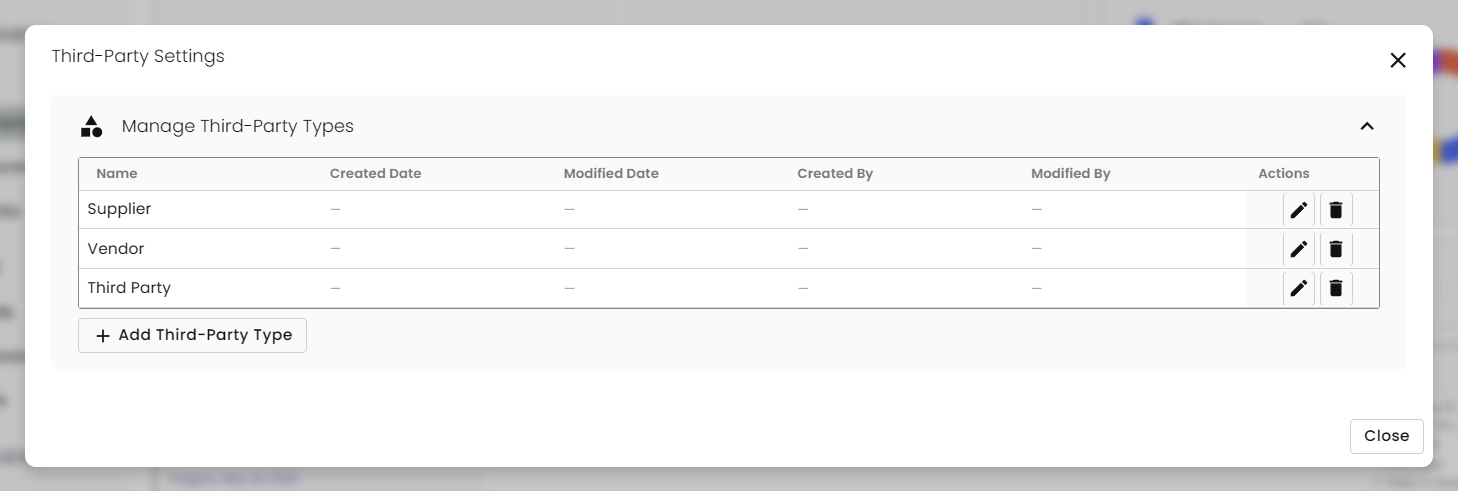
NoteYou can edit, remove, or add additional Third-Party types by clicking on the gear icon at the top to open the Third-Party Settings window.
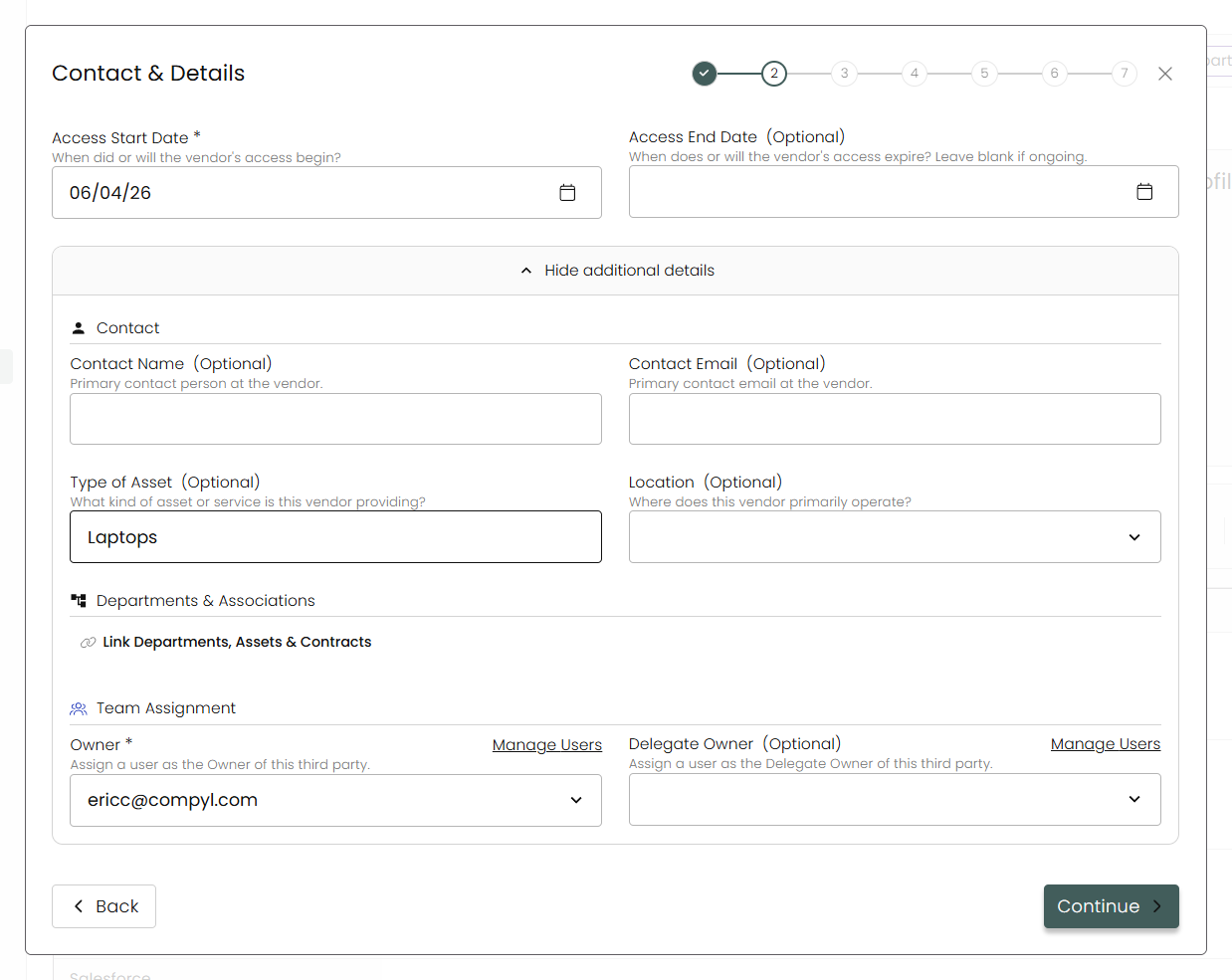
Contact & Details
Select the Access Start Date for this Third Party and fill in the rest as needed. You'll also need to assign an Owner and an optional Delegate Owner for this third party. Select Continue when done.
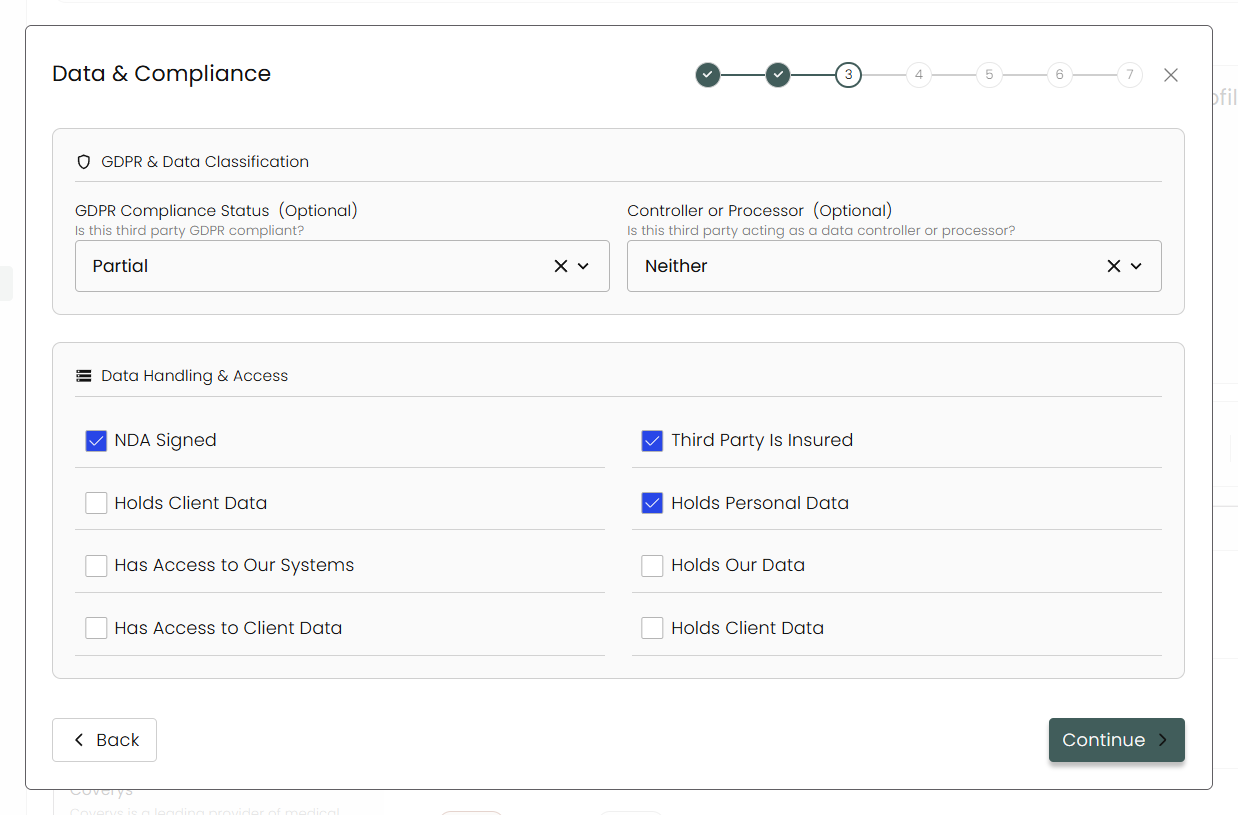
Data & Compliance
Here you can provide details on how your data and access is being handled as well this third party's compliance.
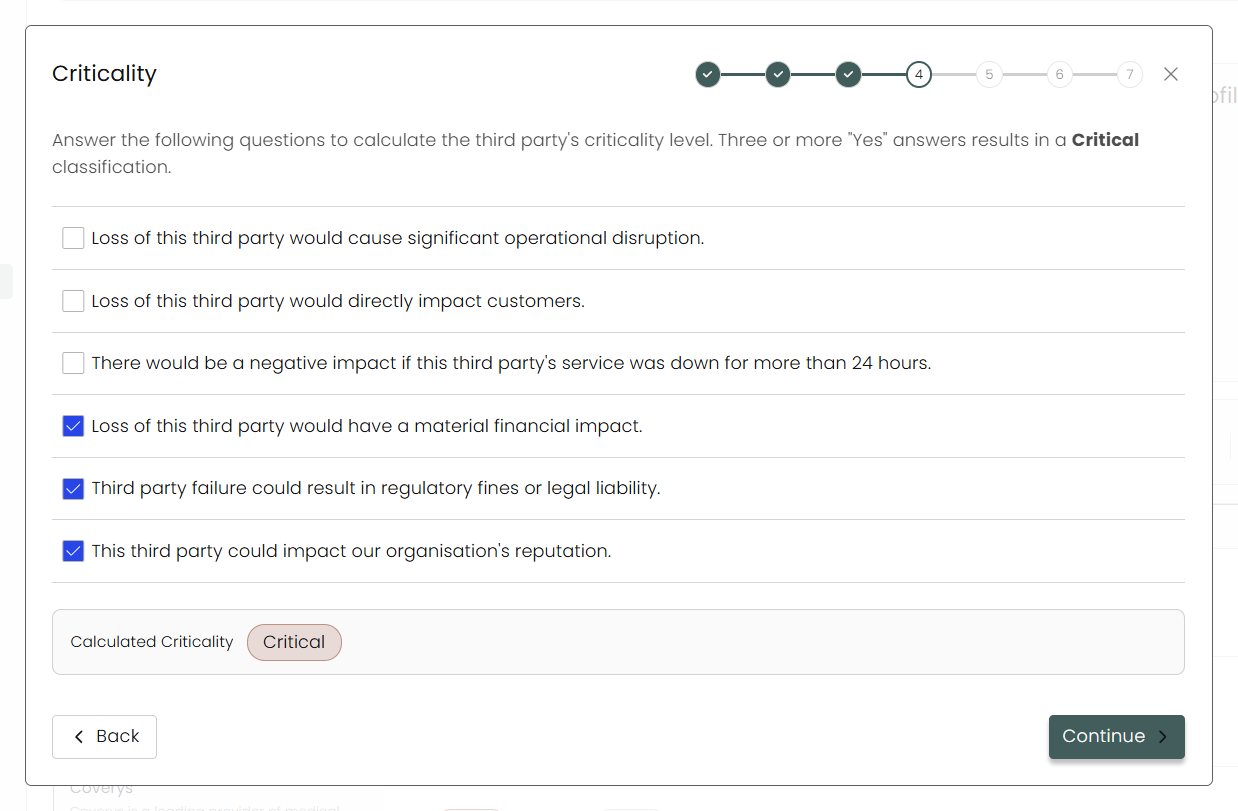
Criticality
Determine the third party's criticality level here. Three or more selections results in a Critical classification.
Questionnaire
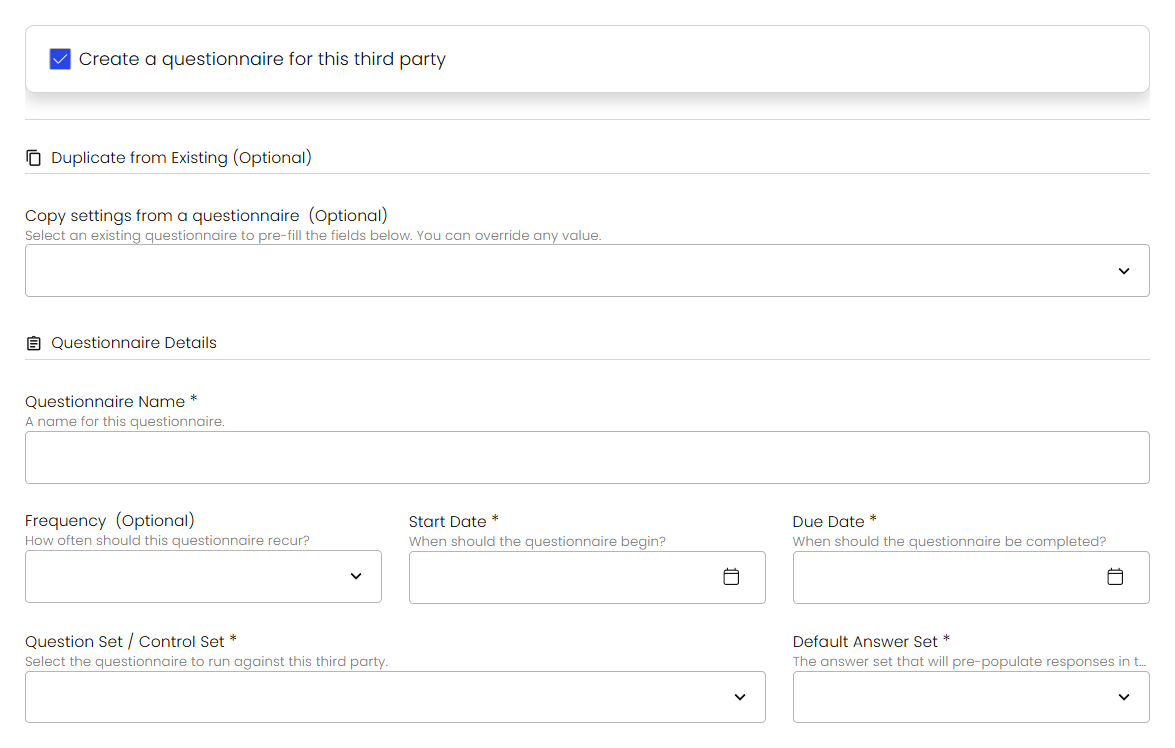
You can create a questionnaire for this third party by clicking on this check box.
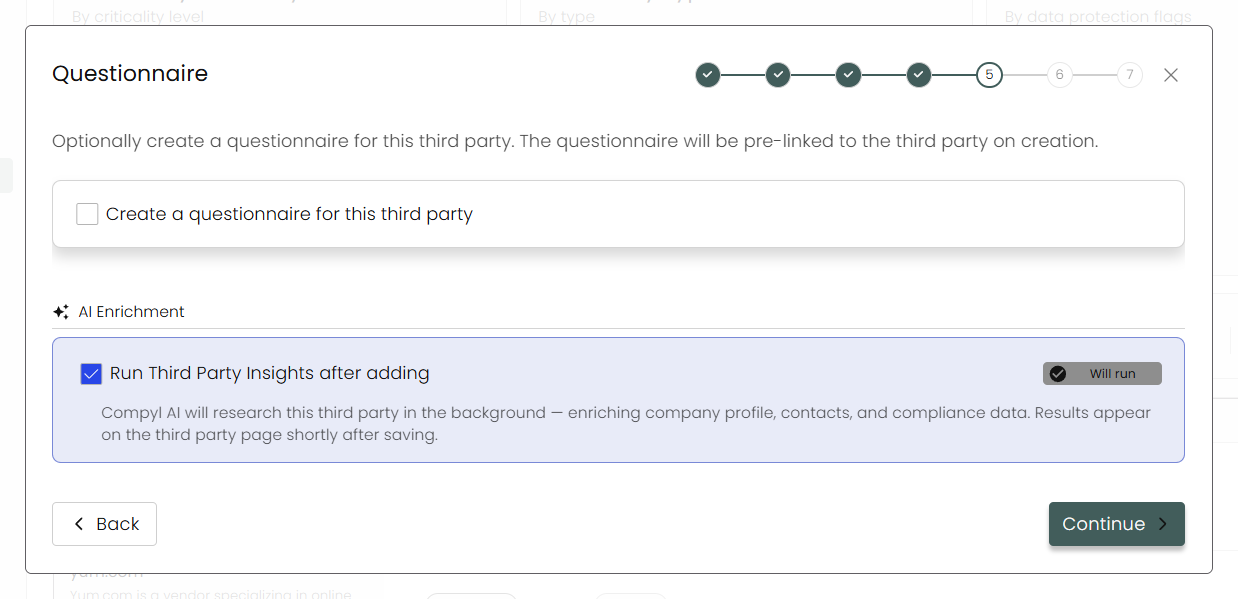
This expands further options giving you a shortened version of the Questionnaire Builder or allowing you to duplicate information from an existing questionnaire.
Checking the box for Run Third Party Insights after adding lets Compyl AI research this third party in the background, filling in additional details to round out your entry.
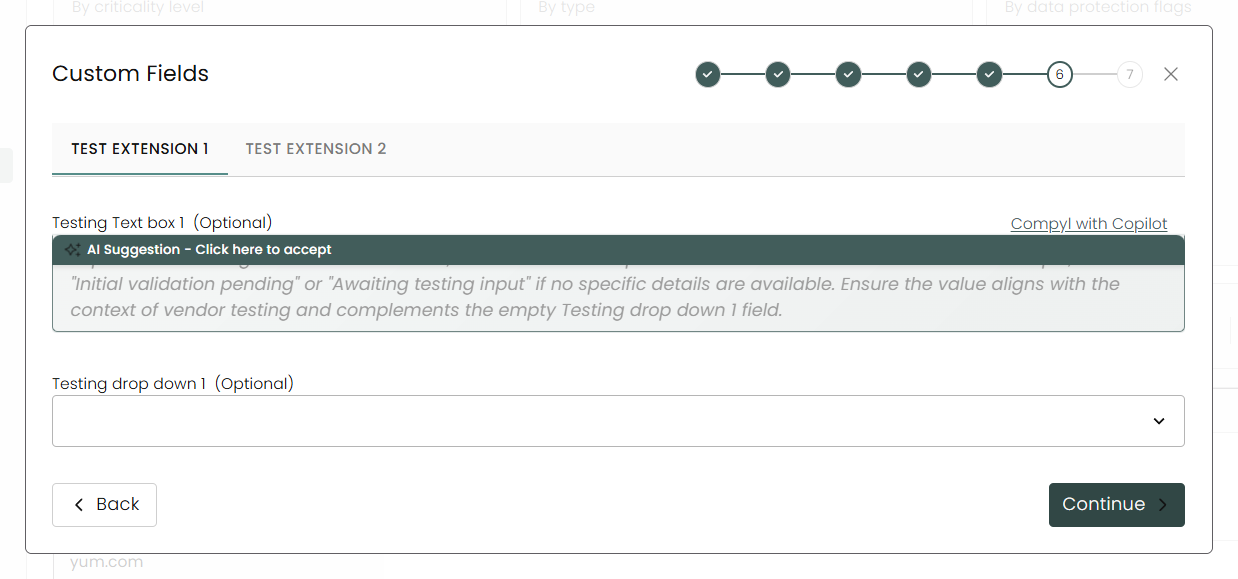
Custom Fields
Any custom fields created in the Form Builder will show up here.
Review
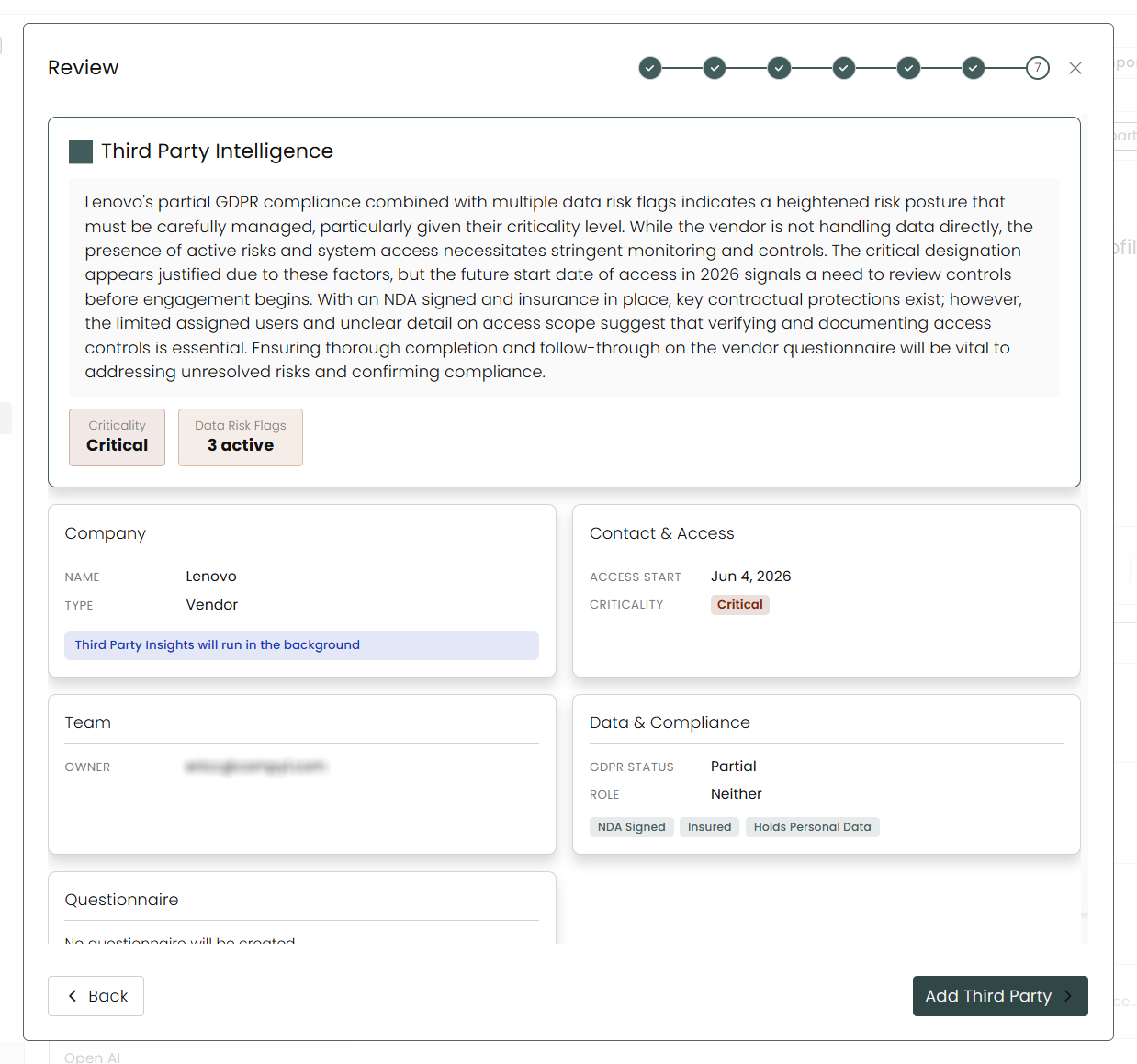
Finally, you can review everything you've entered in, including the Third Party Intelligence report (if completed) before signing off and adding your third party.
Workflows can be created to schedule consistent reviews of vendors at a specified frequency. This is configured by creating a dynamic automated task. Learn more by visiting the Tasks article.
Uploading Vendor Data
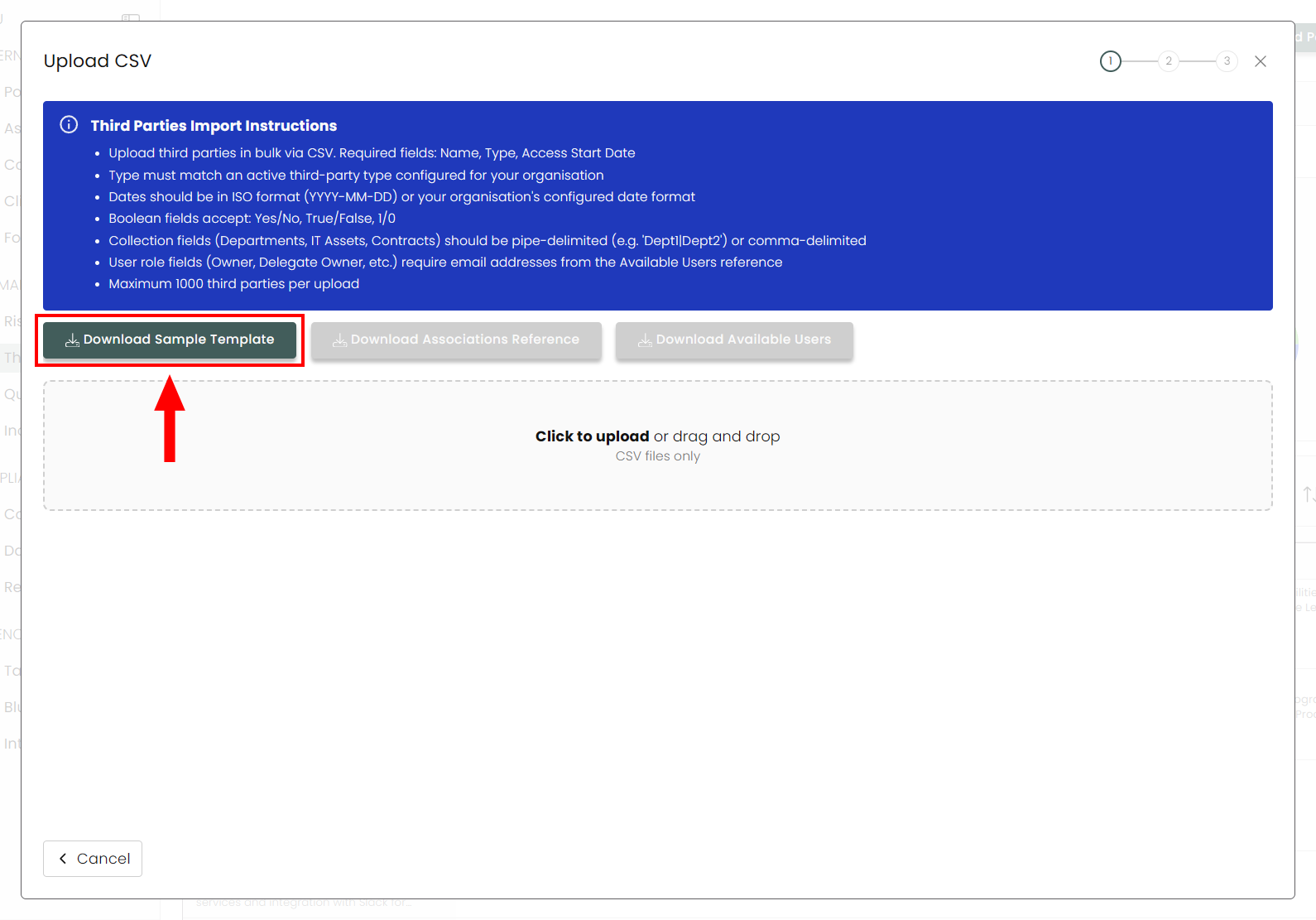
- To import your vendor information instead of entering it in manually, click on Import.

-
Next, download the sample template CSV (specific to the Third-Party module) and fill it out. You can add multiple vendors at once this way.
NoteThere will be a series of columns labelled True or False. These map to the checkboxes under Additional Properties & Environment Details. If you need this box checked, enter True in the column.
-
Once complete, upload your modified CSV to let Compyl AI analyze and suggest mappings to our system.
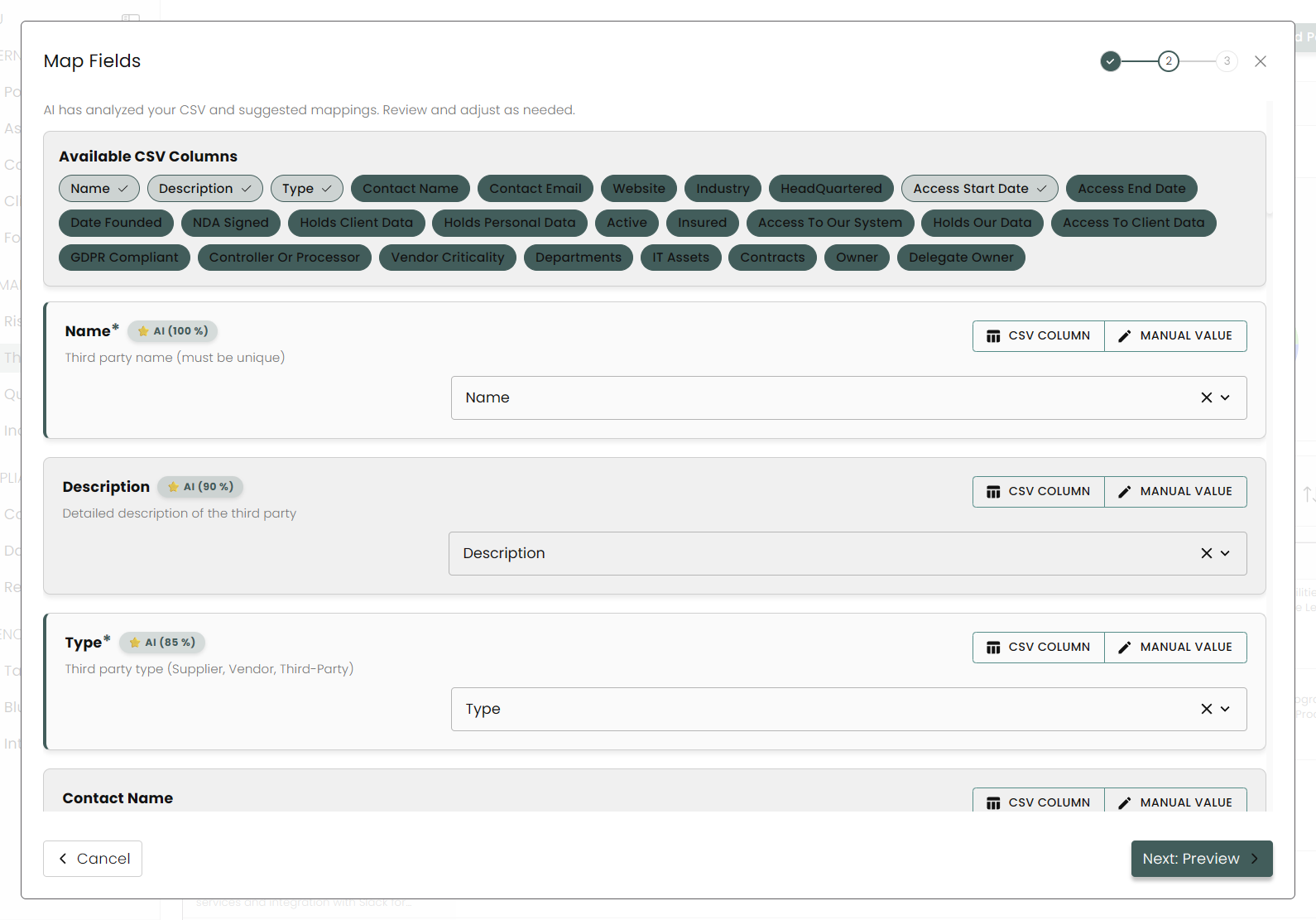
- Next you can Preview any invalid rows to modify if necessary and then Upload to finalize.
Updated 8 days ago