
PagerDuty Integration
The PagerDuty integration helps teams manage incident responses, on-call schedules, and other PagerDuty resources by integrating PagerDuty data into SQL queries.
PrerequisiteYou will need Admin or Account Owner access to create, disable, enable, or delete general access REST API keys.
Creating a PagerDuty API Token/Key
-
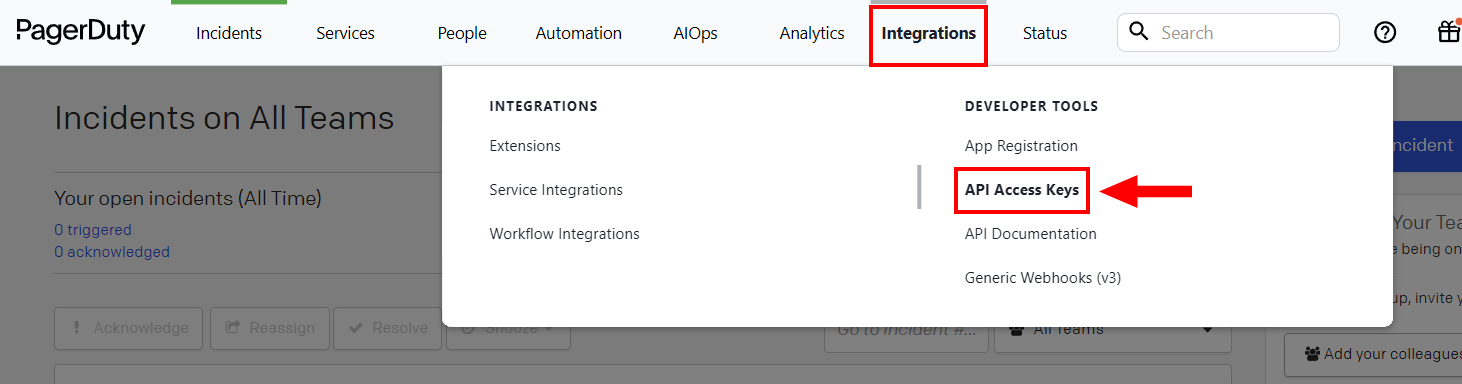
Log into your PagerDuty account and then navigate to Integrations → API Access Keys under Developer Tools.
-
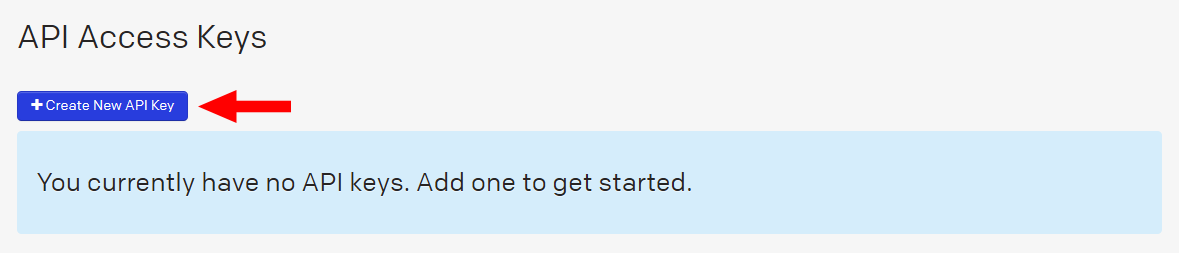
Click Create New API Key.
-
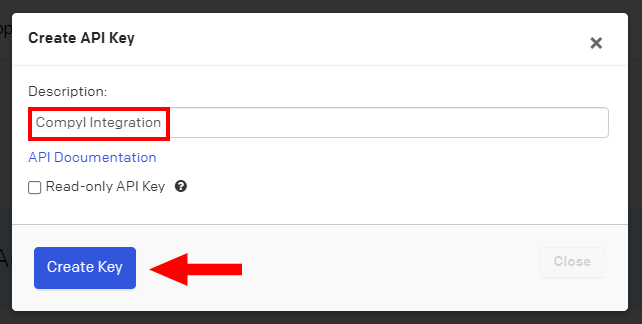
Enter a Description to help you identify the key later.
OptionalCheck Read-only API Key if you’d like the key to only make GET calls.
-
Click Create Key.
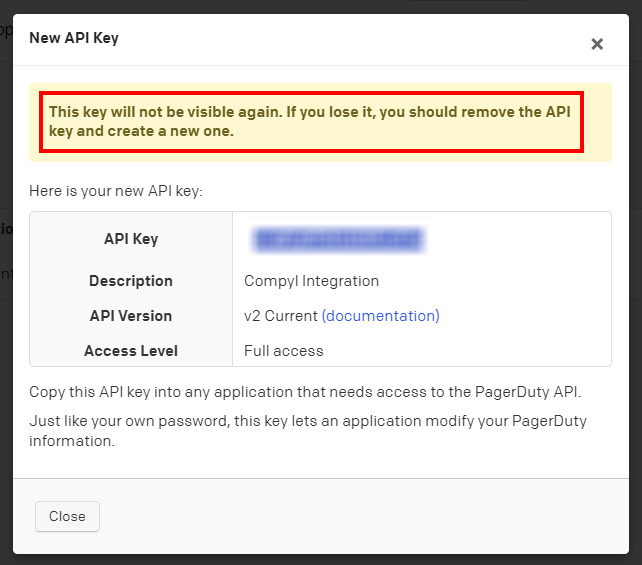
WarningThis will generate a unique API key. Store it in a secure location, as this is the only time the key is displayed in full. If you lose a key you will need to delete it and create a new one.
-
Click Close.
The key will appear in the table of API Access keys below, along with some additional information: the description, when it was created, the API version, access level and whether it’s disabled (including who disabled the key and when).

Add Configuration
-
Navigate to the Integrations tab using the left-hand menu, and select PagerDuty

-
Click the Add Configuration button and fill in the details below:

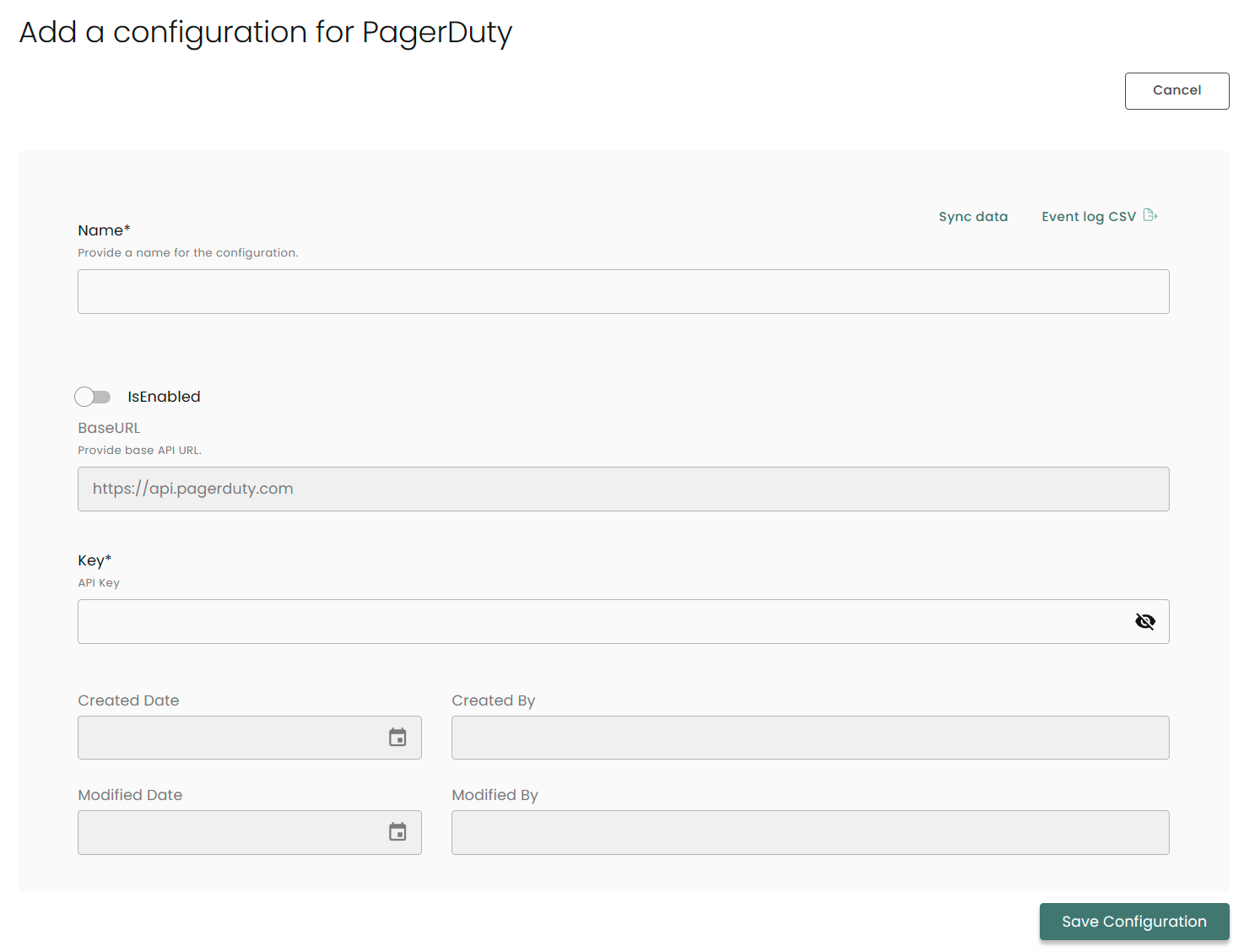
Name: Enter the name of the integration
is Enabled: Toggle button to ensure data is populated into Compyl
Base URL: This is automatically populated as https://api.pagerduty.com
Key: The API Token you generated above
Once you have completed filling out the form click Save Configuration.
NoteTo check if the integration is connected, navigate to the Integrations page in Compyl. If the Status icon shows an unbroken link in the right-hand corner, your integration is properly connected.

This integration syncs daily.
To query the data from the integration, refer to the Query Builder article.
Updated 2 months ago