
HubSpot Integration
Integrating with HubSpot gives Compyl access to any sales or CRM data within the platform.
In order to integrate with HubSpot, you will need to create an app within your HubSpot portal, which will produce a token needed for Compyl.
Create an App in HubSpot
-
Go to HubSpot, and make sure you are provisioned as a Super Admin.
-
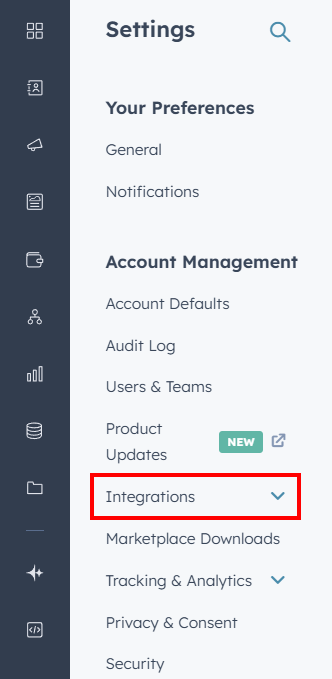
In the top navigation bar click the Settings icon.

-
On the Settings Navigation Menu, expand Integrations.
-
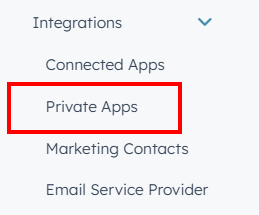
Select Private Apps.
-
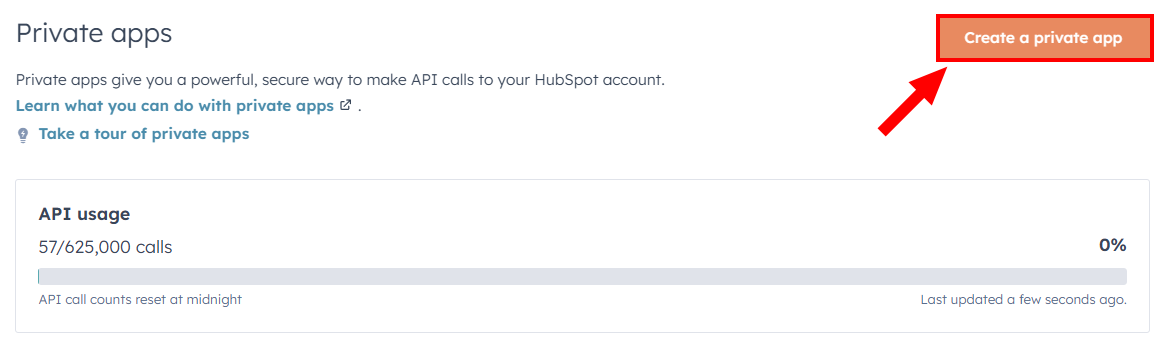
On the next screen, select Create a private app.
-
On the Basic Info tab, provide a Name for your private application. This is only going to be viewable by your company.
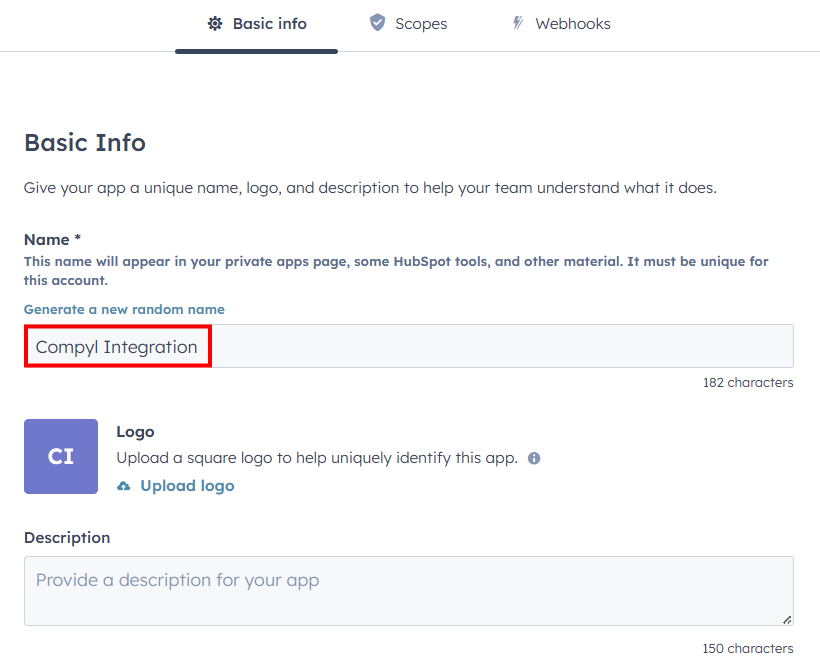
OptionalUpload a logo and provide a description for your app.
-
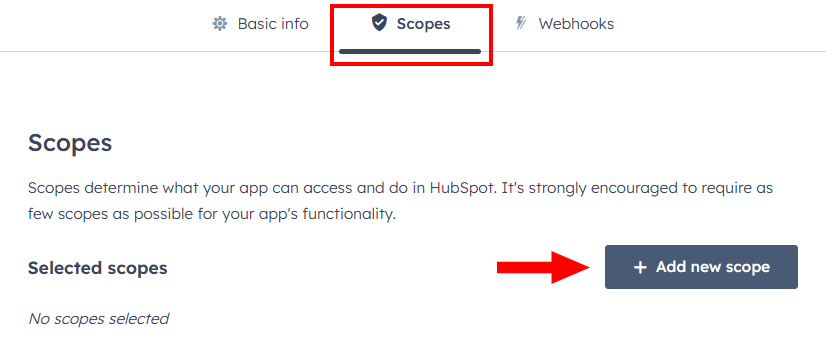
Click on the Scopes tab and then click Add new scope.
-
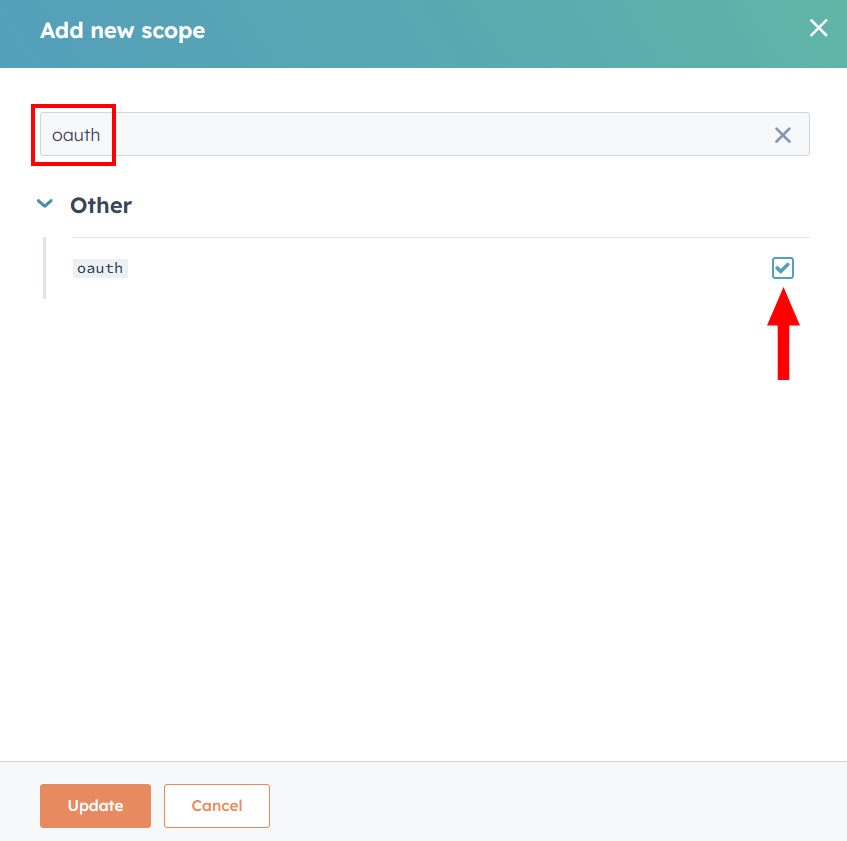
Search for each scope (as outlined in our Hubspot Tables and Scopes article), click on the checkbox, and then click Update.
-
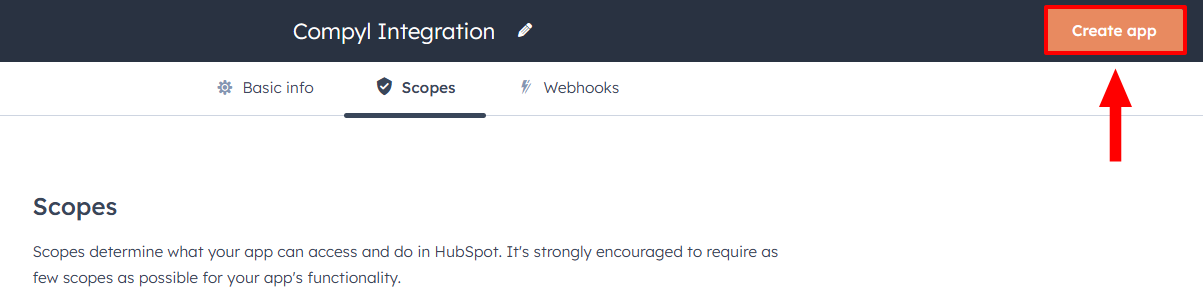
Click Create appon the top right.
-
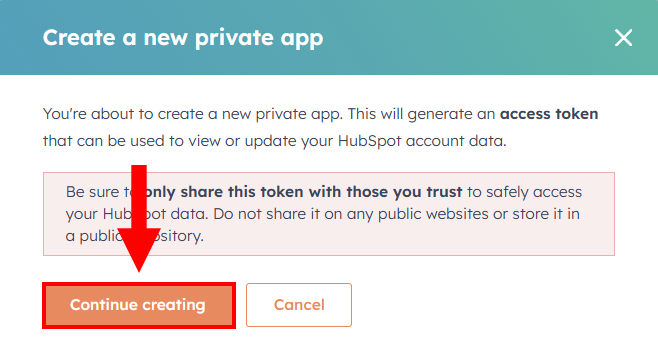
Select Continue creating.
-
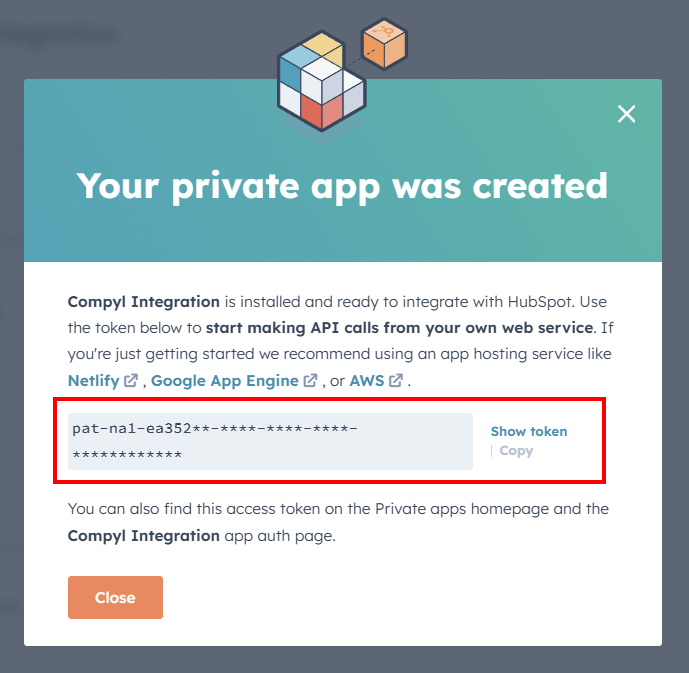
Your app is now created and ready to integrate with Compyl. Copy the token presented to your clipboard.
Add Configuration
-
Navigate to the Integrations tab using the left-hand menu, and select HubSpot

-
Click the Add Configuration button and fill in the details below:

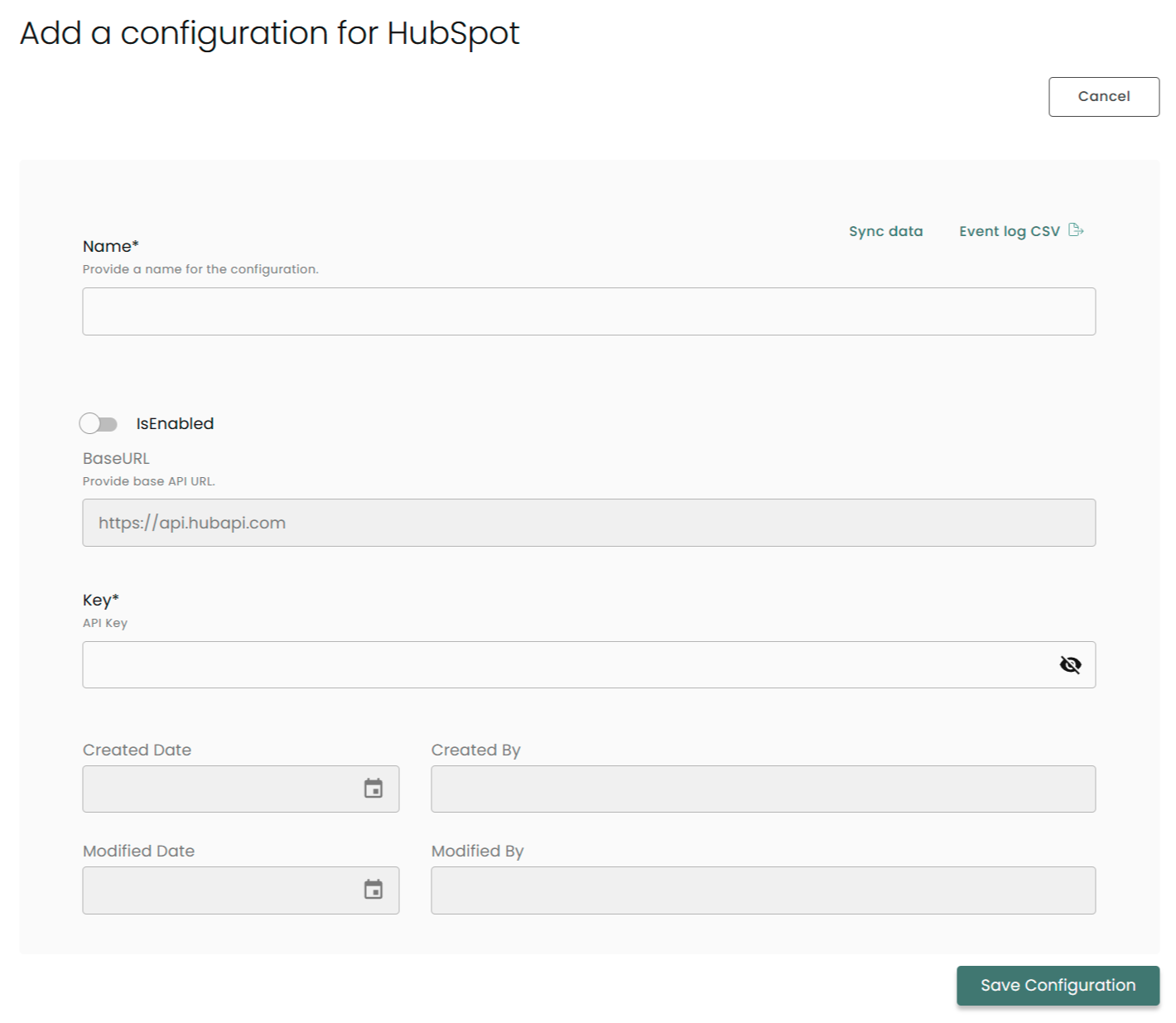
Name: Enter the name of the integration
is Enabled: Toggle button to ensure data is populated into Compyl
Base URL: The API URL is being used by the client for HubSpot
Key: The API Key is the same key you generated in HubSpot on Step 10 from the instructions above
Once you have completed filling out the form click Save Configuration.
NoteTo check if the integration is connected, navigate to the Integrations page in Compyl. If the Status icon shows an unbroken link in the right-hand corner, your integration is properly connected.

This integration syncs daily.
To query the data from the integration, refer to the Query Builder article.
Updated 2 months ago