
Questionnaires
Compyl's Questionnaire tool enables you to create and complete various questionnaires for your security program.
A questionnaire is used to evaluate the security risk of a company, a system, a vendor, or any other entity, and identify the necessary controls needed to fill security gaps. For example, create a Gap Questionnaire based on a security regulation or framework, send a vendor questionnaire for security due diligence, or build an internal systems questionnaire for a more in-depth look at your organization's environment. Users can create the evaluation criteria from scratch directly in Compyl or upload a control set or question set for the questionnaire.
Add a Questionnaire
Use the left-hand side bar menu, and select Questionnaires under the Risk Management section and select Add Questionnaire.
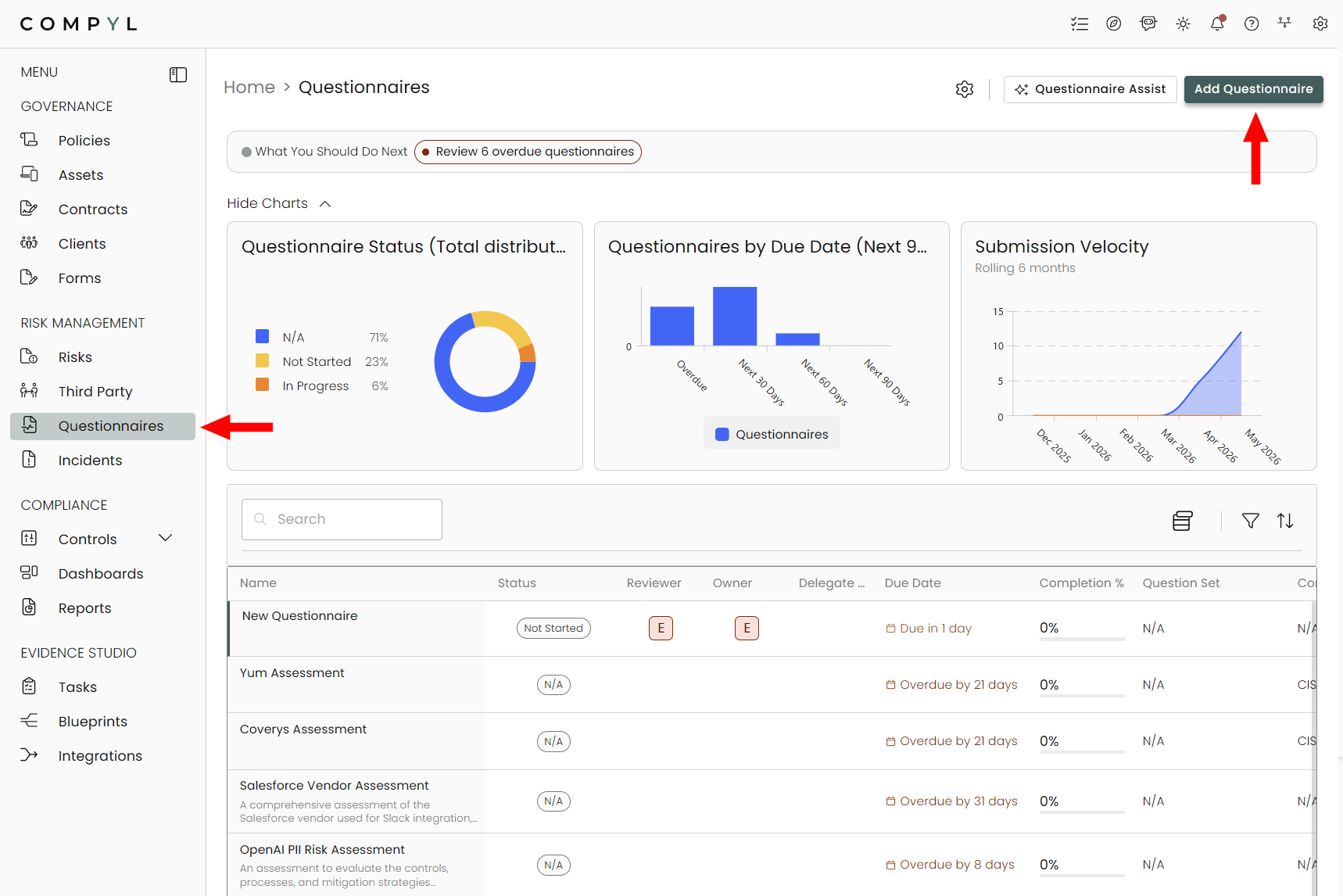
1. Details
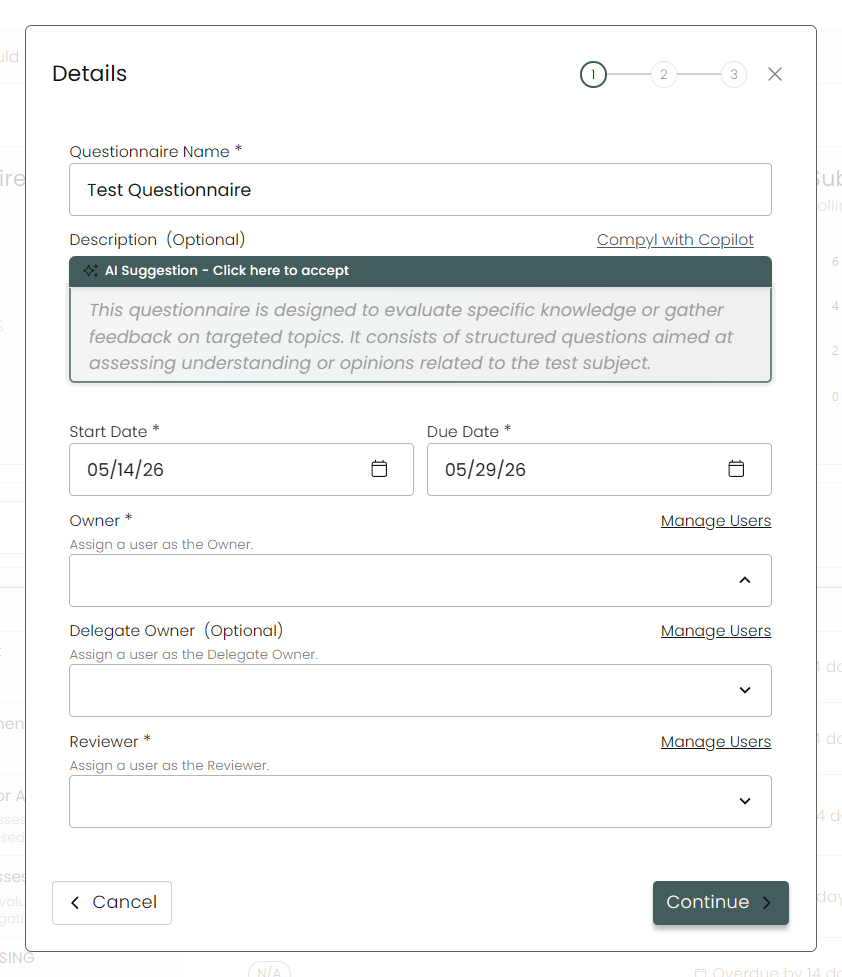
In this window fill out the form with all relevant information such as Name, Start and Due Date, Owner, and Reviewer. Click on Continue once this is done.
Owner refers to the users responsible for completing the assessment, and Reviewer will be responsible for reviewing it once it has been completed.
2. Configuration
Pick your Question and Answer Sets here if you've imported them beforehand. Once done, click Generate Preview.
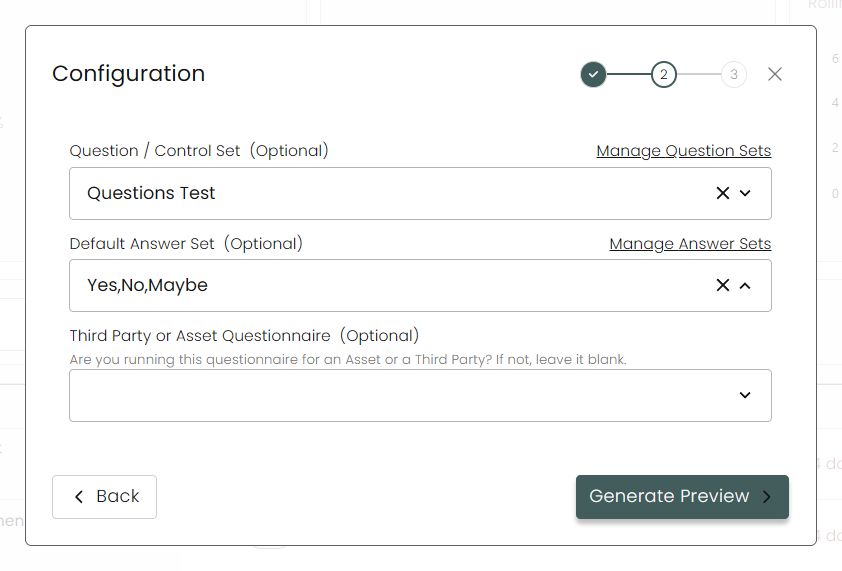
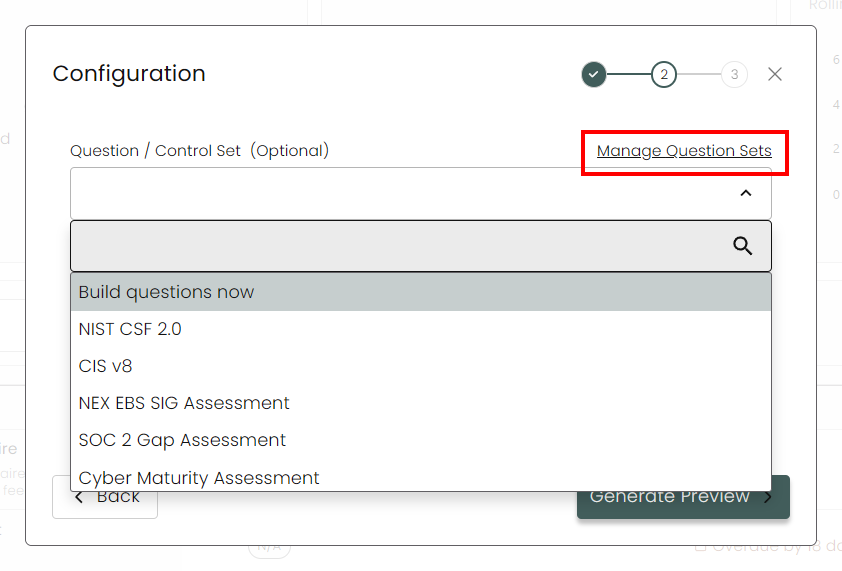
Question / Control Set
Select the questions or control set you will be running the assessment against. You also have the option to build your own questions directly by selecting the first option of the list called Build questions now. To learn how to build a custom assessment in Compyl, visit this Questionnaire Builder article.
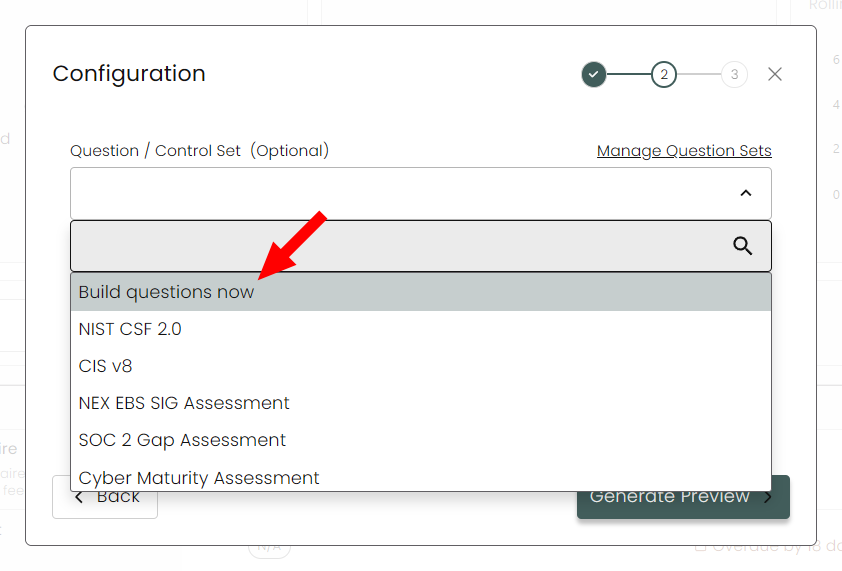
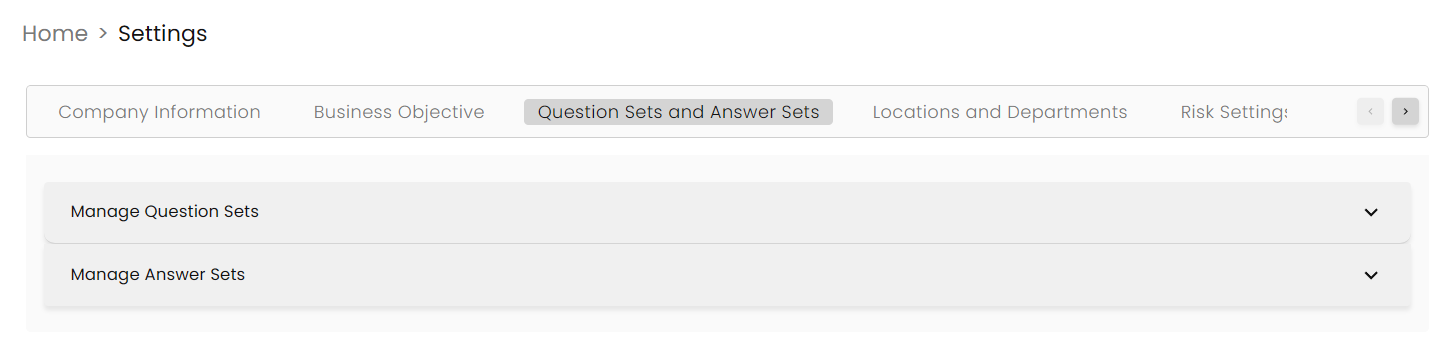
If you do not see the control set or question set you would like to use for your assessment listed in the dropdown, you can upload it by clicking Manage Question Sets. This brings you to the Question Sets and Answer Sets tab under Settings.
Default Answer Set
Select your Default answer set from the drop down in the field. If you do not see the Answer Set would like to use for your assessment, you can add new ones by click on Manage Answer Sets. Like above, this brings you to the Question Sets and Answer Sets tab under Global Settings.
NoteYou can read more about how to add additional Question and Answer Sets here .
3. Preview
Here you can get a quick preview of what your Questionnaire will look like with your current options. You can also completely edit it by adding and removing Sections and Questions and more.
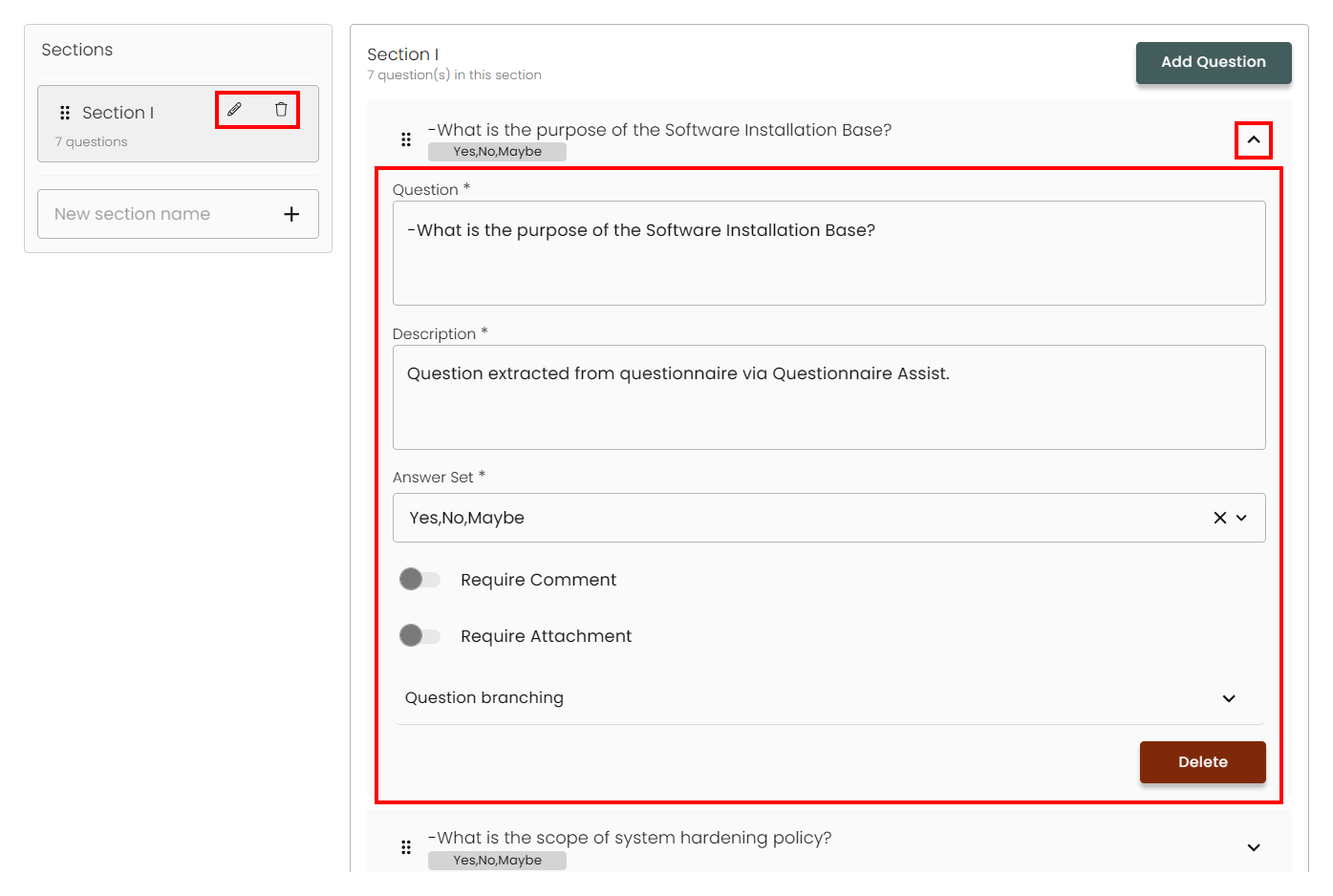
- Each section can be renamed or removed by clicking on either the pencil or trash can icon next to it.
- Expand each Question field via the caret to modify the question.
Once you're happy with it, click on Create Questionnaire.
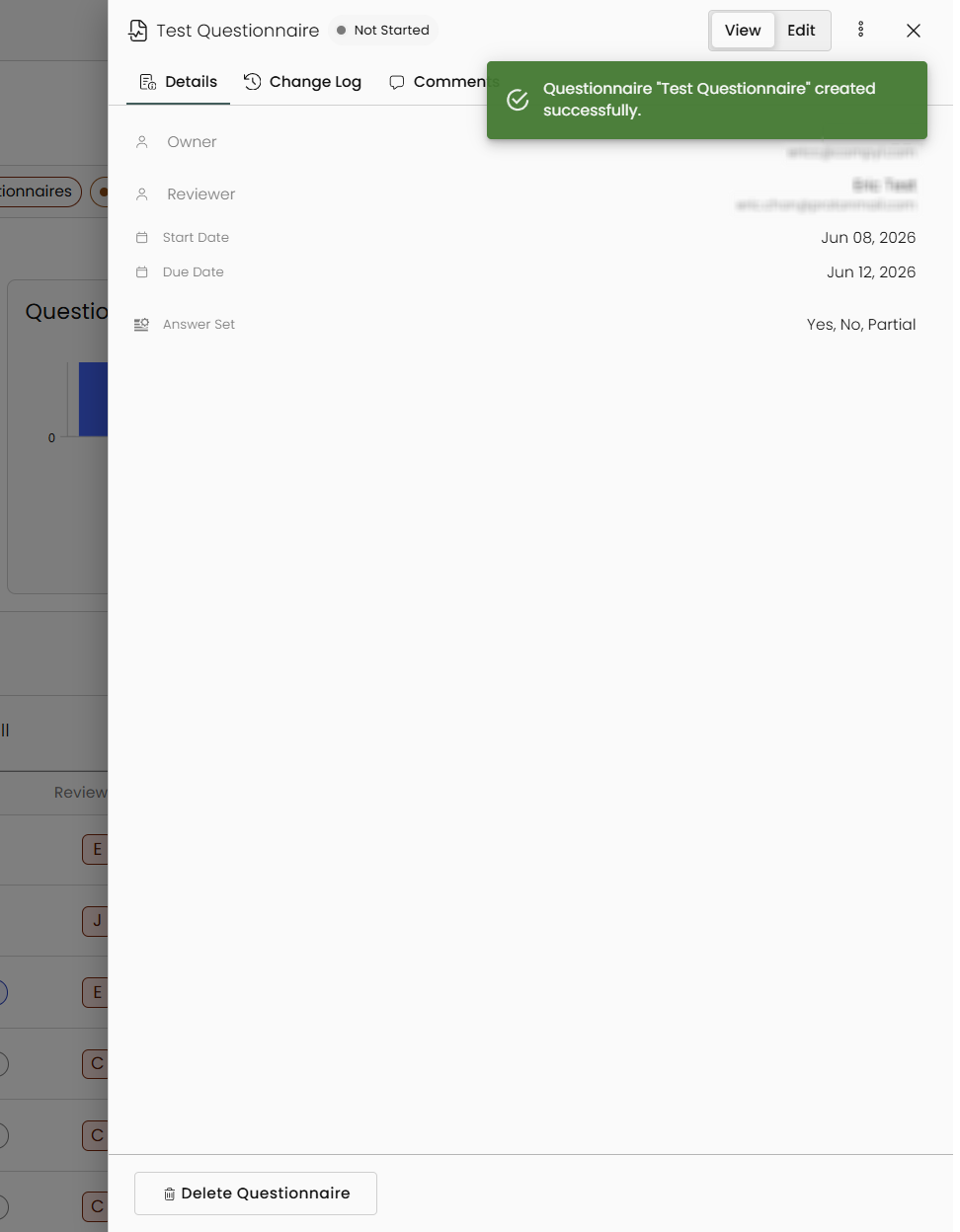
To learn how to complete an assessment, visit the the Completing and Reviewing Assessments article.
Questionnaire Details and Options
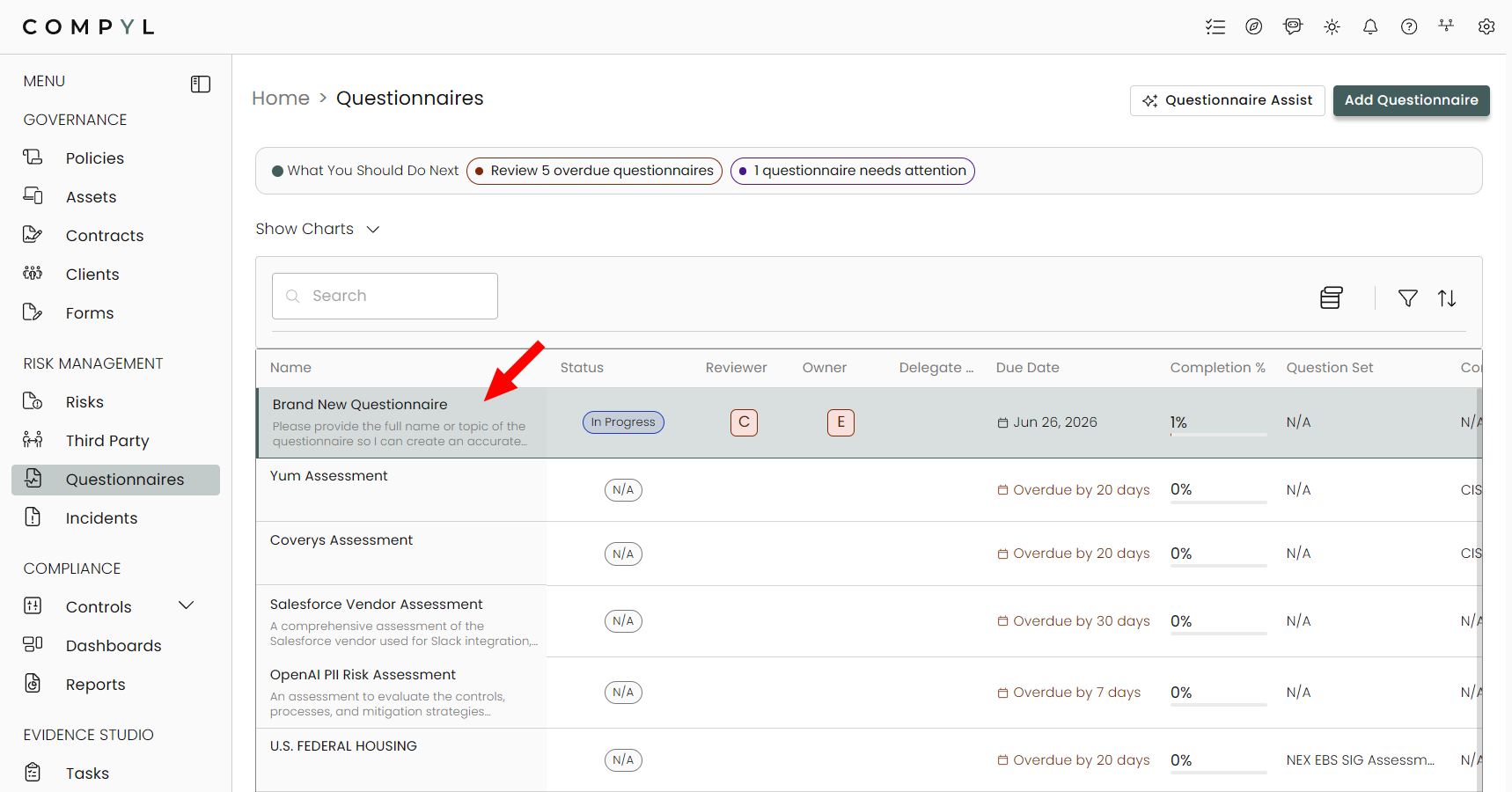
Open an existing questionnaire by selecting it in the Questionnaire register.
To edit your questionnaire's details, click on the Edit toggle in the slide-out.
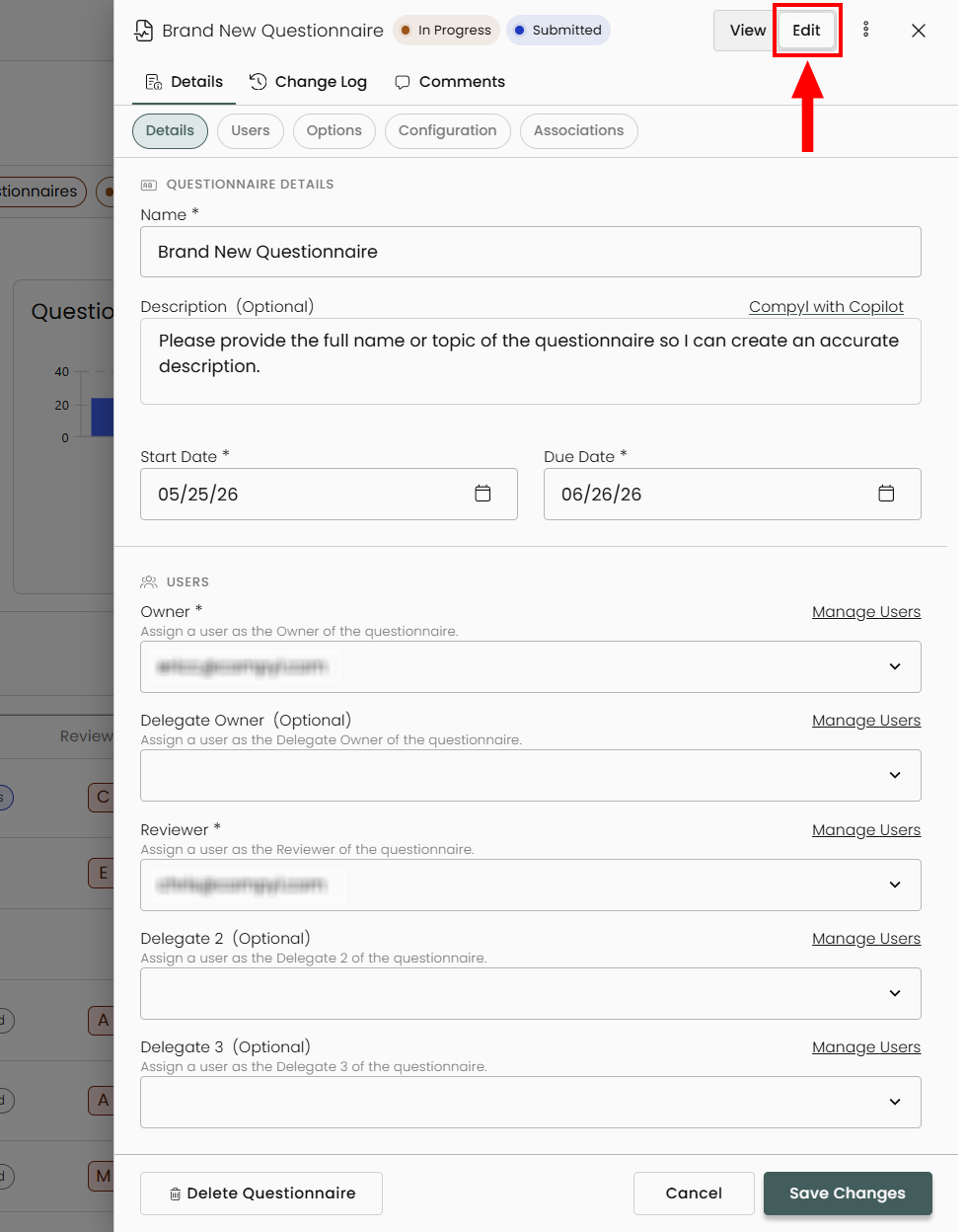
Here you can change its name, description, start and due date, or even delete it completely.
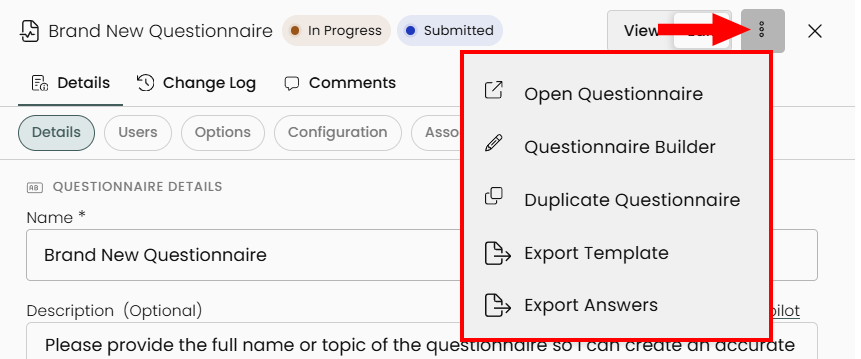
Clicking on the 3-dot menu allows you to:
- Open the questionnaire in order to complete it
- Go into the Questionnaire Builder in order to modify it further (add/remove questions, sections, change branching, etc...)
- Duplicate it
- Export it as either a template or all of its answers if it's complete
Updated 8 days ago