
Policies Register
Compyl's Policy Register helps you to manage, customize, review, and approve all of your security policies in one centralized location.
During the Onboarding process, generating or uploading security policies is a key initial step in setting up your security program. If you already have security policies, you can upload them directly to Compyl, assign owners and reviewers, and kick off the approval process immediately. If you do not have security policies, you can use our default set of policies, and customize them to meet your specific requirements.
Adding a Policy
You can either upload an existing policy (as a Word file) or create a new one within Compyl.
Uploading an Existing Policy
-
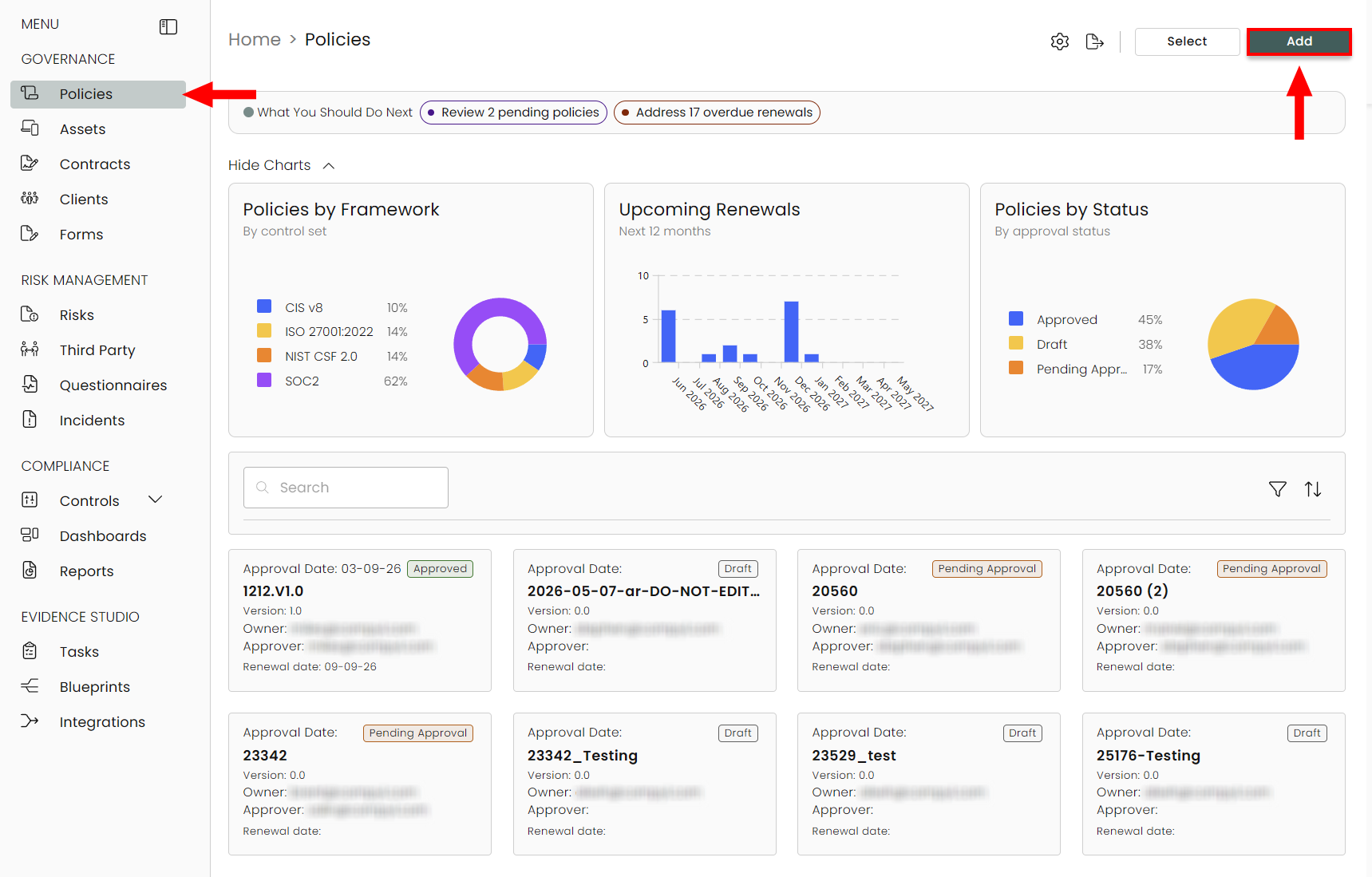
Select Policies from the sidebar on the left-hand side under Governance and then click Add. Select Upload Policies and locate your Word document (docx) of the policy you'd like to add.
-
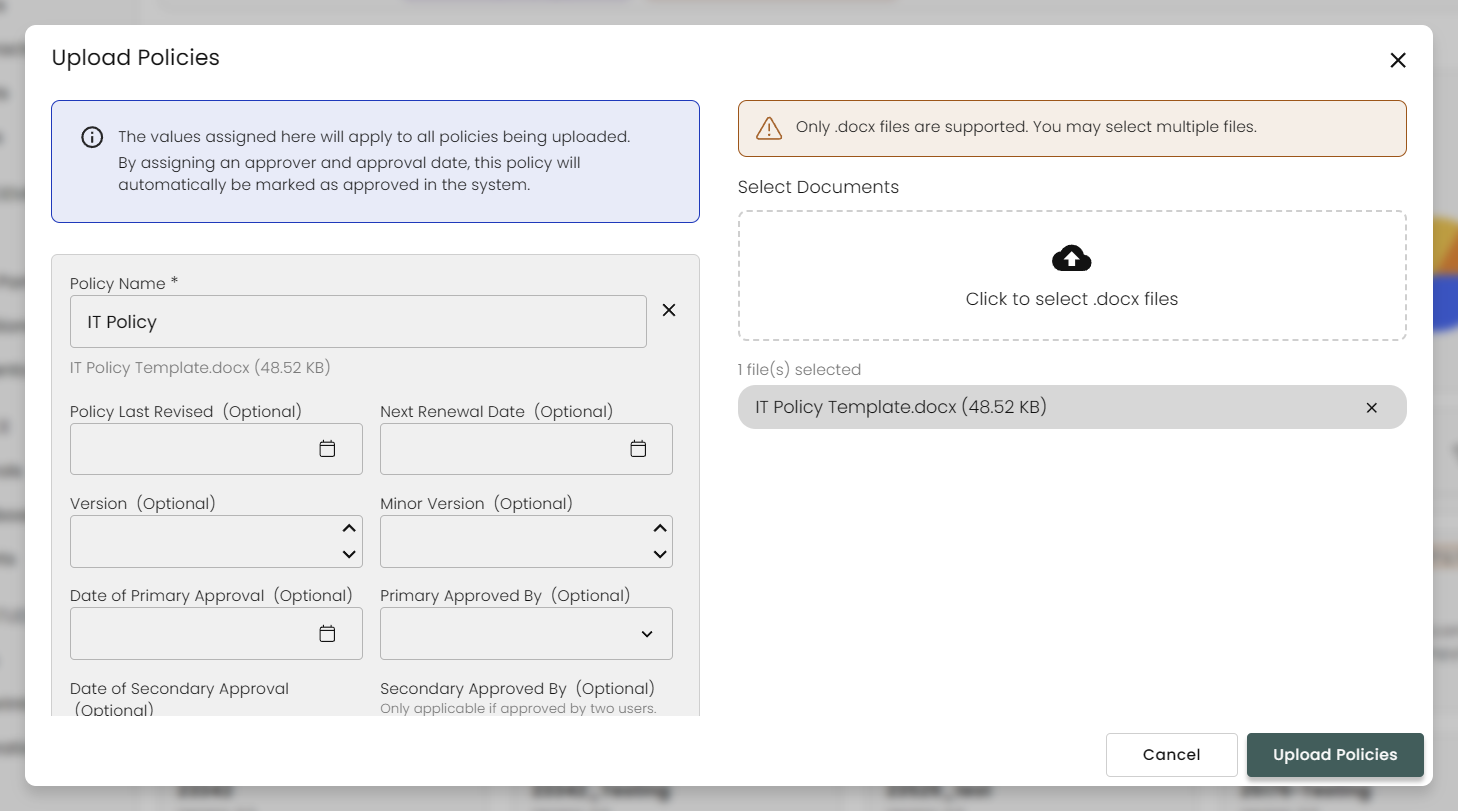
Once you have selected a policy to import and clicked Open, you can edit the details of the policy, such as Revision and Renewal Dates, Version, Owner, and Approver. This information will be populated for the policy and can be reflected within the document using our policy tokens.
-
Once uploaded, the policy will show up as a tile on the Policies home page.
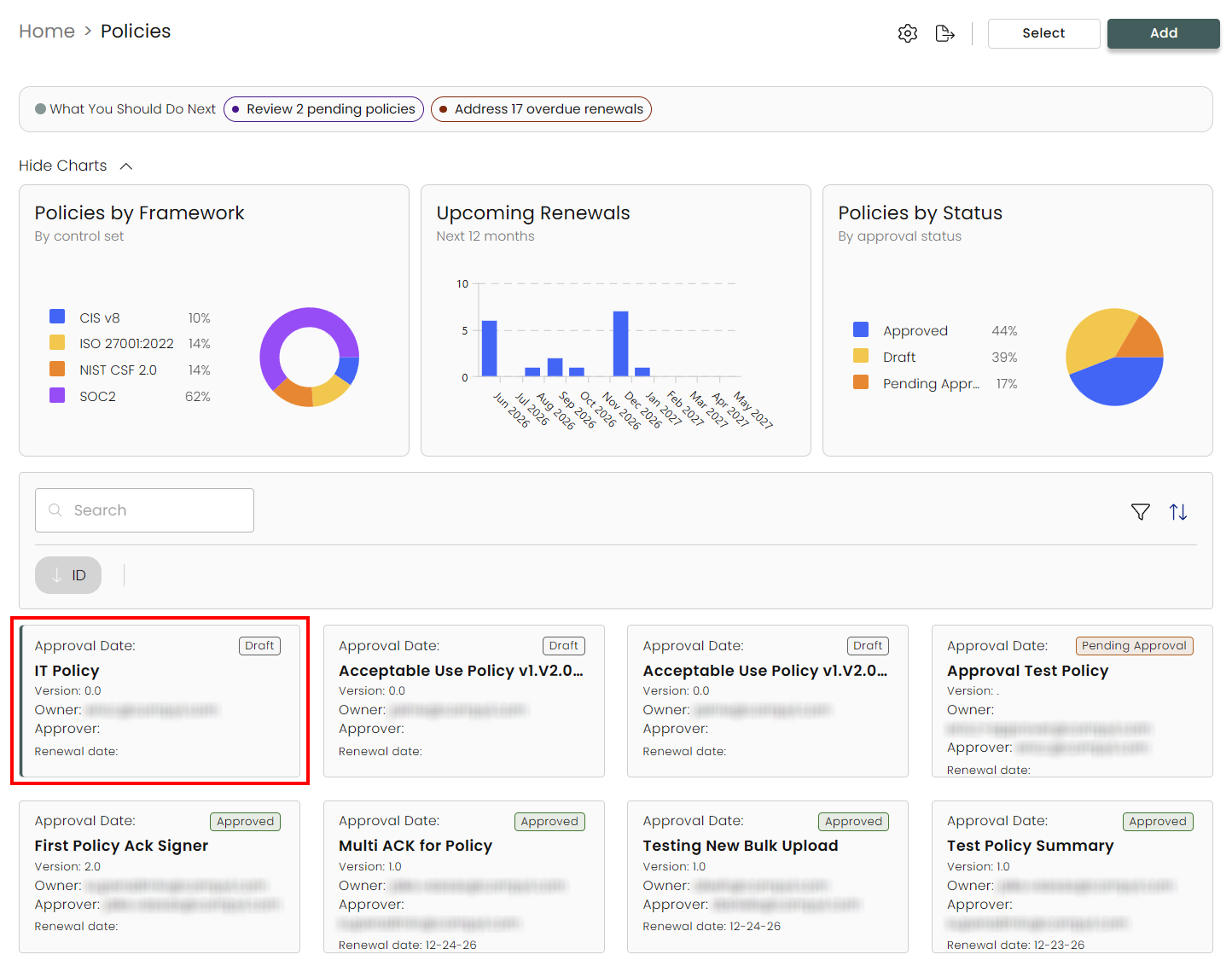
Policies are sorted in alphabetical order by filename
Creating a New Policy
-
Select Policies from the sidebar on the left-hand side under Governance and then click Add. Select Create New.

-
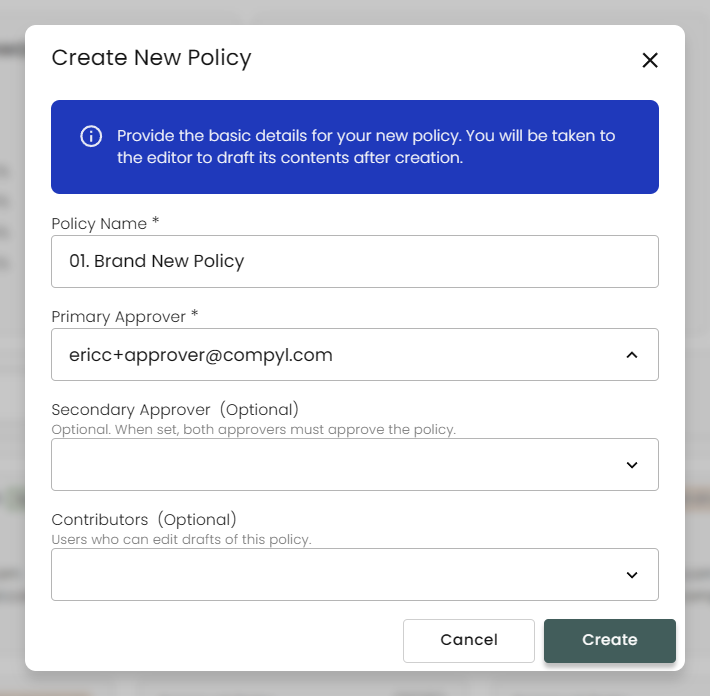
Enter in the Policy Name and select your Primary Approver as well as any (optional) contributors or a secondary approver. Then click Create.
-
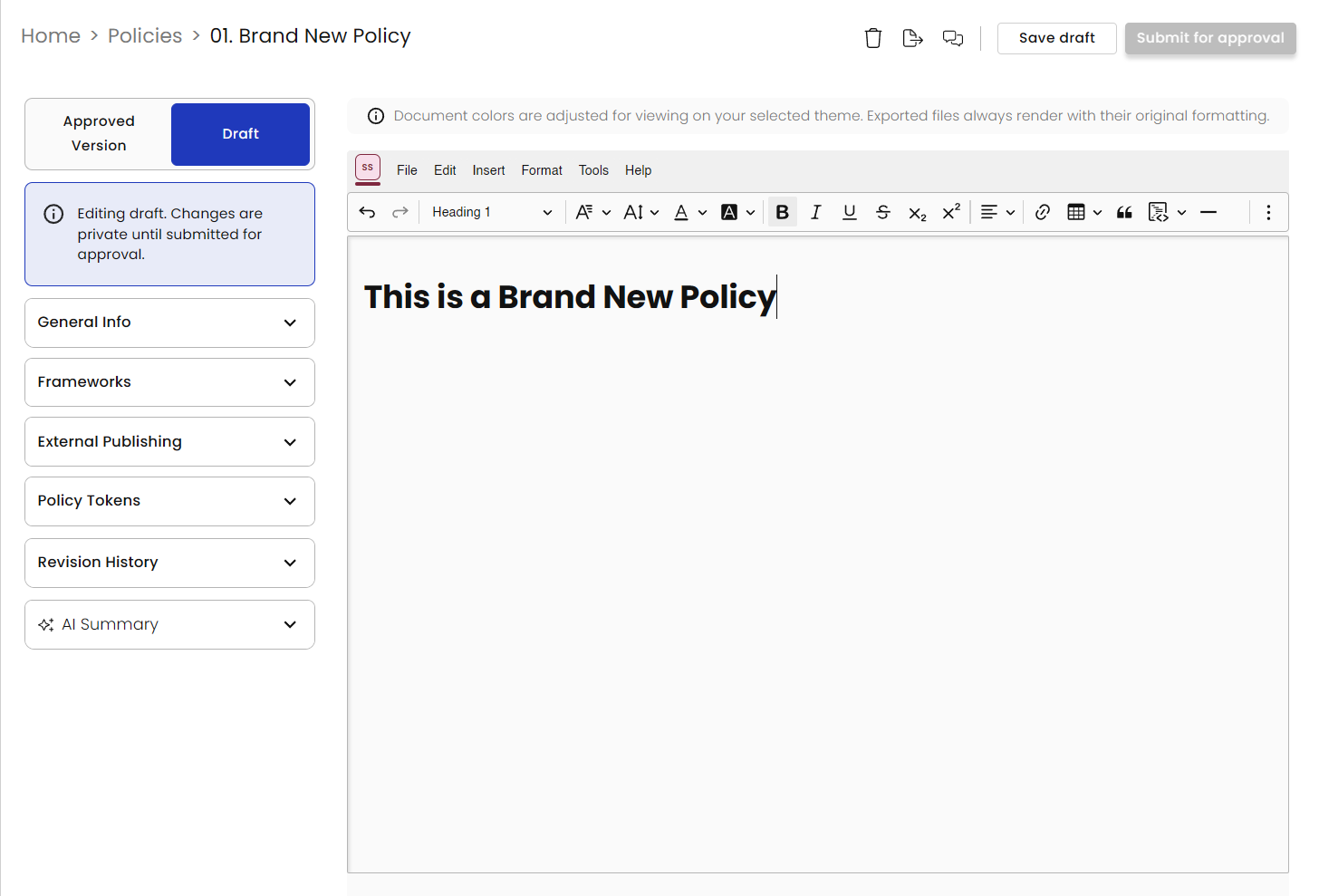
This then brings you straight into Draft Mode to edit/create the policy from scratch. You can jump to the Editing a Policy section for more information.
Exporting a Policy
On the Policy page itself, click the Export icon:
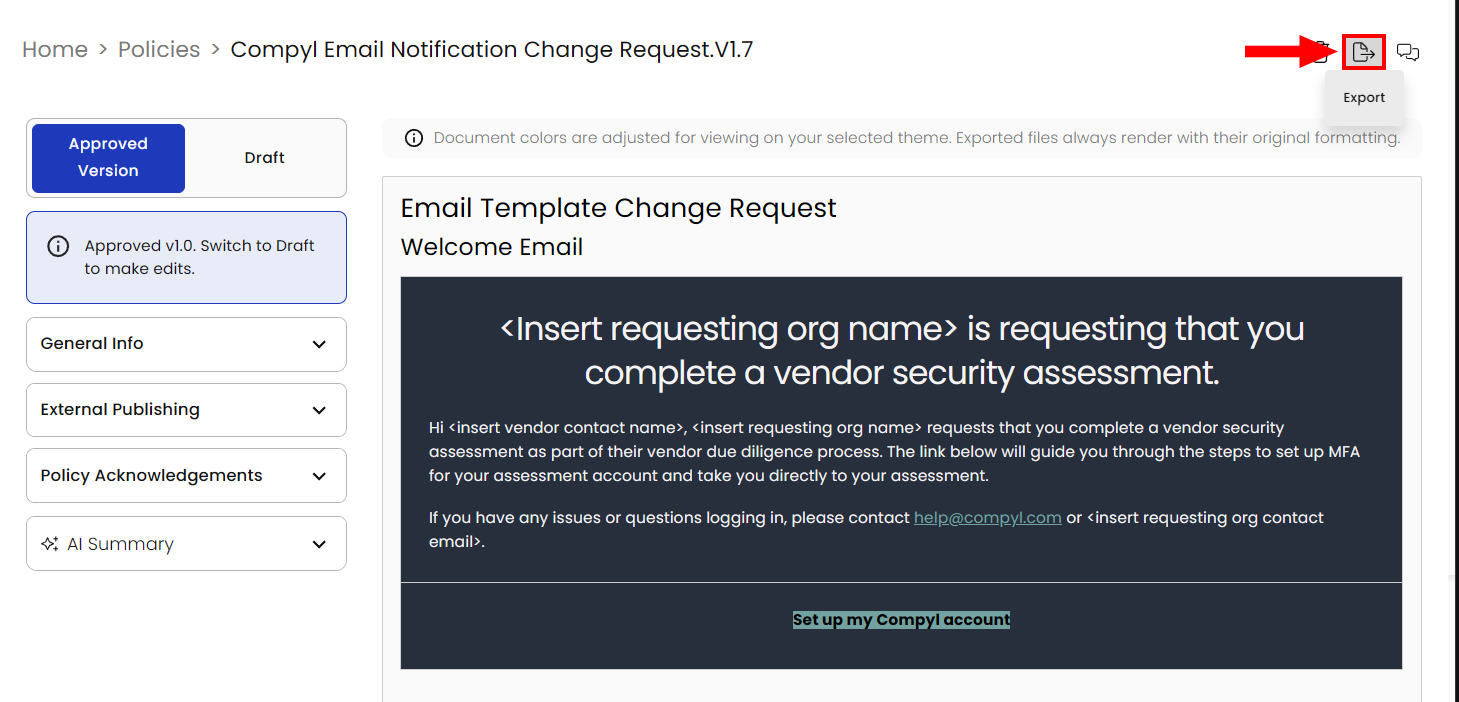
You can then choose download a your policy as either a DOCX or PDF file.
Editing a Policy
WarningYou cannot be both a policy Owner and an Approver/Contributor. Each account can only have one role associated with it.
When viewing a policy, click on Draft next to Approved Version. This will bring you to view the policy in edit mode. This is a fully editable word processor where you can make in-line updates directly to the document, along with other common word processor tools found on the top toolbar of the document.
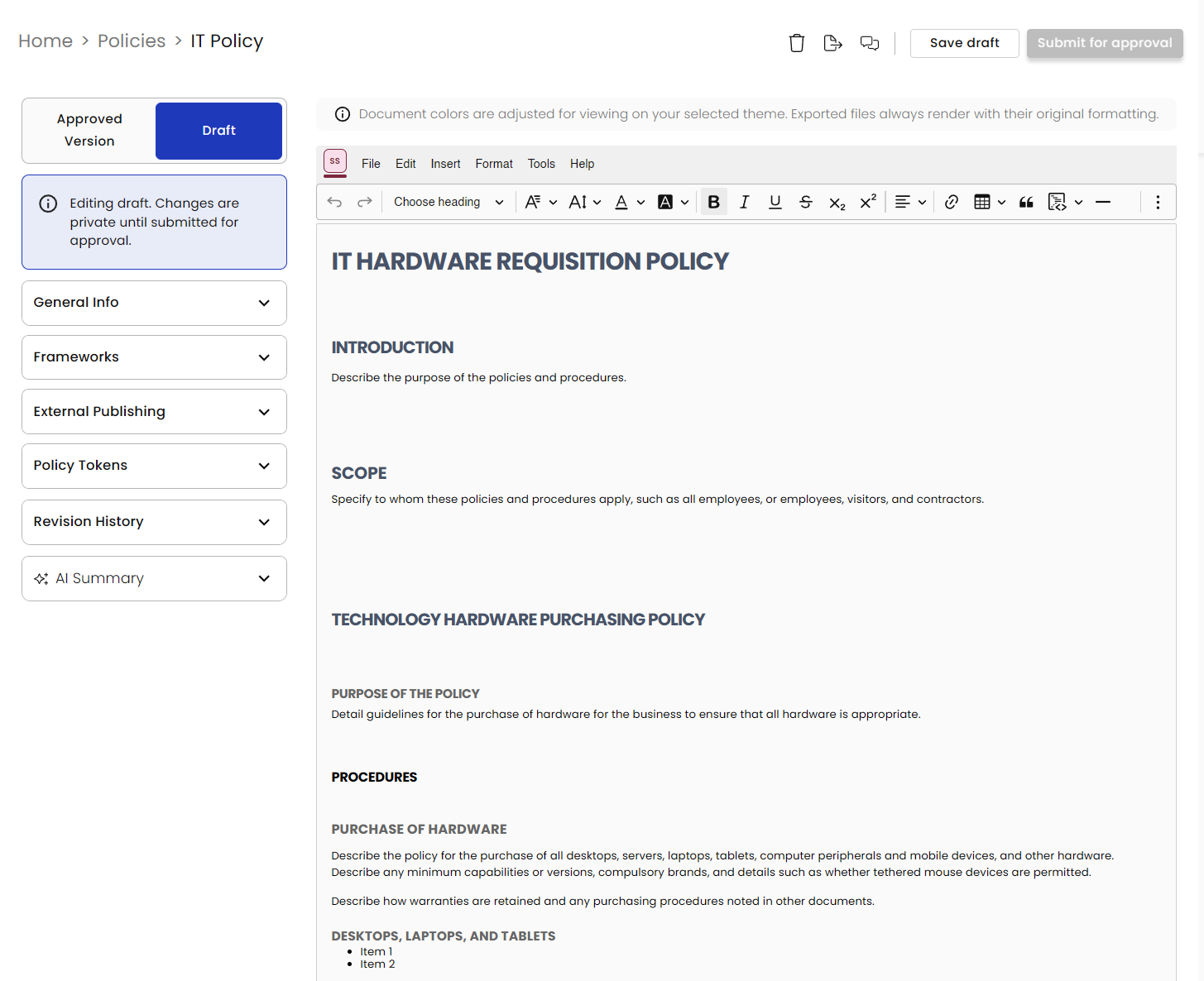
Click Save draft and Submit for Approval when ready to be reviewed by your approver.
Policy Sidebar Options
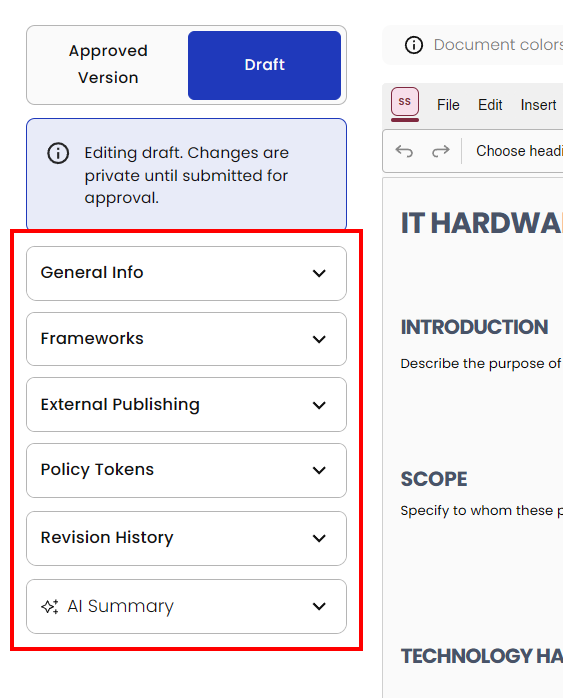
There are several expandable menus on the sidebar that let you update, edit, and modify aspects of your policy beyond just editing the document itself.
General
Here you can change the Policy Title, the Type (you can read more about this in Policy Settings), and update the Owner (if you are currently the owner) and Approvers.
Frameworks
Select which Frameworks you'd like to attach to this policy here.
External Publishing
The options on where to publish this policy externally (for example, a Confluence page) is set up under Policy Settings.
Policy Tokens
These are smart placeholders that are replaced upon export. You can read more about them in Policy Tokens.
Revision History
Opening this shows you all of the revisions, including date/time and user who made the revision(s).
AI Summary
Compyl AI generates a summary of your entire policy to quickly and easily understand what's inside without having to go through the entire document, saving you time and effort to get up to speed.
Updated 8 days ago