
Questionnaire Builder
Compyl's Questionnaire Builder tool allows you to build your own questionnaire from scratch or edit existing ones
When building an Questionnaire, you can choose not to create it from a pre-uploaded control set or question set, and instead build it directly in Compyl. This function is particularly helpful if you want to run an assessment that is not already documented.
Add a Questionnaire
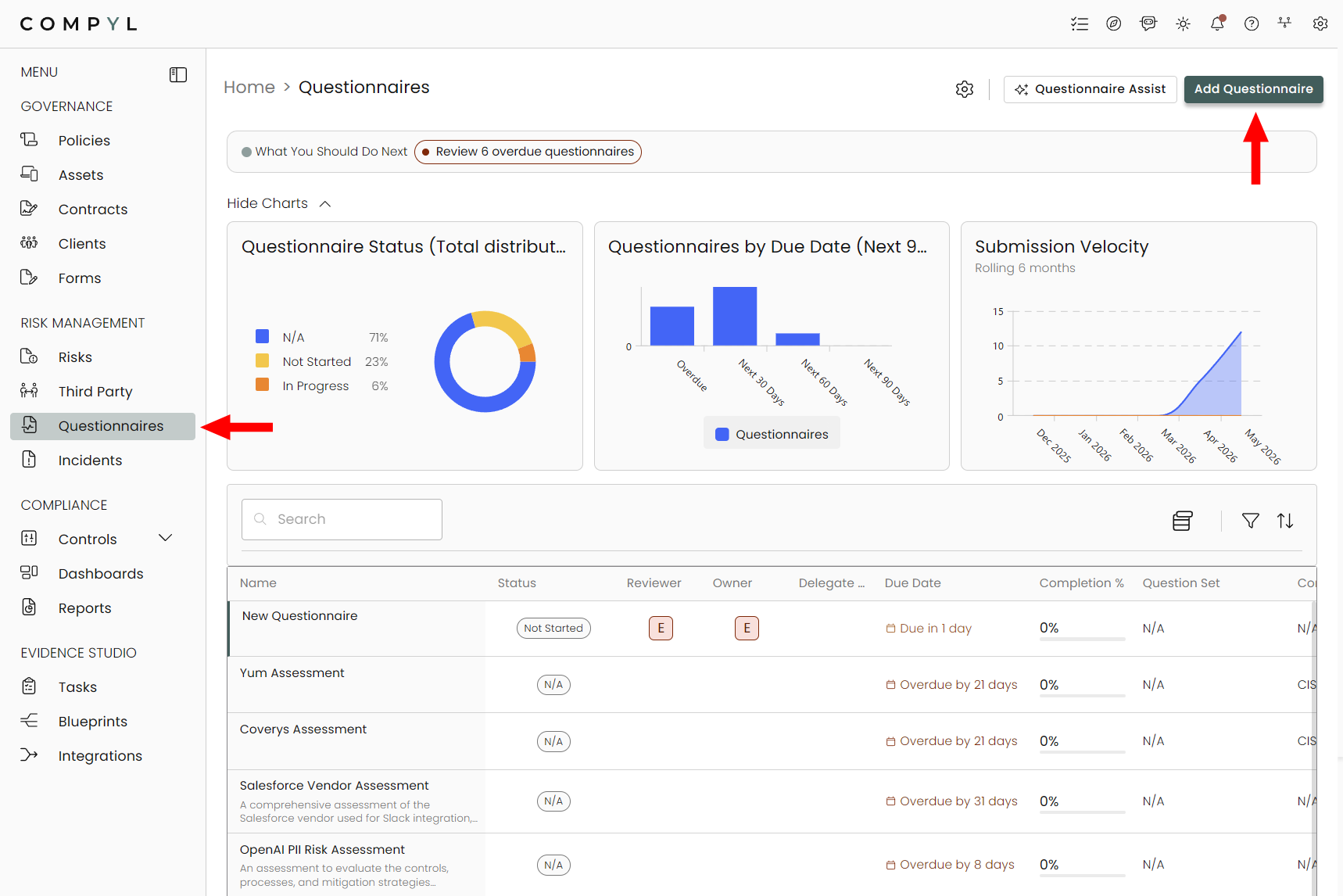
Use the left-hand side bar menu, and select Questionnaires under the Risk Management section and select Add Questionnaire.
Details
In this window fill out the form with all relevant information such as Name, Start and Due Date, Owner, and Reviewer. Click on Continue once this is done.
Owner refers to the users responsible for completing the assessment, and Reviewer will be responsible for reviewing it once it has been completed.
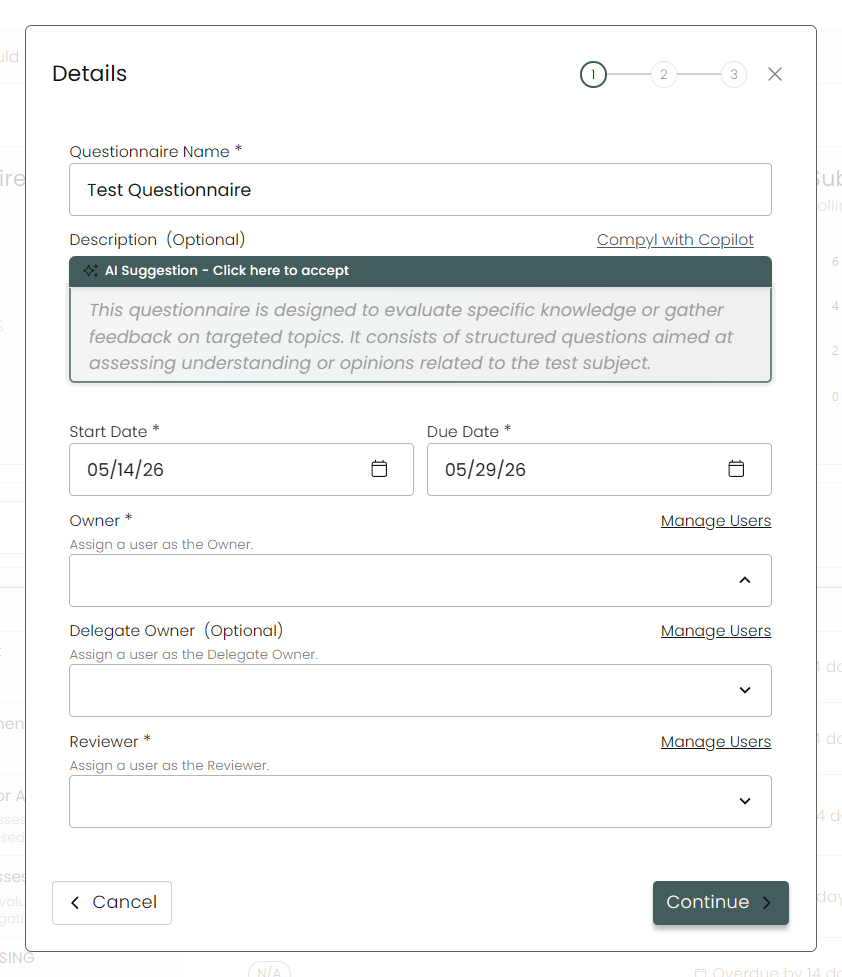
NoteThe Reviewer cannot be the same user as the Owner or Delegate Owner.
Configuration
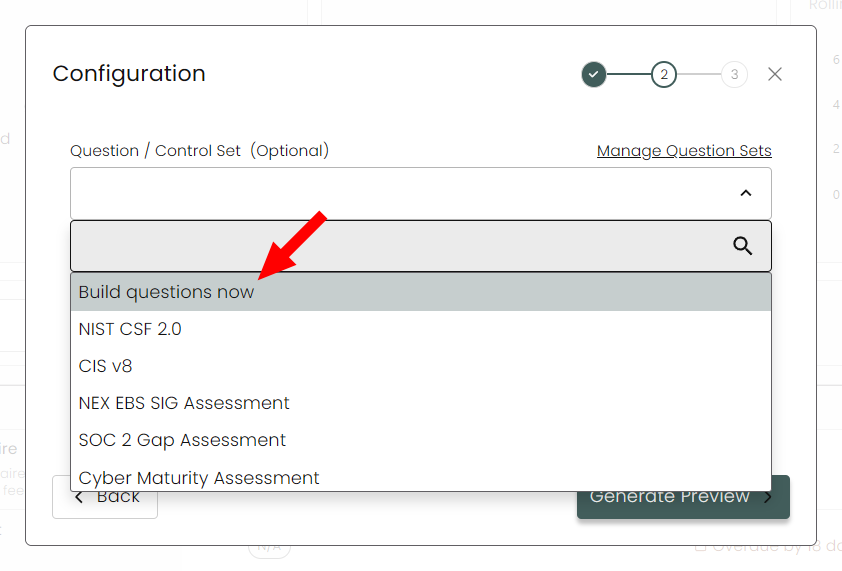
For a custom questionnaire, select Build questions now from the drop-down and click Generate Preview
Default Answer Set
Select your Default answer set from the drop down in the field. If you do not see the Answer Set would like to use for your assessment, you can add new ones by click on Manage Answer Sets. Like above, this brings you to the Question Sets and Answer Sets tab under Global Settings.
NoteYou can read more about how to add additional Question and Answer Sets here .
Preview
Here is where you'll build out the sections and questions for your questionnaire.
Sections
First, in the New Section Name field on the left side, type in the name of the first section of questions for the assessment, and then hit the + icon.
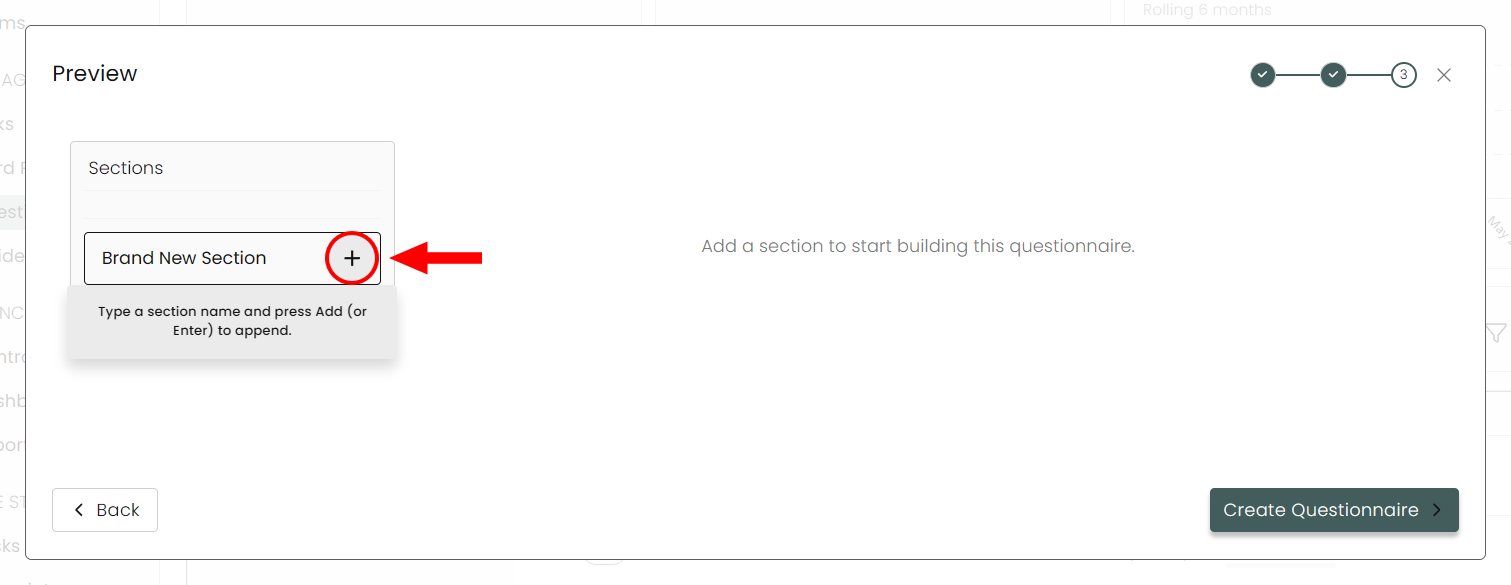
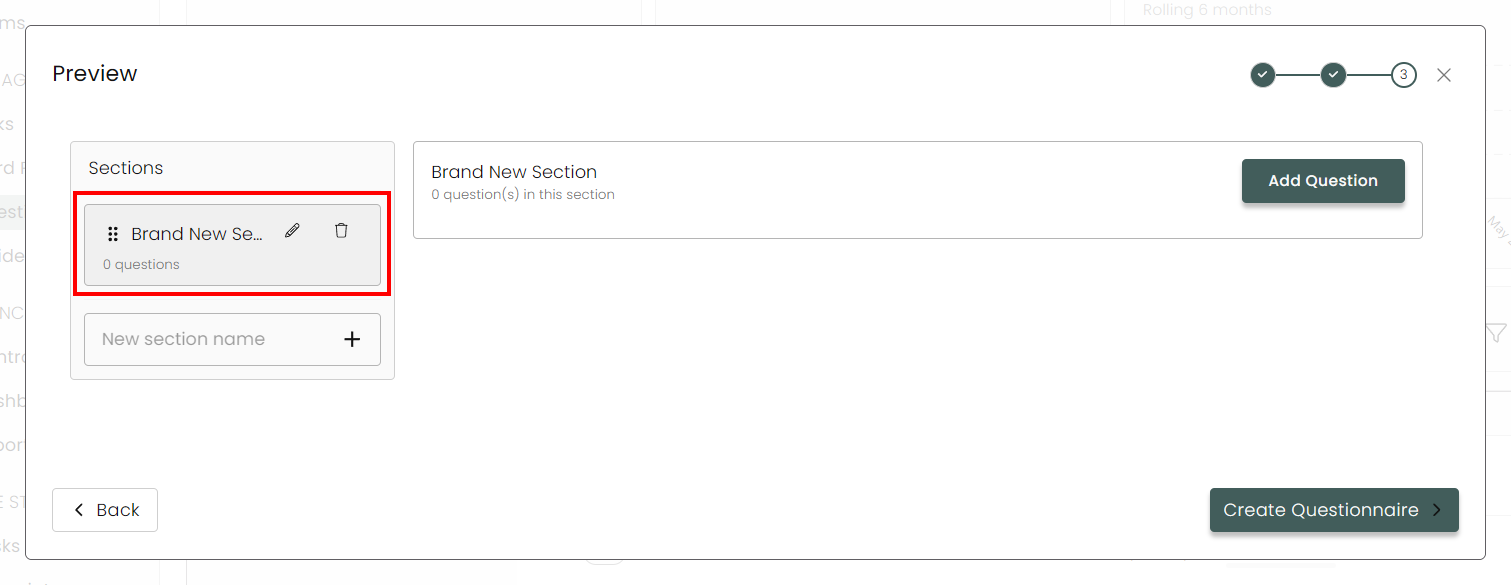
Repeat this step to add additional sections.
Questions
To create a question, click Add question. You can add multiple blank questions at once.
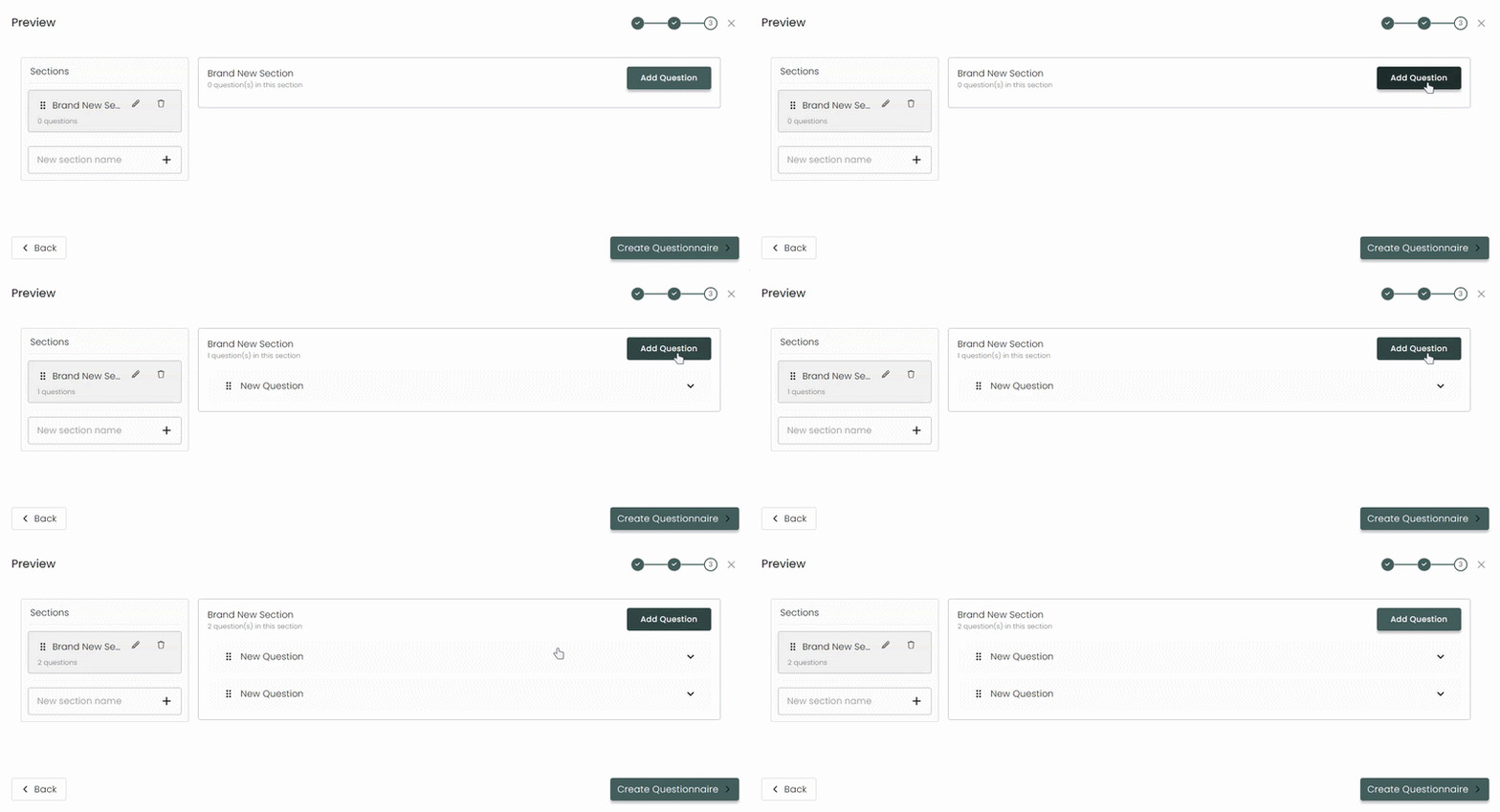
Expand a New Question but clicking on the caret to enter in its details.
Enter in the Question Text, Description, and Answer set for the question. You can also select if the answer to the question should require comment or attachment, as well as add any branching for the question.
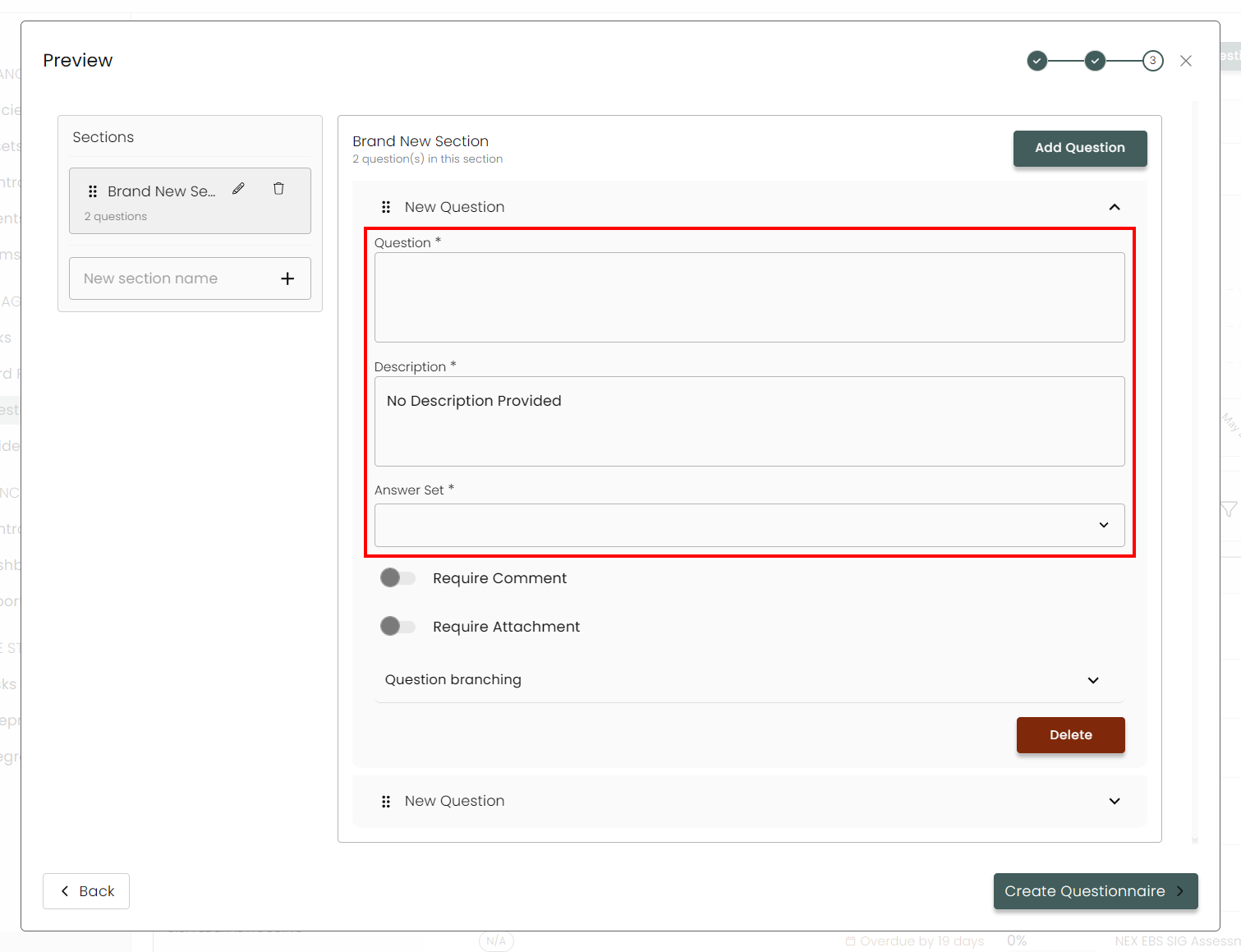
Repeat this step until all questions have been created. To switch between sections, select the section on the left side and then continue to add questions.
When your questionnaire is complete, click on Create Questionnaire.
Branching Questions
If you'd like specific answers to go to different questions, sections, or even to end the assessment overall, you'll need to create Branching Questions, the option to do so located at the bottom here.
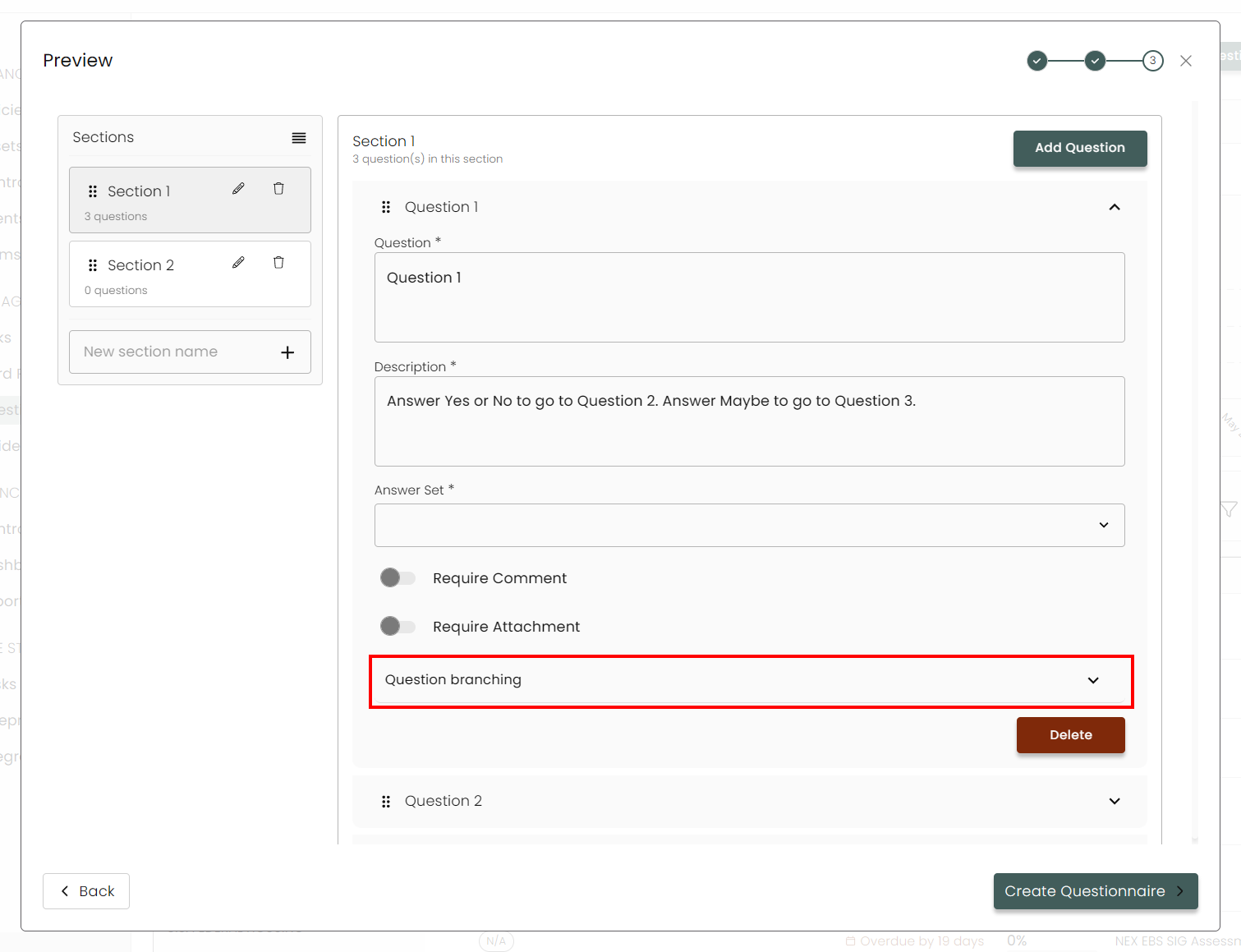
Expanding this shows all the various options available.
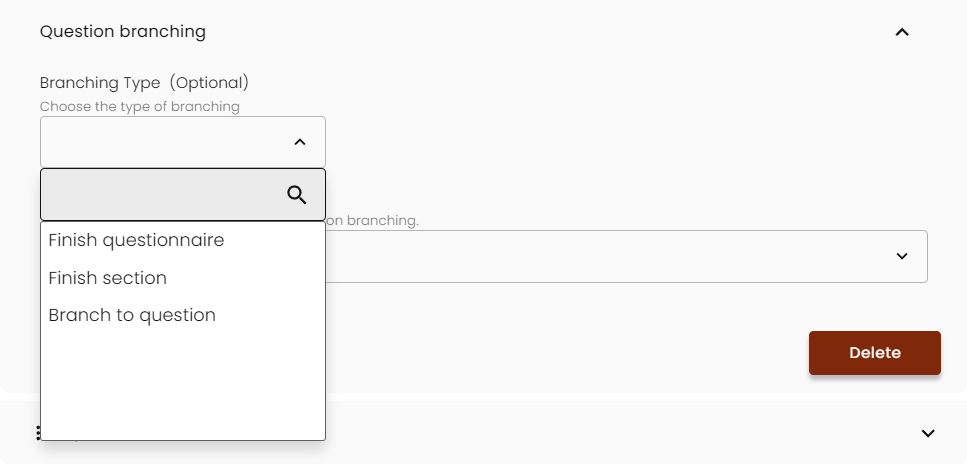
FYIIn order for the Branch to question option to become available, you will need to have all your other questions and created first. If it still does not show, save the assessment and then reopen it. The option should now appear.
Branching Type
Finish assessment - Answering this question based on the criteria created via Branching Comparison and Answer Trigger will complete the assessment.
Finish section - Answering this question based on the criteria created via Branching Comparison and Answer Trigger will complete the section and move to the next.
Branch to question - Answering this question based on the criteria created via Branching Comparison and Answer Trigger will jump to a different question that is not next in order.
Branching Comparison
These are operators that influence how the branch will respond depending on an answer. For example, if Equalsis chosen, then any answer that is the same as the Answer Trigger will activate the branching action.
Branching Answer Trigger
This is the answer (determined by your Answer Set) that triggers branching.
Example Branching Question Build
In the following example, the question is built so that an answer of Maybe will skip Question 2 and go directly Question 3.
Under Branching Type we have picked Branch to question. This opens a new dropdown titled Branch To Question which will allow us to pick which one to go to (here it's Question 3).
For Branching Comparison, we've chosen Equals. And, finally, under Branching Answer Trigger, we've selected Maybe.
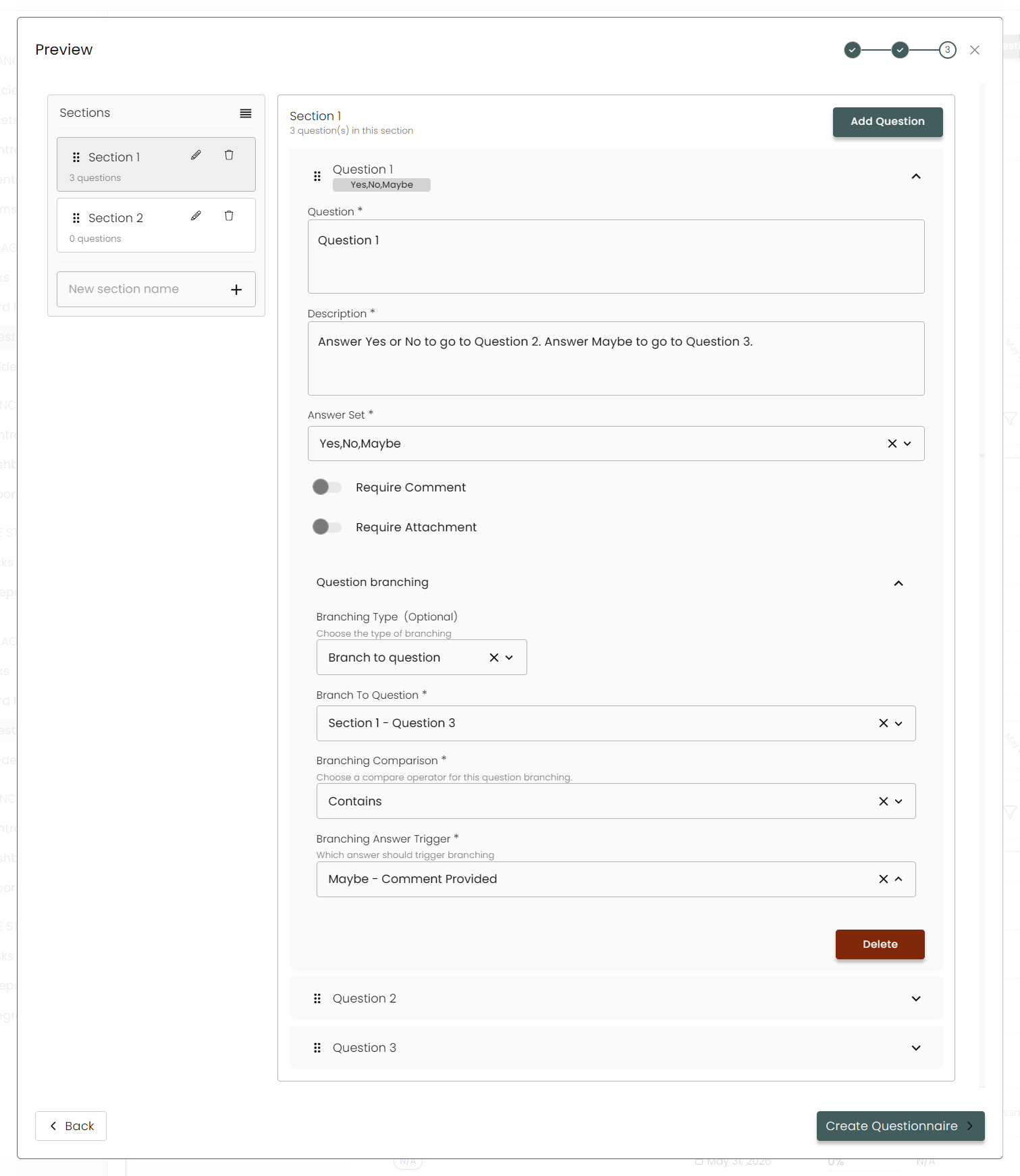
When in use, this means an answer of Yes or No will move on the Question 2 while an answer of Maybe will skip to Question 3. There can only be one Branching operation per question.
Moving Questions
You can change the order of your questions and sections by click on the grid icon on the left and dragging it up and down.
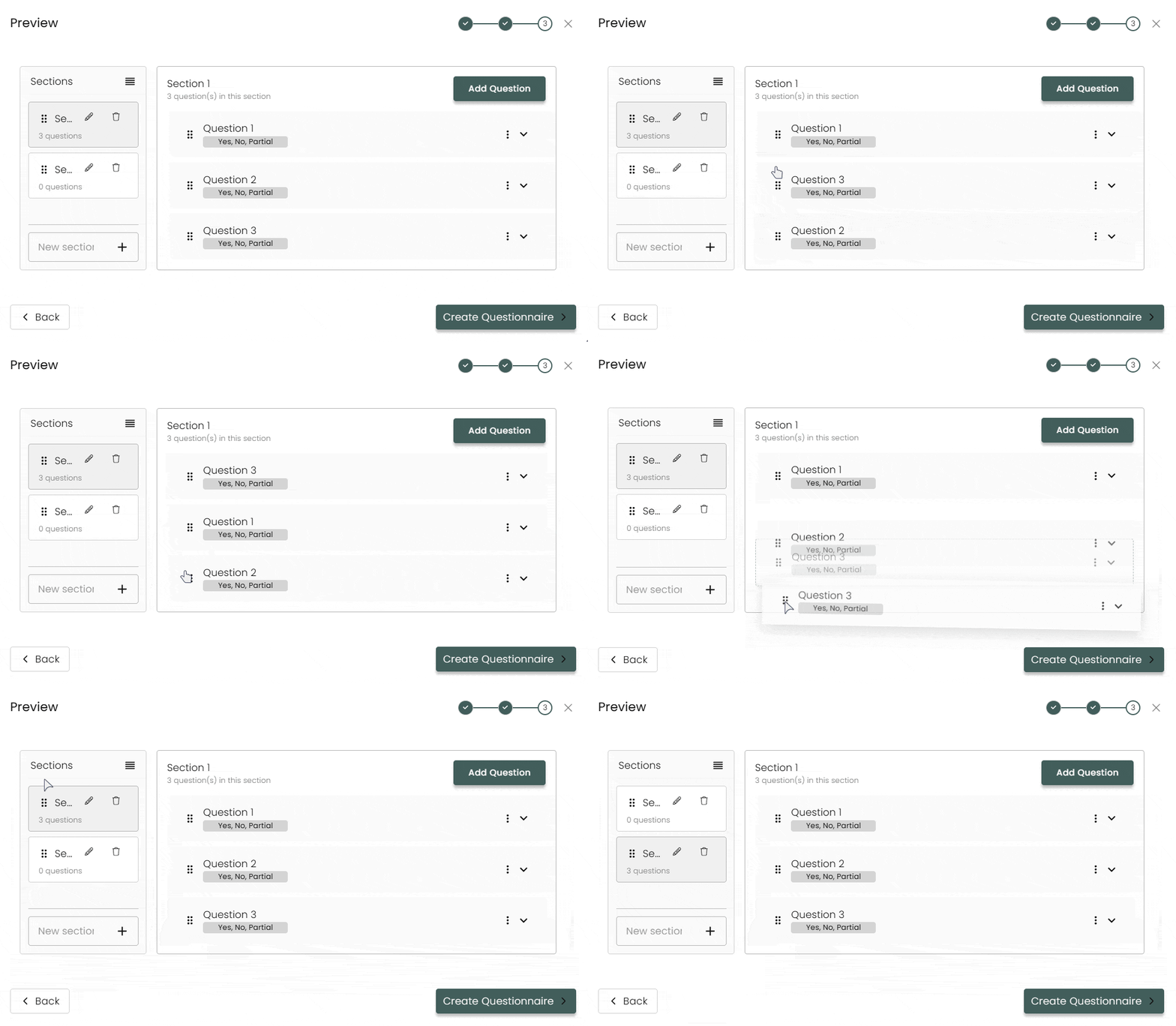
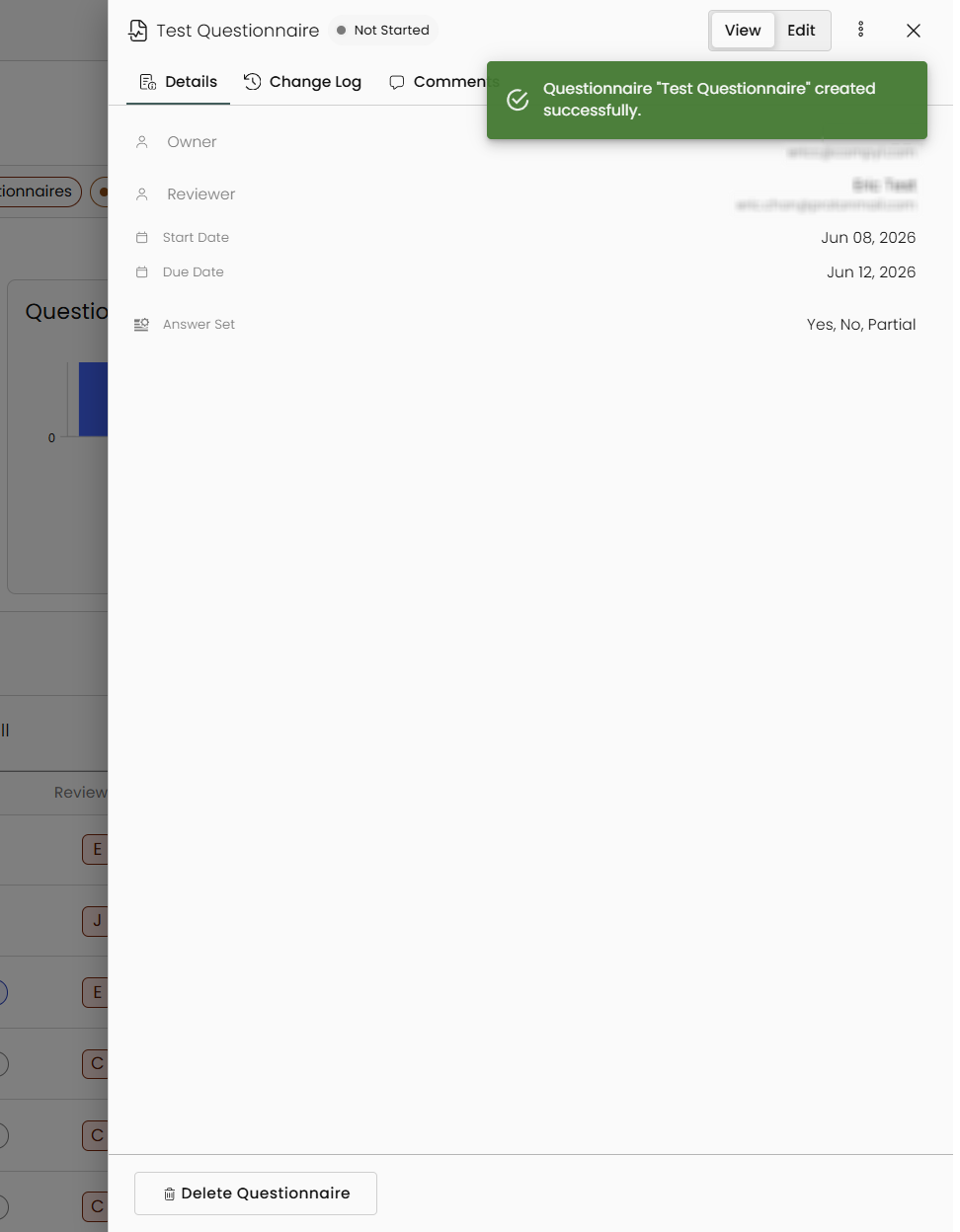
Once you're happy with it, click on Create Questionnaire.
Updated 4 months ago