
Aiven Integration
Integrating with Aiven gives Compyl visibility into your Aiven cloud data platform, including organizations, accounts, projects, managed services, users, authentication configuration, networking, and related control-plane metadata. This data supports governance, access reviews, and compliance reporting within Compyl.
SuggestionCreate a dedicated Aiven application user for the Compyl integration, then generate an application token for that user. Application users are designed for non-human / automated access and provide clearer audit boundaries than a personal user token.
Create an Authentication Token
Aiven authenticates API requests with a token in the Authorization header (aivenv1 <TOKEN>). Compyl stores this value as the integration API Key. You can use either an application token (recommended) or a personal token.
You must be an organization admin in Aiven to create application users.
-
Sign in to your Aiven Console.
-
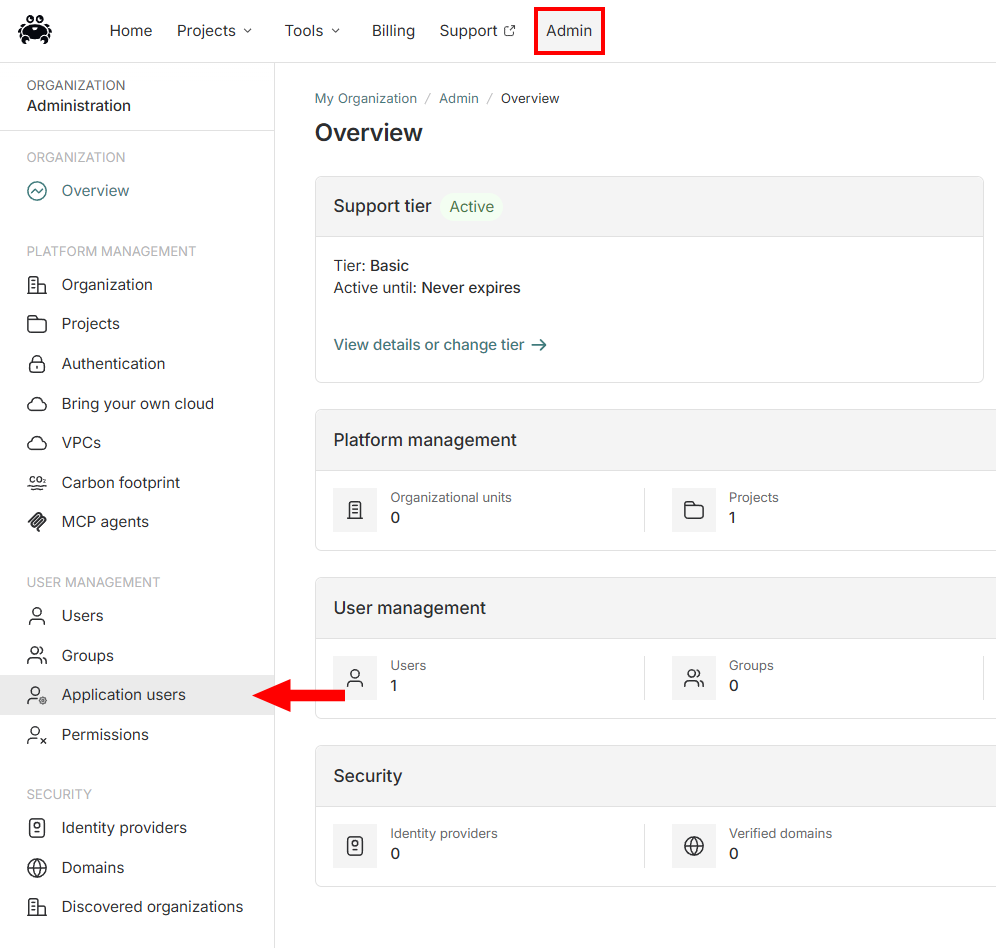
Click Admin, then open Application users.
-
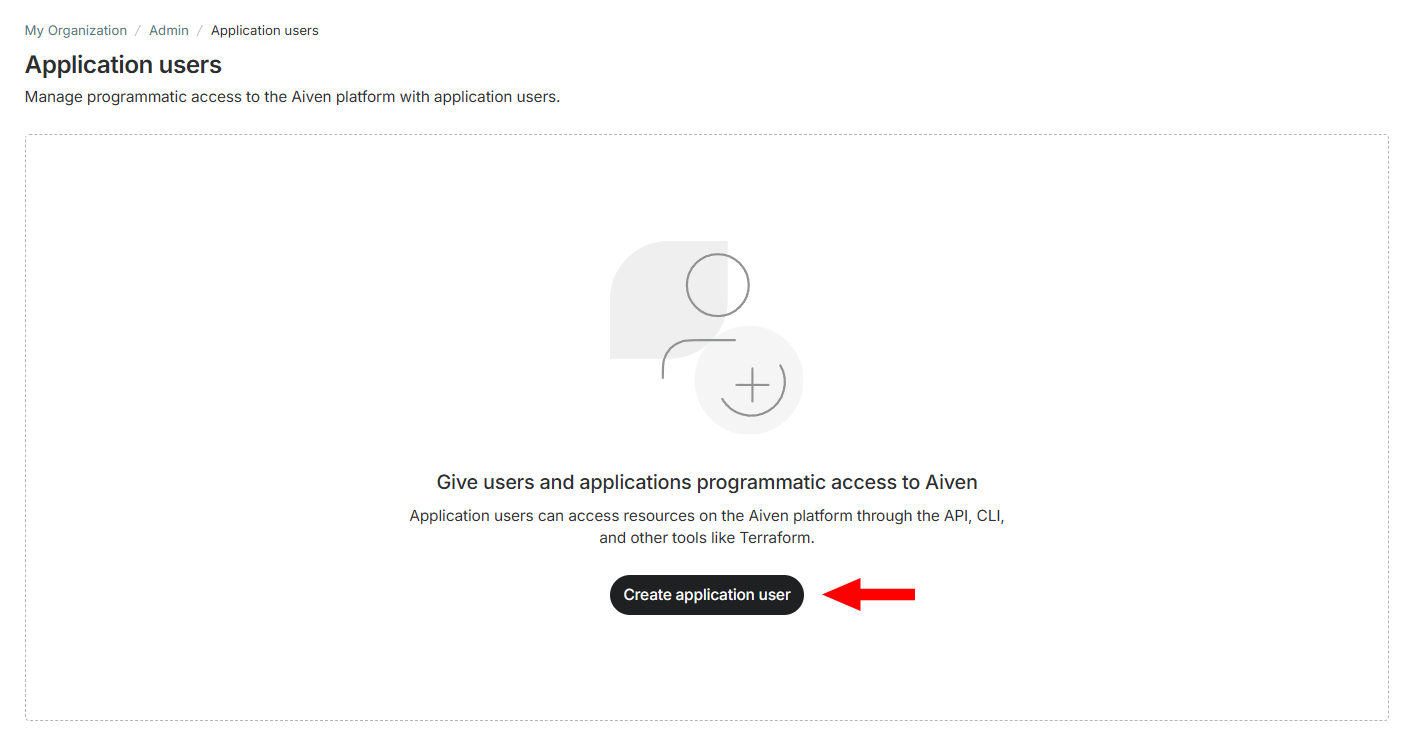
Click Create application user.
-
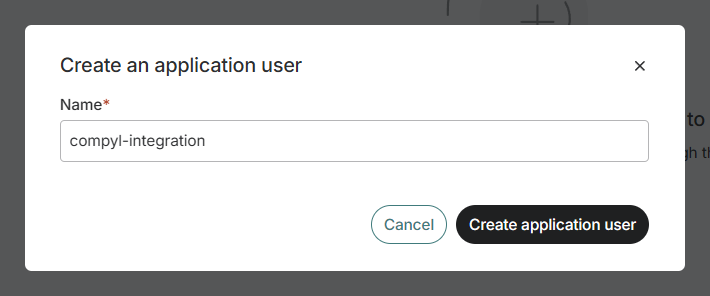
Enter a descriptive name (e.g., compyl-integration), and click Create application user.
-
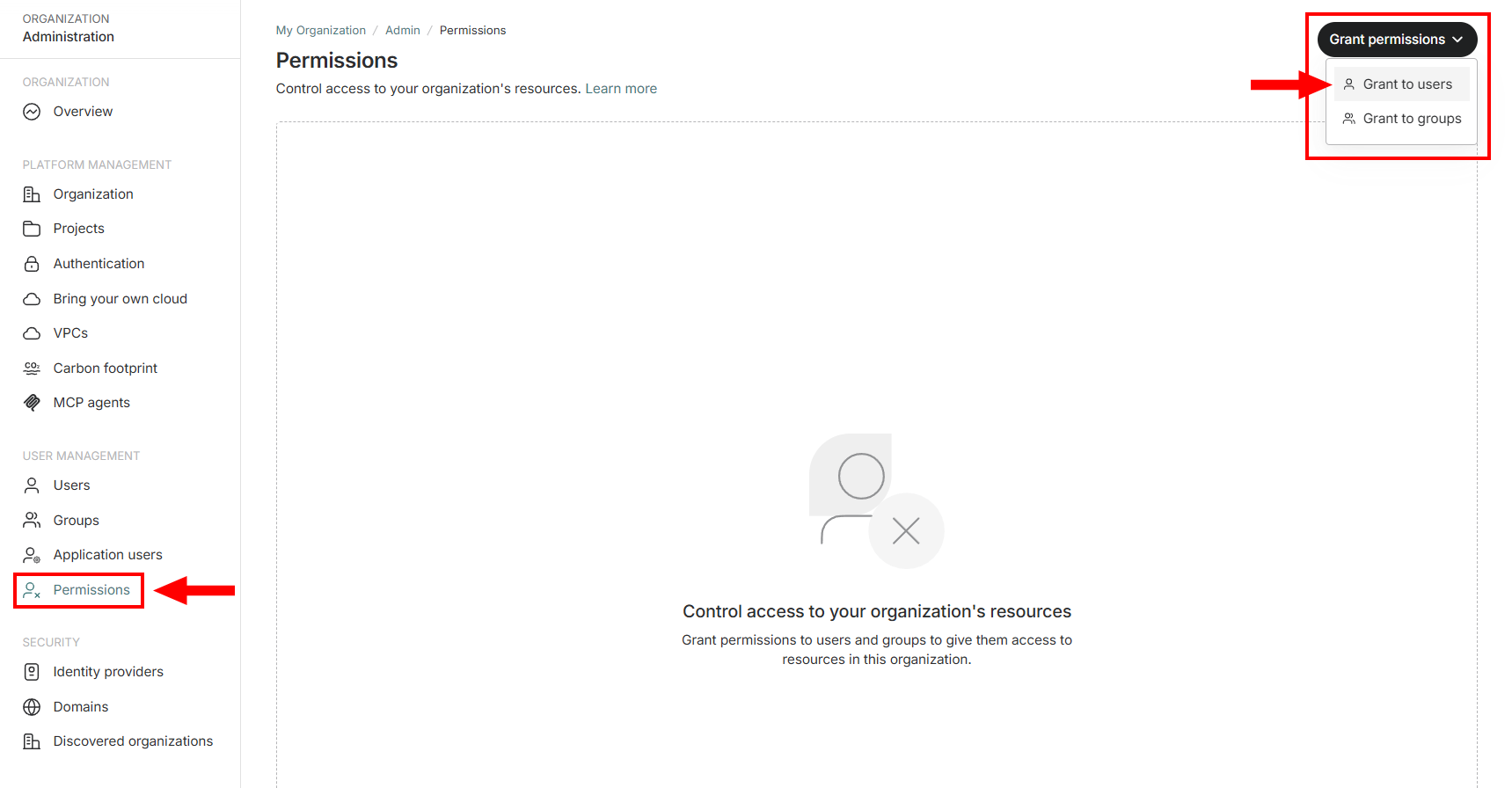
Next, select Permissions from the left-hand menu, click on Grant permissions and select Grant to users.
-
In the Grant permissions window:
-
Under Users, select the application user you just created.
-
For Resource, choose your organization.
-
And for Permissions select:
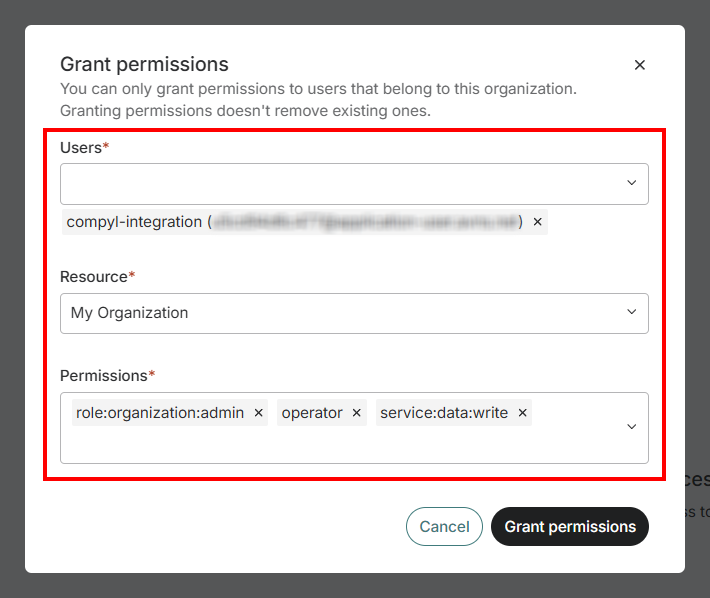
role:organization:admin(required)- Each in-scope project (or org/unit-wide) that the integration should sync with:
operatorservice:data:write
- Optionally (only if you enable high-volume service log sync):
service:logs:read
-
Then click Grant permissions.
Noterole:organization:adminis broader than ideal, but it is the only Aiven permission that authorizes account authentication-method reads. Without it, Compyl cannot ingest account IdP / SAML / SCIM authentication configuration. Compyl does not call billing APIs.
-
-
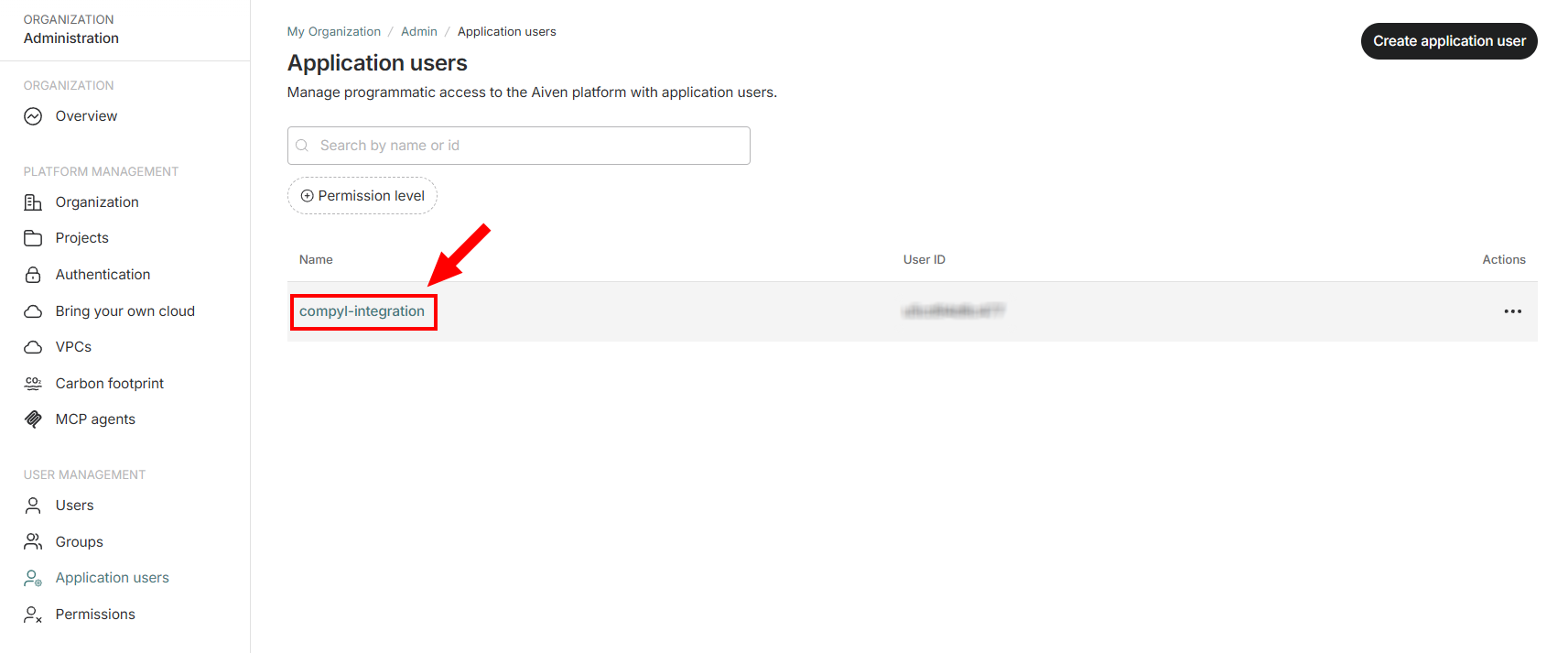
Go back to Application users and then open your created Application user.
-
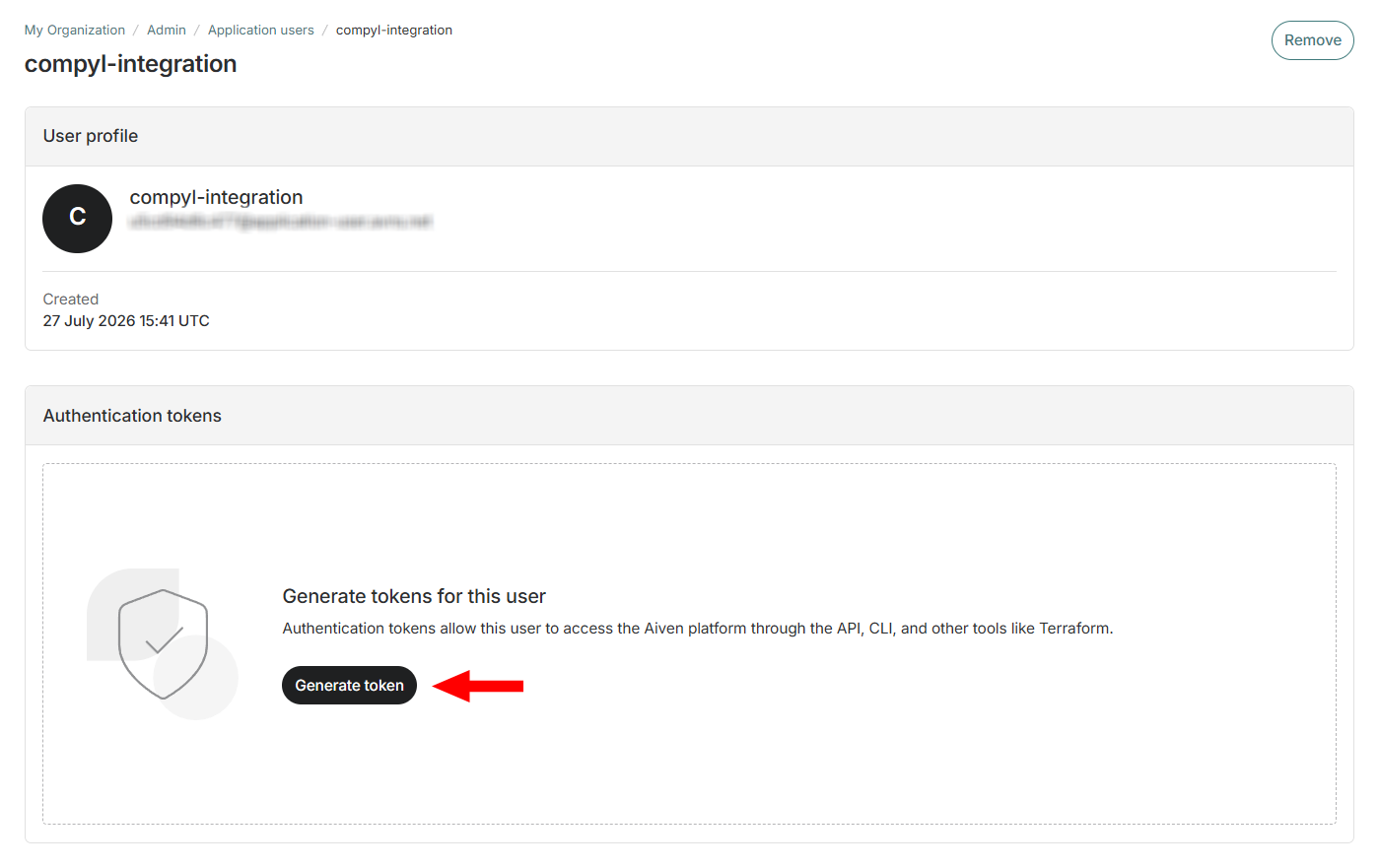
Click on Generate token.
-
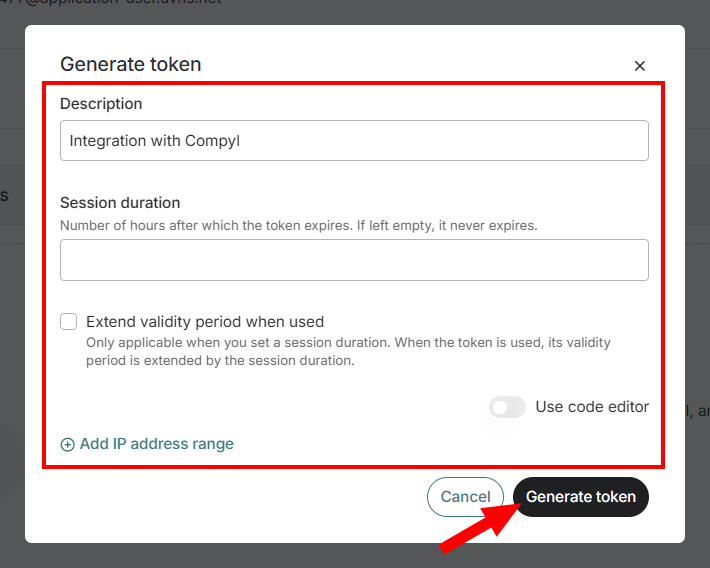
OPTIONAL: Enter a description, set a session duration, and add an IP address range allowlist for the token. If you set scopes, use the optional scope list above and omit billing/payment scopes.
-
Click the Copy icon and store the token in a secure location (password manager or secrets vault). You will paste this value into Compyl as the API Key.
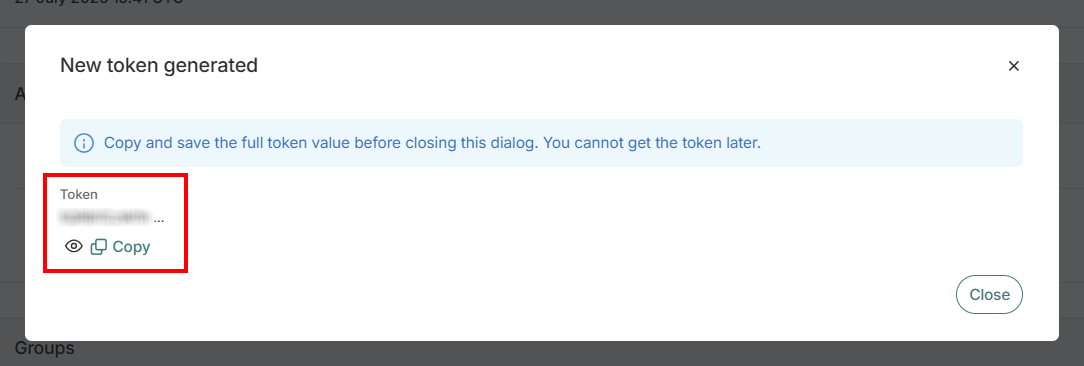
ImportantAiven shows the token only at creation time. You cannot view it again after you close the window. Copy and store it securely immediately.
Add Configuration
-
Navigate to the Integrations tab using the left-hand menu, find Aiven, and select +Add Configuration.

-
Next, fill in the details below and select Continue.
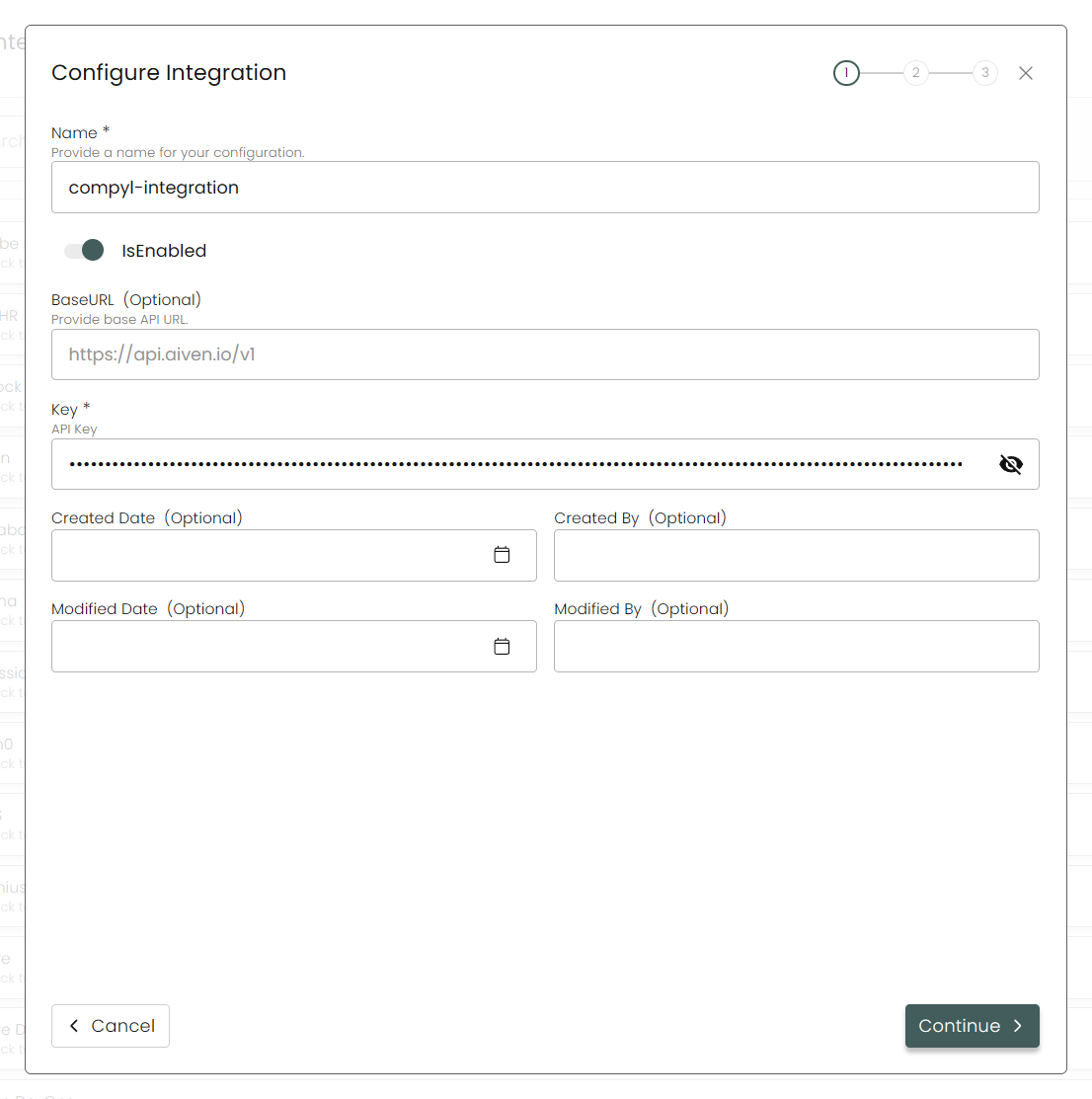
Name: Enter the name of the integration.is Enabled: Toggle button to ensure data is populated into Compyl.
Base URL: This is automatically populated as
https://api.aiven.io/v1.Key: The Application or Personal Token you generated above.
-
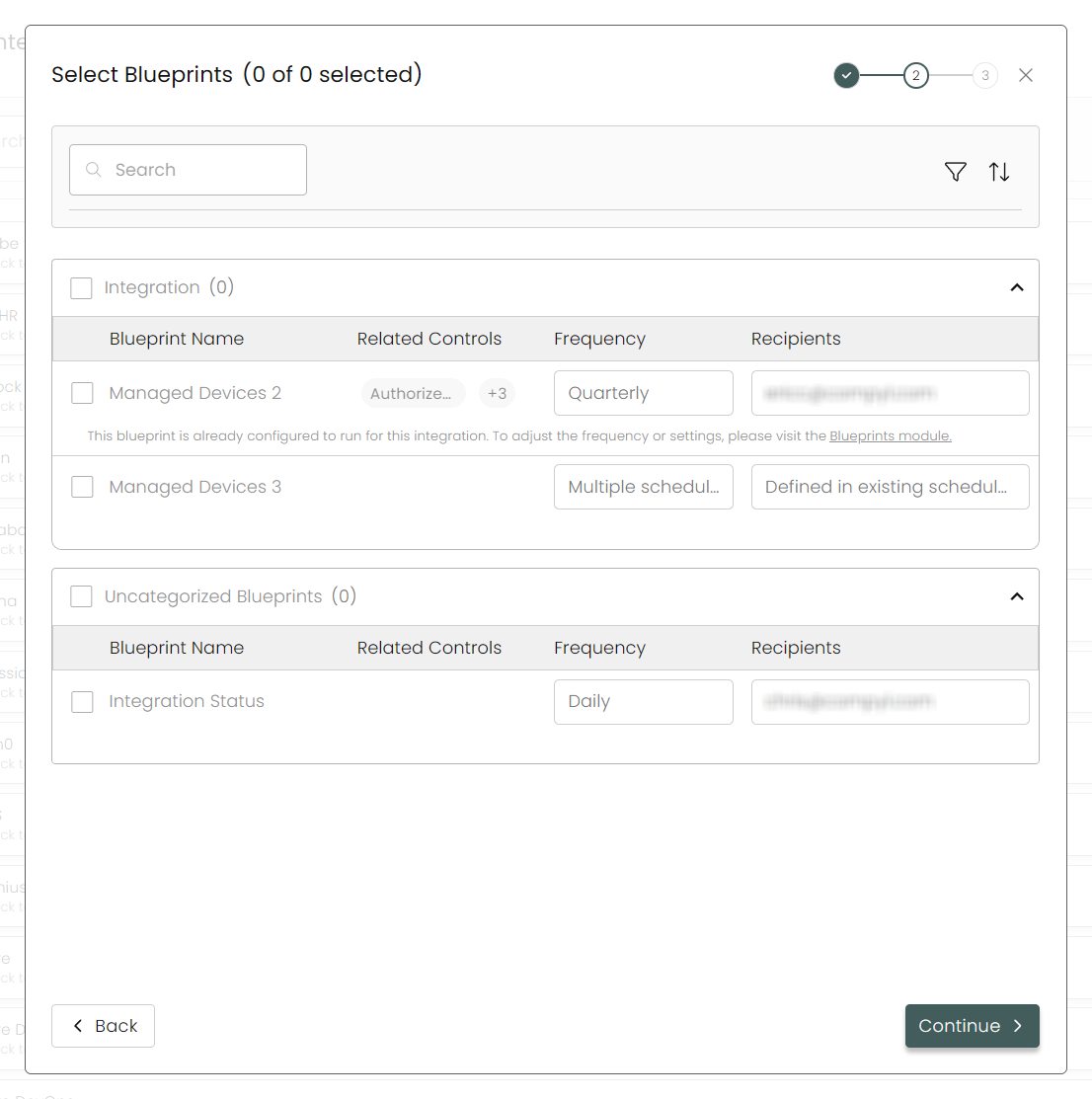
Select any Blueprints you wish to associate with this integration.
-
After you hit Continue, you'll see a summary screen. Click Return to Integrations to complete the configuration.
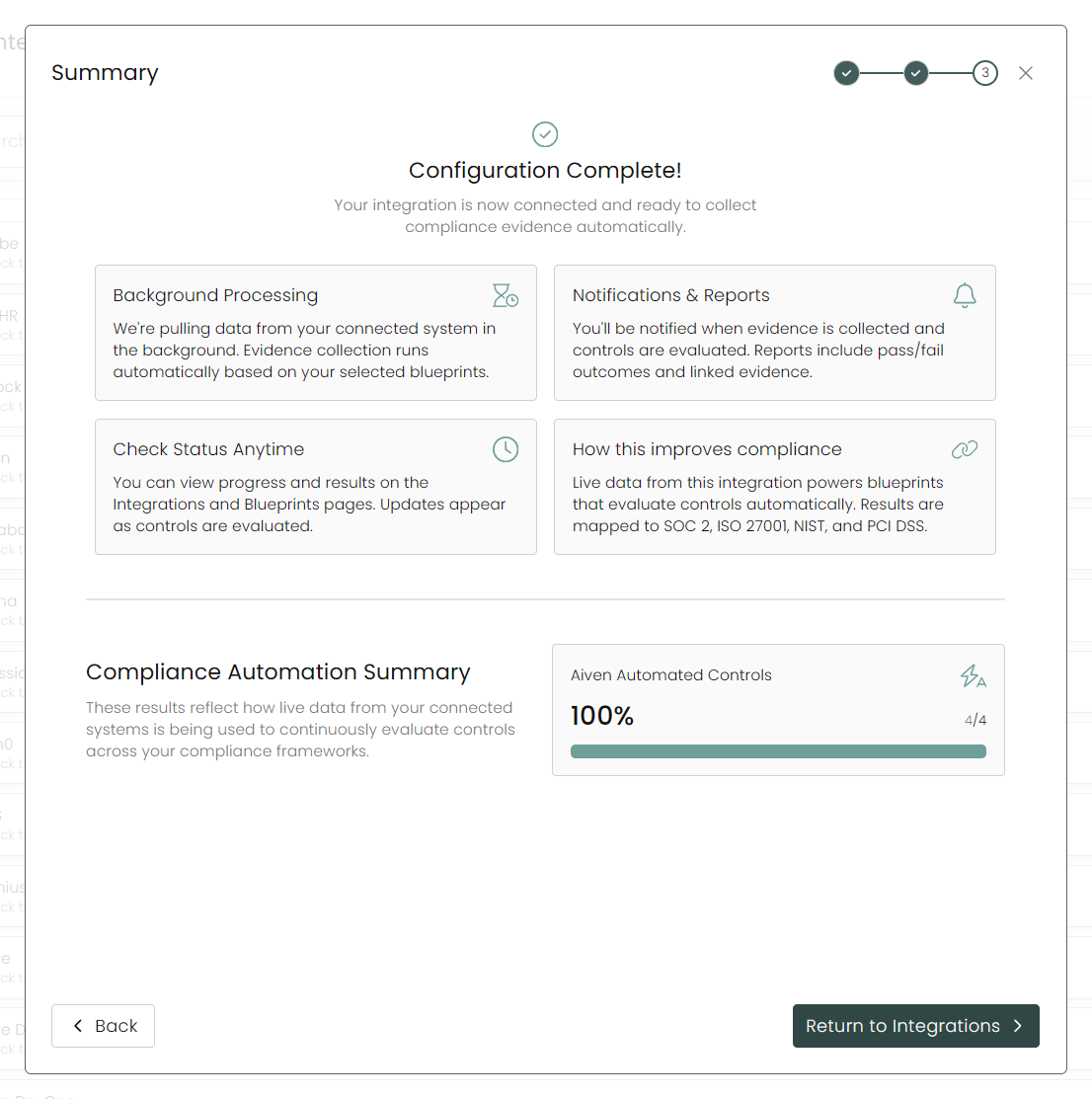
Once you have completed filling out the form click Return to Integrations.
You'll know the integration is successfully added when the status updates to Complete.

Data is synced on a recurring schedule configured by your Compyl administrator. Each sync pulls the latest data from all enabled endpoints.
To query the data from the integration, refer to the Blueprints article.
Updated 2 months ago