
Audits Register
The Audit Register helps customers manage and organize their audits for any security framework or regulation
The Audit Register houses a customer's audit schedule. Customers can log the type of audit, when it is scheduled to start and end, and receive reminders when it is approaching. Audit reports and documents can also be uploaded to the record to centralize all information. Start Date reminders and document upload reminders can be configured in Settings.
Log an Audit
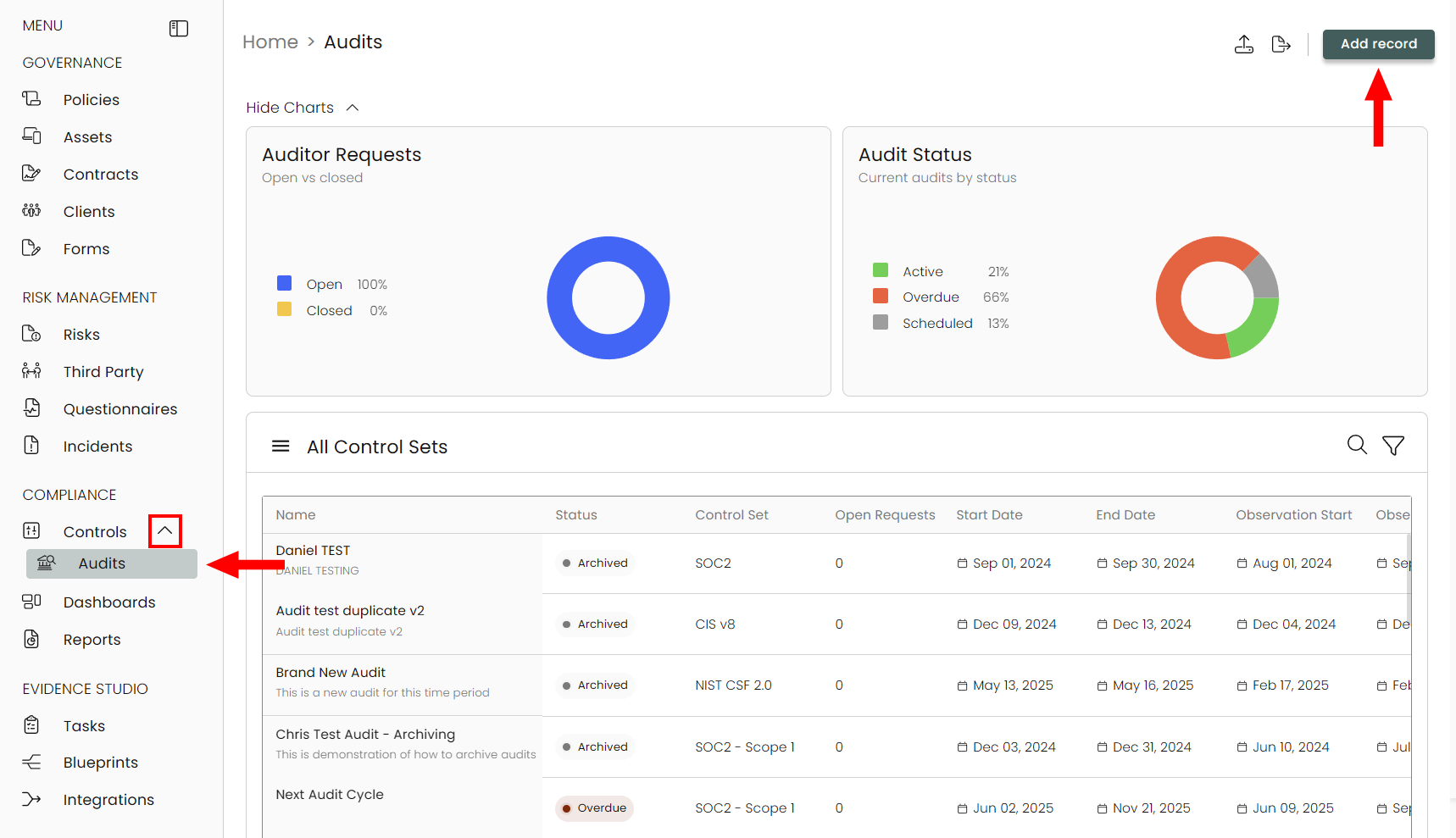
Expand Controls on the left-hand menu (under Compliance) and select Audits. Then click on Add record.
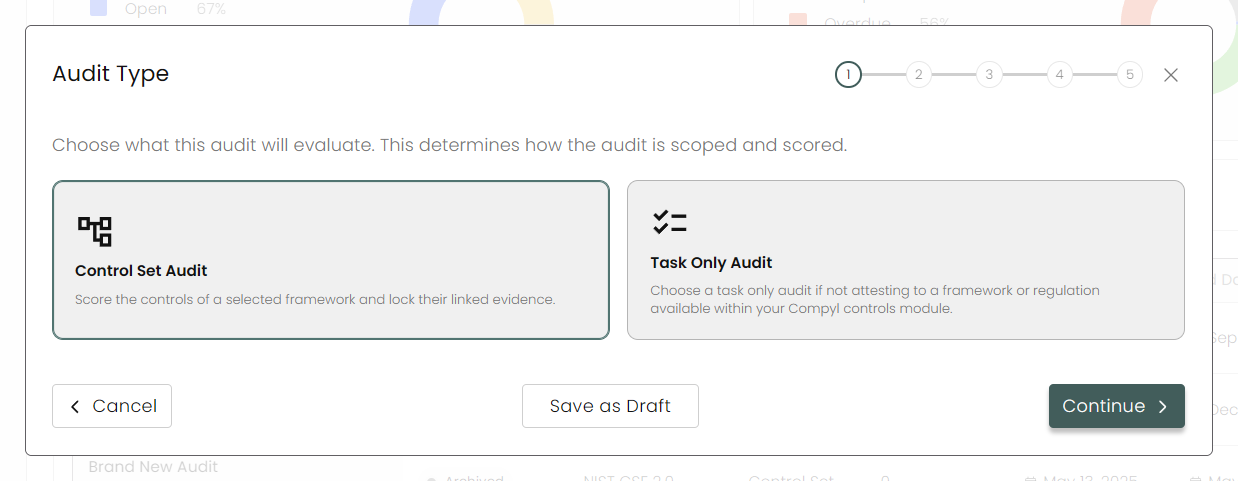
Audit Type
Select which type of audit you are creating.
- Control Set Audit: Score the controls of a selected framework and lock their linked evidence.
- Task Only Audit: Select if not attesting to a framework or regulation available within your Compyl controls module.
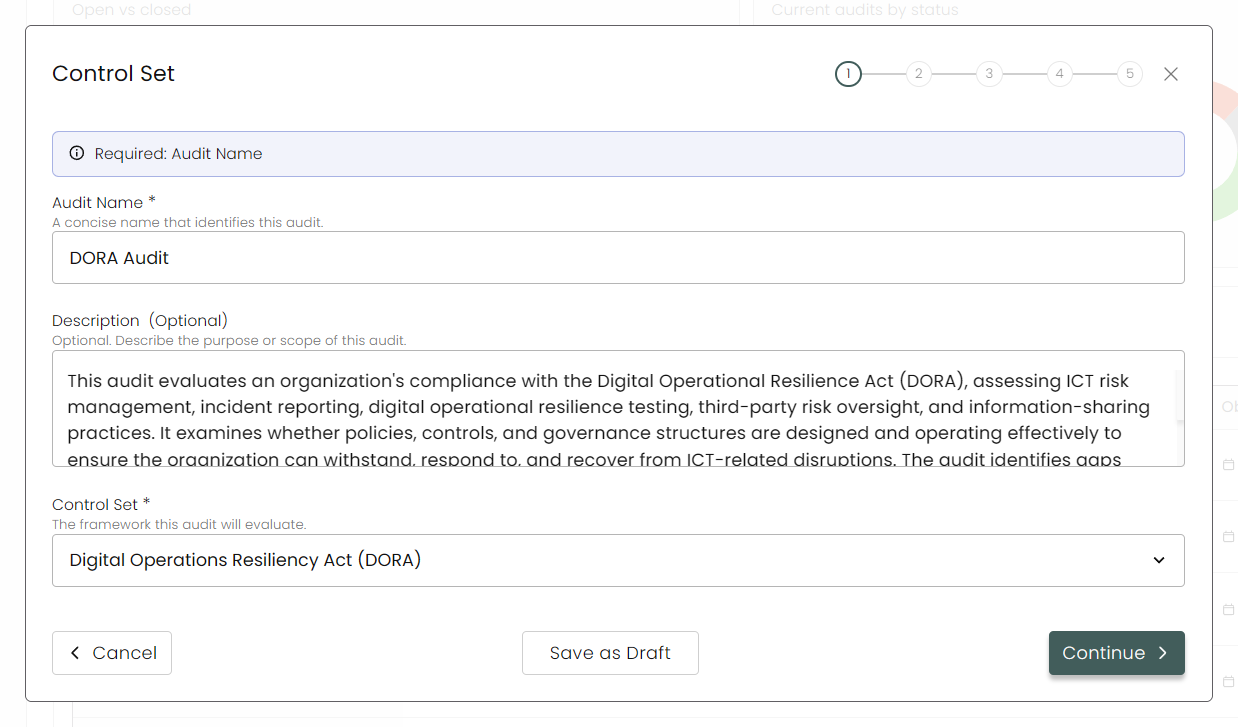
Evidence
Add controls from the control set here. If there are evidence items attached to that control, selecting it will expand them, allowing you to pick specific items.
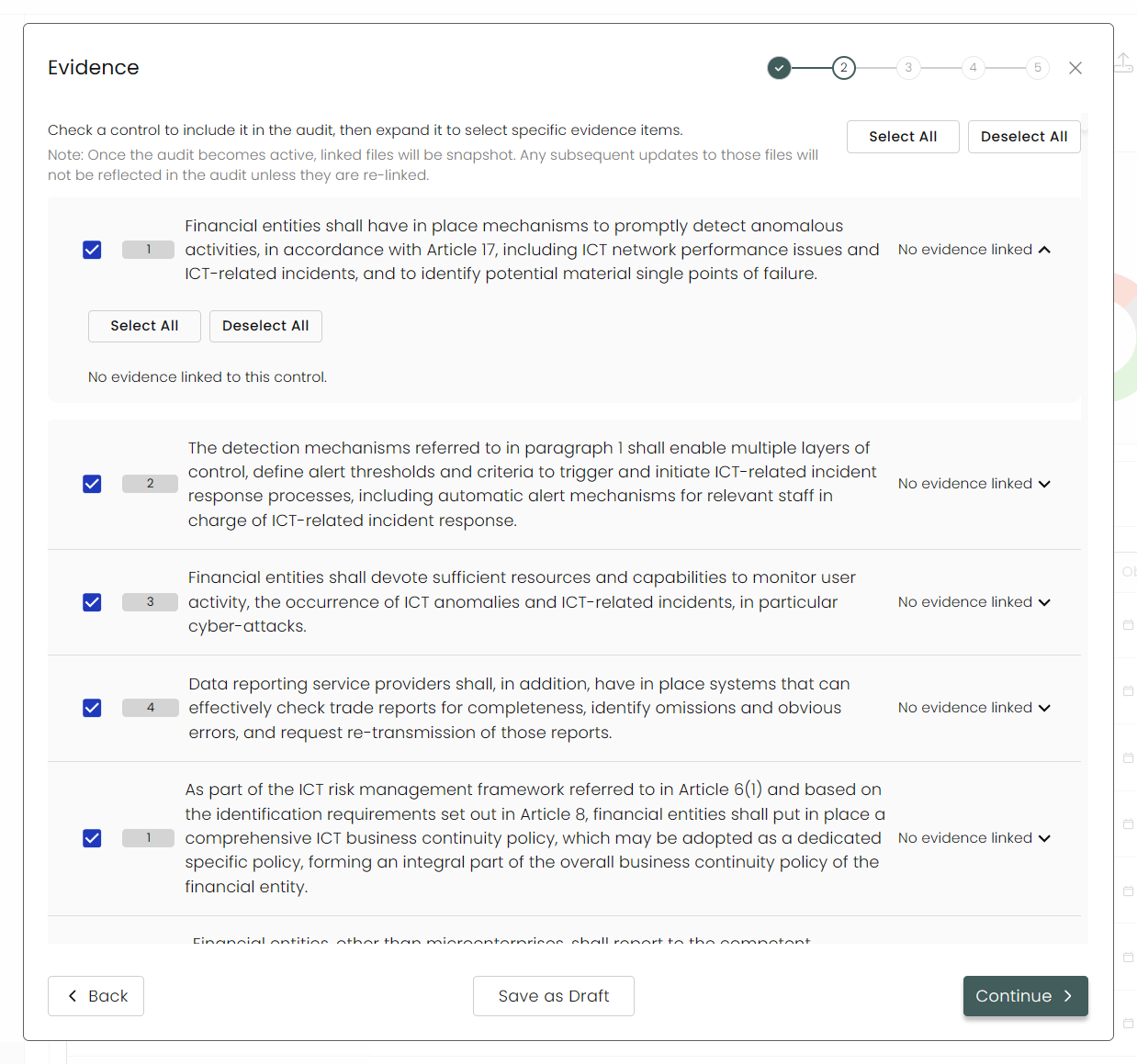
NoteOnce the audit becomes active, linked files will be snapshot. Any subsequent updates to those files will not be reflected in the audit unless they are re-linked.
Assignments
Assign your auditors here from the External Auditor group. Optionally you can assign users to monitor the audit itself.
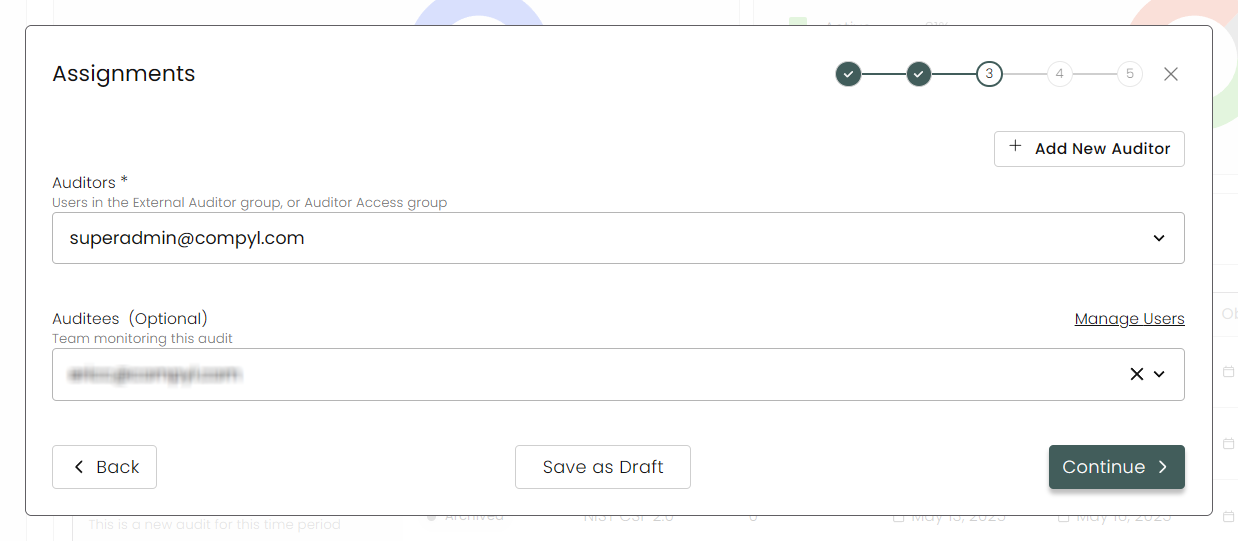
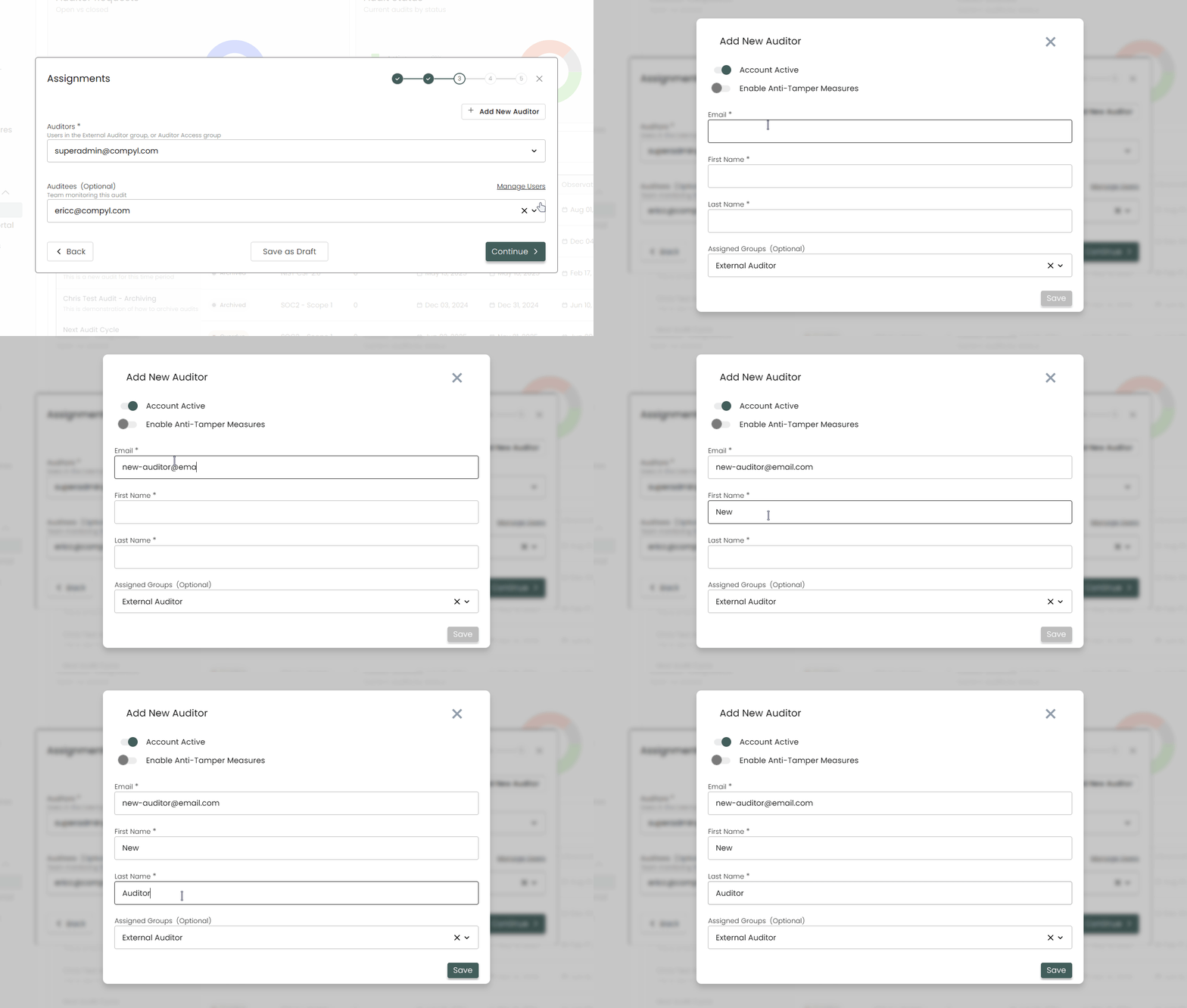
You can also add a new user to the audit group by clicking on + Add New Auditor.
Custom Fields
A custom fields added from the Forms module will be here.
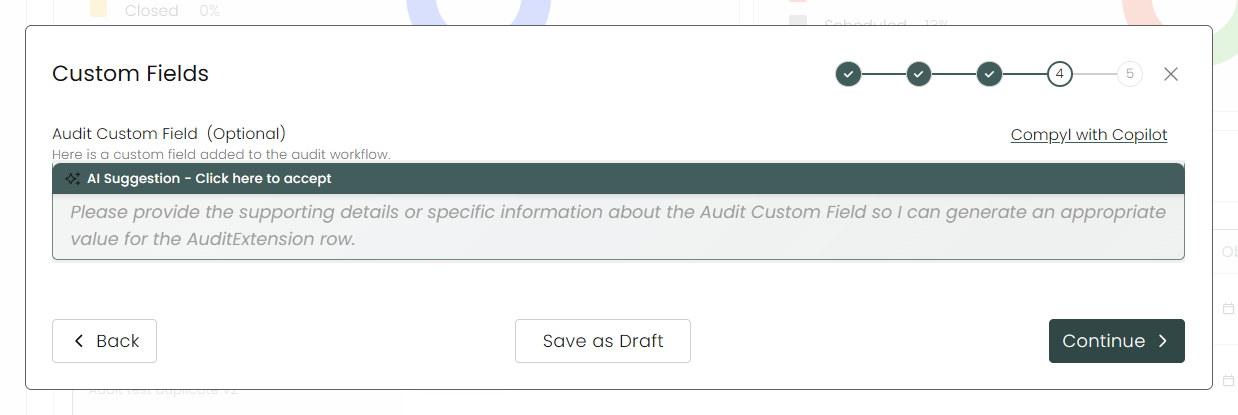
We have an example of how to add a Clients drop-down selector that pulls from the Clients register here.
Timeline
Enter in the Audit period here with a start and end date, as well as an observation period.
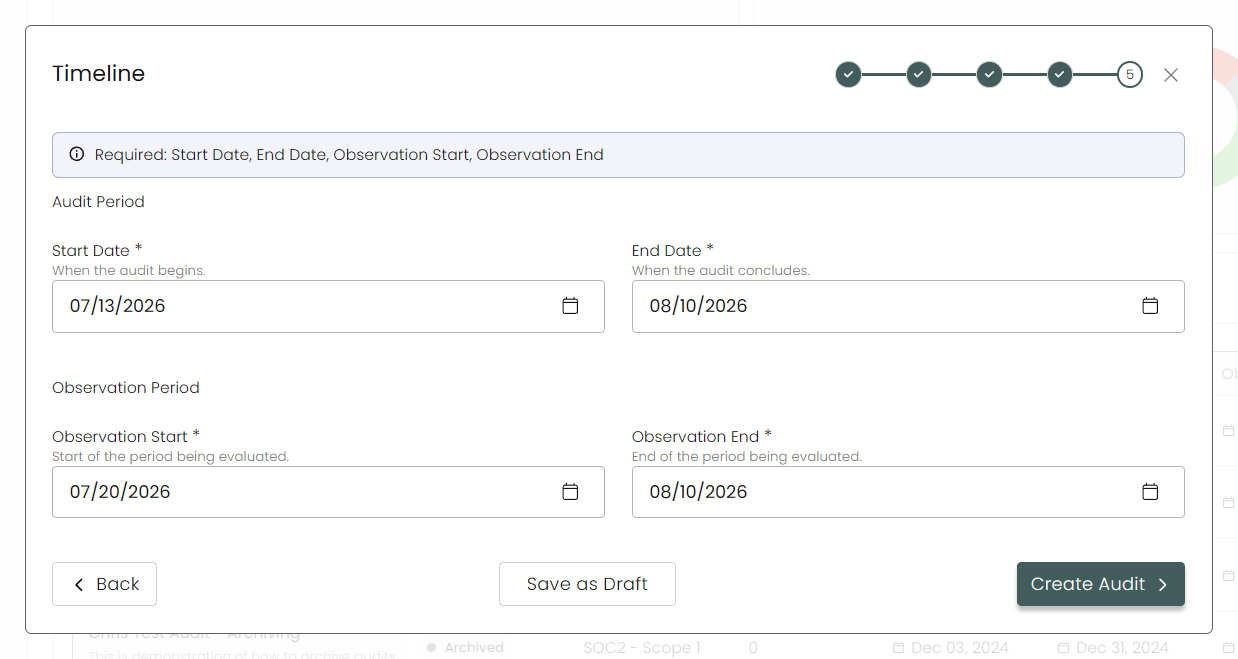
When you have completed everything, click Create Audit.
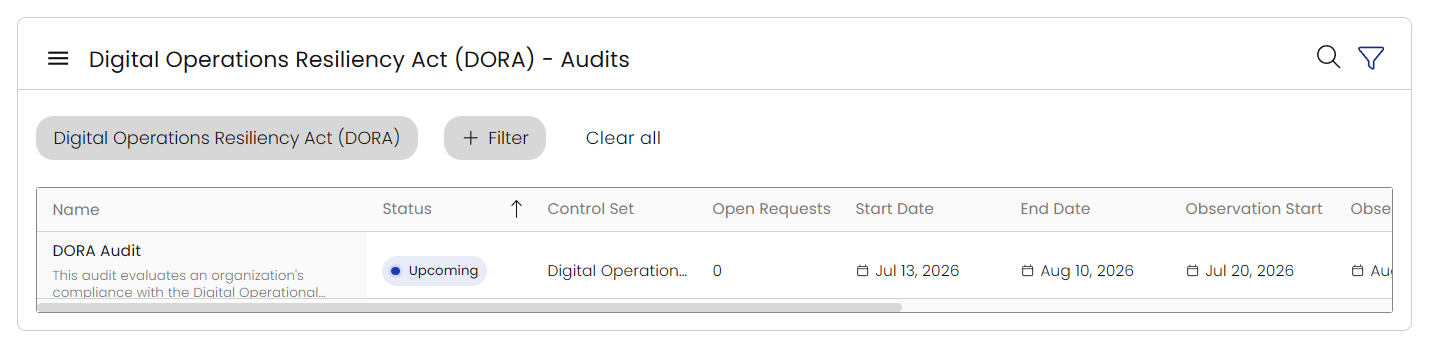
Once saved, you can see your new audit in the grid. You can filter by Control Set by clicking the hamburger menu on the upper-left, or use the filter on the right.
Viewing and Editing Audits
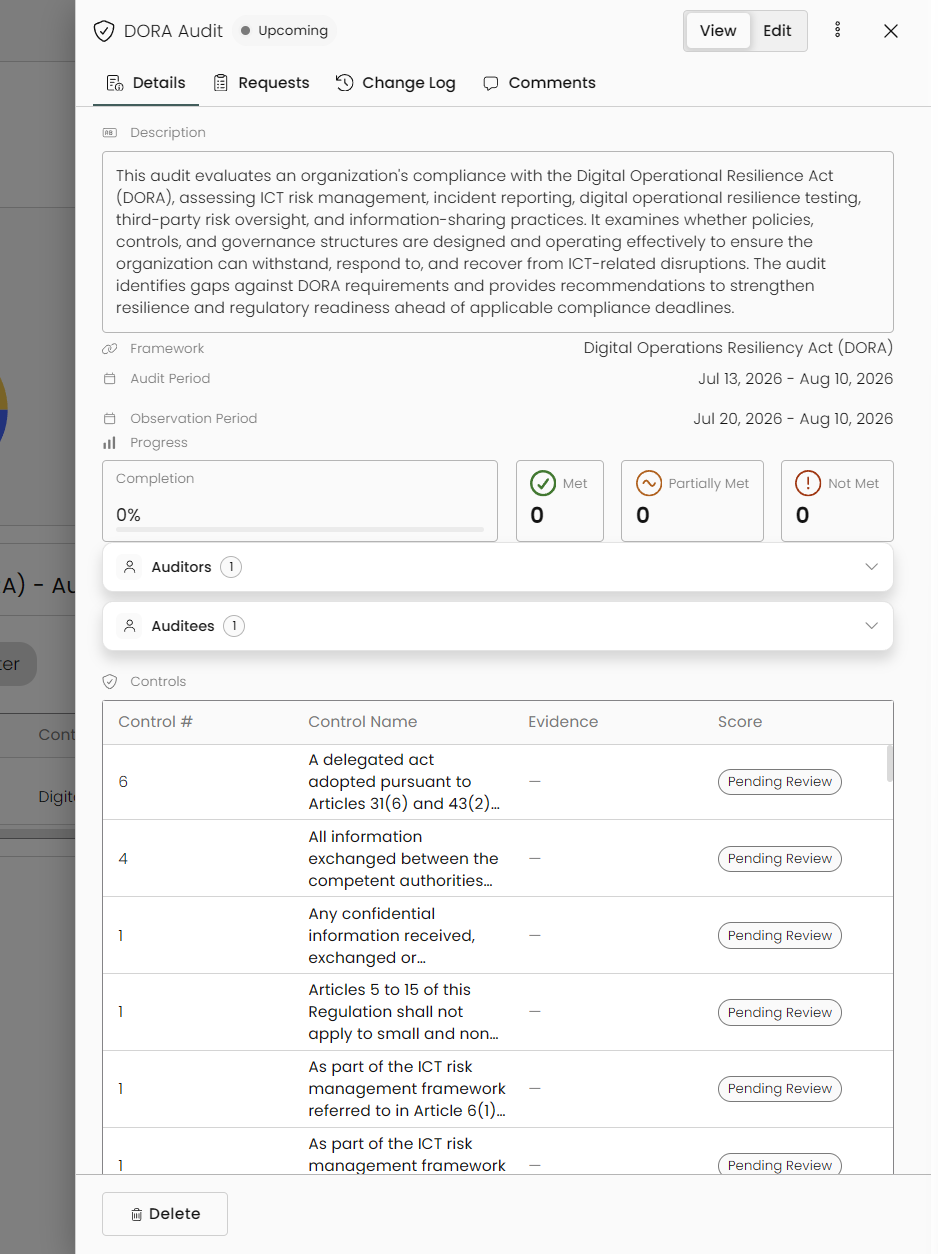
Click on any audit you wish to view on the grid. This slides out the view mode for the audit. Along the top, you can view any requests made on the audit, the change log, as well as the comments/comment history. You can add to the discussion as well.
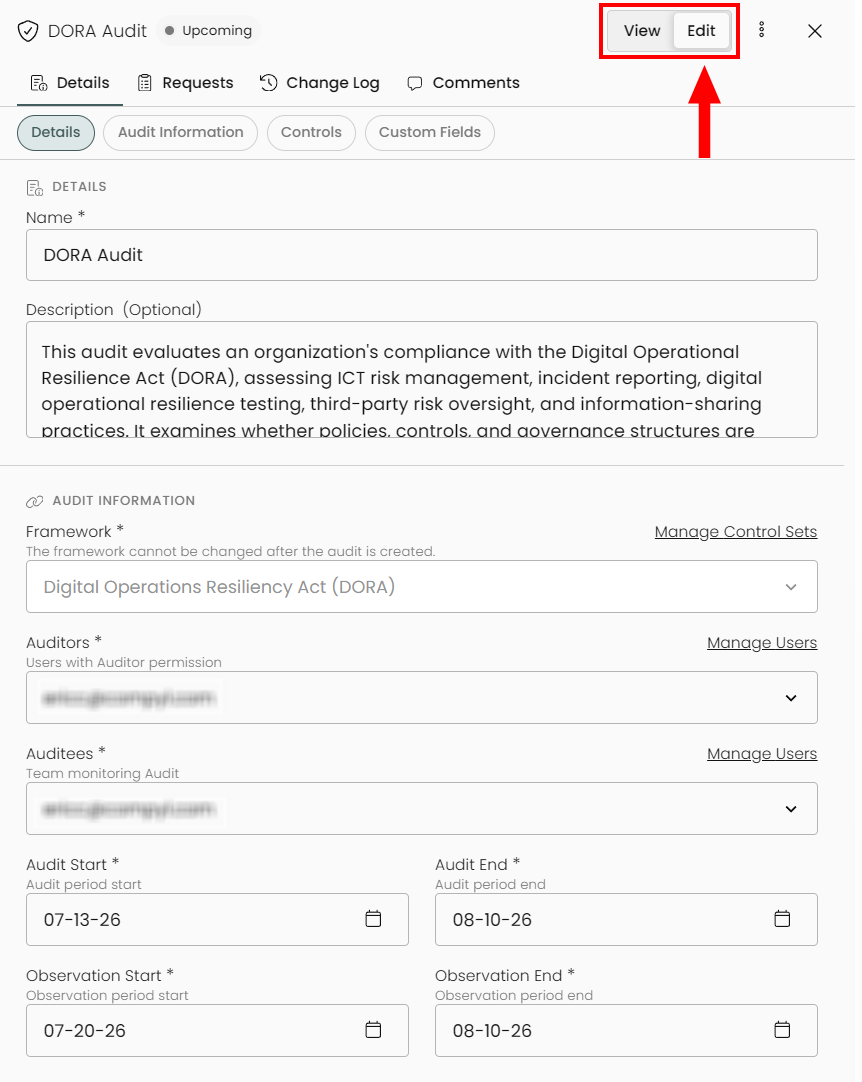
Toggling from View to Edit lets you update everything that was set at creation: name, description, framework, auditors, etc...
Clicking on the 3-dot menu allows you to Duplicate the audit or Archive it.
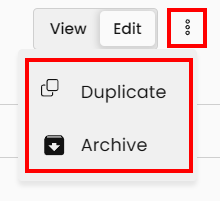
Duplicating an audit will make a direct copy which you can edit and modify. This appends the text (COPY) after the name to help differentiate it.
Archiving and audit hides it from active views, though the linked tasks remain unchanged.
View our article on the Auditor Portal to learn how to complete an audit.
Updated 8 days ago