
Qualys Integration
Integrating with Qualys allows Compyl to pull in cloud security and vulnerability management data to properly apply and track for your compliance program.
In order to integrate with Qualys, a new user should be created specific for the integration.
Creating a New User
-
Login to the Qualys' Cloud Platform Portal.
-
Go to Administration → Users → Create User → Reader User.
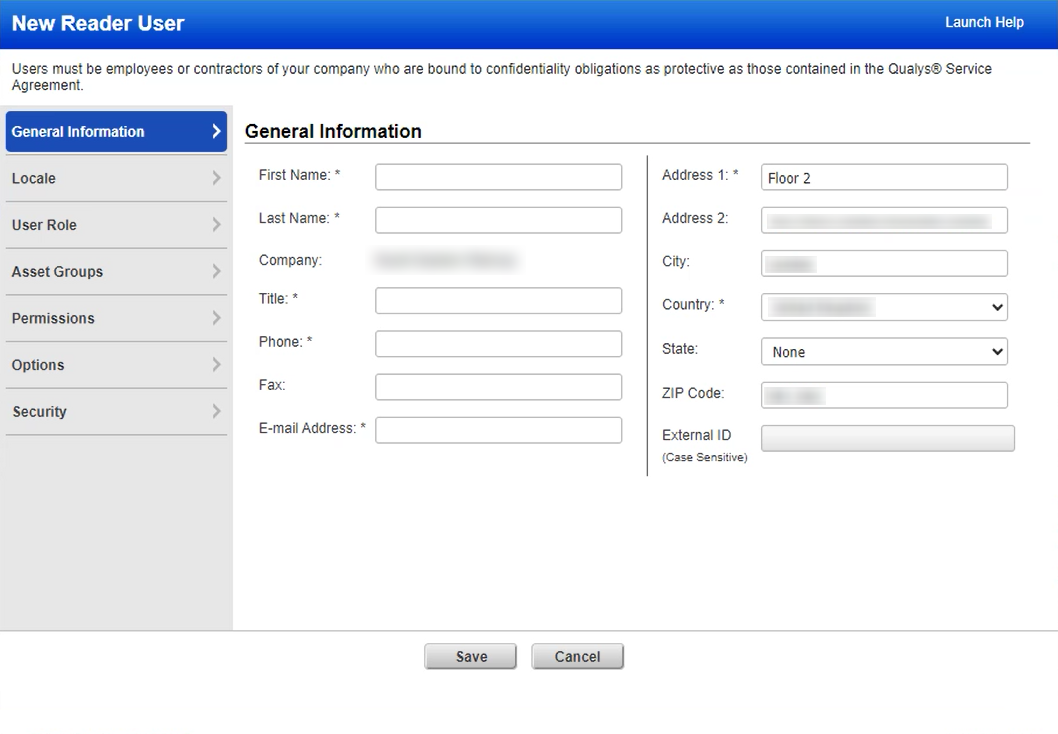
-
Add User Details.
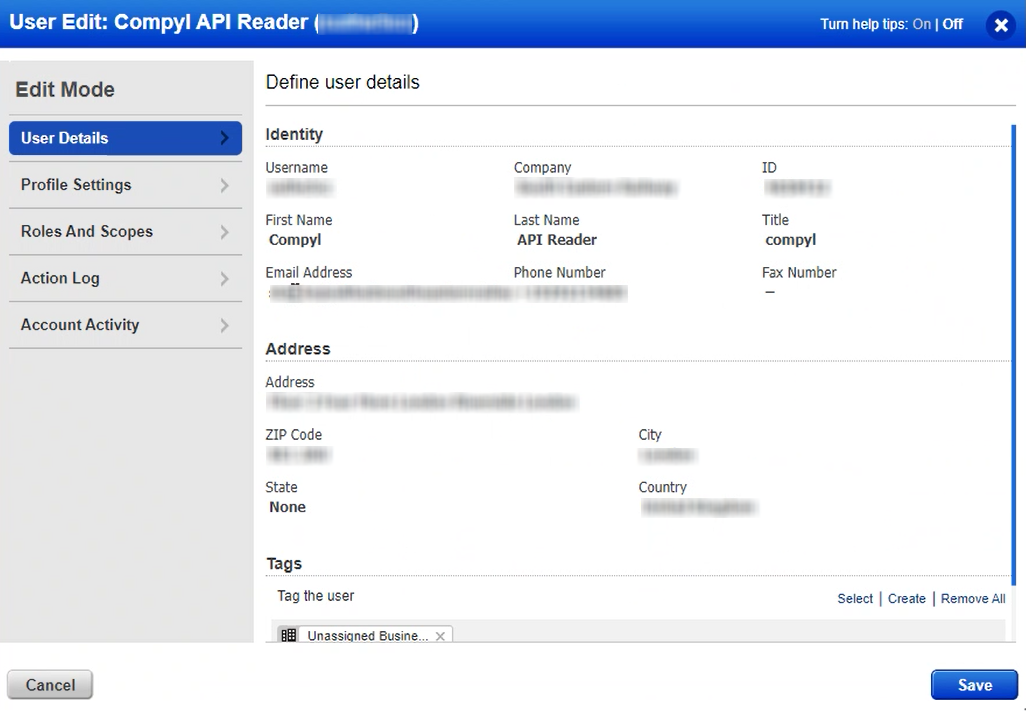
-
Go to the Roles and Scopes tab and add the permissions as documented below.
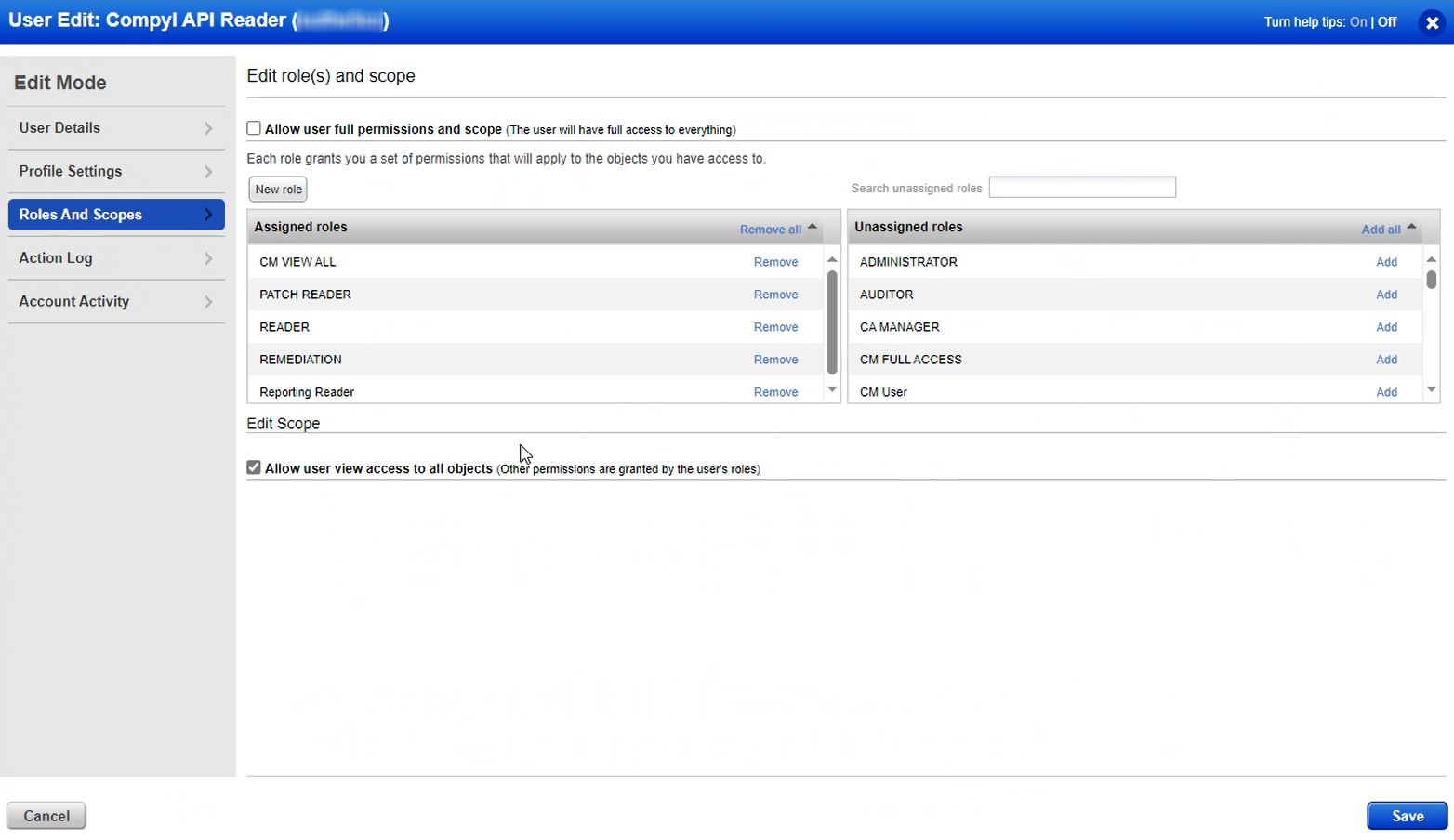
- Click Save.
NoteYou will need to log in to the API account after creating it and accept the End User License Agreements to get your API key.
Granting Permissions
There are various APIs you will need to grant permission to in order to pull the relevant data. We've broken down the three used in Compyl here. Expand each section to view the instructions.
Policy Compliance (PC) Scans API
PrerequisitesTo call the List PC Scans endpoint (
/api/2.0/fo/scan/compliance/?action=list) the user must:
- Log in as a Manager or similar level admin
- Be assigned appropriate scope (Business Unit / Asset Groups)
- Have a subscription that includes Policy Compliance (PC) and API access
Decide the Access Model
Pick what kind of access you want the integration to have:
-
All assets (broad): Assign (or create) a role equivalent to Manager with API Access.
-
Scoped access (recommended): Use Unit Manager (or a custom role) with API Access, and restrict to the relevant Business Unit and Asset Groups.
TipFor automation, we recommend a dedicated service user with scoped access.
Create or Update a Role with API Access
- In Qualys, go to Administration → Users → Role Management.
- Create a New role or Edit an existing role used by the API user.
- In Permissions:
- Ensure API Access is enabled/checked.
- Ensure Policy Compliance module permissions are enabled (e.g., View/Read compliance scan data; if you also launch scans, include Launch/Manage as needed).
- Save the role.
If you’re using the built-in Manager or Unit Manager roles, confirm that API Access is allowed for that role. If not, create a Custom role cloned from it and add API Access.
Assign the Role to the User (and Scope)
- Go to Administration → Users.
- Select the user/service account you will use for API calls; click Edit.
- Set Role to the role you created above.
- If using scoping:
- Set the Business Unit appropriately.
- Under Asset Groups (or equivalent scope controls), select only the groups the API should see.
- Save.
Confirm Subscription/API Settings
-
Verify your subscription includes Policy Compliance and that API usage is permitted for your platform.
-
Note your API base URL (varies by platform, e.g.,
https://qualysapi.qualys.com,https://qualysapi.qg2.apps.qualys.com, etc.).Your Qualys account page or admin typically provides this.
Verify with a Test Call
Use a least-privilege test account and run:
# Replace with your platform base URL and credentials

curl -u "USERNAME:PASSWORD" \
  "https://<your-qualys-api-base>/api/2.0/fo/scan/compliance/?action=list&status=Finished"
Expected results
- 200 OK with XML response containing
<COMPLIANCE_SCAN_LIST_OUTPUT>and<SCAN>entries. - If scoped, you’ll only see scans within the user’s assigned scope.
Qualys Patch Management “Get a List of Assets” API
Prerequisites
To call Get a List of Assets (
GET /pm/v1/assets) you must enable PM API Access on a Qualys role assigned to the calling user/service account. This permission allows Patch Management users to make PM API calls. Instructions on assigning the PM API Permission are here.The endpoint returns assets enabled for Patch Management within the caller’s scope. See endpoint details and parameters here .
Your subscription includes Patch Management (PM) and supports PM APIs
You can sign in as an admin who can edit roles.
You know the user’s scope (Business Unit / tags / asset groups) that should be visible via API. Role-based access and tags control what assets the user can view.
Decide the Access Model
Choose either:
- Broad access: A role with PM permissions and PM API Access for all needed assets.
- Scoped access (recommended): A role with PM API Access limited via Business Unit and/or tags/asset groups so the API only returns in-scope assets.
Enable PM API Access on a Role
-
In Qualys, open Administration → Users → Role Management.
-
Select the role (or create a new custom role) and click Edit.
-
Go to Permissions → Edit.
-
Expand PM Permissions and checkPM API Access.
-
Save.
This explicitly allows users of that role to make Patch Management API calls.
Assign the Role and Scope to the API User
- Go to Administration → Users and edit the user/service account used for API calls.
- Set the Role to the one with PM API Access.
- Configure scope (Business Unit and/or tags/asset groups) so returned assets match your intent.
- Save.
Authenticate and Note your API Base URL
- PM APIs require authentication; obtain a JWT (token) via the Qualys authentication flow before calling PM endpoints.
cdn2.qualys.com+1 - Use the correct regional API base URL for your platform (e.g.,
https://qualysapi.<region>.apps.qualys.comwhere<region>is replaced). Release notes and guides stress using the proper base.
Qualys Unix Authentication Record API
The Unix auth-record API (/api/2.0/fo/auth/unix/) lets you create, update, list, and delete Unix authentication records used for authenticated scans.
To call it, the user/service account must have:
- API Access enabled for their role, and
- Authentication Record permissions (view/manage) in the VM/PC modules, within the intended asset scope.
Prerequisites
- Subscription includes Vulnerability Management (VM) and/or Policy Compliance (PC); API access is allowed for your platform/region.
- You can can edit roles (e.g., Manager) to grant permissions.
Choose the Access Model
- Broad access: Manager (all assets) + API Access.
- Scoped access (recommended): Unit Manager or custom role with API Access and auth-record permissions, limited by Business Unit / Asset Groups.
Enable Role Permissions
- Go to Administration → Users → Role Management.
- Edit the role (or Create a custom role).
- In Permissions:
- Check API Access.
- Enable Authentication Record permissions for VM/PC:
- View Authentication Records
- Manage Authentication Records – Create, Update, Delete
- Optional: Control secrets in responses by disablingView Password in Authentication Record* to keep passwords masked when fetched via API.*
- Save the role.
Assign Role & Scope to the API User
- Go to Administration → Users → Edit the API user/service account.
- Assign the role from above .
- Set Business Unit and Asset Groups to the intended scope.
Add Configuration
-
Navigate to the Integrations tab using the left-hand menu, and select Qualys

-
Click the Add Configuration button and fill in the details below:

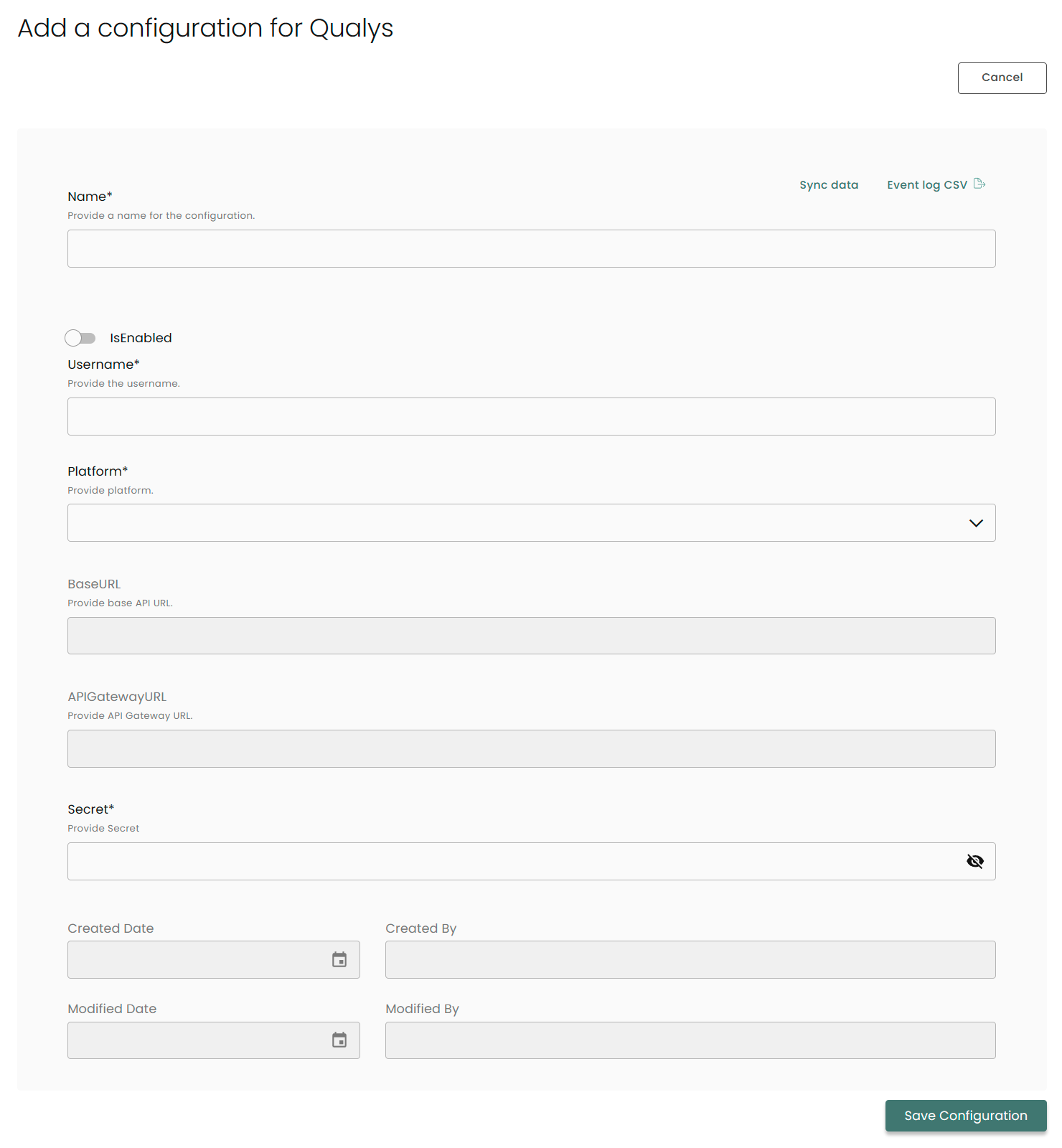
Name: Enter the name of the integration
is Enabled: Toggle button to ensure data is populated into Compyl
Username: The username entered while creating a new user in the above instructions
Platform: Choose a Platform identifier from the selections available in the dropdown
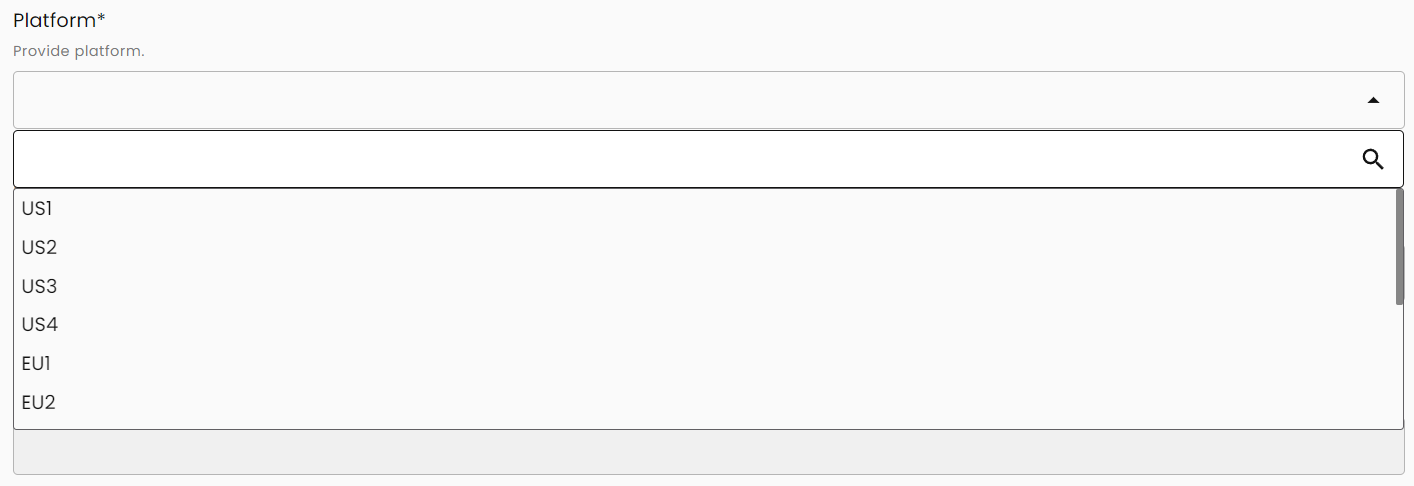
Base URL & API Gateway URL: This is automatically provided based on the Platform selection
Secret: The API key generated in Step 5 above
Once you have completed filling out the form click Save Configuration.
NoteTo check if the integration is connected, navigate to the Integrations page in Compyl. If the Status icon shows an unbroken link in the right-hand corner, your integration is properly connected.

This integration syncs daily.
To query the data from the integration, refer to the Query Builder article.
Updated 2 months ago