
Policy Tokens
Policy Tokens allows users to streamline the process of customizing their security policies.
When using Compyl's default policies, tokens allow users to see exactly where they need to 'fill-in-the-blanks' to ensure the policy adequately applies to the company, such a company name, various position titles, technology utilized, etc. This process allows for these values to be adjusted easily without having to search the through the policy to find what you are looking for. Additionally, existing tokens can be added and new tokens can be created throughout policy documents for further customization.
Policy tokens are found to the left of the policy when viewing it in draft mode.
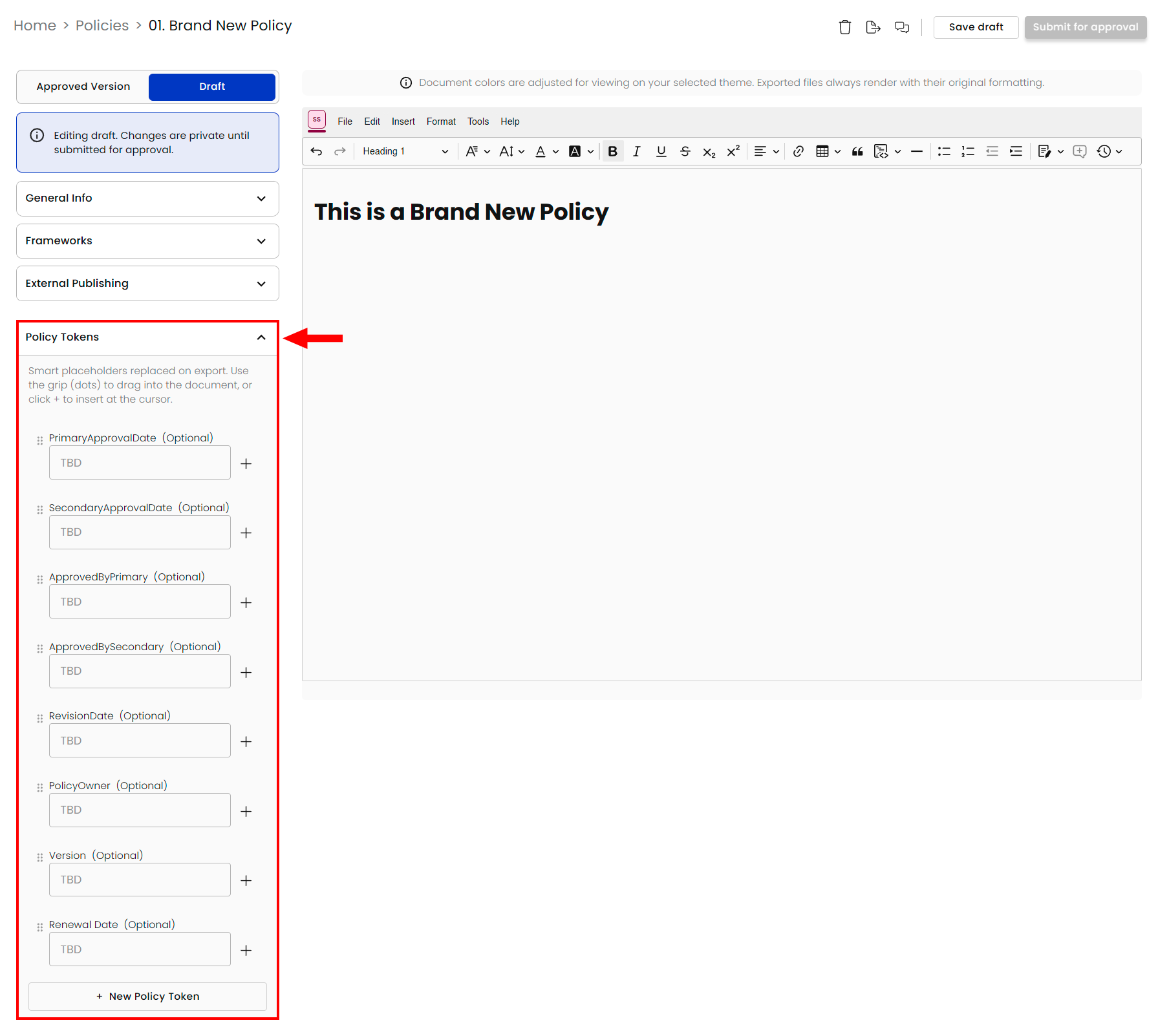
At the top of the list, there are a set of predefined tokens that are automatically updated in the document when the values change.
Primary/Secondary Approval Date: The date of the most recent approval by the Primary/Secondary approver.
Approved By Primary/Secondary: The Primary/Secondary user who approved the latest version of the policy.
Revision Date: The date of the latest revision that has not been approved.
Policy Owner: The person currently designated as the owner of the policy
Version: The latest version number, representing the total number of approved versions of the policy.
Renewal Date: The date the policy will need to be renewed by so it does not expire. Renewal frequency is either annually or bi-annually (determined in Settings). After the policy is approved, the renewal date is set to either one year or half a year from the approval date. (This token is not placed within the policy, but can be added if desired using the instructions below).
If there are no values to populate these tokens yet (no revisions/approvals), they will show as "TBD". If the values are predefined when uploading a policy, or when the first approval is completed, the tokens will populate with the respective values.
NoteFor non-Compyl policies that are uploaded by the user, we recommend that you add in the above tokens to the policy, as they are predefined and automated, and will help to track version control and approvals on the document itself. Instructions for adding tokens are detailed below.
Throughout the rest of the policy, the default tokens signify a 'fill-in-the-blank' for the policy, meaning that they will need to be defined in order for your custom values to show throughout the policy. All tokens that come with Compyl policies serve as a guide for completing the policy, but can be edited or deleted as desired.
Inserting a Policy Token into a Document
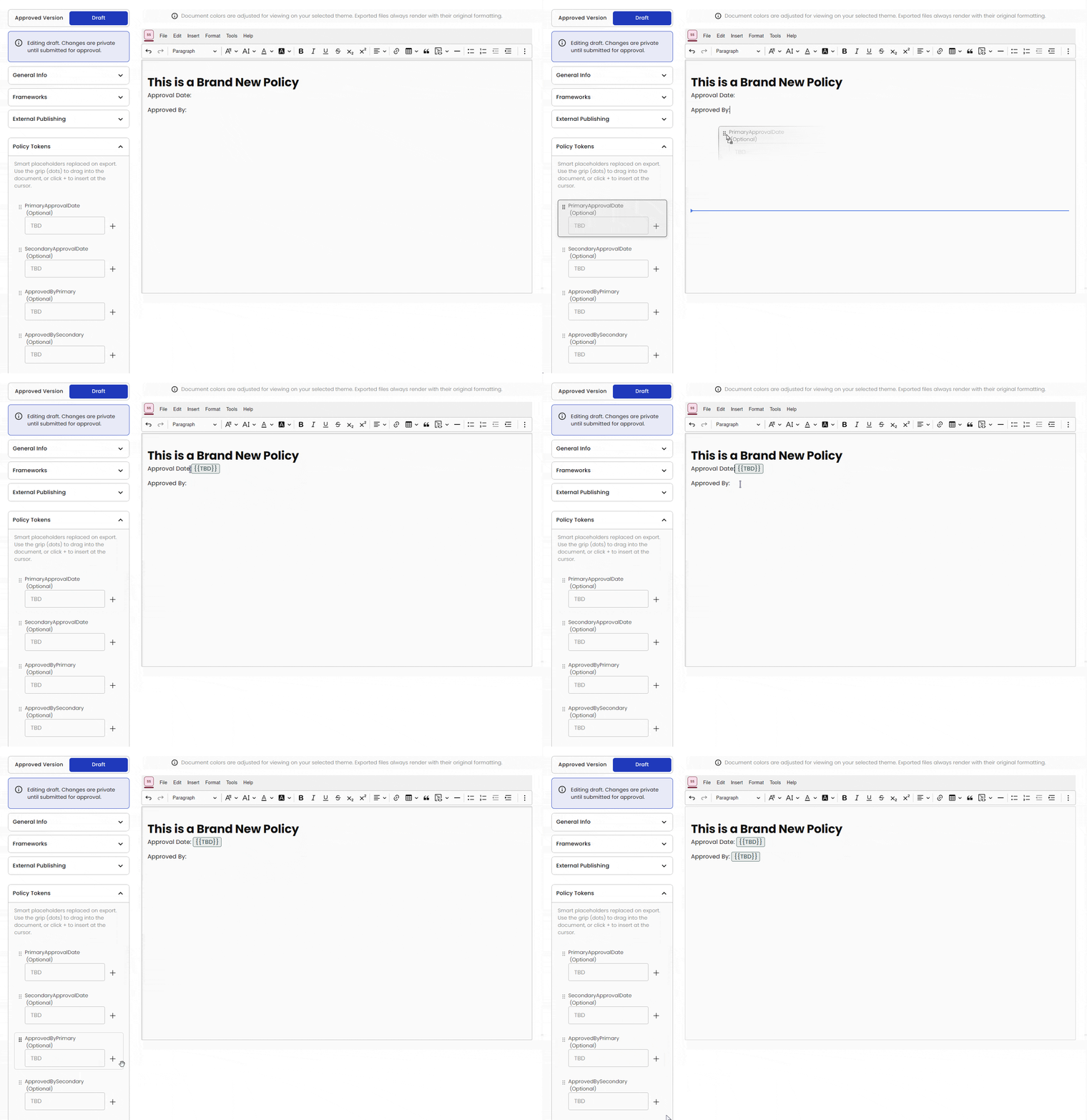
You can use the grip (dots) to drag any policy token onto the document or click the + button to insert one where your cursor is located.
Creating a New Policy Token
Users can add their own tokens to policies. This can be helpful to further customize Compyl's default policies. Tokens can also be added to any additional company policies that are uploaded to Compyl, as they will not come with any default tokens.
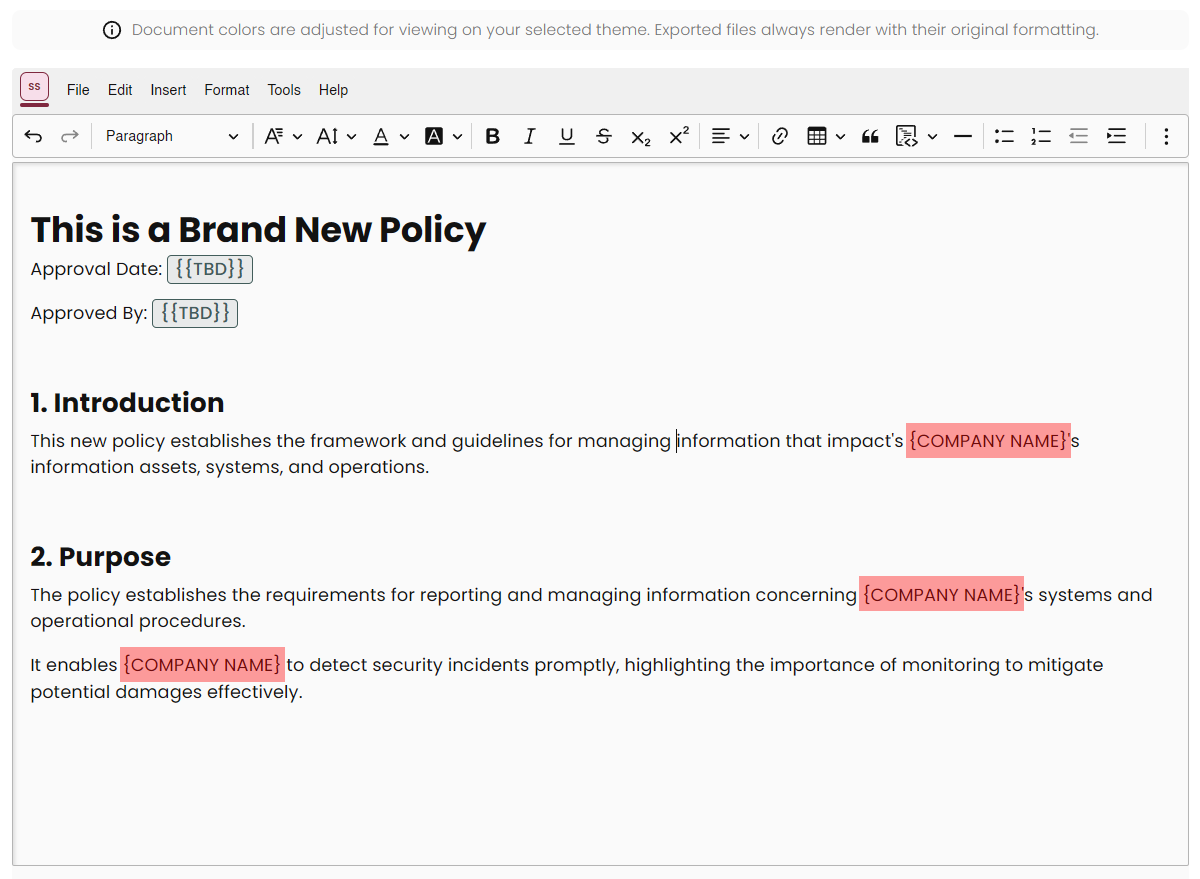
First identify the place within the policy where you would like to add a token. This can replace a word or phrase existing within the policy, or in a brand new place in the document.
For the below example, the policy calls out "Company-Name", but it is not yet a token within the document.
-
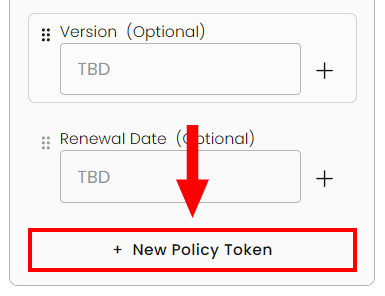
At the bottom of the Policy Tokens menu, click on + New Policy Token.
-
Give the token a name (e.g. Company Name) and click Add.

-
You now have a new, custom token named Company Name. It's value is currently the same as its name but this can be changed to whatever you want, and the token will reflect this everywhere the token is placed in your policy.
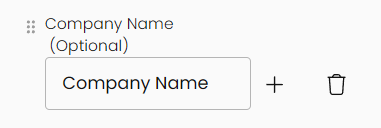
-
Update the name and now replace those instances with your new Policy Token.
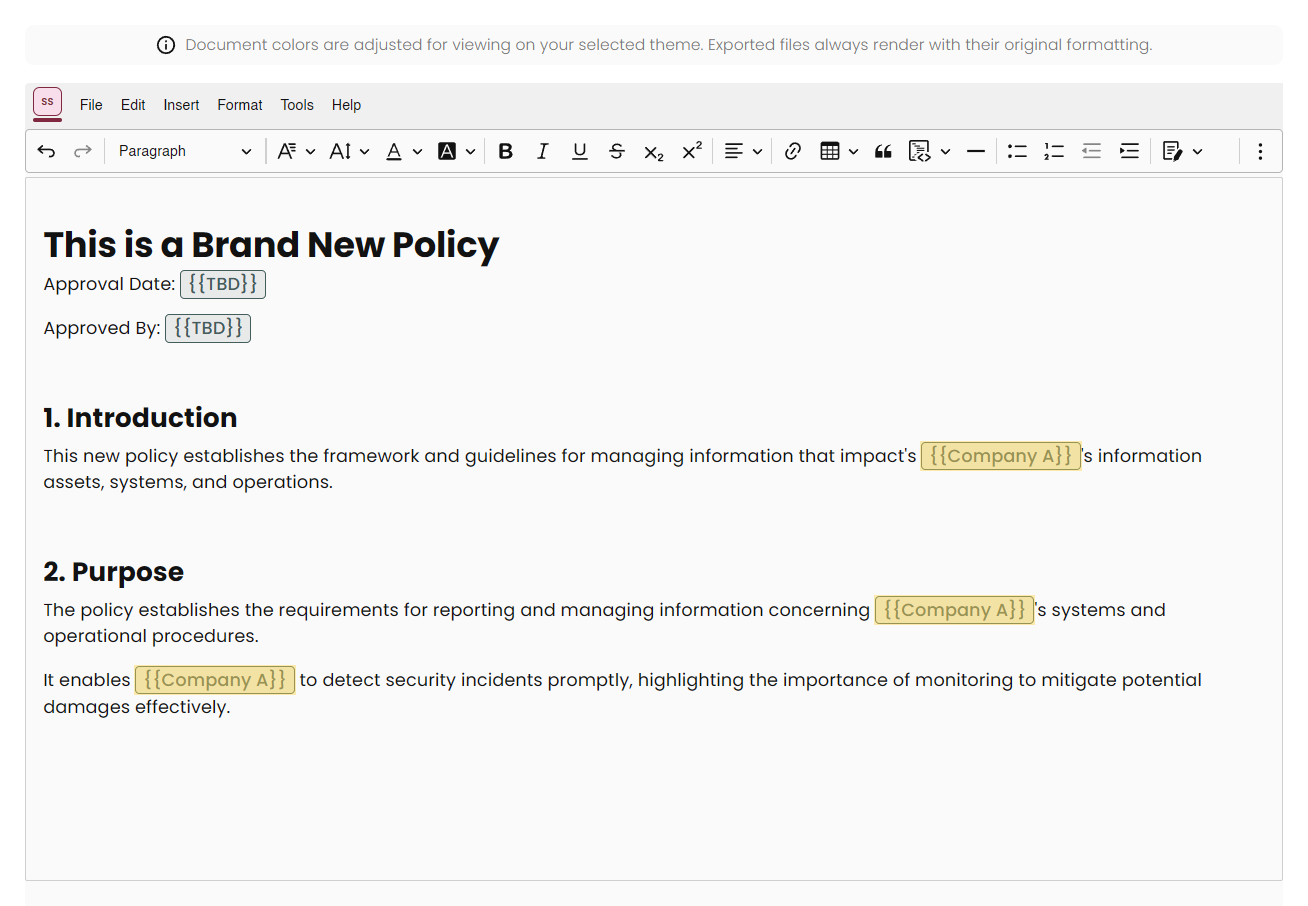
If you make a change to a Policy Token (such as renaming it to Company B), simple Save draft and refresh your window to see this change.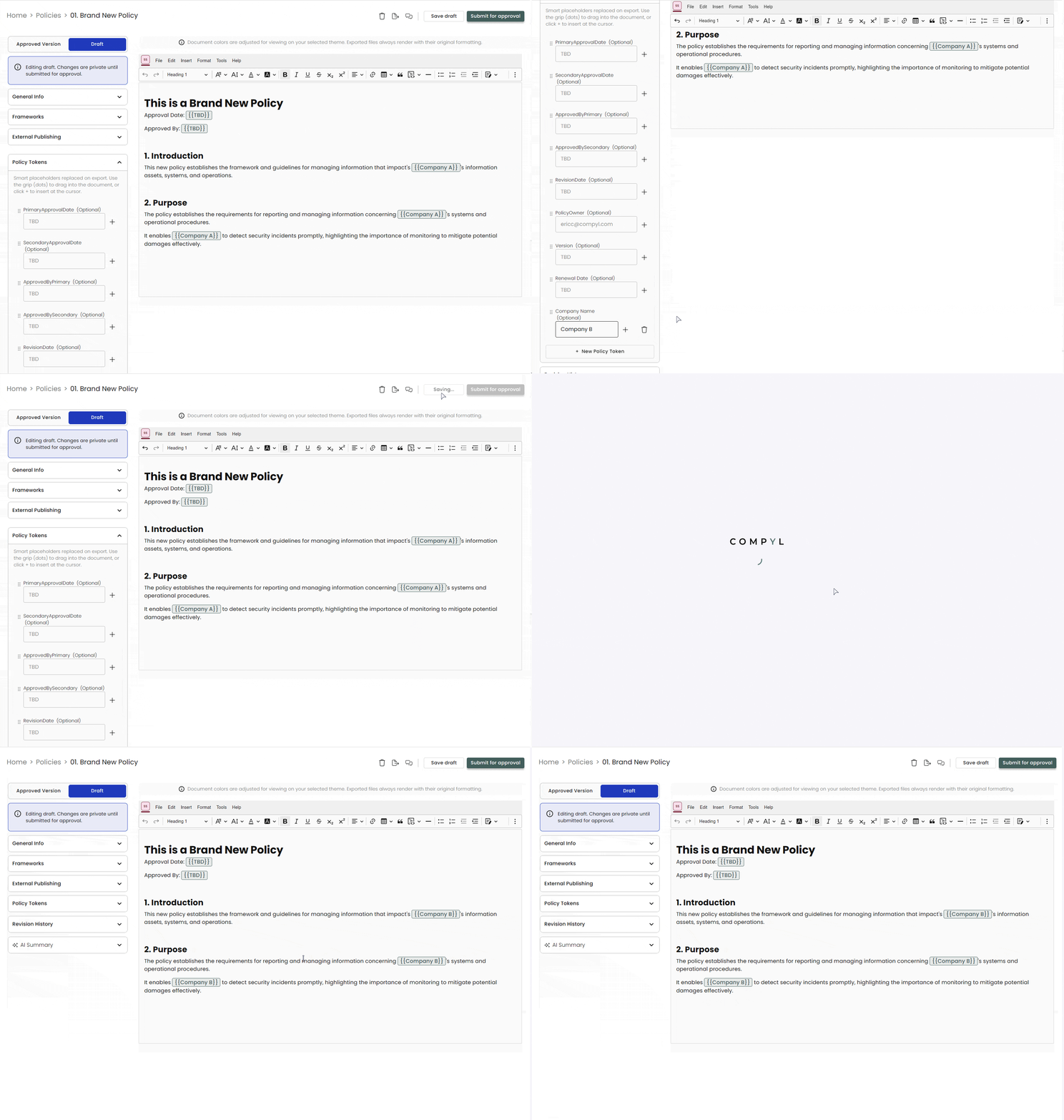
Updated 4 months ago