
Report Wizard - Label Report
NOTEThe default Report Designer implementation uses the Report Wizard (Fullscreen) version. To use the popup version instead, disable the
ReportDesignerWizardSettings.UseFullscreenWizardoption.
Selecting this option on the Choose a Report Type wizard page will proceed to the Label Wizard that enables you to create labels of a required type.
| Icon | Description |
|---|---|
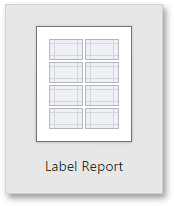 | The Label Wizard includes the following Choose the Label Type |
Choose the Label Type
NOTEThe default Report Designer implementation uses the Report Wizard (Fullscreen) version. To use the popup version instead, disable the
ReportDesignerWizardSettings.UseFullscreenWizardoption.
On this wizard page, you can specify a label product that defines the required label standard and a specific product number that determines the label size, layout and paper type.
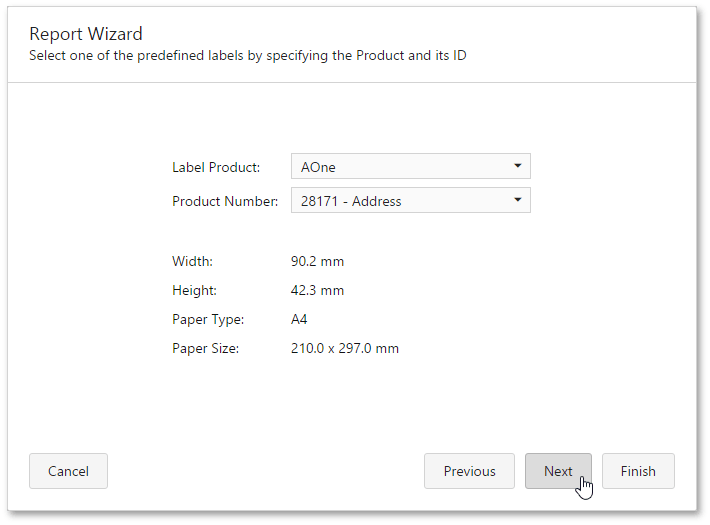
Specify the Label Parameters
NOTEThe default Report Designer implementation uses the Report Wizard (Fullscreen) version. To use the popup version instead, disable the
ReportDesignerWizardSettings.UseFullscreenWizardoption.
On this wizard page, you can customize the default label settings that were automatically specified based on the label product selected on the previous page.
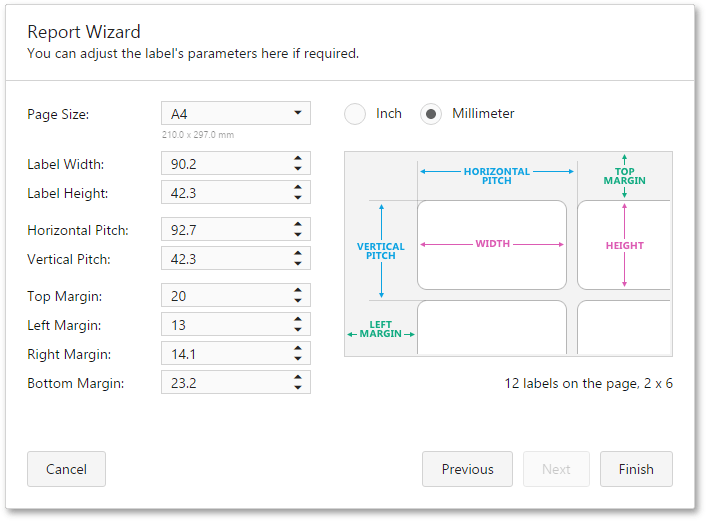
Click Finish to complete the report creation.
The following image illustrates the created report layout.
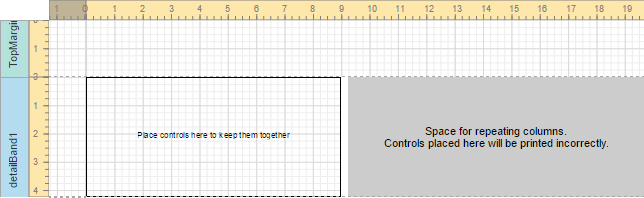
For information on how to provide content for the labels, see Create Labels and Badges in the Visual Studio Report Designer.
Updated 7 months ago