
Controls Register
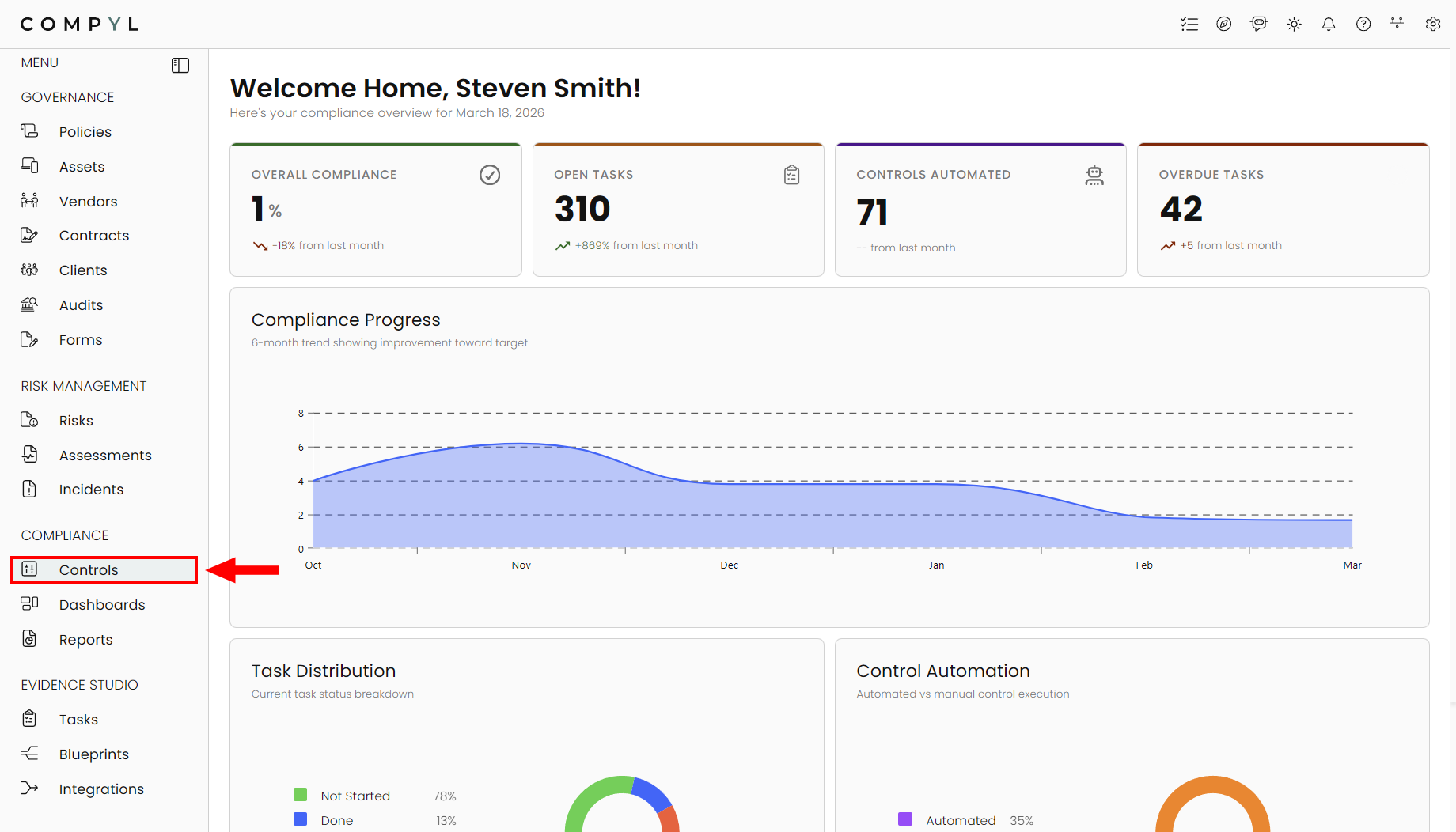
Search, view, and track the progress and requirements of all the frameworks and controls
The Controls Register provides a detailed view of all frameworks and regulations being tracked in Compyl.
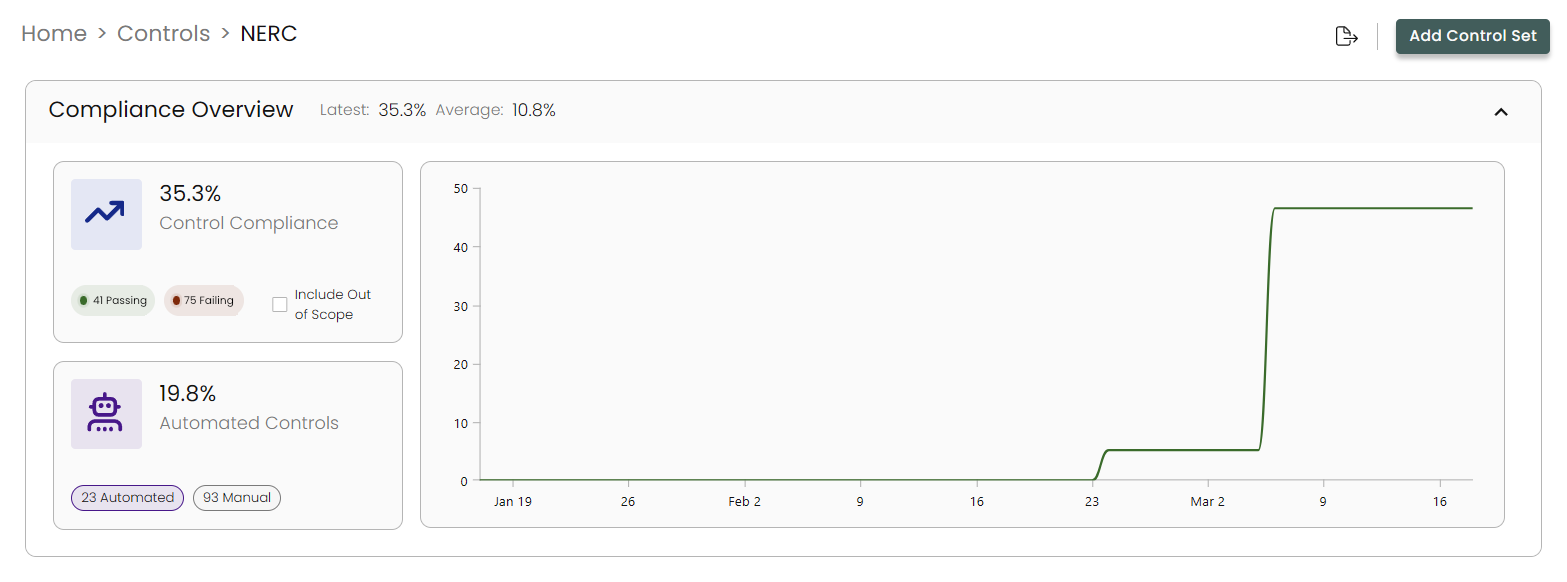
Compliance Overview
Expand the overview for a specific control by click on the caret to give you a daily trend line of its compliance score as well as quick breakdowns of your average compliance over the past 90 days and how many of your controls are automated.
Viewing a Framework/Regulation
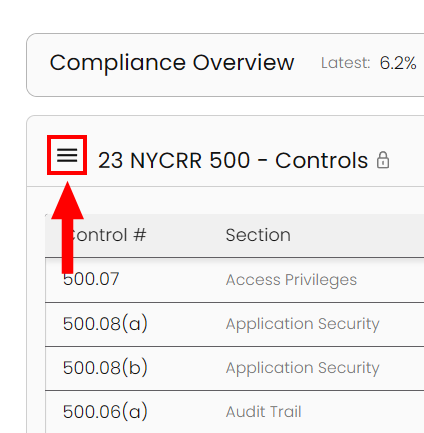
Select a framework you would like to view by clicking on the hamburger menu:
Next, select the Control Set you wish to view or edit:
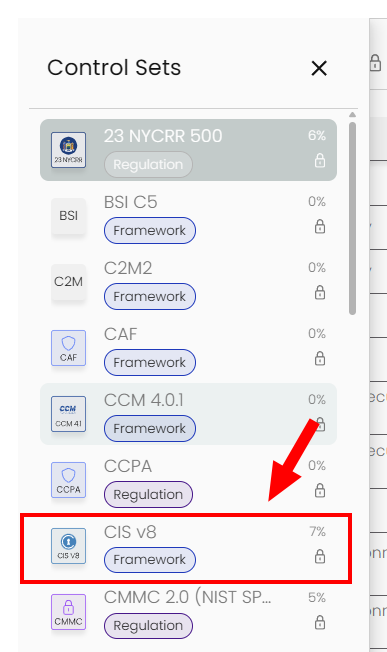
Each framework shows all the control sets attached to it. You can add, edit, and remove them directly from within Compyl. Additionally, every change is automatically tracked for transparency, including which user, which action, and at what time.
Editing a Control
-
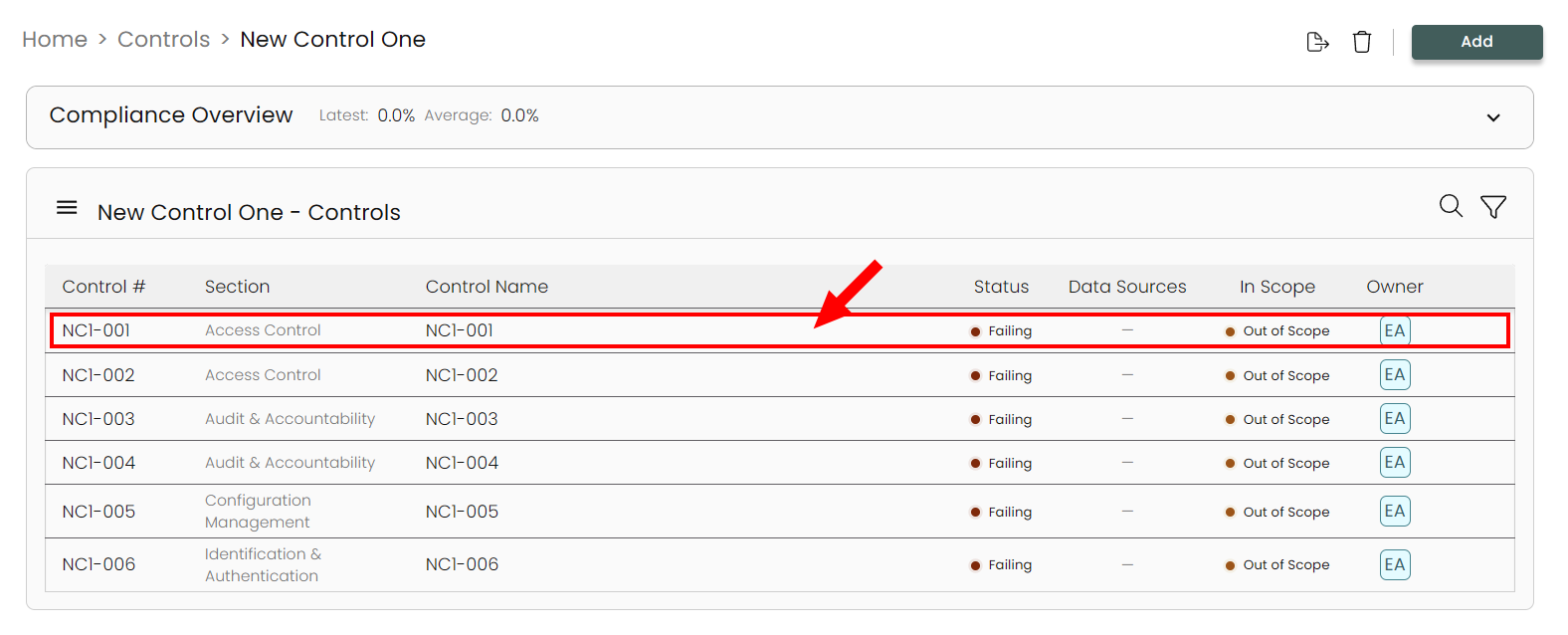
Open the framework/regulation containing the control you wish to edit and then click on the control itself:
-
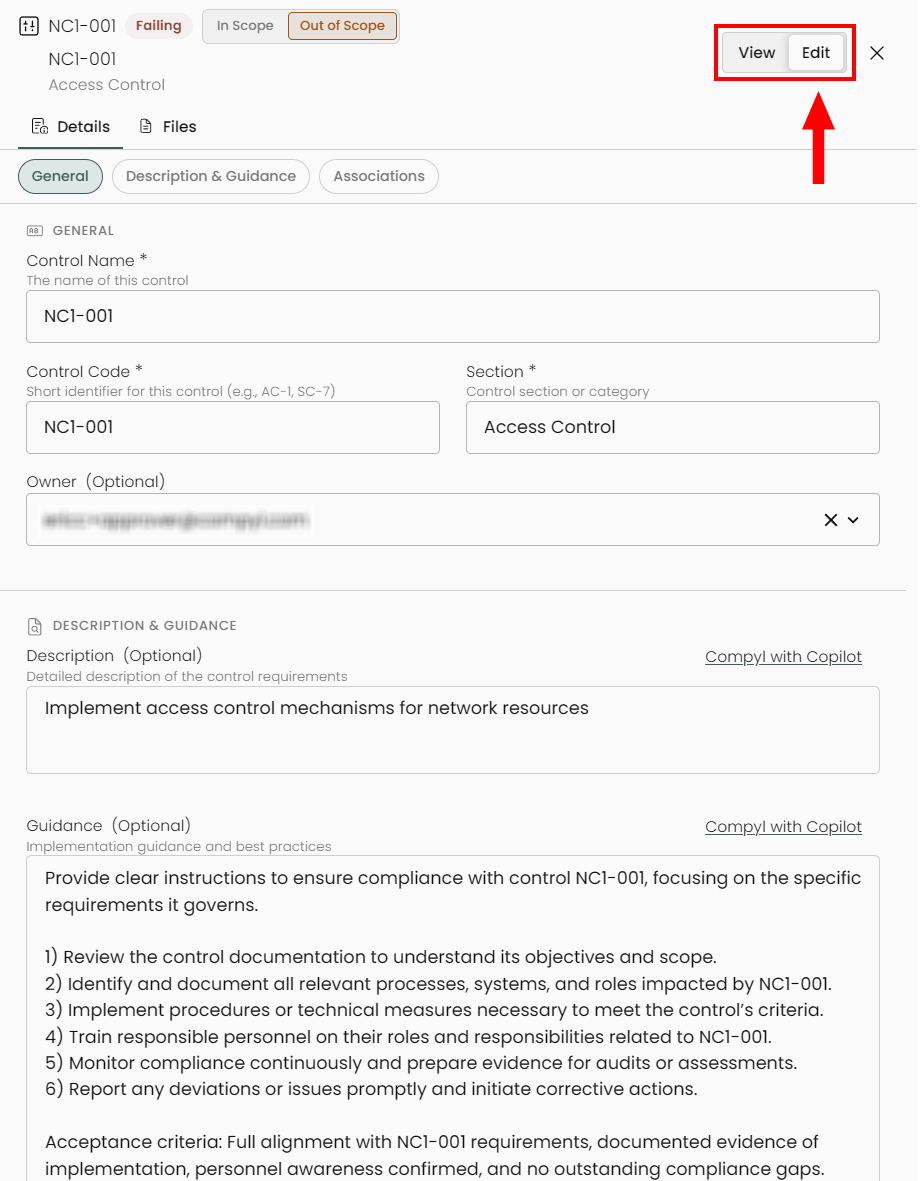
In the slide out you can change the information you added when creating the control as well as adding details like a description and guidance on the control by toggling from View to Edit.
-
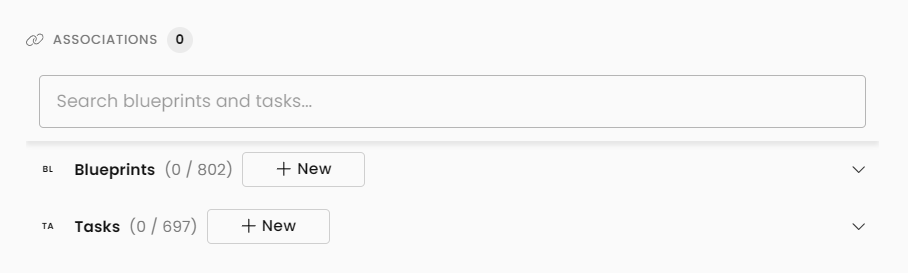
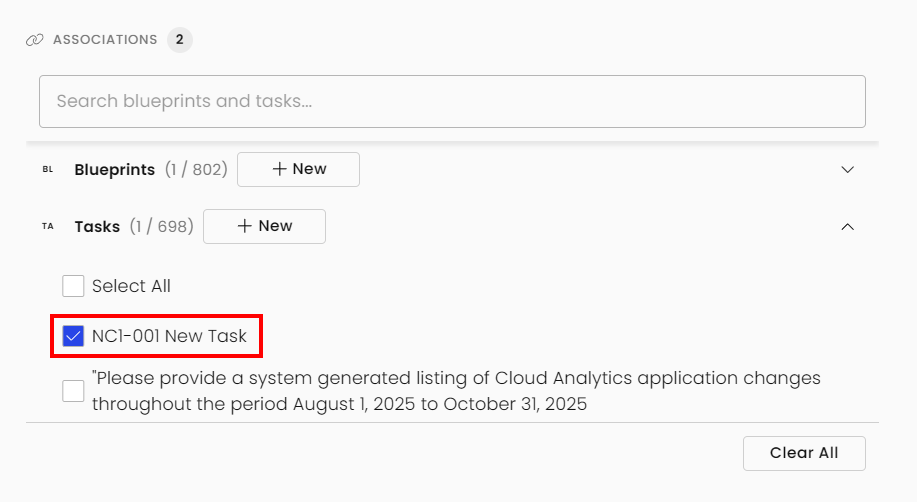
Under Associations, you can modify and add blueprints and tasks. Select Save Changes when the edits are complete.
Adding a Blueprint
-
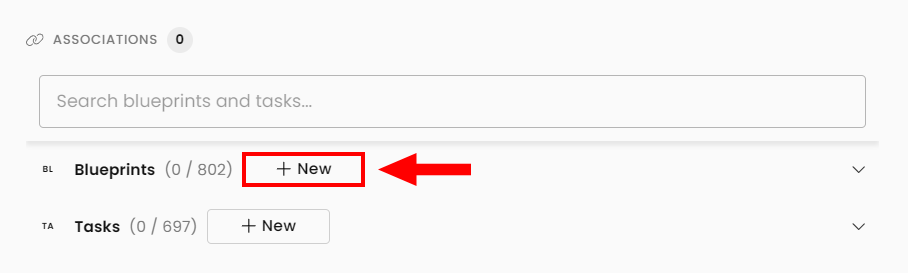
You can add a blueprint to any Control by clicking on the + New button.
-
This opens up the blueprint workflow, allowing you to create one within Controls without needing to exit the Register.
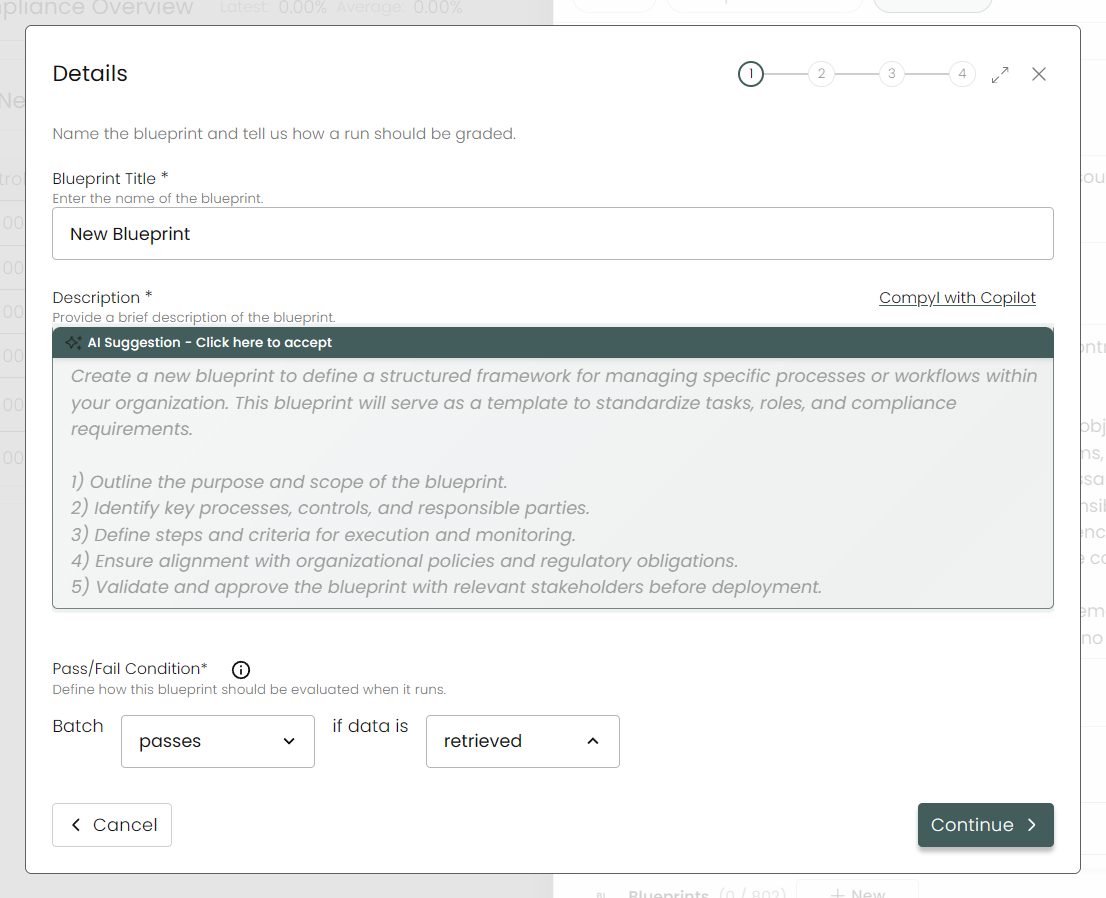
One the blueprint is complete, click on Save. It will automatically be associated with the control.
For more information on creating Blueprints, read our article here.
Linking an Existing Blueprint
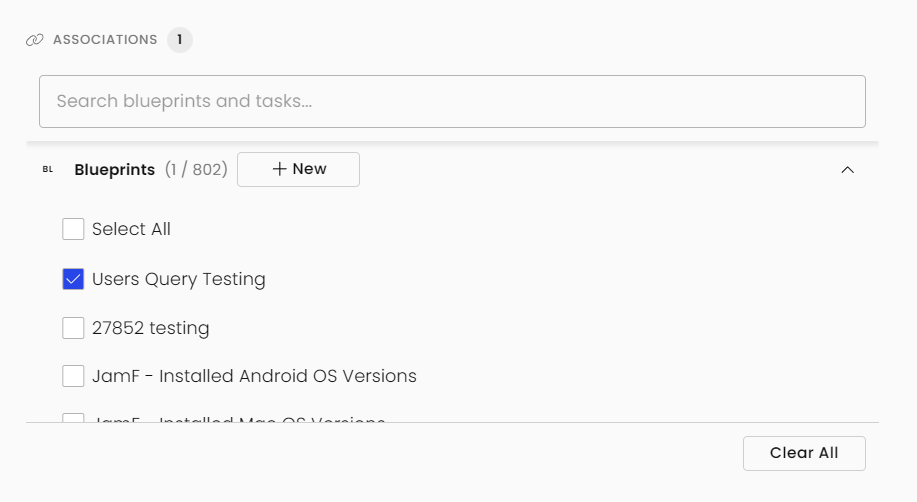
For any blueprints that are already created, click on the caret to expand the list of blueprints. Select the one (s) you wish to associate to the control.
Adding a Task
-
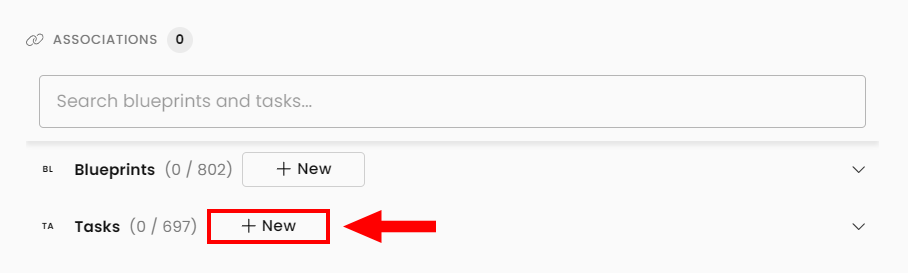
Similar to adding a blueprint, click on the + New button to add a task.
-
This opens the add task workflow and is the same as Adding a Task. Once you save the task, it will automatically be associated with the control so you won't need to select it in Step 5.
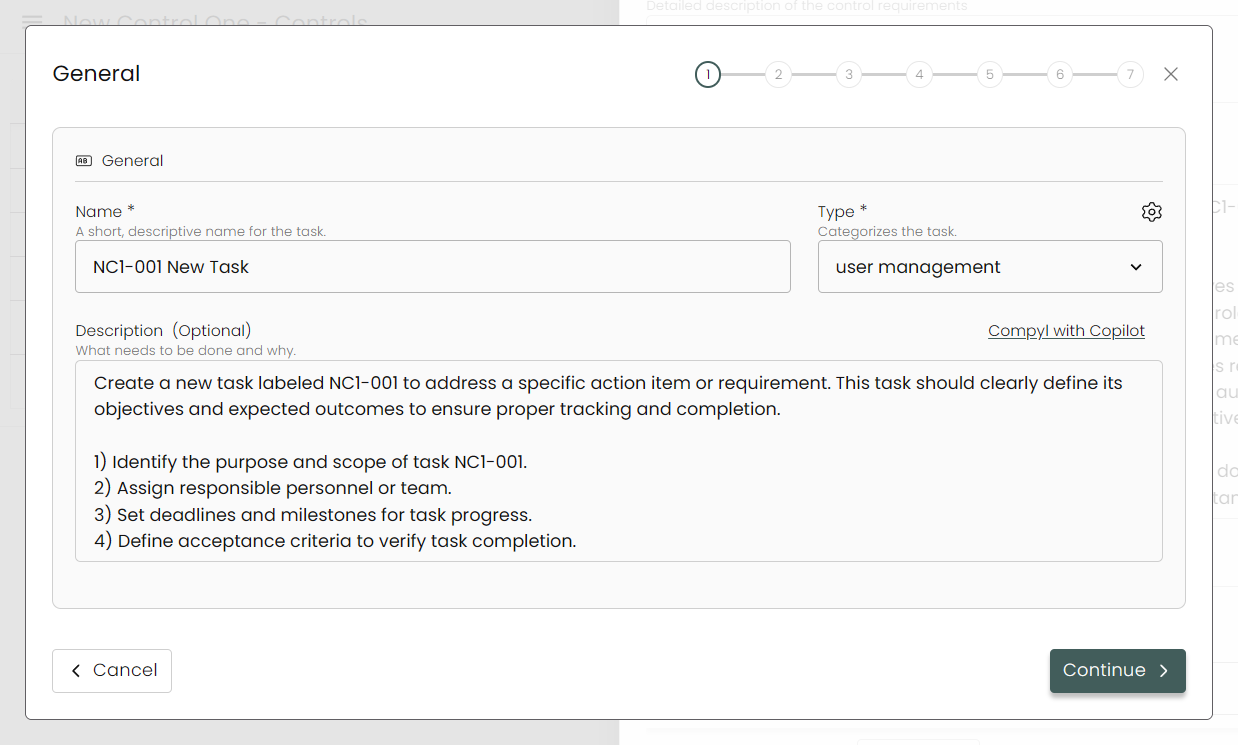
When finished, click on Save and you'll see it added to your control.
Exporting a Control Set
-
Choose which set you wish to download by clicking on the hamburger menu:
-
Next, select the Control Set you wish to export:
-
At the top right of the page, select the Export Control Set icon:

This will change to an animated Exporting icon as Compyl gathers and ZIPs all of the associated data.
Once complete, it should automatically download the file with all associated tasks and documents as CSV files as well as any attachments as part of those tasks in their original filetype (docx, pdf, etc...):
To download additional Controls, just select any other set.
Updated 8 days ago