
Binding Data with Blueprints
Binding Data
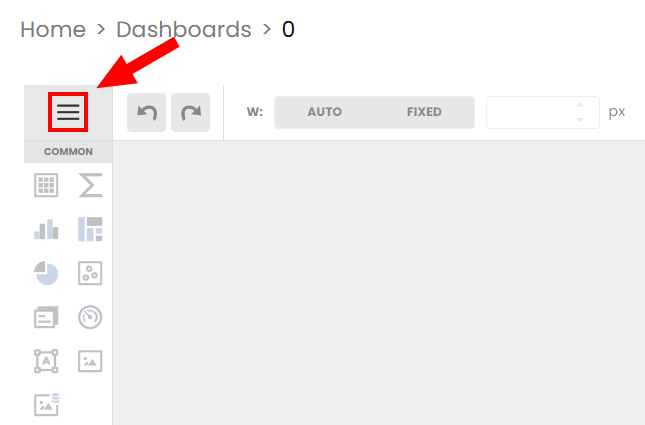
Now that you've added your data source, it's time to pick the specific blueprint(s) you wish to bind. First, click on the hamburger menu in the top-left.
Add Query
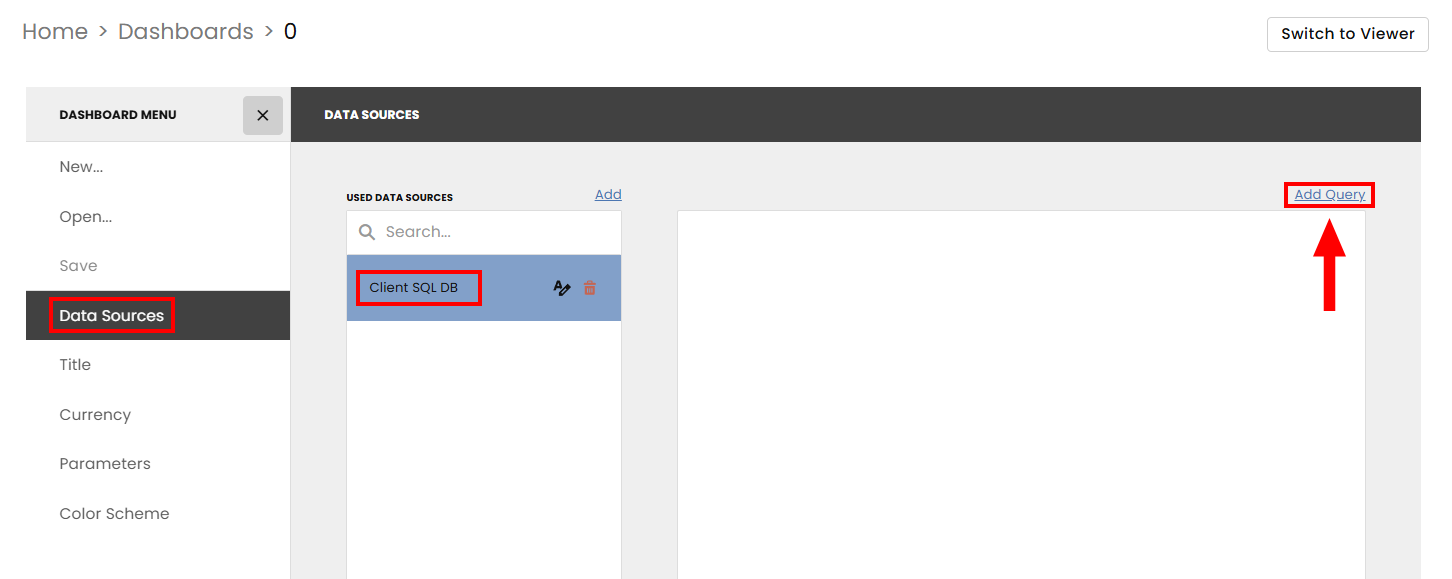
Next, select Data Sources, then the Client SQL DB, and finally click Add Query in the upper right-hand corner.
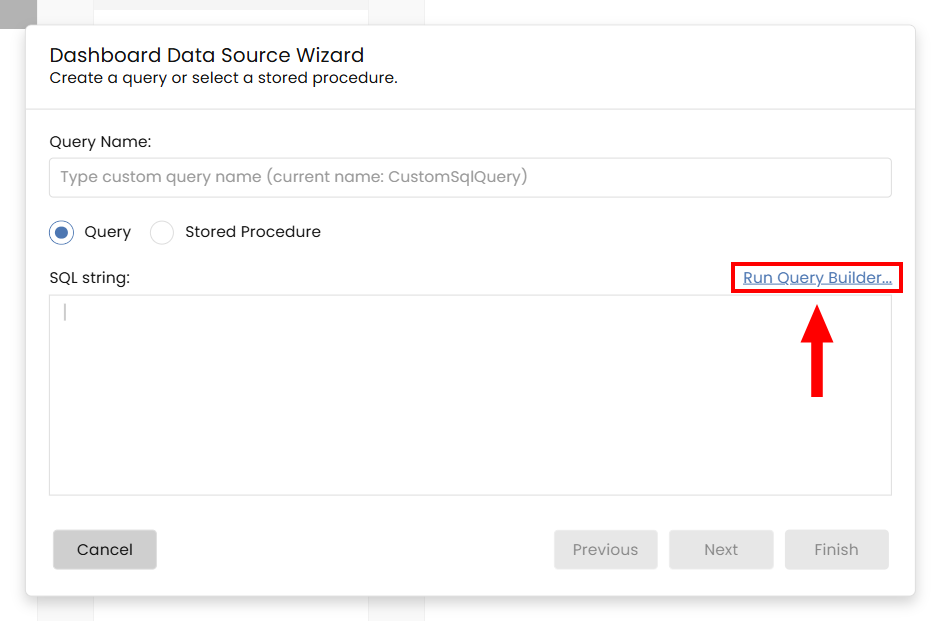
Now it's time to create a query for the specific data you wish to pull. Click on Run Query Builder... on the new pop-up.
Stored Procedure
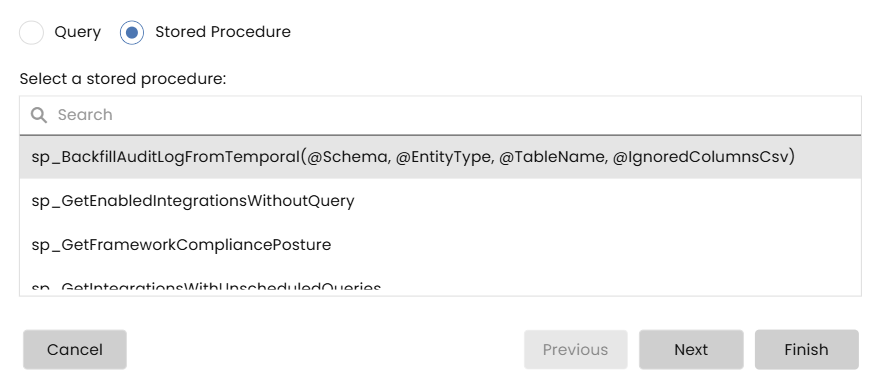
If you already have a stored procedure, just select that radio button and choose it from the list.
Build a Blueprint
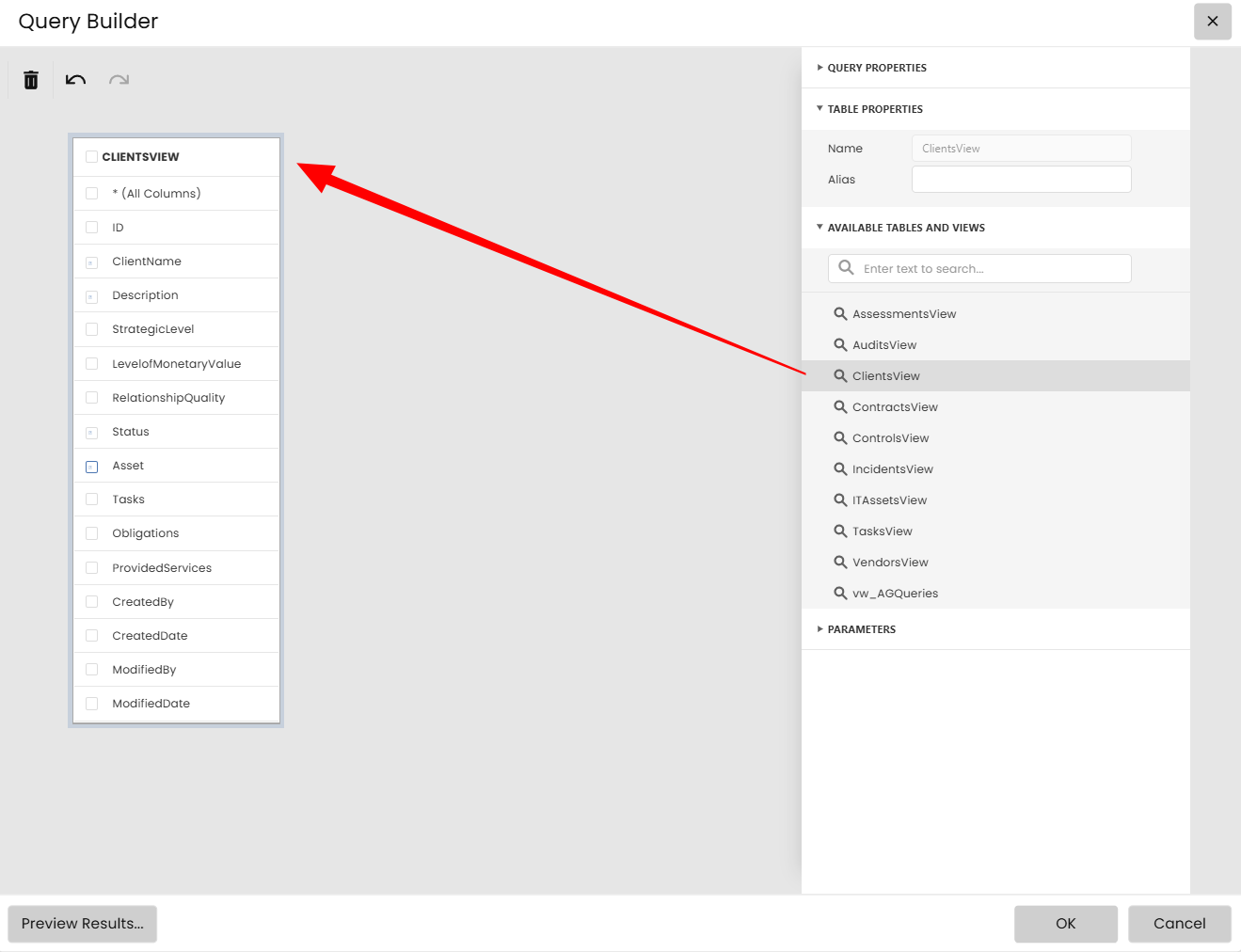
Within the Query Builder, select the data you want (you can search for it under Availabler Tables and Views) and drag it onto the field. Make sure to select what information within the table you want to display. In this example, we select ClientName, Description, Status, and Asset. Click OK when done.
You can read more in-depth about building blueprints using the Query Builder here.
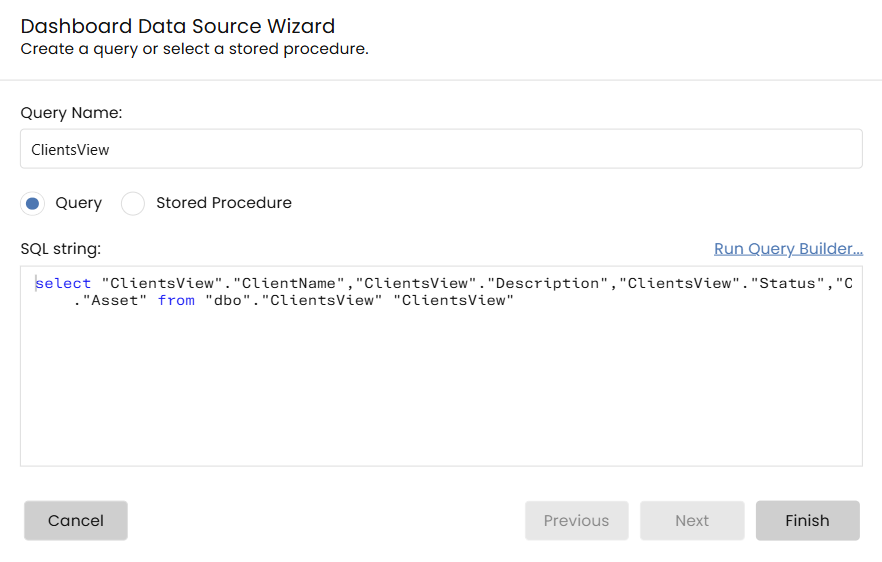
The SQL string area will now be filled in the previous window. Click Finish.
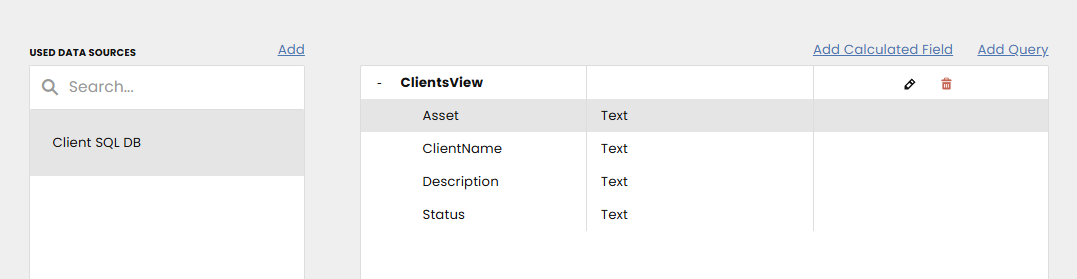
You'll now see your Data Source populate.
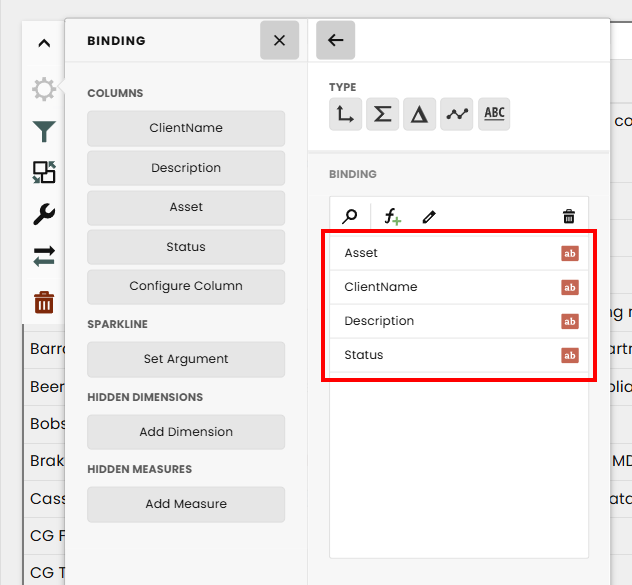
Close that section and go back to the dashboard editor. Add an element by dragging it to the field. Then click on the gear icon to bind your new data source.
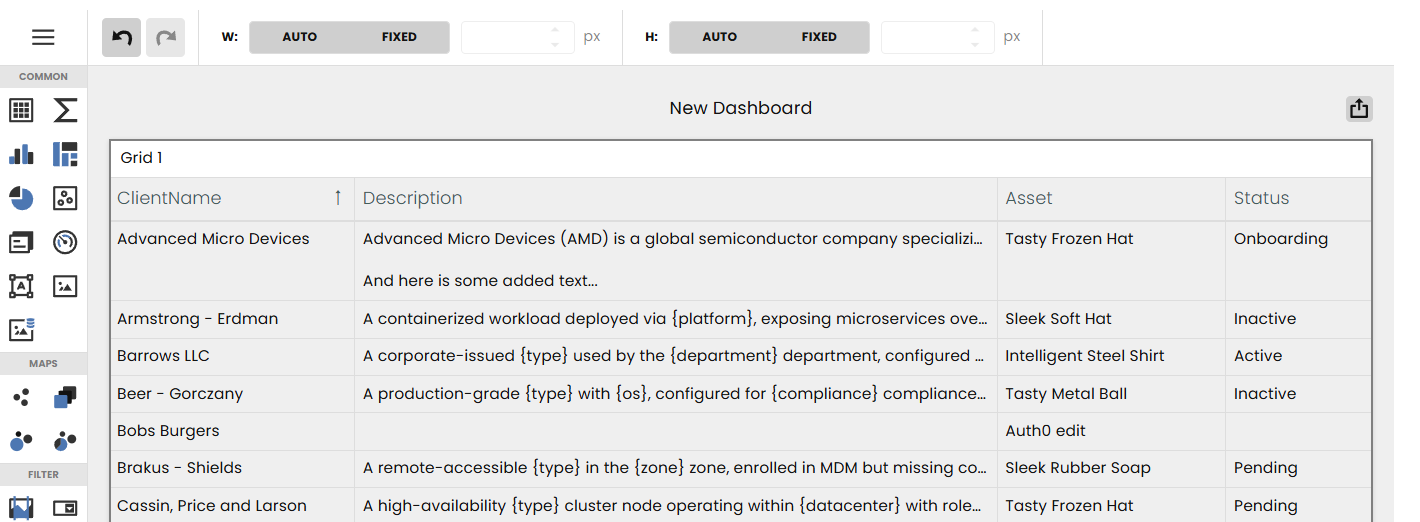
Click on the Add Column button and select each binding. In this example we added one for each of the items we selected in the data source (4 total).
Your grid should now be populated with all the data you requested.
Repeat this process for each datapoint you wish to add.
Calculated Fields
Calculated fields enable you to apply expressions to data fields obtained from the dashboard’s data source. These calculated fields can be used in data visualizations just like regular data source fields.
You can add new calculated fields based on existing data source fields once the data source is created.
Adding a Calculated Field
Via the Data Sources Page
-
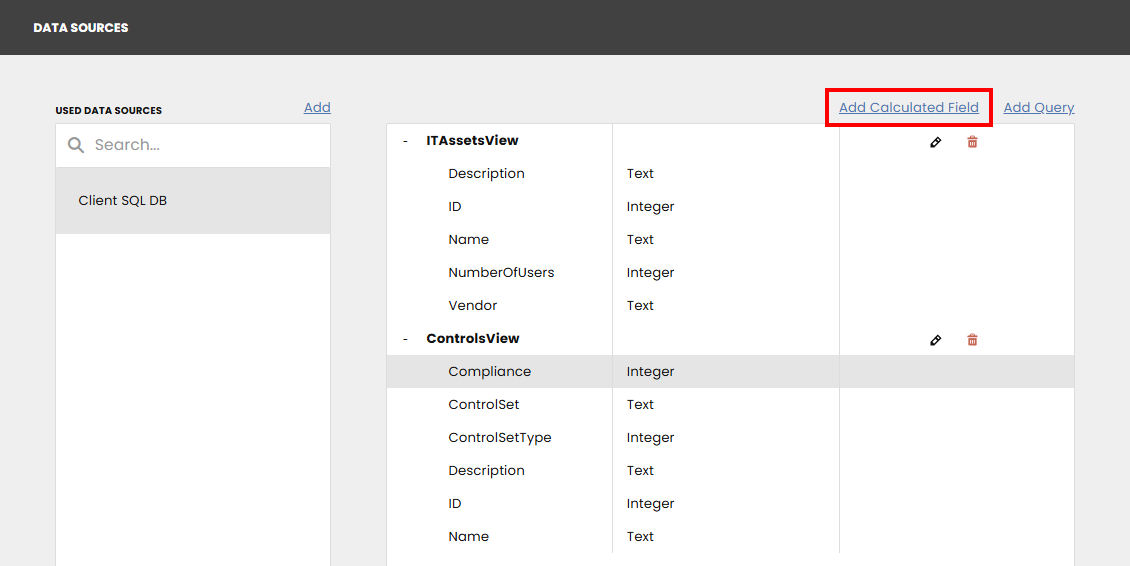
Access Data Sources Page: Go to the dashboard menu and open the Data Sources page.
-
Select Data Source: Choose a data source (and a query/data member, if applicable).
-
Add Calculated Field: Click the Add Calculated Field link to create a calculated field.
Adding via the Binding Panel
-
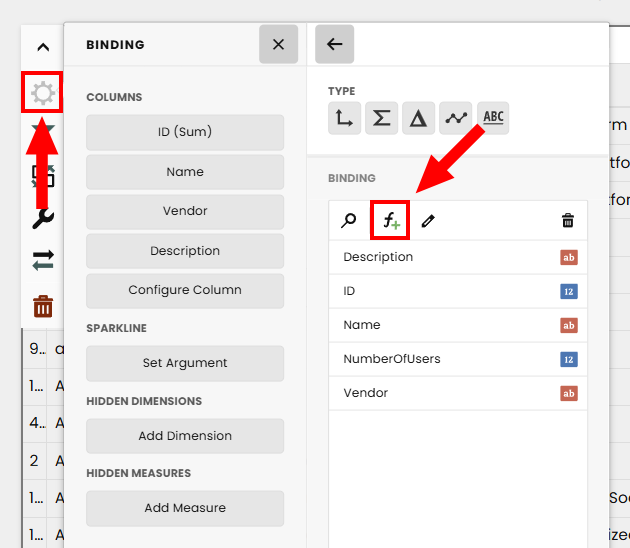
Open Binding Panel: Access the Binding panel from the dashboard item menu.
-
Add Calculated Field: Go to the Binding section and click the Add Calculated Field button.
Edit Calculated Field Dialog
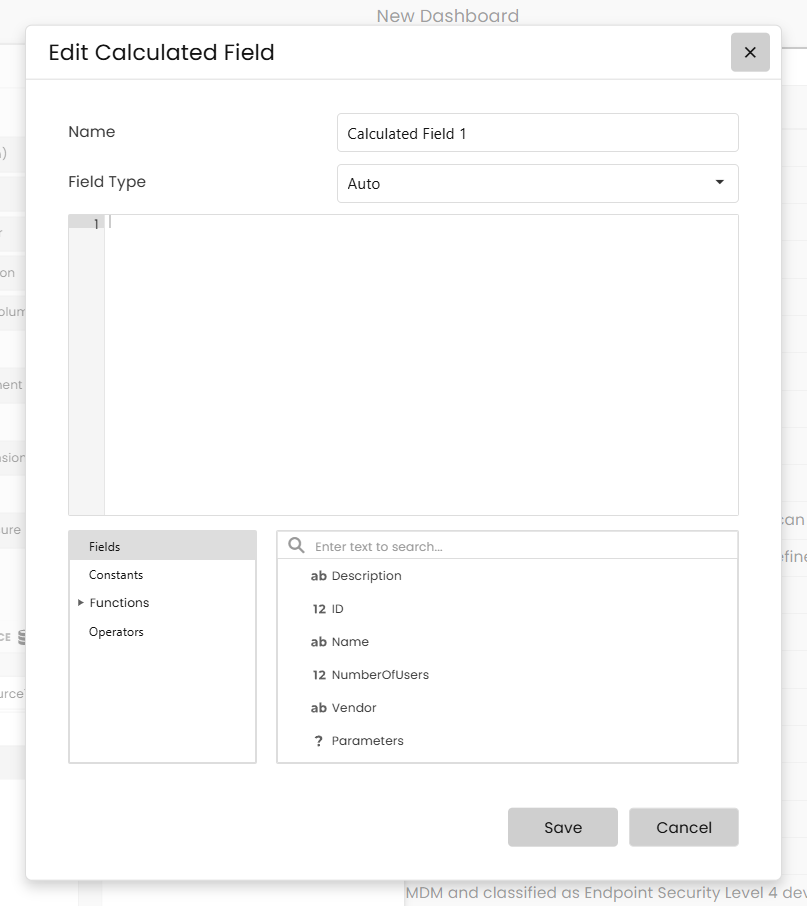
When creating a calculated field, the Edit Calculated Field dialog allows you to construct an expression for the field. You can specify the following options:
-
Name: Change the default field name.
-
Field Type: Specify the calculated field type.
Expression Elements
The following elements are available for creating expressions:
- Fields: Lists available fields and dashboard parameters.
- Constants: Lists Boolean variables.
- Functions: Lists various functions, including aggregate functions.
- Operators: Lists available operators.
You can also add comments to your expressions to explain and improve their readability. Comments are multi-line and enclosed within /* and */.
After creating the expression, click "Save" to add the new calculated field, which will then appear in the Field List with a special glyph indicating it is a calculated field.
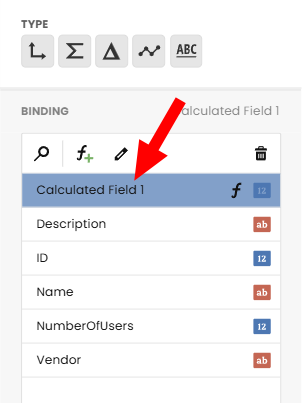
Editing via the Data Sources Page
-
Edit Button: Click the calculated field’s Edit button to modify it.
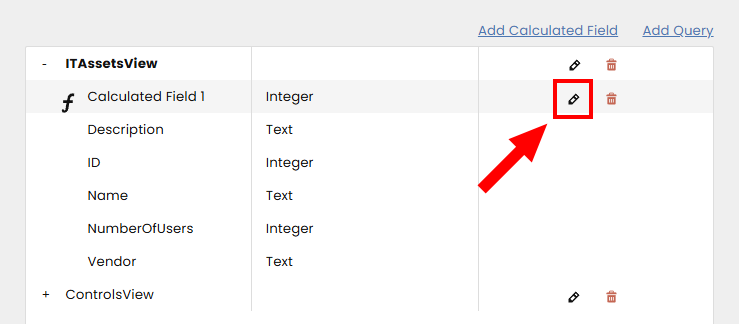
Using the Binding Panel
-
Select and Edit: Choose the calculated field you want to edit and click the Edit button.
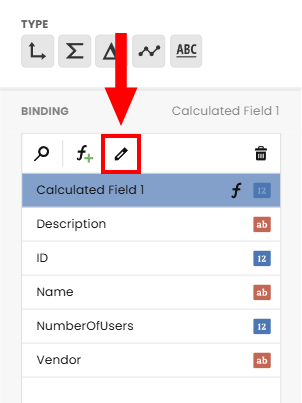
This opens the Edit Calculated Field dialog, where you can change the field’s name, type, or modify the current expression.
Deleting a Calculated Field
- Delete Button: To delete a calculated field, use the trash can icon.
Managing your Data Source
You can rename or delete your data source by returning to the Dashboard Menu → Data Source page.
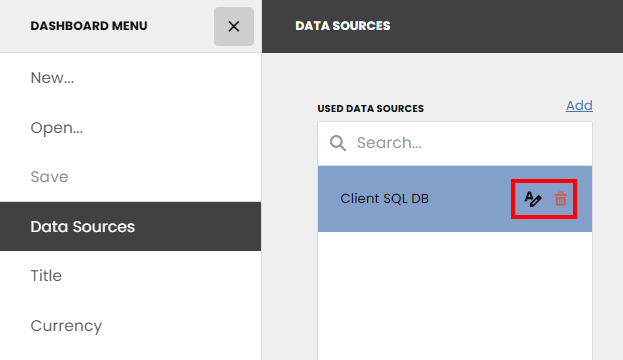
Click on the A icon with pencil to rename it, and the red trash can icon to delete it. You can always re-add your data source by clicking on New... and selecting Client SQL DB again.
Updated about 6 hours ago