
Custom Views
Customize your views on Compyl Grids to better organize your data for your needs
Compyl allows users to customize grids to view the data however you see fit. You can create various custom layouts, add filters, adjust field names, and adjust which columns to display to best present the data.
Column Selection and Display
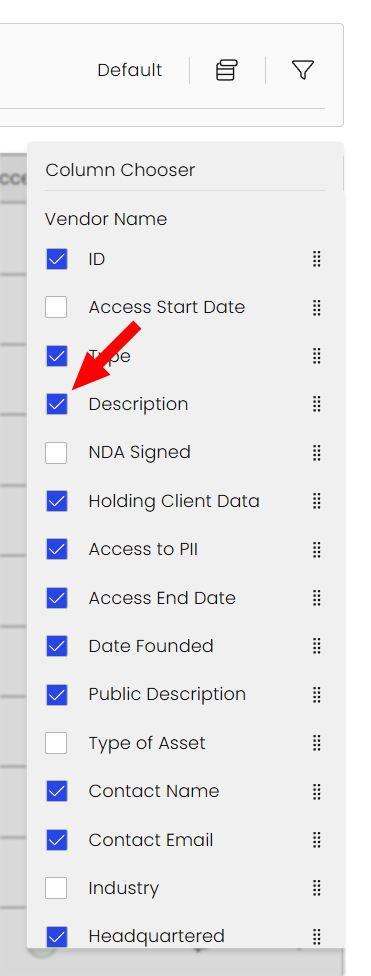
Users can rearrange the order of columns, add or remove columns, and sort without having to create new data with the help of the Column Chooser.
-
Pick the menu icon to expand the Column Chooser.

-
Select which columns you want to be displayed or hide in real time, showing the data that is most important to you
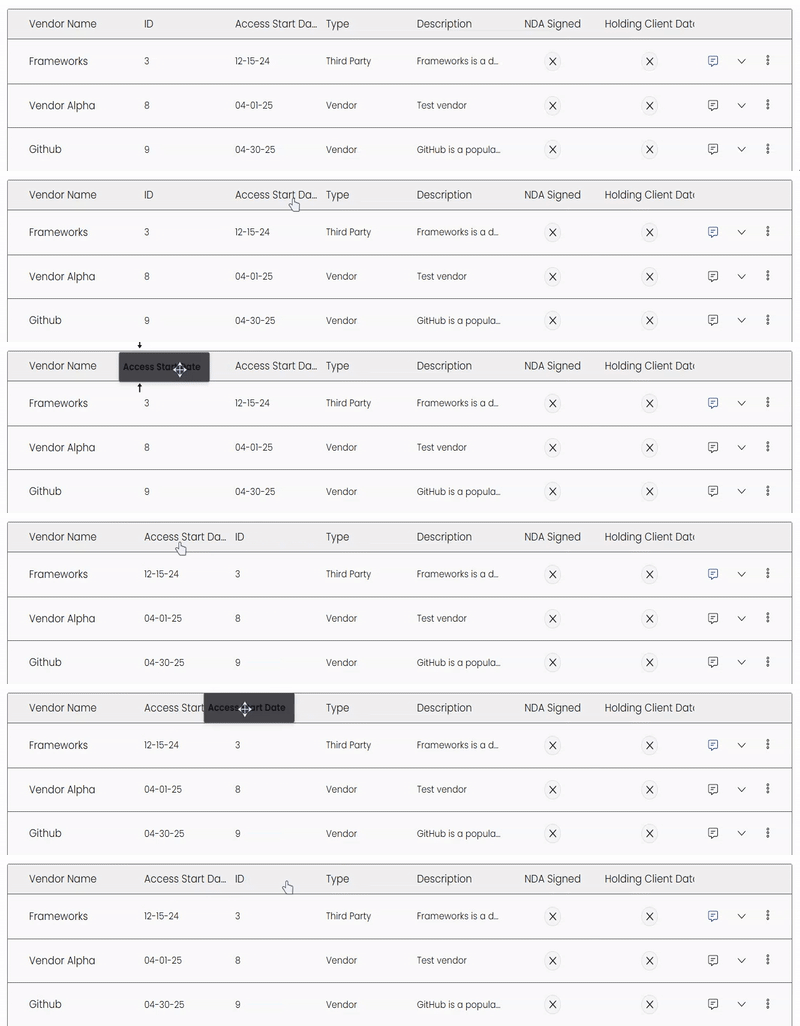
You can also change the order of the columns being displayed by dragging them to your desired location in the row.
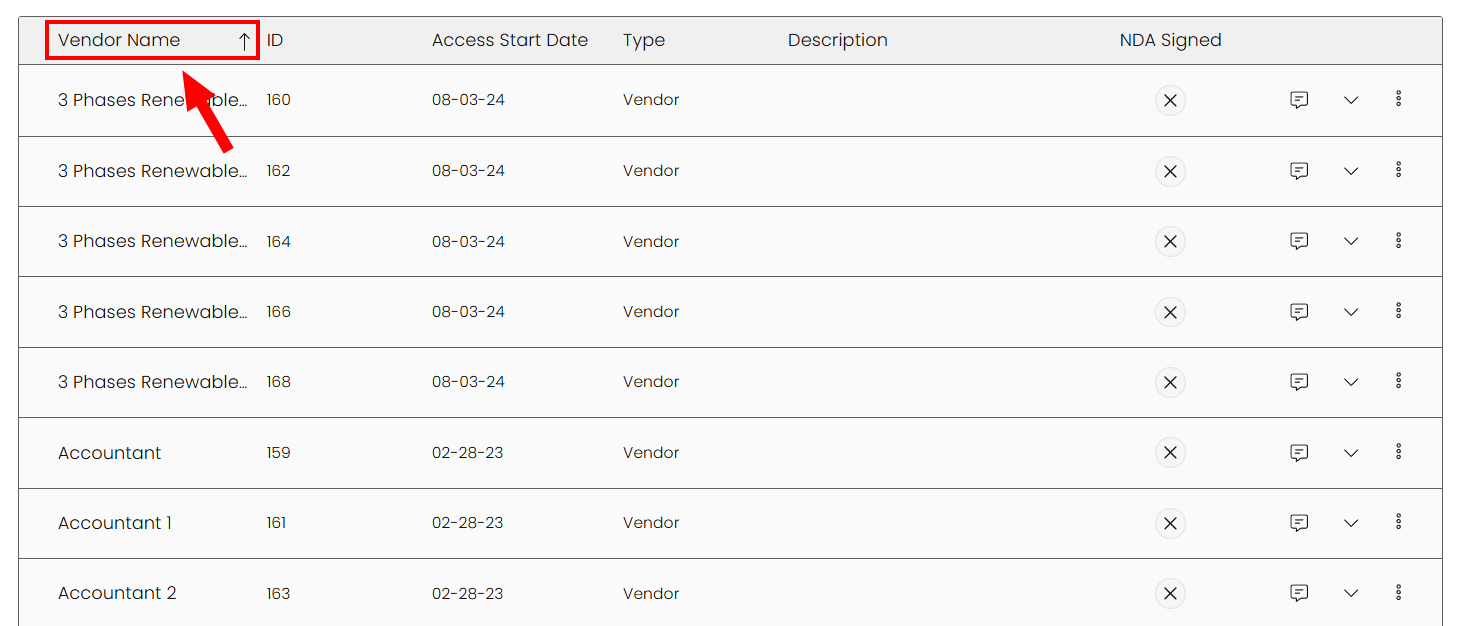
To order the values in the columns alphabetically or numerically, click the column name, and the up or down arrow will appear. Clicking the column name again will switch it.
Filters
You can use filters to display certain results based on inherent attributes for your Grid View within each Module.
-
Click on the Filter icon to expand your Filter Options.

-
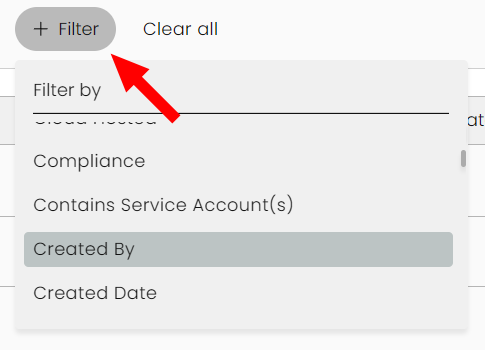
Begin selecting the data you wish to see by clicking on the +Filter button.
-
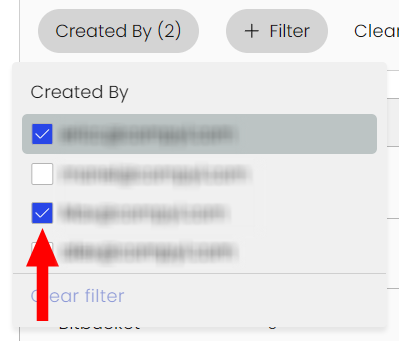
This will switch to a selection menu where you can pick which aspects you wish to include.
-
You can then continue to same process to add additional filters to your search
Layout Settings
-
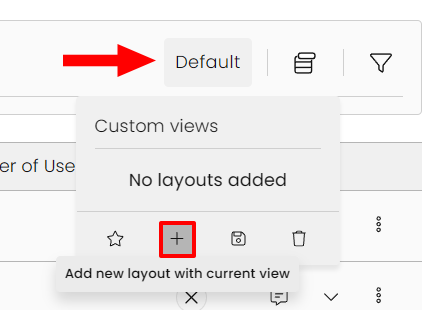
Once you have customized your layout to your liking, save your layout by choosing on the Layout Name (if there are no custom layouts present, it will say Default) and clicking the + icon for Add new layout with current view.
-
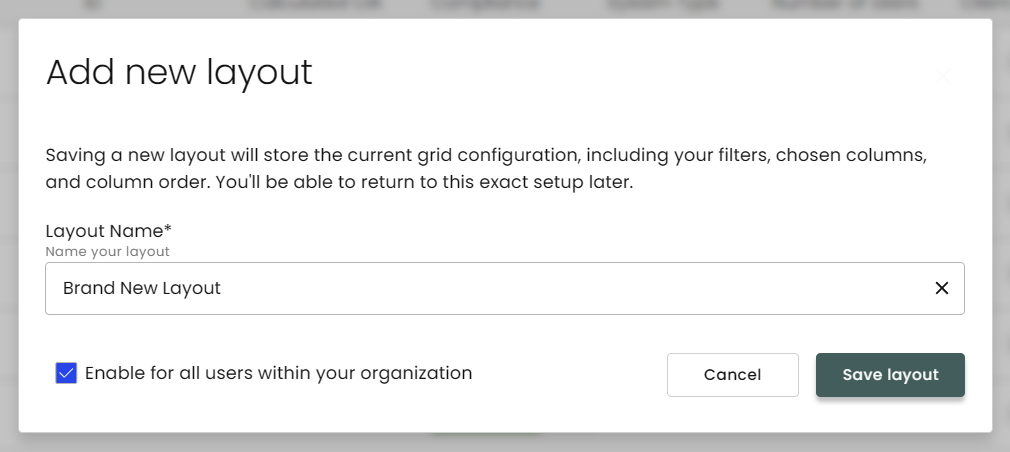
This will prompt a window where you can name the layout, and decide if this layout should be available to all users within your organization.
-
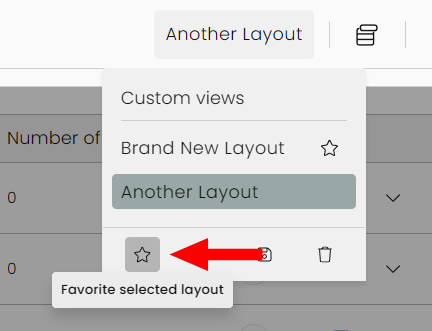
If this is your first custom layout, it will automatically be favorited and will become the Default. Once you've created more than one layout, you can favorite one by choosing the star icon to make that your new Default.
-
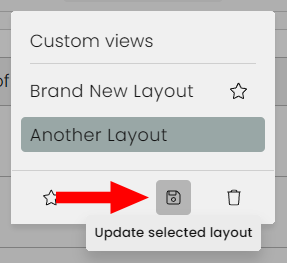
If you modify the view and wish to save it to the same layout, select the diskette icon to update the selected layout. This will also allow you to rename it if you'd like.
Export Data
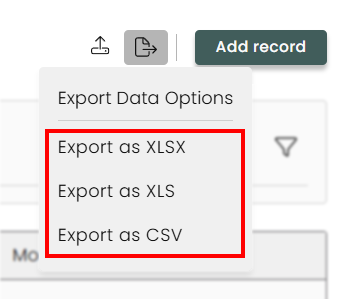
If you would like to export the data from the grid, use the Export button above of the grid, and choose your preferred format. The columns exported will mimic the layout currently show on the grid, with all other columns hidden.
Updated 8 days ago