
End-User Multifactor Authentication (MFA) Setup
In order to securely log in to your Compyl instance, you will need to establish your Multifactor Authentication through a separate application.
Enable MFA
-
Go to your company.compyl.com instance.
-
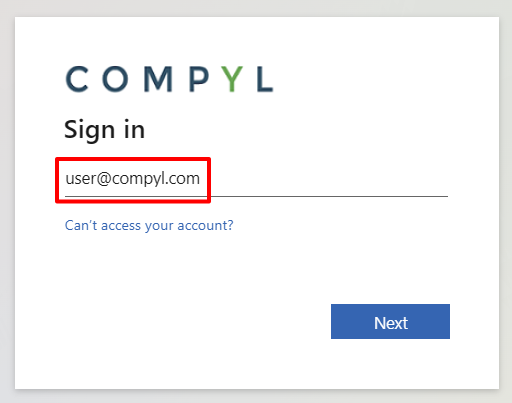
Enter in your email address and click Next.
-
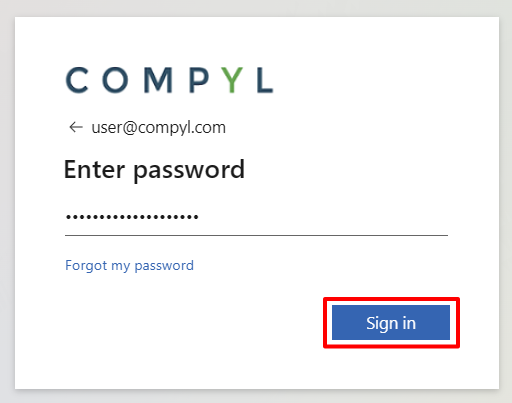
Then enter in your password and click Sign in.
-
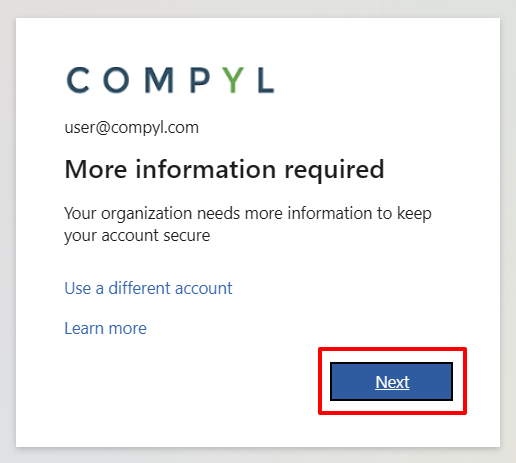
You'll be presented with a More information required screen. Click Next here.
-
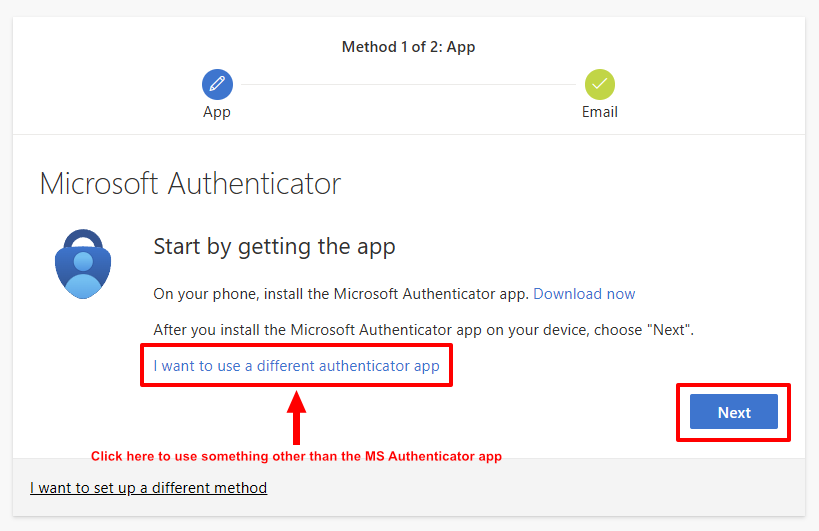
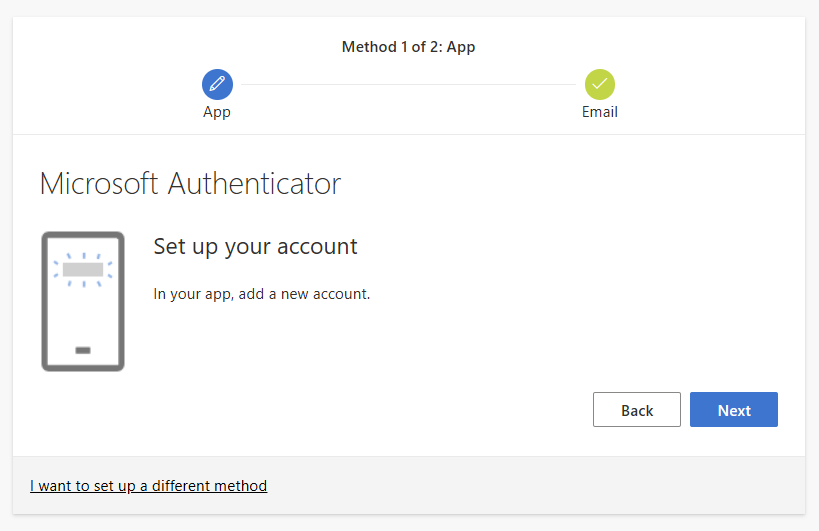
Next you'll asked to set up your Multifactor Authentication using the Microsoft Authenticator.
NoteIf you wish to use a different program (such as Google Authenticator or BitDefender), click I want to use a different authenticator app.
Using Microsoft Authenticator
-
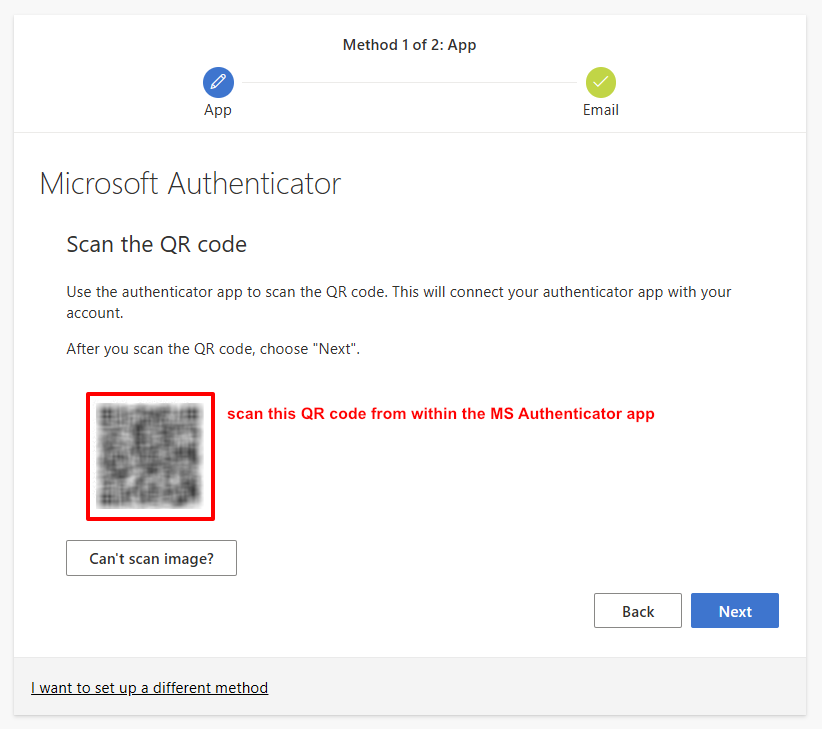
After installing the MS Authenticator app on your phone, click Next and scan the QR code from within the MS Authenticator app.
-
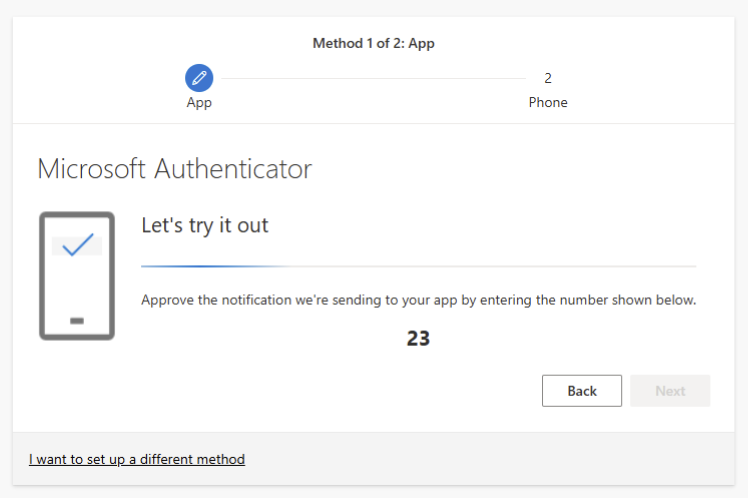
Click Next and you will be asked to enter in the number shown on screen within your MS Authenticator app
-
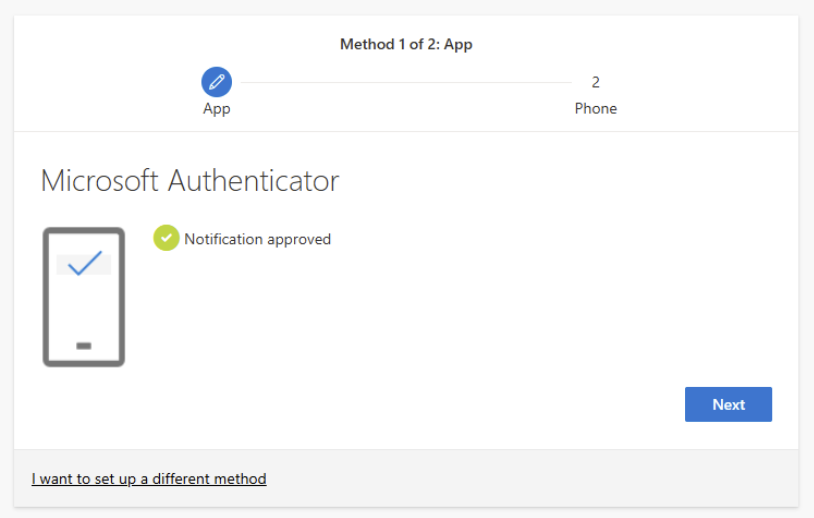
If entered in successfully, you'll get an approved notification and you can begin to enter in your phone number as a secondary form of authentication
-
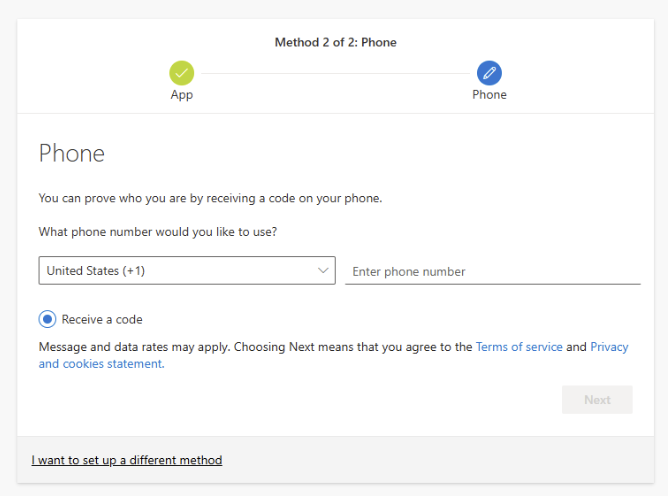
Click Next and enter in your phone number
-
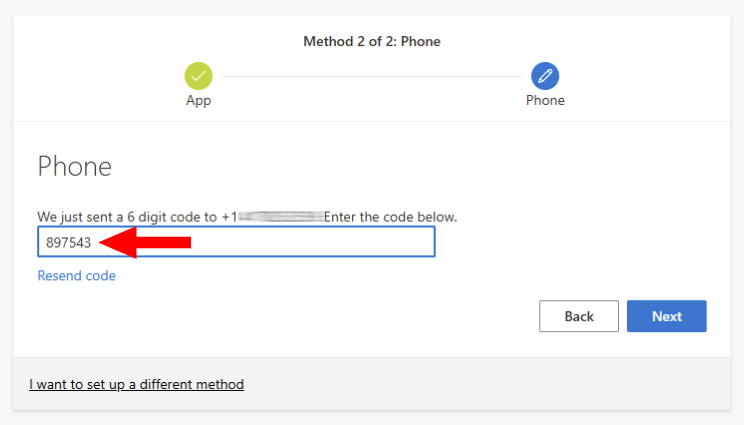
You will receive a text with a 6-digit code. Enter this code in the Next field.
-
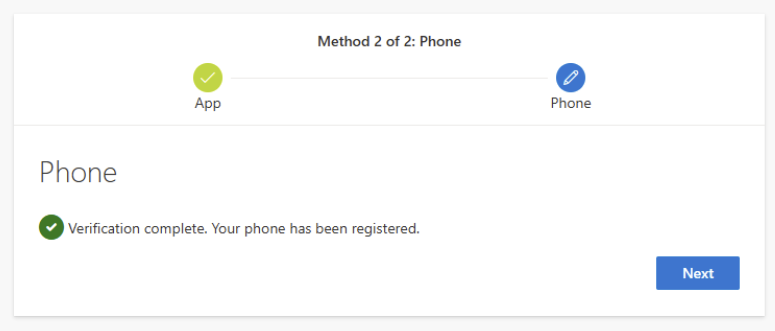
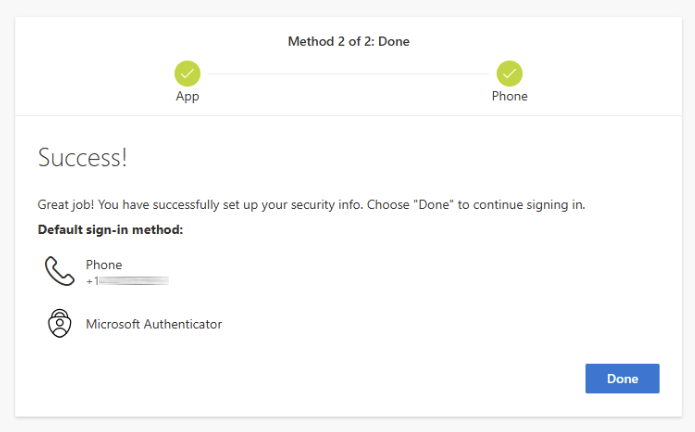
Once entered, click Next to confirm and once more to complete setting up Multifactor Authentication
Updated over 1 year ago