
Rapid7 Vulnerability Management Integration
PrerequisitesAny user can generate a user key. A user key will inherit your account’s permissions, so anything you can do, your API key can do.
- Platform Administrators can generate, view, and manage API keys across all organizations.
- Organization Administrators can do the same but only within their assigned organization.
- Users can generate and manage their own API keys.
Authentication Methods
Rapid7 VM supports two authentication methods depending on which API version you're using. However, you will need to generate an API Key and obtain your v4 Cloud Base URL and your v3 Console Base URL in order for the integration to work properly.
API Key Authentication (Recommended - v4 API)
Generating a Rapid7 VM API Key
-
Log into your Rapid7 account at https://insight.rapid7.com.
-
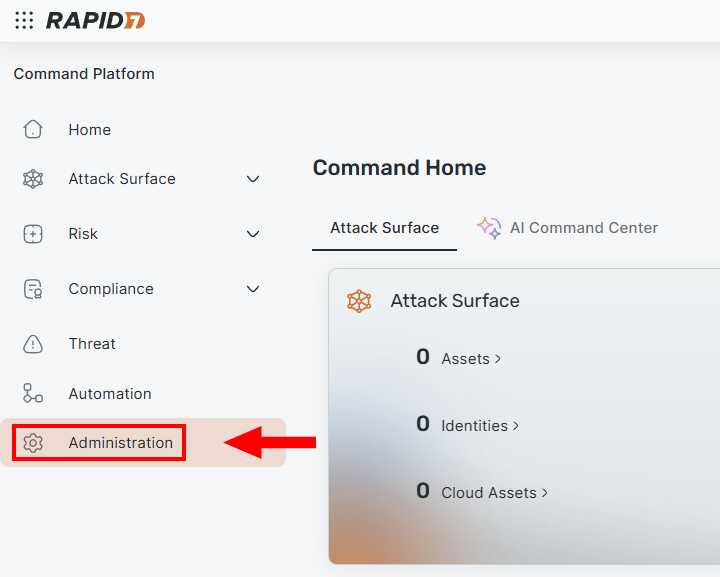
Navigate to Administration from the left-hand sidebar.
-
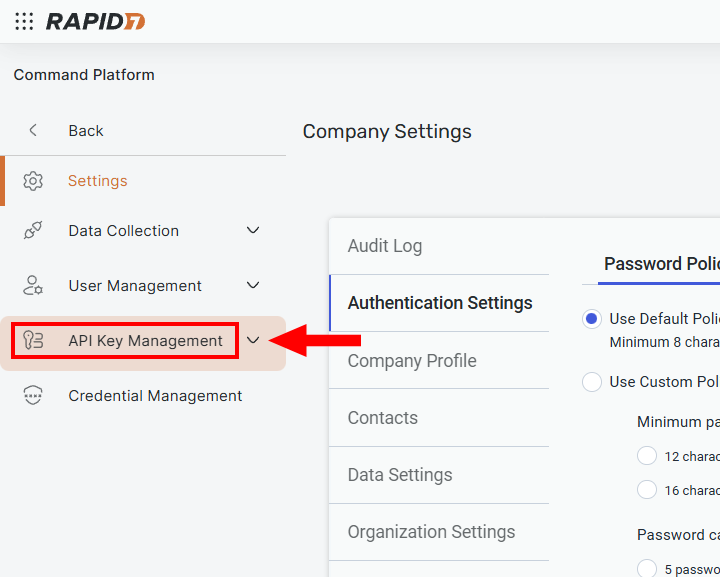
Click API Key Management.
-
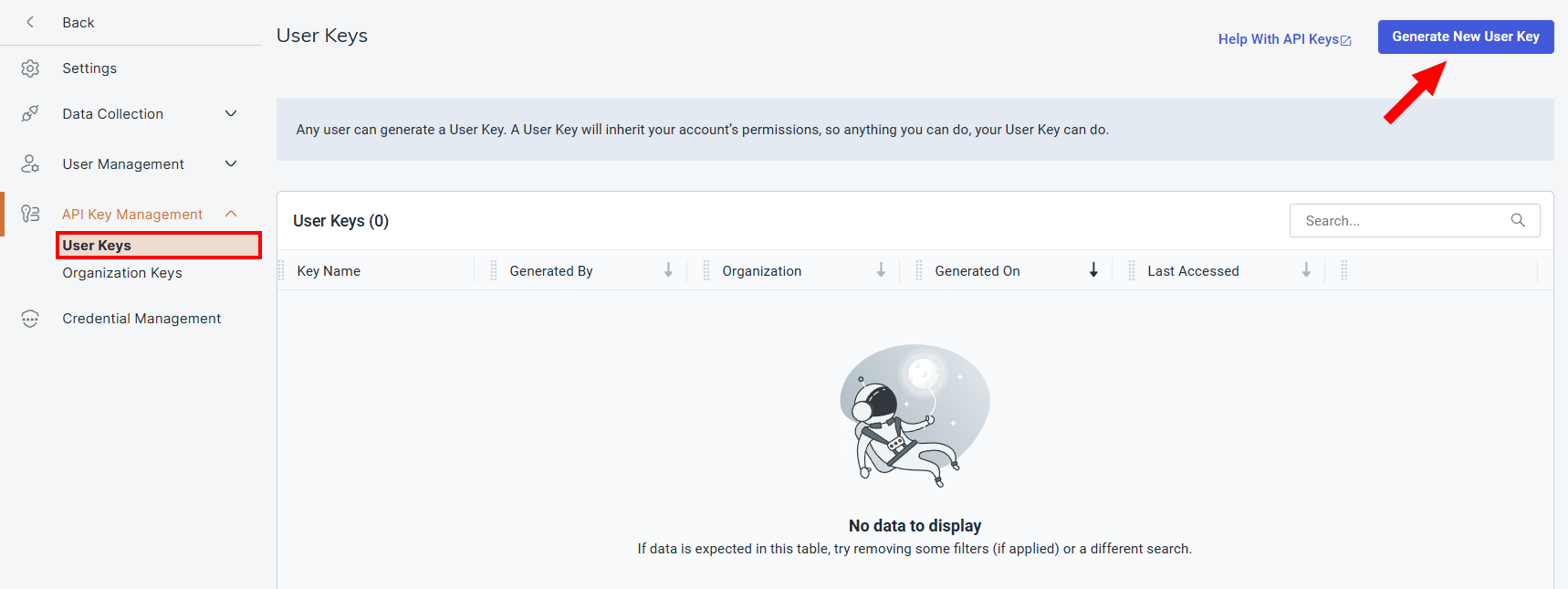
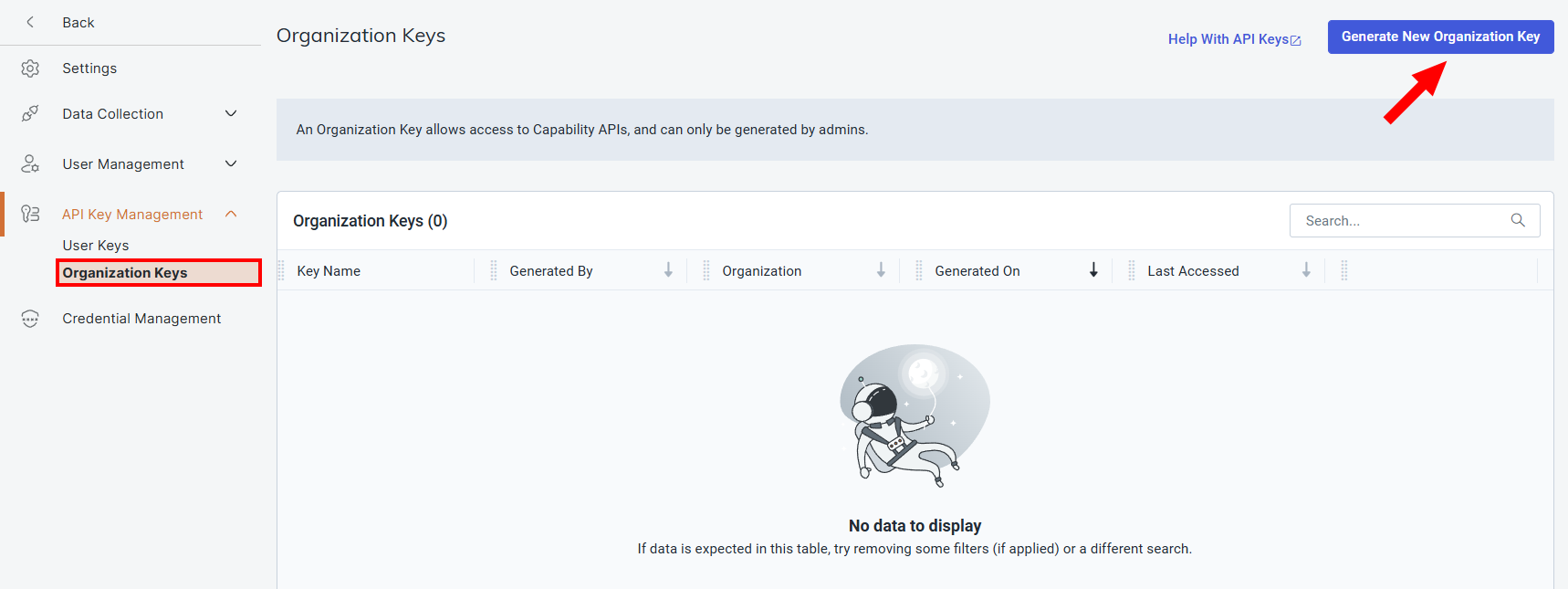
Choose one of the following:
-
New User Key: If you’re a regular user.
-
New Organization Key: If you’re a Platform or Organization Administrator.
-
-
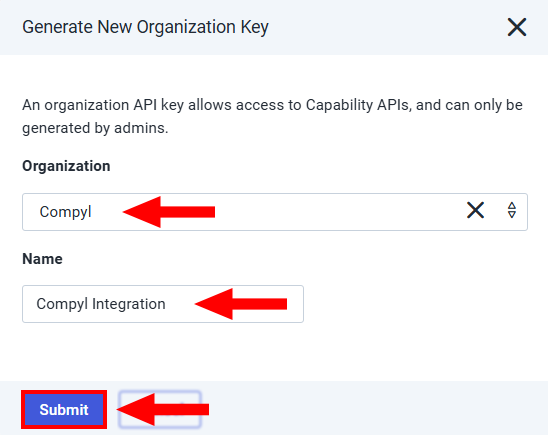
In the panel that appears:
- Select the organization (if applicable).
- Enter a descriptive name for the key.
- Click Submit.
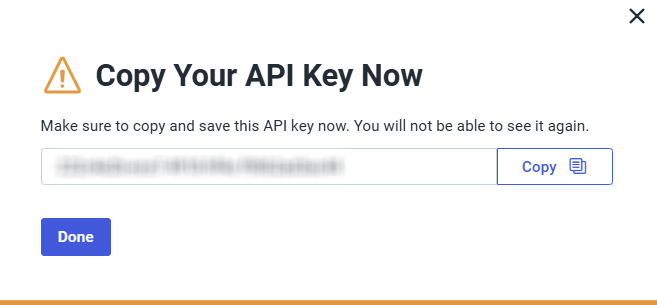
- Click Done.
WarningYou must copy the API key immediately after generating it. You won't be able to retrieve it again later.
ImportantConsole credentials are separate from your Insight Platform login. These are local accounts specific to the InsightVM Console instance.
Add Configuration
-
Navigate to the Integrations tab using the left-hand menu, find Integration Name, and select +Add Configuration.

-
Next, fill in the details below and select Continue.
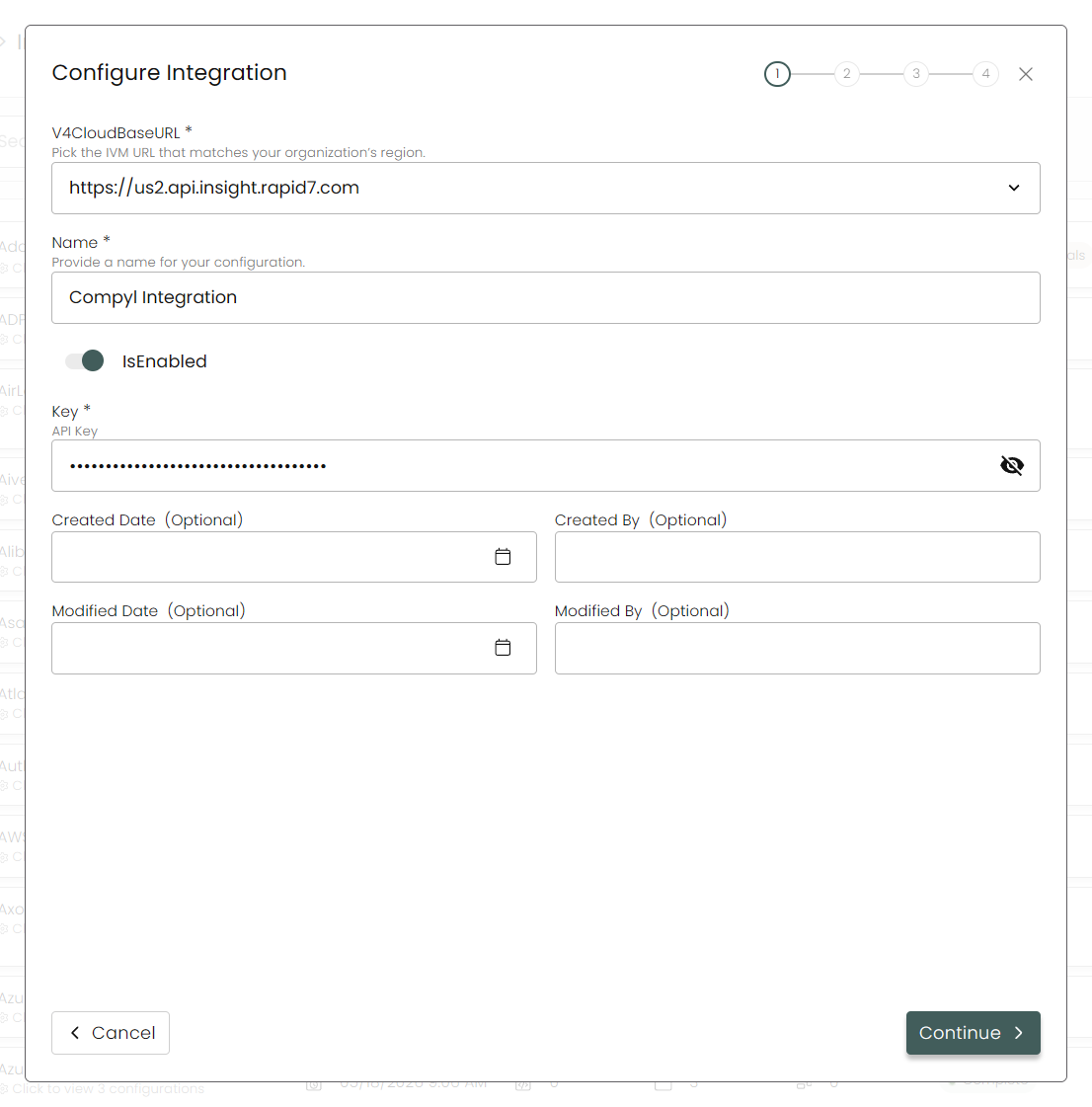
v4 Cloud Base URL: Choose your region from the drop-down menu:- US:
https://us.api.insight.rapid7.com - US2:
https://us2.api.insight.rapid7.com - US3:
https://us3.api.insight.rapid7.com - EU:
https://eu.api.insight.rapid7.com - CA:
https://ca.api.insight.rapid7.com - AU:
https://au.api.insight.rapid7.com - AP:
https://ap.api.insight.rapid7.com
Name: Enter the name of the integration.
is Enabled: Toggle button to ensure data is populated into Compyl.
Key: The API Token you generated above.
- US:
-
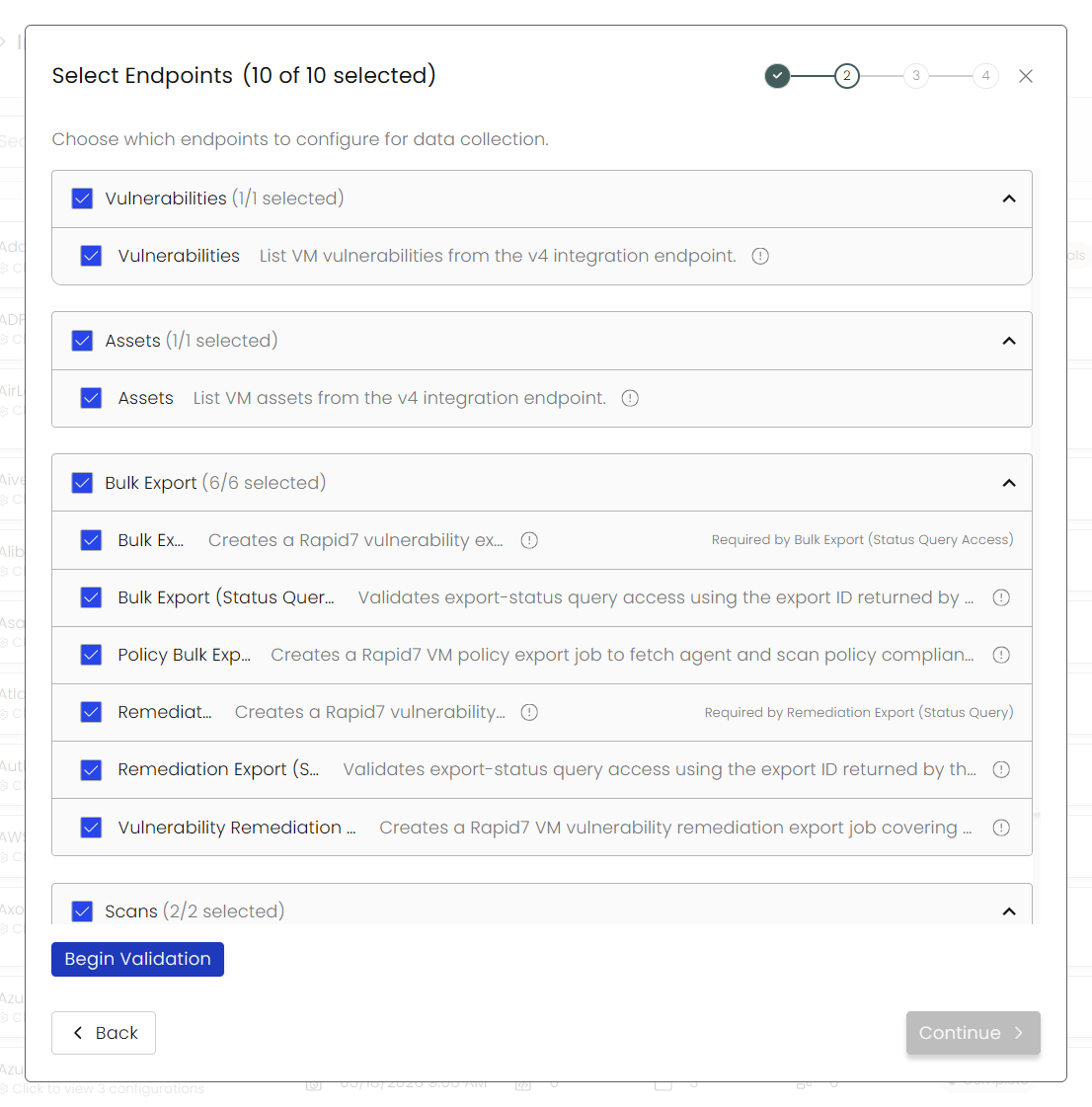
Choose your Endpoints and Begin Validation to validate your connection.
-
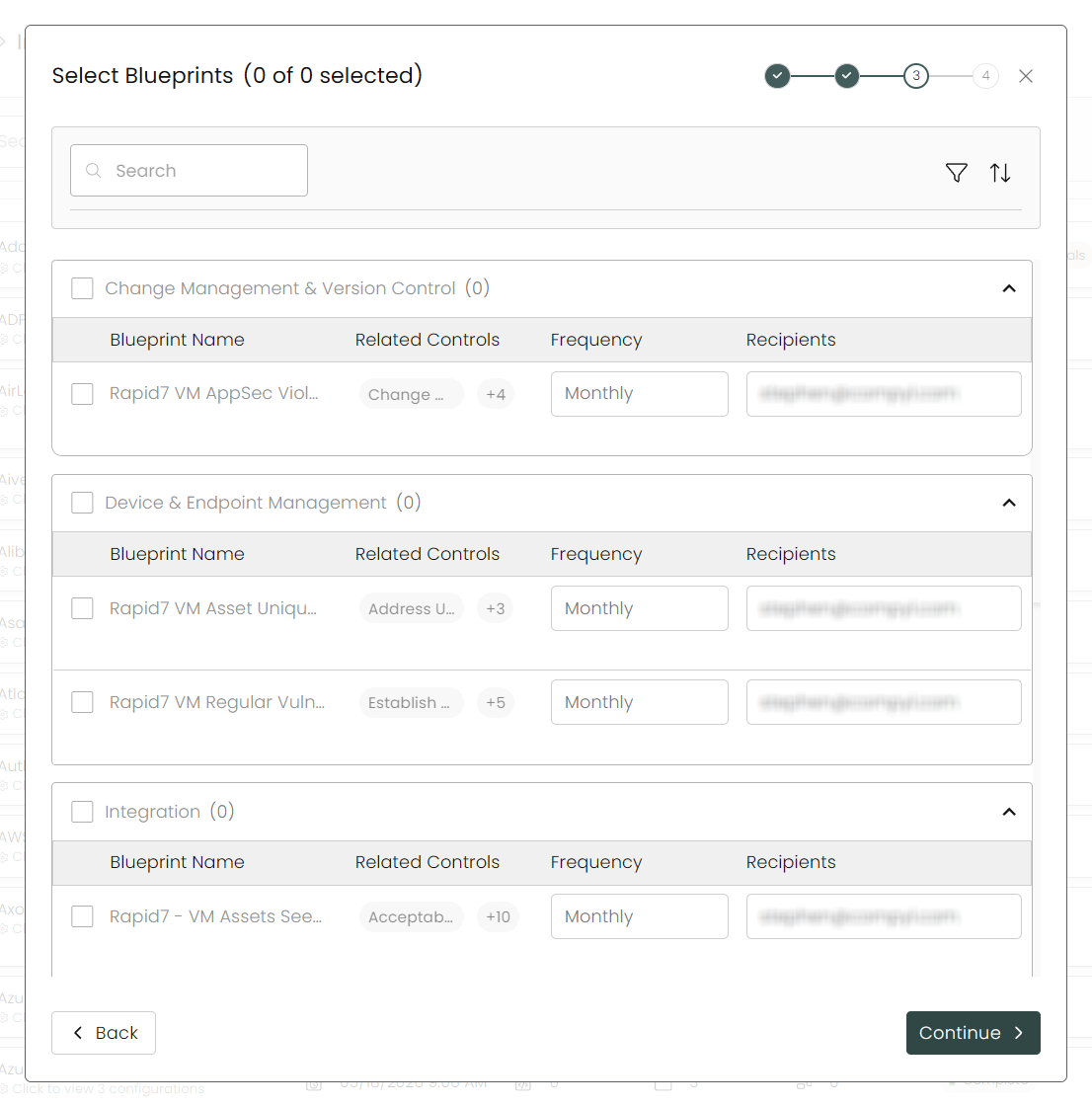
Select any Blueprints you wish to associate with this integration.
-
After you hit Continue, you'll see a summary screen. Click Return to Integrations to complete the configuration.
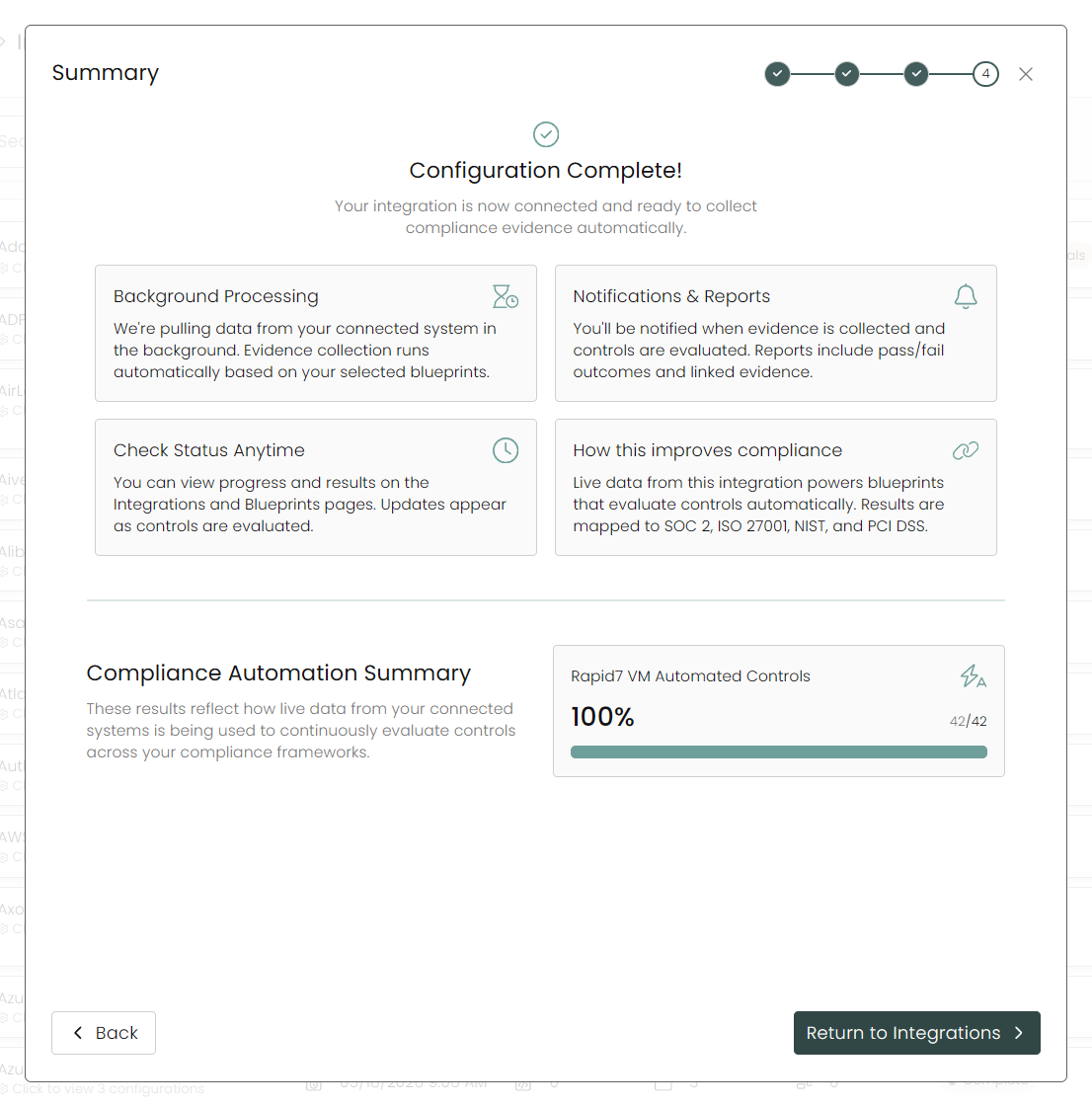
Once you have completed filling out the form click Return to Integrations.
You'll know the integration is successfully added when the status updates to Complete.

Data is synced on a recurring schedule configured by your Compyl administrator. Each sync pulls the latest data from all enabled endpoints.
To query the data from the integration, refer to the Blueprints article.
Updated 2 months ago