
Rapid7 Digital Risk Protection Integration
Obtaining your API Key and Account ID
-
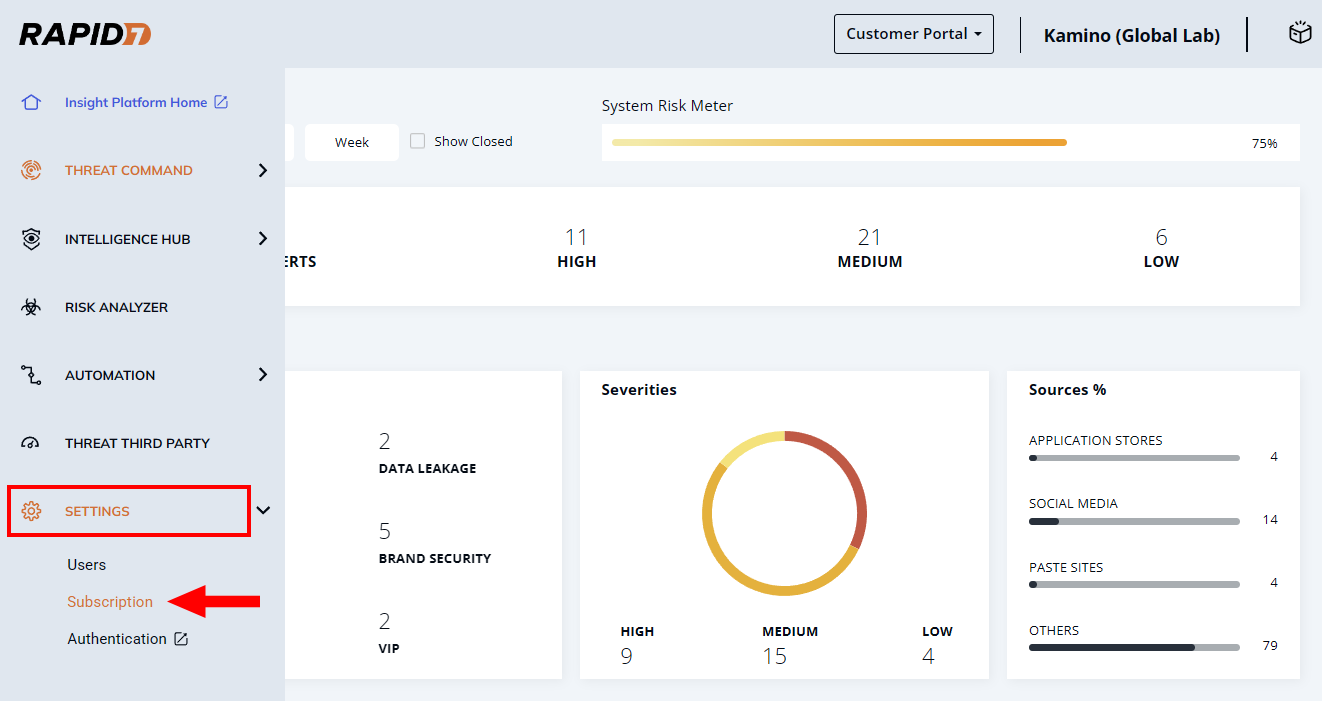
From the Digital Risk Protection (Threat Command) main menu, select Settings → Subscription.
-
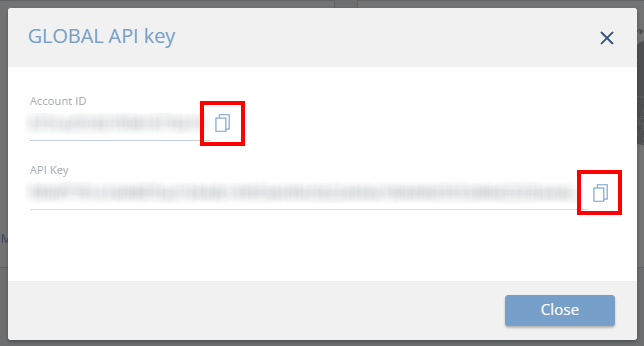
In the Downloads section, click Generate API key. The new key is displayed, together with the Account ID.
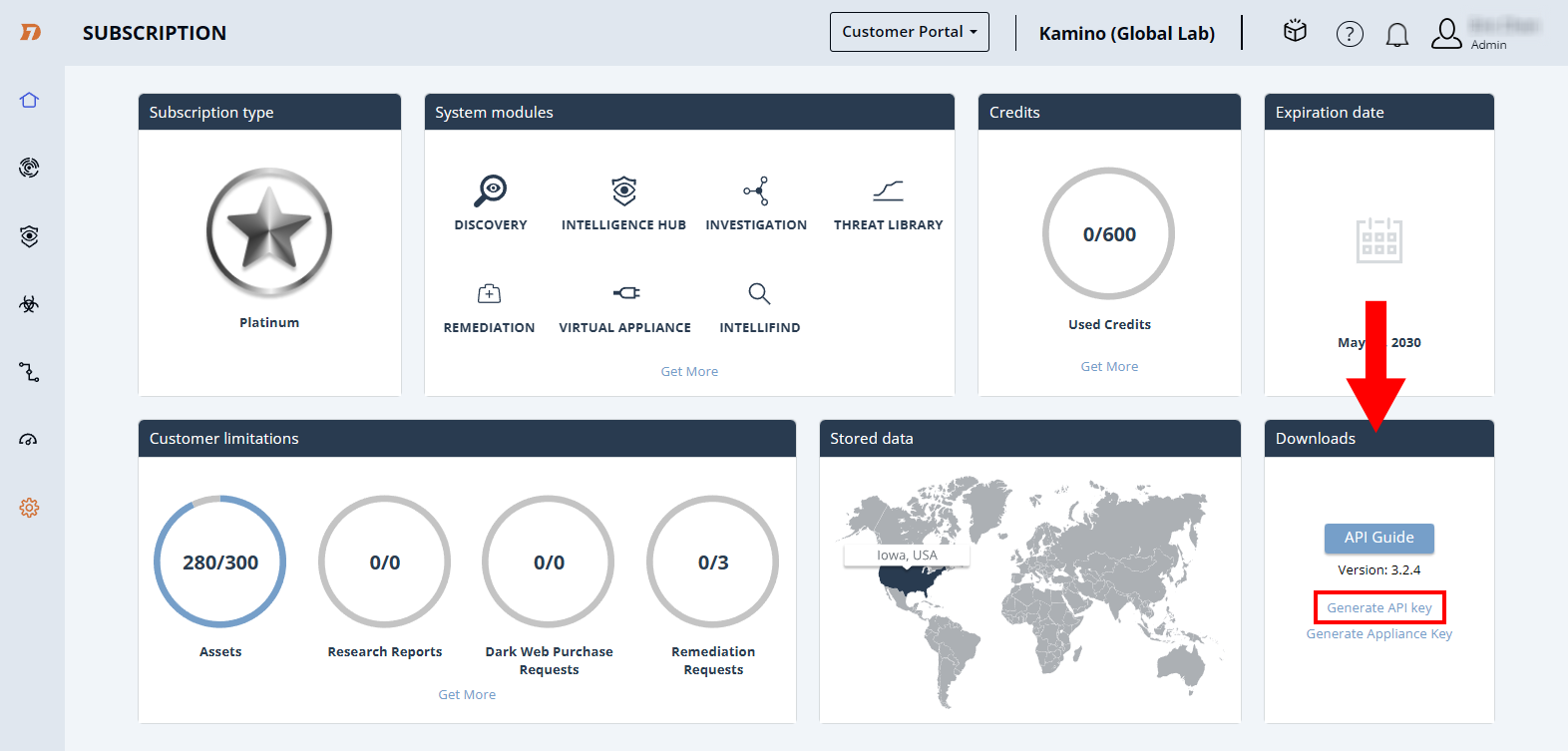
CautionIf the option you need says Revoke API Key, then someone has already created that key. You can click Revoke and then generate a new one (as described above), but this may break previously defined connections.
-
Copy the full key by clicking the copy icon. Store it somewhere safe.
Add Configuration
-
Navigate to the Integrations tab using the left-hand menu, and select Rapid7 DRP.

-
Click the Add Configuration button and fill in the details below:

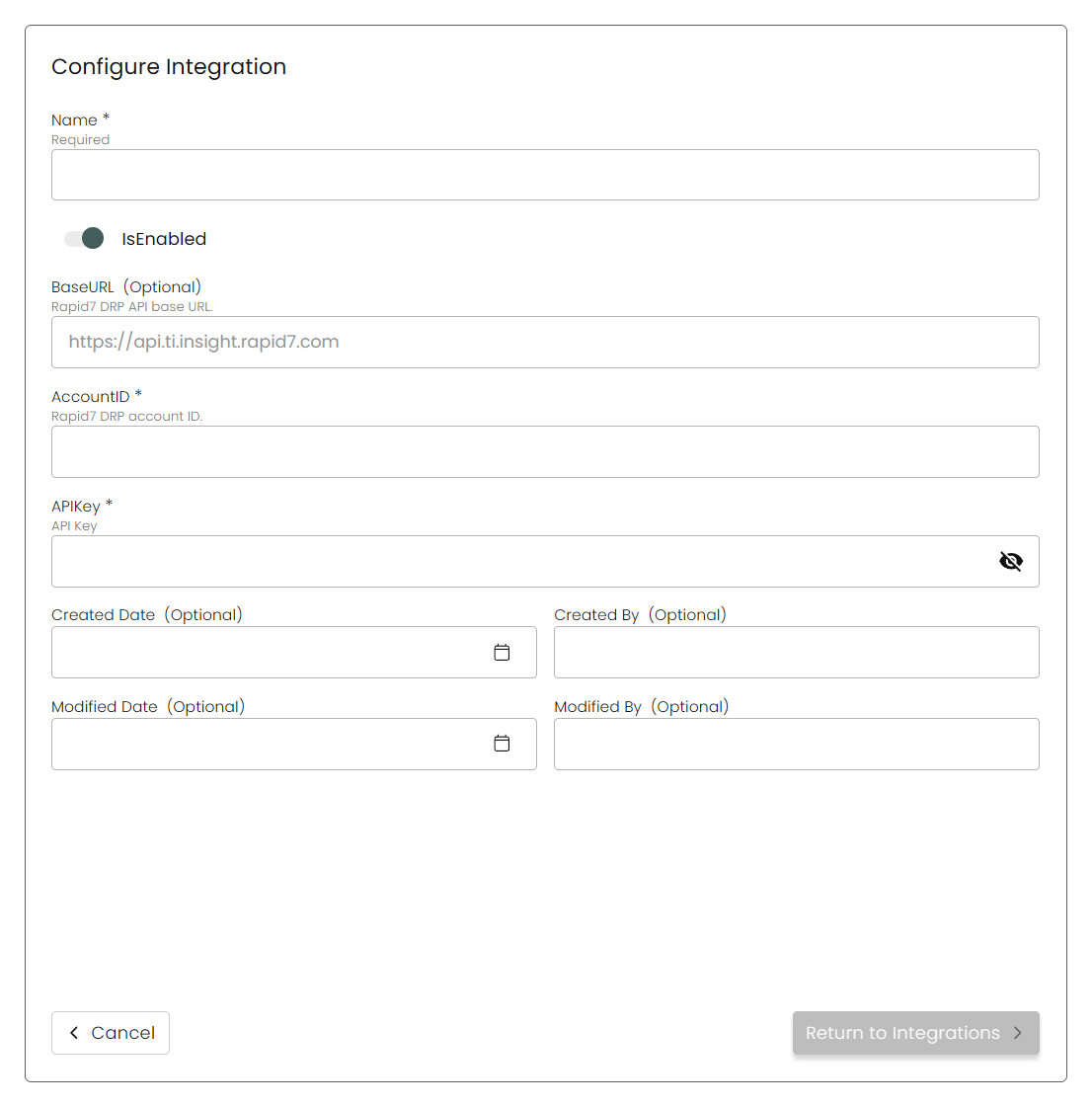
Name: Enter the name of the integration.
is Enabled: Toggle button to ensure data is populated into Compyl.
Base URL: This is set to https://api.ti.insight.rapid7.com.
Account ID: Your Rapid7 Threat Command account ID from above.
API Key: The API Token you generated above.
Once you have completed filling out the form click Save Configuration.
You'll know the integration is successful if the status updates to Complete.
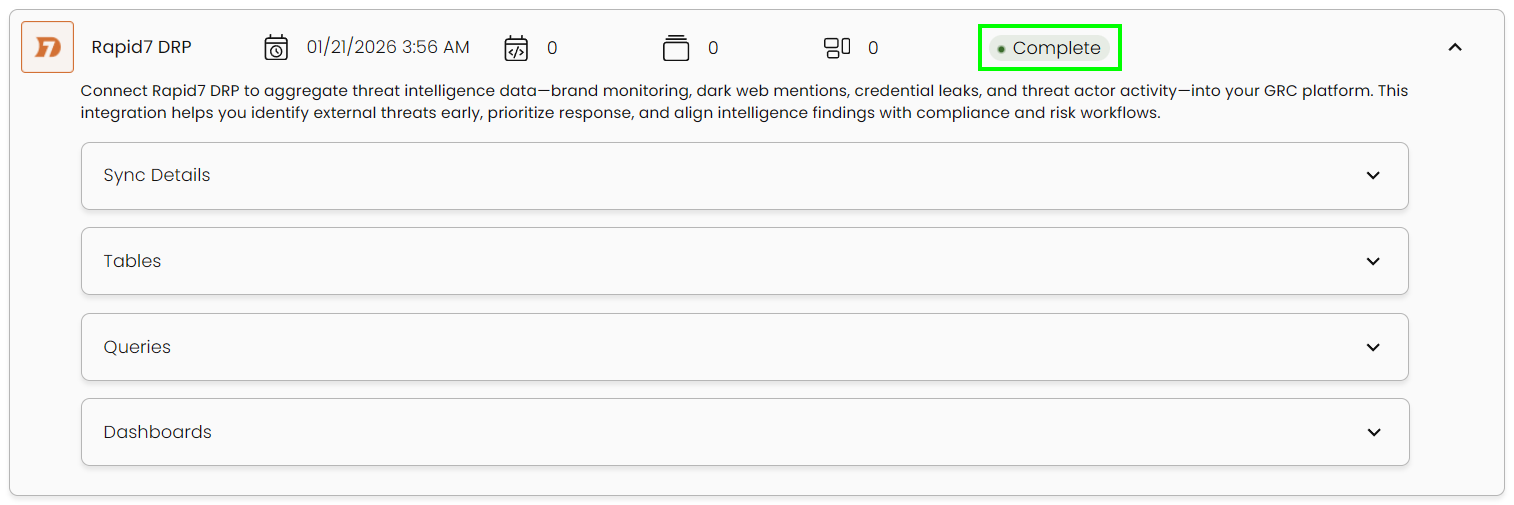
This integration syncs daily.
To query the data from the integration, refer to the Query Builder article.
Updated 2 months ago