
CrowdStrike Integration
Integrating with CrowdStrike allows users to pull in all of their CrowdStrike data to be utilized within the Compyl platform for various purposes, including building reports and collecting evidence in preparation for audits
Before setting up the integration in Compyl, you will need to create the CrowdStrike API Client and generate the Client ID and key, which you use to configure the integration in Compyl.
PrerequisiteYou will need an account with permission to create API keys.
To Create the API Client ID and Key
-
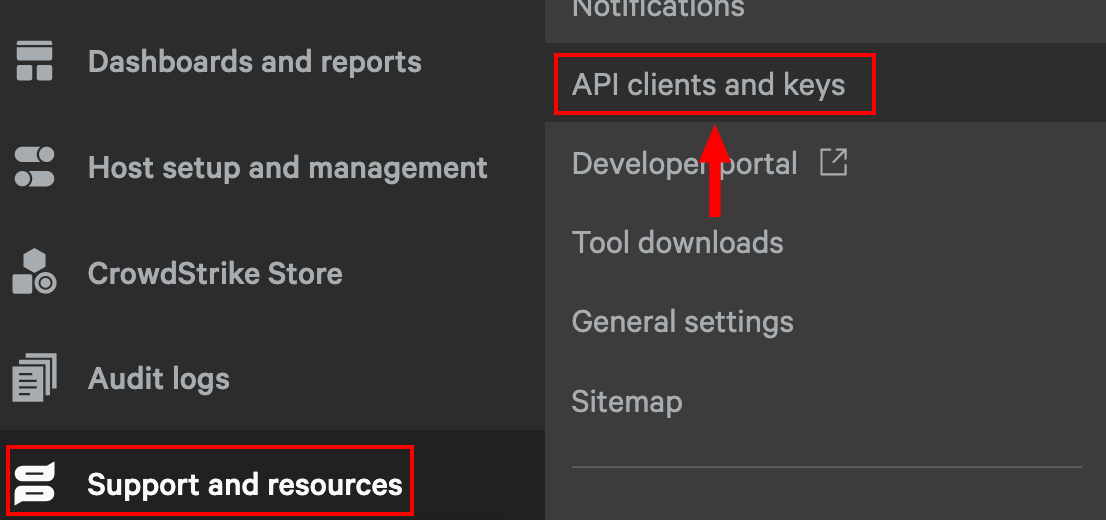
On the Crowdstrike Falcon Platform, navigate to Supper and Resources → API clients and keys
-
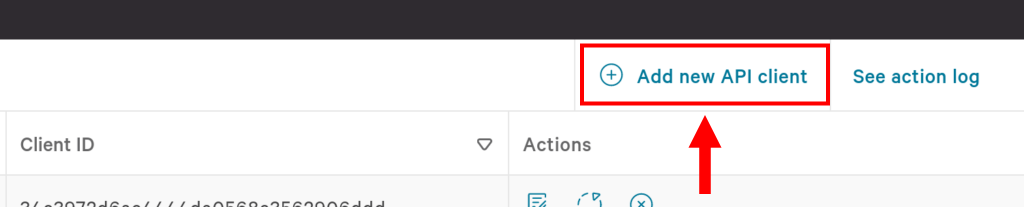
In the OAuth2 API Clients table, click Add a new API client
-
Enter the follow details to define your API Client:
- Client Name: Compyl API
- Description: Compyl and CrowdStrike partner integration
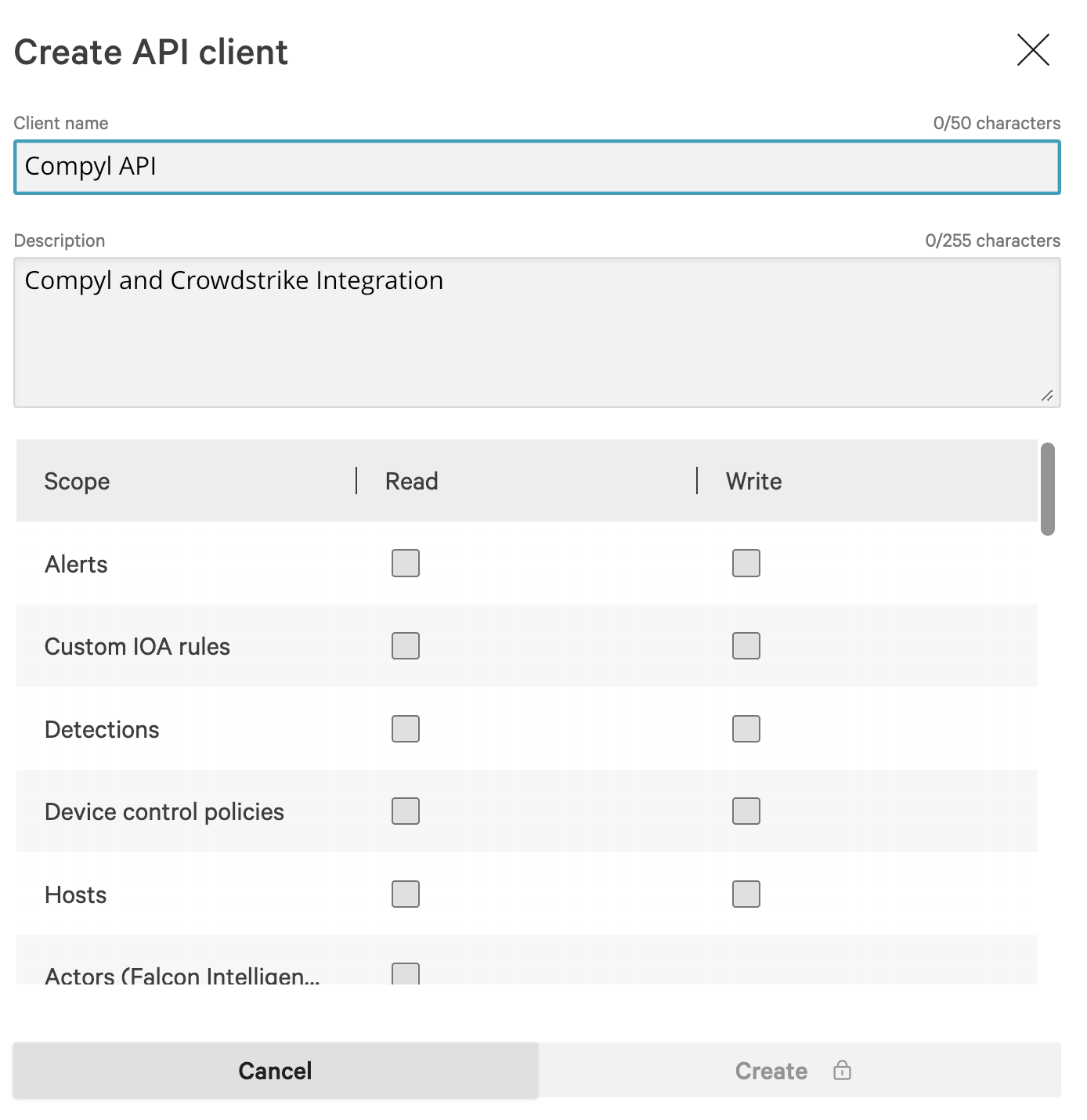
You can find the entire list of required CrowdStrike Permissions in our article here .
-
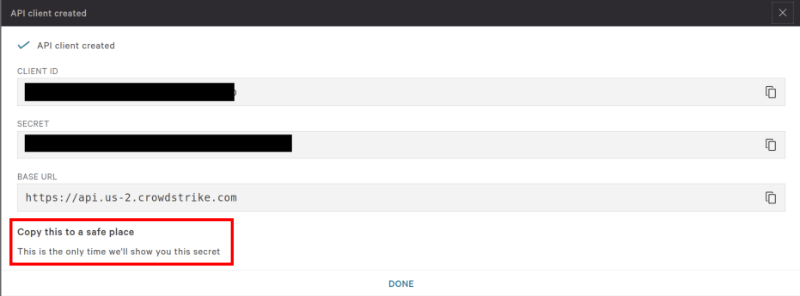
Click Add to save the API client, and generate the client ID and secret key
Add Configuration
-
Navigate to the Integrations tab using the left-hand menu, and select CrowdStrike

-
Click the Add Configuration button and fill in the details below:

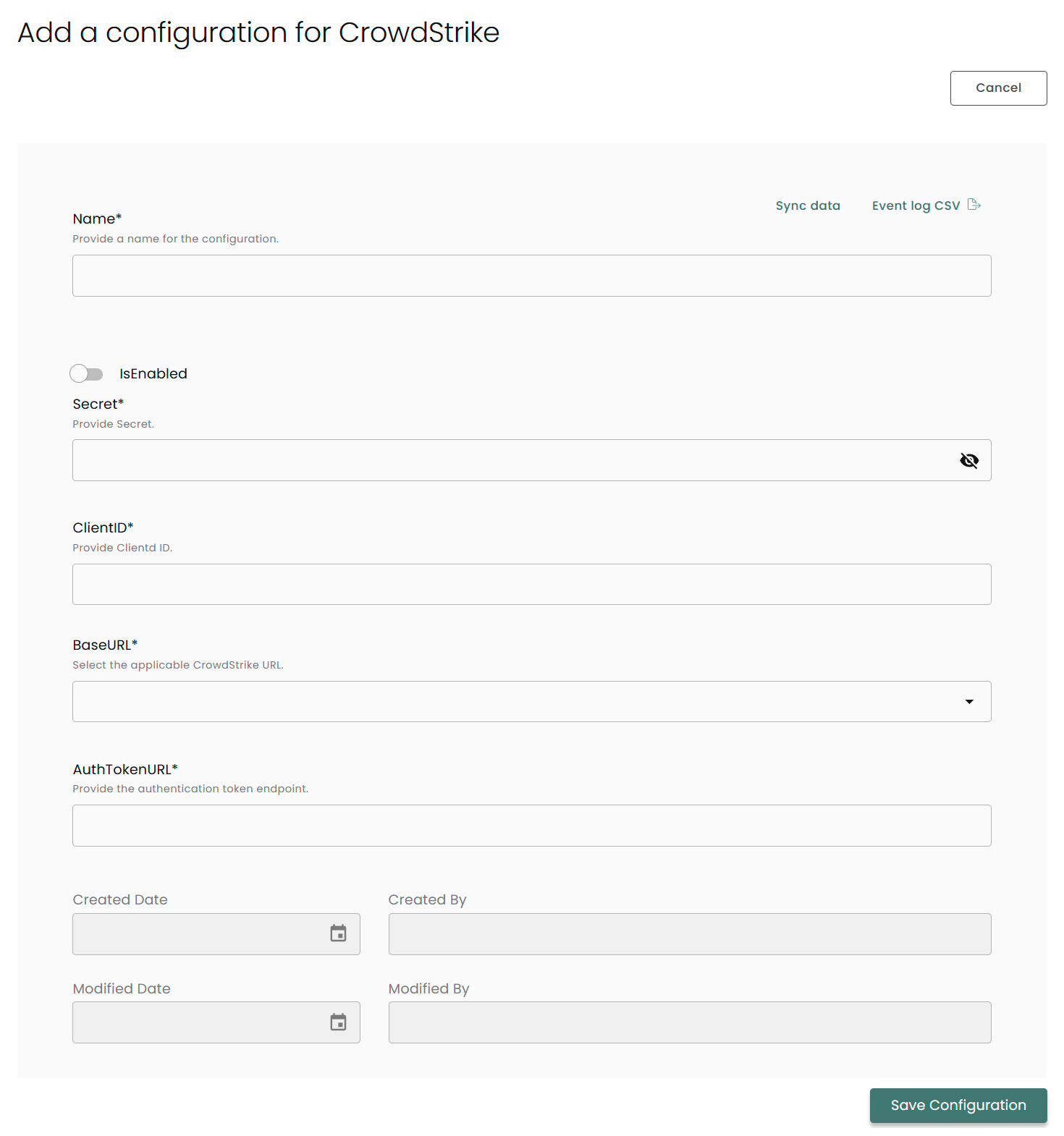
Name: Enter the name of the integration
is Enabled: Toggle button to ensure data is populated into Compyl
Secret: See instructions above how to create API key
Client ID: See instructions above how to get Client ID
Base URL: Choose the URL from the drop-down menu
Auth Token URL: Provide the authentication token endpoint following the format of BaseURL/oauth2/token . For example:https://api.crowdstrike.com/oauth2/token
Once you have completed filling out the form click Save Configuration.
NoteTo check if the integration is connected, navigate to the Integrations page in Compyl. If the Status icon shows an unbroken link in the right-hand corner, your integration is properly connected.

This integration syncs daily.
To query the data from the integration, refer to the Query Builder article.
Updated 2 months ago