
JamF Integration
Integrate with JamF to analyze your device management data in Compyl and strengthen your compliance program.
Before setting up the integration in Compyl, a new user should be created in the JamF portal for the purpose of the integration.
To Create a New User in JamF
-
Go to the JamF Pro portal
-
Navigate to Settings
-
Select Users accounts and groups
-
Click New on the upper right corner
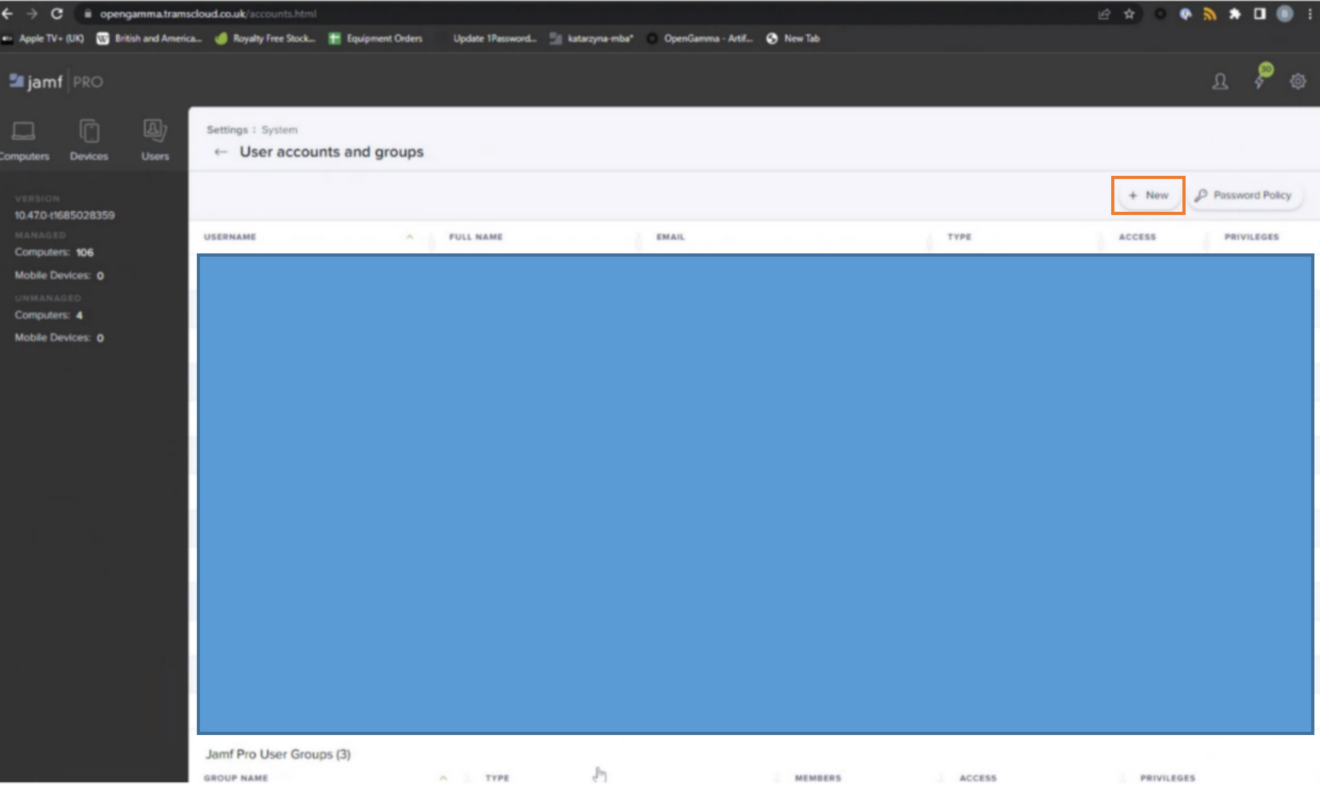
-
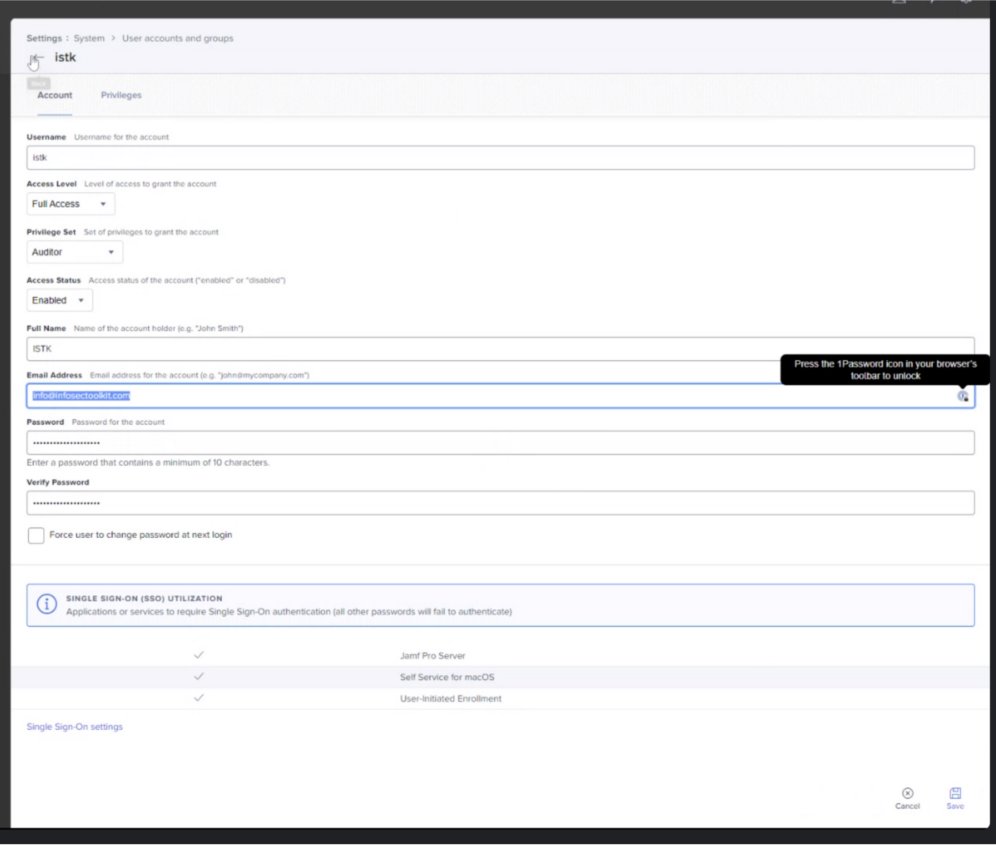
Assign fields for the new JamF integration account, including Username and Password. You will need this information to configure this integration in Compyl. When complete, hit Save.
-
Open the privileges tab and assign the following permissions:
-
Under JamF Pro Server Objects:
READ on all objects listed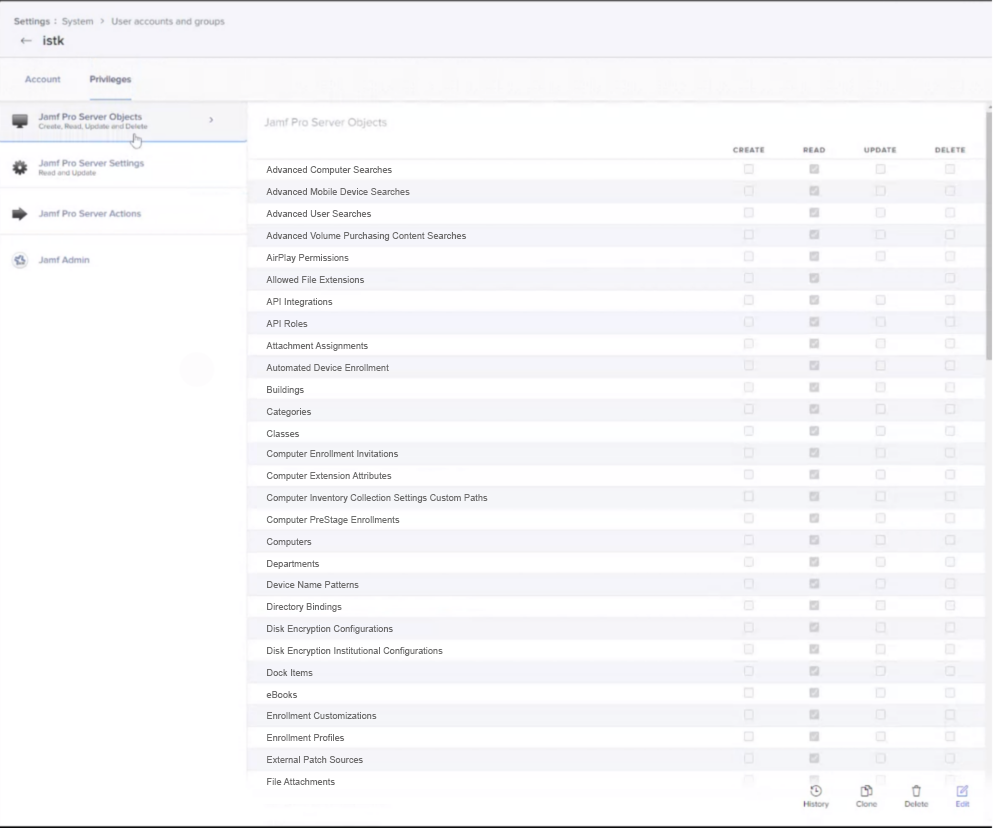
-
Under JamF Pro Server Actions:
View Event Logs
View MDM command information in JamF Pro API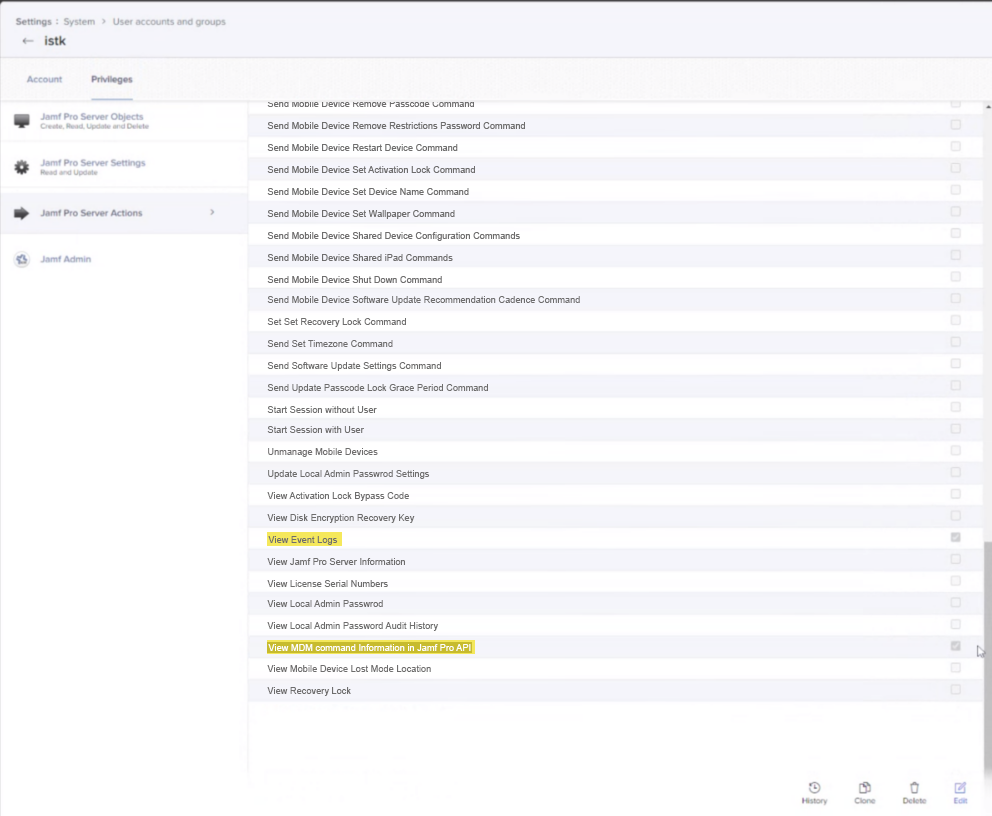
-
-
Hit Save at the bottom right corner
Add Configuration
-
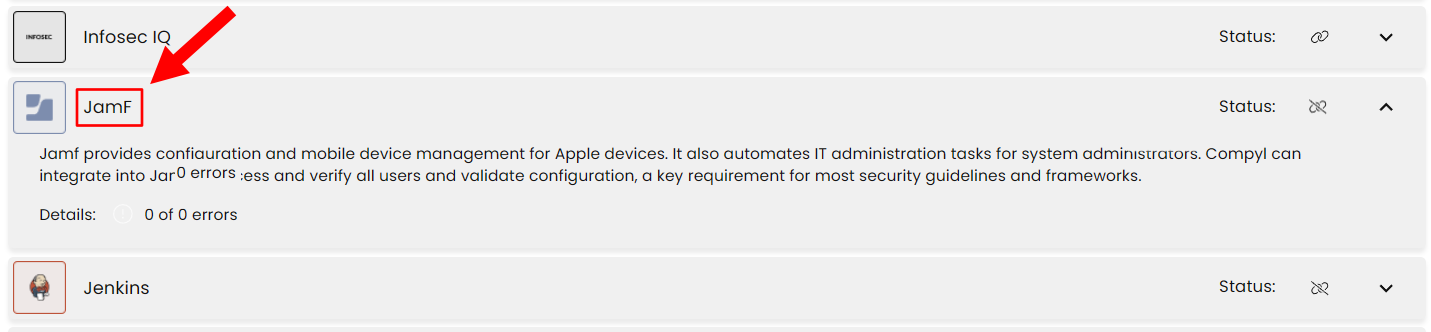
Navigate to the Integrations tab using the left-hand menu, and select JamF
-
Click the Add Configuration button and fill in the details below:

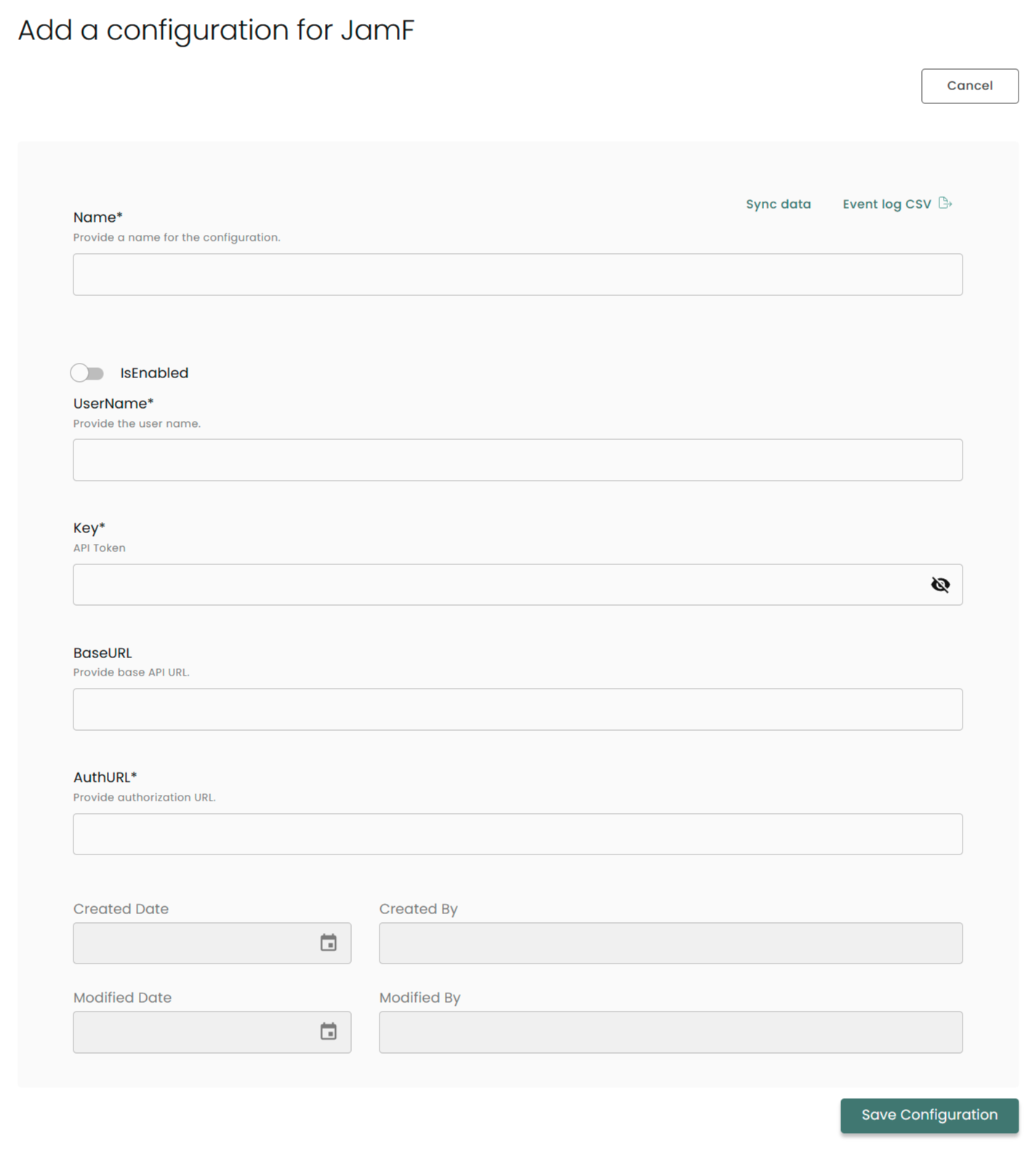
Name: Enter the name of the integration
is Enabled: Toggle button to ensure data is populated into Compyl
Username: The username entered while creating a new user in the above instructions
Token: The password entered while creating a new user in the above instructions
API URL: Using your JamF domain, the format for this is: https://yourdomain.com.
For example:https://compyl.jamf.com/api
Auth URL: Using your JamF domain, the format for this is: https://yourdomain.com/api/v1/auth/token.
For example:https://compyl.jamf.com/v1/auth/token.
Once you have completed filling out the form click Save Configuration.
NoteTo check if the integration is connected, navigate to the Integrations page in Compyl. If the Status icon shows an unbroken link in the right-hand corner, your integration is properly connected.

This integration syncs daily.
To query the data from the integration, refer to the Query Builder article.
Updated 2 months ago