
Slack Integration
Link your Slack data with Compyl through our integration
Generate API Token
Before setting up the integration in Compyl, you will need to create the Slack Token/API key. This is autogenerated by creating a Slack App.
-
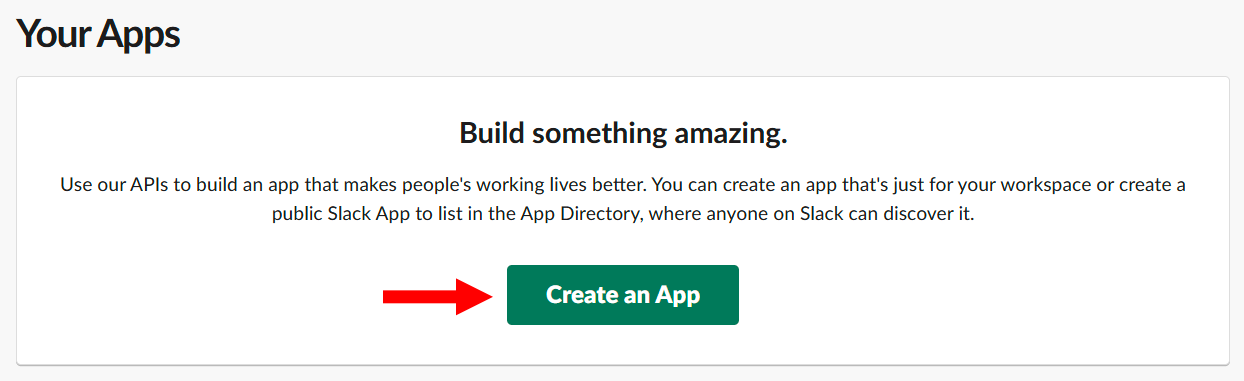
Go to https://api.slack.com/apps and click the Create an App button.
-
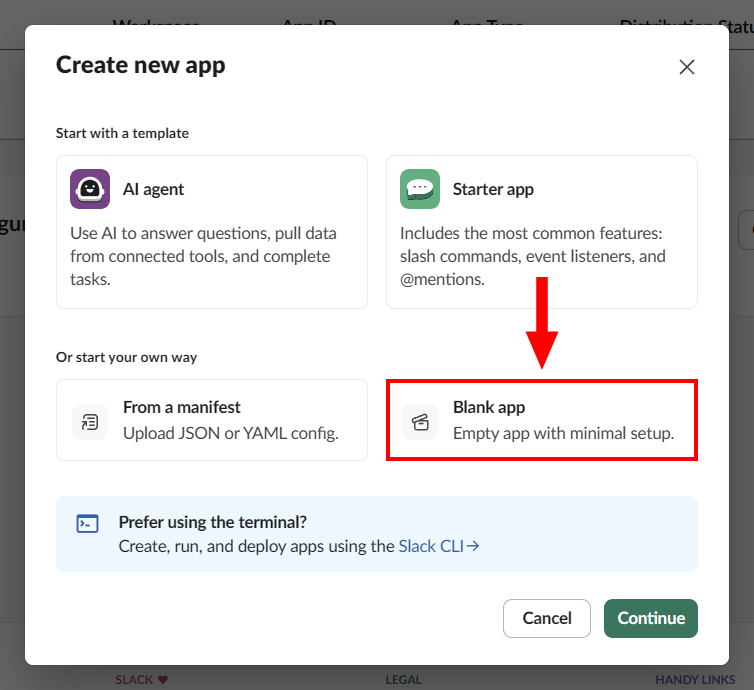
Choose Blank app on the next window and hit Continue.
-
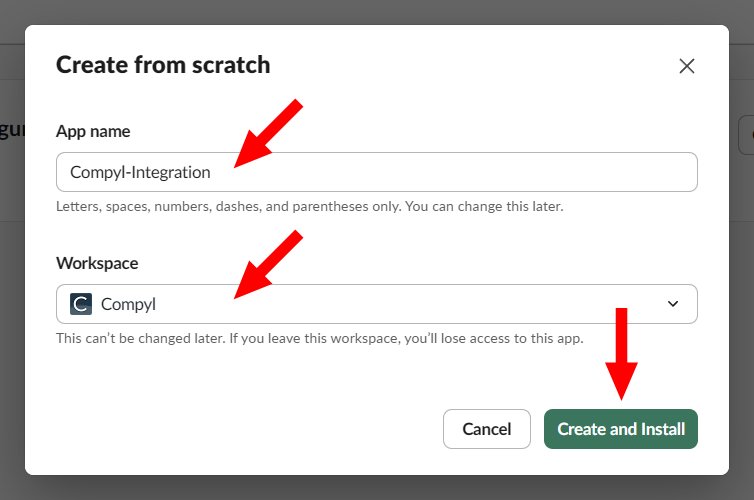
Enter a name for your App and Select a Workspace then click Create and Install.
-
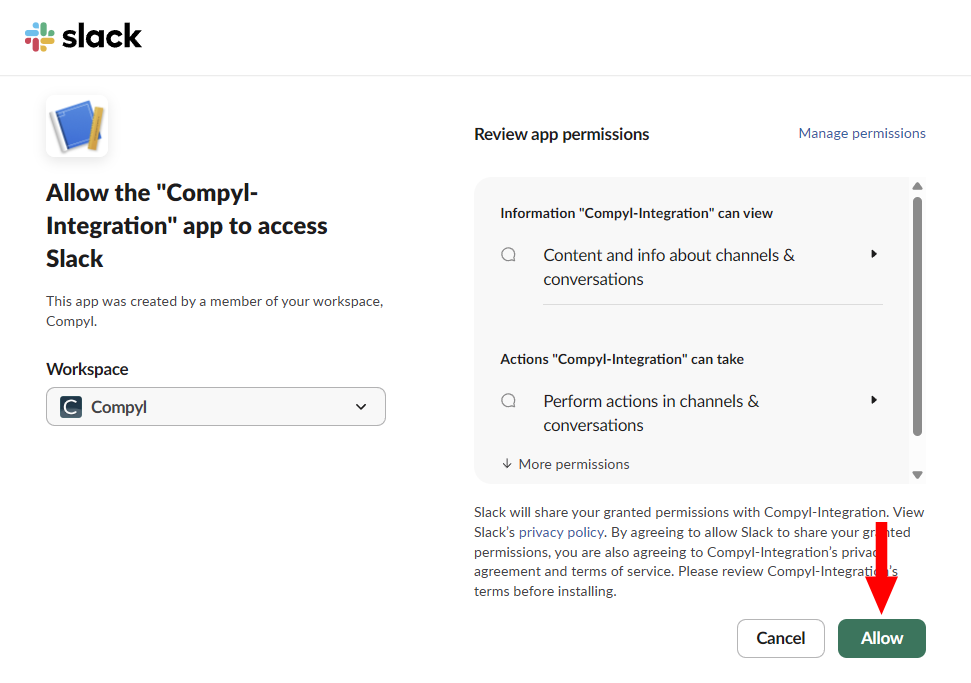
In the pop-up, allow the app to access to your Slack workspace.
-
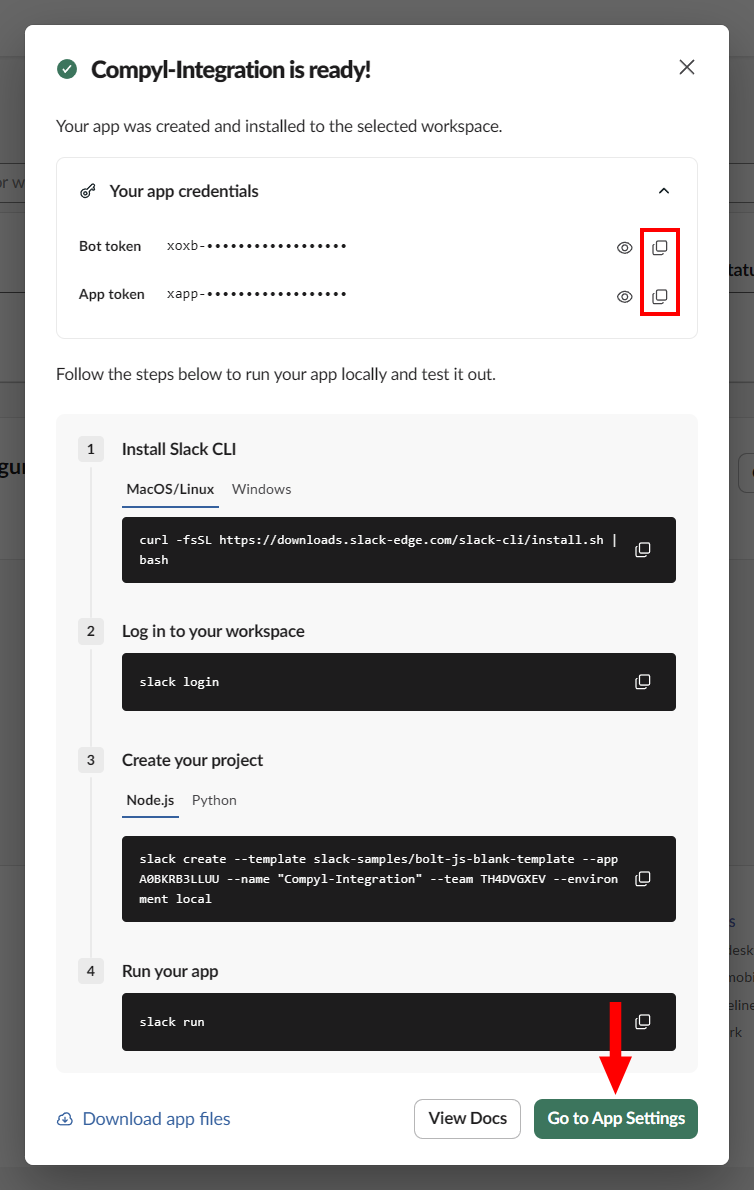
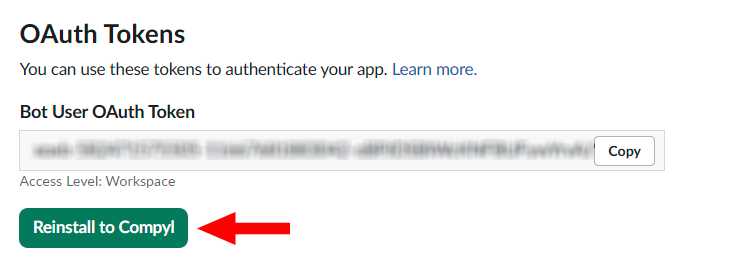
On the next screen, copy your Bot and App tokens and store them in a secure place.
-
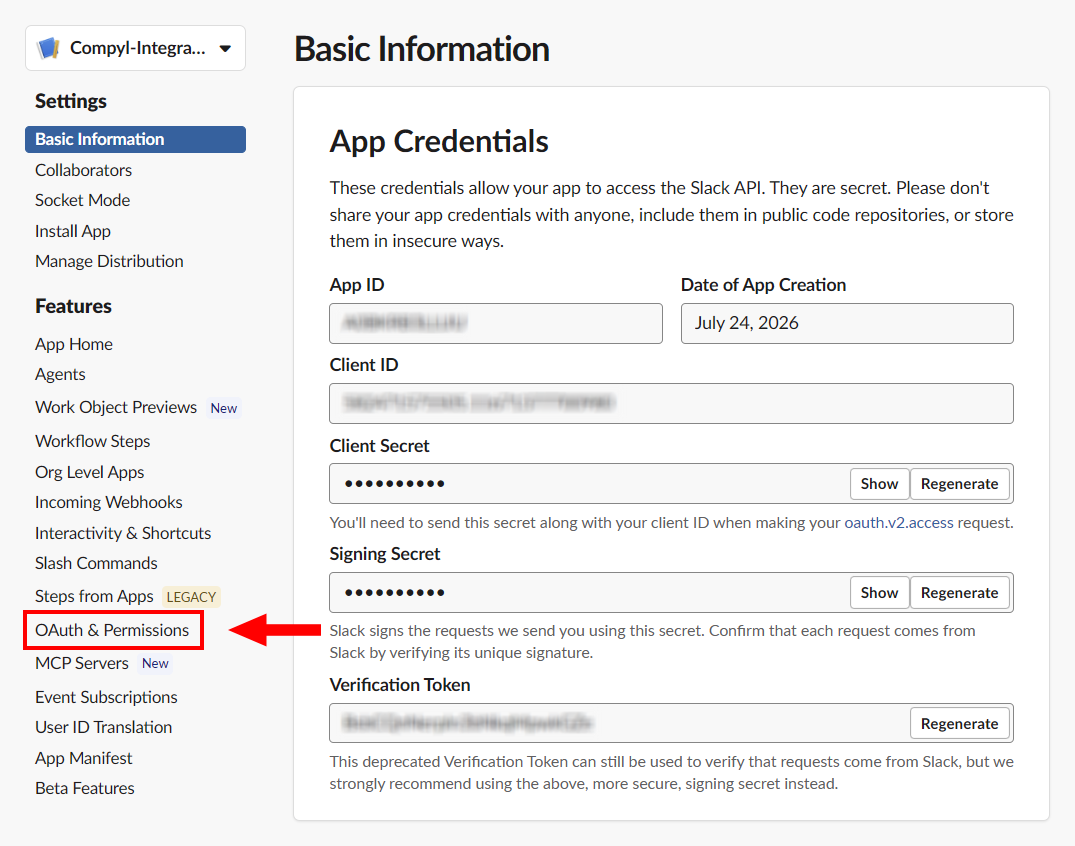
Here you'll be presented with your Basic Information and App Credentials. Click on OAuth & Permissions.
-
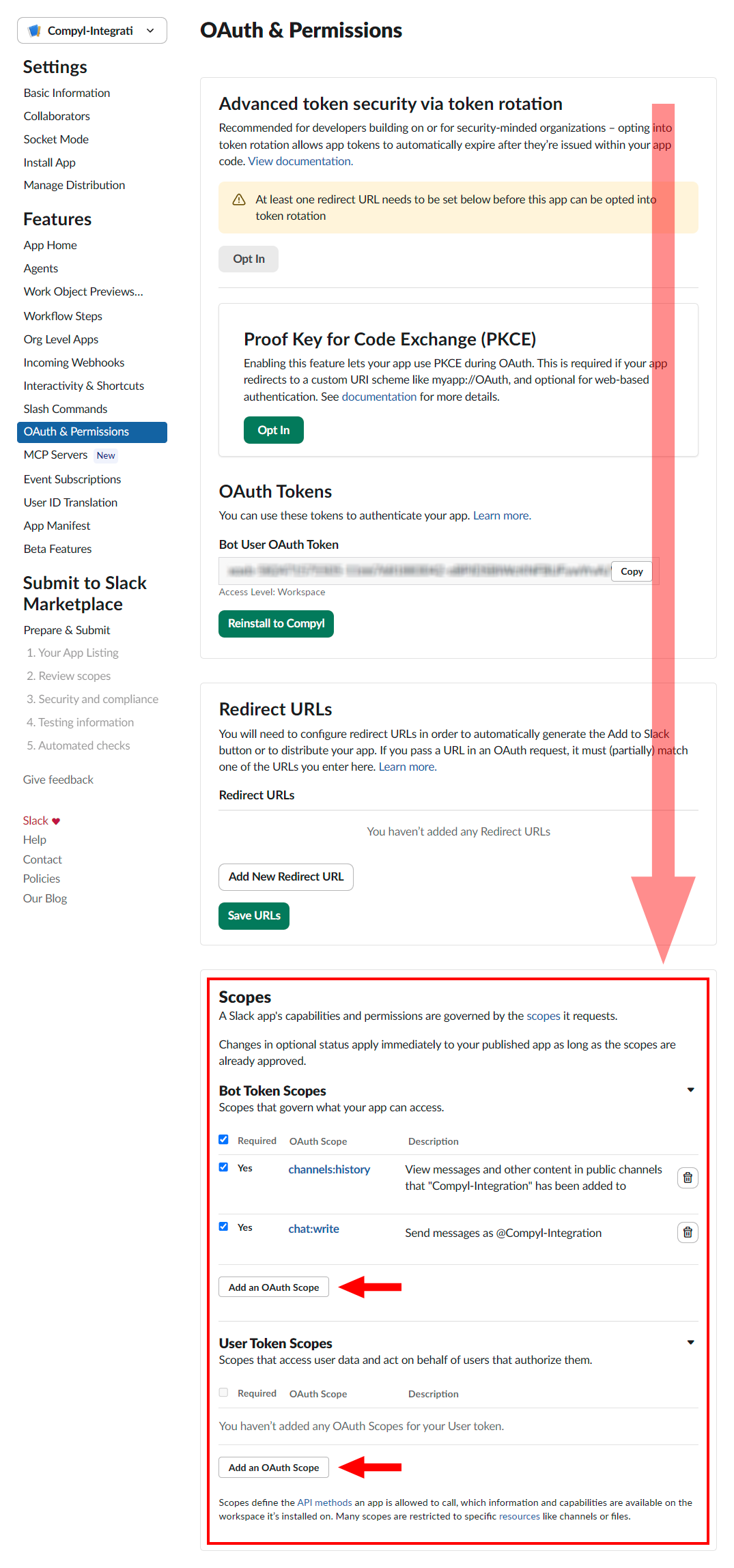
Scroll down to Scopes and then click Add an Oath Scope under Bot Token as well as User Token Scopes.
-
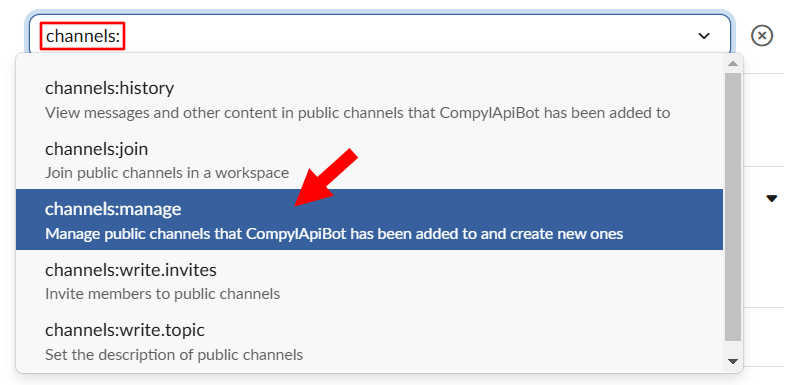
Add the following Scopes via the dropdown menu.
Bot Token Scope Description channels:history View messages and other content in public channels that "Compyl-Integration" has been added to. chat:write Send messages as @ Integration-Name.channels:history View messages and other content in public channels that "Compyl-Integration" has been added to. channels:manage Manage public channels that "Compyl-Integration" has been added to and create new ones. channels:read View basic information about public channels in a workspace. chat:write Send messages as @ Integration-Name.files:read View files shared in channels and conversations that Integration-Namehas been added to.groups:read View basic information about private channels that Integration-Namehas been added to.remote_files:read View remote files added by the app in a workspace. team:read View the name, email domain, and icon for workspaces Integration-Nameis connected to.usergroups:read View user groups in a workspace. users.profile:read View profile details about people in a workspace. users:read View people in a workspace. users:read.email View email addresses of people in a workspace.
User Token Scope Description admin Administer a workspace
-
Scroll back up to OAuth Tokens and reinstall to your workspace as you've added new permissions.
Once done, securely store the User OAuth Token that now appears if you wish to pull down Access Logs.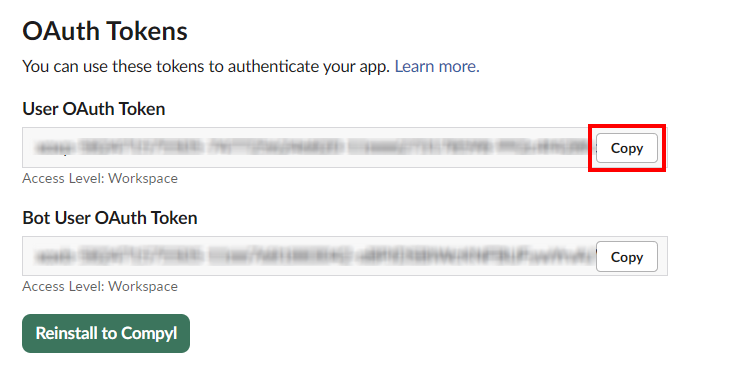
Add Configuration
-
Navigate to the Integrations tab using the left-hand menu, find Slack, and select +Add Configuration.

-
Next, fill in the details below and select Continue.
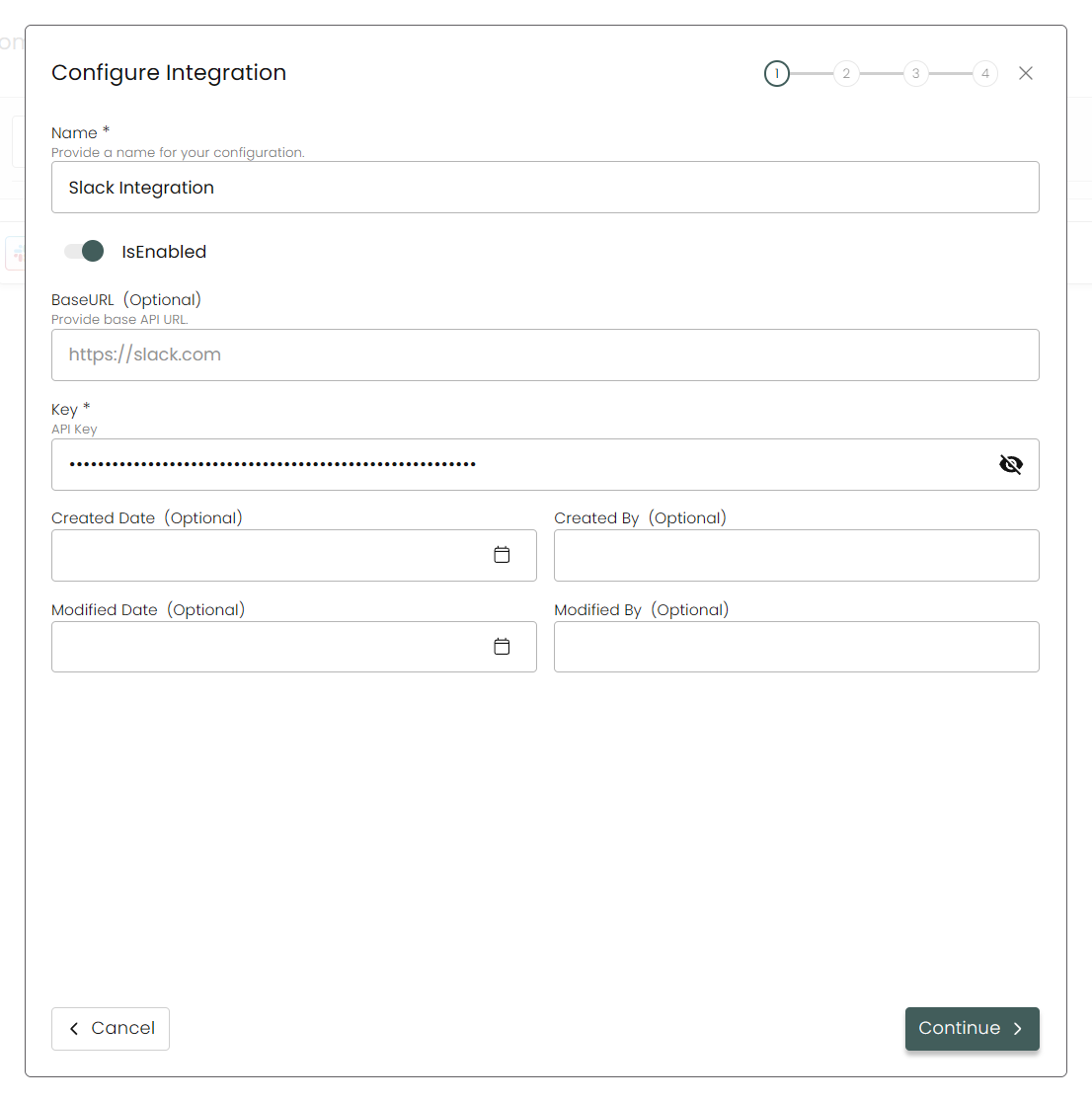
Name: Enter the name of the integration.is Enabled: Toggle button to ensure data is populated into Compyl.
Base URL: This is automatically populated as
https://slack.com.Key: The Bot User OAuth token from Step 5 that begins with
xoxb-.
NoteIn order to pull Access Logs for Slack, use the User OAuth Token that begins with
xoxp-from Step 9.If you wish to grab them both, create two configurations.
-
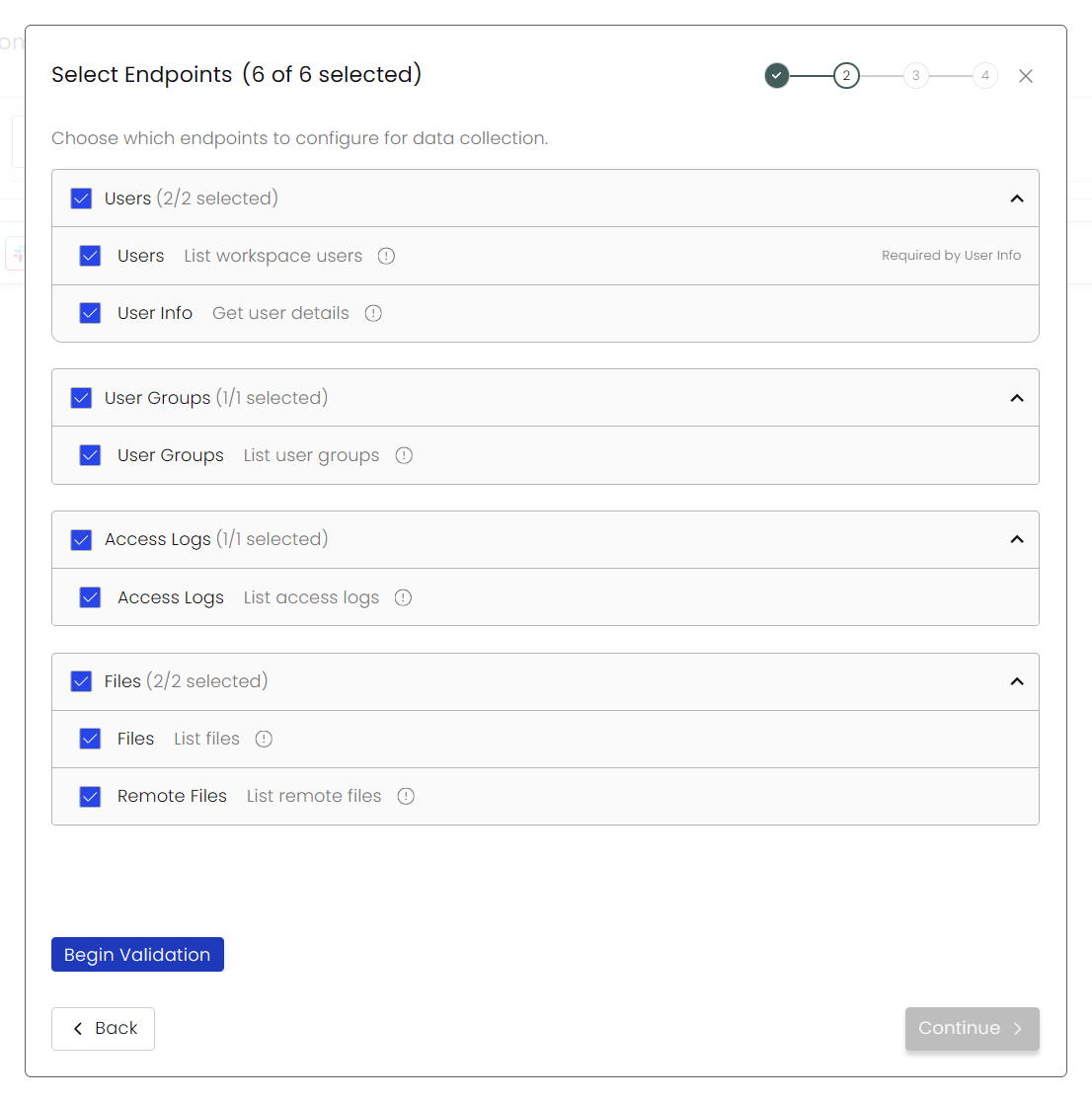
Choose your Endpoints and Begin Validation to validate your connection.
-
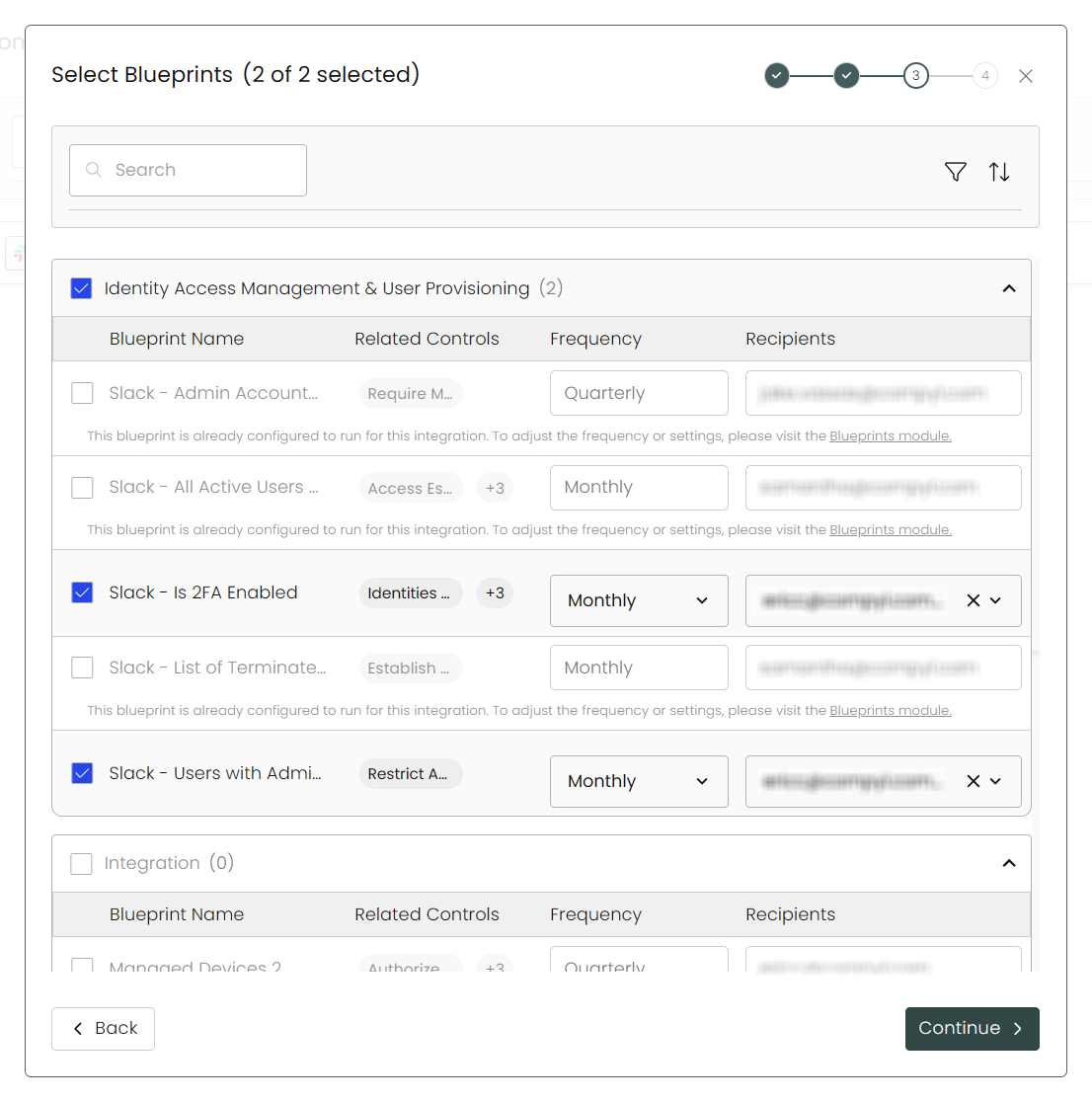
Select any Blueprints you wish to associate with this integration.
-
After you hit Continue, you'll see a summary screen. Click Return to Integrations to complete the configuration.
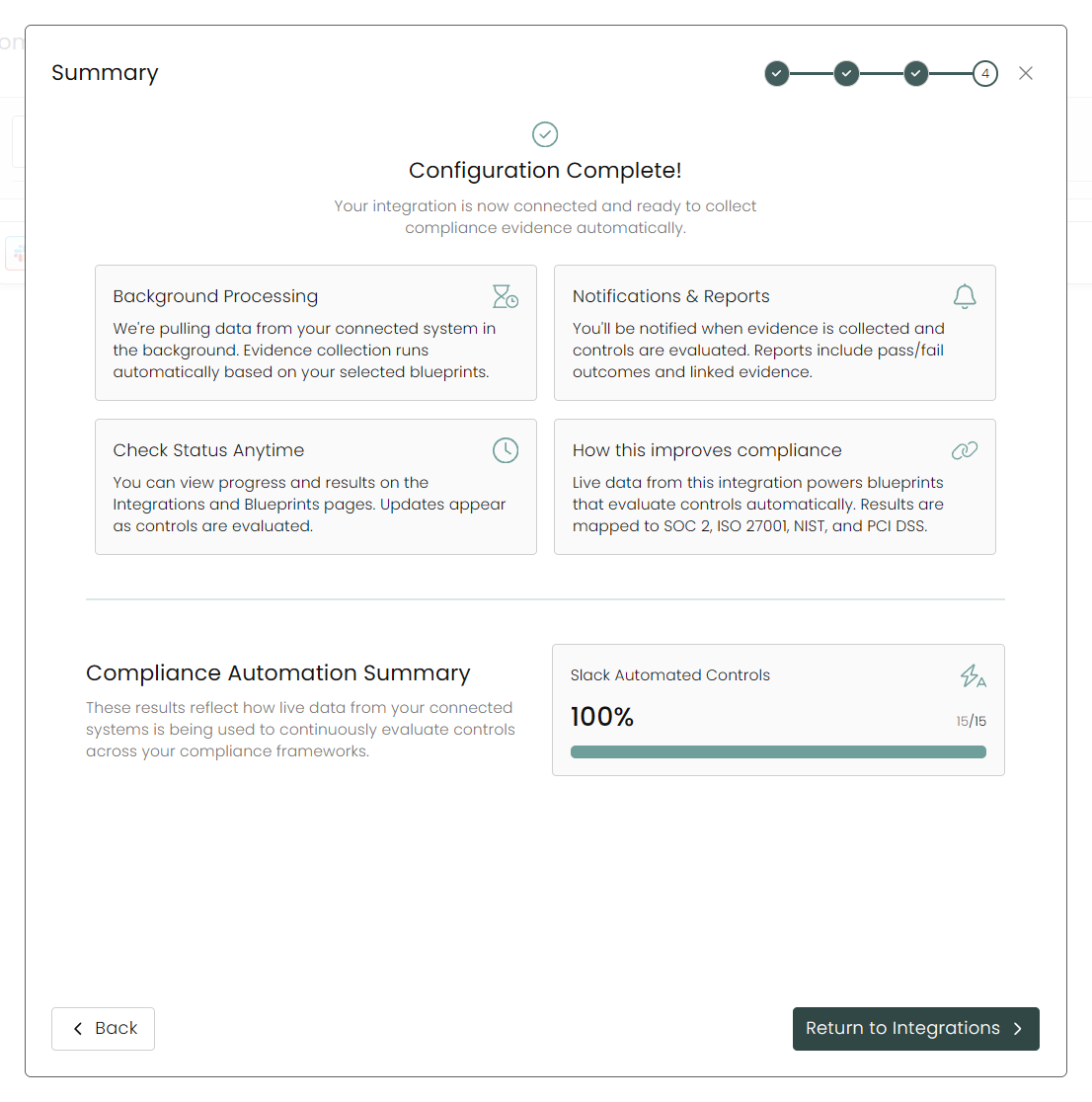
Once you have completed filling out the form click Return to Integrations.
You'll know the integration is successfully added when the status updates to Complete.

Data is synced on a recurring schedule configured by your Compyl administrator. Each sync pulls the latest data from all enabled endpoints.
To query the data from the integration, refer to the Blueprints article.
Updated 2 months ago