
Specify Data Source Settings
There are four options to choose from when specifying data source setting. These are: Database, JSON, OLAP, and Data Federation. Below is a detailed configuration setting for each.
Database
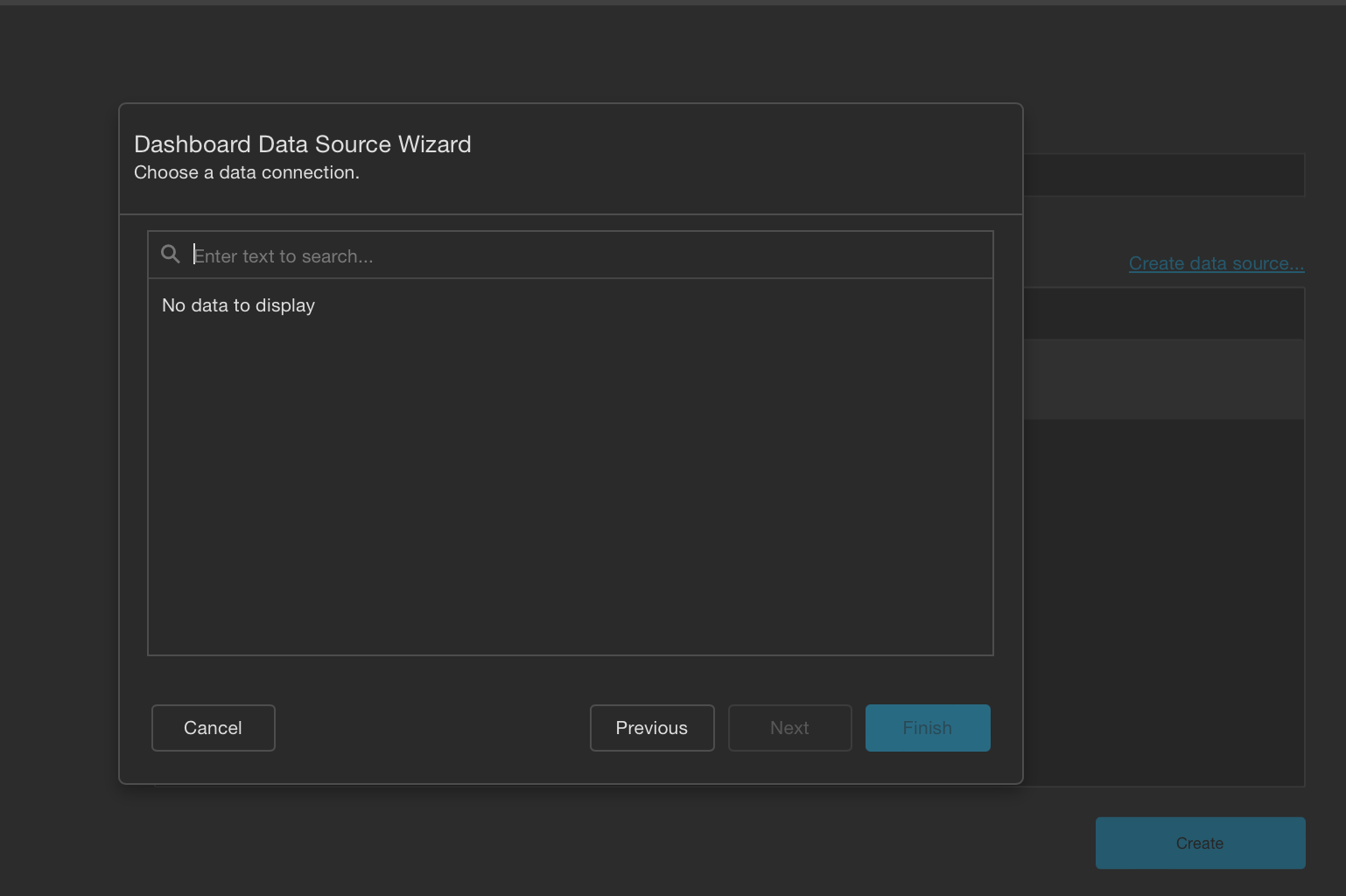
1. Select a Data Connection
- Choose Data Connection: The "Choose a data connection" page appears if you select "Database" as your data source type.
- Select Connection: Choose an existing connection from the list of available data connections.
2. Choose Queries
- Create/Edit Query: The next page allows you to create or edit a query or select a stored procedure.
- SQL String Editor: A generated query will be displayed in the SQL string editor for review and modification.
- Query Builder: Click "Run Query Builder…" to launch the Query Builder and visually select the tables and columns you need.
3. Configure Query Parameters
- SQL Query Parameters: If your SQL query contains parameters, click "Next" to configure them.
- Parameter Configuration:
- Static Value: Select a query parameter’s type from the Type drop-down list and specify a static value based on the selected type.
- Dynamic Value: Set the Type option to Expression and specify the Result Type. Click the Value option’s ellipsis button and construct an expression in the Expression Editor.
4. Finish Creating Data Source
- Complete Setup: Click "Finish" to create the new data source.
API
The database wizard pages in Compyl are identified by the following API:
| Page Name | Page ID | Class |
|---|---|---|
| Choose Connection (Database) | DatabaseDataSourceWizardPageId.ChooseConnectionPage | ChooseDatabaseConnectionPage |
| Choose Queries | DatabaseDataSourceWizardPageId.ConfigureQueryPage | ConfigureDatabaseQueryPage |
| Configure Query Parameters | DatabaseDataSourceWizardPageId.ConfigureParametersPage | ConfigureDatabaseQueryParametersPage |
| Choose Queries (multi-query) | DatabaseDataSourceWizardPageId.MultiQueryConfigurePage | MultiQueryConfigureDatabasePage |
| Configure Query Parameters (multi-query) | DatabaseDataSourceWizardPageId.MultiQueryConfigureParametersPage | MultiQueryConfigureDatabaseParametersPage |
JSON
OLAP
Steps to Create an OLAP Data Source
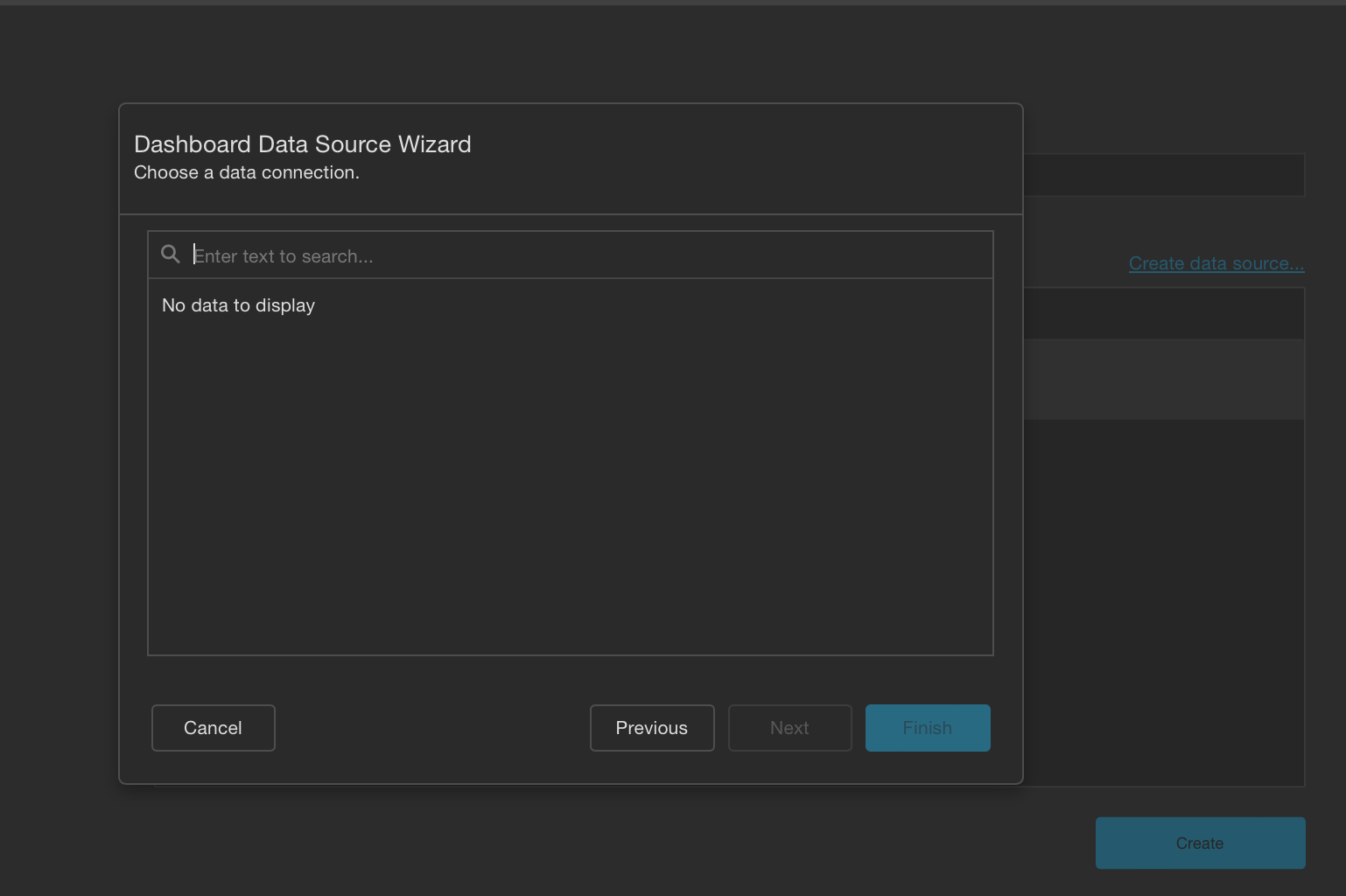
1. Select a Data Connection
- Choose Data Connection: The "Choose a data connection" page appears if you select "OLAP" as your data source type.
- Select Connection: Choose an existing connection from the list of available data connections.
2. Finish Creating Data Source
- Complete Setup: Click "Finish" to create the new OLAP data source.
API
The OLAP wizard page in Compyl is identified by the following API:
| Page Name | Page ID | Class |
|---|---|---|
| Choose Connection (OLAP) | OlapDataSourceWizardPageId.ChooseConnectionPage | DashboardChooseOlapConnectionStringPage |
By following these steps, you can create and configure an OLAP data source in Compyl, allowing your dashboard to leverage OLAP data for comprehensive analysis and visualization. For more detailed information and assistance, refer to the Help Center or contact Compyl customer support.
Data Federation
Updated 2 days ago
Did this page help you?