
Calculated Fields
Introduction
Compyl's dashboard supports calculated fields, enabling you to apply expressions to data fields obtained from the dashboard’s data source. These calculated fields can be used in data visualizations just like regular data source fields.
Note: Calculated fields are not supported for OLAP data sources. You can add new calculated fields based on existing data source fields once the data source is created.
Creating a Calculated Field
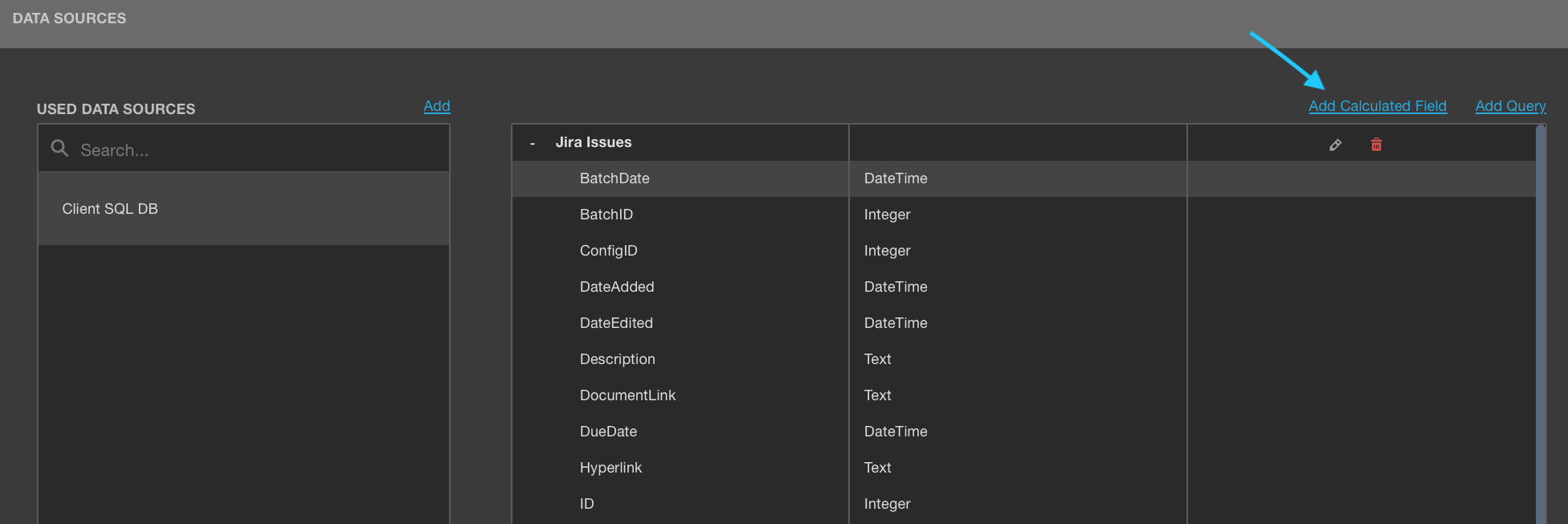
Using the Data Sources Page
- Access Data Sources Page: Go to the dashboard menu and open the Data Sources page.
- Select Data Source: Choose a data source (and a query/data member, if applicable).
- Add Calculated Field: Click the "Add Calculated Field" button to create a calculated field.
Using the Binding Panel
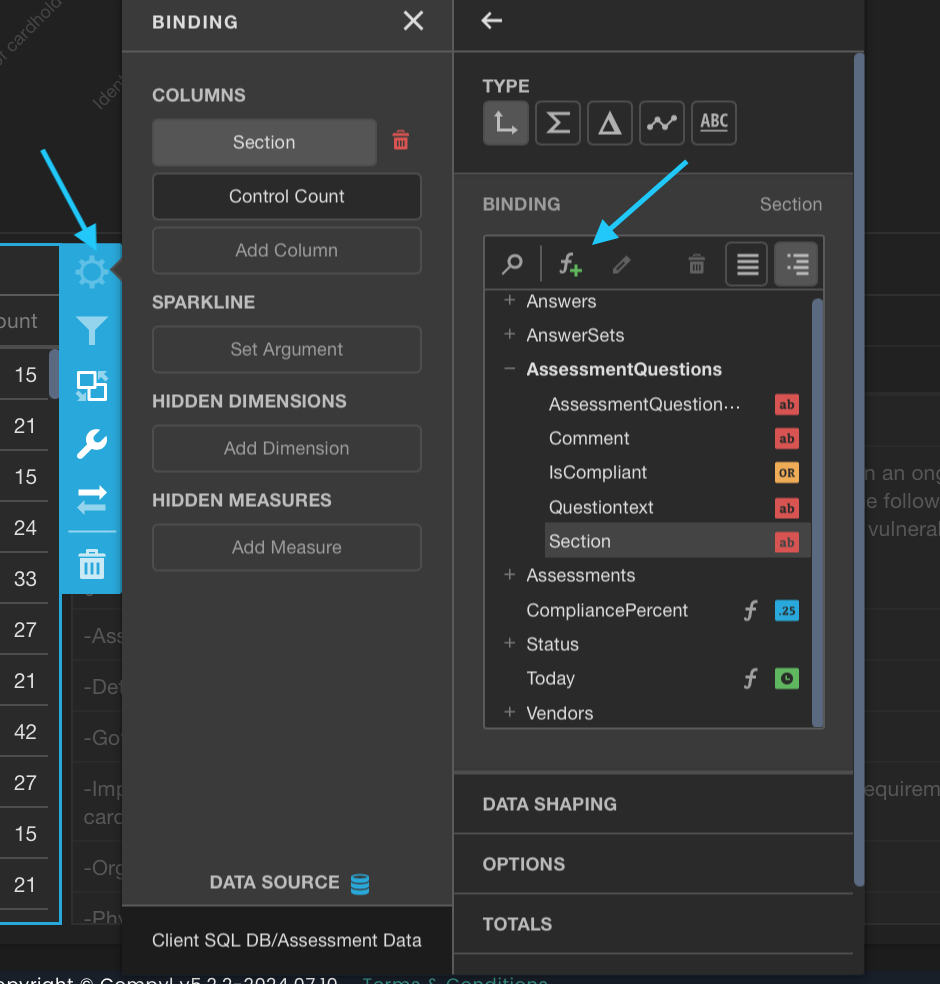
- Open Binding Panel: Access the Binding panel from the dashboard item menu.
- Add Calculated Field: Go to the Binding section and click the "Add Calculated Field" button
Edit Calculated Field Dialog
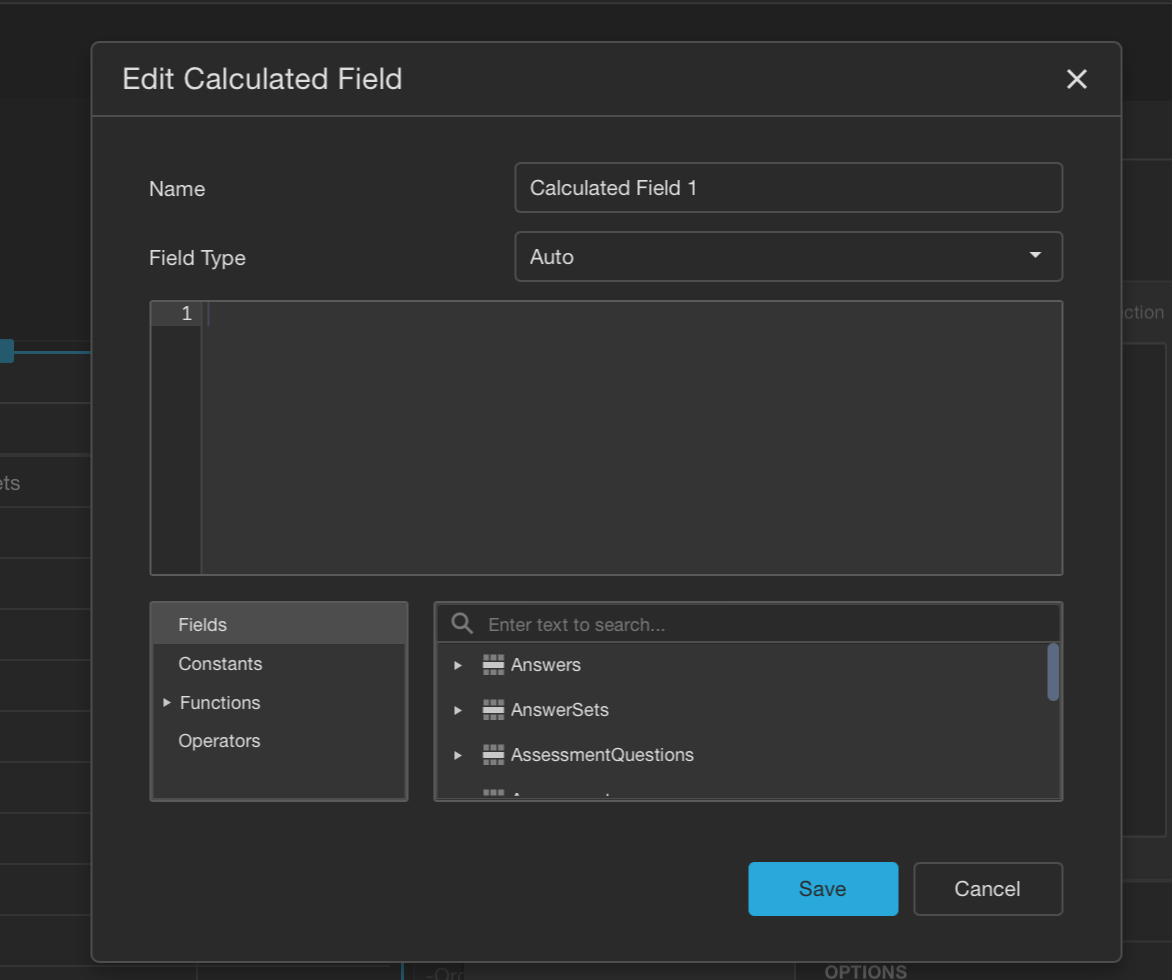
When creating a calculated field, the Edit Calculated Field dialog allows you to construct an expression for the field. You can specify the following options:
- Name: Change the default field name.
- Field Type: Specify the calculated field type.
Expression Elements
The following elements are available for creating expressions:
- Fields: Lists available fields and dashboard parameters.
- Constants: Lists Boolean variables.
- Functions: Lists various functions, including aggregate functions.
- Operators: Lists available operators.
You can also add comments to your expressions to explain and improve their readability. Comments are multi-line and enclosed within /* and */.
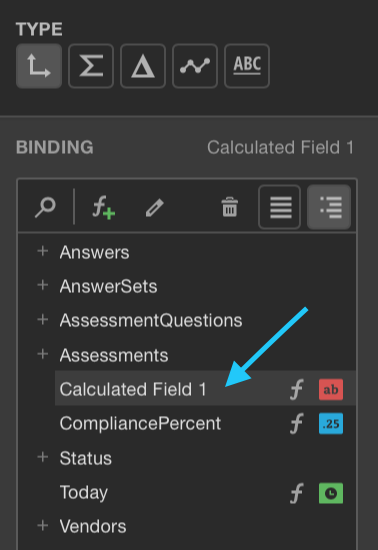
After creating the expression, click "Save" to add the new calculated field, which will then appear in the Field List with a special glyph indicating it is a calculated field.
Editing a Calculated Field
Using the Data Sources Page
- Edit Button: Click the calculated field’s Edit button to modify it.
Using the Binding Panel
- Select and Edit: Choose the calculated field you want to edit and click the Edit button.
This opens the Edit Calculated Field dialog, where you can change the field’s name, type, or modify the current expression.
Deleting a Calculated Field
- Delete Button: To delete a calculated field, use the field’s Delete button.
By following these steps, you can effectively create and manage calculated fields in Compyl, enhancing your data visualizations. For further information and assistance, consult the Help Center or contact Compyl customer support.
Updated 2 days ago